FOR REVIEW: How to Create a Policy and Procedure on DOKUwiki
Posted at August 16, 2019 01:08 pm. Last updated at August 19, 2019 05:08 pm



How to create a Policy and Procedure in DOKUwiki
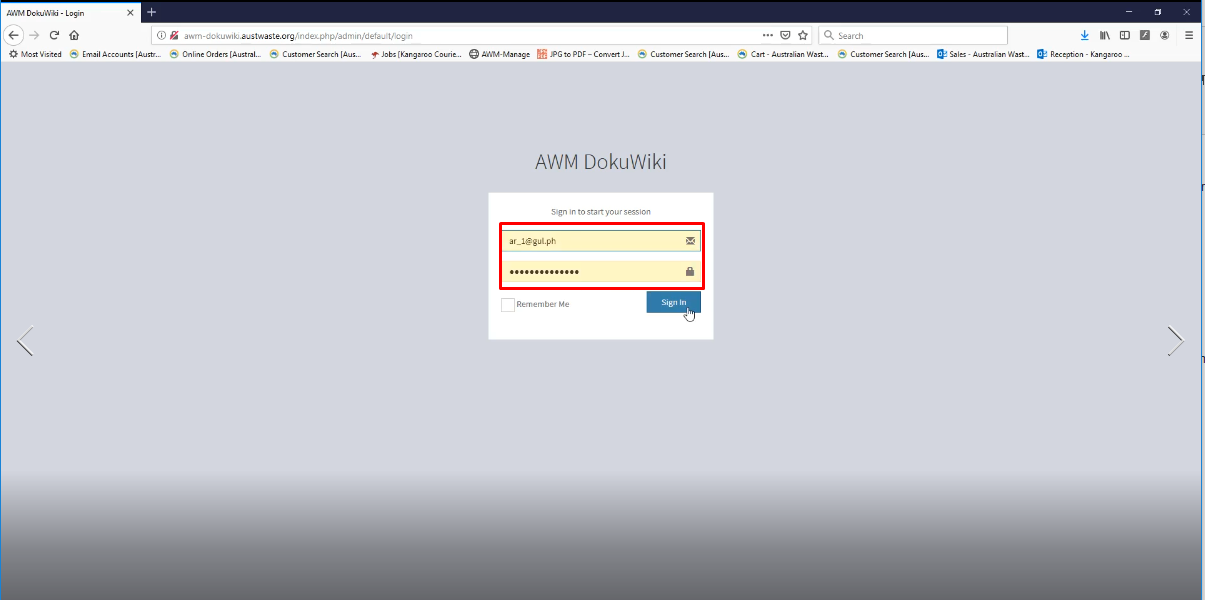
1) Log in to DOKUwiki, Login using the Administrator login. In order to create a policy and procedure.
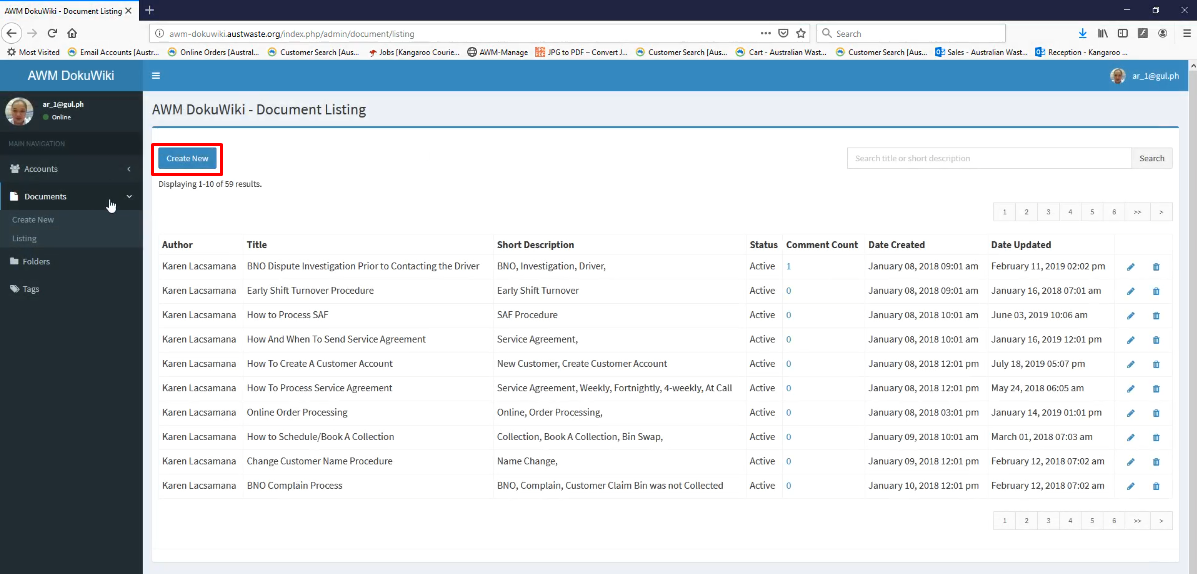
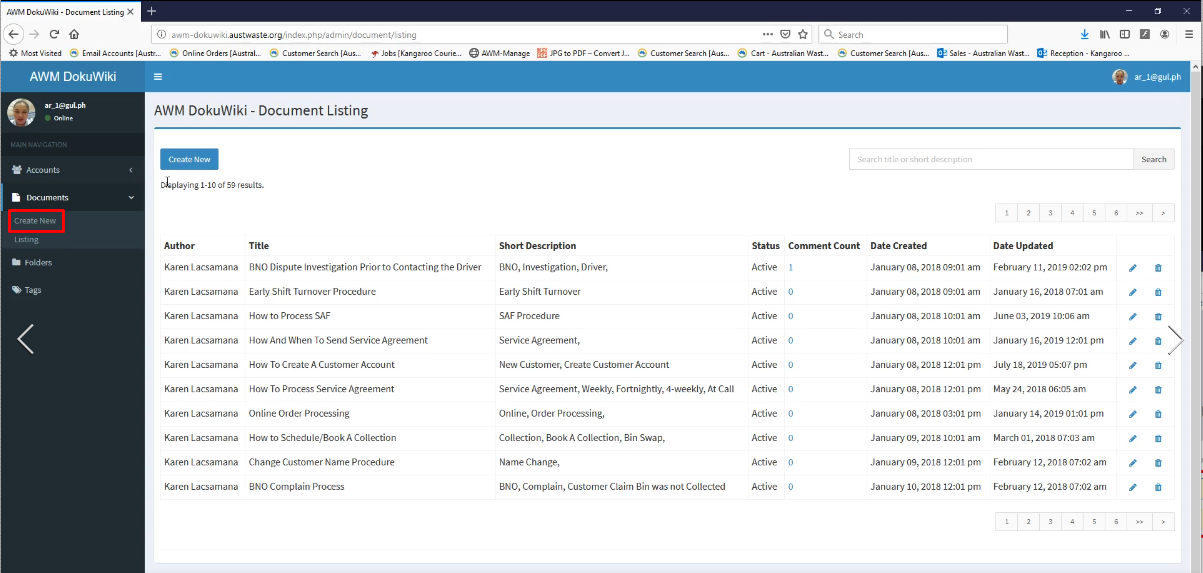
2) Click create new tab on the left side corner of the screen or click on create new.
3) Put the title of the Procedure.
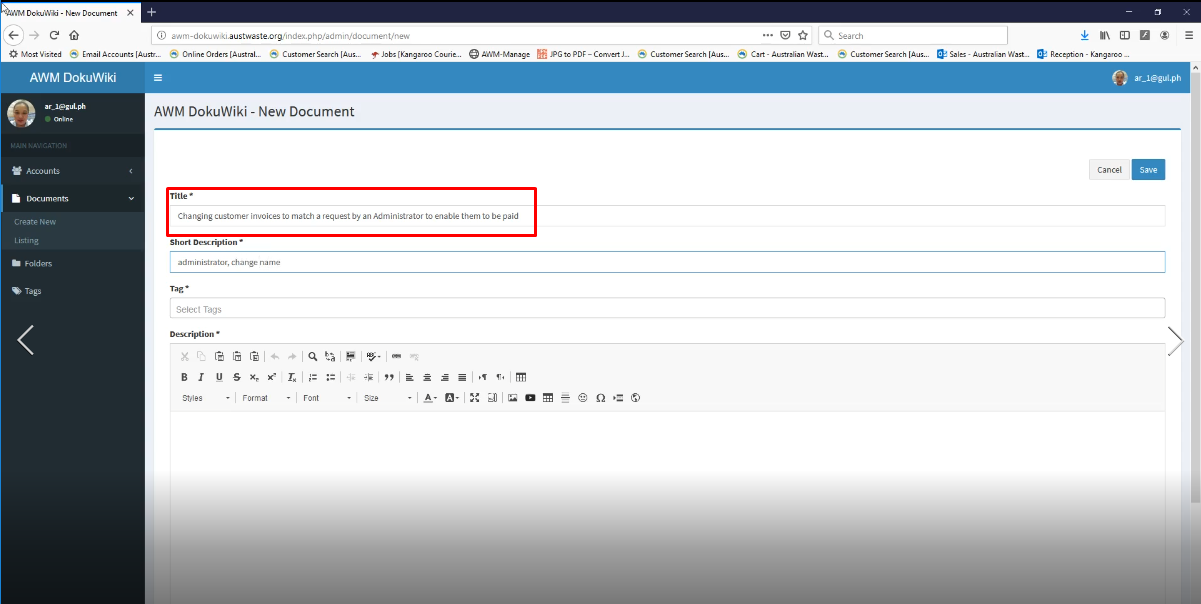
4) Put a short description.
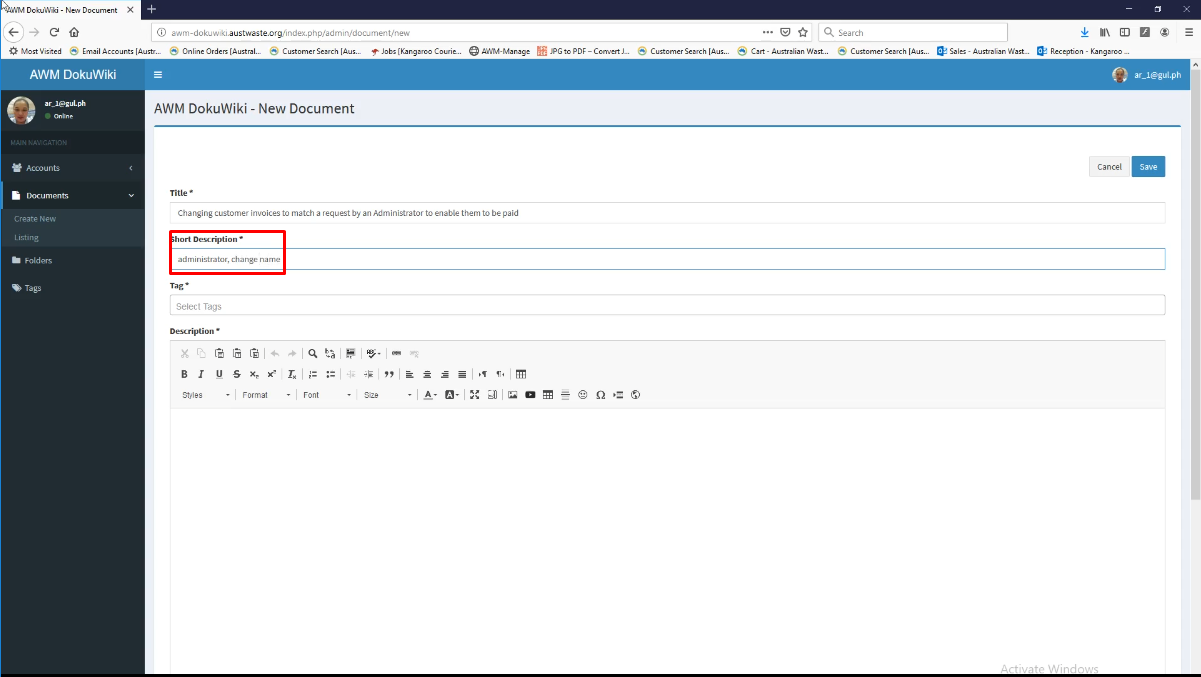
5) Put the Specific Details of the policy and procedure on description.
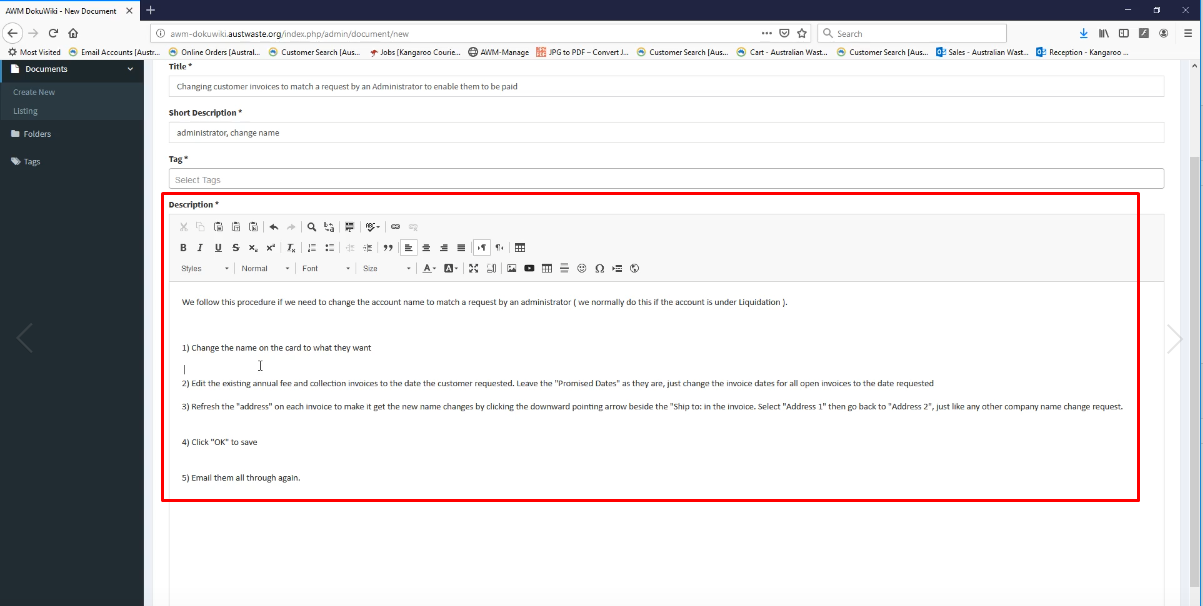
6) Add a Screenshot on DOKUwiki
note: make sure to save the image first. Save and drop the document using Paint 3d.
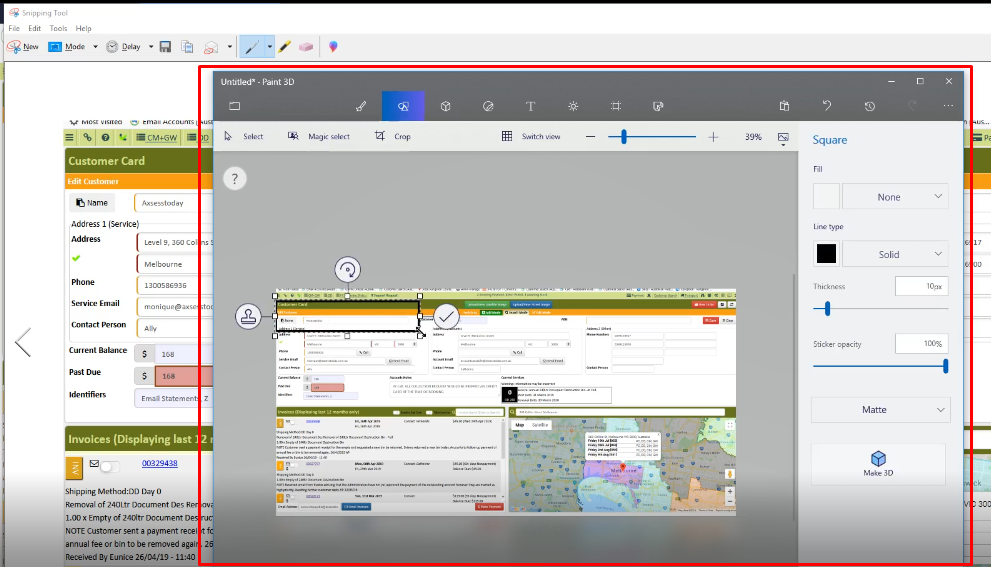
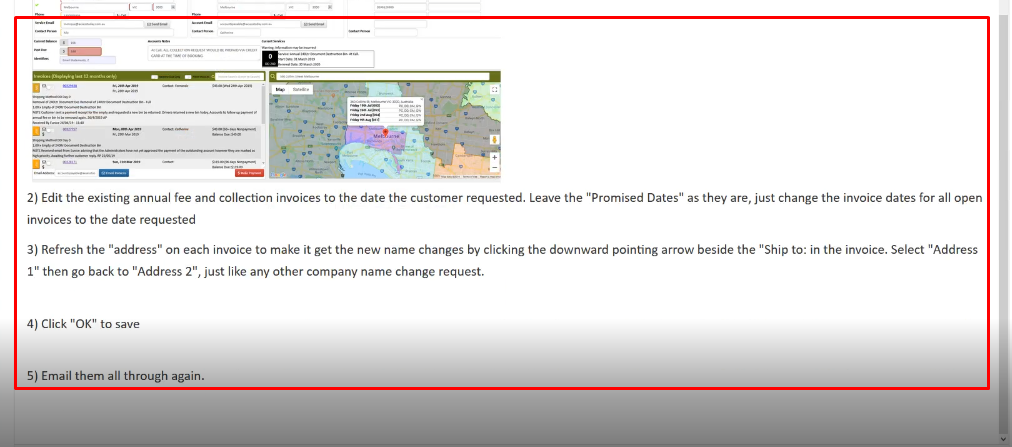
7) To highlight the specific part that needs to be worked on you can put a box using paint 3d.
note; it should be highlighted in red.
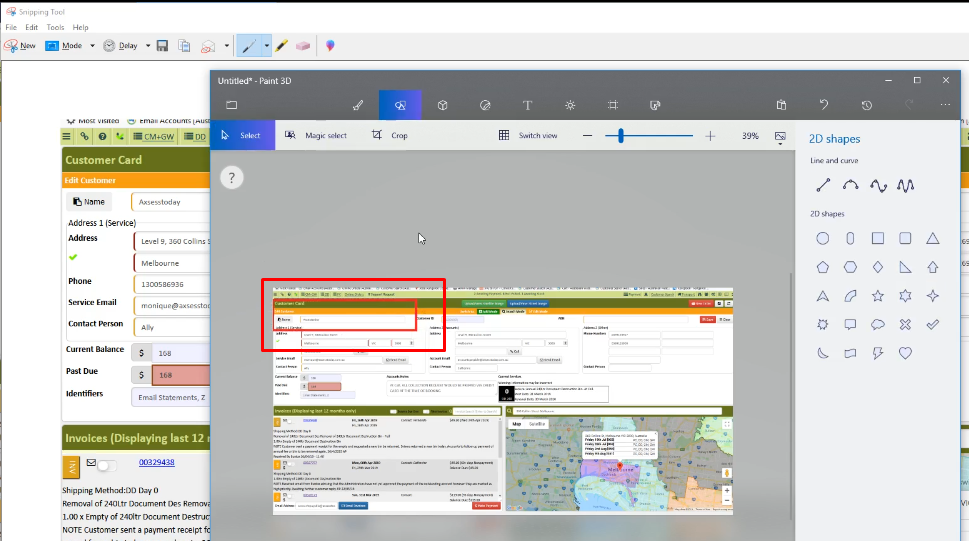
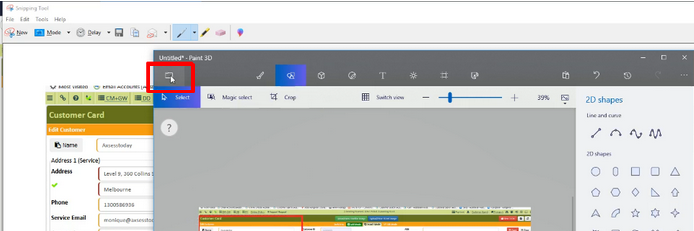
8) To save the changes made for the screenshots;
- Click on the "folder icon".
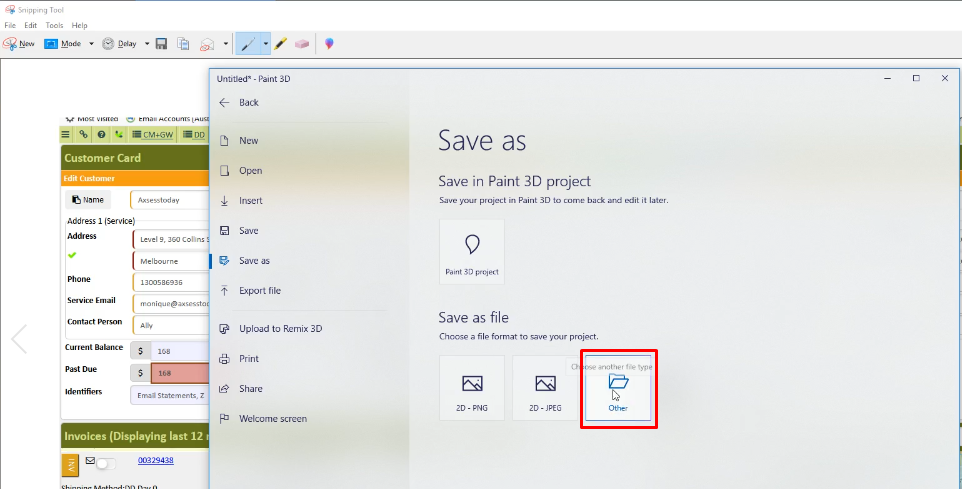
- Click on "other'.
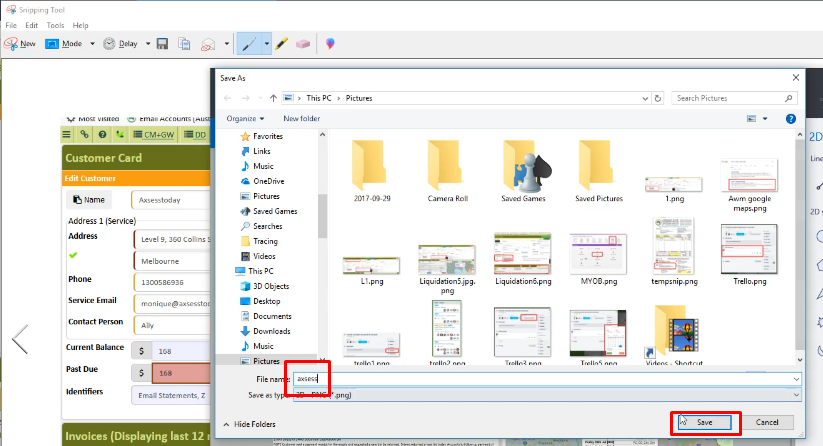
- Put the name on "filename" and click "save".
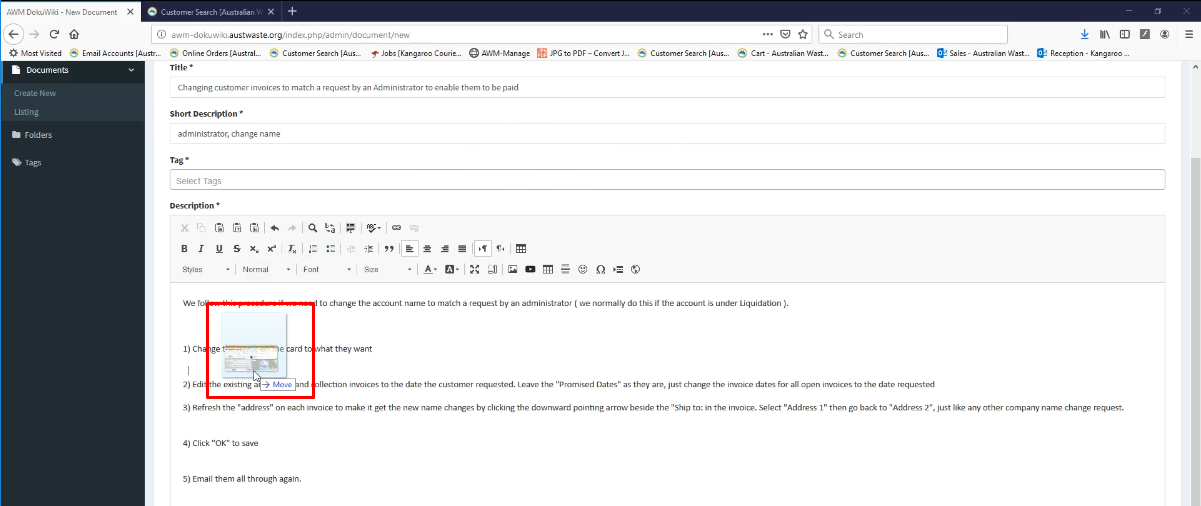
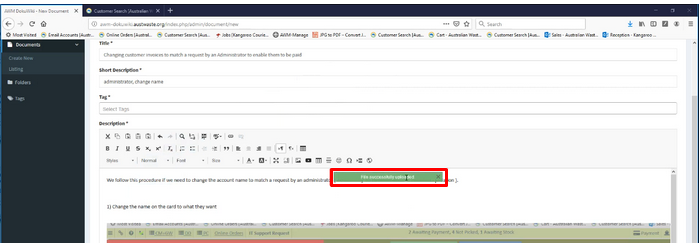
9) Drag and drop the desired Image you want to add. wait for it to be successfully uploaded
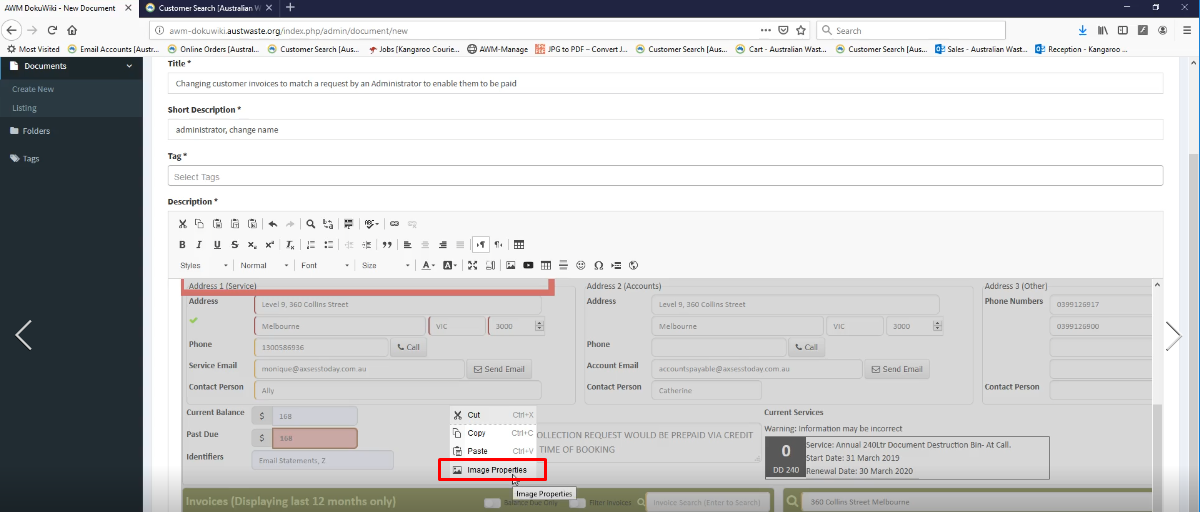
note: right click on the mouse to get the option for "image properties" click it to resize the picture and put 750 for width and the length will be automatically populated.
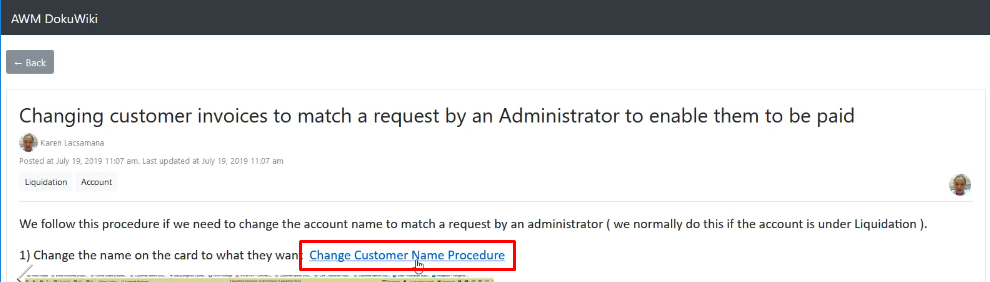
10) If another link needs to be added from DOCUwiki just follow the steps;
- Open another Tab and type the website address, https://doku.gul.ph
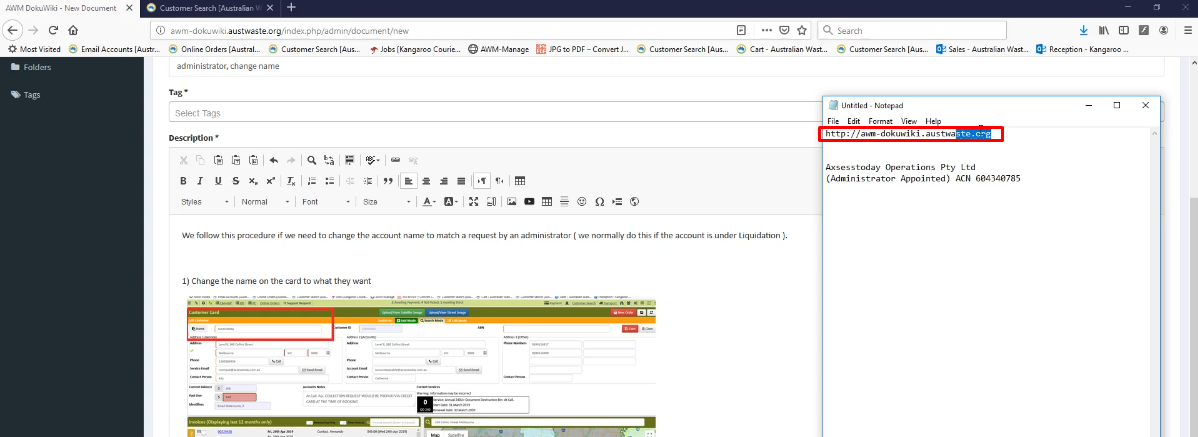
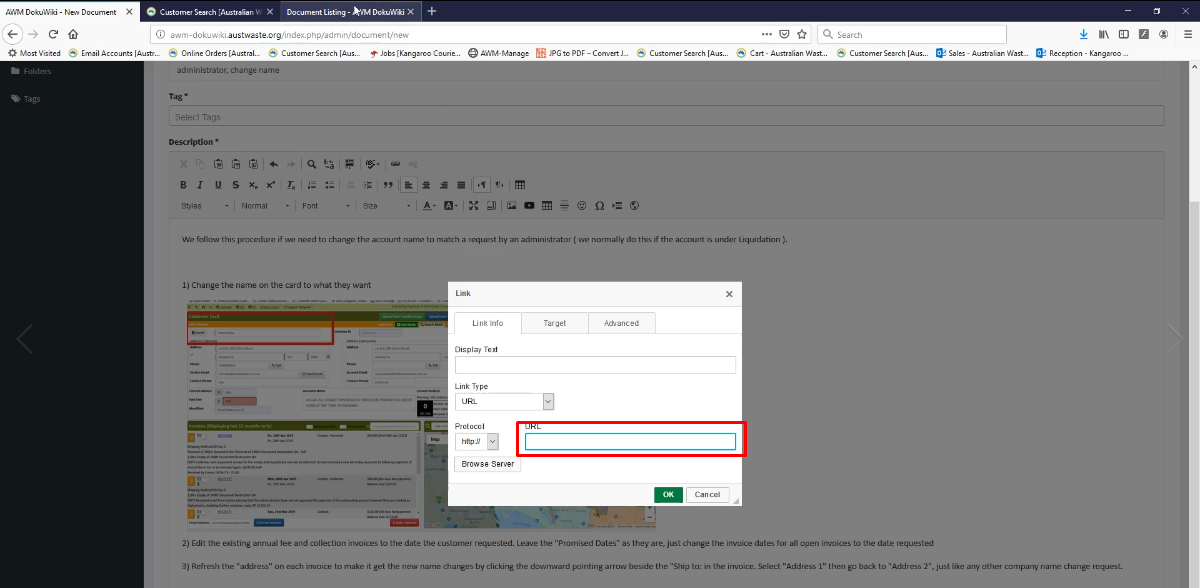
- Open the regular DOKUwiki click on the "link' Icon
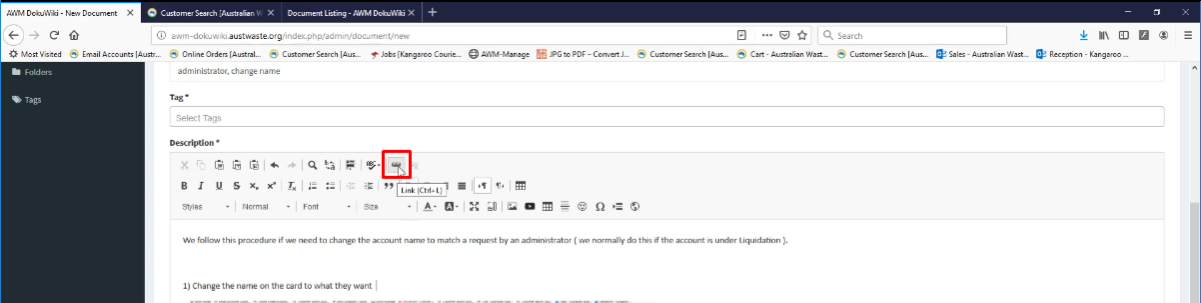
- URL box will appear and copy the URL address from the regular DOKUwiki from the other TAB
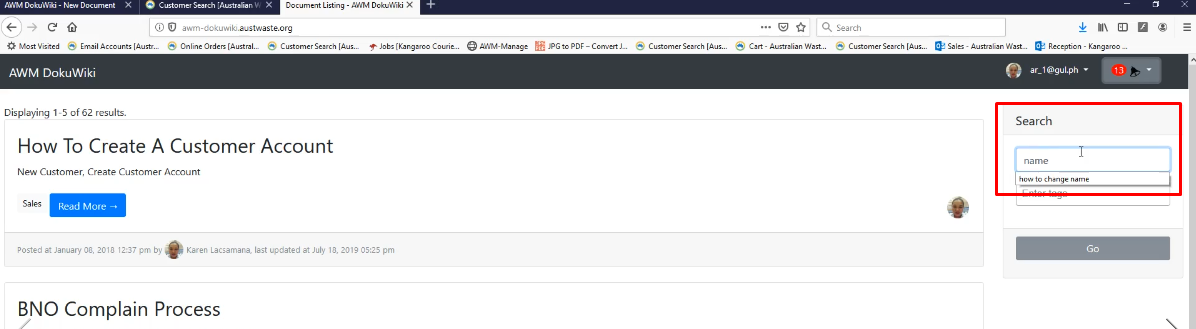
- To copy the URL address search for the procedure on the Regular DOKUwiki.
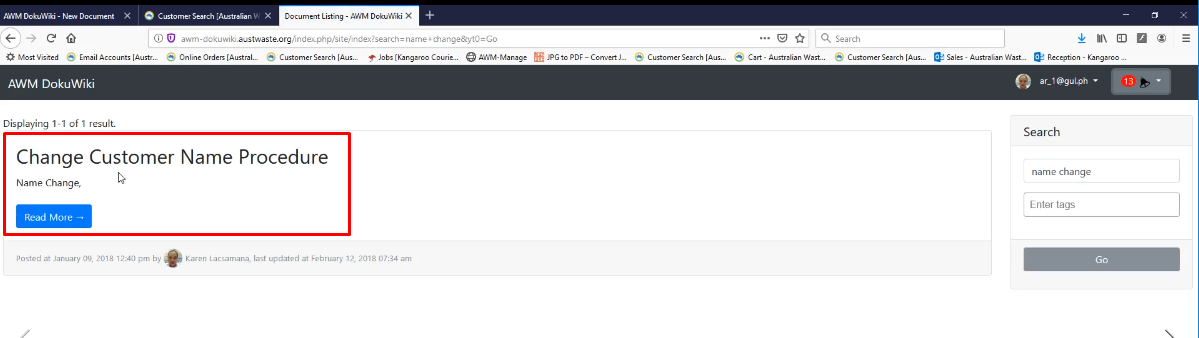
- Make sure to open the procedure.
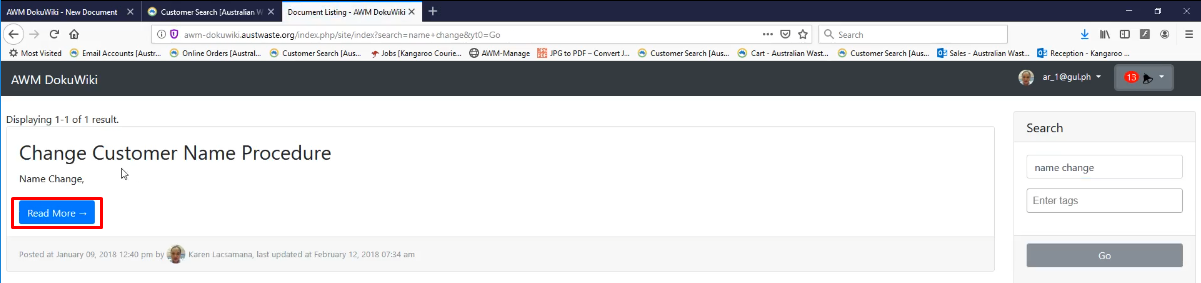
- Click "Read More".
- After opening the procedure copy the URL address on address bar.

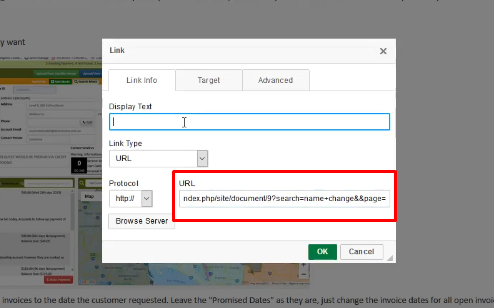
- Paste it on the "URL Address" under Link Info
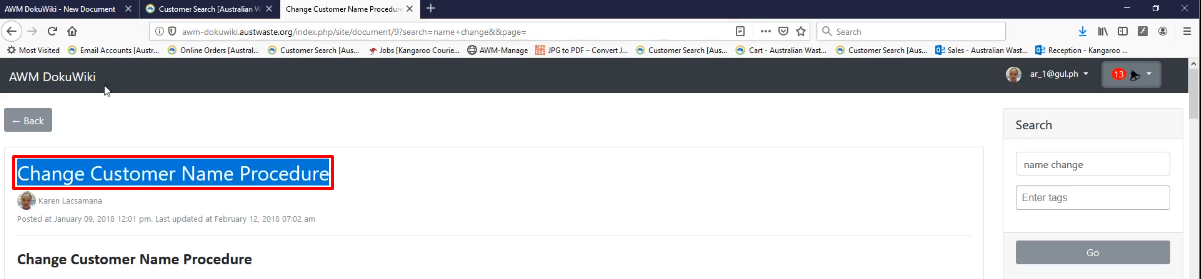
- Copy the name of the procedure.
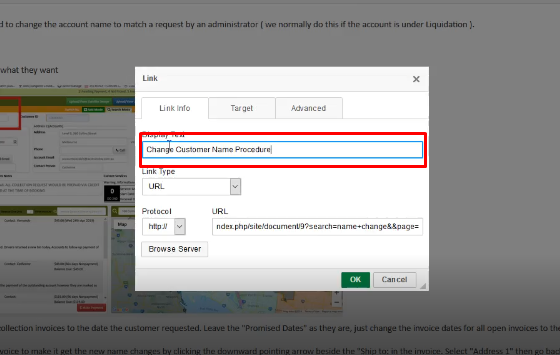
- Paste it on the Display text,
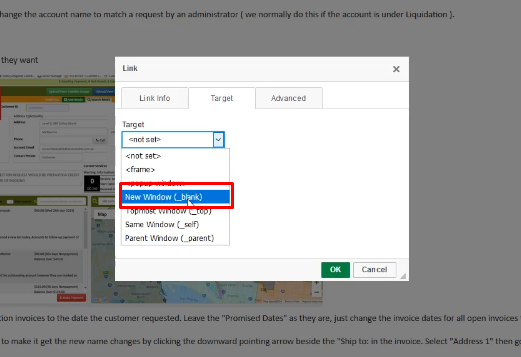
- Click on "target"
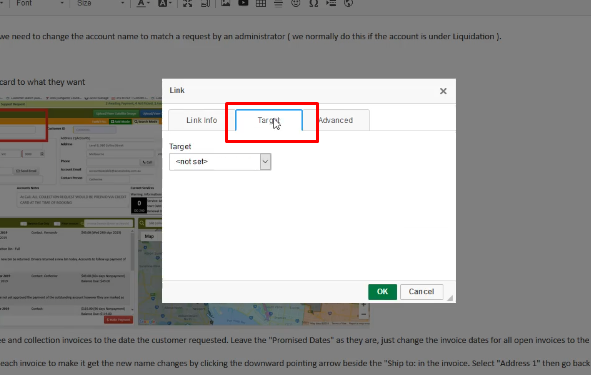
- Click on "New Window".
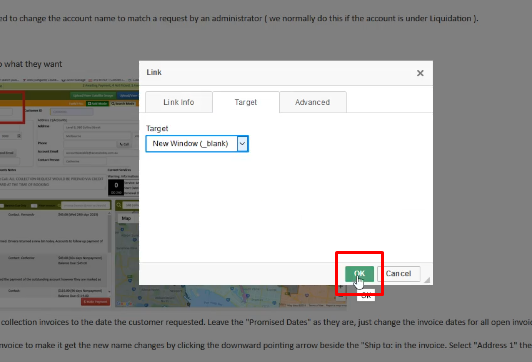
- Click "OK".
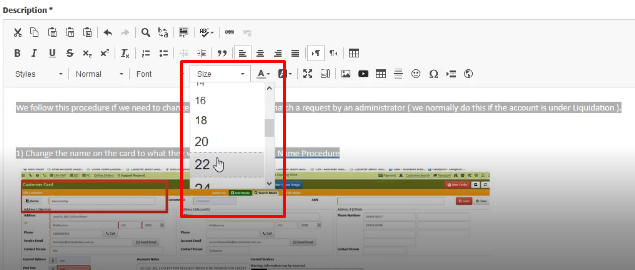
- Use font Size 22.
11) Add a "TAG" to classify the document created.
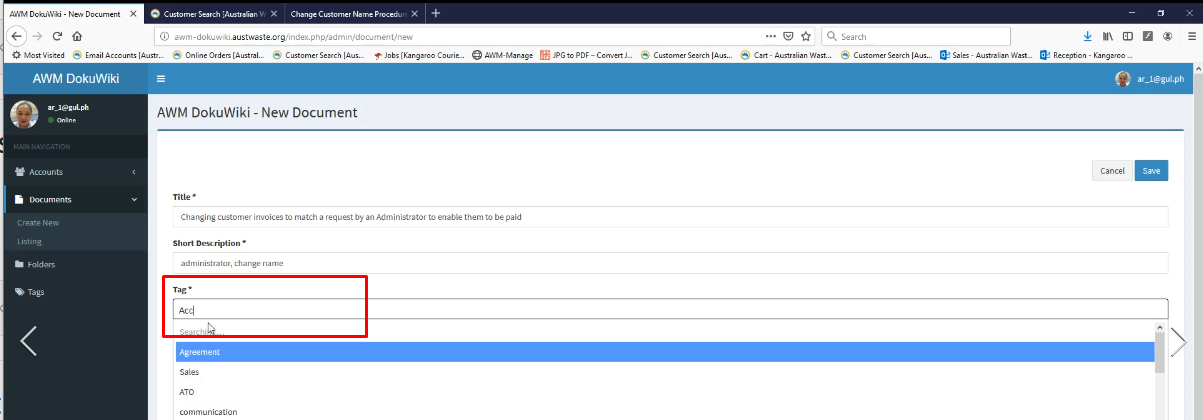
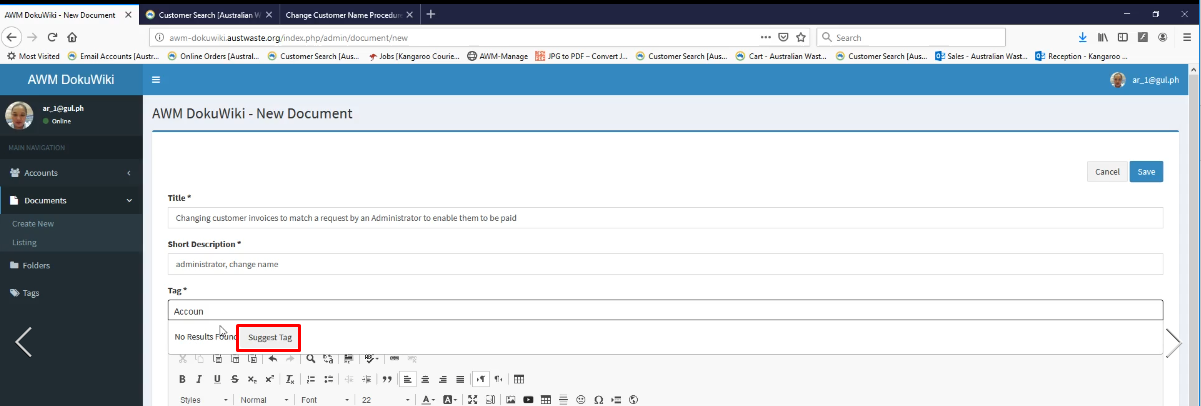
12. If the Tag is not yet included you can click on "Suggest Tag".
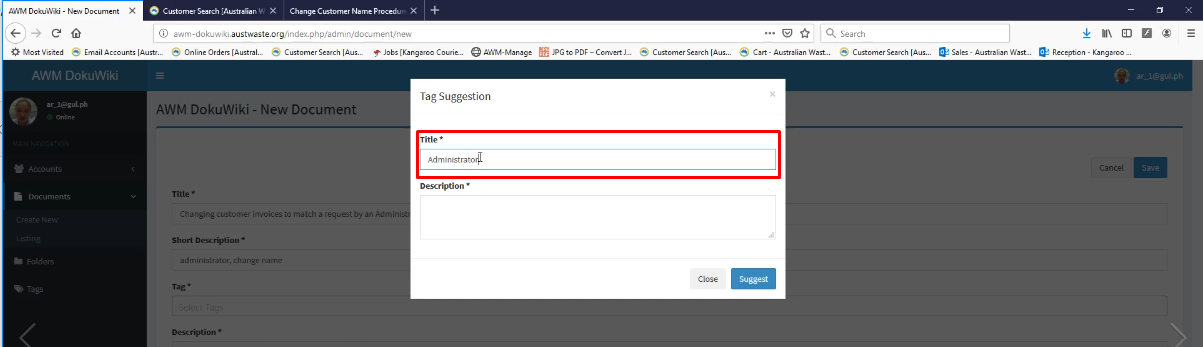
- Add Title.
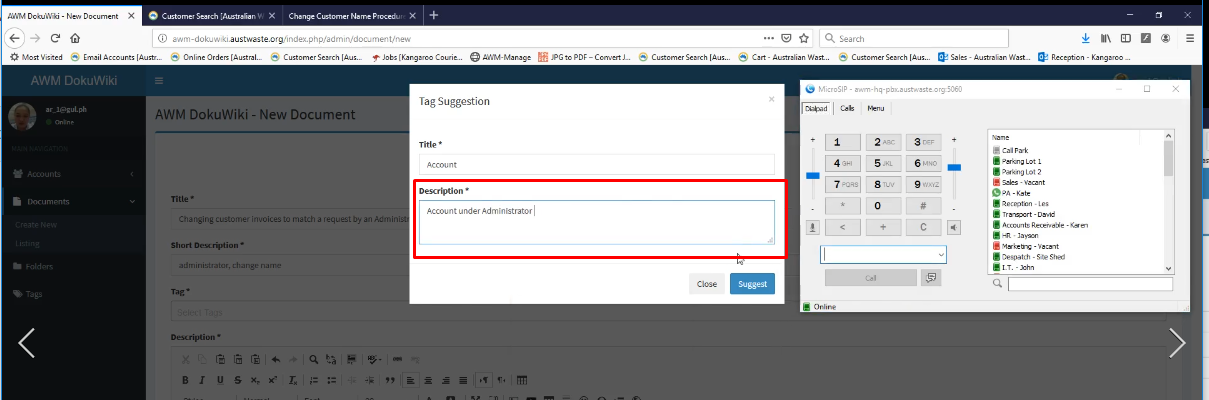
- Add Description.
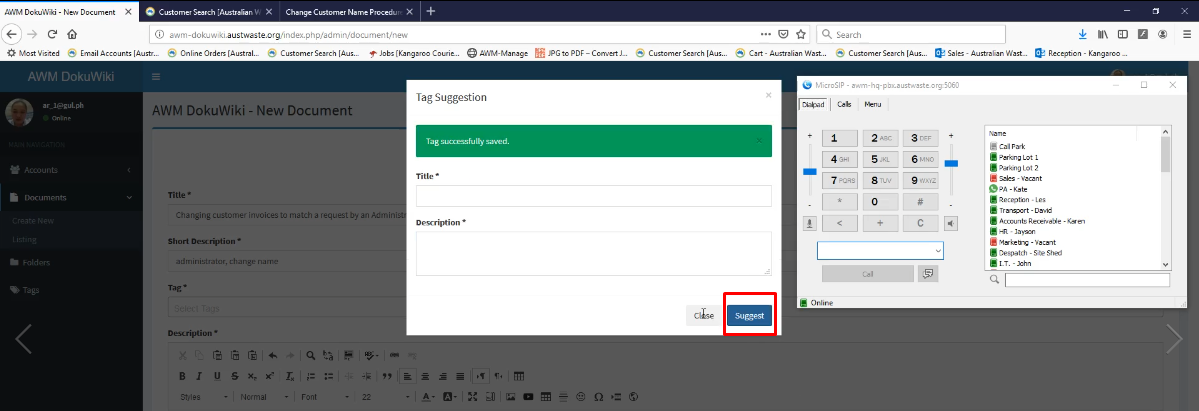
- Click Suggest and it will automatically be saved.
13) Check if everything if all is properly aligned.
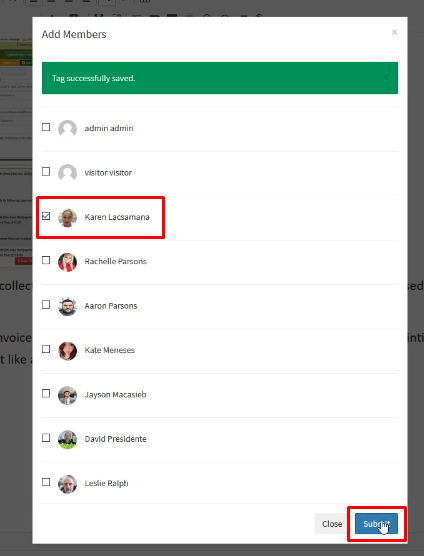
- Click "add member".

- Tick the box next to your name and "click submit"
- Click "Save" to save the document.

14) To check if document has been saved you can search it .

Comments