How to Send End of Month Statements.
Posted at August 29, 2019 01:08 pm. Last updated at August 29, 2019 02:08 pm
How to Send End of Month Statements.
We follow this procedure when sending End of Month Statement.
Before sending the End of Month Statement, all Bank Feeds are done.
Outlook email should be open.
Send a chat to Skype, Team Parsons chat room, informing everyone you will be sending the End of Month Statement. Wait for everybody to say “Clear” before sending the statement. (follow communication policy if no one replied within 5 minutes )
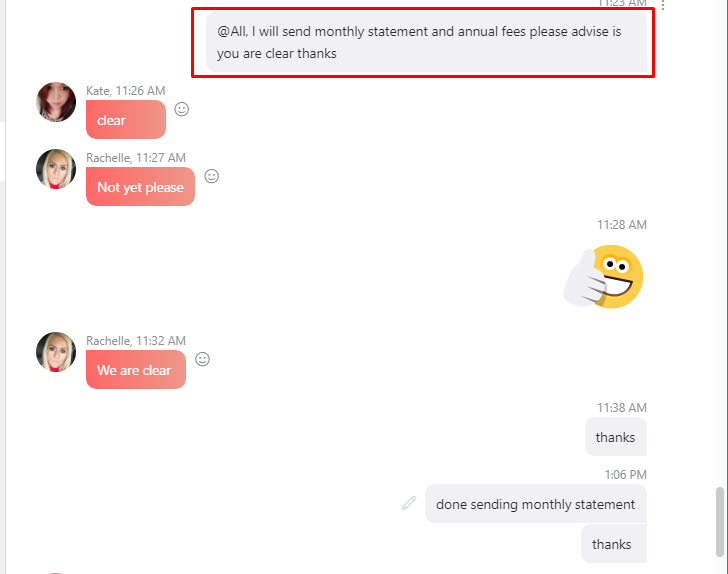
Sending the End of Month Statement is divided into two parts.
First Part:
Email all open invoices as of today’s date, include recurring annual fees.
Open MYOB
On the Command Centre, go to Sales, Print /Email Invoice.
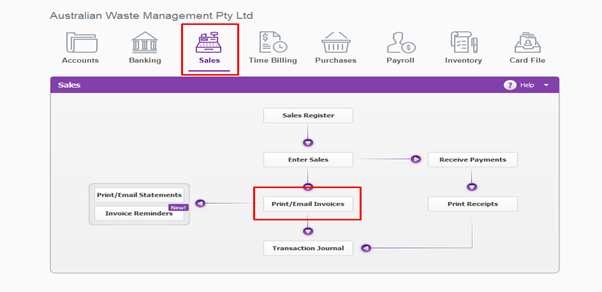
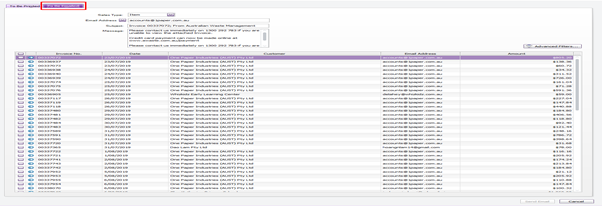
Click to be Emailed
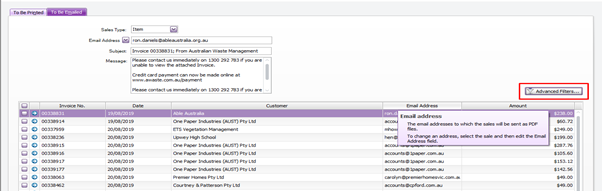
Click Advanced Filters
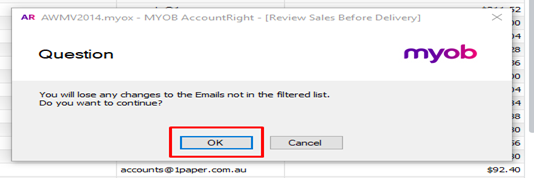
Click OK on the pop up box “ You will lose any changes to the Emails not in the filtered list. Do you want to continue?
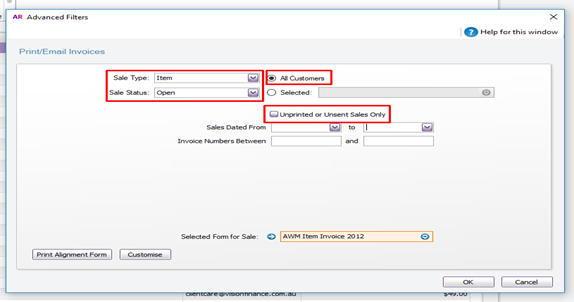
On the "Sale Type" choose “Item”, "Sale Status" choose “Open”, Choose “All Customer”, Untick “Unprinted or Unsent Sales Only” this will send all open invoices.
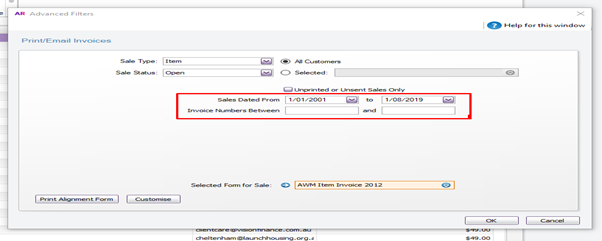
On Sales Dated From: enter 1.1.1 on the Dated To: enter the first of the month, leave the Invoice Numbers Between blank.
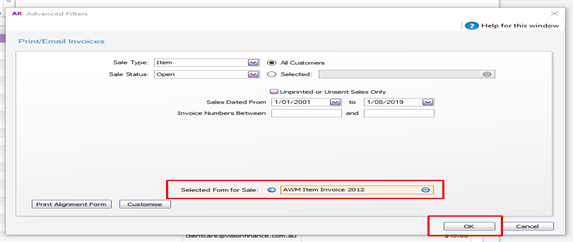
On the Selected Form of Sale choose “AWM Item Invoice 2012” then click OK
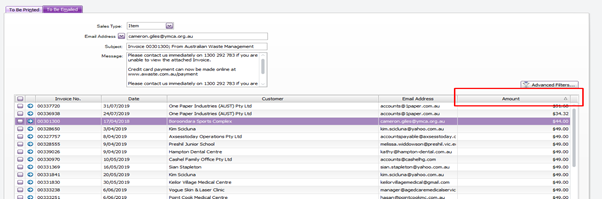
Tick the amount field header to see there is no negative invoice (in credit)
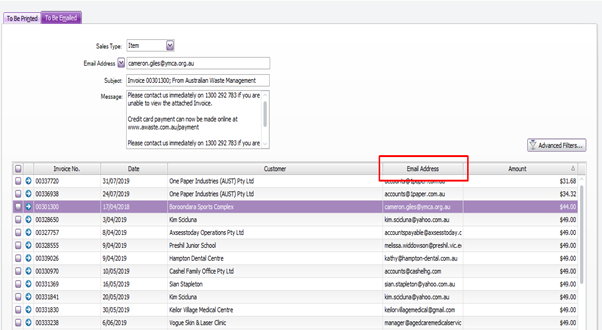
Tick the email address header, scroll up to check if there is any missing email address.
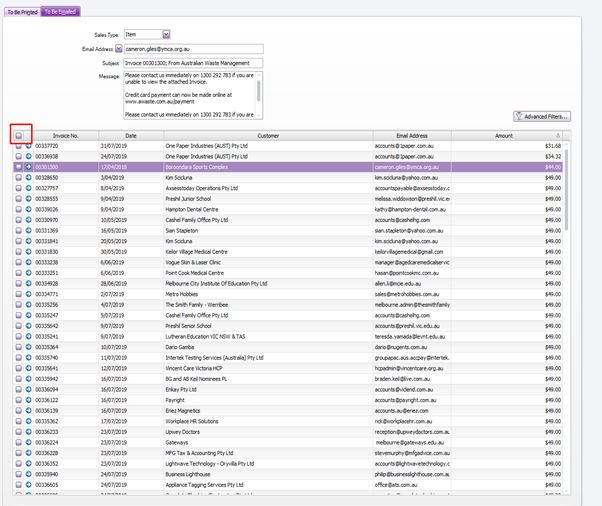
Tick the box next to the invoice number, this will select every invoice.
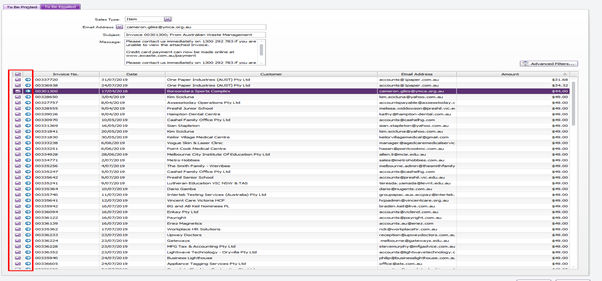
Tick the Customer Header, this will arrange the list in alphabetical order
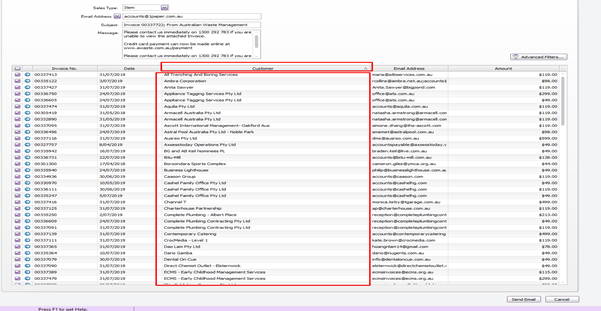
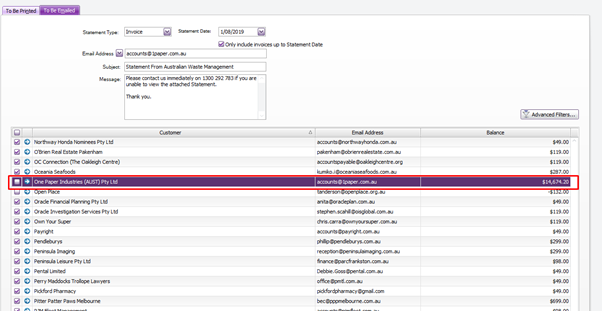
Untick all One Paper Invoices.
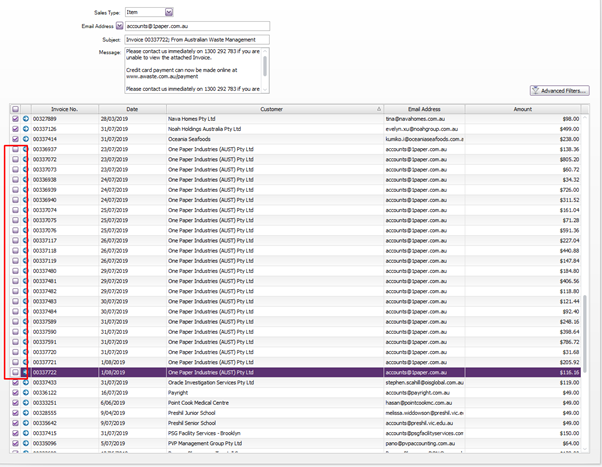
Click Send
Second Part.
Once all open invoices are sent, do the following:
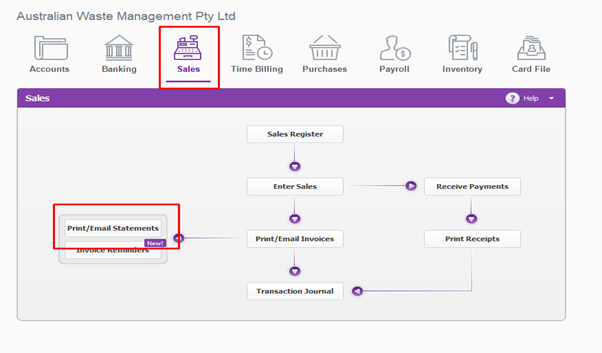
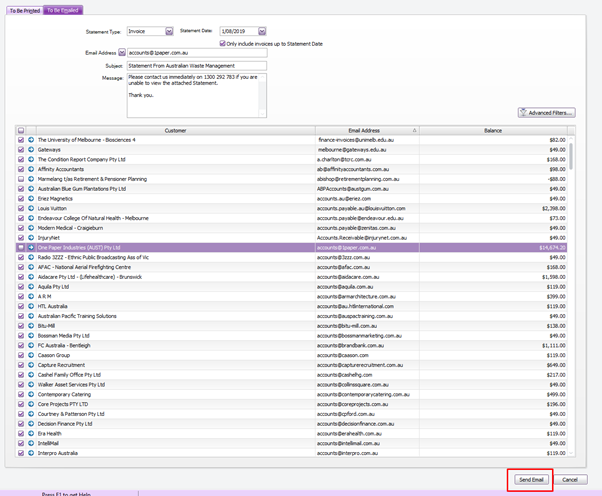
On the Command Centre, go to Sales, Print /Email Statements.
Go to “To be Emailed"
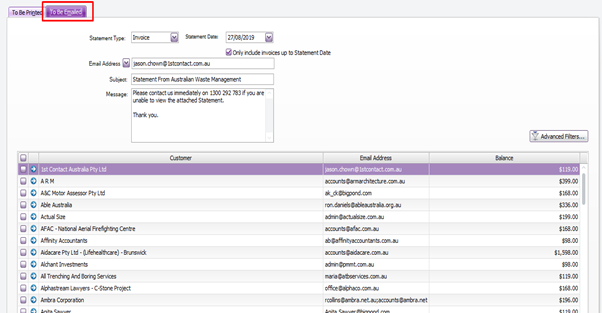
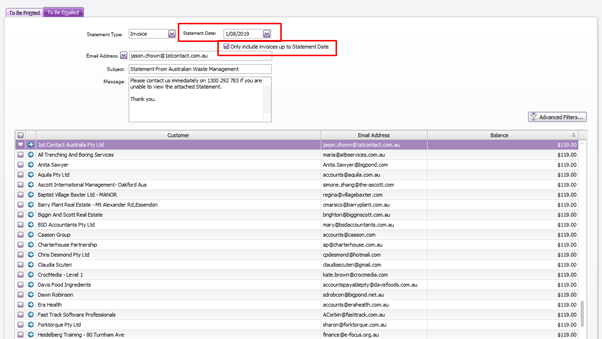
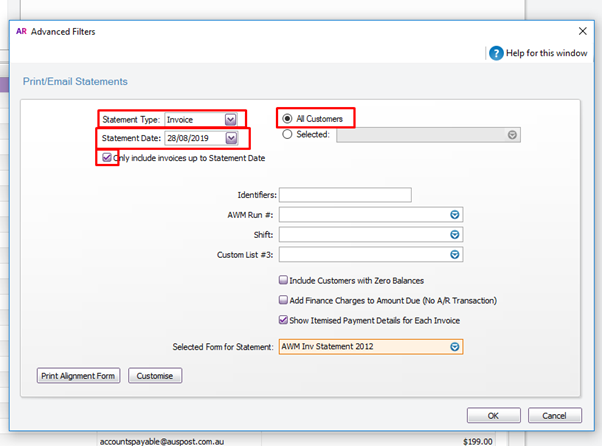
Change the Statement Date to the First of the month. Tick “Only include invoices up to Statement Date”
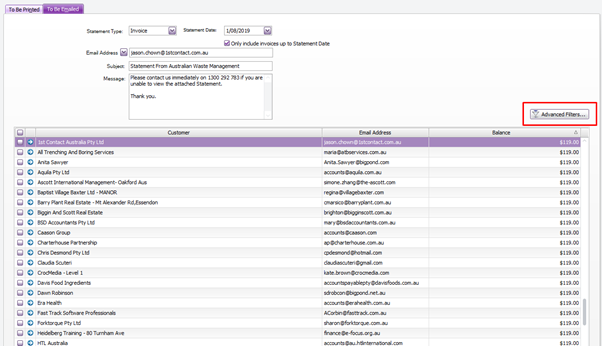
Tick Advance Filters
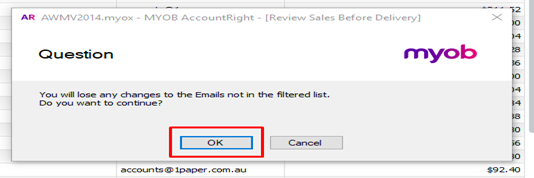
Click OK on the pop up box “ You will lose any changes to the Emails not in the filtered list. Do you want to continue?
On the Statement Type choose “Invoice”, Choose All Customer, Statement Date should be the First of the Month, “Only include invoices up to Statement Date” should be tick
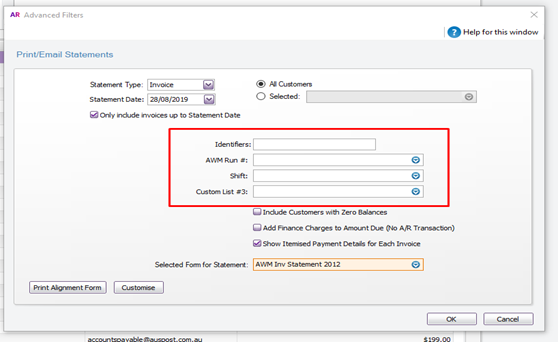
Leave the following as blank: Identifiers, AWM Run #, Shift, Custom List
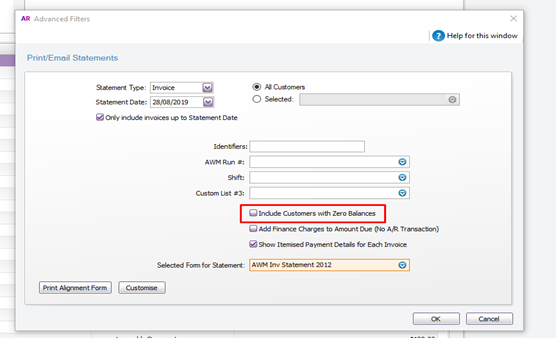
Make sure “Include Customers with Zero Balances” is Untick
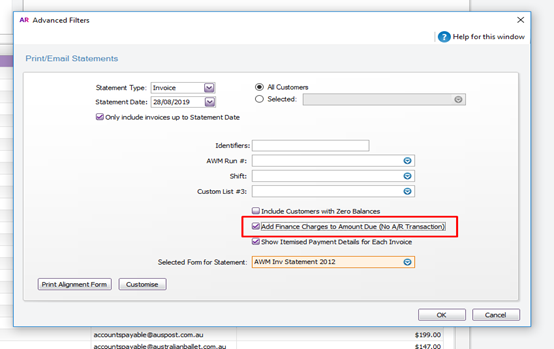
Tick “Add Finance Charges to Amount Due (No A/R Transaction)
Tick “Show Itemised Payment Details for Each Invoice
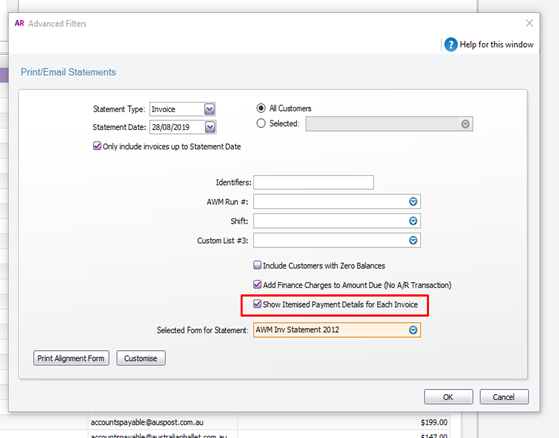
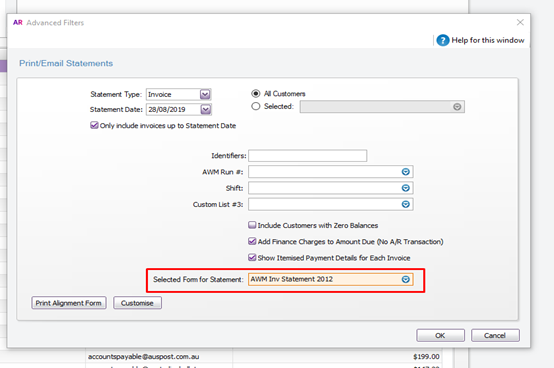
Choose “AWM Inv Statement 2012 on the Selected Form for Statement.
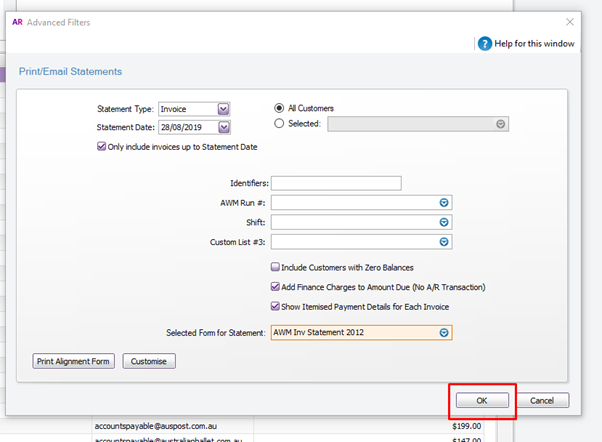
Click OK
When list populates click on the “Balance Header “, until the arrow pointing up comes up
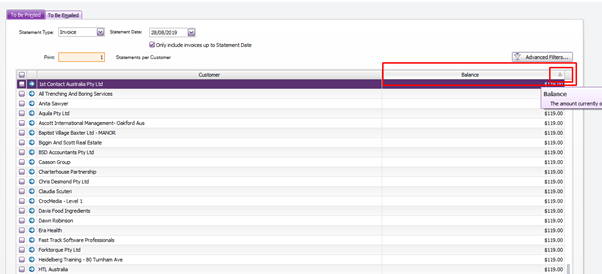
Tick the box next to the Customer Header to tick all customer (This will show all the customers in credit)
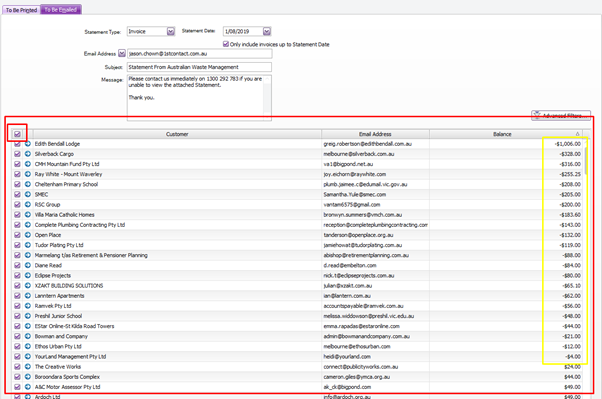
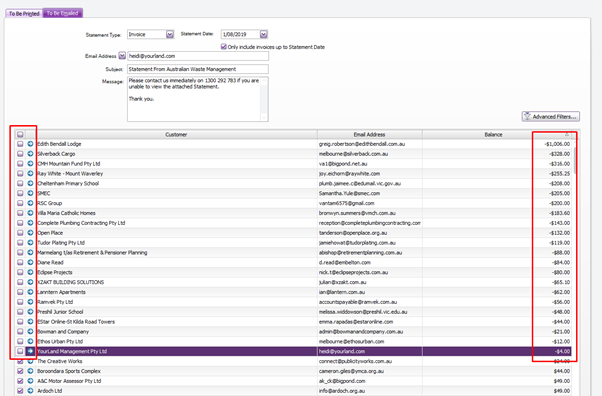
Untick all Customers in credit including One Paper.
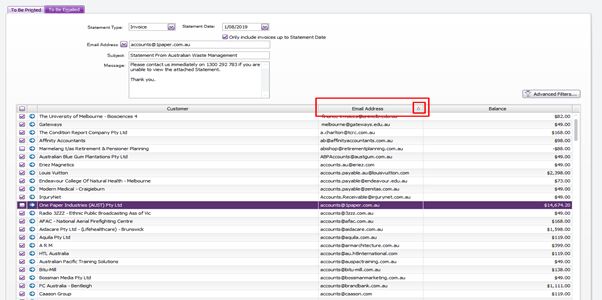
Tick the email address header, scroll up to check if there is any missing email address.
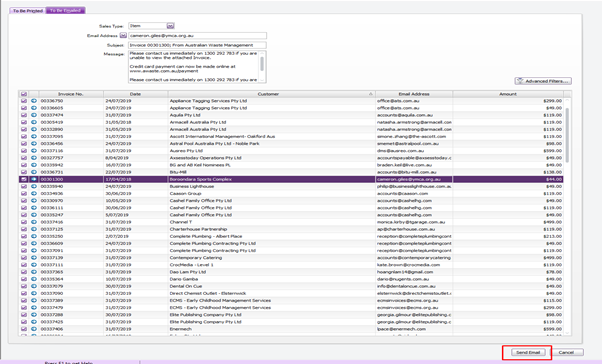
Tick Send Email
Comments