Change of Address
Posted at November 11, 2019 03:11 pm. Last updated at November 19, 2019 10:11 am

Change of Address
We use this procedure if a customer will be moving location and we need to change the collection address.
When processing change of address make sure to ask the following questions
- Does the customer need us to remove the bin/bins for them (at a cost)
- Will the customer move the bin/bins themselves?
- Ask their new address and when do we need to remove and deliver the bin.
Advise the customer an SAF fee will be charge on the account if we attended the premise and cannot access the bin/bins.
Advise the customer it is their responsibility to ensure the bins are accessible when we attend, and if we do not get the bins back, every time we attend, they will be charged, and if the bins are never returned, they will be charged the replacement fee.
Open the customer’s account in AWM Manage Page.
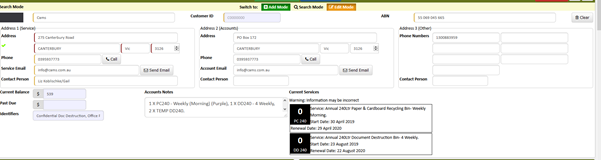
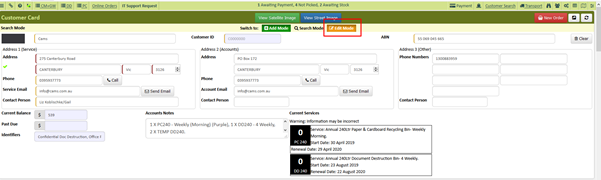
Click "Edit Mode"
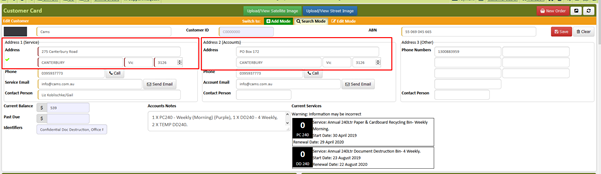
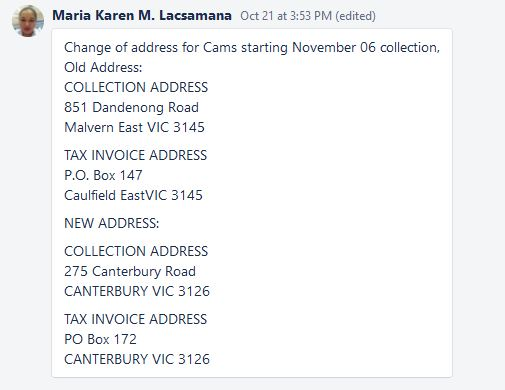
Change "Address 1" and "Address 2" (if necessary) to the new address provided by the customer.
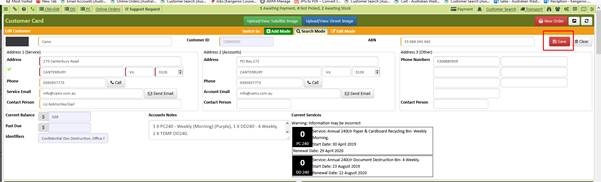
Click "Save".
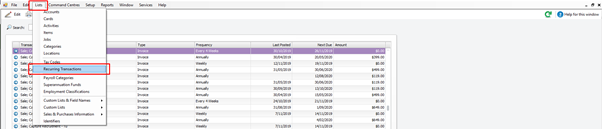
Go to "List" Menu, then click "Recurring Transactions".
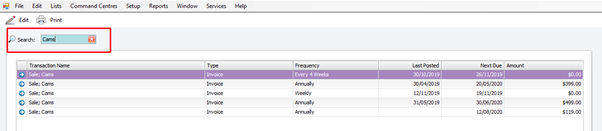
Search the customer name on the text box.
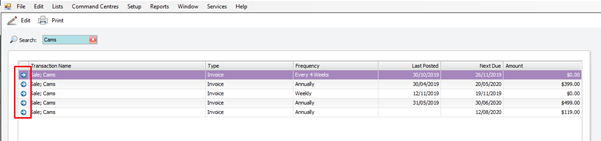
Click the little blue arrow to open the recurring.
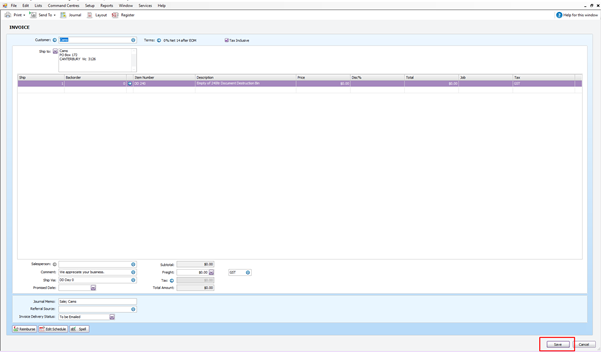
On the "Ship To" choose Address 2. If Address 2 is empty, choose Address 1.

Click “Save".
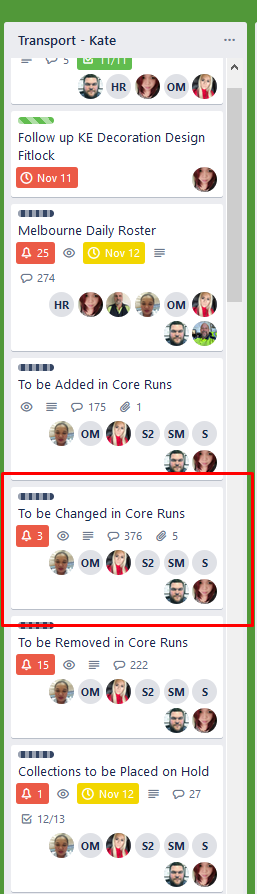
Request for an "Address Change" using the trello card: To be Changed in Core Runs (https://trello.com/c/kYSe9L4i). Logistics should make the necessary changes in core runs as soon as possible, or whenever the customer requested for it to be changed.
Logistics Part
Check the service of the customer.
A. If the customer has an At Call service, no changes will be made in the core runs.
B. If the customer has a recurring service, an update in core runs is needed.
1. If the location is on the same run, just open the runs by going to this link: Z:\Australian Waste Management\Current Year\Run Sheets\
a. Open the necessary run/s.
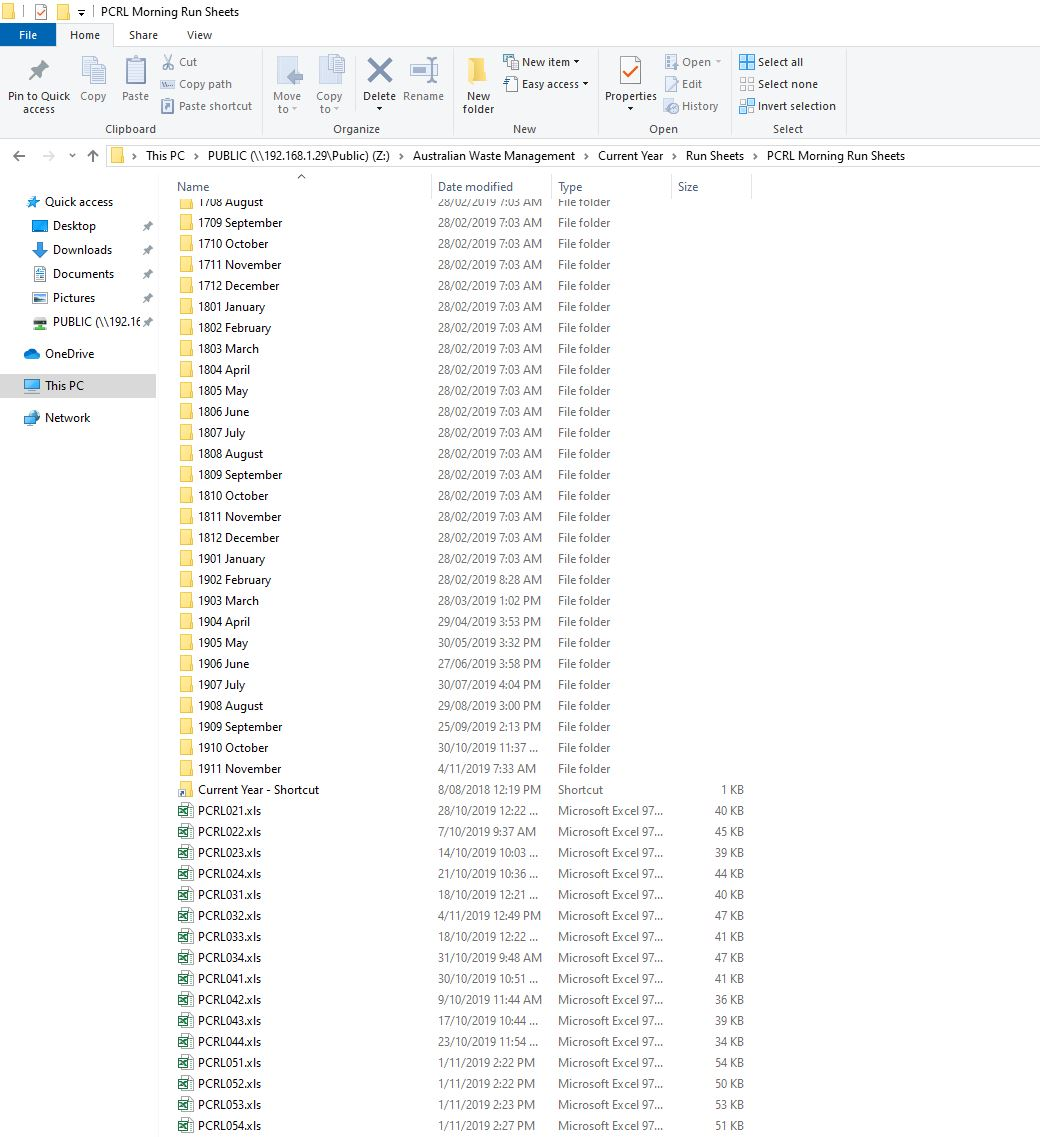
b. Update the address

c. Plot the job to its correct place in the run plotter by dragging and dropping from the excel file from the run sheets folder to the run plotter.
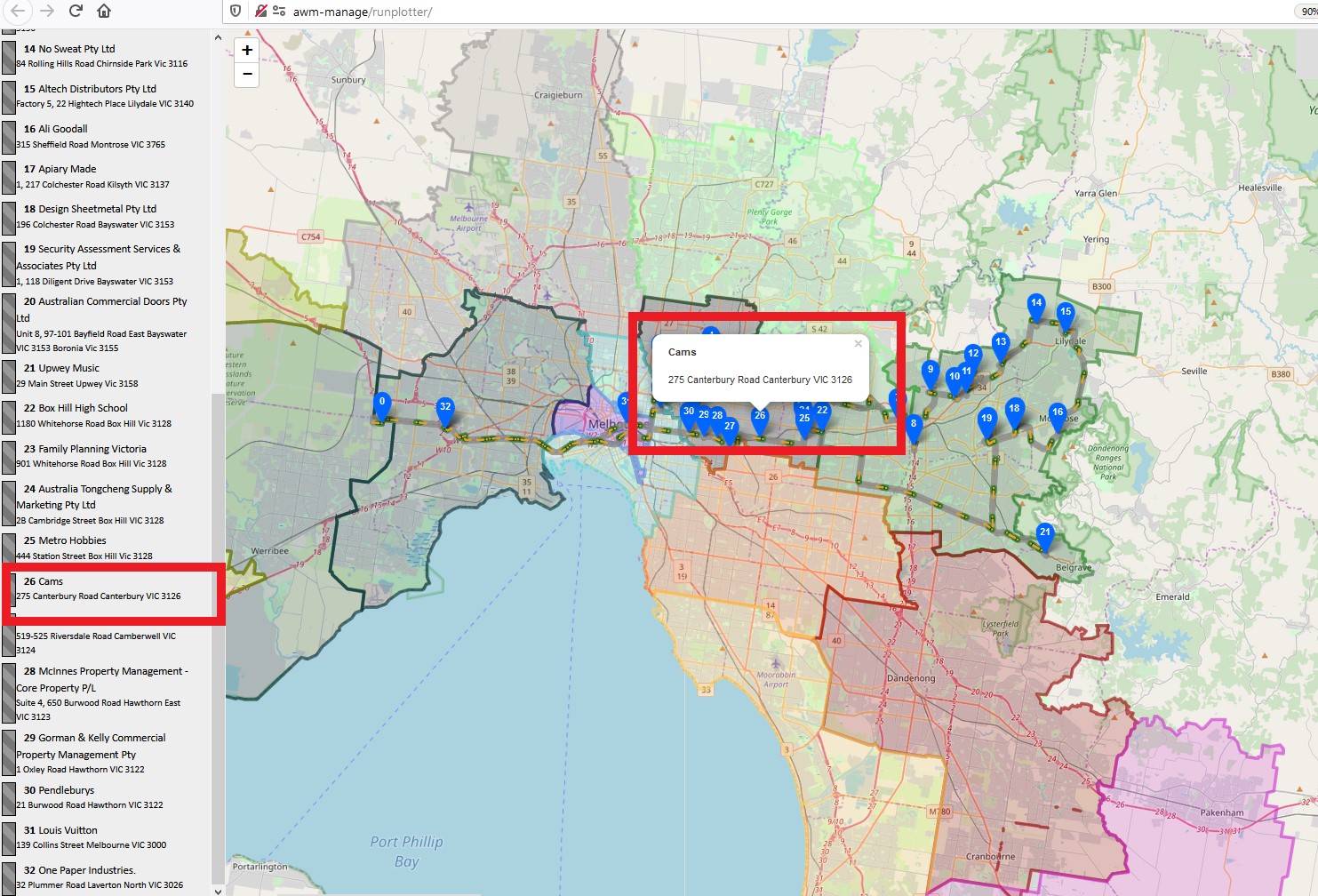
d. Cut and insert the rows of the job to its correct location in the excel sheet.
2. If the location of the job needs to be on a different run, just delete the job on the previous excel files. Put the information to the run sheet where it should be, and repeat the process of plotting it from the instructions above.
Comments