Creating Run Calendar
Posted at December 09, 2019 04:12 pm. Last updated at December 09, 2019 04:12 pm
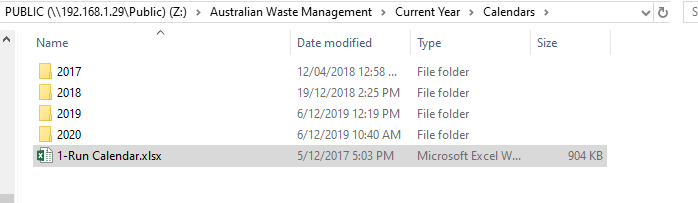
First, you need to go the Z drive and locate the Run Calendar Excel file here: Z:\Australian Waste Management\Current Year\Calendars\1-Run Calendar.xlsx
After locating the Excel file, on the same folder, create a new folder. You should name the folder as the year of the calendar to be used. You will be seeing the format of the folders as well. Check the image below:
After creating the folder, copy the Excel file inside the created folder. Now open the copied excel file.
Next is to go to the "Calendar" Sheet tab to change the "Year" of the calendar. Check the image below:
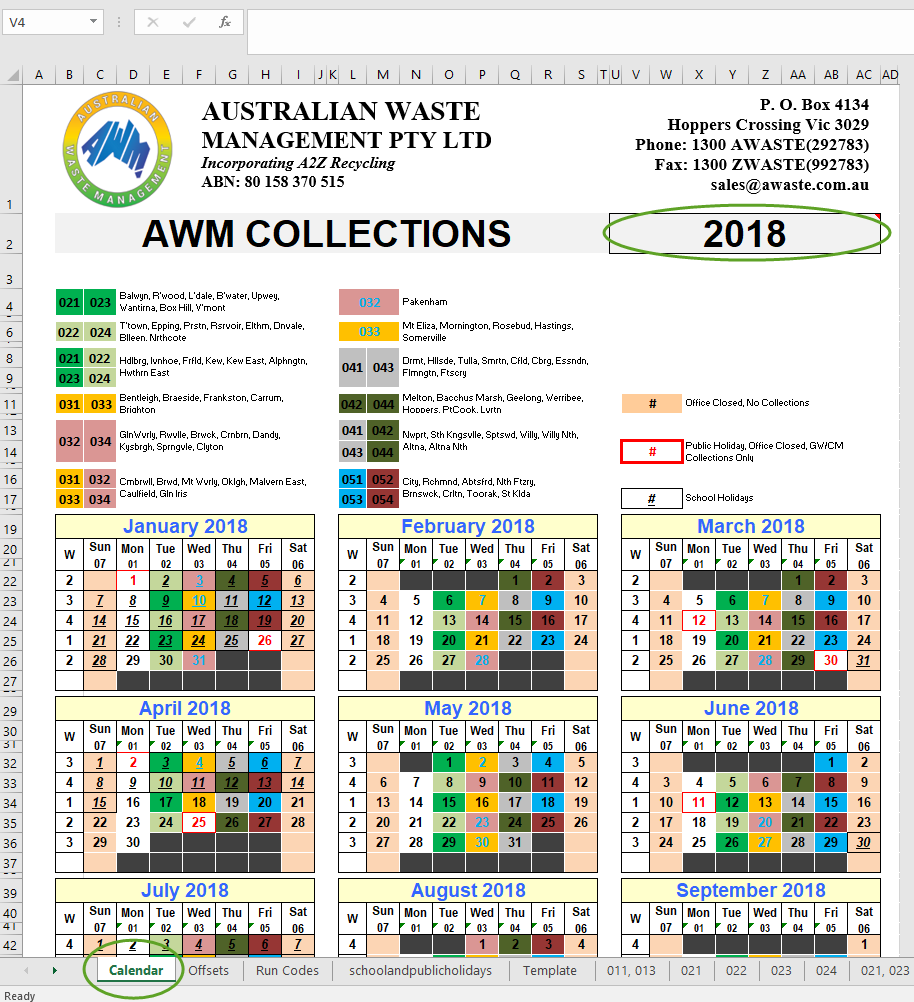
After changing you will notice that the calendar will change its days and weeks according to the year entered.
We can now enter the school and public holidays for our calendar. Go to the "schoolandpublicholidays" Sheet tab.
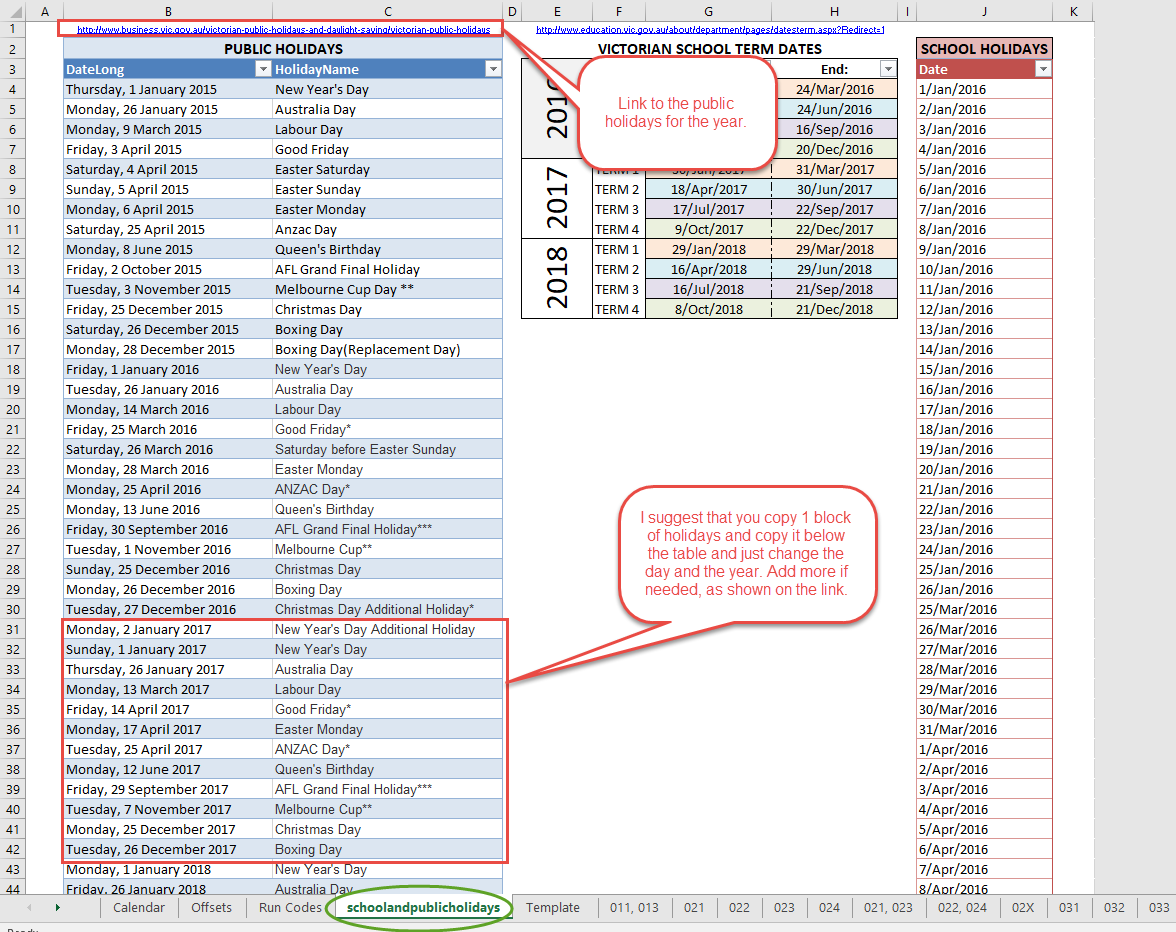
After clicking the said Sheet tab, you will see that you have 3 columns, we focus now on the "PUBLIC HOLIDAYS" table. You can see that there is a link above the table, go ahead and open that link to your browser and check what are the public holidays for the year entered.
After that, just go ahead and copy and paste the holidays and put the correct year, months and days for the holiday. Check image below:
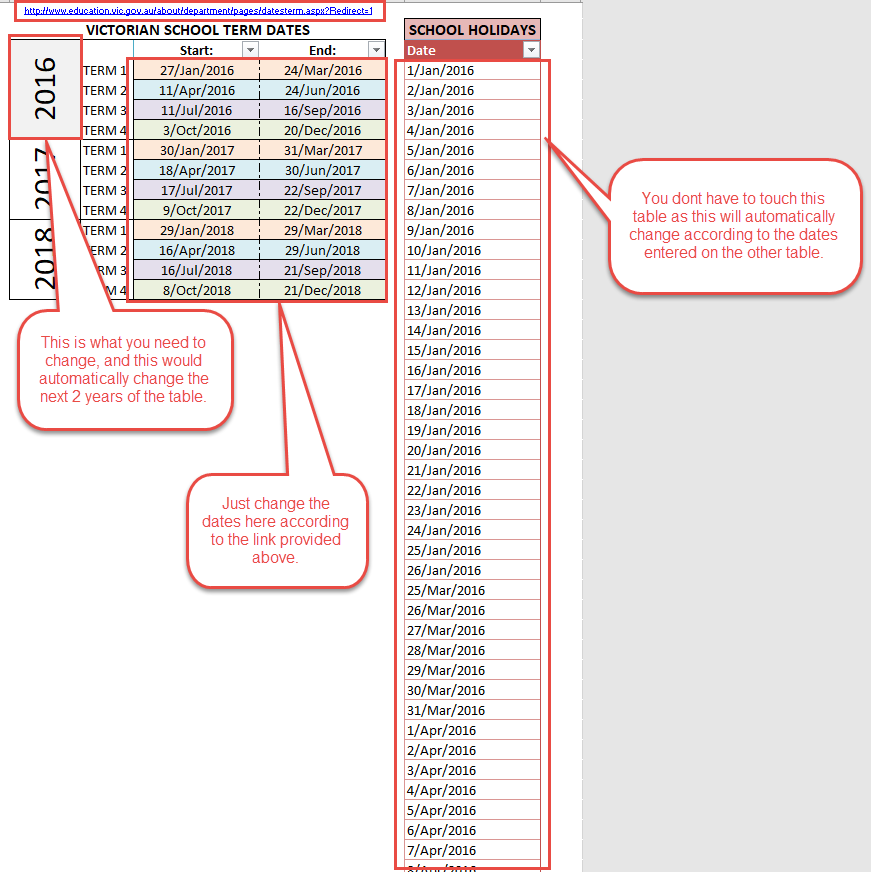
Next, is the "VICTORIAN SCHOOL TERM DATES", you can see that there are 3 years shown there, what you just need to do is to just enter the "YEAR" you need on the first box and the excel will automatically propagate the table. For example, you put 2019 as your first year, the excel will automatically compute and will show 2020 and 2021 as the next years, you will also notice that the "SCHOOL HOLIDAYS" table changed as this table is the summary of "VICTORIAN SCHOOL TERM DATES" table.
After doing all of that, you just need to change the start and end dates according to the link provided, again, at the top of the "VICTORIAN SCHOOL TERM DATES" table. Check image below:
After doing all that, all the necessary preparations are done, we just need to export the sheets one by one. So just go from sheet tab "011, 013" to "05X" and export them as a PDF file one by one with a followed naming convention as "%NAME_OF_SHEET_TAB% - %YEAR_ENTERED%.pdf" until you get all of this files. Check image below:
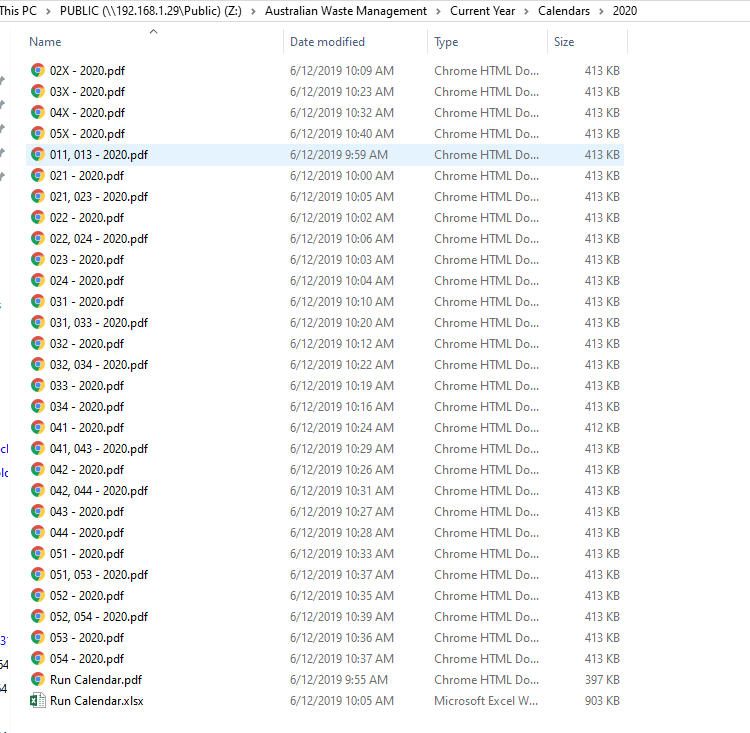
As for this documentation, I created the Run Calendar for the year "2020". After finishing, just go ahead and give it to Aaron for him to double check and give it to one of the Operations staff as well to do another checking.
Voila! You have finished the Run Calendar!
Comments