Turn Location Services and GPS on
admin admin
Posted at January 08, 2020 02:01 pm. Last updated at January 08, 2020 02:01 pm
Before doing this make sure that you are authorized by any of the IT Personnel or any Office-in-charge as this would affect the drivers use of the iPad.
If you are authorized, we can now proceed.
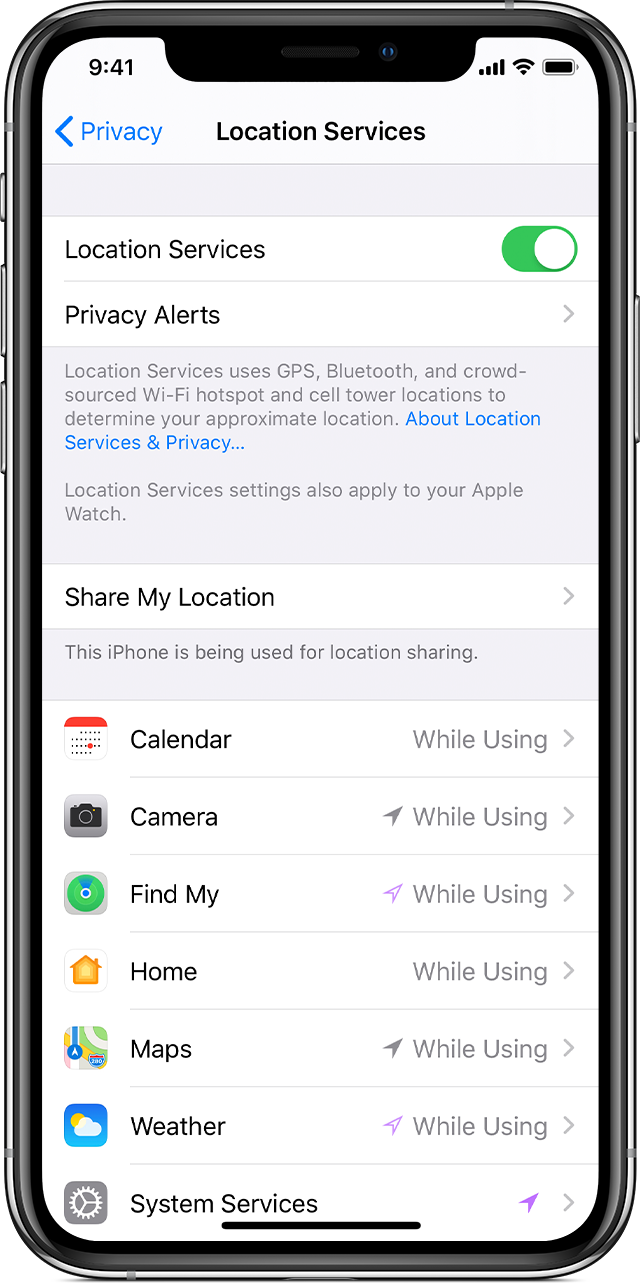
Step 1: Go to Settings > Privacy > Location Services.
Step 2: Make sure that Location Services is on.
Step 3: Scroll down to find the app or Safari browser.
Step 4: Tap the app and select an option:
- Never: Prevents access to Location Services information.
- Ask Next Time: This allows you to choose Always While Using App, Allow Once, or Don't Allow.
- While Using the App: Allows access to Location Services only when the app or one of its features is visible on screen. If an app is set to While Using the App, you might see your status bar turn blue with a message that an app is actively using your location.
- Always: Allows access to your location even when the app is in the background.
From here, apps should provide an explanation of how the app will use your location information. Some apps might offer only two options. Learn more about privacy and Location Services.
Comments