How to Fix Errors When Recording Recurring and How to Avoid Them
Karen Lacsamana
Posted at January 11, 2018 01:01 pm. Last updated at February 12, 2018 07:02 am
How to Fix Errors When Recording Recurring and How to Avoid Them
This usually happens when you receive the Data Exemption Error or when you are doing the recurring and someone else use MYOB
To avoid having duplicate invoice
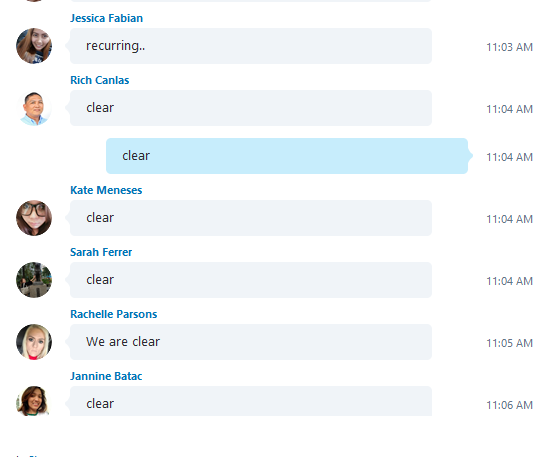
- Advise on the AWaste chat room that you will start the recurring by sending a chat as "Recurring"
- Make sure everyone replied “clear” before you start
- If someone has not replied clear send a chat to that person and ask if they are clear
- Remember when recording recurring NOTHING else can be done in MYOB
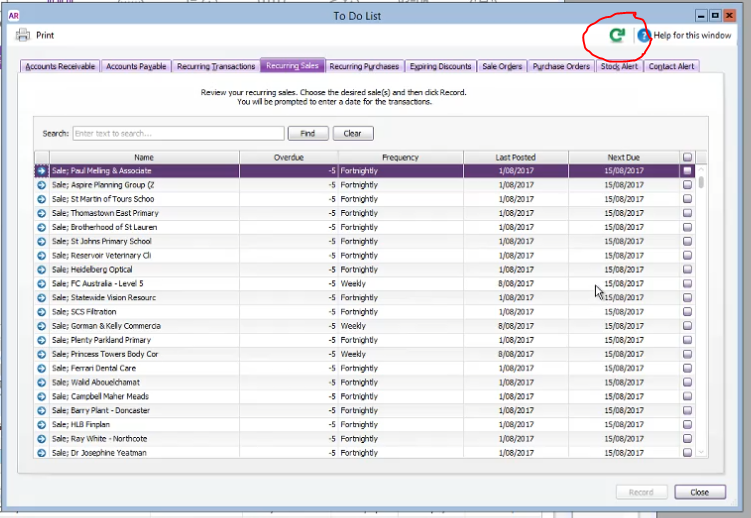
- In case you got the Data Exemption Error, the only thing you need to do is click the REFRESH BUTTON. This will reload the list without the accounts that has been recorded
To correct duplicate invoice
- Open myob

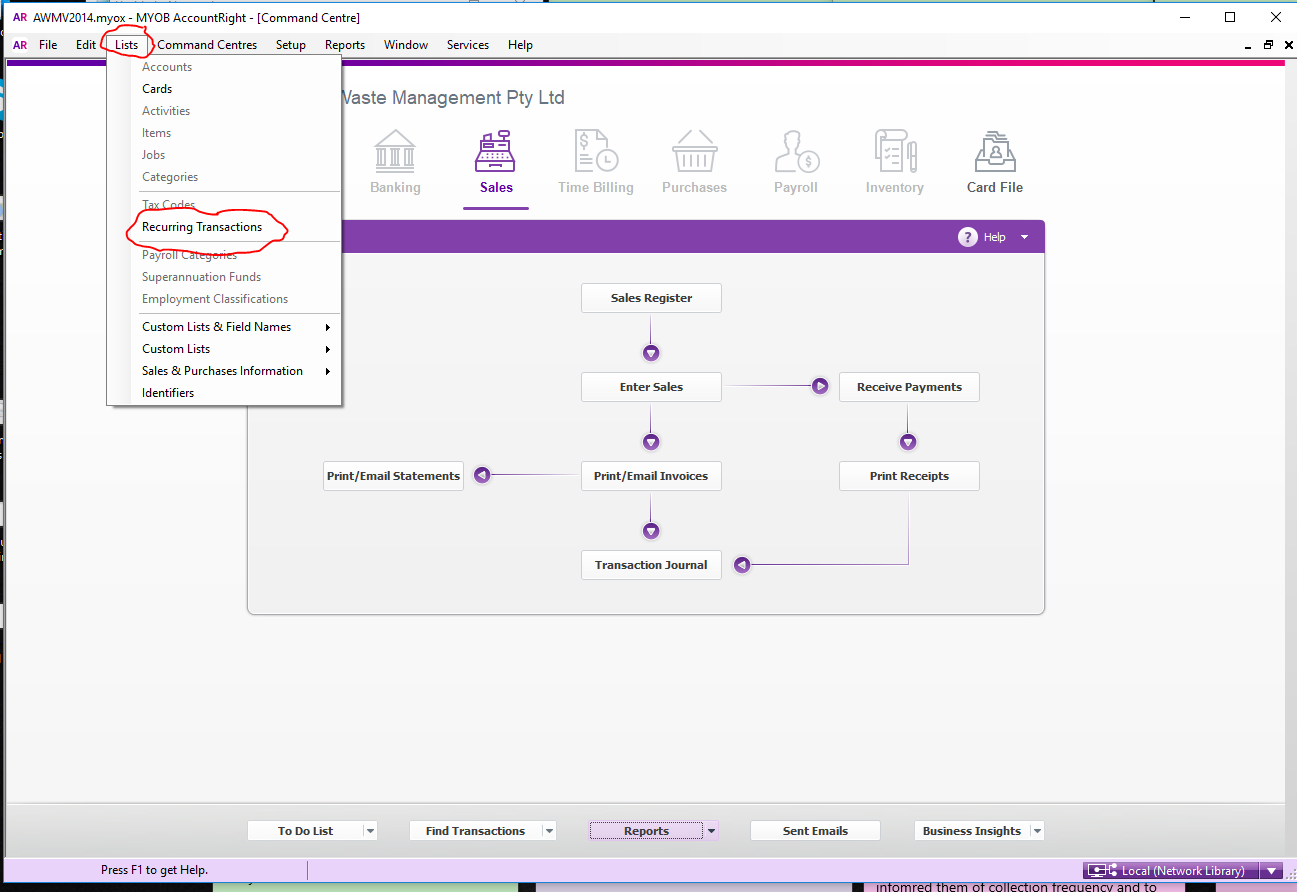
- Go to List, Recurring Transaction
- Leave the Search Criteria blank
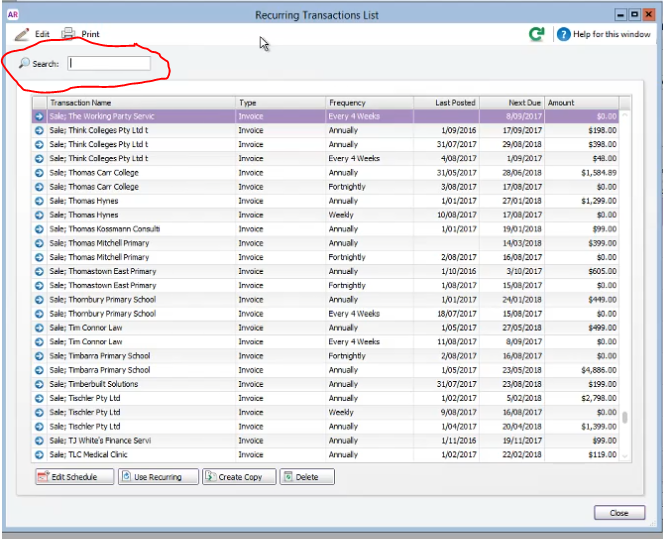
- Click last posted and sort it by descending
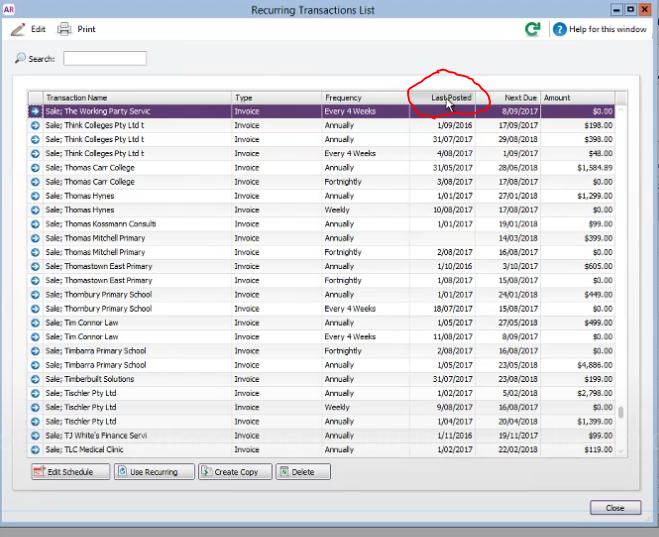
- Search for the date where there was a duplicate invoice
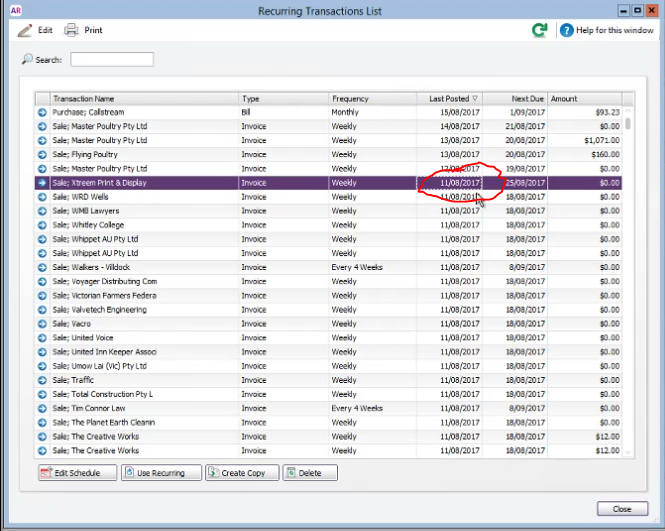
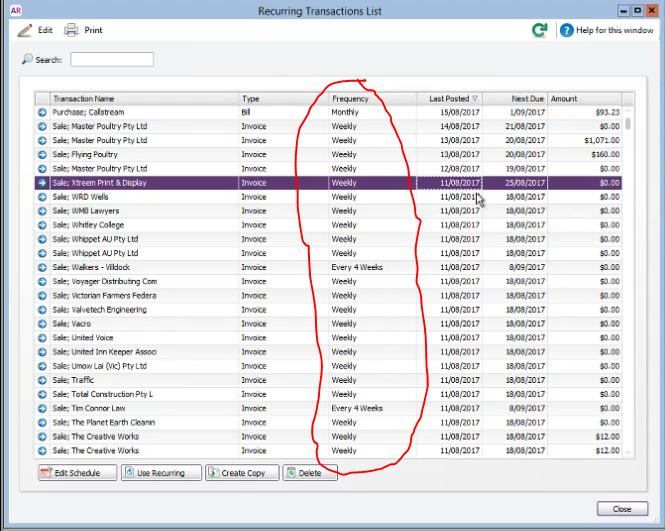
- Check the collection frequency of the customer ( weekly, fortnightly, 4-weekly)
- Compare the Last posted date to the Next Due , the next due should be a week, 2 weeks or 4 weeks from the last posted depending on the frequency of the customer. (Example: if a customer is on a weekly collection and the last posted was 11/08/2017 the next schedule should be 18/08/2017)
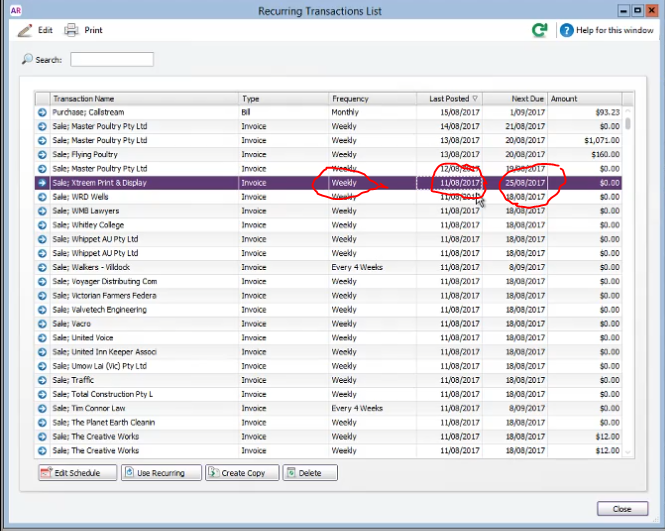
- If the Next Schedule date is incorrect that means it was double recorded
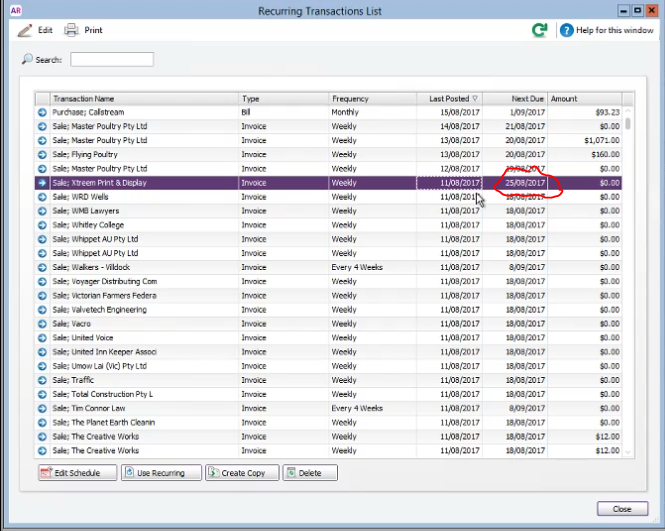
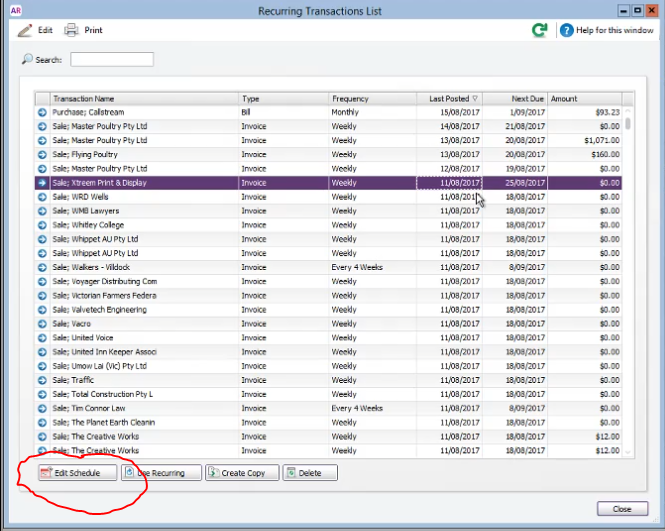
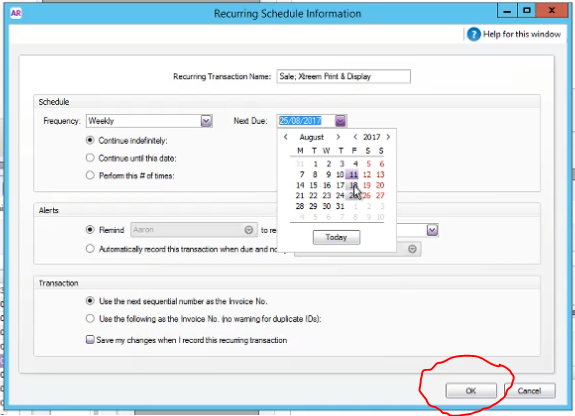
- In order to correct this, high light the account and click edit schedule
- Change the next due date to the correct date
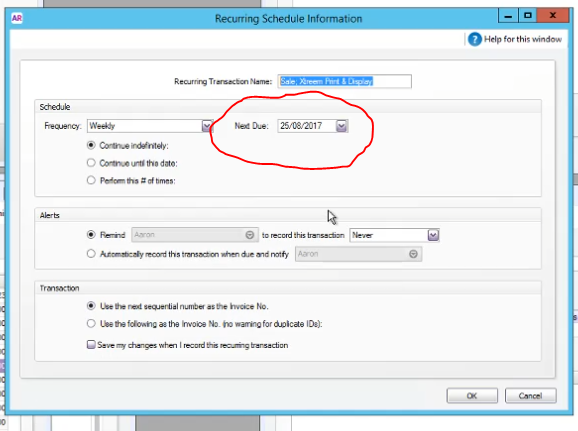
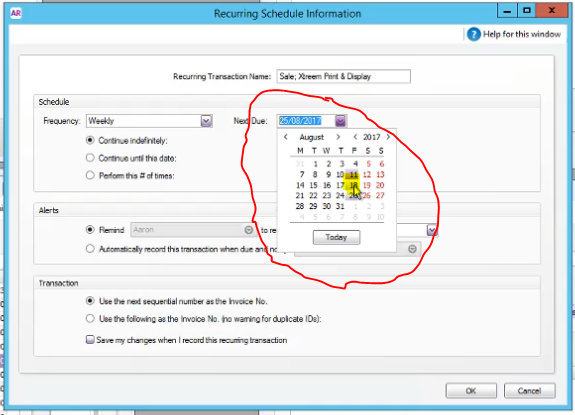
- Click ok
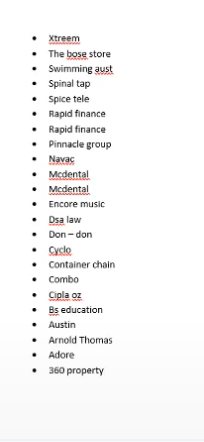
- List all the accounts that you corrected
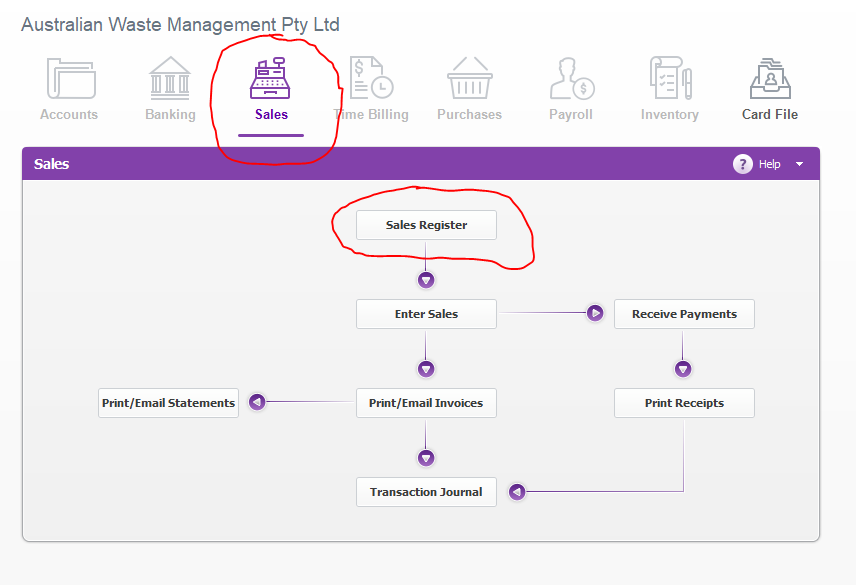
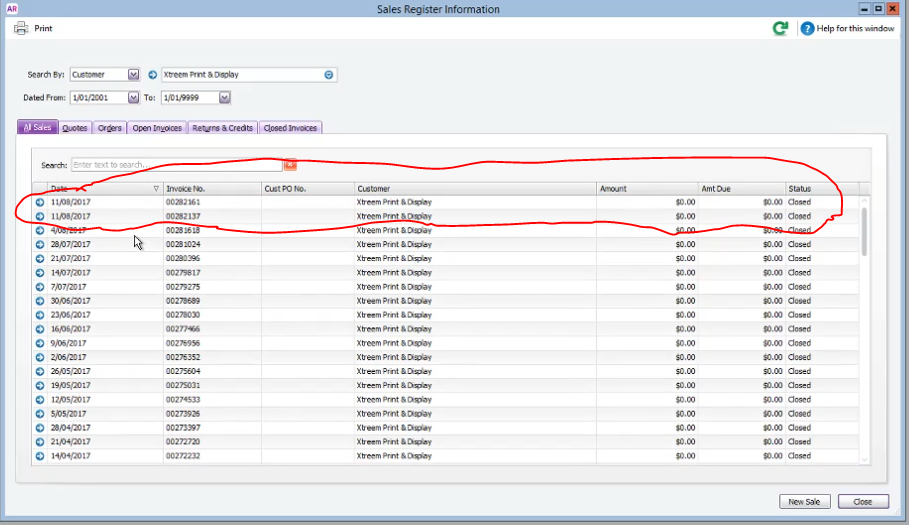
- Go to Sales, Sales Register
- Search by customer name
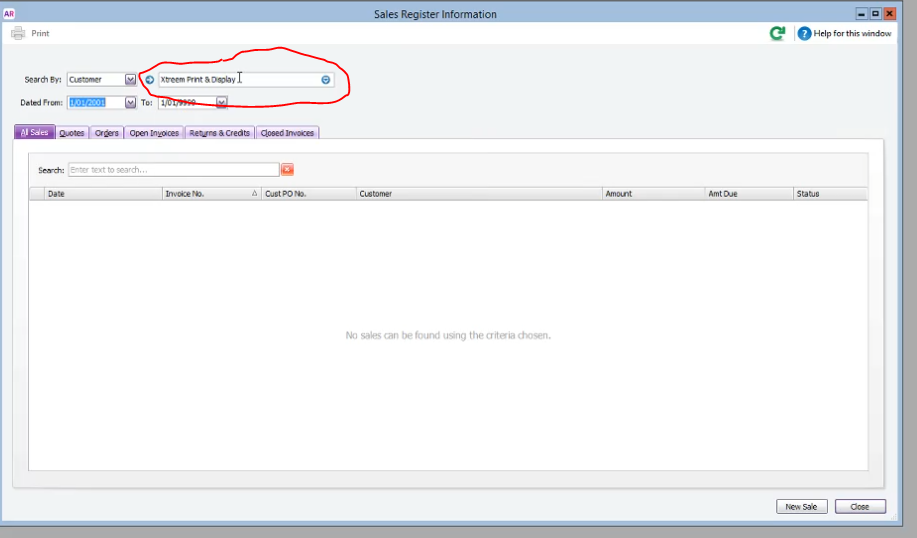
- Open the duplicate invoices
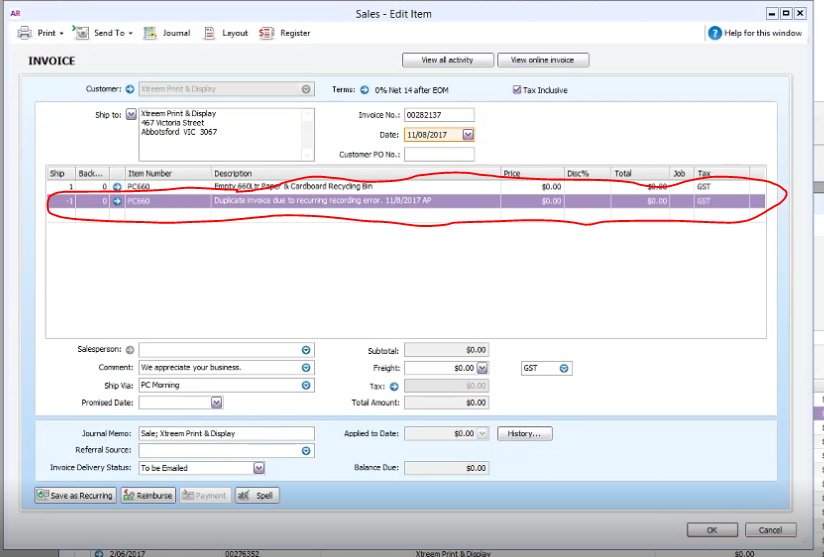
- Insert a new line copy the invoice description but put a negative on the number of bins to zero out the invoice change the description to duplicate invoice include the date and your initials
- Click OK
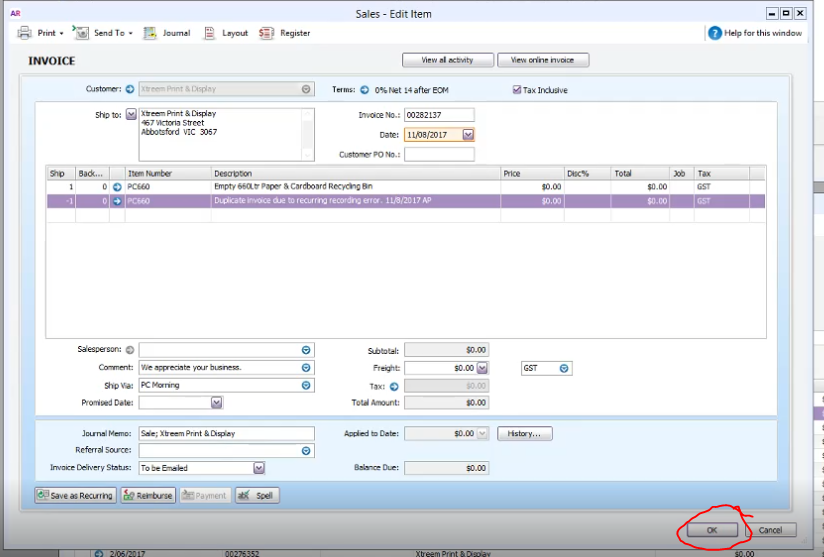
- Repeat process until all duplicate invoices are corrected.
Comments