FOR REVIEW - How To Fix Online Order Processed showing - "Not In The System" in AWM - Manage
Posted at February 12, 2020 11:02 am. Last updated at February 12, 2020 12:02 pm

PURPOSE:
This policy will serve as a guide for the Sales Department the policy and procedure in fixing an online order process that is showing as “not in the system” in AWM Manage.
PROCEDURE:
1. Check AWM-Manage and verify the invoice status.
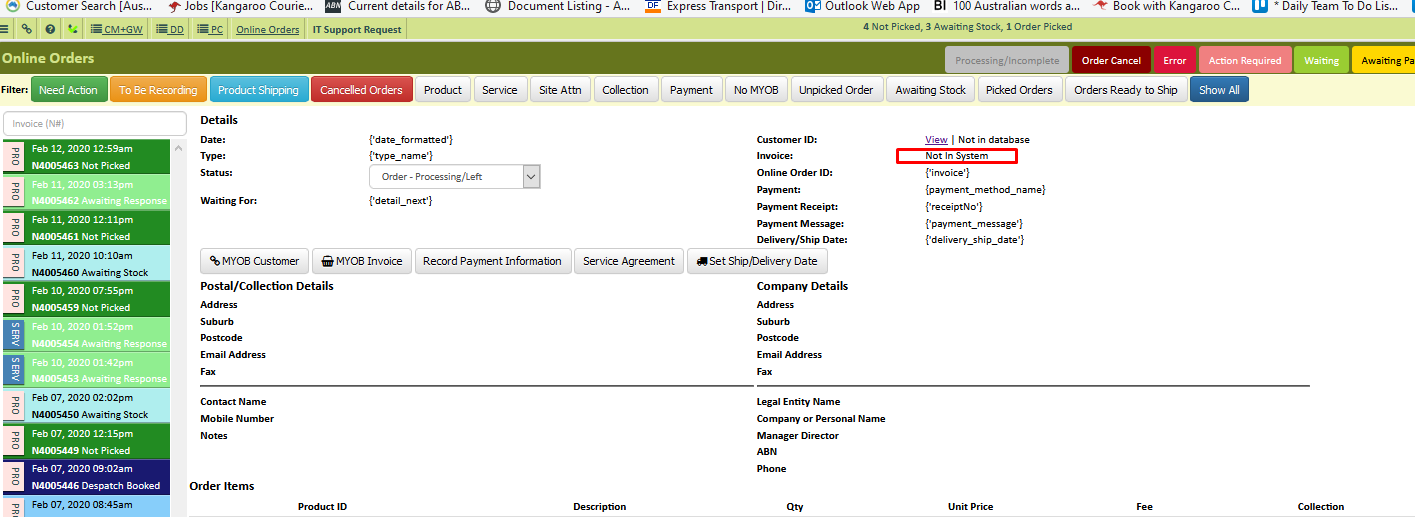
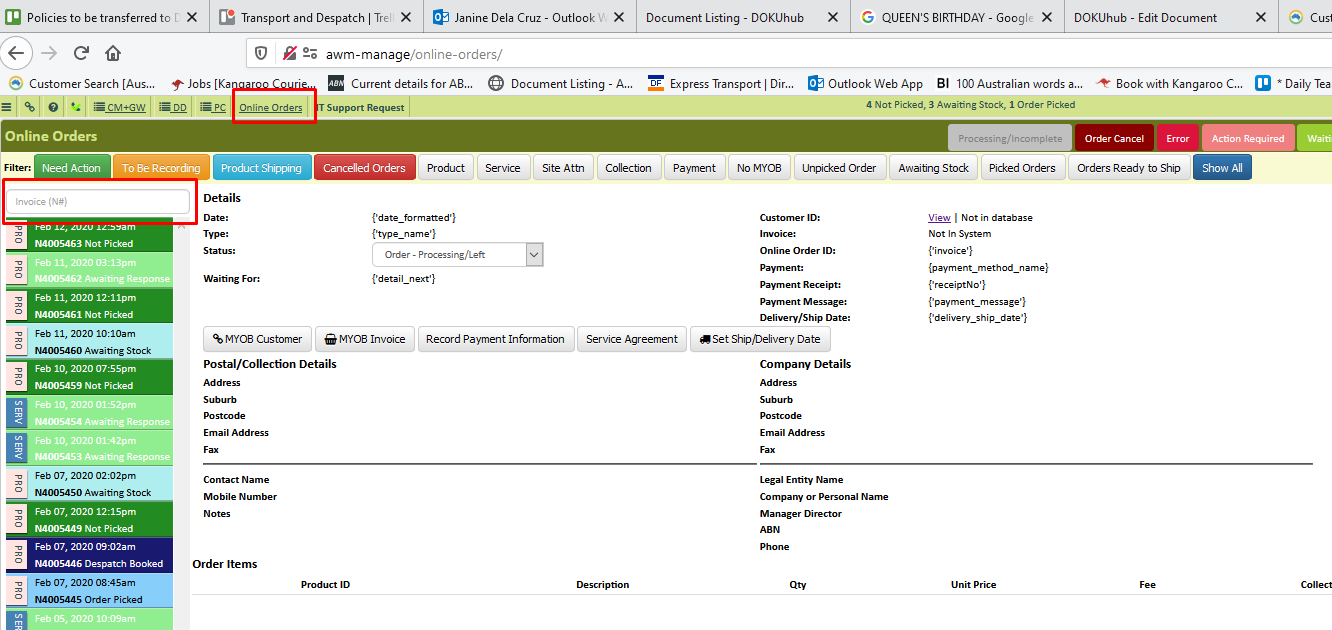
2. Click Online Orders Tab and from here it will allow you to search for the Online Order that is in question to further check what happened with the order.
Type in the Order number in the search box, and press Enter.
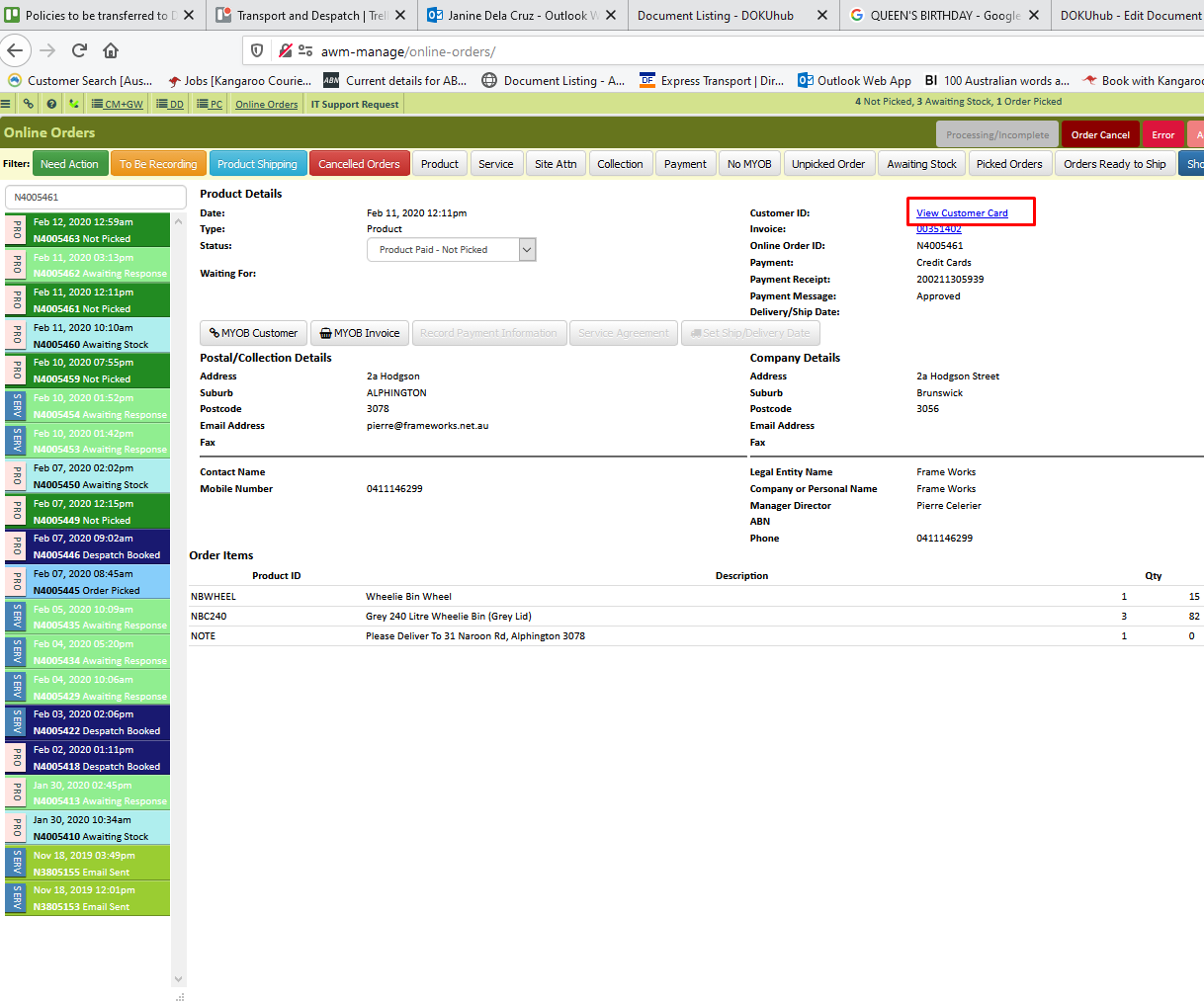
3. Click on the Customer ID: View Customer Card.
4. After clicking the View Customer Card, the link should take you to the account of the customer. Verify and investigate if there are invoice/s that are associated with the online order.
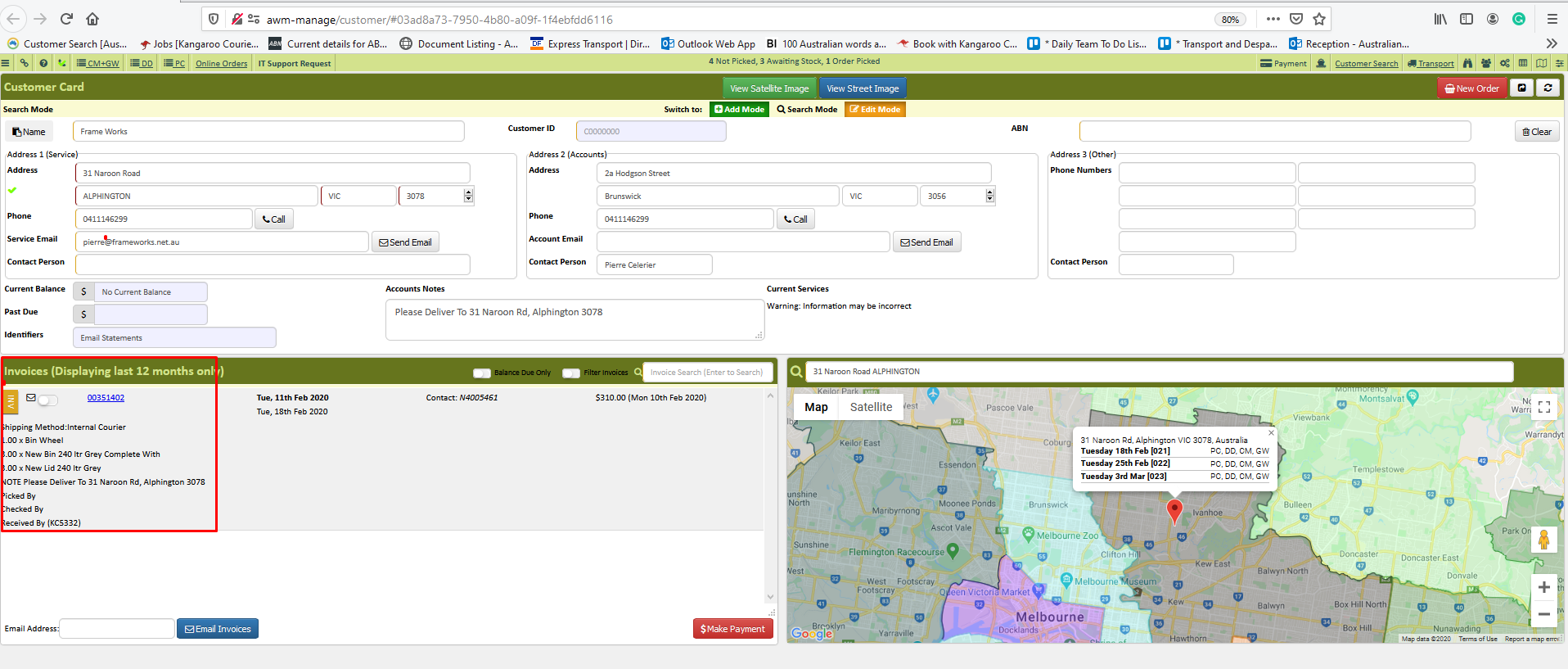
Sample Illustration: Based on the illustration above, let us just say that invoice number 00351402 is an invoice made for that same order. This means that an order was processed in MYOB or customer search/card in AWM-Manage and not in the online orders tab so the "payment has not been applied".
It is important to note that since it is online payment, we need to ensure that the payment has been applied to the invoice. To fix this, you can tap accounts in order to rectify the issue. The accounts team will make the necessary correction on this.
5. This policy supersedes any existing similar policy and procedure and will take effect immediately unless otherwise amended further.
*** NOTE Please be advised about these colour coding status on the online order
 - Process Complete
 - Order Cancel
 - Error in processing the order
 - Action Required
 - Waiting for Customer Response
 - Awaiting Payment
 - To be recorded/ process payment
 - Awaiting for stocks
 - the warehouse will prepare the order
 - To be shipped
 - Completed order
Comments