FOR REVIEW - Add a card to MYOB
Jannine Batac
Posted at February 14, 2020 01:02 pm. Last updated at February 14, 2020 03:02 pm

Purpose:
The purpose of this document is to guide representatives on adding a card to MYOB.
Process:
This will apply for entering all types of service agreements from DD, GW, PC, CM etc. To enter a card, we have to set up the customer from scratch.
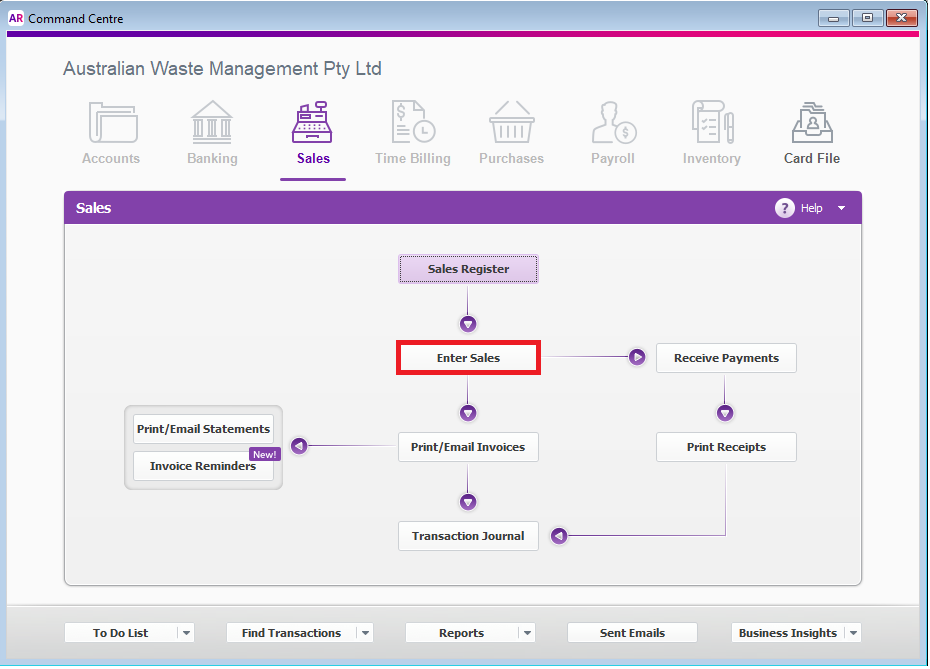
- Click ENTER SALES.
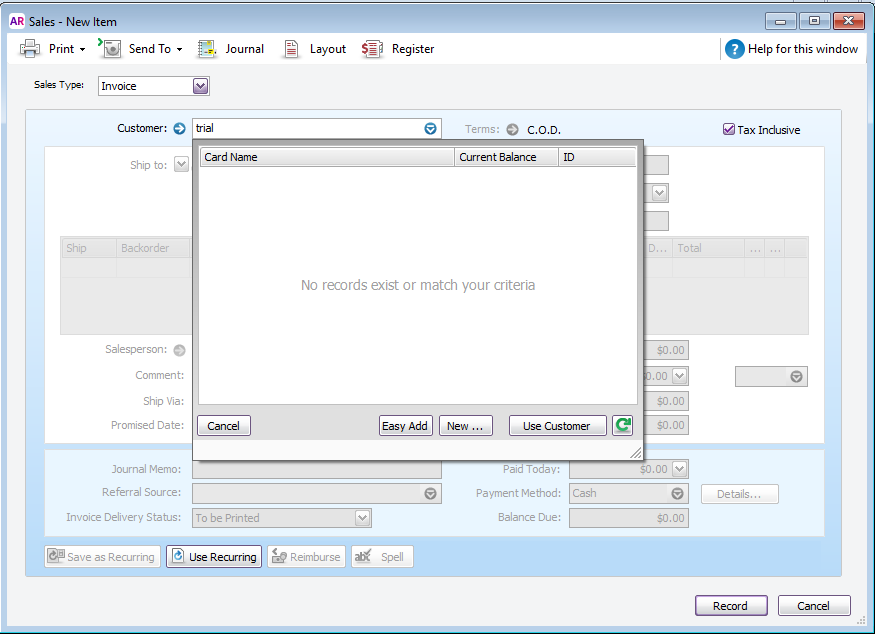
- First, we have to ensure that we don’t have the customer on our system. We can search by just typing the customer name or company name on the field. (If nothing comes up, then the customer doesn’t have file on our system.)
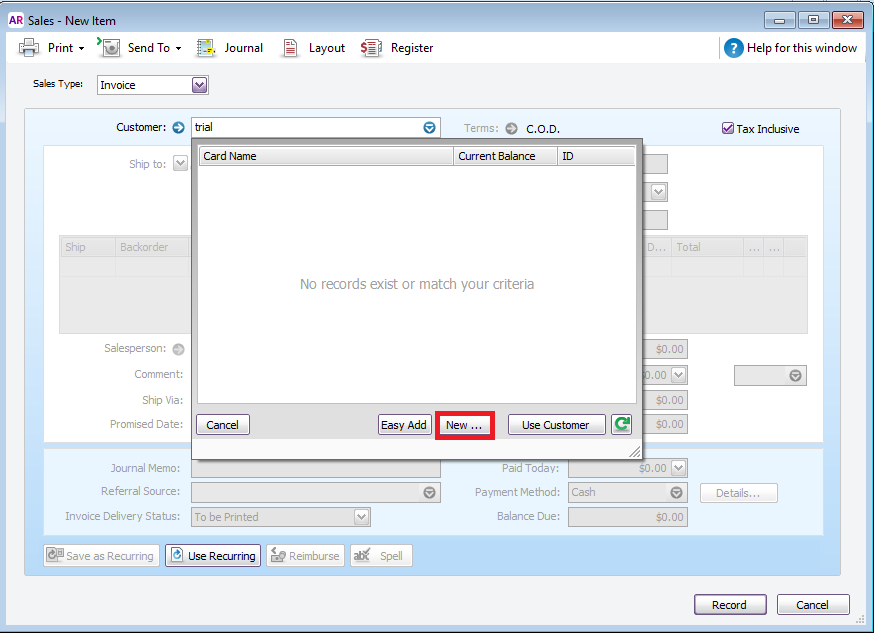
- Click on NEW so that we are able to add new customer details and MYOB will prompt us to provide the Company information.
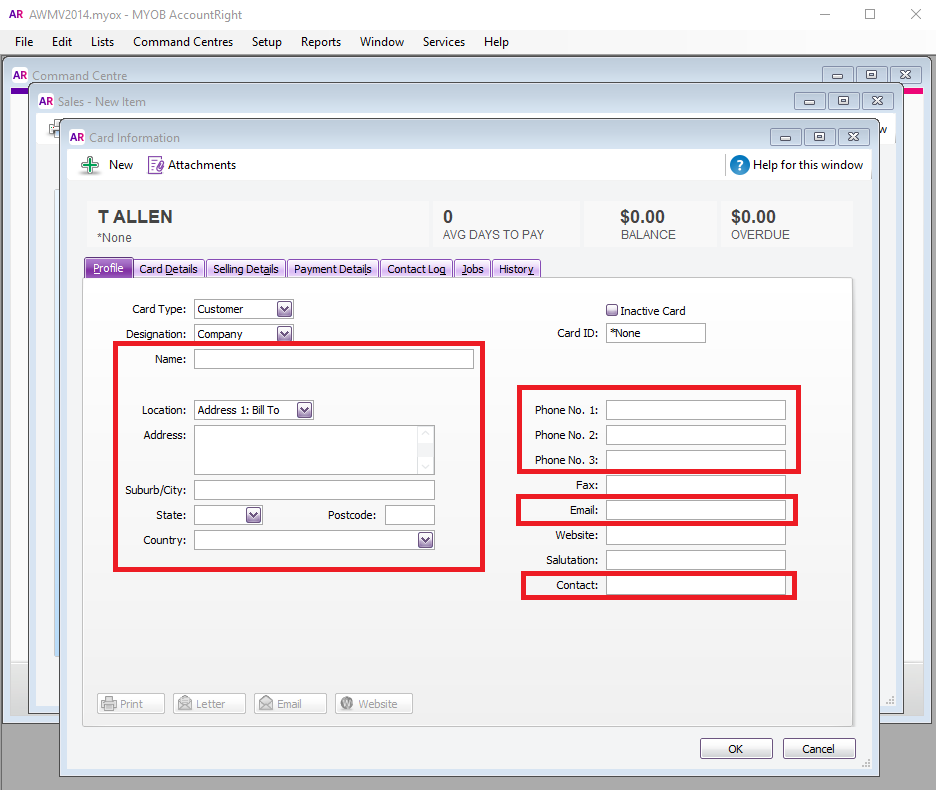
- We need to ask for the below information.
1. Name of the company
2. Address : Bill To (Collection Address)
3. Address : Ship To (Postal or Accounts Address)
4. Phone Numbers : (we can put in as much phone number as they can provide)
5. Email address
6. Contact Person/s
- Click on CARD DETAILS and fill out the Notes Field with any customer collection details, any information about the access code we need to enter or any specific collection detail that we would need to take note of with regards to the collection of the customer’s bin.
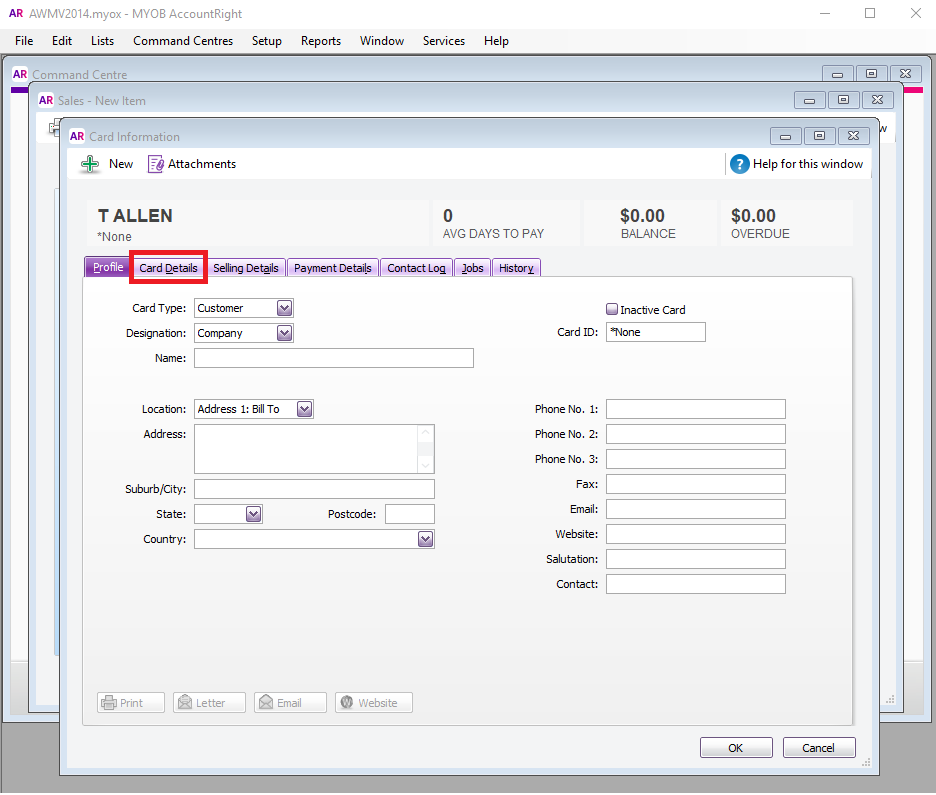
- (NOTE: If the customer doesn’t show any Additional collection notes on their Service Agreement, we still need to put the code or the type of service that the customer have and the size of the bin that is included on their service on the notes field.)
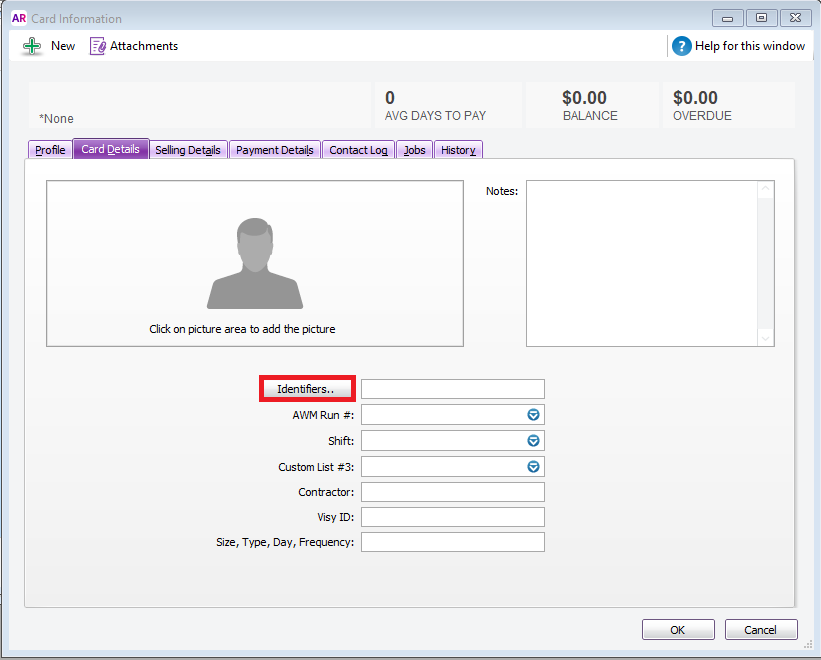
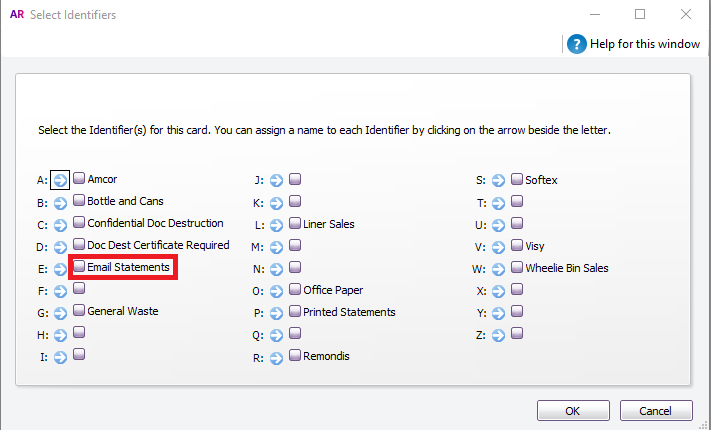
- Click on IDENTIFIERS that would allow us to print customize reports that we do use and we should always choose the “Email Statements” this ensures that the customer will receive all the statements emailed as well as invoices emailed across to them on a monthly basis. Then choose the type of Service that they got.
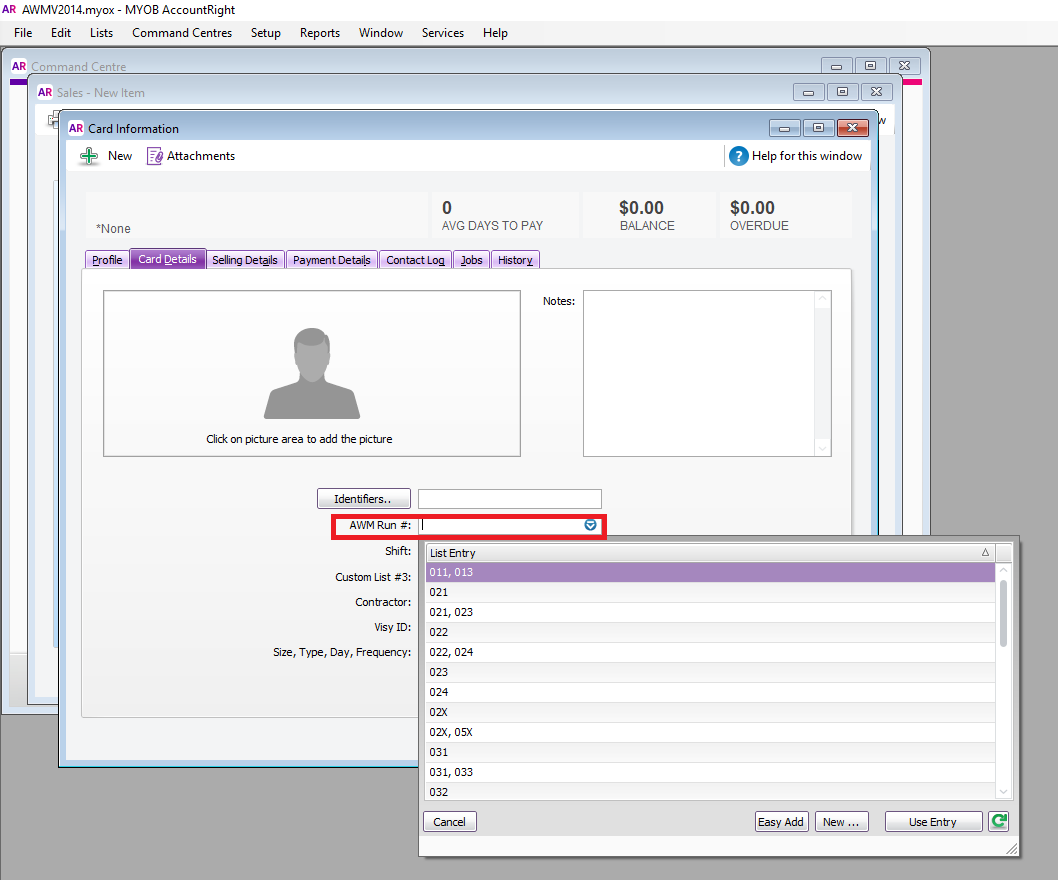
- Choose the AWM Run that they are on. To check the run for the specific customer, go to AWM Manage Page and type in the address of the customer on the search field above the map then click ENTER to show the available run on the location of the customer.
- Click on SHIFT and choose the applicable list based on the service that the customer have.
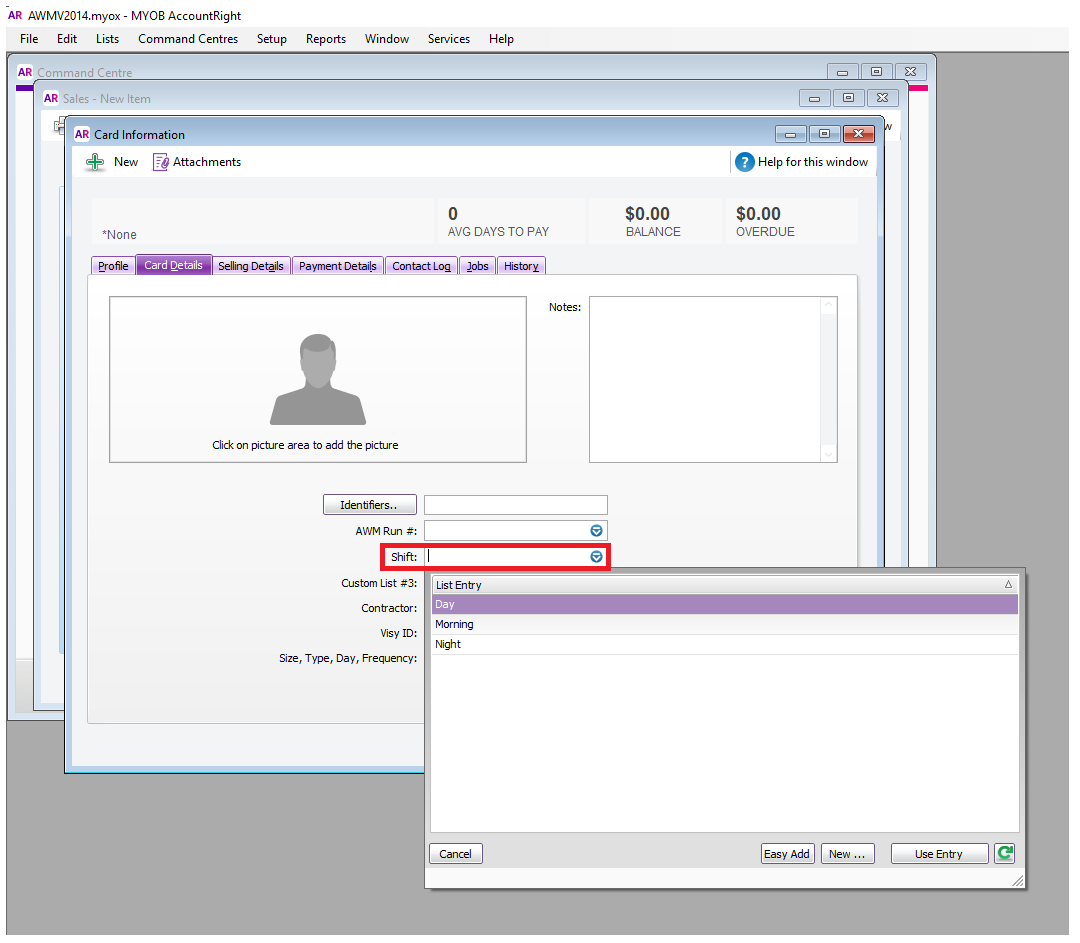
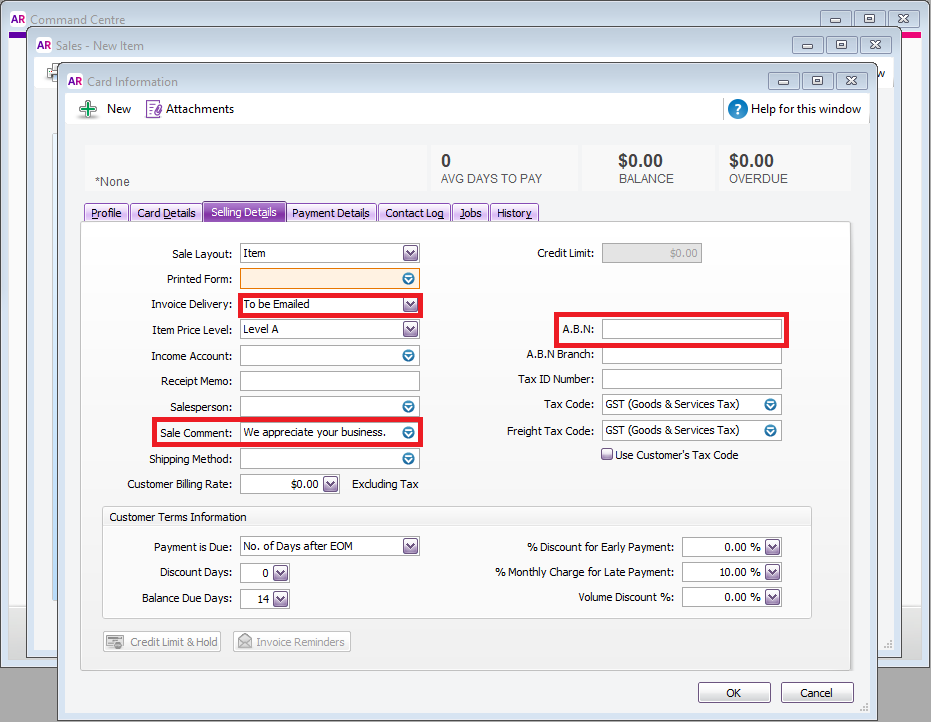
- Click on SELLING DETAILS.
Invoice Delivery : To Be Emailed.
Sale Comment : We appreciate your business.
ABN : if not available on the SA, call the customer to verify.
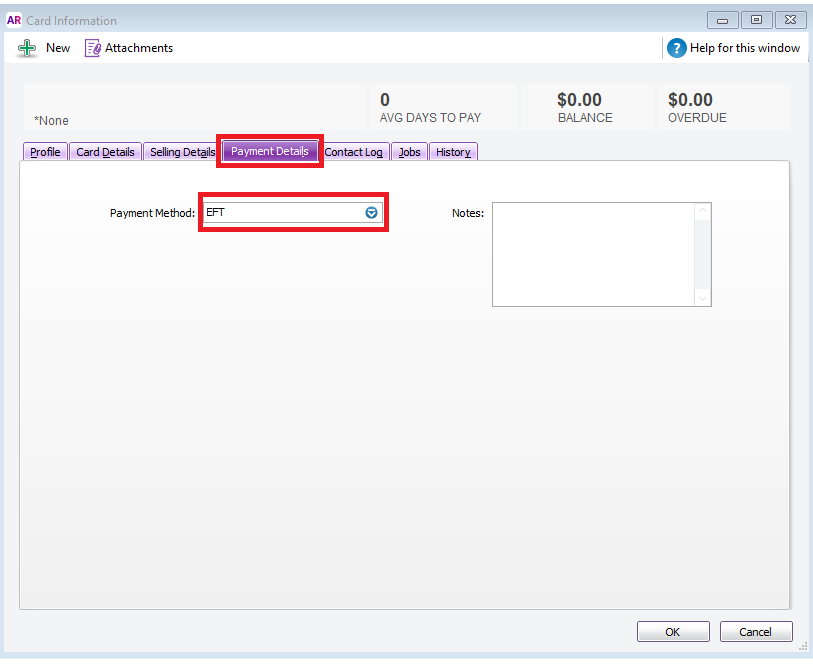
- Click on PAYMENT DETAILS. Always choose EFT for the Payment Method.
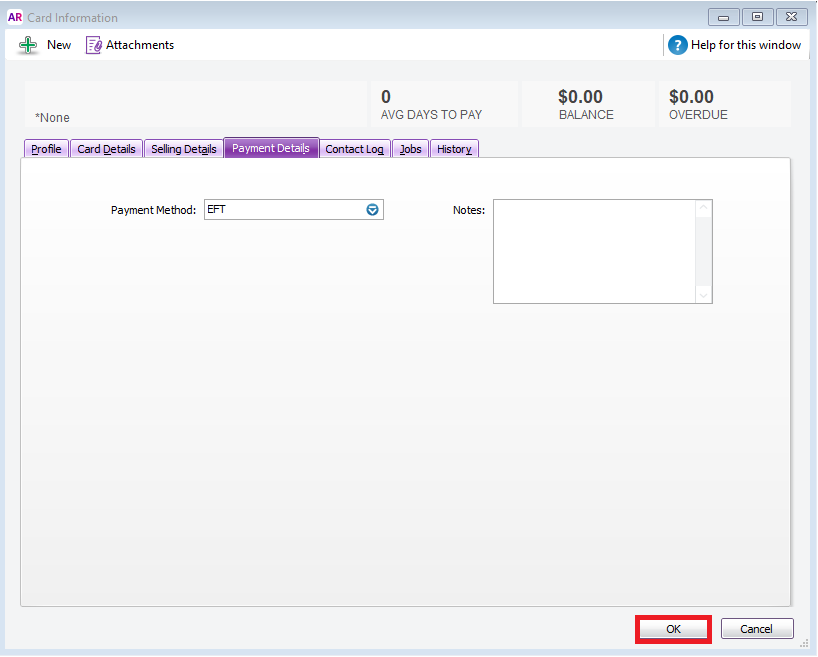
- Click OK to save the new customer details.
Comments