FOR REVIEW - Processing Online Orders in Awaiting Payment Status
Posted at February 20, 2020 01:02 pm. Last updated at February 20, 2020 01:02 pm

Purpose:
The purpose of this document is to guide Sales Representatives on how they can proceed if they will have an online order in awaiting payment status and if the payment still wasn't received through our bank account even if several days have already passed.
Process:
Online Orders that are on awaiting payment status, normally means that the customer processed the order on the website, they selected to pay via EFT and then we haven’t received the payment thru the bank account yet. (Note: when we do the bank feeds we match the payments up to any online orders.)
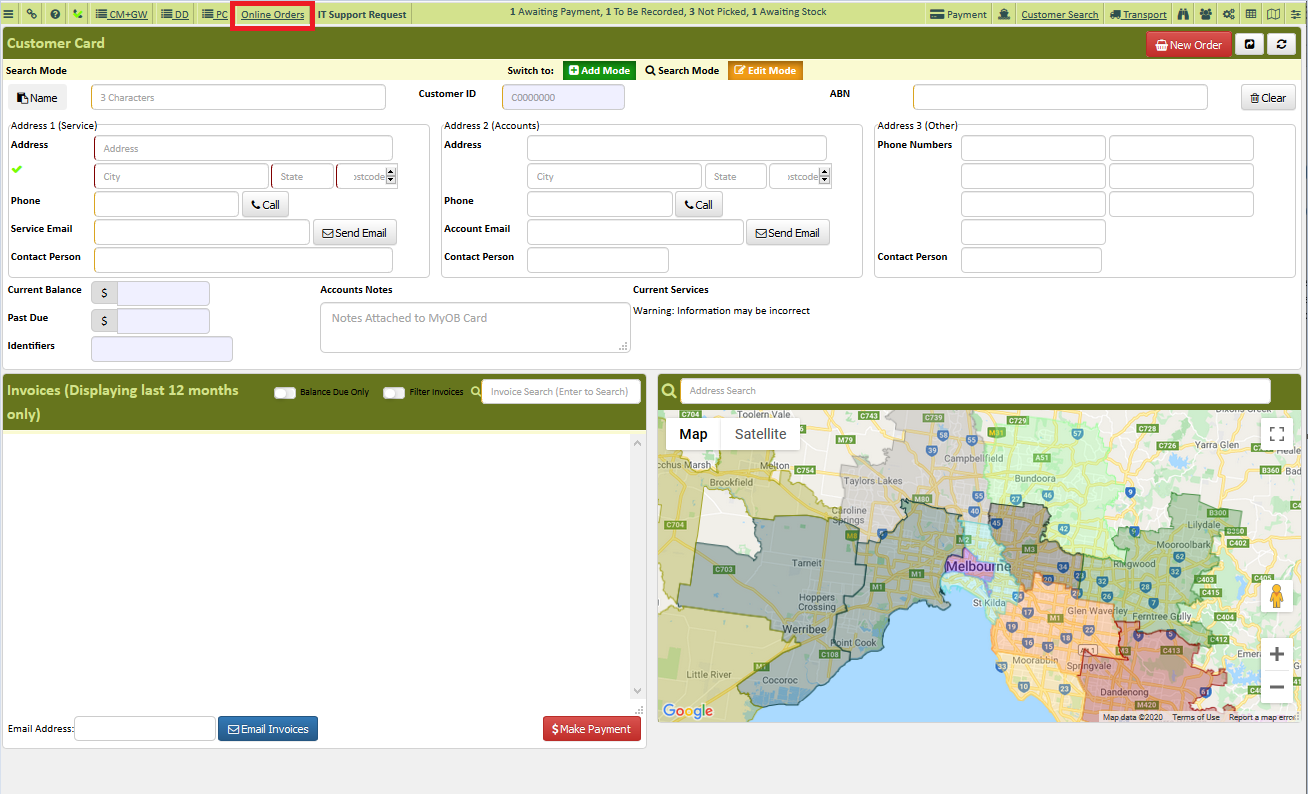
1. From AWM – Manage page, click on ONLINE ORDERS link.
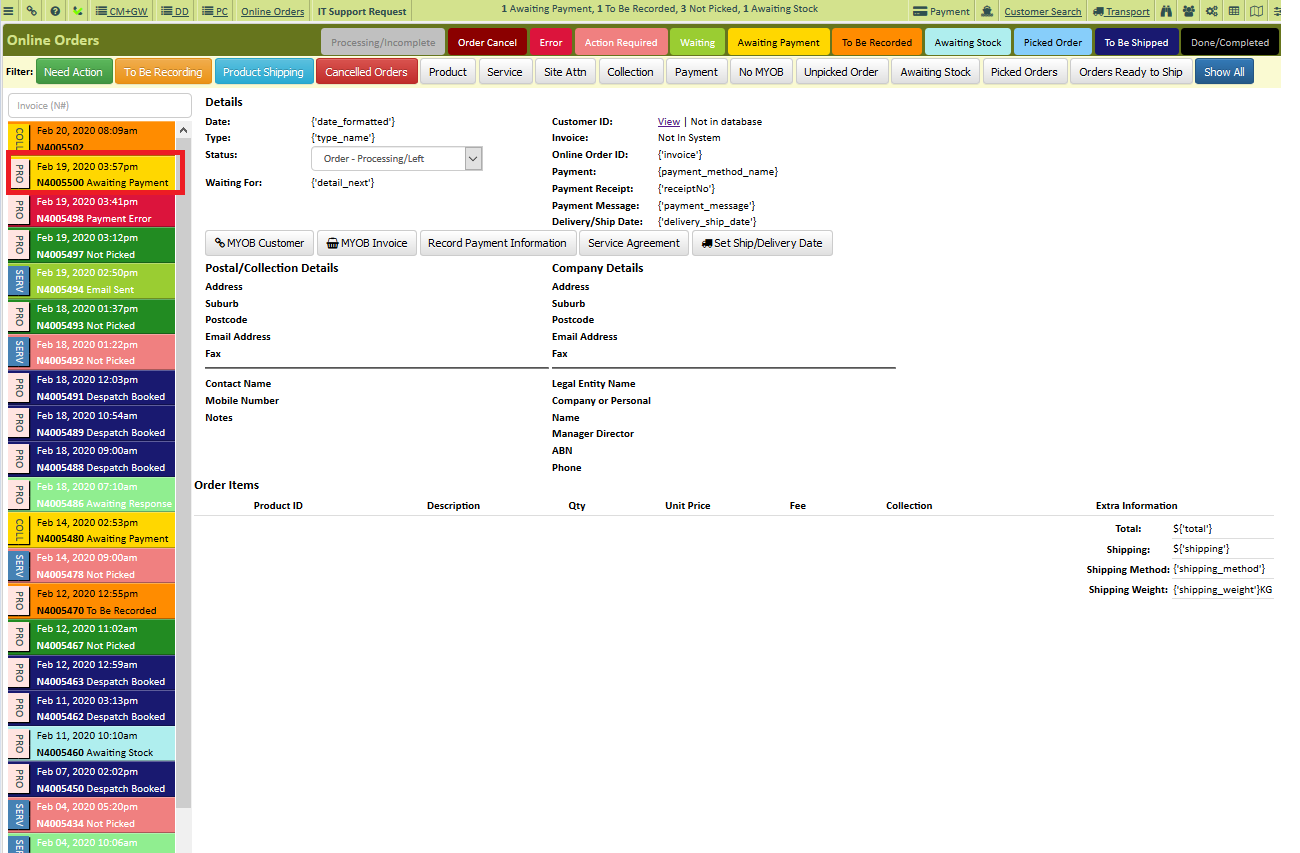
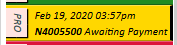
2. From Online Orders, look for an online order that has a status of “Awaiting Payment” and click on the tab to view the order details. (Note: The Processed order with awaiting payment status has a yellow tab and has PRO on the side.)
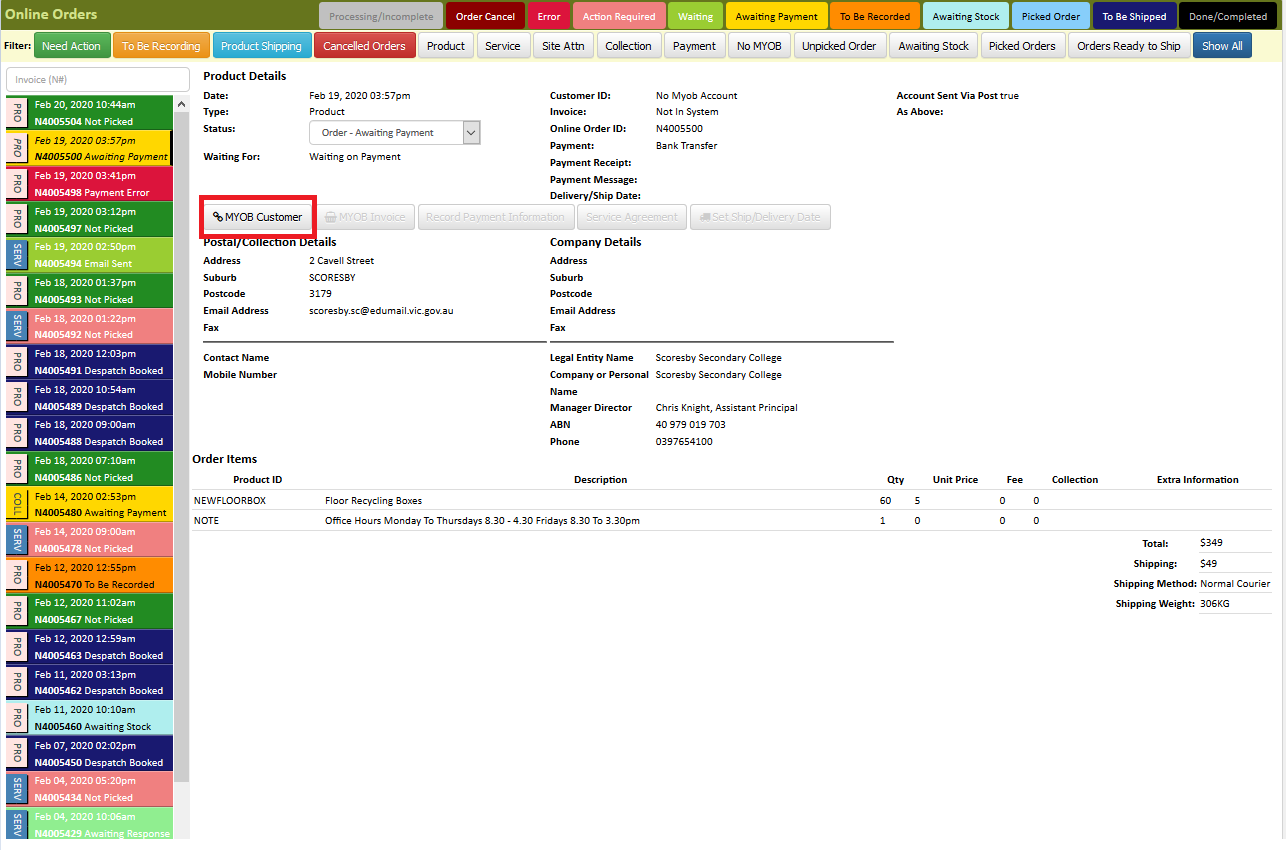
3. Give the customer a call on the phone number listed and prompt them “We noticed that we haven’t received a payment for the online order that you have processed for, INSERT PRODUCTS ORDERED, if you would like to still go ahead, I can either take a credit card payment now over the phone or if you like I can email you the bank details or the invoice again, I am just trying to make the order completed.”
**If the customer does want to go ahead and they are happy to give you their credit card details over the phone on the spot what we need to do is create a card for them in MYOB, create the invoice and then process the payment.
**The best way to do this process is to go to AWM Manage page because it would do it all completely automatically for you and you won’t have to go to MYOB to fix anything at all.
**If they agreed, let them know that we just need to process their order on our system.
4. Click on MYOB Customer and it would search for the nearest match already in the system. If there is none, you can create new customer.
**Note: If you can see that customer information is already in the system, you click on that, it highlights the fields that would change if you are to proceed with the customer. It will override the fields that were there from the online order, so if you hover over, you can see that it will give you a pop up of the information that is in the online order and the one that is showing on the field itself, that is the information that is already saved from the account that the customer do have with us. If you would like to use the new information on the online customer, just click the refresh button beside the field. If you don’t want to change the information from the existing customer account. Check everything and click on the fields that are blank from the existing card so you can update it. Click SAVE.
**Note: If the customer is new and doesn’t have any record or card from our system, verify with them the information that they have provided on the system and ask for any information that is still missing on the fields. Click SAVE.
5. After creating the card for the customer, change the Status of the order to “Order Paid - To Be Recorded”, then click “OK” on the pop up. (The color of the tab will change from yellow to orange.)
 to
to 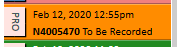
6. To start creating the invoice, click MYOB Invoice to view the order details. Double check the order if available or needs to be created as a back order, check costings, choose the correct Shipping Method, if the customer is purchasing the invoice date should be the date when we processed the order and the promise date will be on the date that the customer will receive it or the ETD, change the sales person name to your name and then let the customer know the costing and the total.
7. Click create invoice if the order is in stock and click on Create Order if there is no stock.
8. It would show you a pop up that the order is successful. From this pop up, you it will ask you for the Card number, card expiry date and Security Code. You can also email and print the invoice from this pop up.
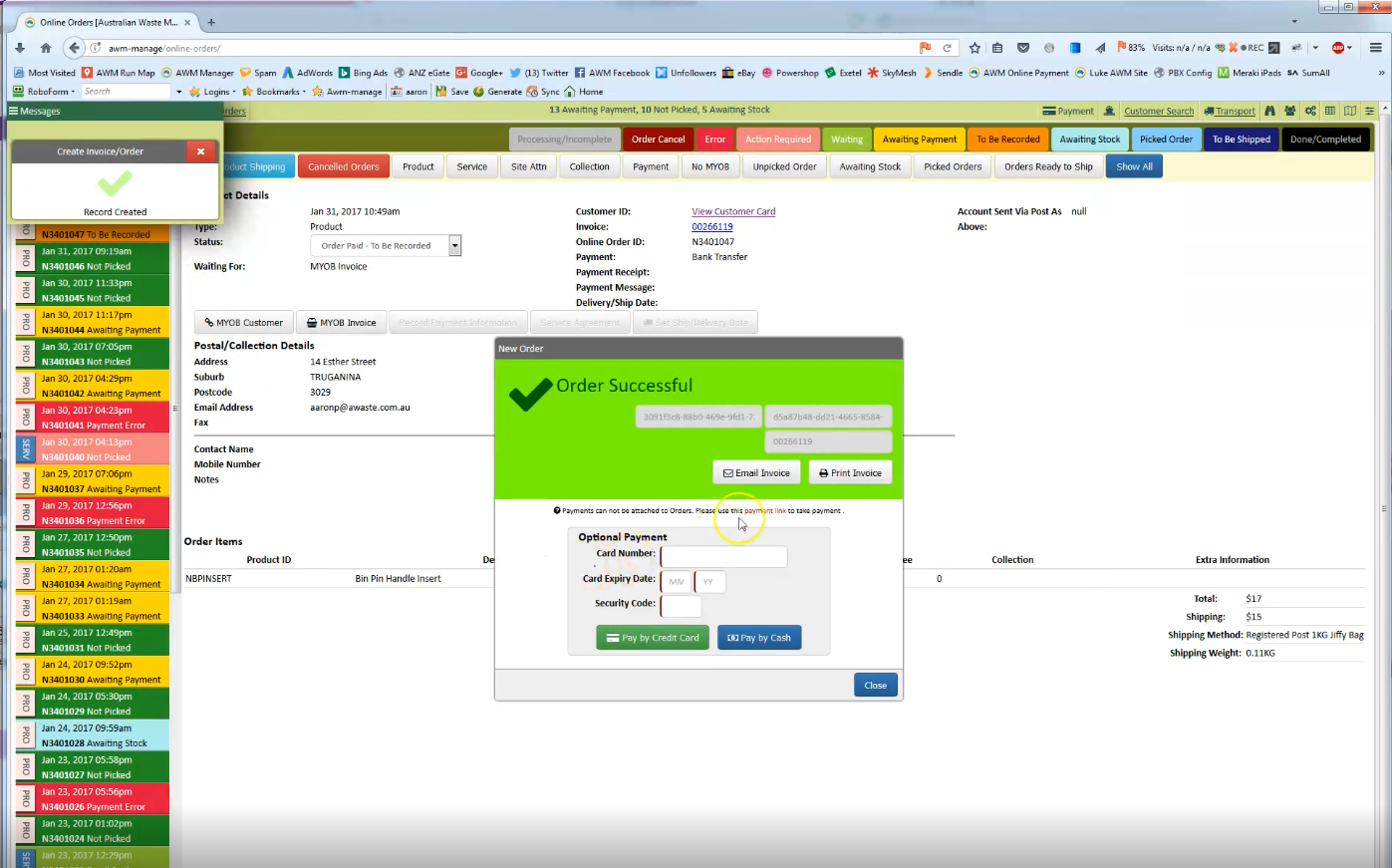
9. After filling the credit card information, click on the Pay By Credit Card. It will give you a pop up as well that the Payment was received then click close.
Additional information:
If you are to check the payment if it was applied on the MYOB, just go to Sales Register and search using Customer Name. If you are seeing an amount under the “Amount” column, then there is no payment that was applied, if the amount shows $0, then the invoice was already paid for.
If the payment was already processed, then it should also show on the Prepare Bank Deposit when you search for the transaction made on that day.
Comments