FOR REVIEW – Setting up DD At Call Service in MYOB
Jannine Batac
Posted at February 20, 2020 03:02 pm. Last updated at February 20, 2020 03:02 pm

PURPOSE:
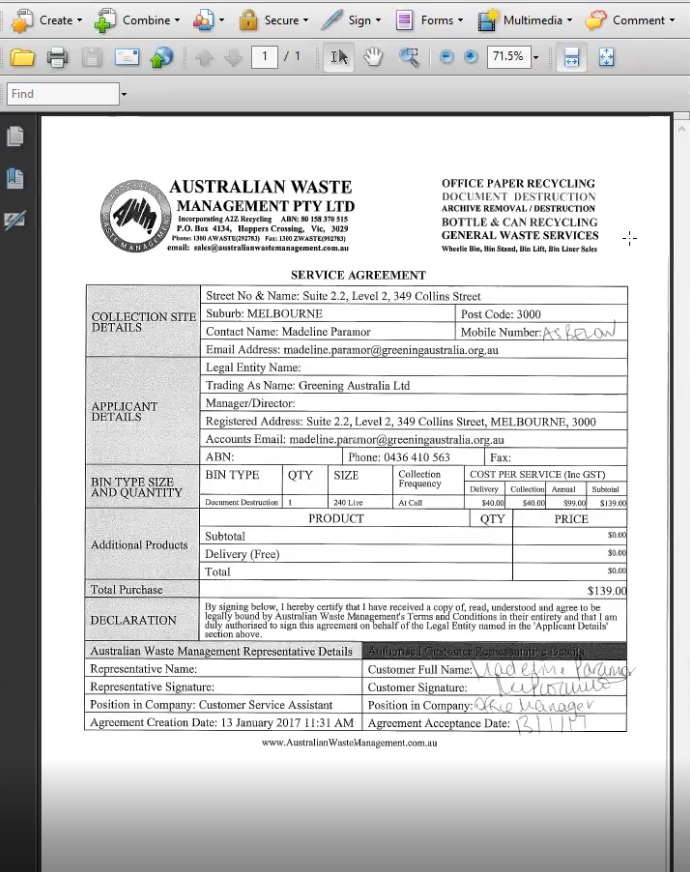
The purpose of this document is to guide Sales Representatives on how they can set up a Document Destruction At Call Service in MYOB after receiving the Signed Service Agreement from the customer via email.
PROCESS:
Enter the service agreement into MYOB so that the customer can commence the service. We have different service such as PC, GW, DD and CM. You will see different videos for different services.
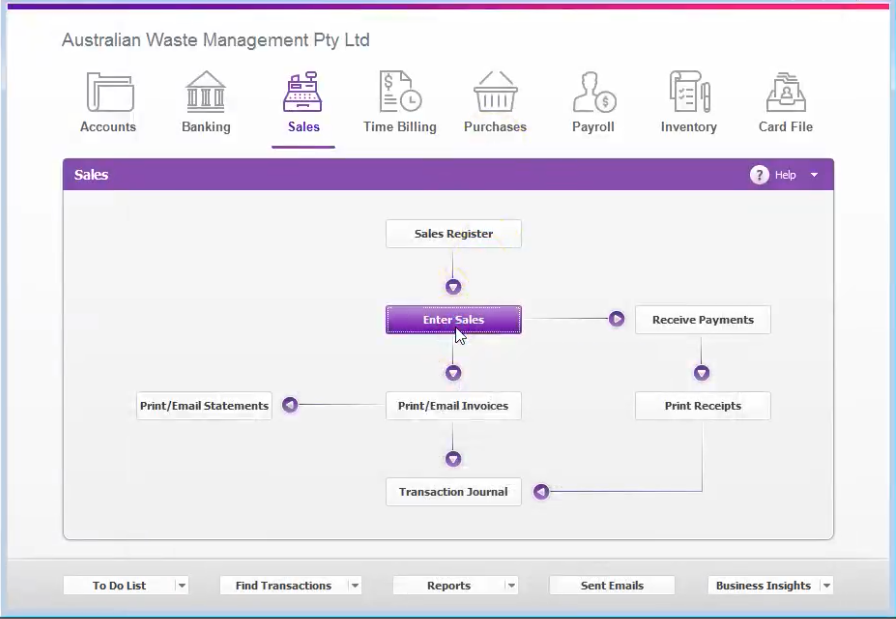
For this example we have already created a card for the customer, now we can just enter the service.
- Click on ENTER SALES.
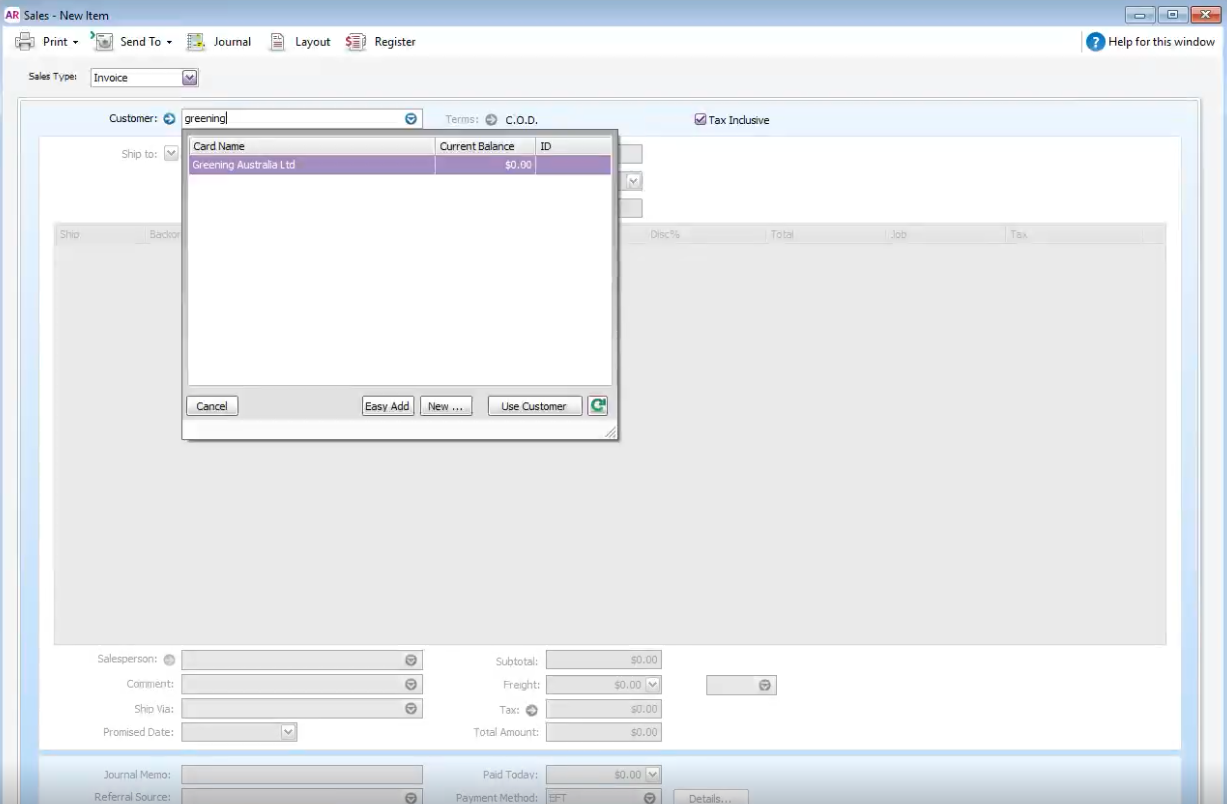
- Search for the Name of the company, double click the name of the customer. (For this example, we used Greening Australia)
- Use the Date on the day that you have created the Service Agreement.
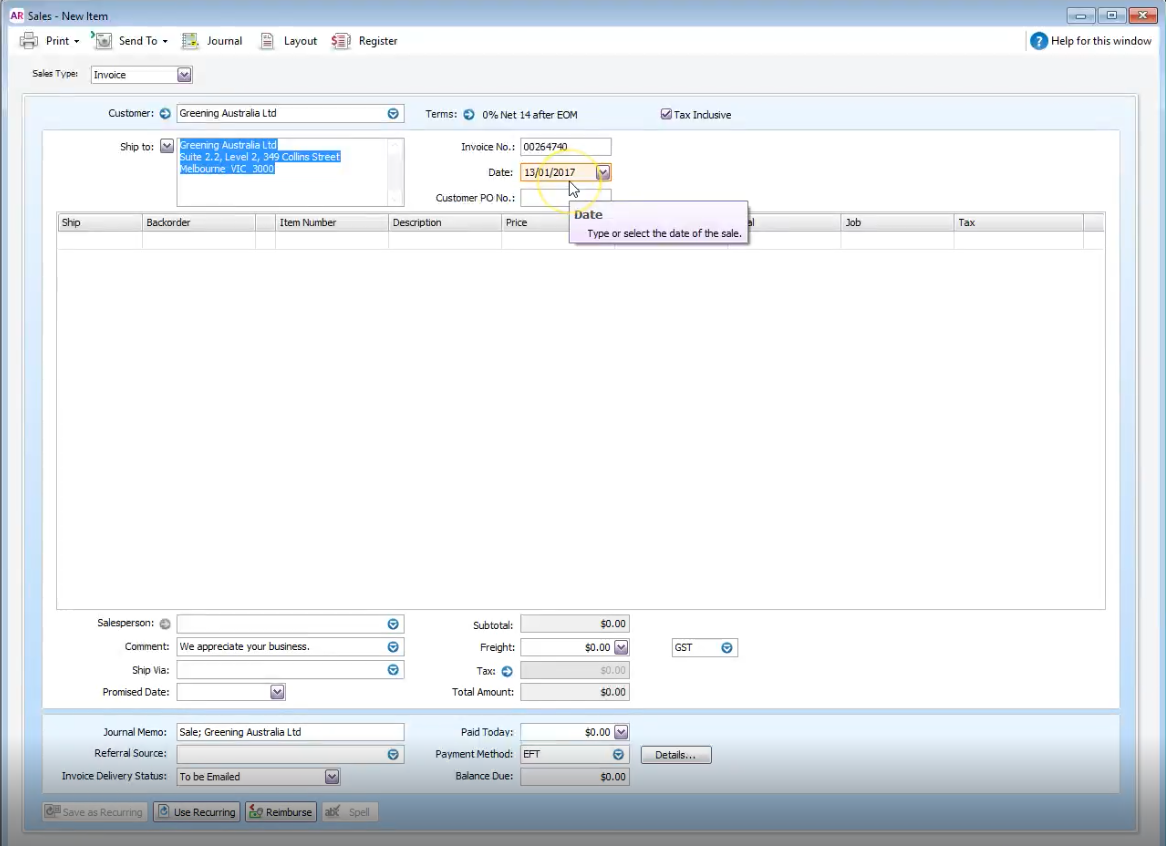
- Customer P.O. No. should be the name of the customer who authorized the service, in this case, check the contact person listed on the Signed Service Agreement then put the name on the Customer PO No field.
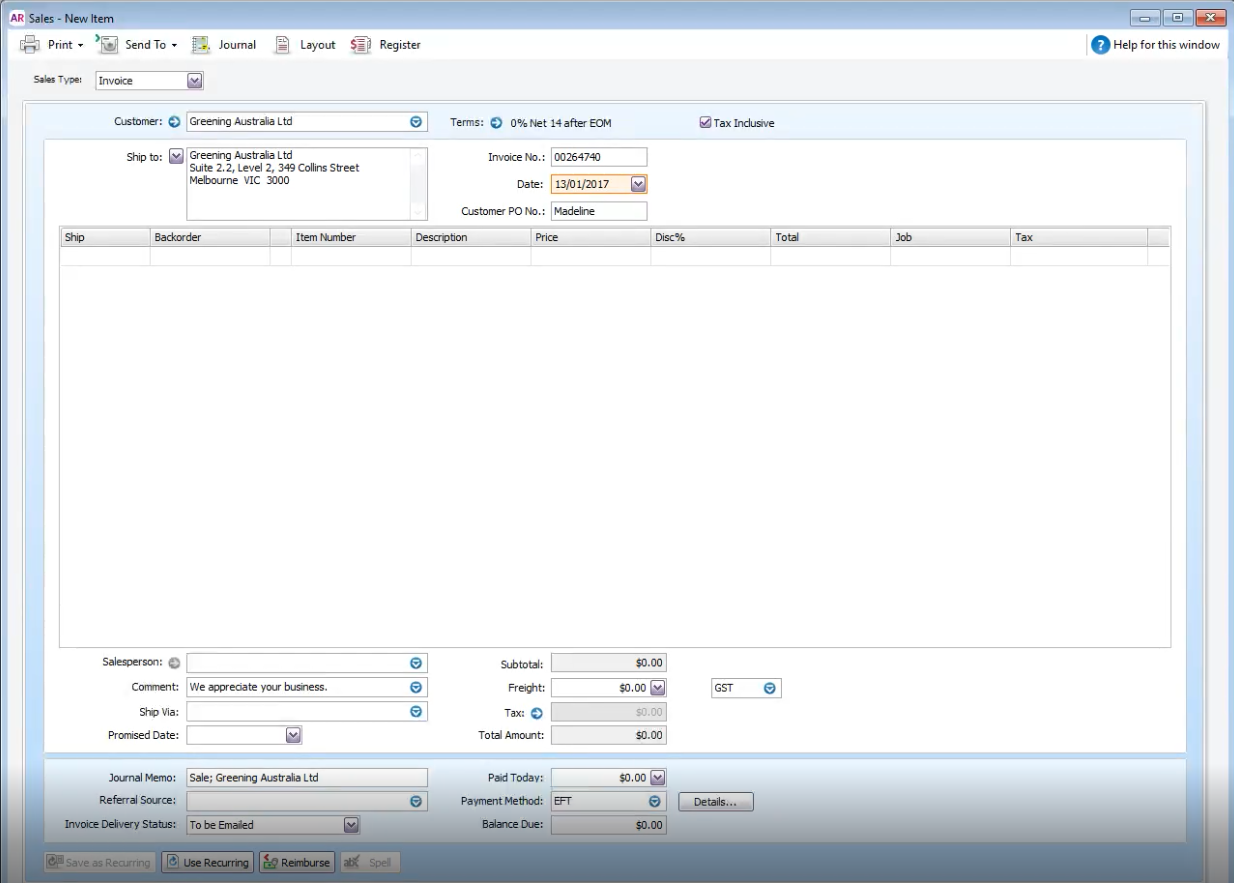
- Review the order on the service agreement and start with recording the DELIVERY of the bin. We need to fill out the information below:
(Ship is the quantity. Item Number for Delivery of Document Destruction bin is DELDD240. Always double check the description that appeared and the price are right.) 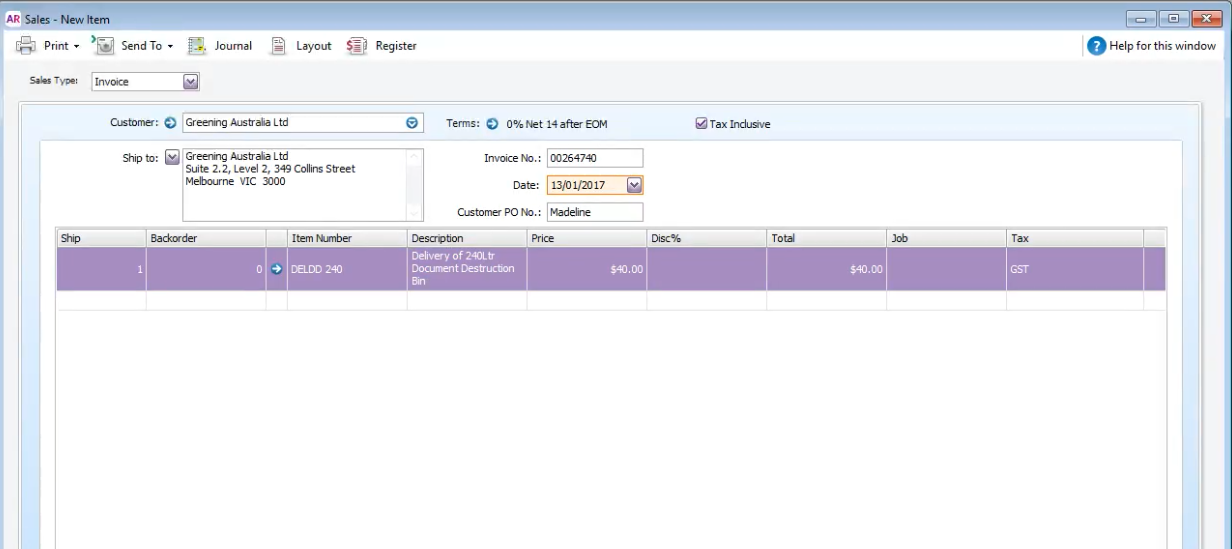
- Provide the information needed below:
- Salesperson should be you or the name of the person who processed the service agreement.
- Comment should always be We appreciate your business.
- Ship Via should always be INTERNAL COURIER (Previously called as DYNA) and if there are any changes that needs to be made or if they will use a different vehicle for the delivery, it will already be TRANSPORT GROUP who will be in charged for it.
- Promised date can be checked by clicking on the AWM Manage page, from there, we can search for the company name so the map will show us next available schedule on their location.

- Double check the information by recording or saving the invoice, and opening the customers invoice from AWM Manage so you can see if there’s anything that needs to be amended. If there is none, proceed with printing the DELIVERY INVOICE twice on Transport HQ.
- The last step in this one is CREATING ANNUAL INVOICE and entering the annual fee and that is so we are able to ensure that the annual fee comes up for renewal and at the same time every single year.
- Search again for the customer’s name and start with the date when the invoice was created. PLEASE BE REMINDED THAT WE DON’T PUT ANY INFORMATION ON THE CUSTOMER PO NO FIELD FOR ANNUAL INVOICES.
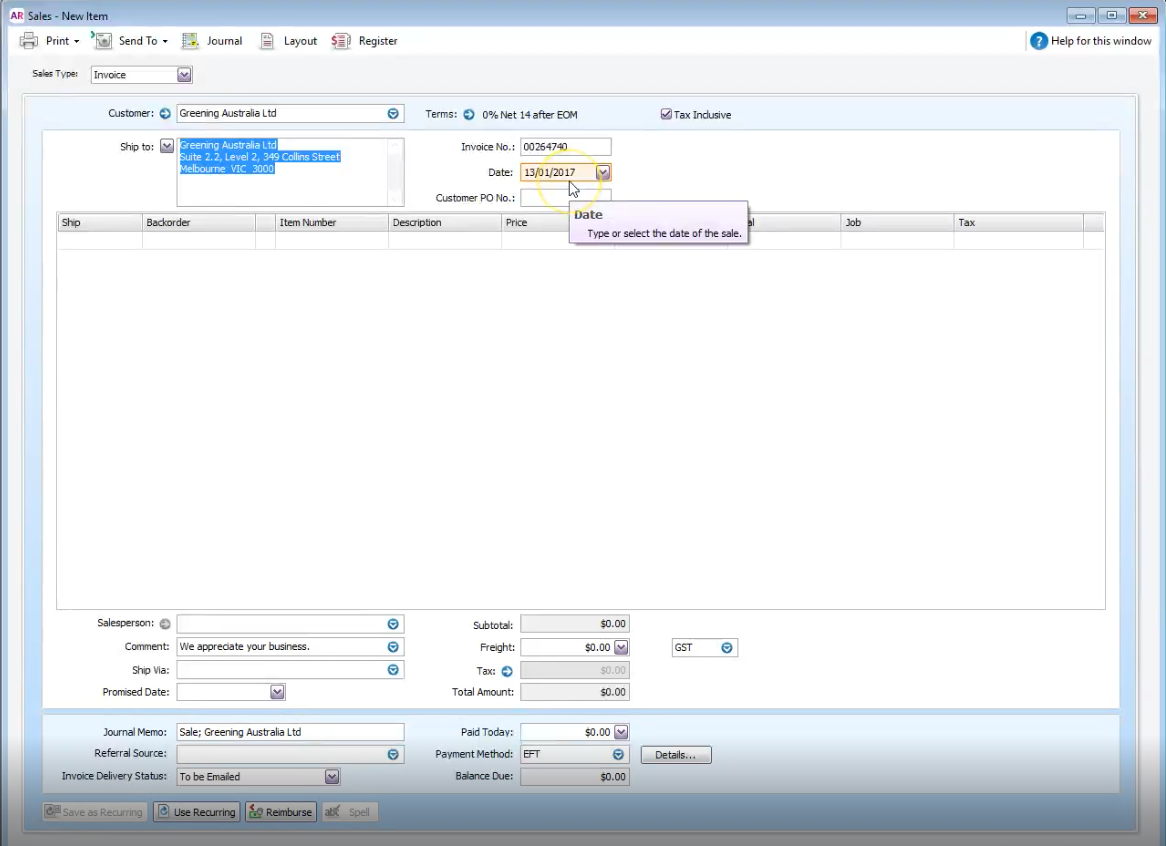
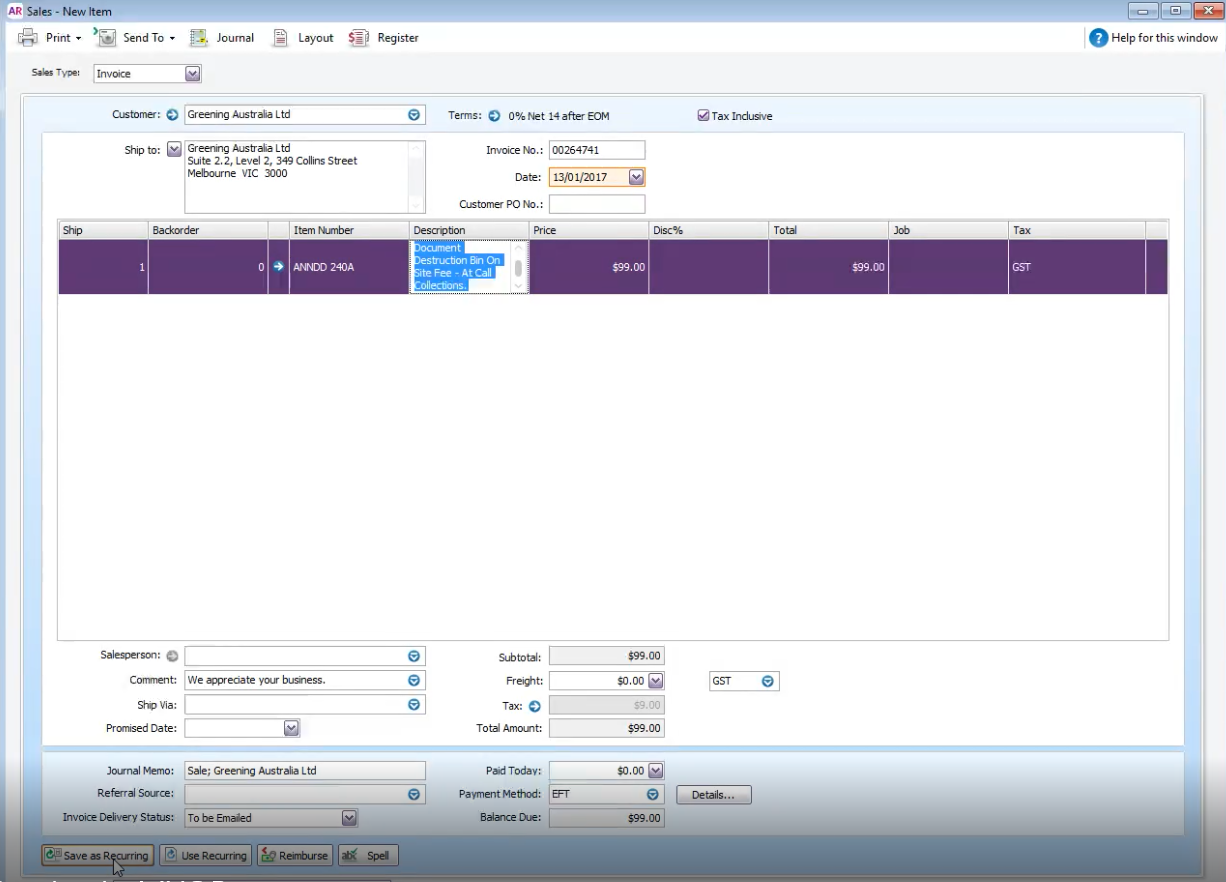
- Then, fill out the below again. (Ship is the quantity, Item Number for the Annual fee of DD At Call is ANNDD240AtCall, double check the description and the price showing.)

- For ANNUAL INVOICE, we don’t need to provide more information and we can directly proceed with clicking “Save as Recurring”.
- Recurring Schedule Information pop up will show and we need to change the Frequency to Annually since this is an annual fee invoice that we are recording. We also need to change the “Starting on” date to next year.
- Tick the box next to “Save my changes when I record this recurring transaction” . Click OK.
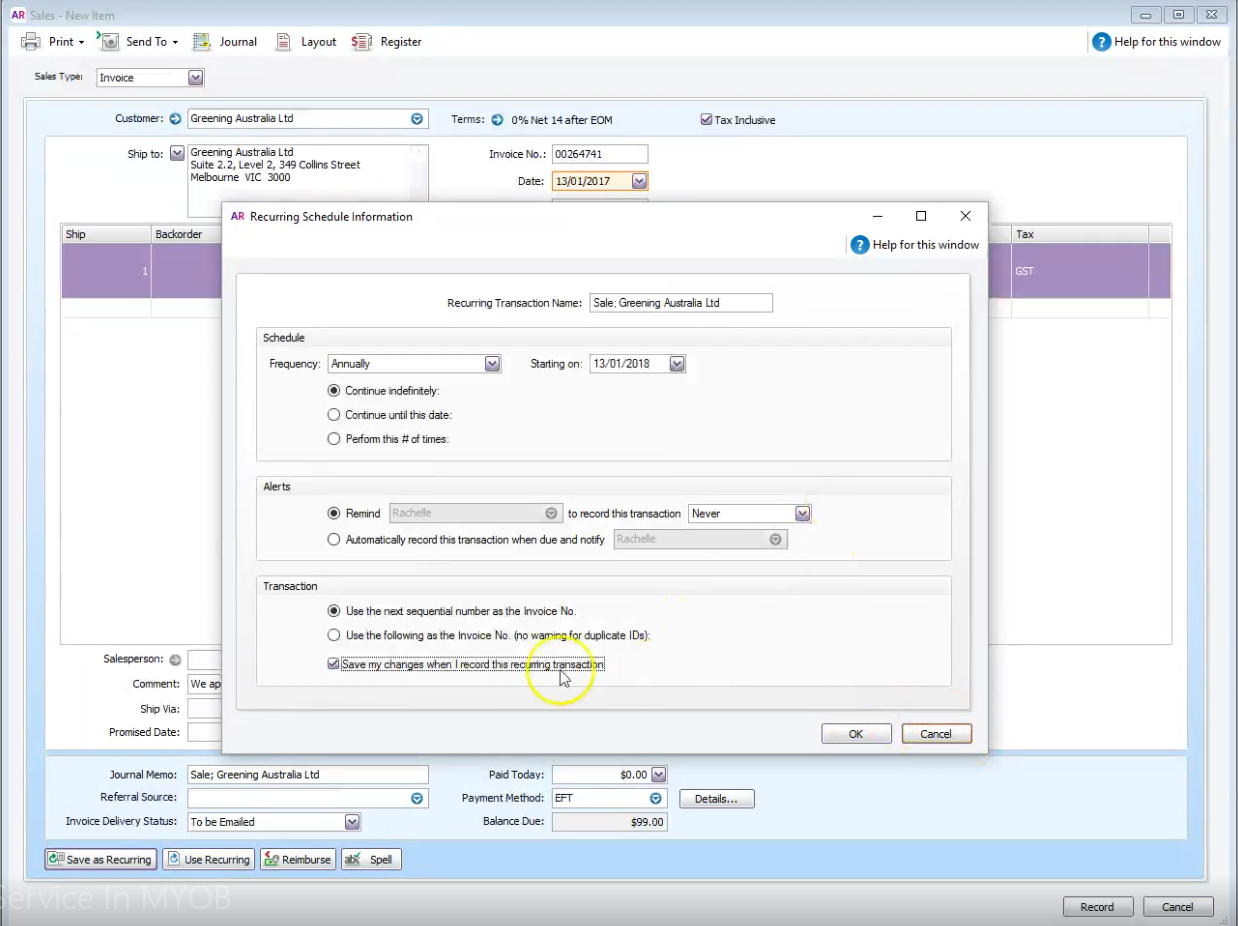
- After saving it we can expect that on the following year, it will automatically create an invoice for the same annual fee for the customer. Print ANNUAL INVOICE once only.
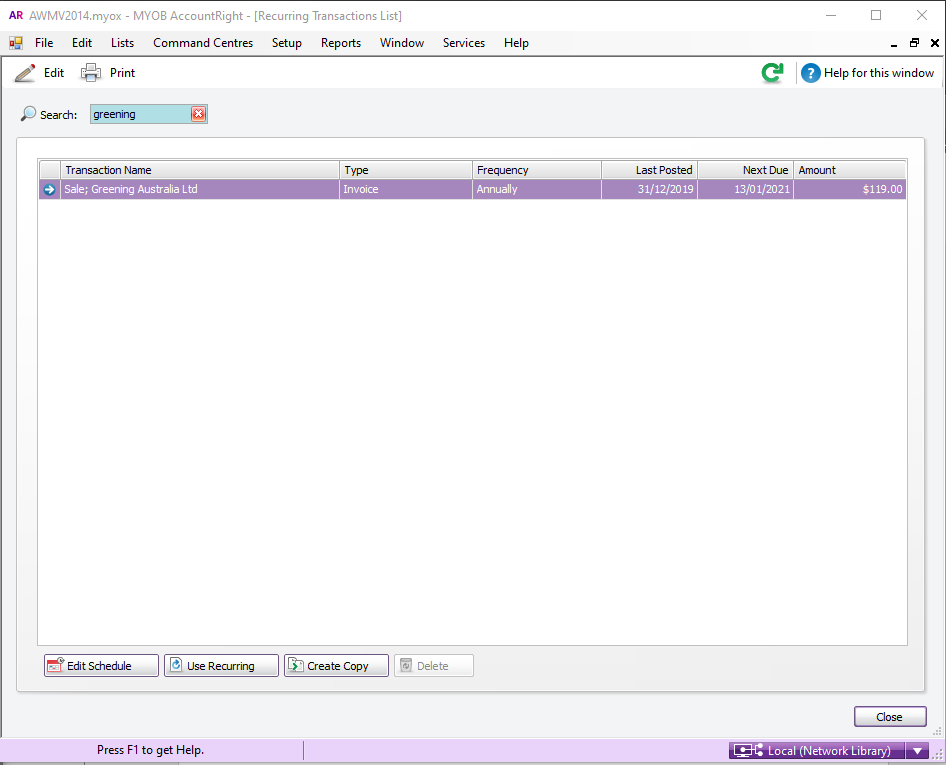
- If you would like to double check or view the recurring transaction that you have created, click on the Lists button that is on the upper part of the MYOB then choose “Recurring Transactions” then simply search the company name.
Comments