FOR REVIEW – Outstanding Order Process
Posted at February 21, 2020 03:02 pm. Last updated at February 21, 2020 03:02 pm

PURPOSE:
Show how to clean up the outstanding orders in MYOB. This document should be able to provide a guide on the different online status type and status change processes.
PROCESS:
Below are the guide on what needs to be done depending on the Online Order "Type" and "Status".
When orders are entered and are waiting for payment they sit in the Orders Tab of the Sales Register until something is done with them, we need to always go through this and make sure is being dealt with. (Below is the image of the orders that are still pending or not yet closed.)
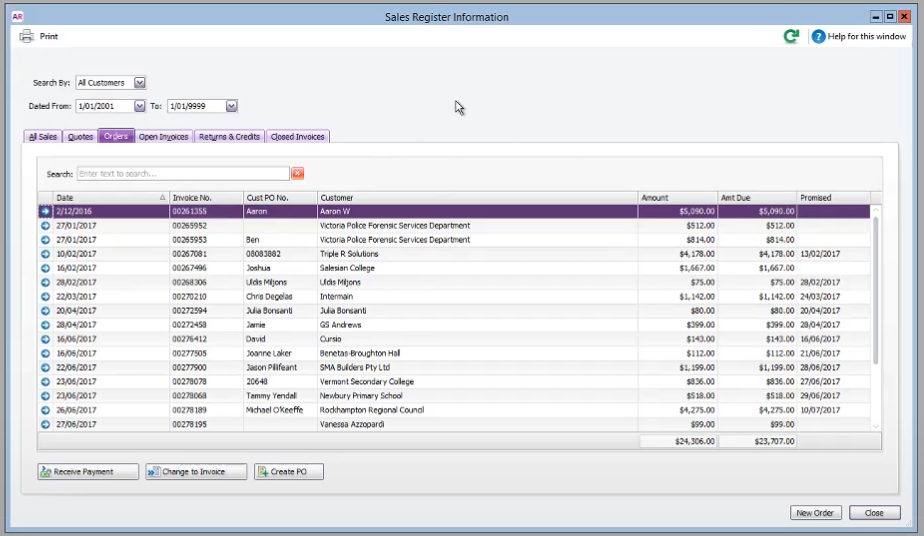
**It is sort of the same in the online orders in the awm manage, as far as we need to go through every online orders, and somebody needs to go through each one of them one a time, work out what is wrong or what needs to happen or what hasn’t had happened and sort them and mark them as complete or whatever has to happen.
Type: SERVICE
Status: AWAITING RESPONSE
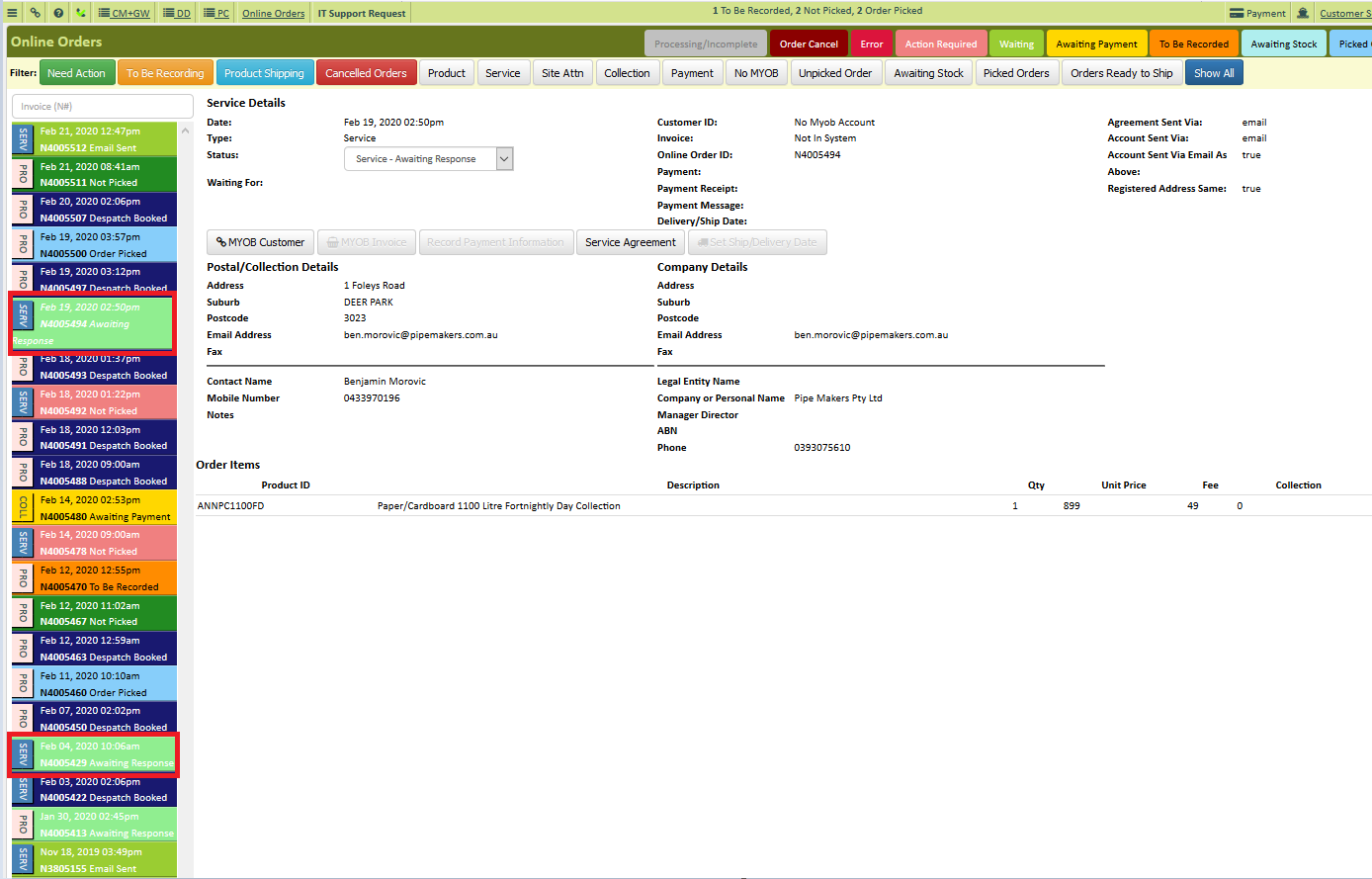
In particular, to the green tabs – “Service Agreement” that means service agreement is being sent but we don’t know if it has been received back.
First, we need to go and have a look in MYOB see if this customer is being set up - if they have, mark it as completed.
If they haven’t follow them up and say something like “Is there anything wrong? Did you receive the agreement would you like me to send it to you again? Can I help you filling it out? all you need to do is to sign it and email it back so we can get the service started. Just go through whatever the problem is and get it rectified and once you got the Signed Service Agreement, mark it as complete or change the status to “Order-Completed”.
Type: PRODUCTS
Status: AWAITING PAYMENT
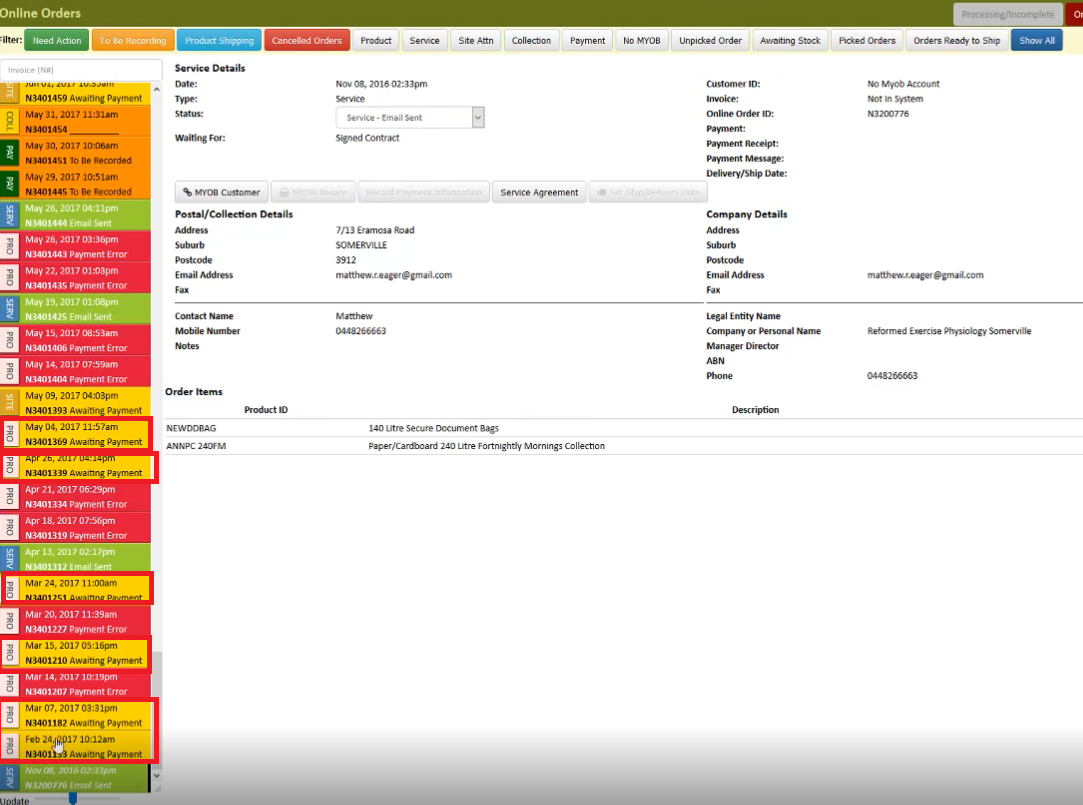
We need to confirm if the payment is being received, if it has, make sure that it is applied and make sure that this gets marked to the next level or whatever it is up to – if it is already despatched.
If there is still no payment that was received from the customer at least after 3 days, contact the customer if we can help them anyway, that we can take credit card over the phone or whatever it is that we need to run through just to get the right outcome.
Type: ORDER/PRODUCT
Status: PAYMENT ERROR
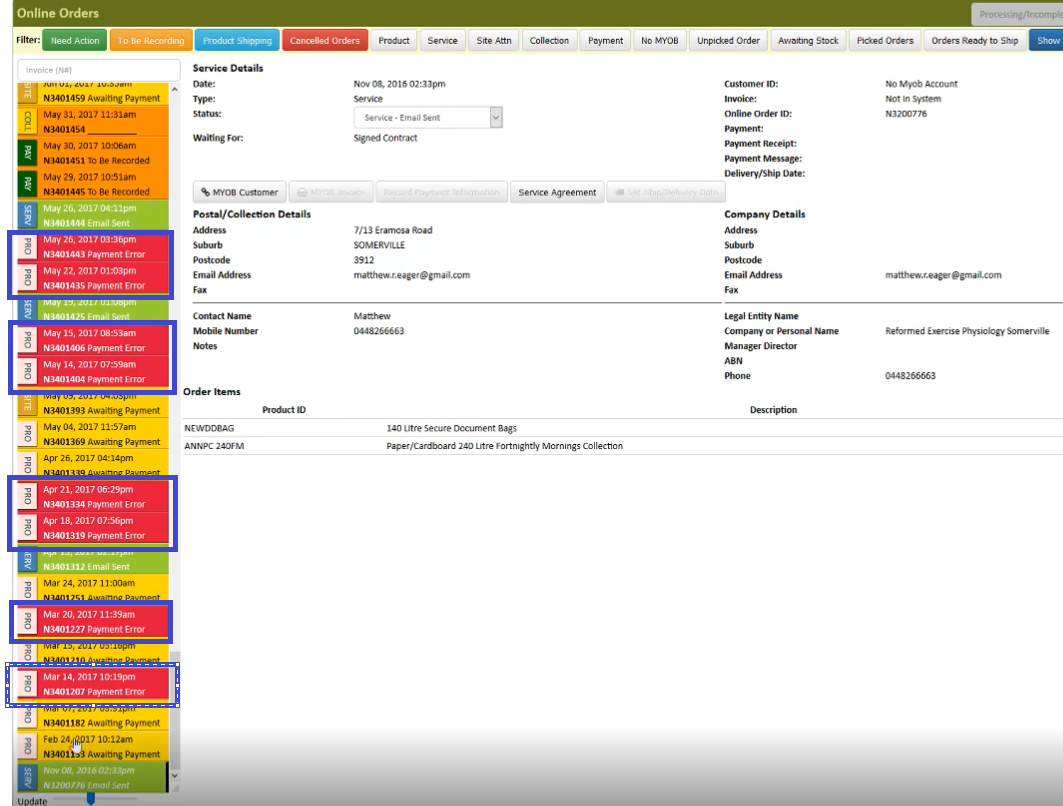
This error means that the customer tried to pay using a credit card and it has failed. We need to check the orders before and after just to make sure if they didn’t process another order have the same error.
If there is an order that is the same but with a payment applied to it, change the status of the similar order that is in “Payment Error” status into “Completed”
Use the other Invoice that is “To be Recorded” so that the payment that was made will also be applied to the invoice right away.
To double check if the order is already processed for the customer with the same order, you can use MYOB and AWM Manage to search for the account if the customer is already on our system. If it looks like that they really weren’t able to successfully process their online order, we need to contact them and let them know of the reason showing on the system. Help the customer by providing options or assisting them on processing a payment using a credit card.
Type: SITE ATTENDANCE
Status: AWAITING PAYMENT
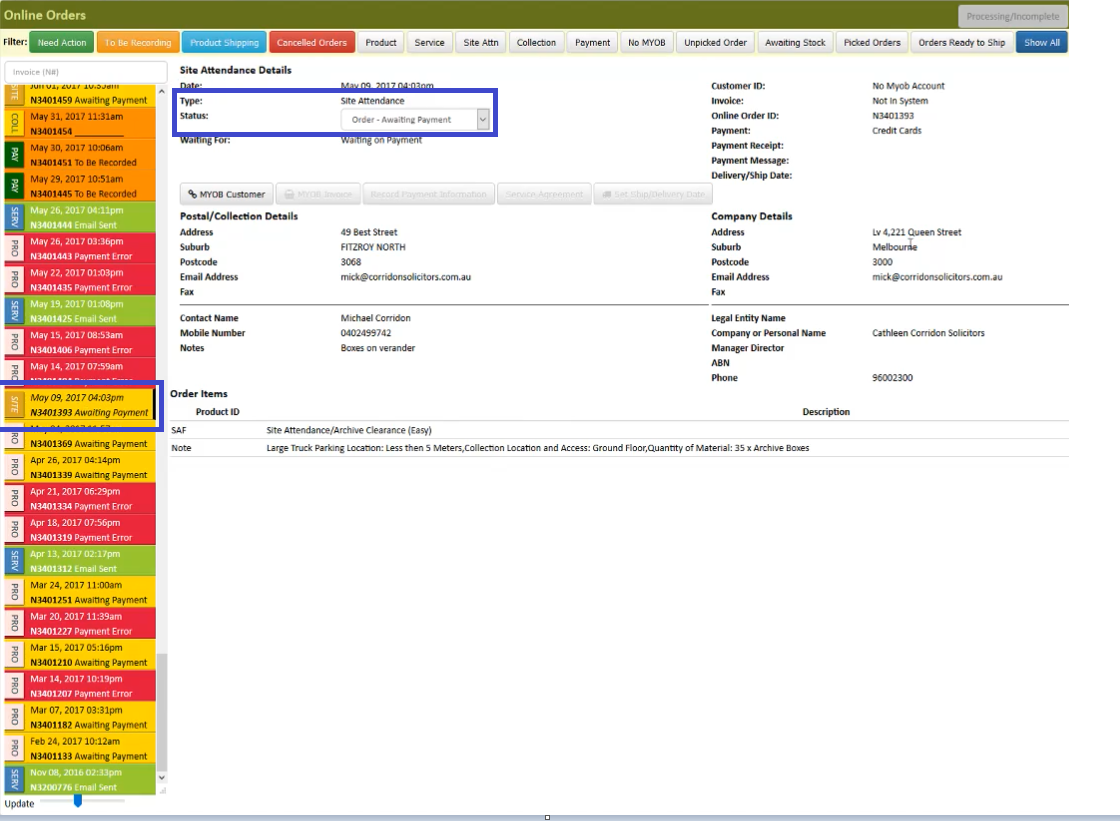
Check MYOB if it is already recorded or not, if it was already completed or not, check if it was already paid or not.
New customers who booked their first ever SAF’s with us would require payment prior to us proceeding with the job, offer assistance on making a payment so that you can proceed with booking the schedule for their once-off service.
If the customer is an existing customer, check if they already have an invoice the same as the one we have on online orders. If there is an invoice already, make sure that you mark the status of the online order according to the ones that we have on the invoice.
Type: ONLINE PAYMENT/SERVICE
Status: TO BE RECORDED
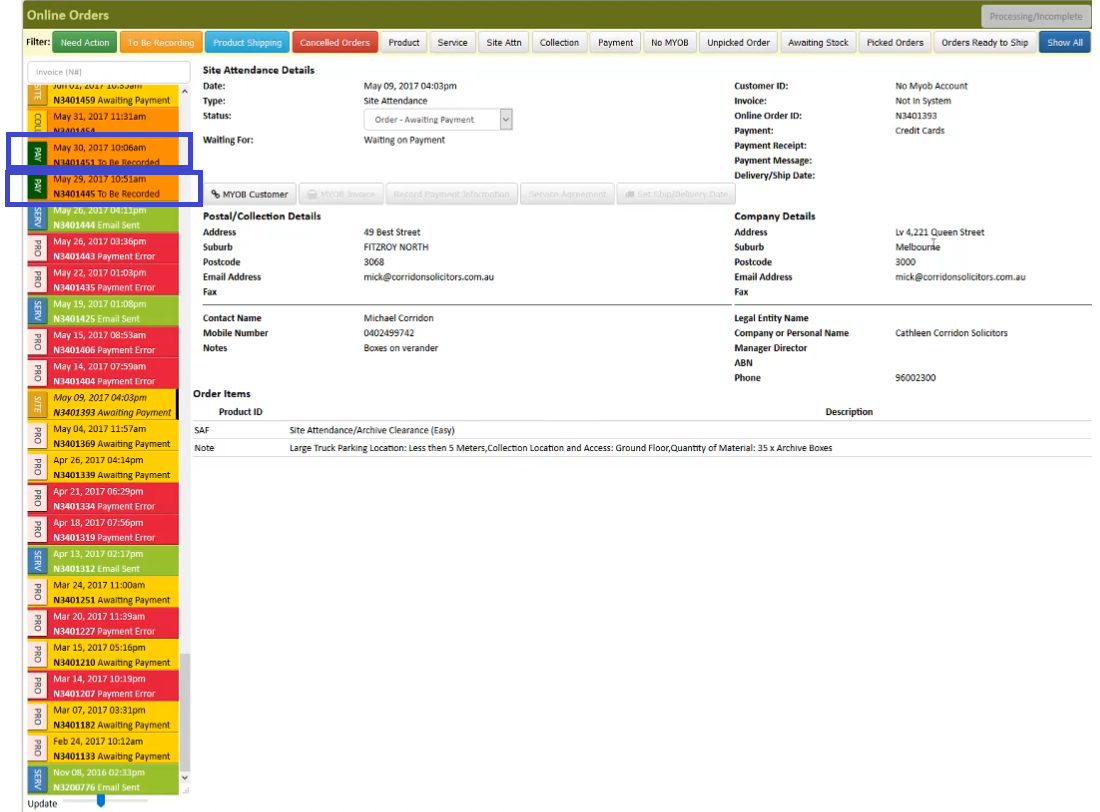
The ones that has this status only means that the customer paid their bill online and you will see that there is an invoice number that will be showing on the Product ID. Just make sure that the status of the payment is approved, then proceed with changing the status to “Order – Completed”.
Type: PRODUCT PAID
Status: AWAITING STOCK
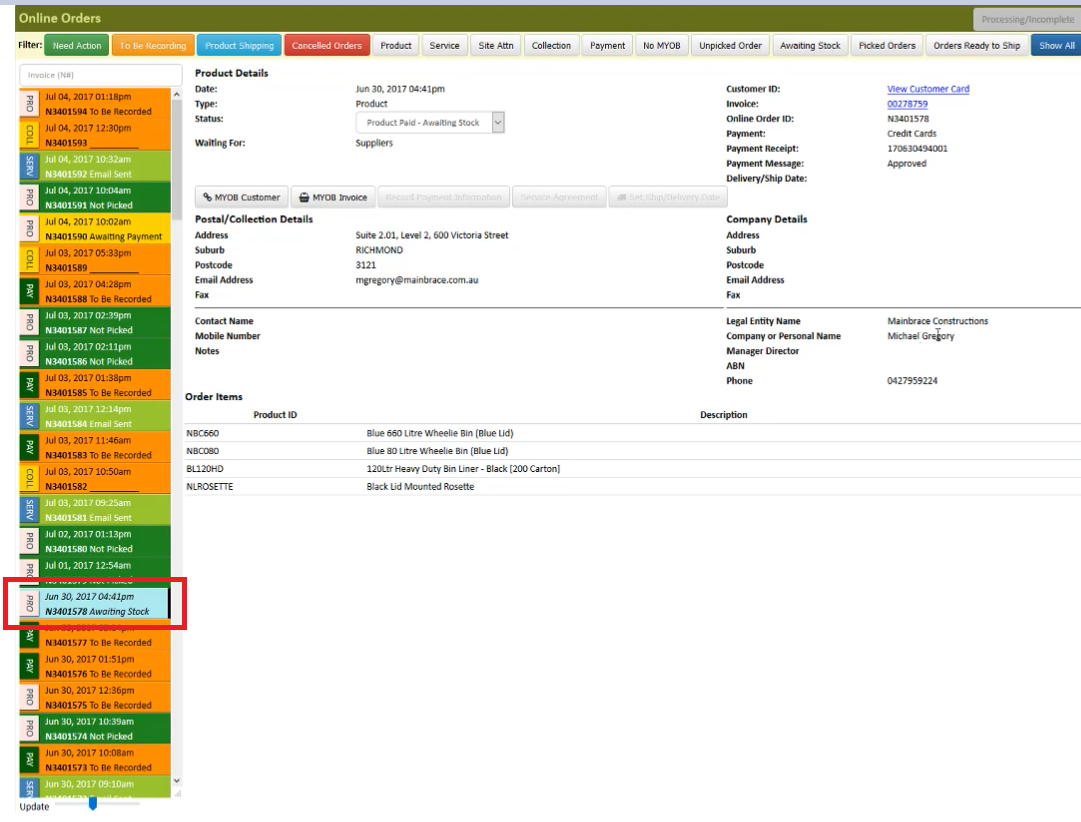
You need to verify that this is already in MYOB. Contact transport to verify and follow up on the awaiting stock so that we can make sure we are able to deliver the products to the customer on the promised date.
Type: COLLECTION
Status: N/A
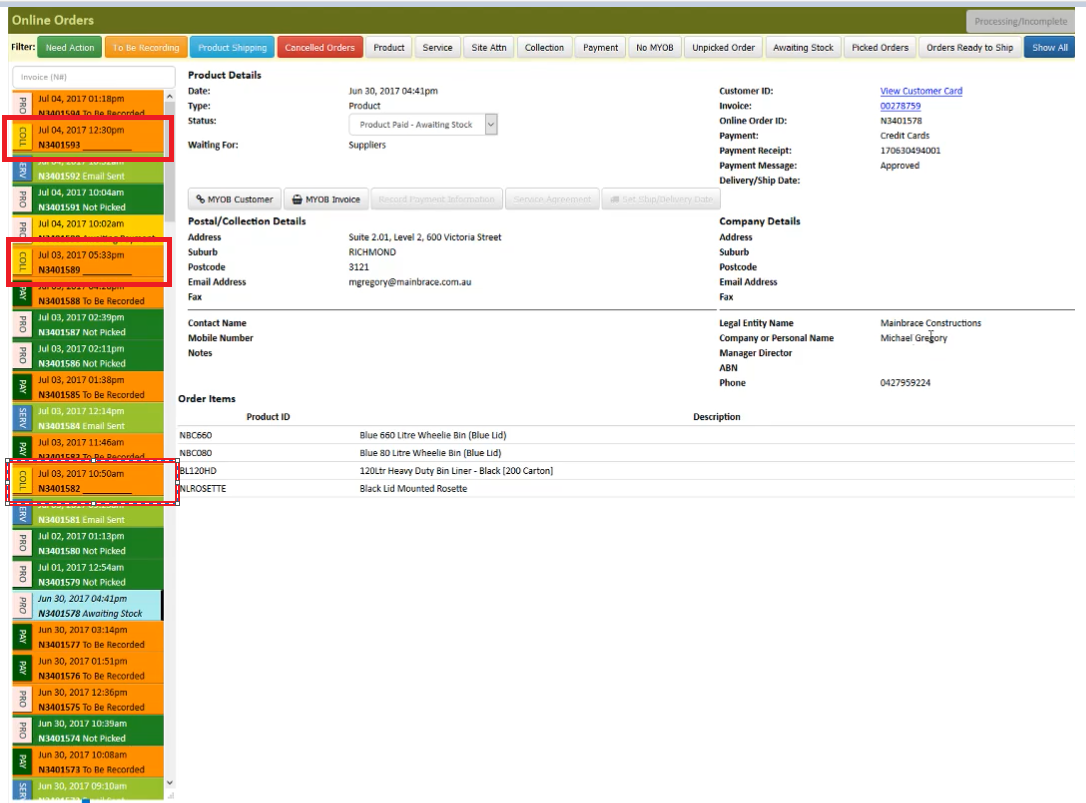
This type will show on the Online Orders list if the customer processed a collection via our website. Search for the customer account or information on AWM-Manage and check if the collection request was already booked, if not, call the customer or at least book a collection and send a confirmation to the customer via the email.
NOTE: It is suggested to check the orders that we have on the MYOB-Sales Register Information so that we can make sure that we are always updated and on top of the orders that we have received. When stocks come in, Transport or Accounting group that books that stocks in. If stocks that came in covers an order on our system, we can proceed with converting the order to an Invoice.
OLD ORDERS: Jobs or orders showing on MYOB that has balance due and are very old, we can zero out the amount and make a note of the changes that you have made so that you will have a zeroed balance but a complete view of what you have done on the invoice. Always ask permission first from Aaron or Rachelle with regards to editing any pending invoice.
STOCKS ARE AVAILABLE AND CAN BE CONVERTED TO INVOICE: After editing the order, click the “Change the Invoice” to process the order and send it as an email to the customer.
** If you are not able to change the order to an invoice because there are no enough stocks that is showing on the MYOB, we just need to have the stocks be entered by the accounting or transport department. As soon as the stocks is reflecting on the MYOB, we can proceed with changing it into invoice. Double check the delivery and ship via information to make sure that this is updated. Click Record and OK.
CANCELLATION OF ONLINE ORDER PROCESSED: If the customer doesn’t want to continue with it, say “Okay, that is fine no worries, I will cancel it off the system.” Then proceed with editing the invoice, make the total amount and the Freight Charges $0 and most importantly add NOTE that would show the changes that you have made and removed so that in case the customer would like to reprocess that order again, we just need to copy the information on the Notes field and won’t need to recalculate or check everything.
Comments