Invoicing A Customer Part Order And Creating A Back Order
Karen Lacsamana
Posted at January 22, 2018 07:01 am. Last updated at February 13, 2018 05:02 am
Invoicing Customer Part Order and Creating Back Order
**These process can only be done in MYOB at this time.**
- Open AWM Manage Page
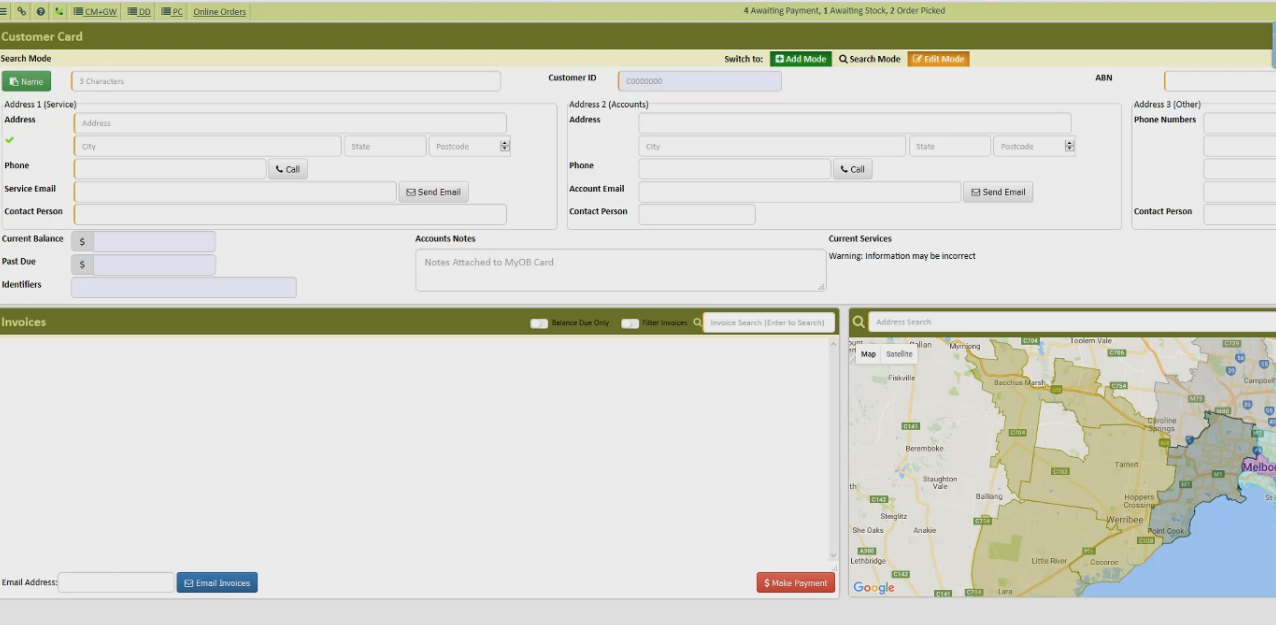
- Pull up the customer account
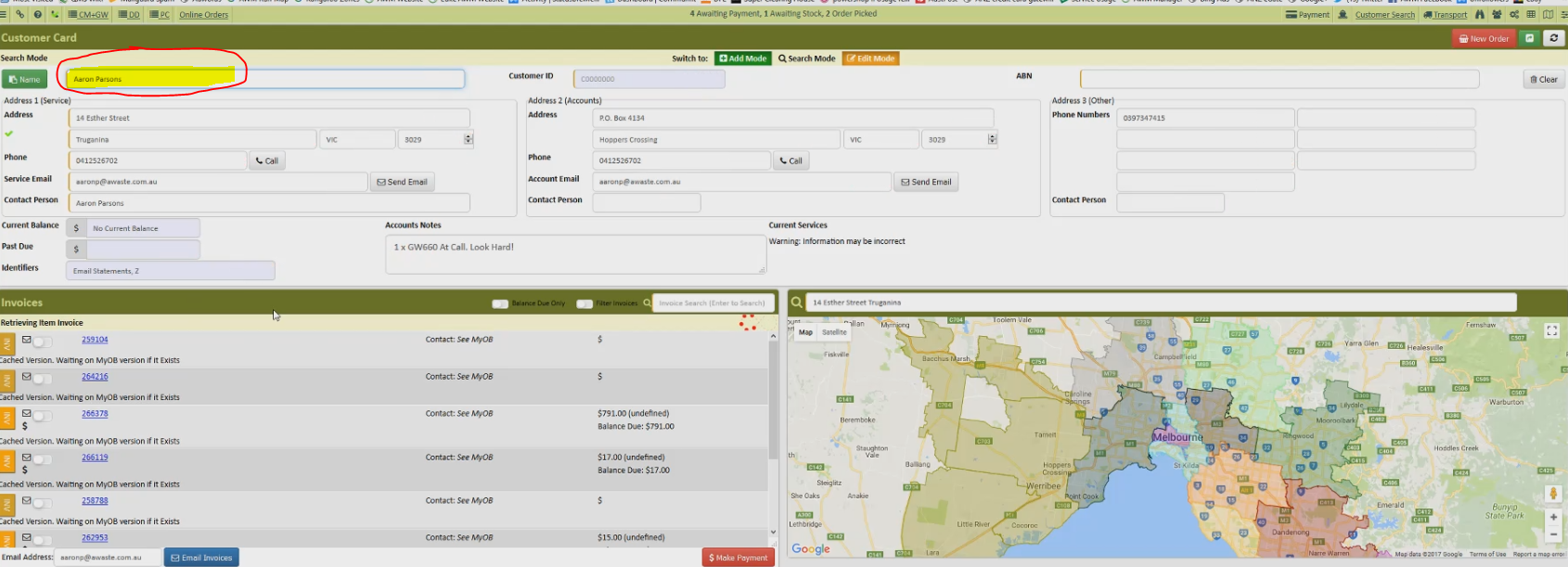
- Verify account Information
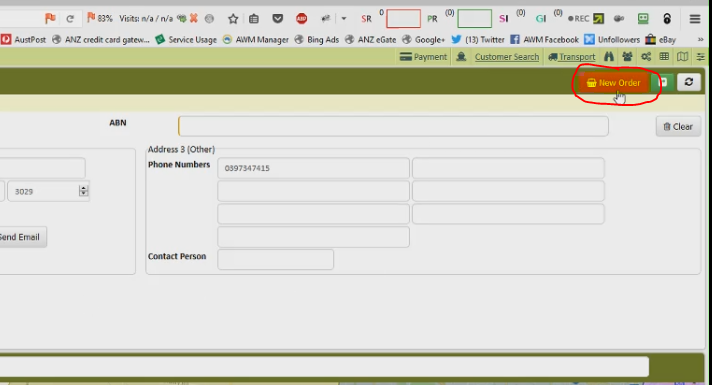
- Click New Order
- Process the order for the customer
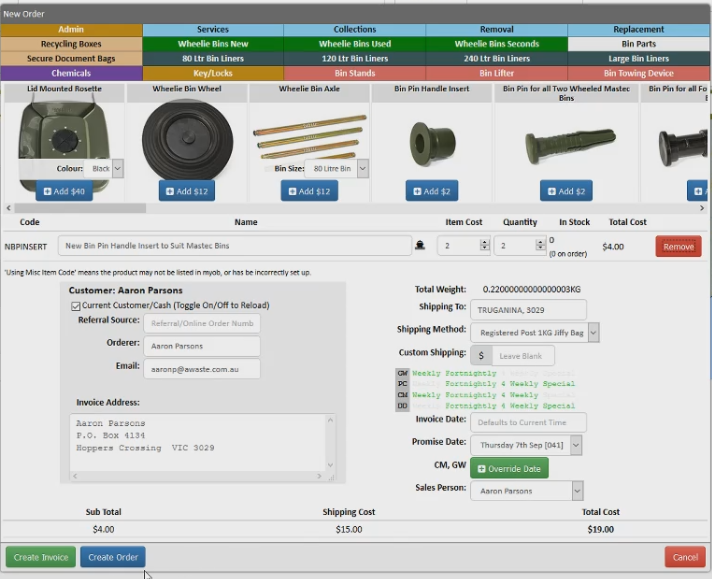
- Click Create Order
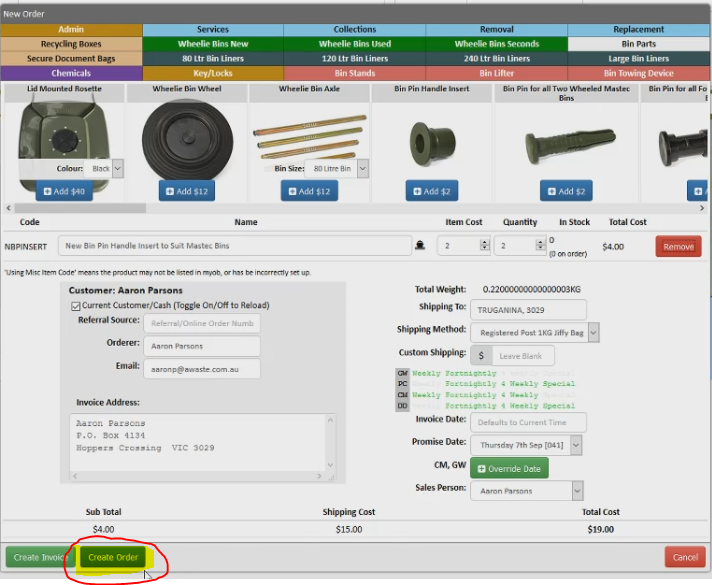
- Go to MYOB
- Open the invoice number you created
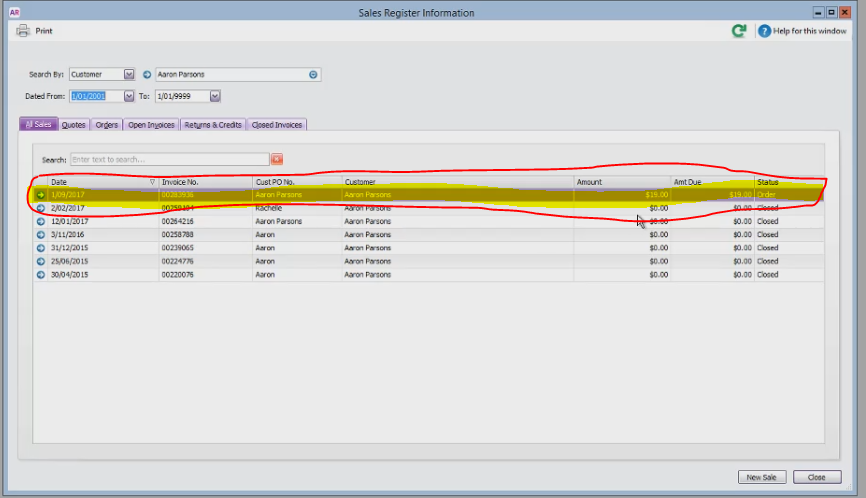
- Click on the invoice number you created in AWM Manage Page and change it to Invoice
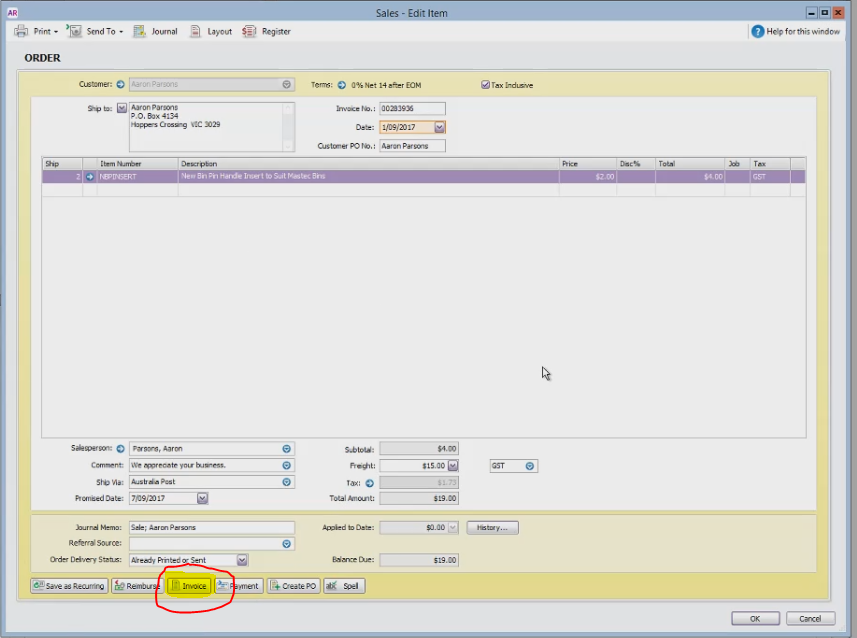
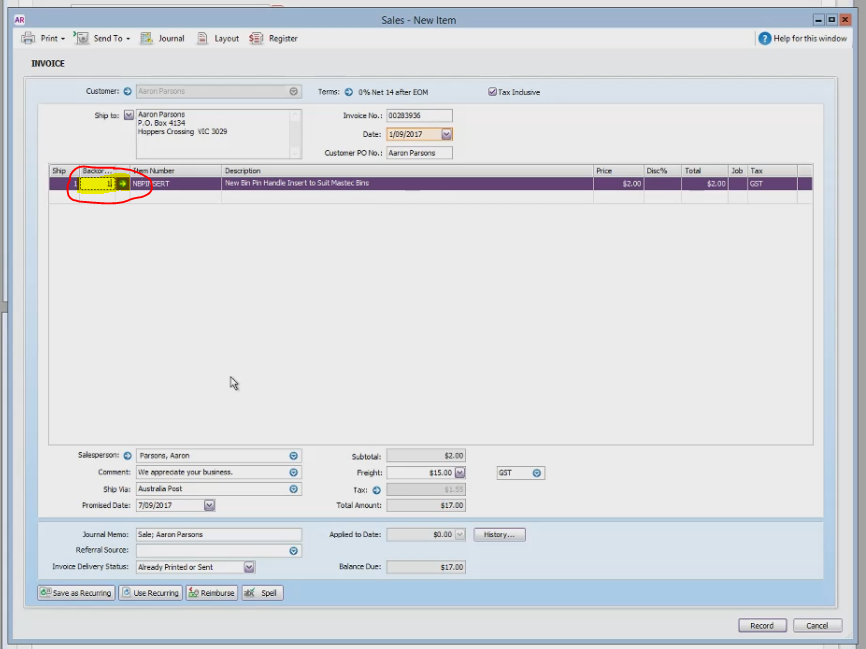
- Change the Ship To, to the actual number of product we can deliver
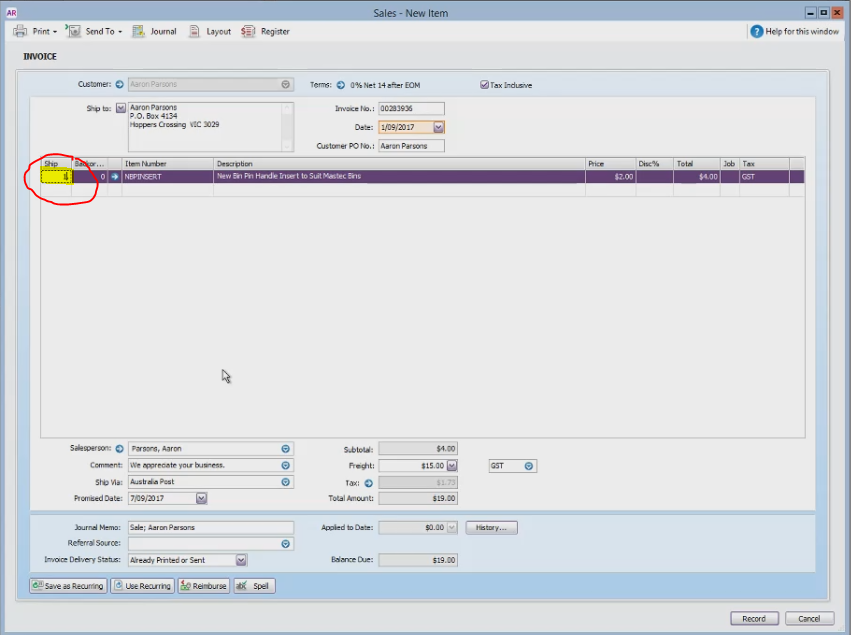
- On the Back Order tab enter the number of products to be put on a back order
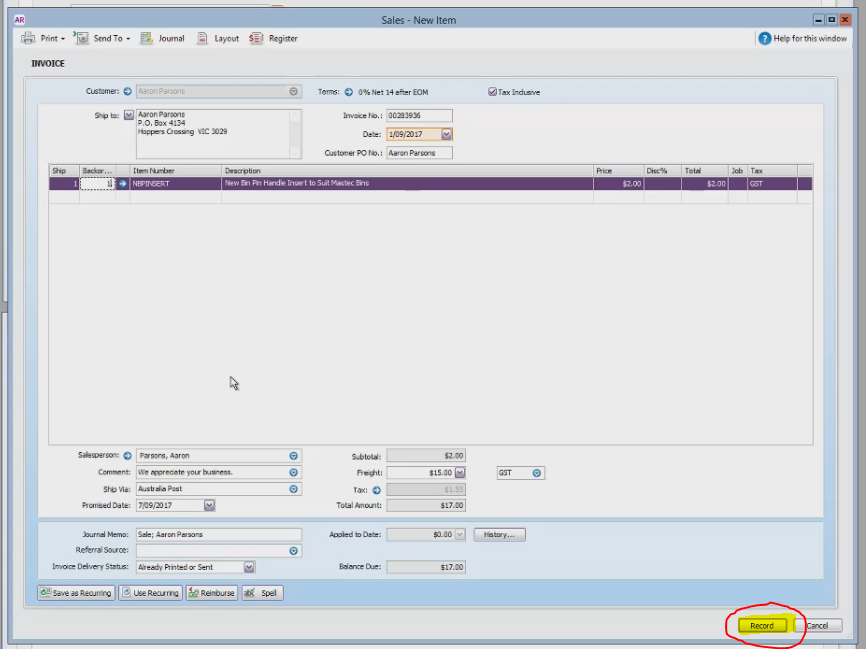
- Click Record
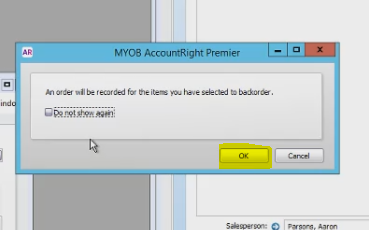
- Click OK on the pop up box (An order will be recorded for the items you have put on a back order)
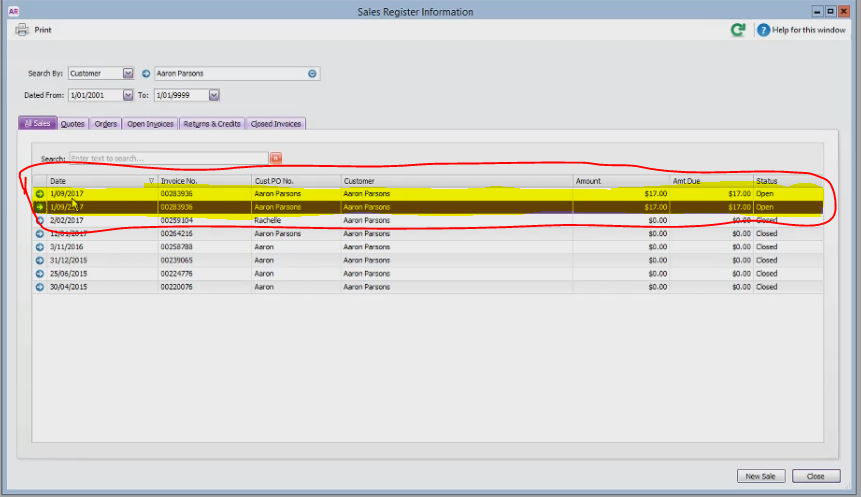
- There will be 2 orders with the same details (same invoice number), however one will remain in ORDER status (this is the one on back order)
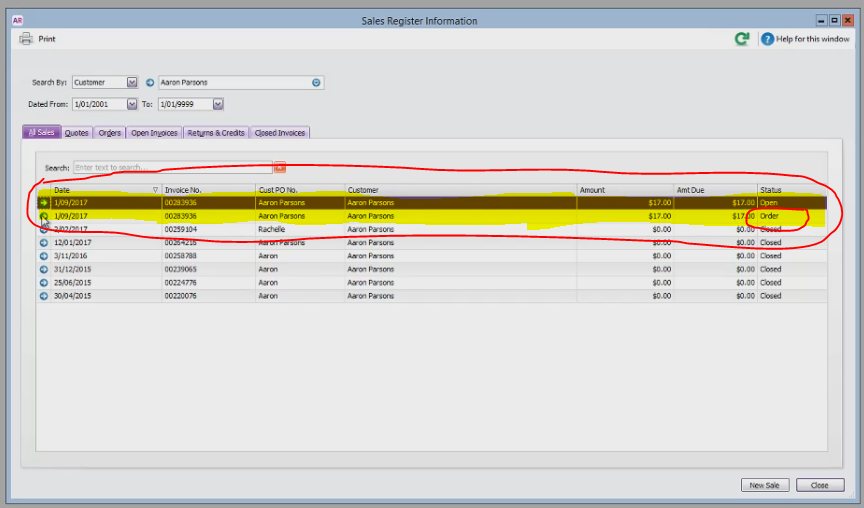
- The back order invoice will have an ORDER status
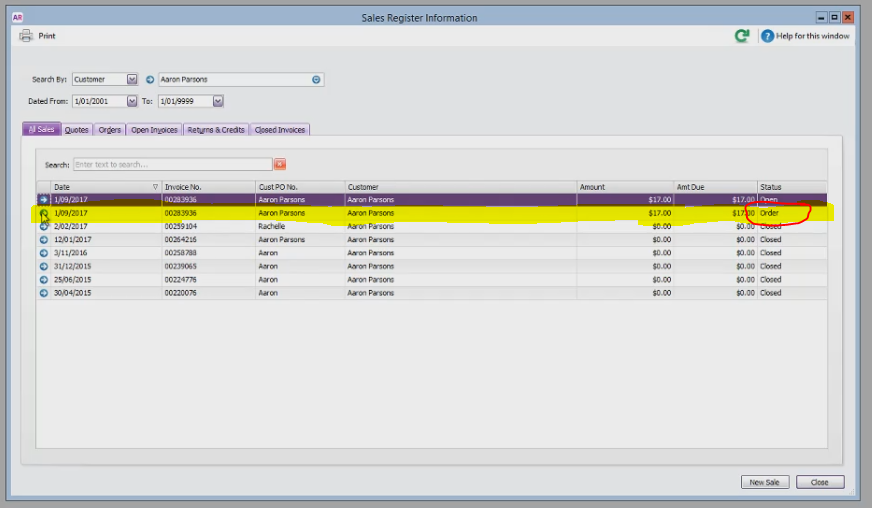
Once the stock arrives you need to do the following:
- Open the back order invoice
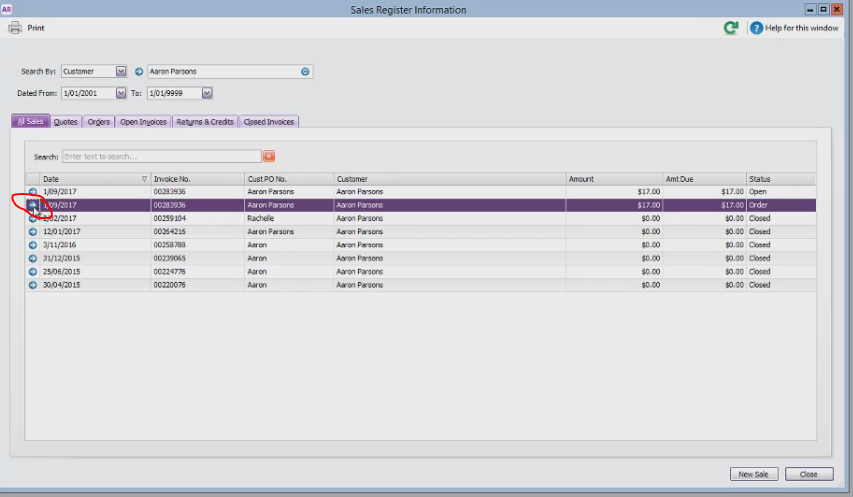
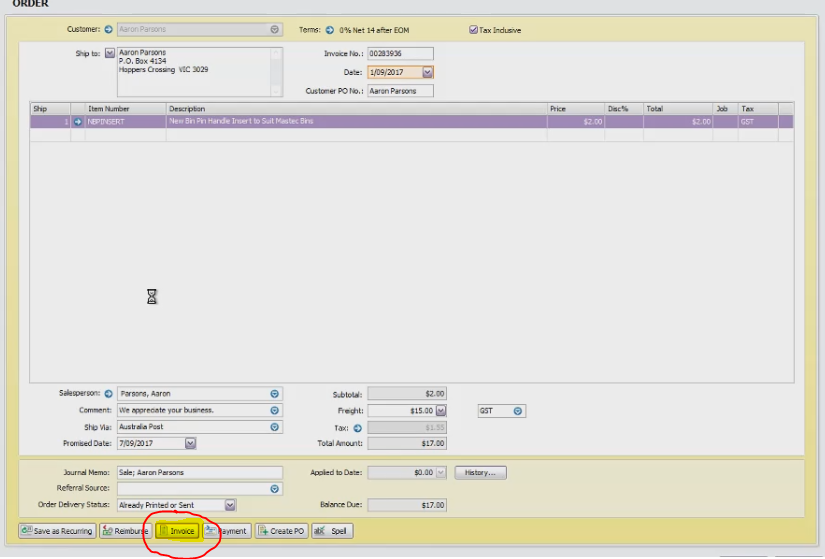
- Click Invoice, this will change the order status to invoice (From yellow background to Blue background)
- Click Record
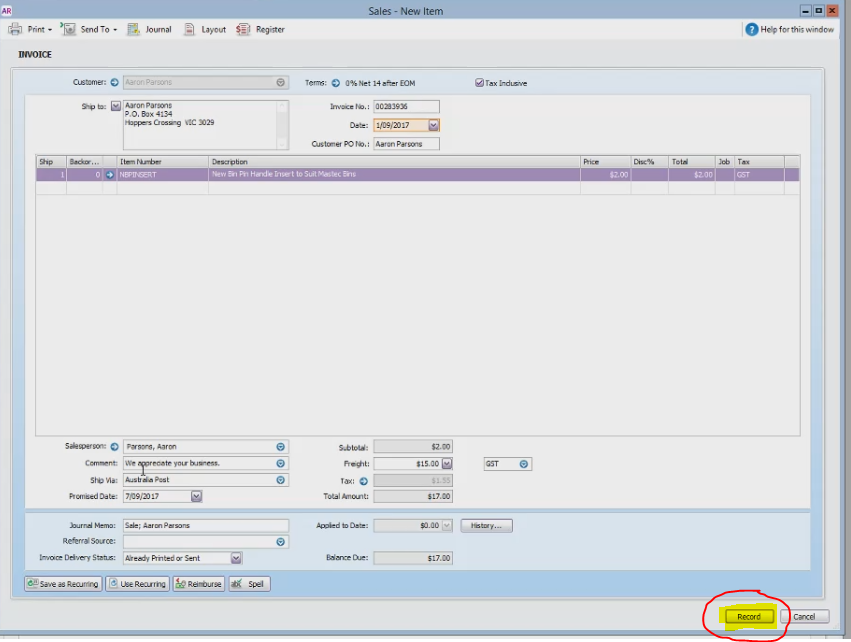
- You will now see that there are two invoice with the same details (which means that part of the order was shipped previously and part of it was put on a back order)
Comments