Partial Customer Pick Up and How To Record Them in MYOB
Karen Lacsamana
Posted at January 22, 2018 07:01 am. Last updated at February 13, 2018 06:02 am
Partial Customer Order Pickups and How to Record them in MYOB
- Open MYOB
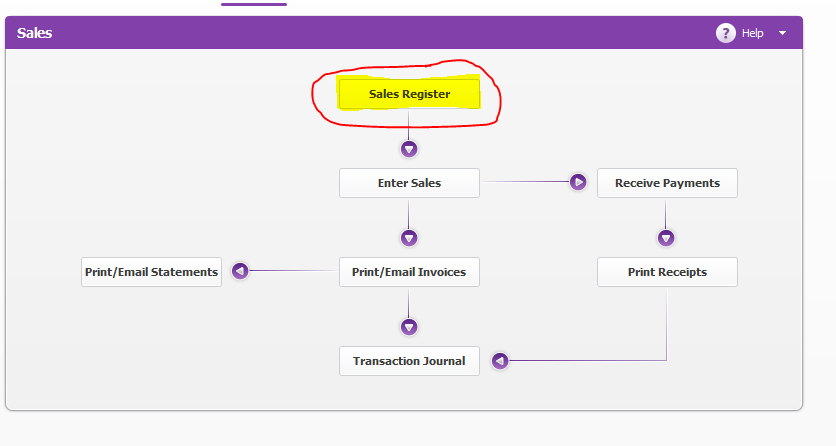
- Go to Sales Register
- Open the invoice number for the partial pick up
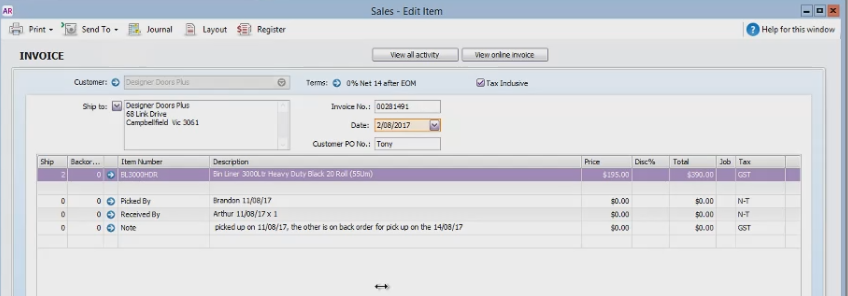
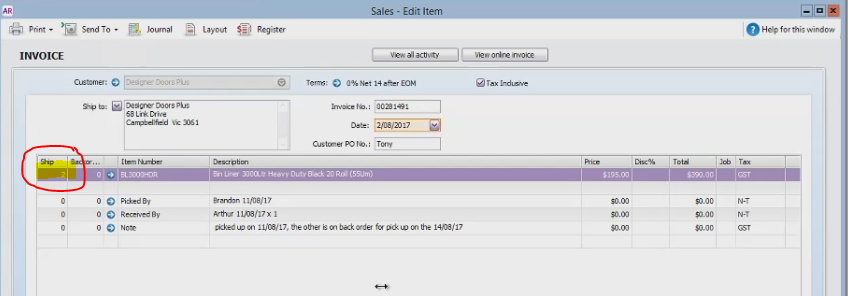
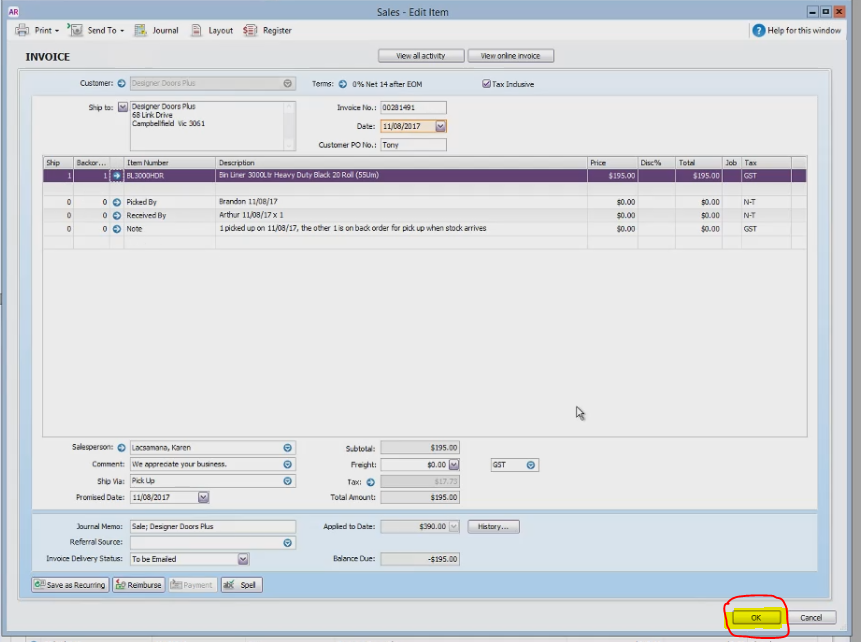
- Change the number of items on Ship Tab to the actual number of products picked by the customer
- The date will need to be the same date they picked it up
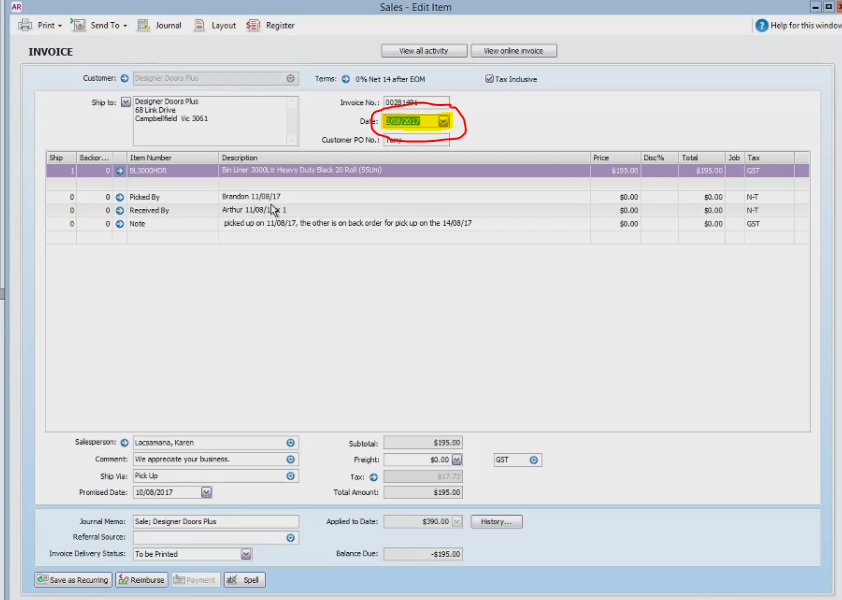
- Pick up date should be the date the product was picked up
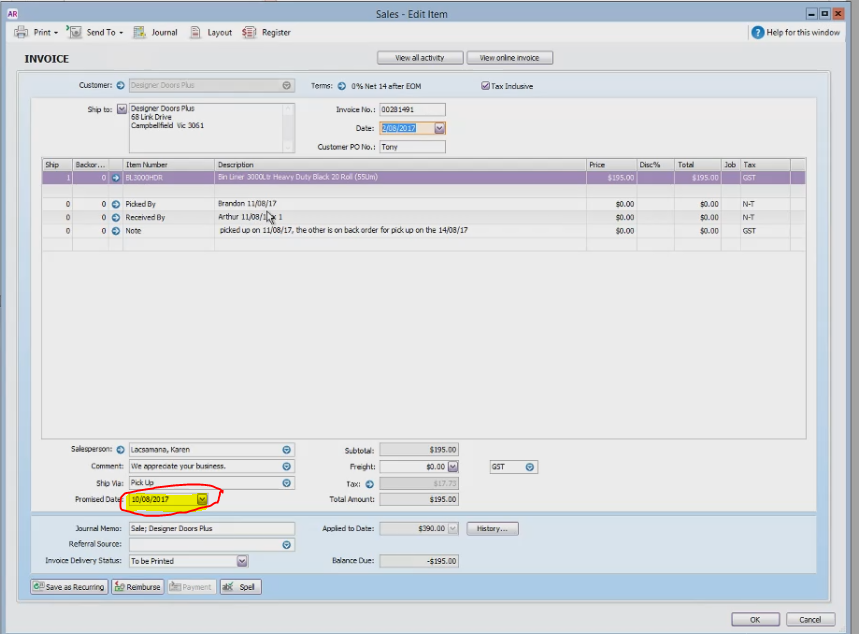
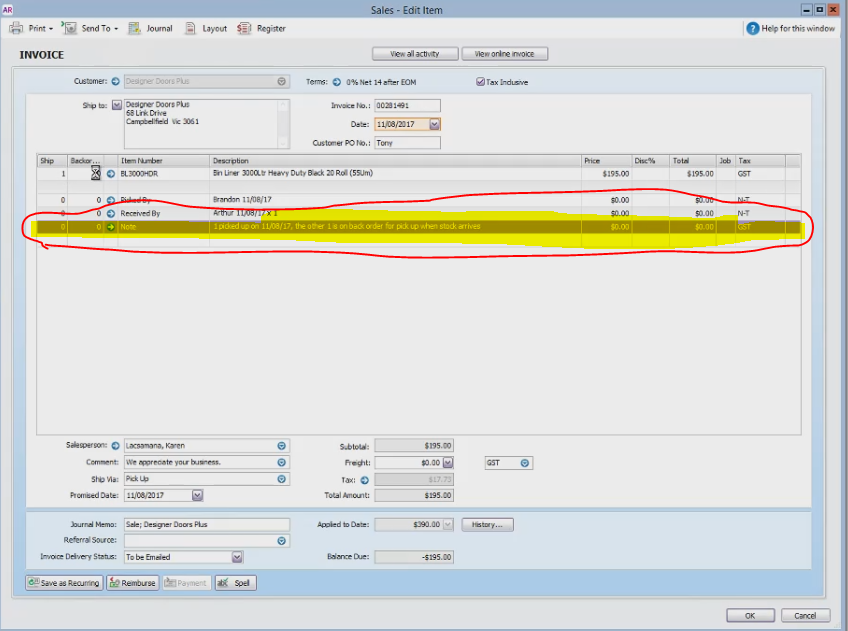
- Put a note that the product is in back order (e.g. 1 picked on date it was picked up and 1 is on back order for pick up when stocks arrives)
- Invoice Delivery Status should be: To be Emailed (No other Status)
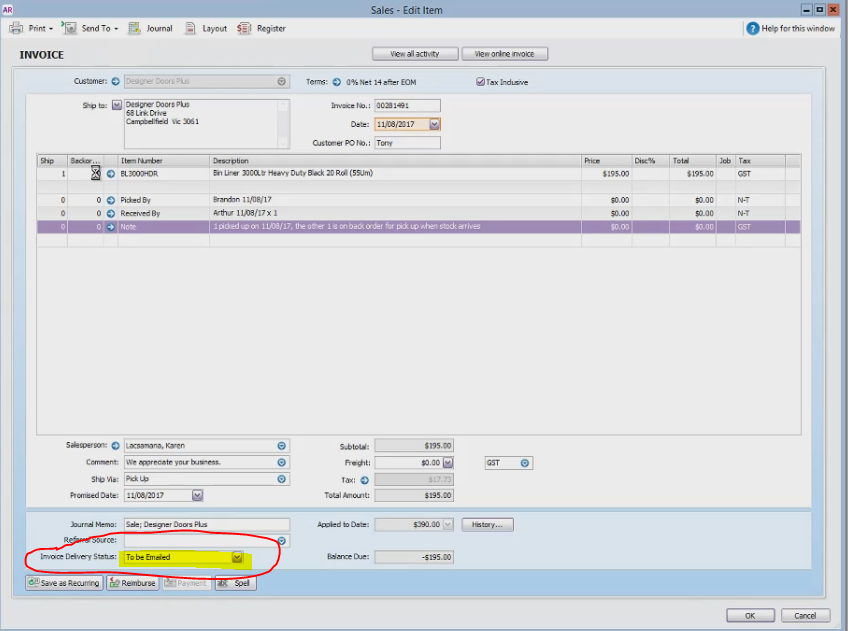
*If the Delivery Status has other status, other than To be Emailed.*
- Go to the customer’s Card
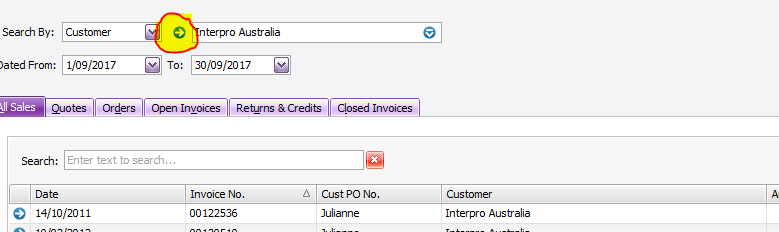
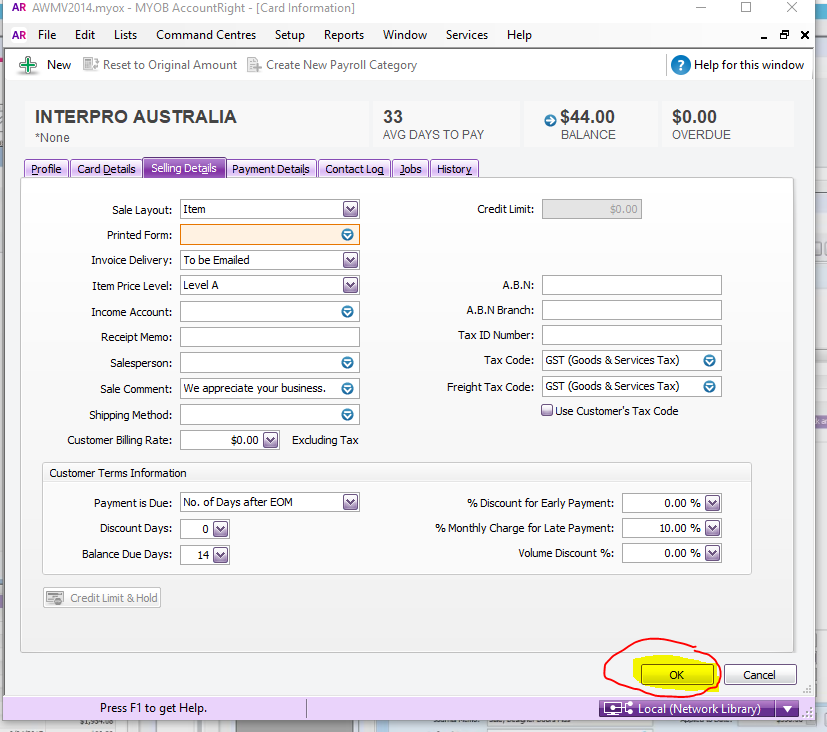
- Go to Selling Details, Change the Invoice Delivery to “To Be Emailed”
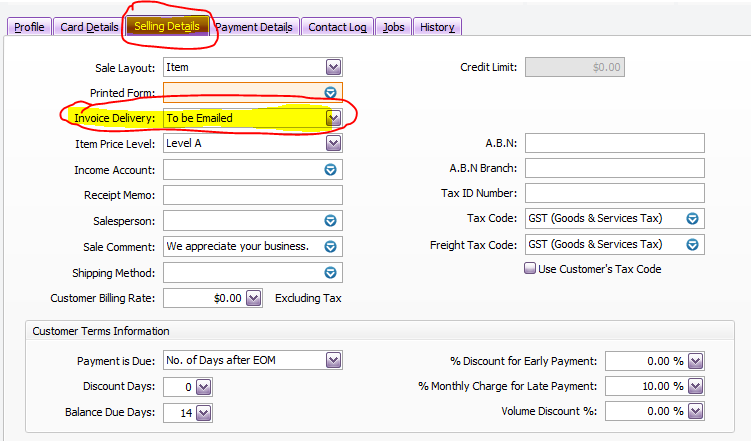
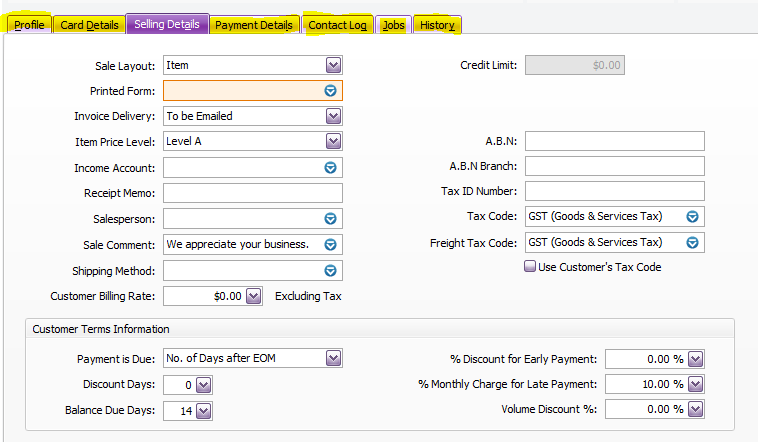
- While you are on the Customer’s Card check the profile as well for any missing details
- Click OK to update
- Add the number of products on the Back Order Tab
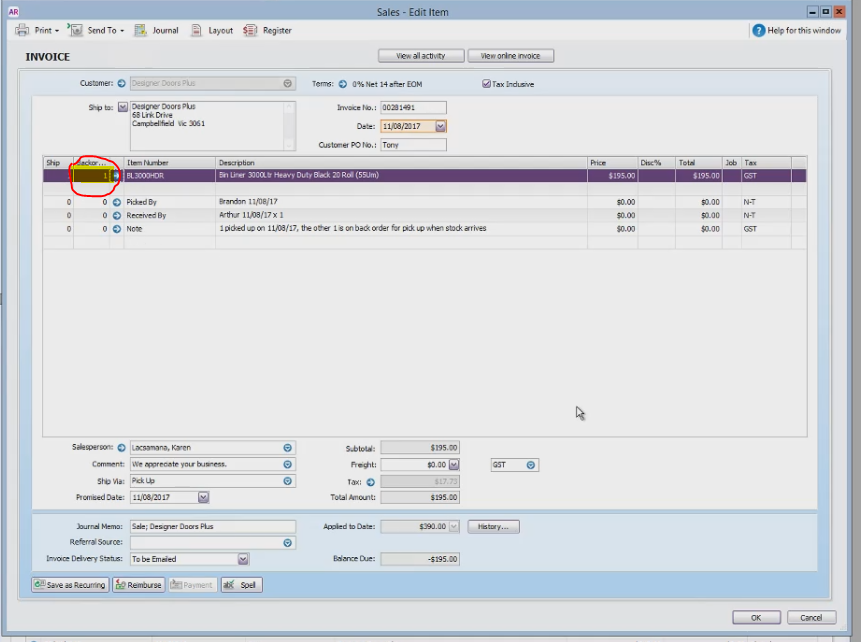
- Click OK, this will create one in the invoice and a new one for the back order.
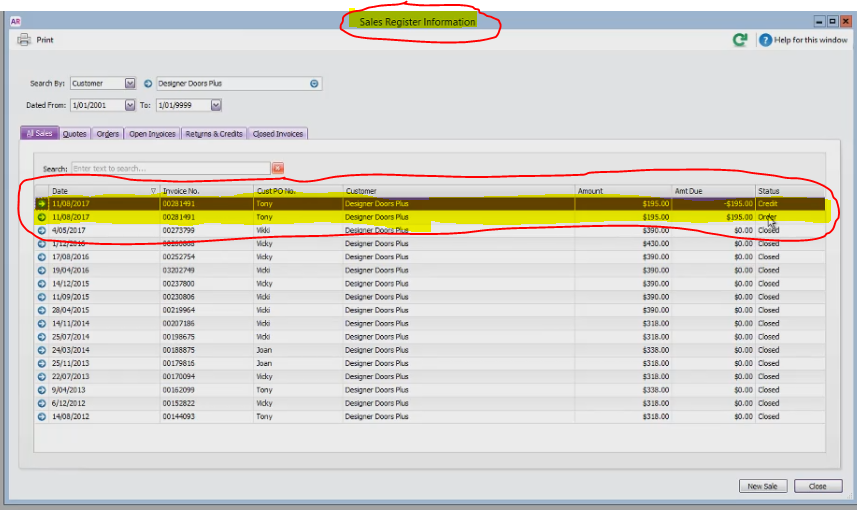
- On the Sales Register Information Window you will see 2 invoices with the same invoice number.
- One order number is for the one that has been picked up and the other is for the back order
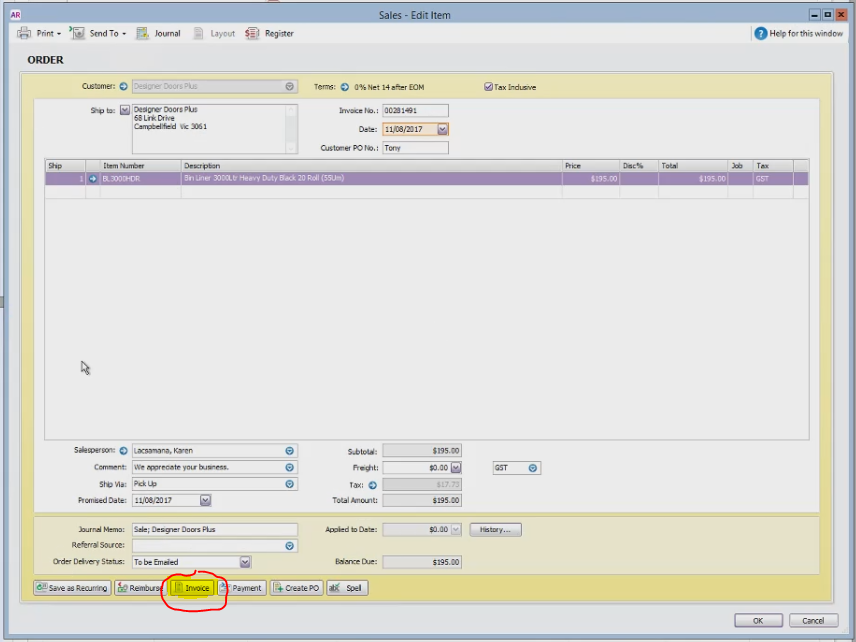
Once Stock is available
- Change the Back Order to an Invoice
- Change the date to the date the stocks arrived
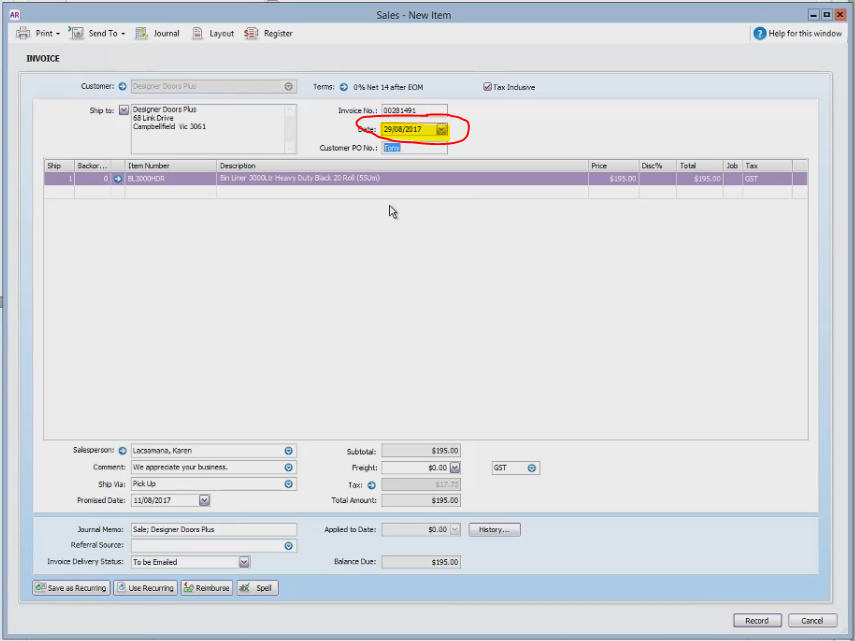
- Change the Promise Date to when it will be picked up
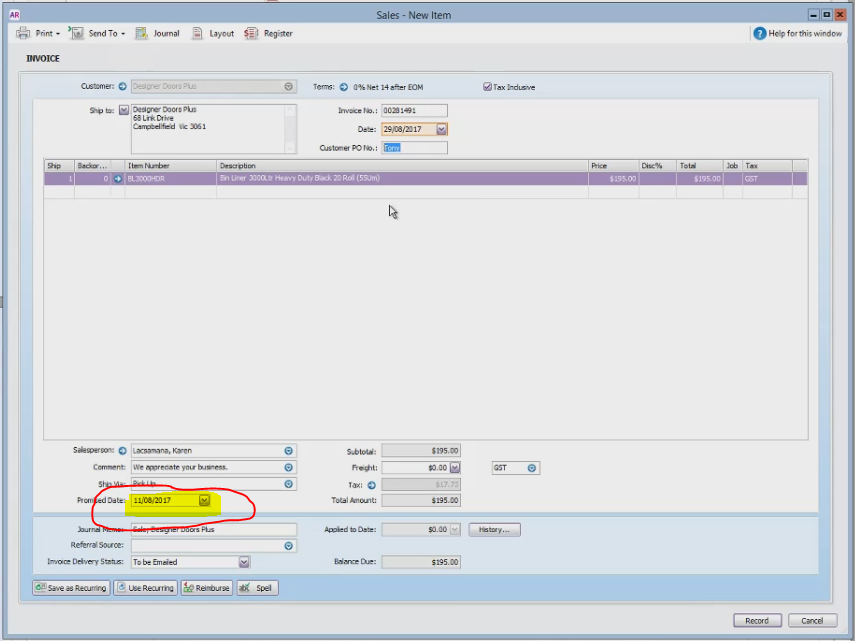
- Customer now will have a balance due
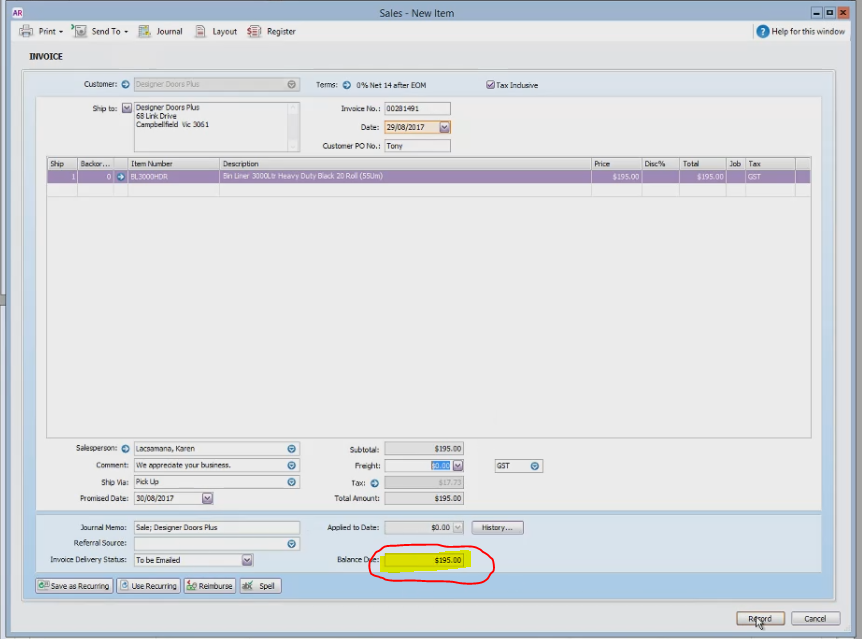
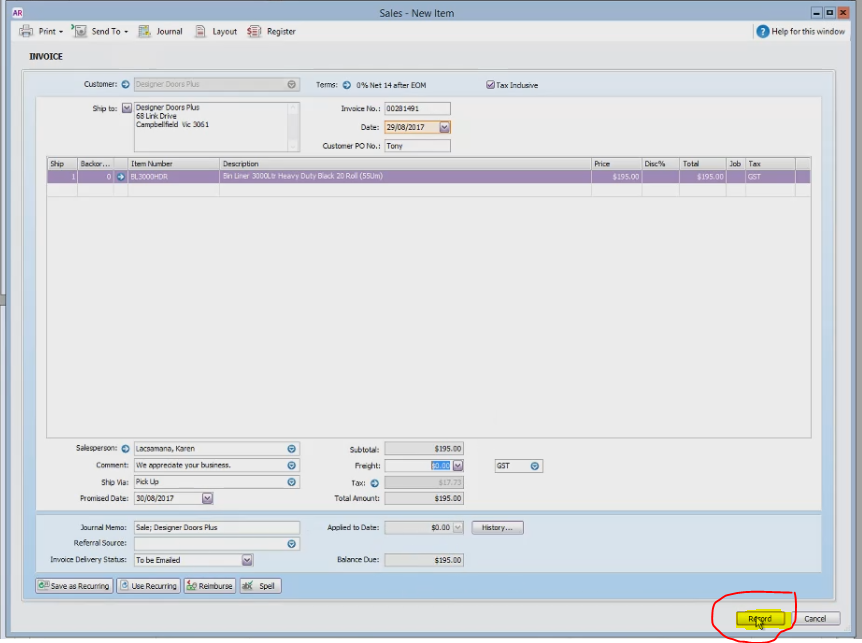
- Click Record to save your changes
- Go to Returns and Credits
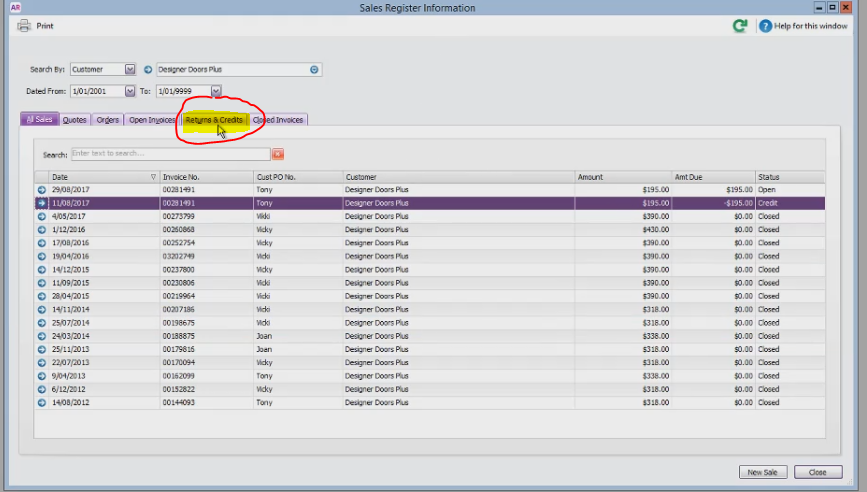
- You will see that there is credit waiting for the amount of the back order
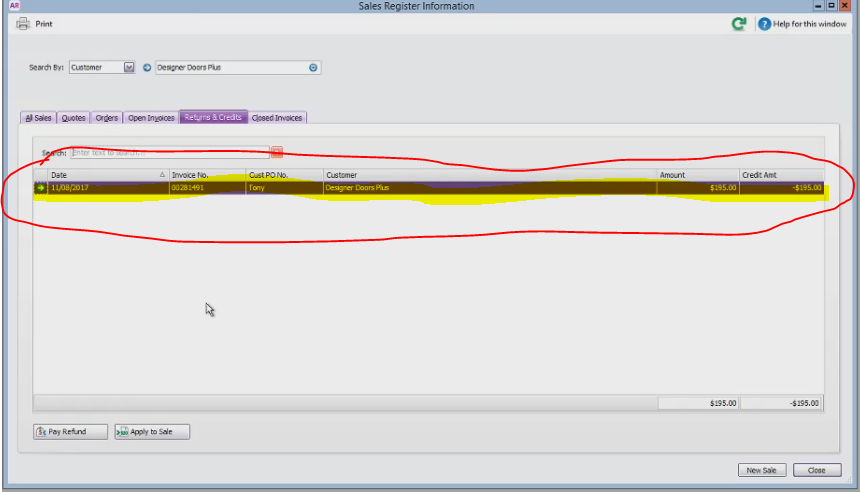
- Click Apply to Sale
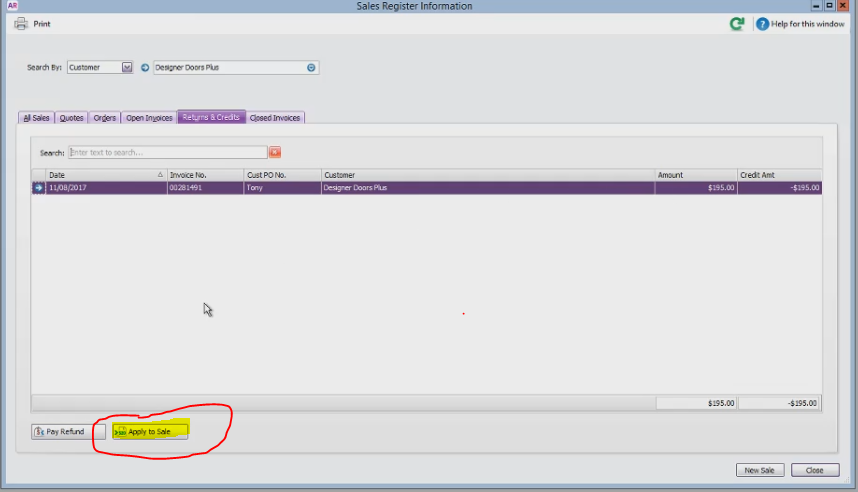
- Click the invoice number where the credit should be applied
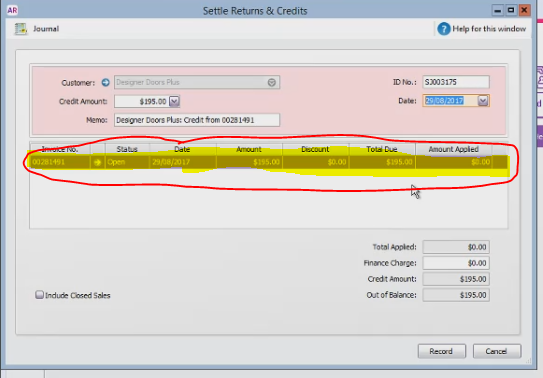
- Click Record
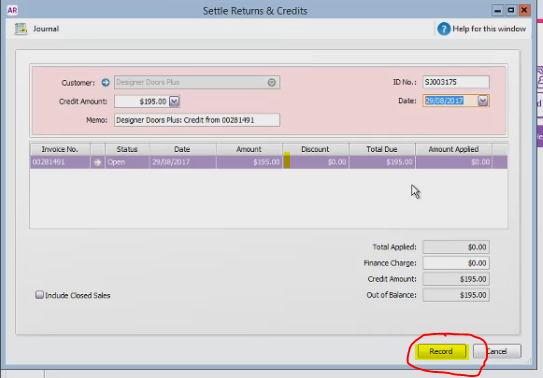
- This will clear the Returns and Credits
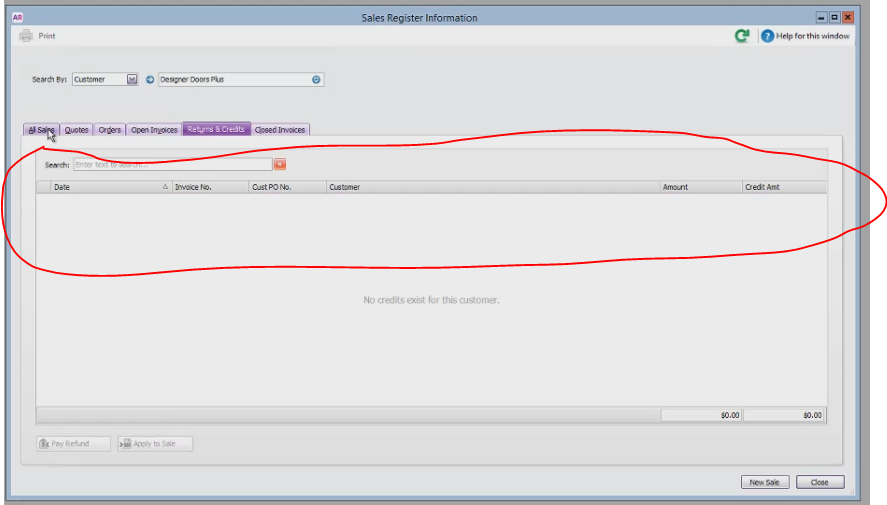
- Click All Sales Tab
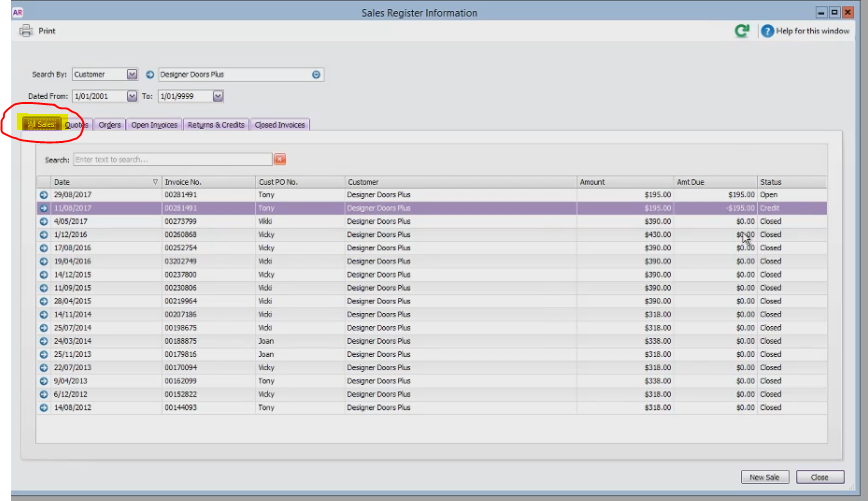
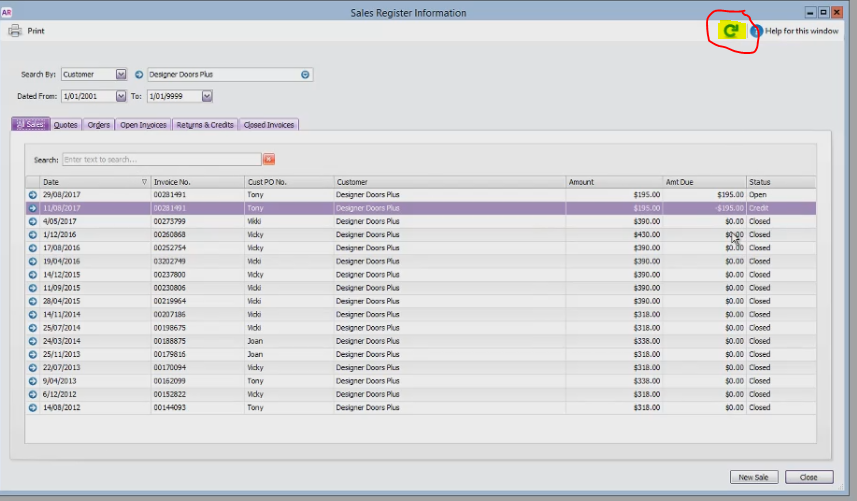
- Click Refresh
- This will show one (1) invoice number with different dates
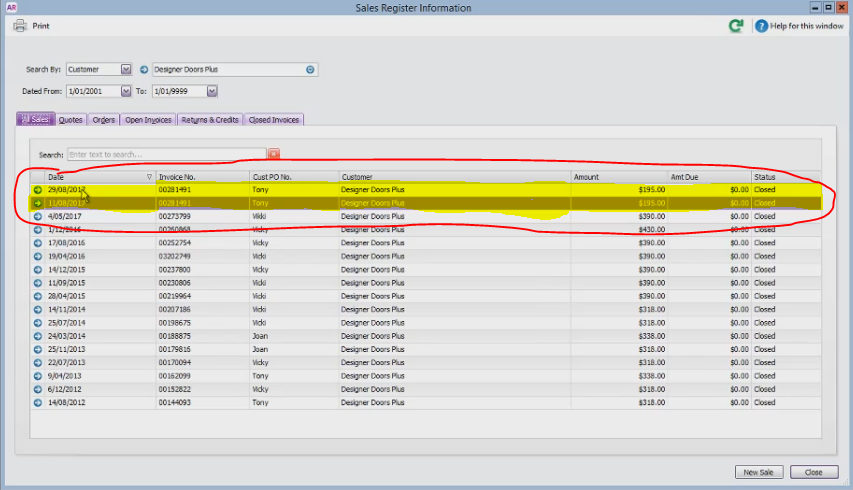
Open the invoice that was placed on back order and print it
Comments