Bin Stock Count and MYOB Inventory Adjustment
Posted at May 11, 2021 10:05 am. Last updated at May 13, 2021 11:05 am

Bin Stock Count and MYOB Inventory Adjustment
For the stock adjustment to be done properly, his procedure needs to be followed specifically in order and exactly to the letter. If this is not followed exactly to the letter it will cause further discrepancy
*Invoices should be pick and orders should NOT be pick, (MYOB does not take the stock from inventory if it is an order, this SHOULD reflect on the real world)*
*Any new customer invoices that are being created or printed need to be picked from stock before the stock count is done*
The first 4 steps should be done first thing in the morning.
All pending customer “INVOICES” should be picked first thing in the morning
All pending customer “ORDERS’ that has been picked, needs to be converted to “INVOICES”.
All stock orders received from Mastec have been checked off and put away
All Mastec paperwork for received stock orders has been entered into MYOB
Notify everyone in the Team Parsons Skype chat that you are about to commence the stock count, to refrain from recording new invoices, or if any are printed, to ensure they notify you immediately so you can subtract the invoiced items from the stock count. Ensure you get responses from all sales team members, Rachelle and Aaron.
If they accidentally record and print an invoice while doing the stock count, they should notify immediately, picked that order and subtract that stock from the stock count.
A full and accurate stock count is to be done by at least 2 people together, checked and verified
Double check stock count against MYOB discrepancies
Double check (recount) any stock count discrepancies to ensure they are correct.
Create a spread sheet for the discrepancy. Make sure to follow our naming procedure

Enter the discrepancy in a spread sheet listing the Item Number, Physical Count, MYOB Count and the Difference, in each column.
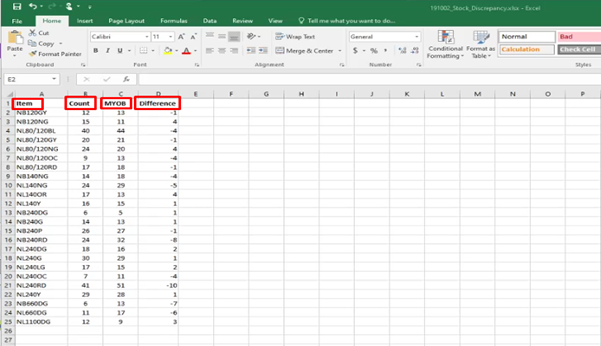
For the Difference Column we use the formula =Sum (First Column – Second Column) and hit enter.
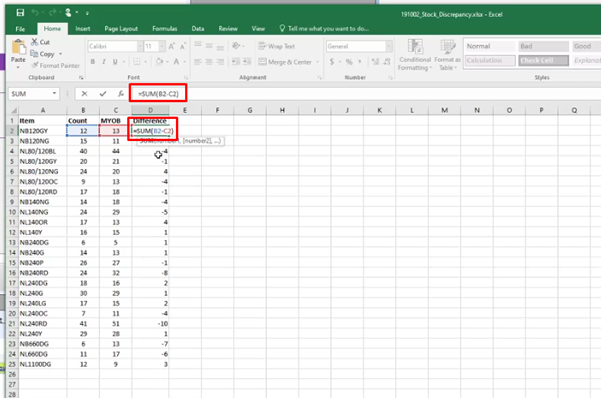
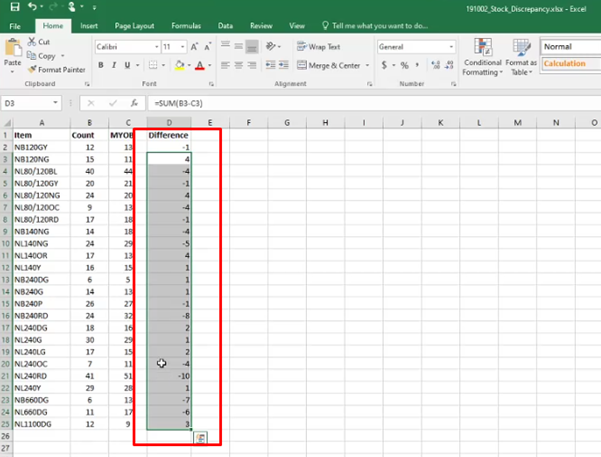
Once you were able to enter the formula, right click copy and high light the rest of the rows and paste.
For discrepancies check if these are items we use ourselves for our bins i.e NL240L RD and NB240RD are used for our commingled bin and NL240DG and NB240DG are used for our paper and carbon service.
If you there more than 1 or two discrepancy, notify Aaron or Rachelle’s regarding the discrepancy for them to look into it.
Go to MYOB
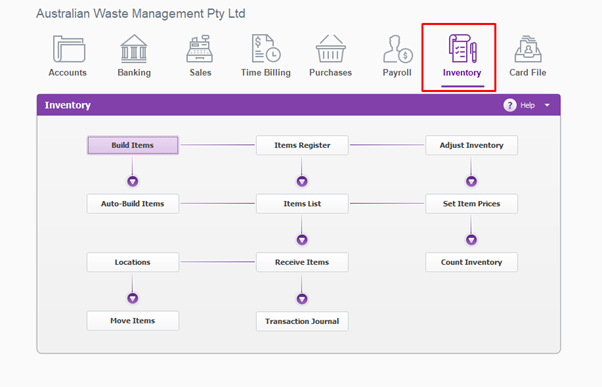
On the Command Centre, Go to Inventory
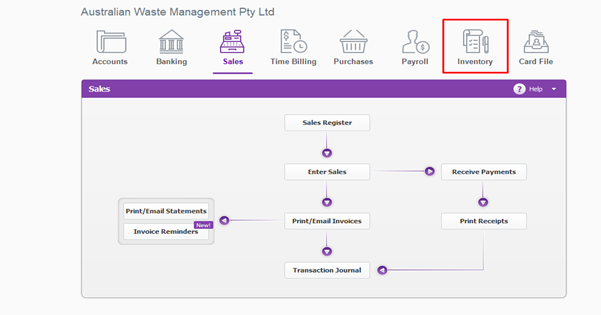
2 ways to do the stock adjustment
First (Manual)
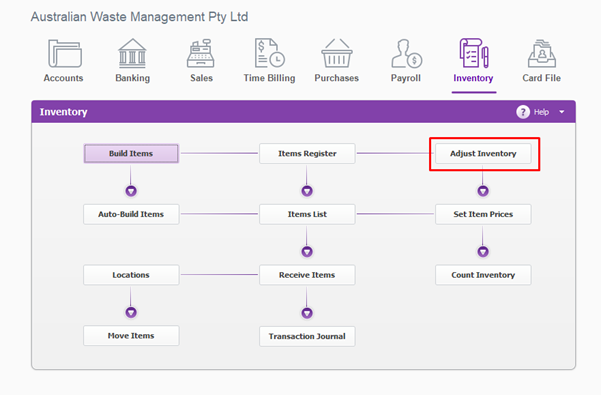
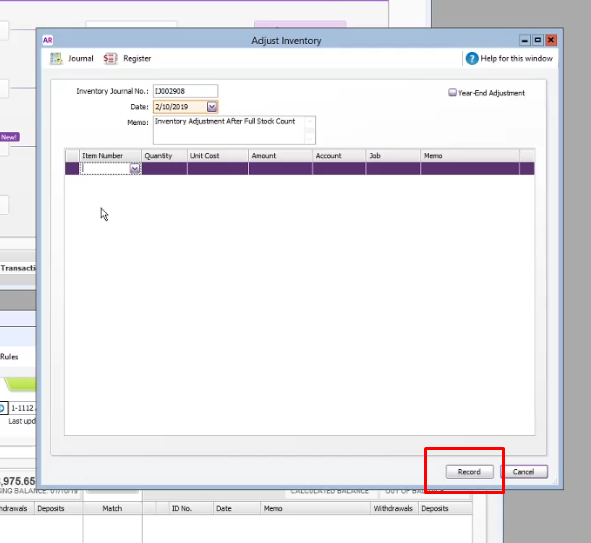
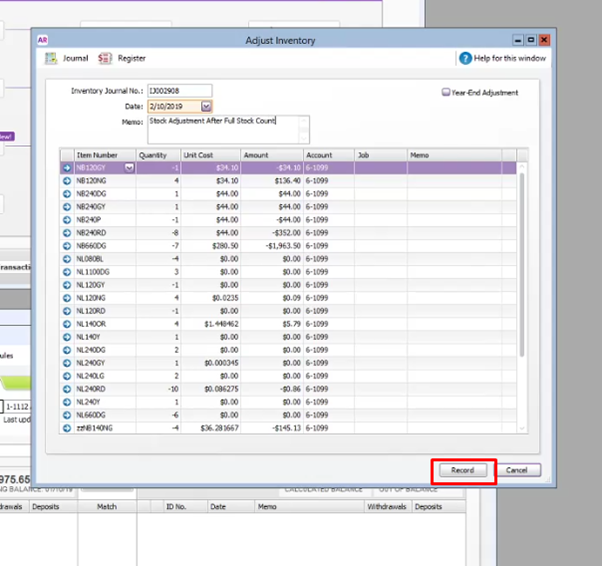
Go Adjust Inventory
2 ways to do the stock adjustment
First (Manual)
Go Adjust Inventory
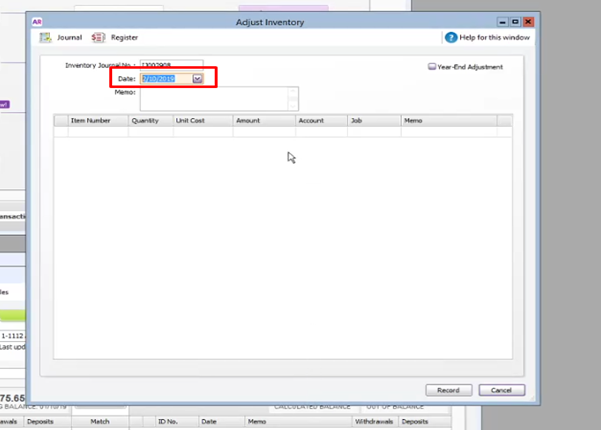
Enter today’s date
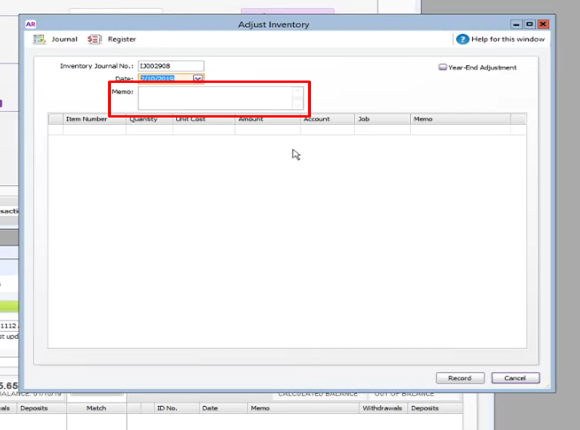
In the MEMO typed in “Inventory Adjustment after full stock count ”
Enter and paste all the Item Numbers you have on your Excel sheet, one at a time.
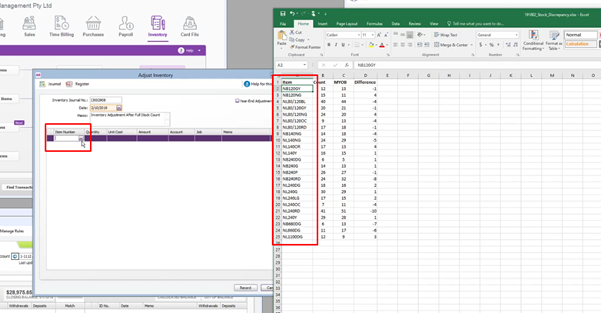
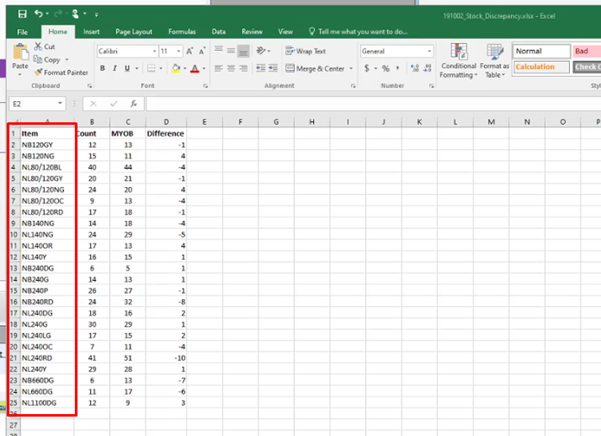
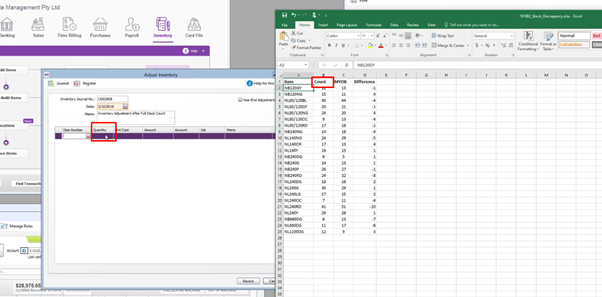
On the Quantity Tab enter the difference for that Item Number
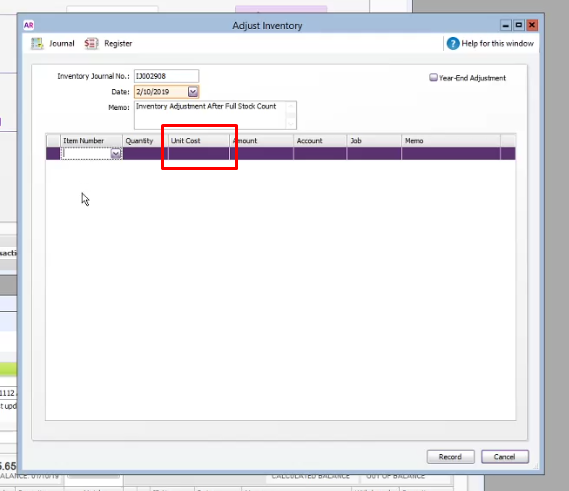
On the Unit Cost tab enter $0
You will do this until you were able to cover all the items the spread sheet.
Click Record
Second Way (Count Inventory)
On the Command Centre , Go to Inventory Tab
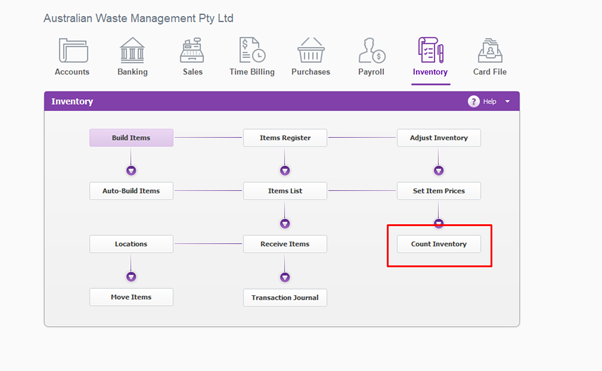
Go to Count Inventory (This way list all Inventoried items)
On hand is what MYOB counted
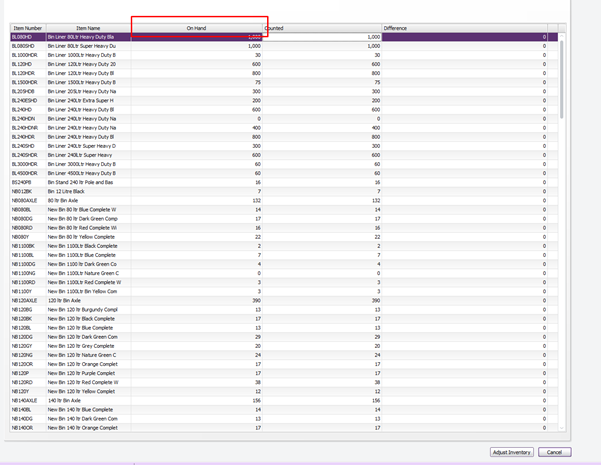
Counted is the column we can make adjustments (this is auto prefilled with what MYOB has, no need to manually change every single one)
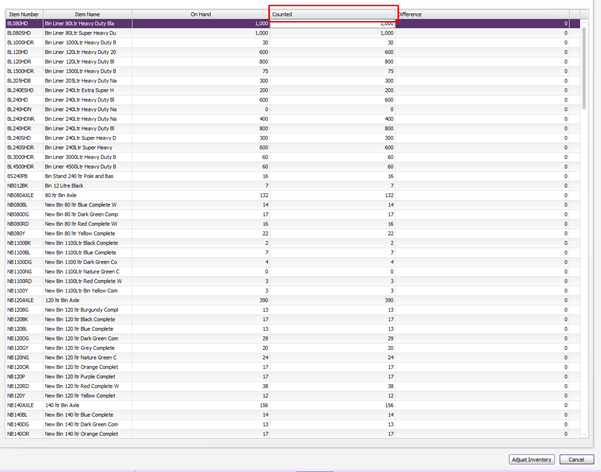
Difference should match the discrepancy on your list.
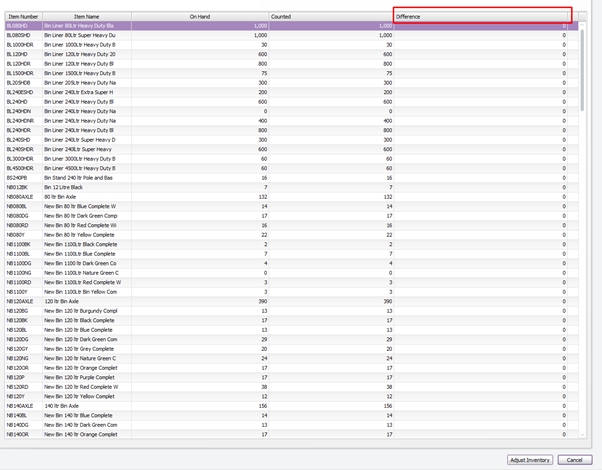
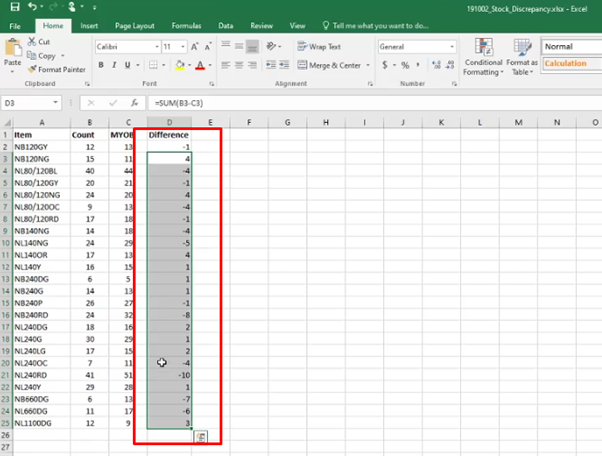
Go through the list of and find each individual item on our spreadsheet.
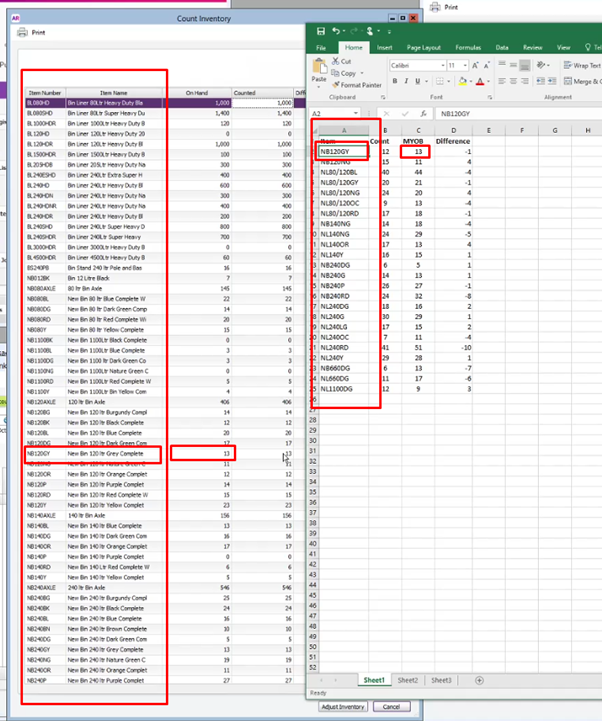
Once you find the Item on your list, click on the counted column and type in the counted number
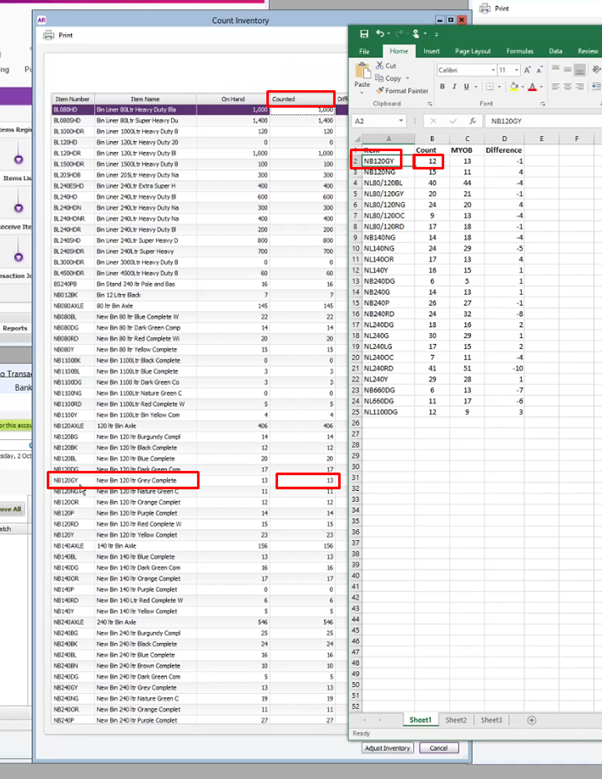
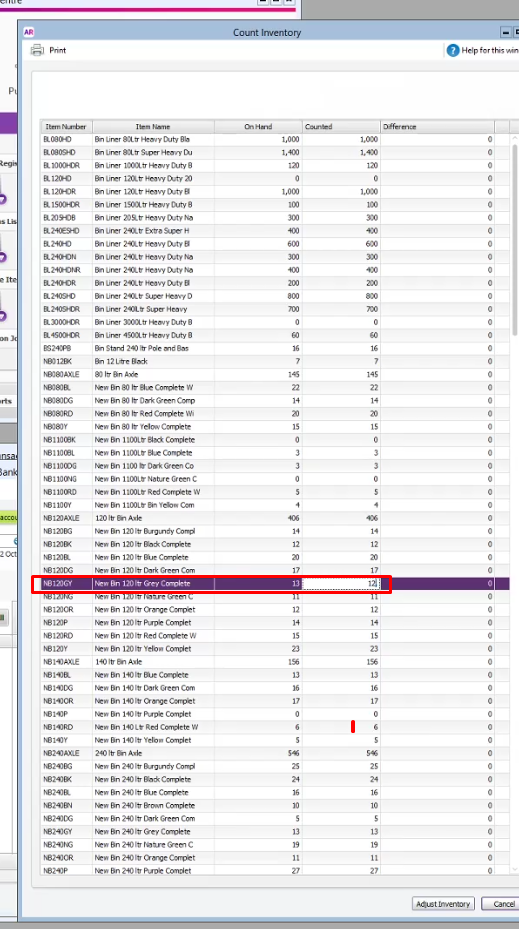
Press tab or select the Difference Field, the Difference Tab should be updated to show the difference.
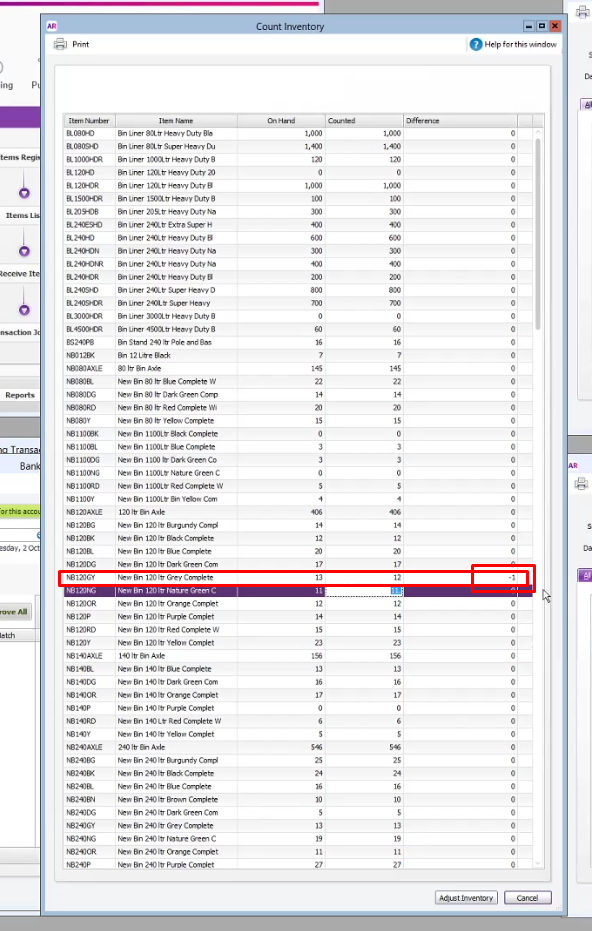
Make sure you are on the right item when you make the changes and the right MYOB count compared to your list.
For the 80 and 120 lids add them together and work out which one to take off.
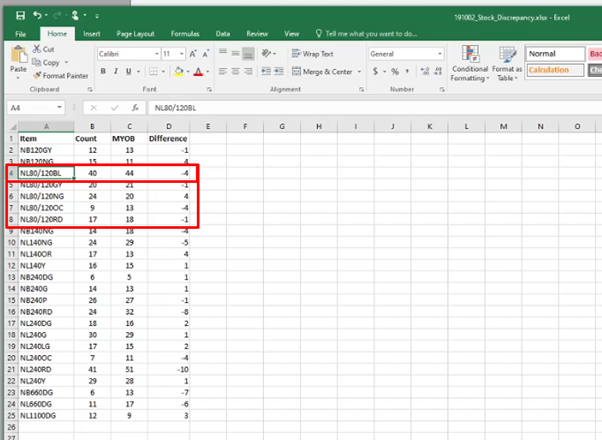
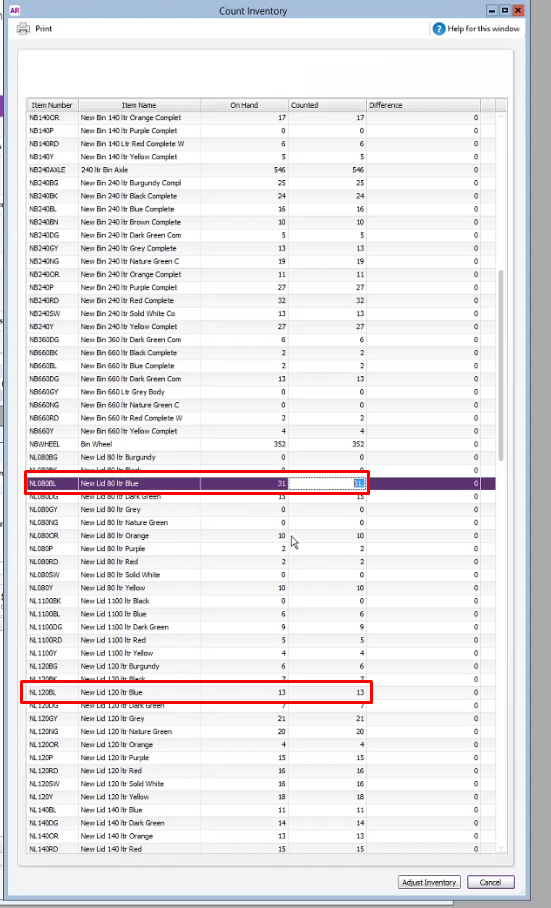
Check the bodies and try to keep them same ( Lid and Body). When balancing the lid make sure to reduce the one that is most above the bodies rather than further reducing the one that is already under the number of bodies of have.
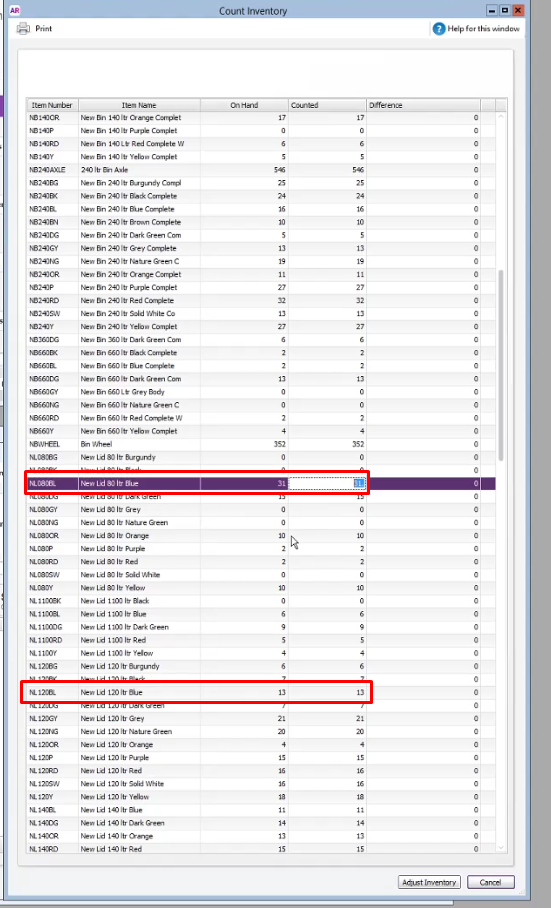
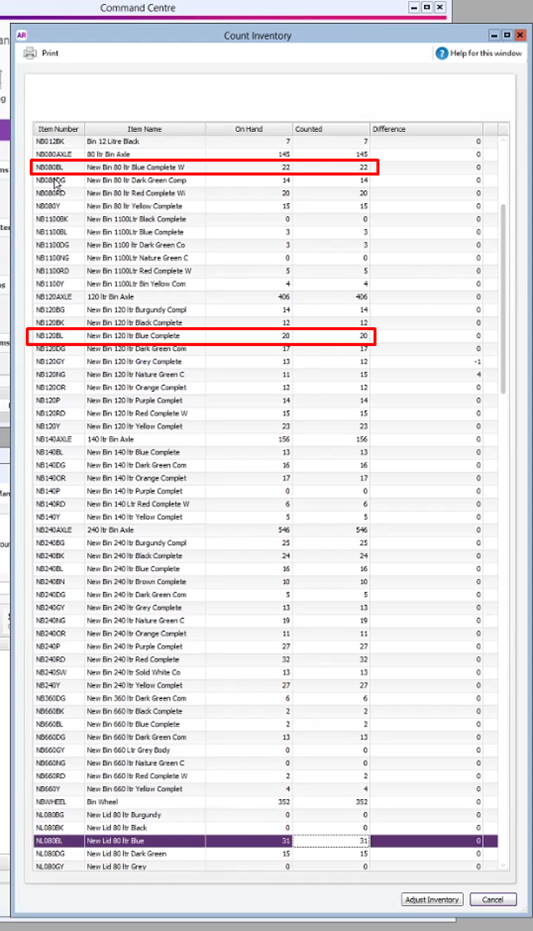
Go to your list one at a time until you were able to cover all the items on the spread sheet.
Click “Adjust Inventory”
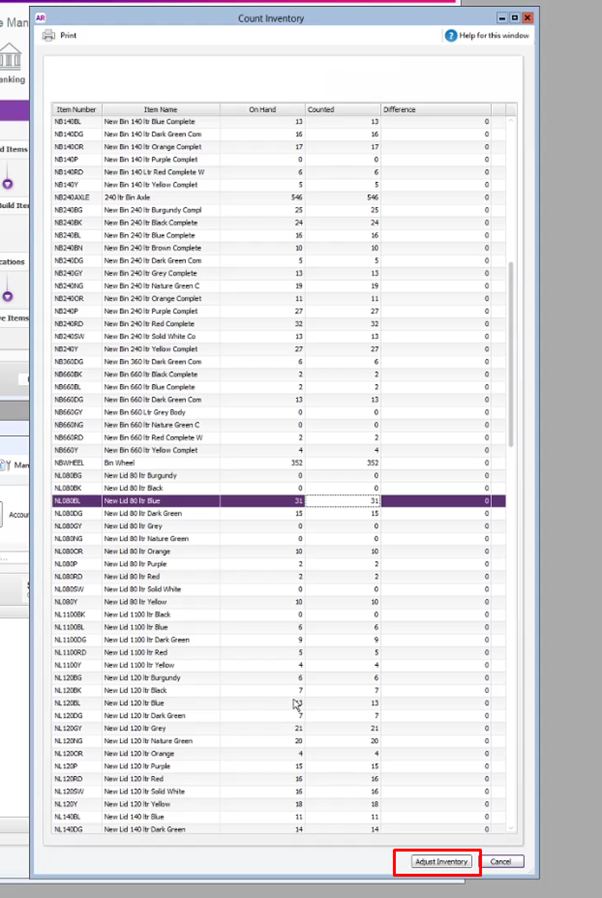
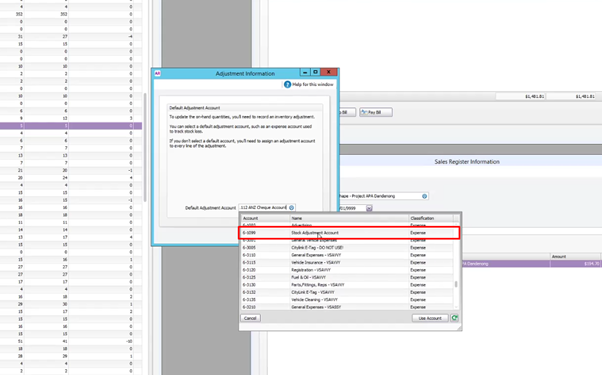
The pop up message will ask for “ Default Adjustment Account”
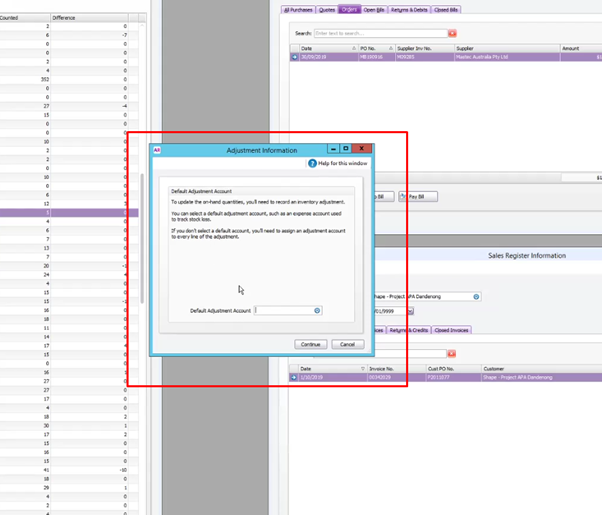
Choose “ Stock Adjustmet (6-1099)” on the list
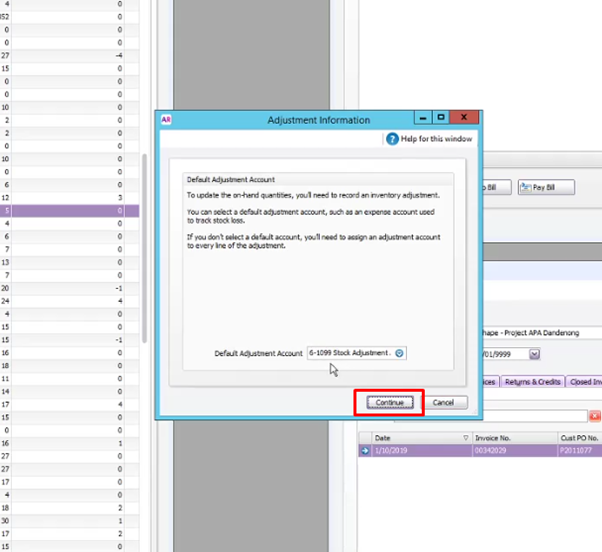
Click Continue
On the Memo field type in “ Stock adjustment after full stock count”
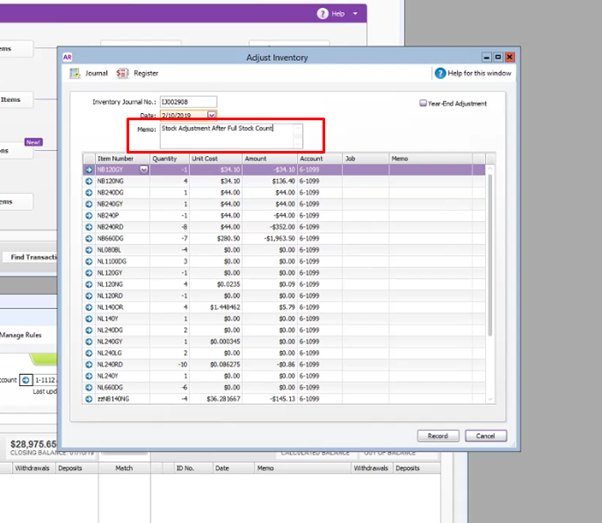
Click Record (if there are any error please contact Aaron or Rachelle)
Comments