AccountRight Timeout Extender
Posted at June 27, 2023 10:06 am. Last updated at February 10, 2025 11:02 am
The Timeout Extender is simply entering a value into AccountRight's Configuration File and is only to be used if you are experiencing Timeout-based errors such as "Application Operation Timeout" or if it's at the request of MYOB Support.
As this does involve modifying a key configuration file for the software on your computer we strongly recommend that you get an IT Professional to assist you if you are unfamiliar with modifying these types of files. Any incorrectly configured files may cause AccountRight to crash further or simply not open at all. If the software begins to crash after a change was made to the config file we would ask you to either return the copy of the config file made, or uninstall and reinstall, then seek assistance from an IT Professional to continue further.
Do note that these configuration files are specific to each computer & version, if you install the next version of AccountRight this configuration won't be brought across. If you are experiencing problems that require the Timeout Extender to be in place you will need to set this on each computer, and version, that you are using.
201X.X refers to the version of AccountRight you are using, not an actual folder named 201X.X
- Close out of AccountRight.
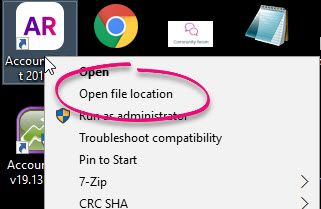
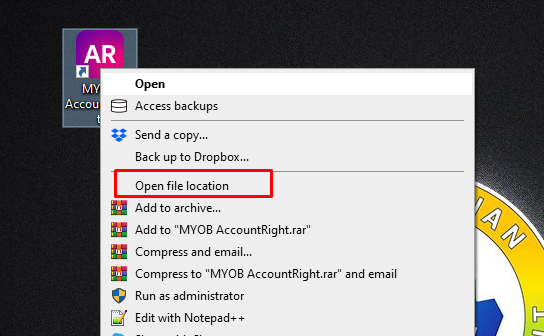
- Locate Huxley.Application.exe.config file. You can find this by right clicking the AccountRight icon on your desktop and choosing "Open File Location" to bring up the same folder.
- Select the file Huxley.Application.exe.config, and make a copy of the config file before continuing, as incorrect changes can prevent AccountRight from opening
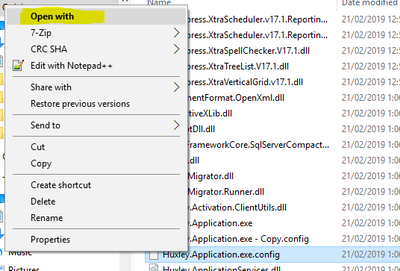
Right click the config file, select copy. Then deselect the file, right click and choose paste. This will create a copy. - We now need to modify the original config file called Huxley.Application.exe.config. You will need to right-click and choose open, edit or open with.
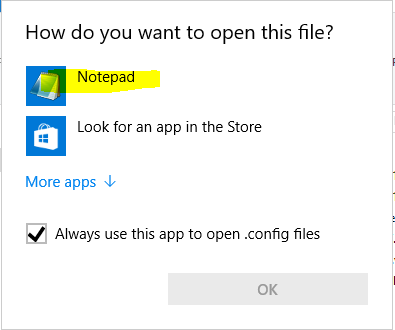
If open with, select the program notepad to open the file, as in the screenshots below. - Once opened in Notepad find the <appSettings> section. (use search by pressing F3 or CTRL + F, and search for <appSettings>)
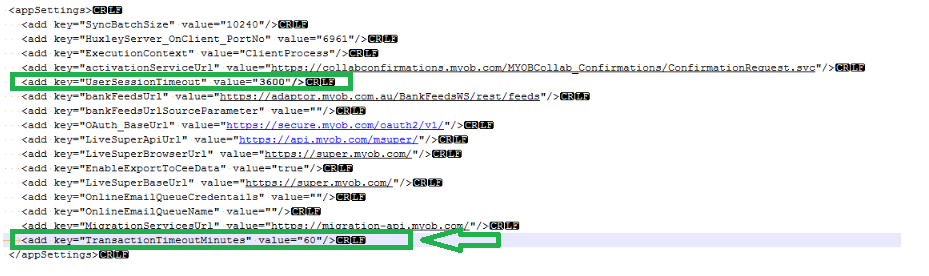
- On the <add key="UserSessionTimeout" value="60"/> line, change the value to 3600. This number is in seconds, and we want to extend the timeout to 60 minutes.
- Next, add the line <add key="TransactionTimeoutMinutes" value="60"/> to the bottom of the appSettings list as seen in this example:
- Once the setting have been updated, save it by going to File > Save. Then close notepad.
- Open AccountRight as normal. The new timeout session will now take affect.


That should extend the timeout period for you and allow you to record transactions with large amounts of data. If you are getting any errors directly after saving this, delete the config file you edited and then rename the copy you made earlier to be: Huxley.Application.exe.config
Additional Procedures
Client Update
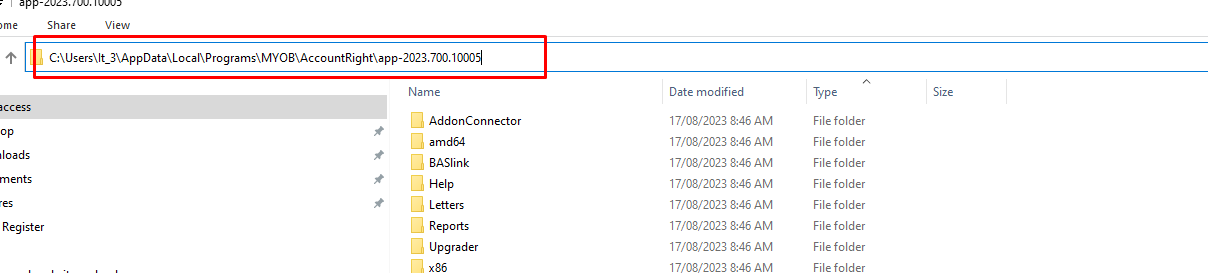
1. Go to App data folder or Right Click Open file Location on the MYOB Icon.
- Then Update Huxley.Application.exe.config
- <add key="UserSessionTimeout" value="3600" /> to 3600
- then restart MYOB
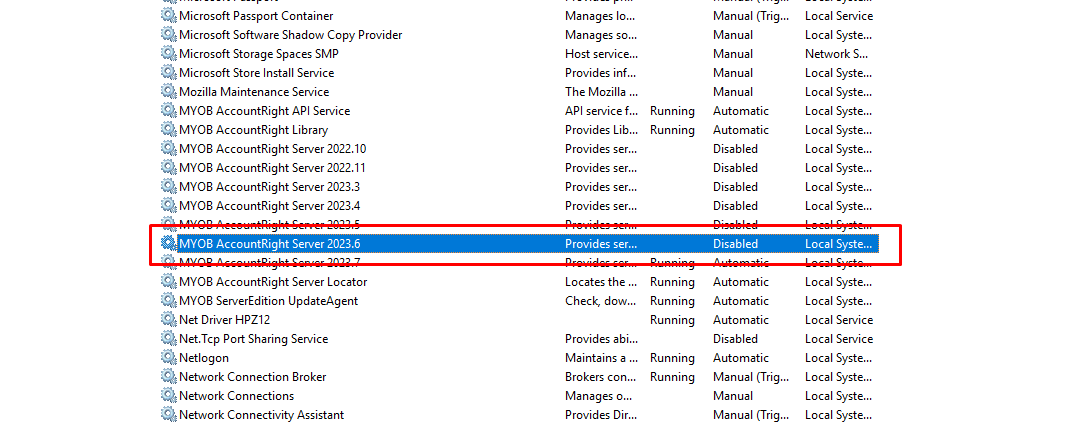
Update the script for restarting MYOB
1. Update the RestartMYOBServices.bat
- Adjust the version of "MYOB AccountRight Server 2023.x" same as the new version.
- Then restart.
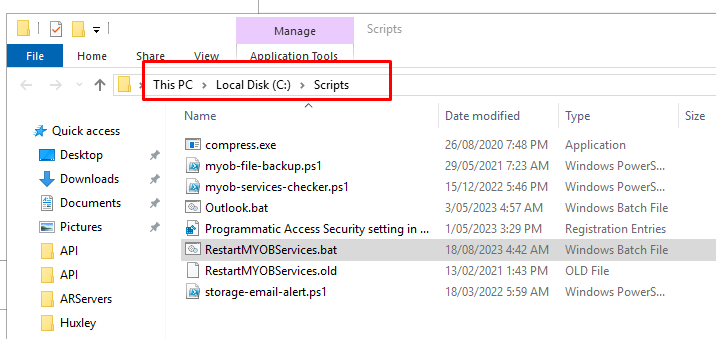
*** Reference here
******NOTE*****
Please also update the Temporary MYOB API Services at the regedit it should be on the current version of MYOB
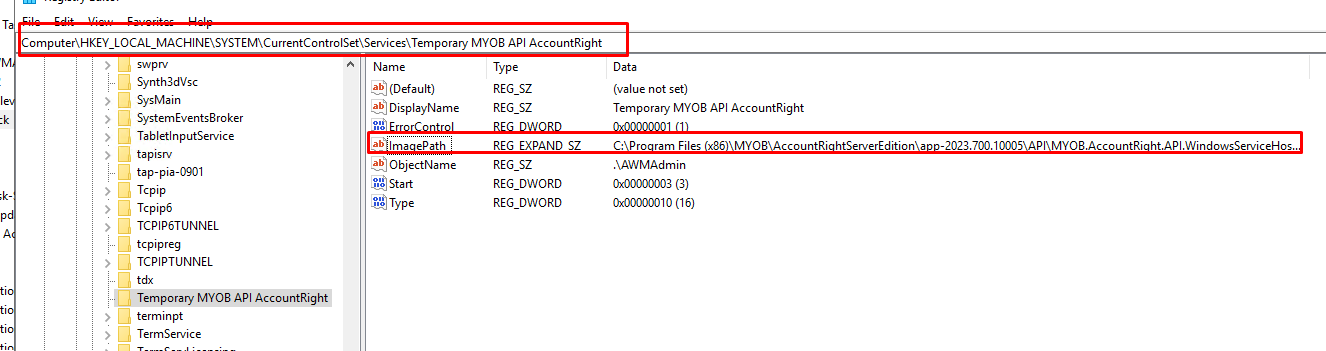
2. Disable old version on services
Comments