Recording Recurring Annual Fees in MYOB
Karen Lacsamana
Posted at January 26, 2018 06:01 am. Last updated at August 08, 2019 01:08 pm
Recording Annual Fees
This is the procedure on how to do the recurring annual fees each month
Within the last week of each month we record the annual fees for the following month but we date them as the last day of the current month.
When recording annual fees you need to send a chat in Team Parsons chat room to advise everybody that you will be using MYOB and wait for everybody to say CLEAR.
- Go to MYOB
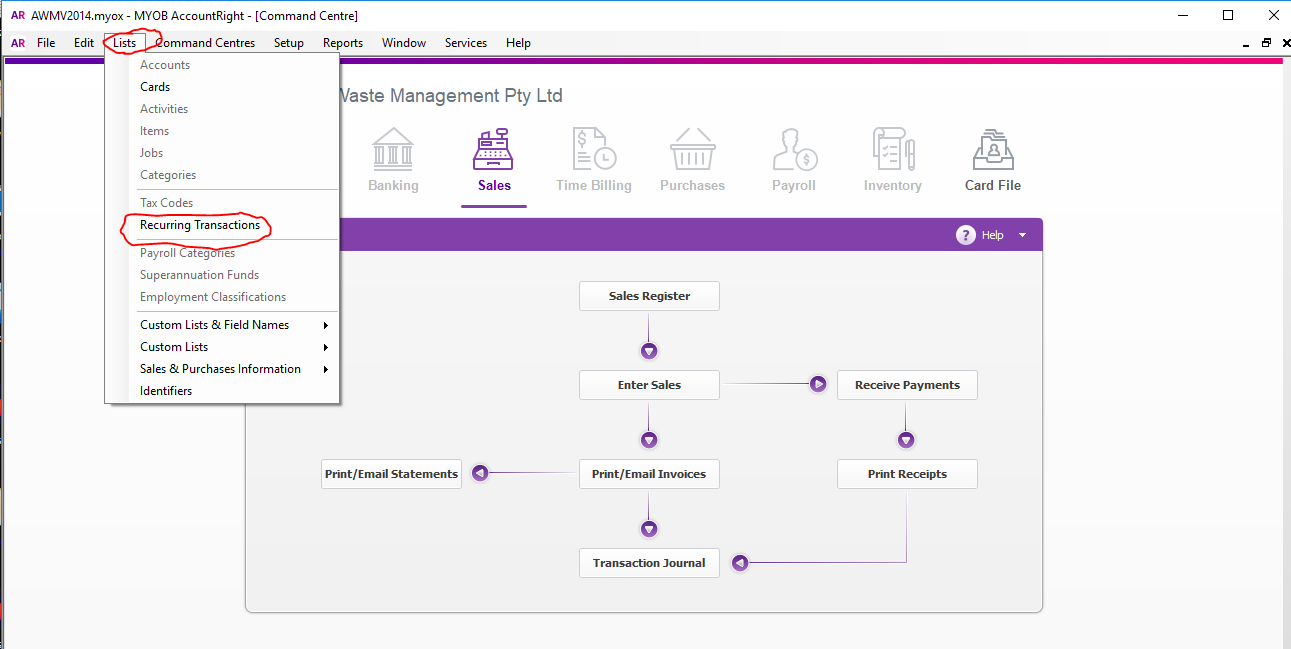
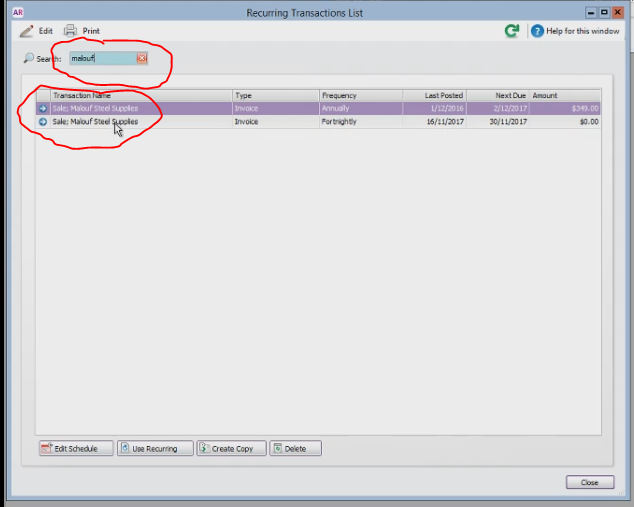
- Open Recurring Transaction List
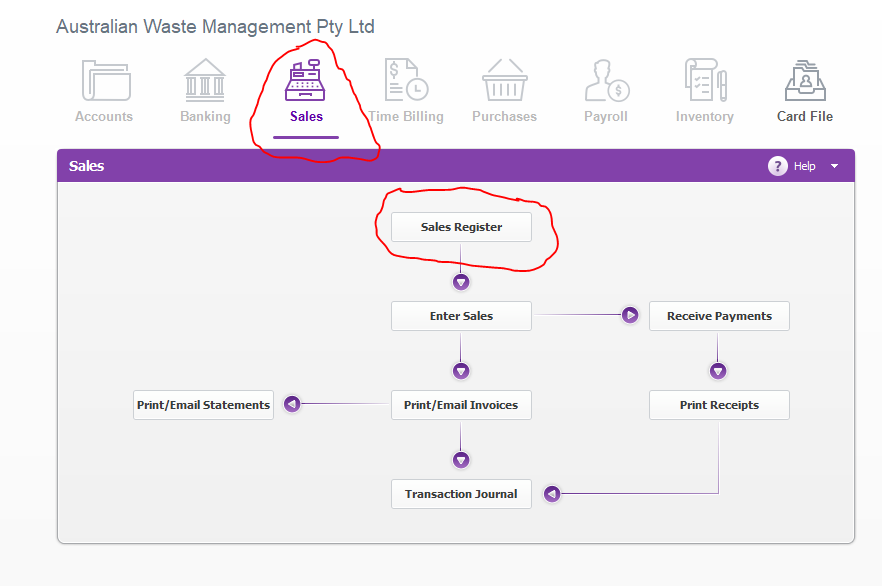
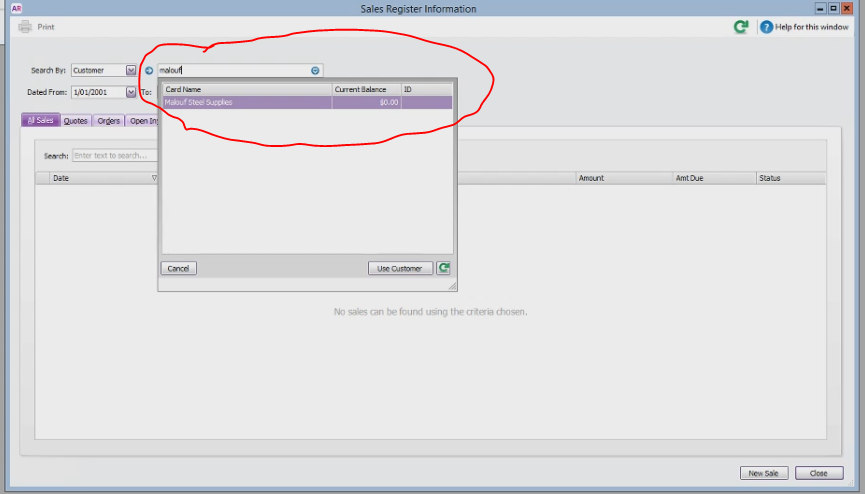
- Open Sales Register under Sales Tab
-
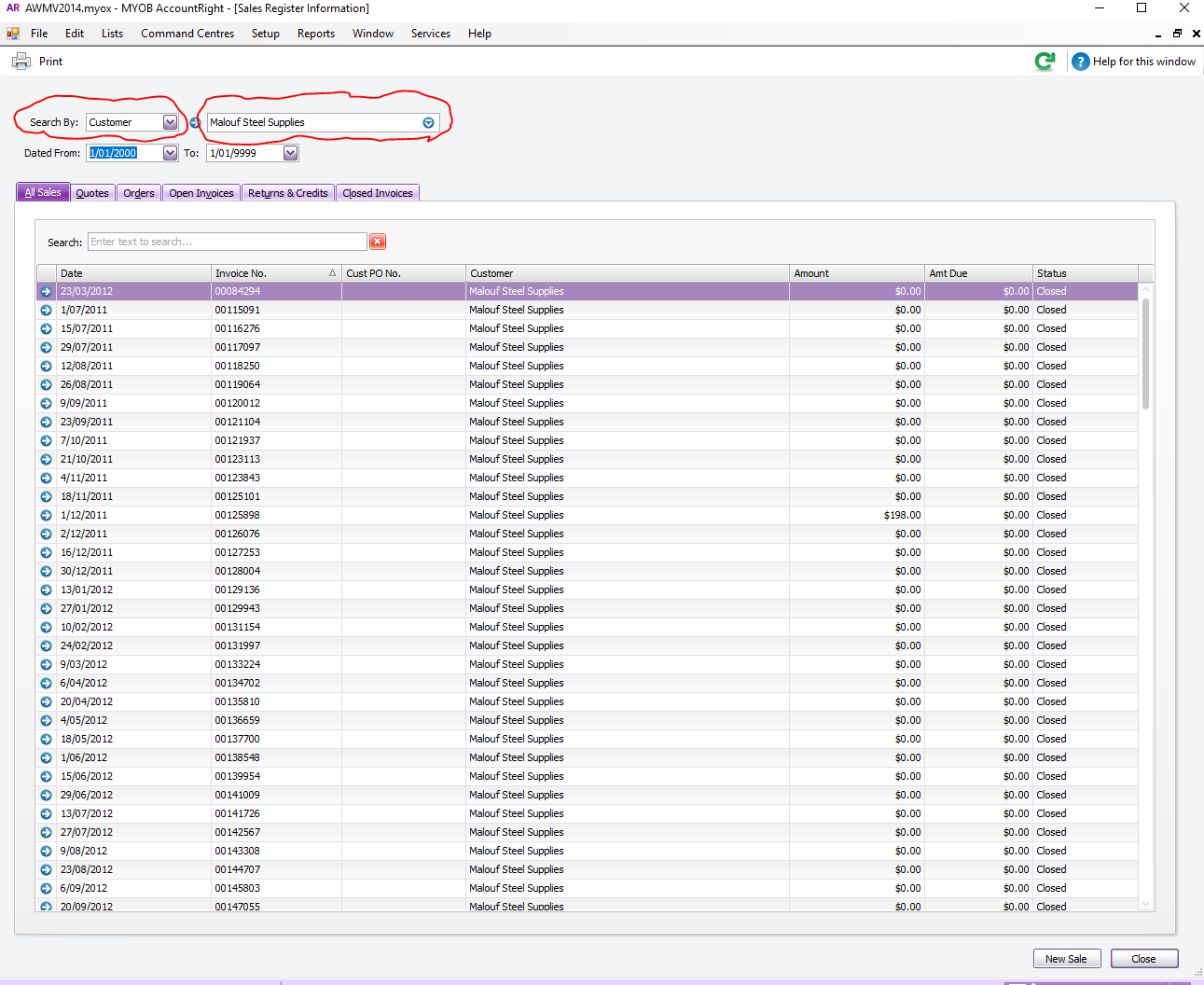
- Change Search by to Customer enter the name of the customer you are working on
-
- Change Dated From to 1.1.1 and Change Dated To to 1.1.9999
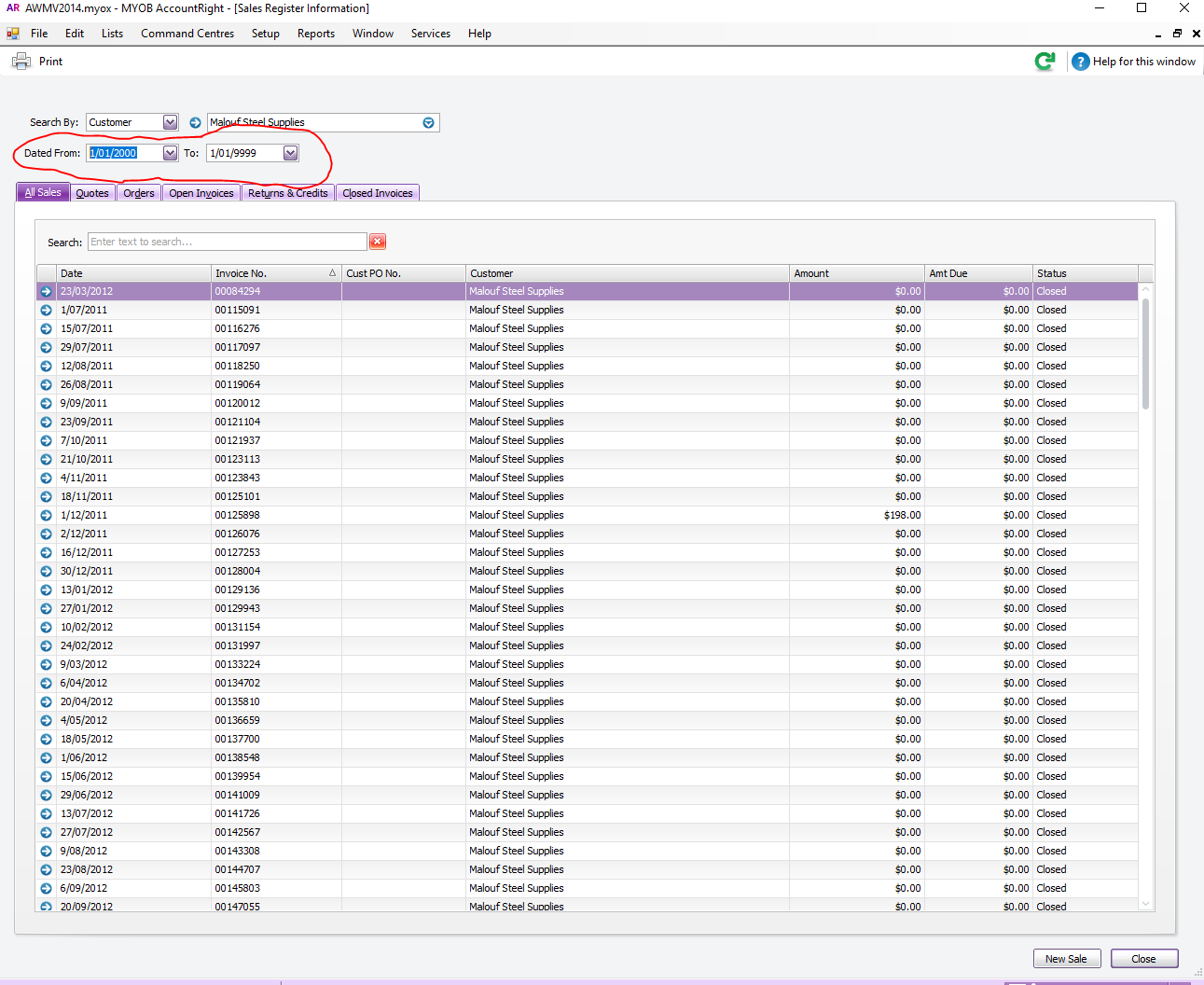
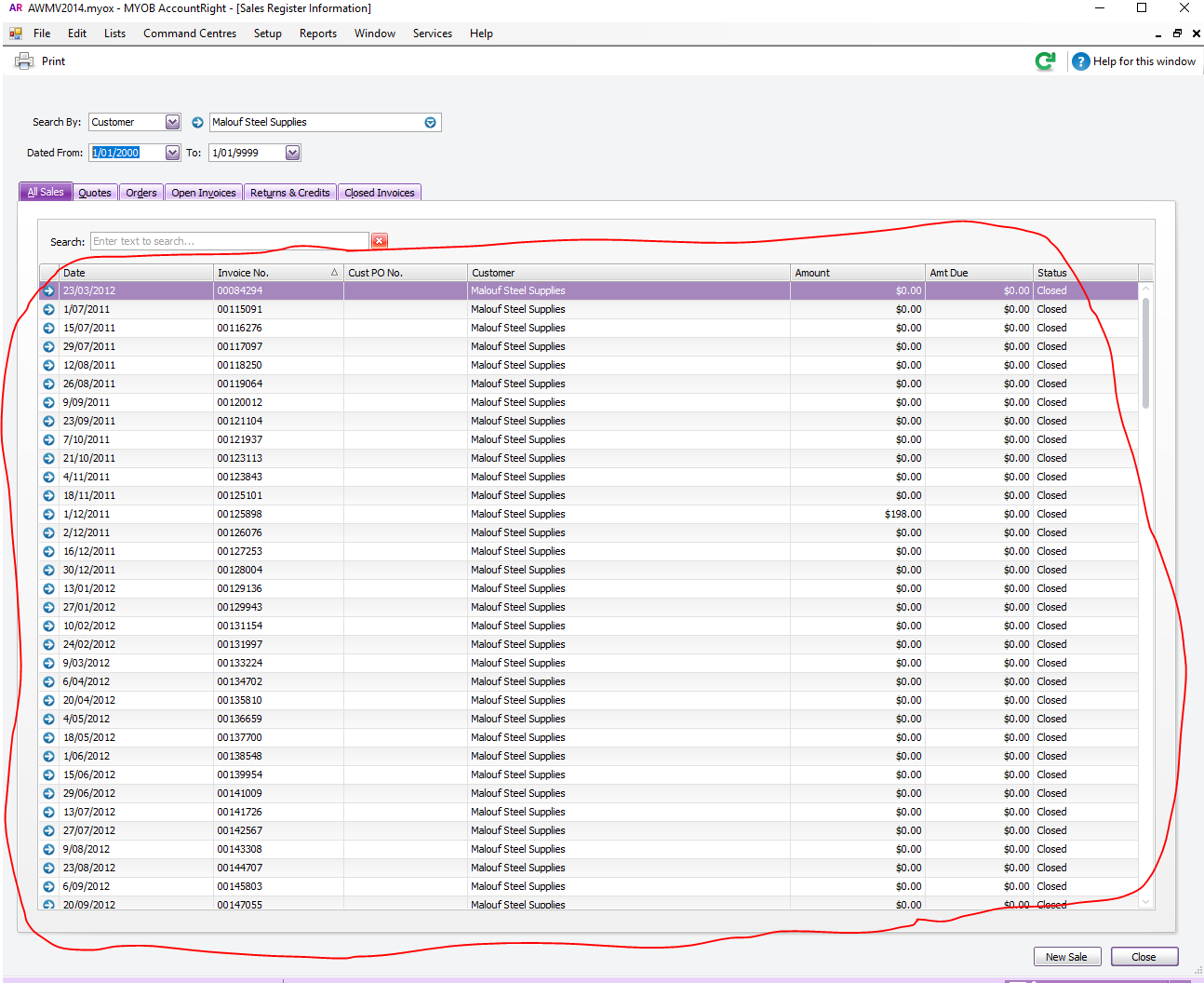
- Click enter to show all the activity for the account you are working on
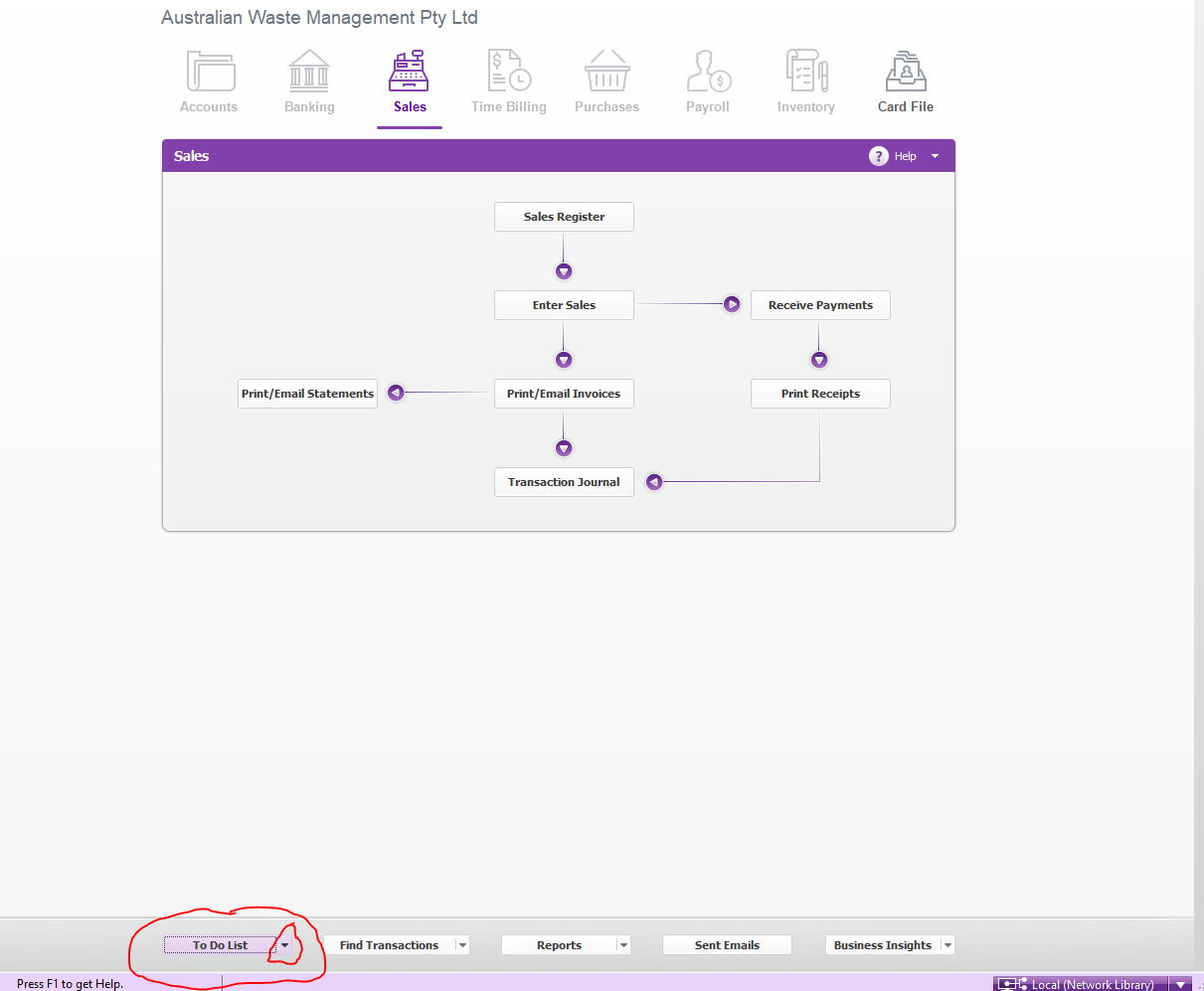
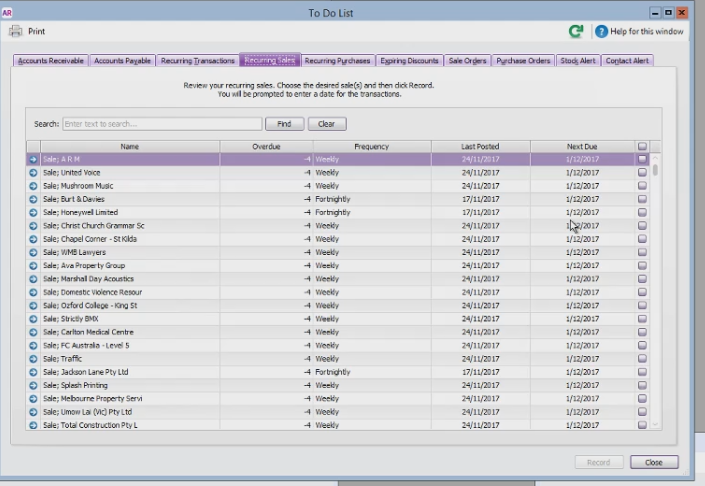
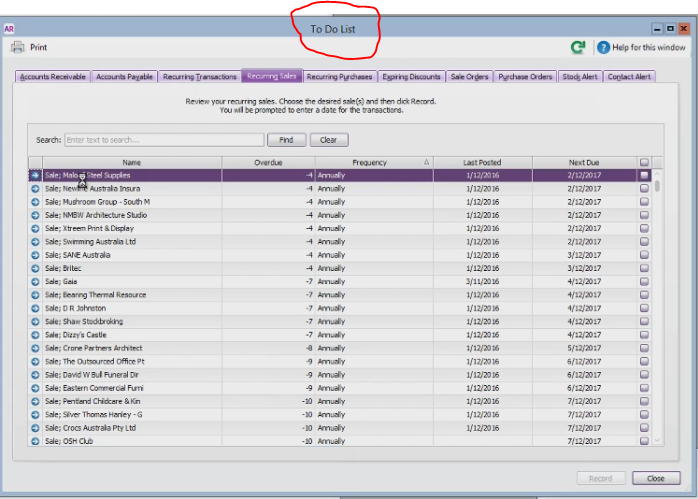
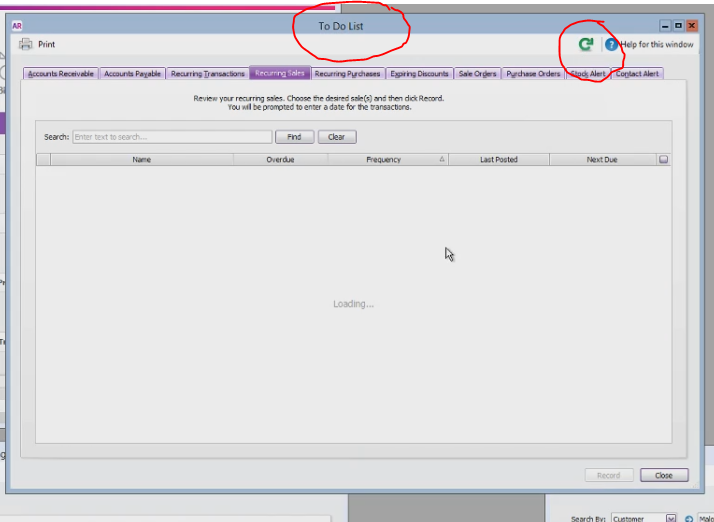
- Go to To Do List, click the little arrow beside it and then click Recurring Sales
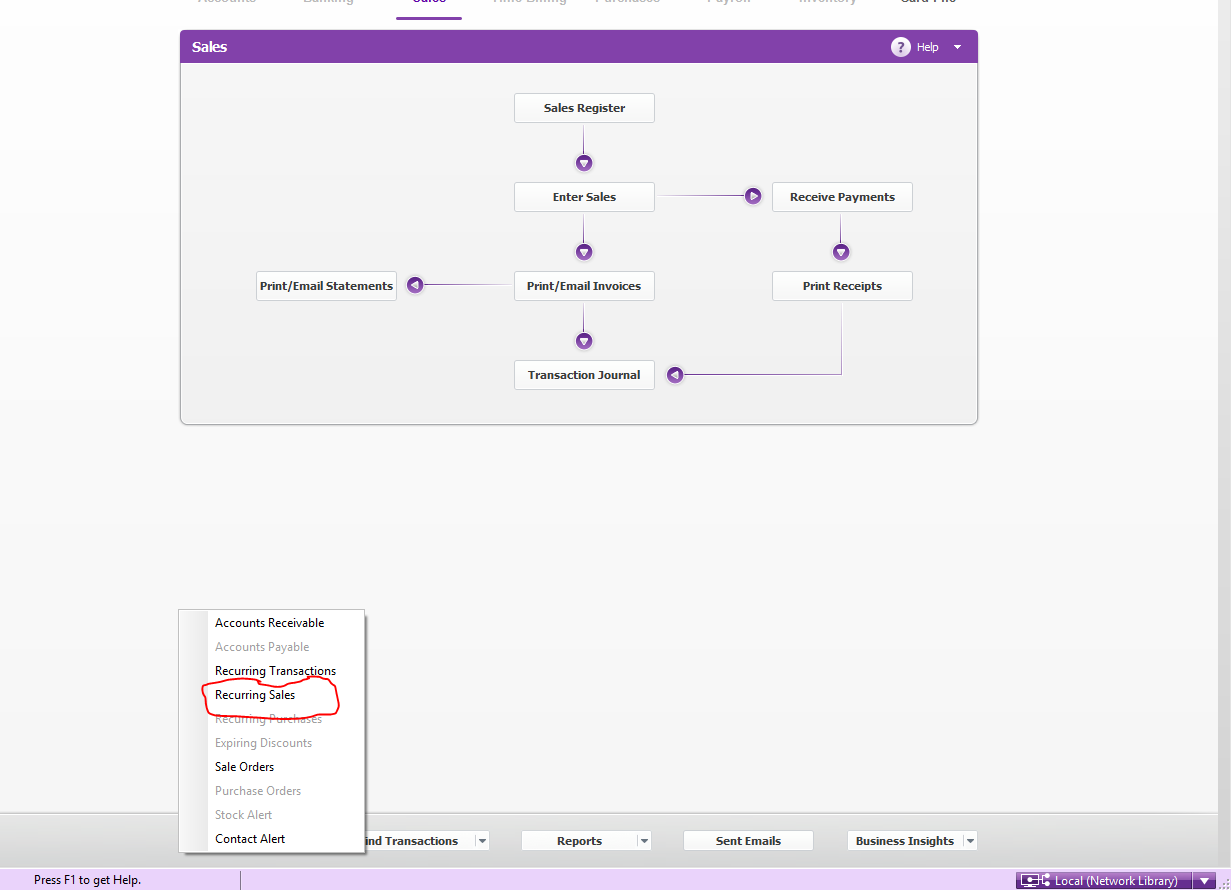
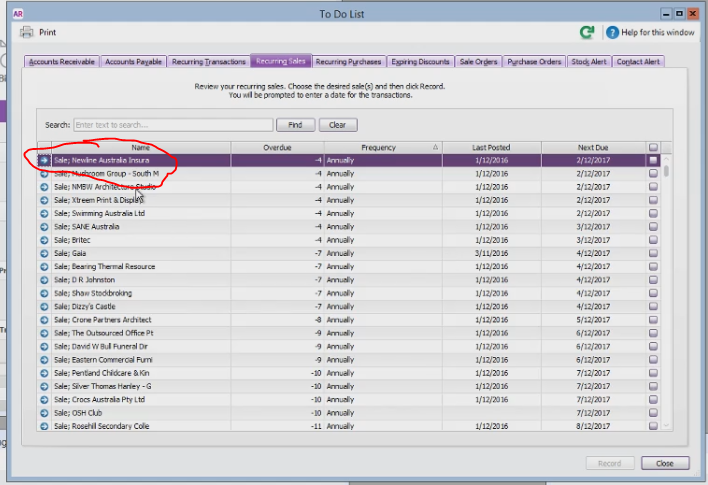
- This will load all the recurring sales based on their next due date
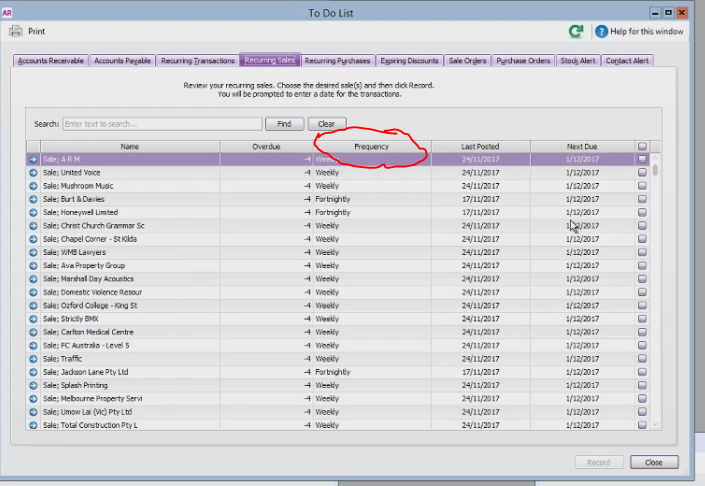
- Click on Frequency to sort it from A to Z putting the annual fees on top.
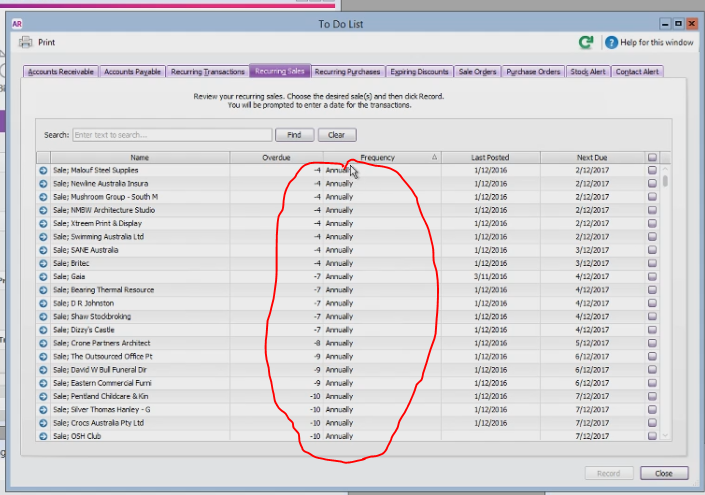
- Go all the way to till the end of the month you are working.
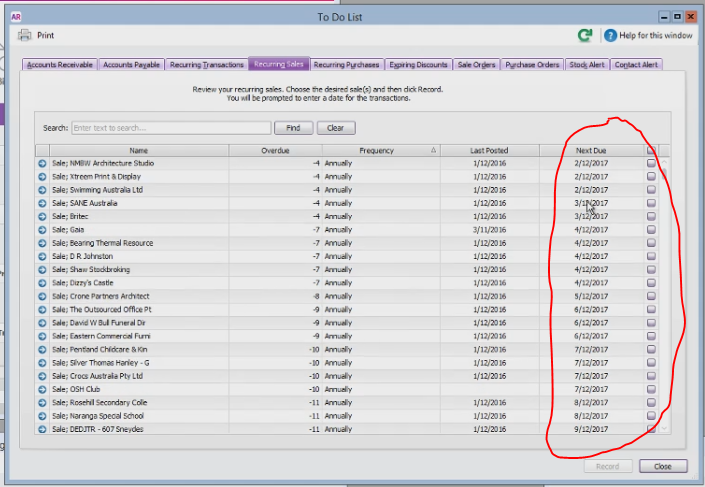
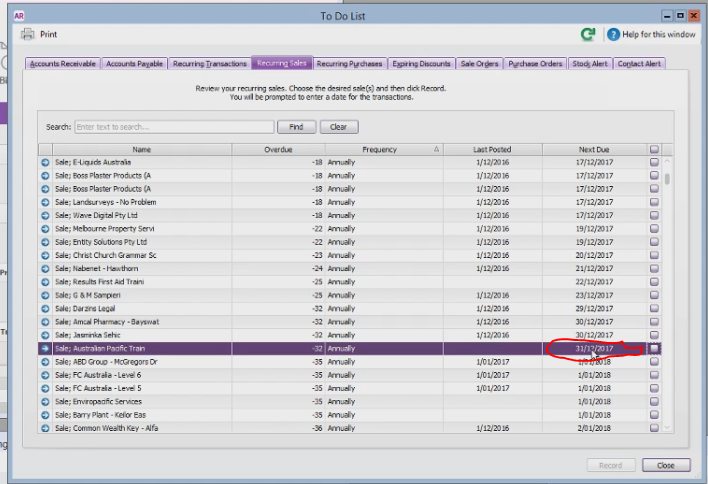
- Get the name of the customer that is next in line.
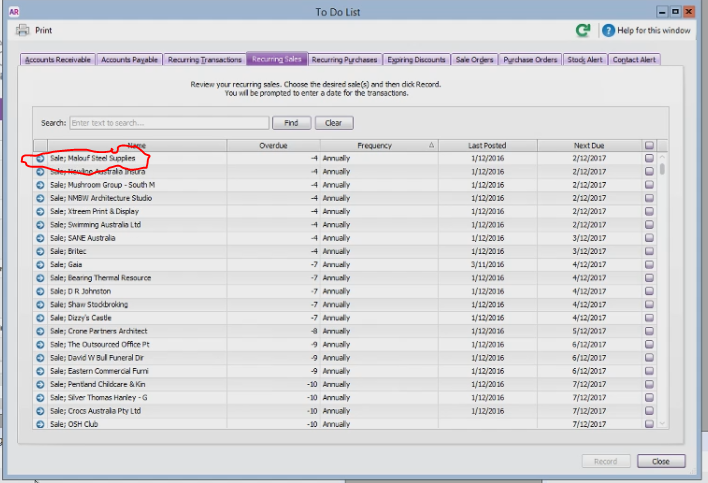
- Type in the name of the customer in Recurring Transaction (This is where you edit the recurring transaction list)
- Type in the name of the customer in Sales Register (this is where you will check their previous annual fees and also to check their last recurring transaction)
- Make sure that the customer name match in all 3 windows (To Do List, Sales Register and Recurring Transaction List)
- Open the save recurring on the recurring transaction list by clicking the blue arrow
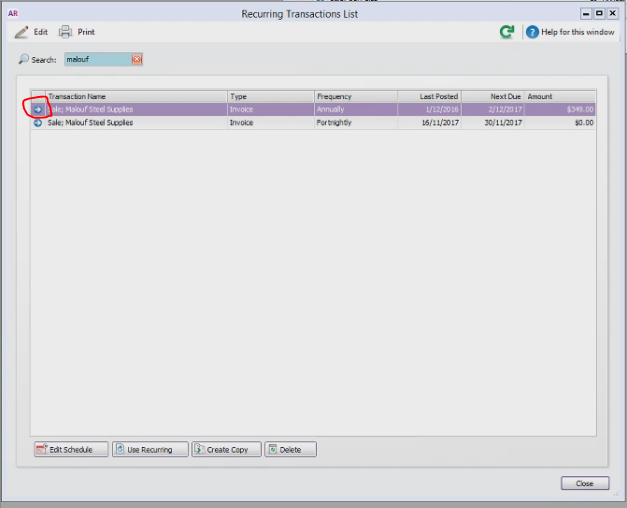
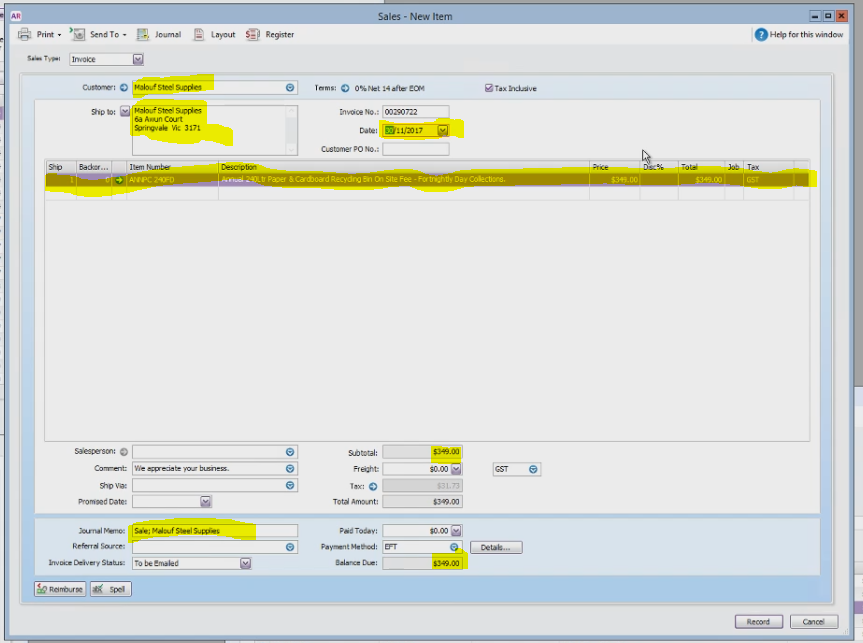
- Check all the detail of the account,
- Customer name should be the same in Customer, Ship to Name, and Journal Memo
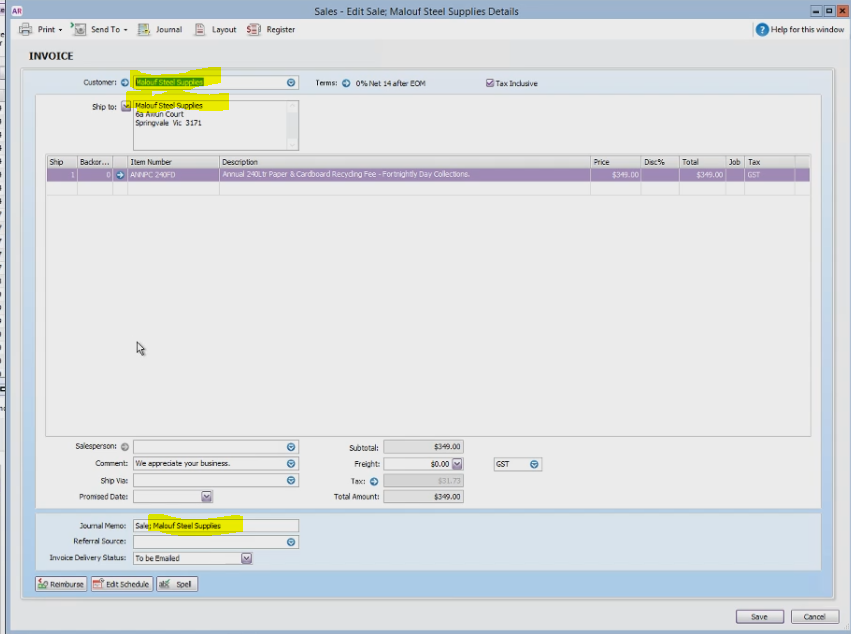
- Check if you have the correct ship address (if the customer has a different postal address change to either address 1 or address 2 to show the correct postal address)
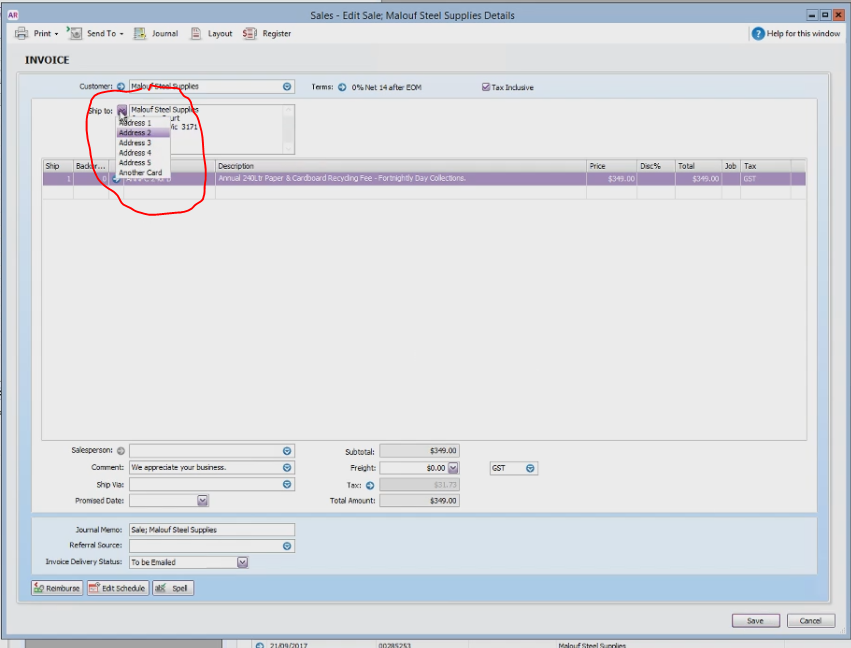
- To make sure that the description on the annual fee and the price are the correct one. Add a new line with the exact item number
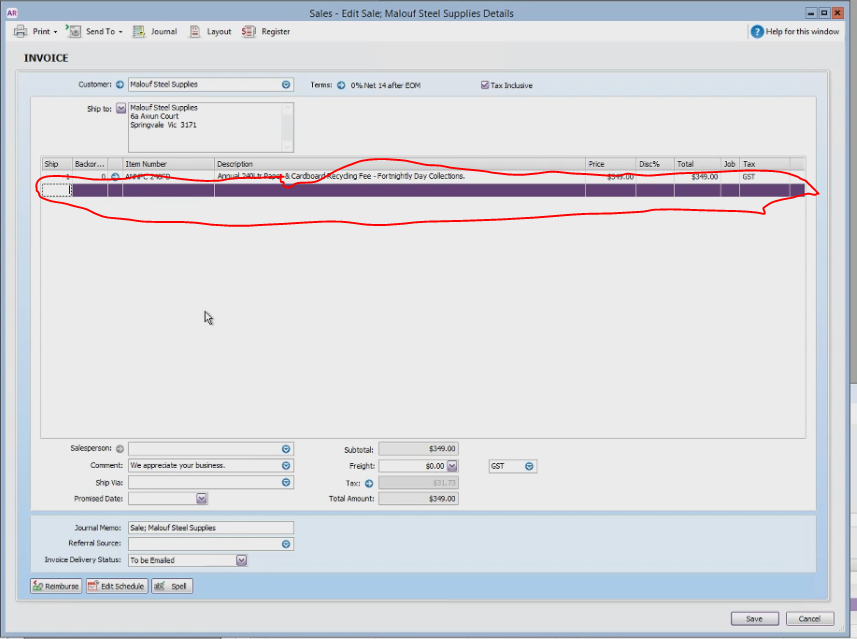
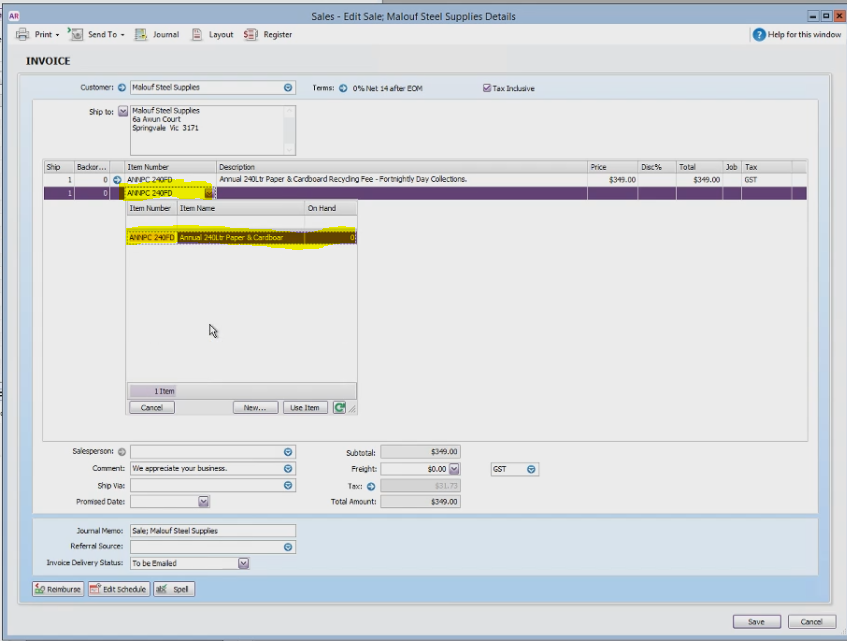
- Click Tab and check the description if the description is different follow the updated one.
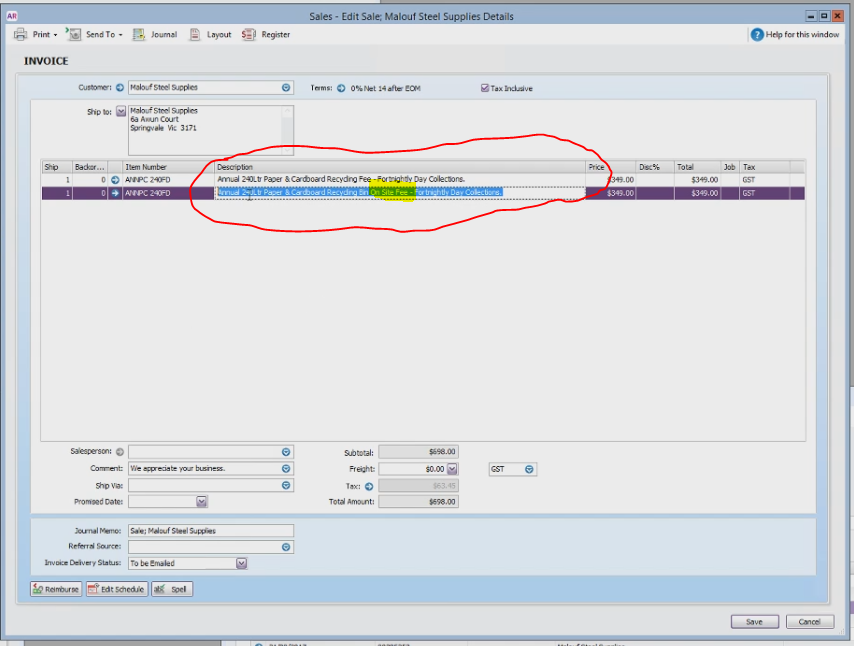
- If the old price is lower, and the difference is not much, we will use the new price
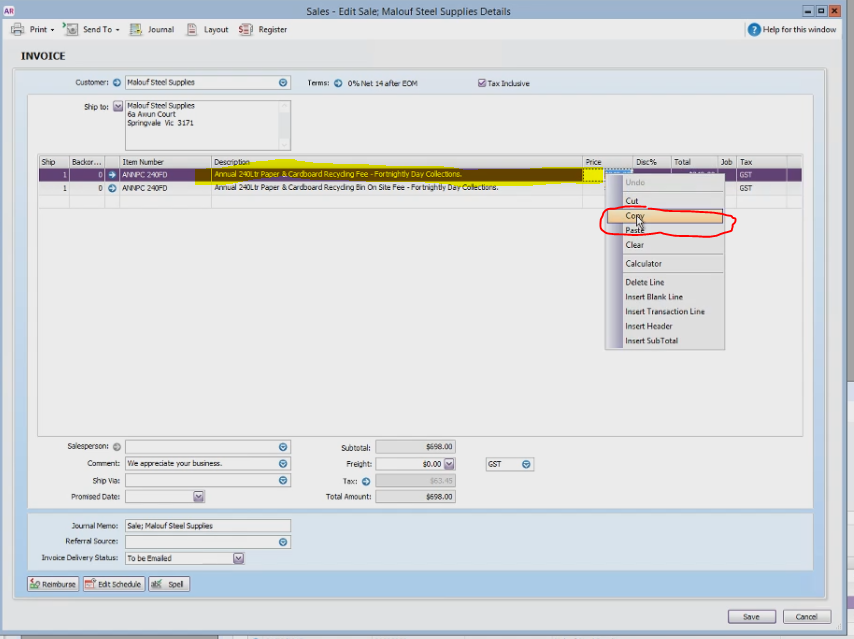
- If the old price is higher, we will copy the old price
- To copy the price right click on the old price to copy and right click to paste it on the new line
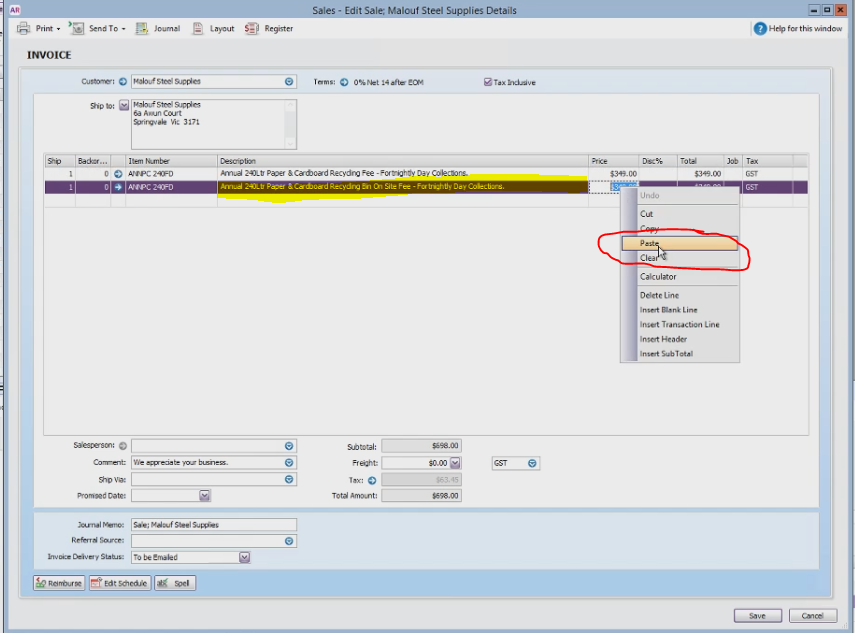
- That will transfer the old price to the new price
- Right click on the old line and delete.
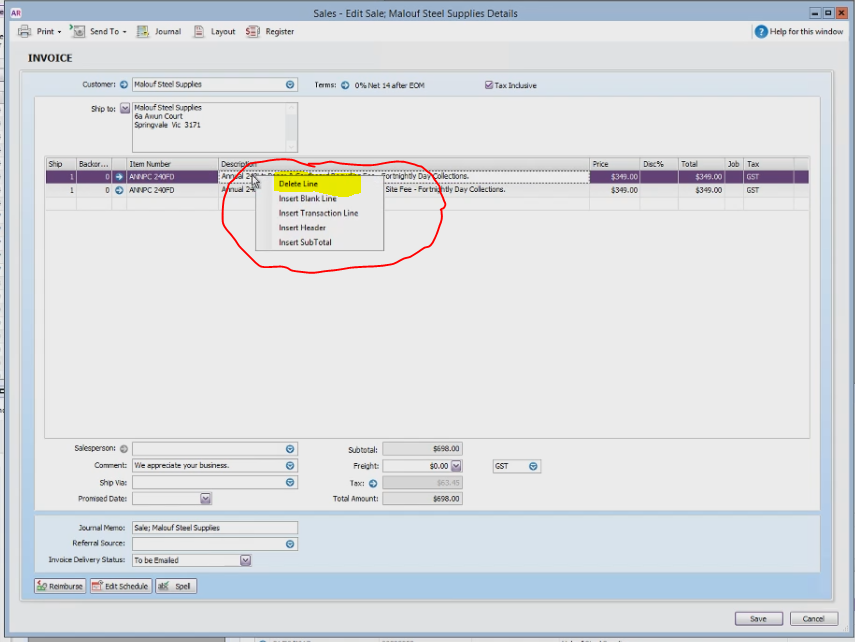
- Also copy the notes that are important to the account
- If the annual fee is discounted, increase the price on a relative amount by 10%-15%.
- Check the Journal Memo if it has he correct company name
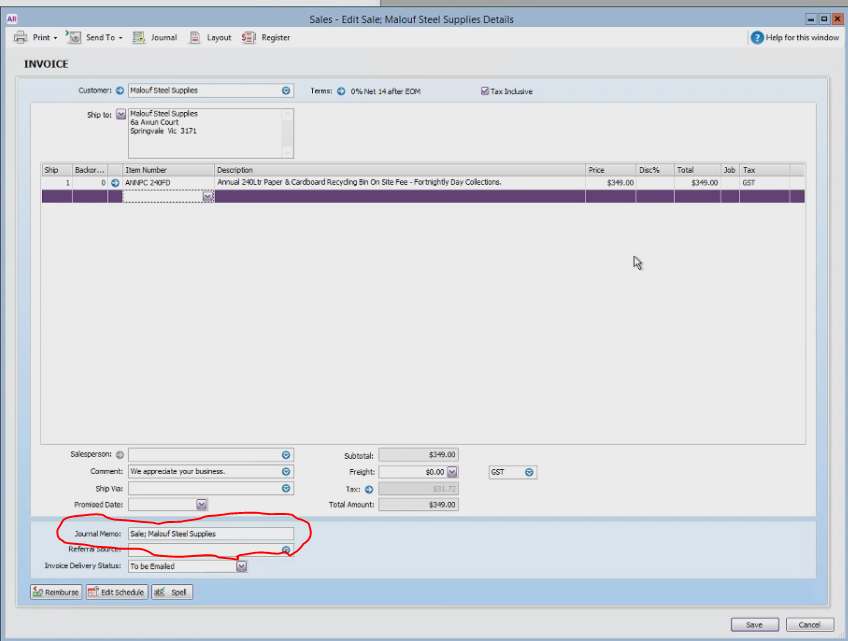
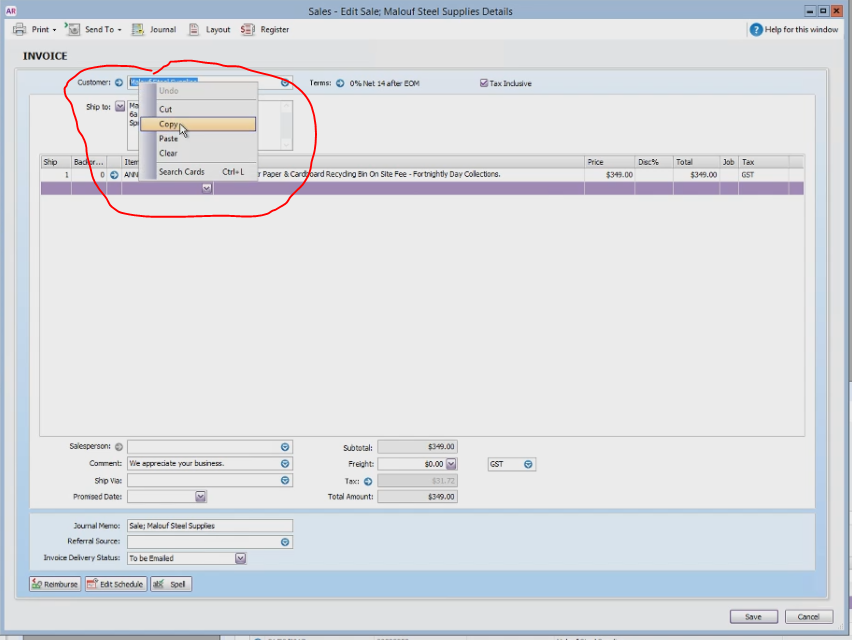
- If the name on the Journal Memo is incorrect, highlight the name on the customer field and right click copy
- On the Journal Memo tab highlight after space on Sales; and right click paste
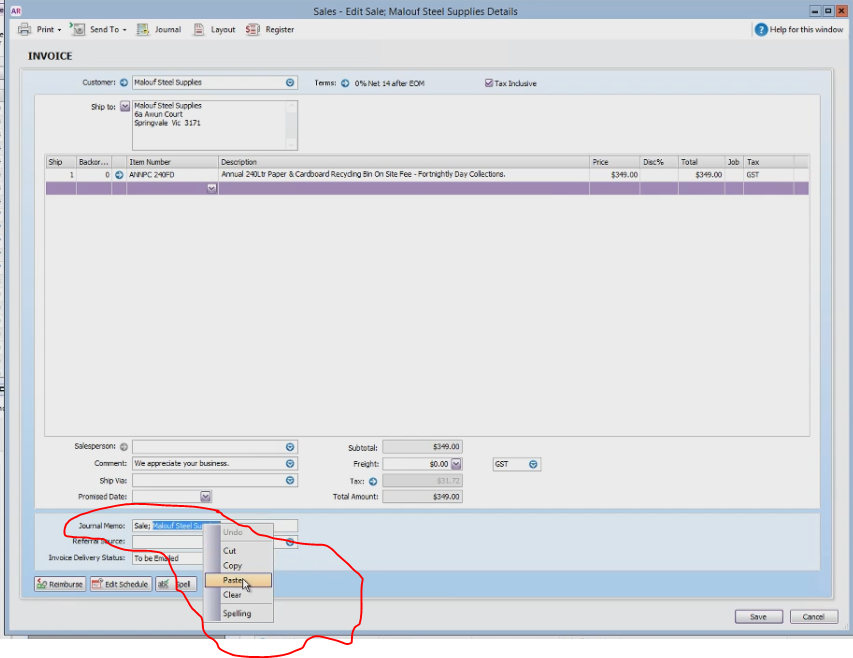
- Click Save
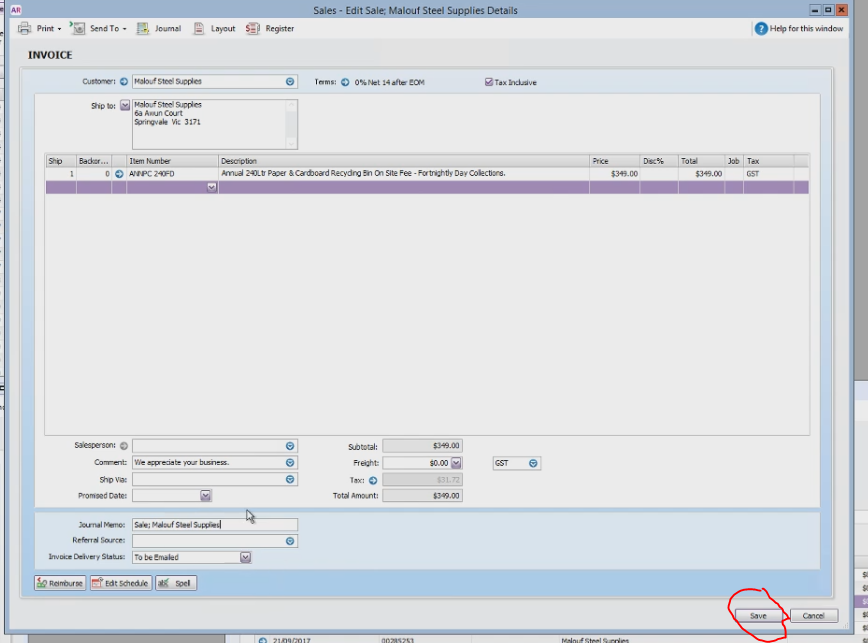
- And it will update the save recurring invoice
- If the name did change highlight the name of the account on the recurring list and Click edit schedule
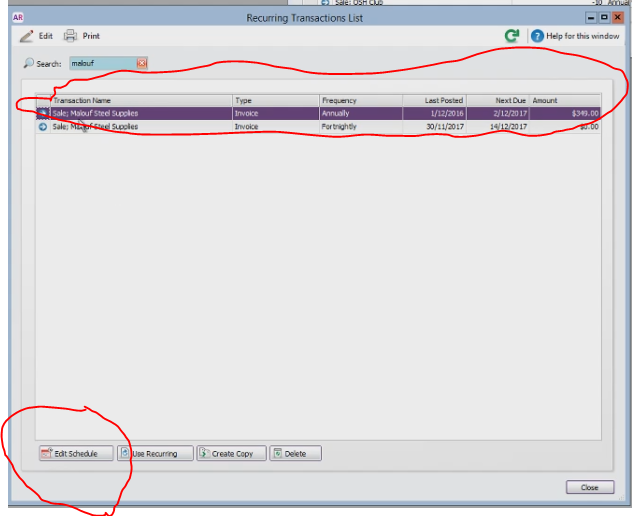
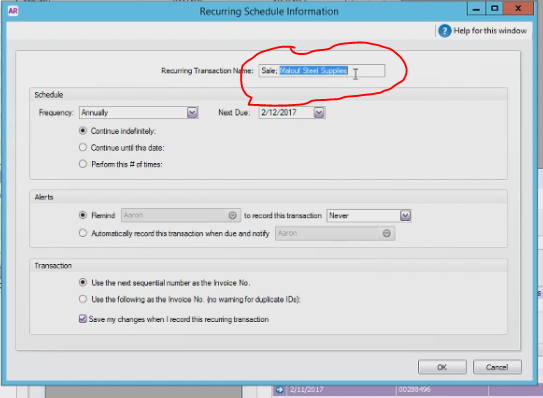
- Highlight the recurring transaction name and paste the correct name after the space on Sales; (should be less than 30 character)
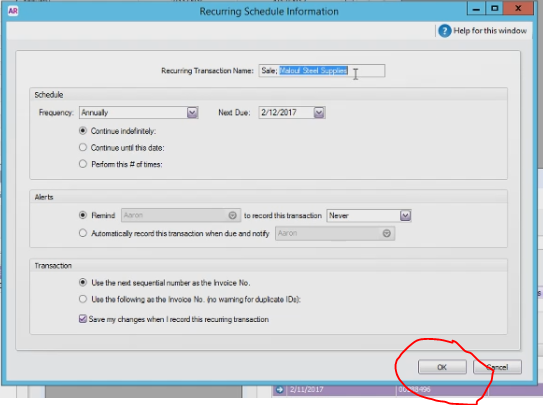
- Click OK to save
- Go to To Do List Window
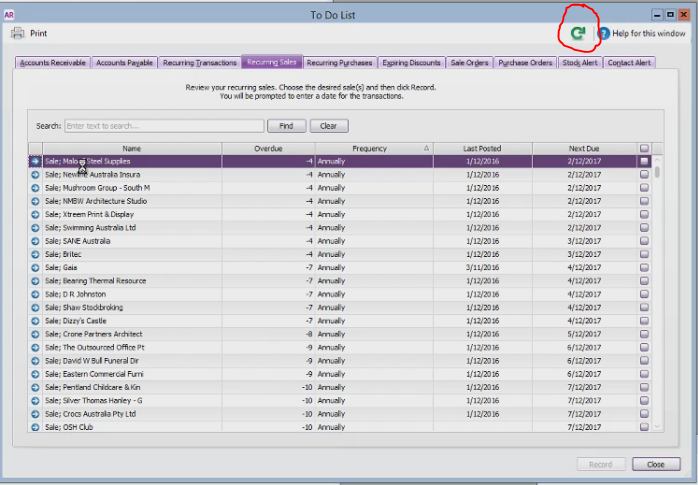
- If you made changes, click the Refresh button first
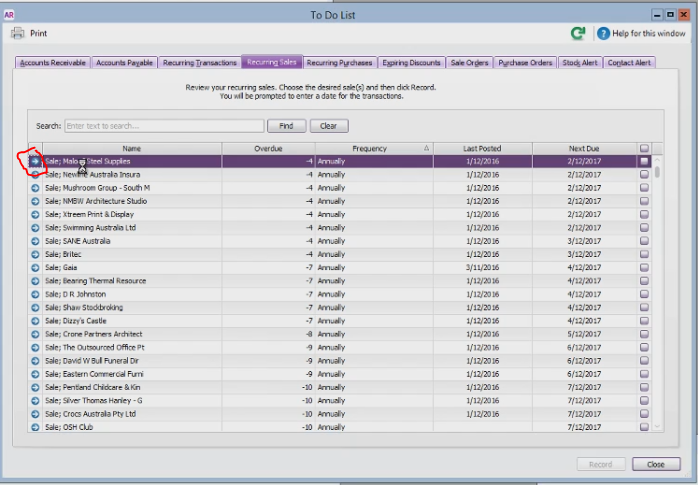
- Click the blue arrow beside name of the customer
- Change the date to the last day of the current month (Remember in MYOB whatever you set the date to on the last set or recorded invoice it will keep that date for all new invoices until you change it again so if your recording annual fees all in a row you only do it once, but still double check to make sure it has not change)
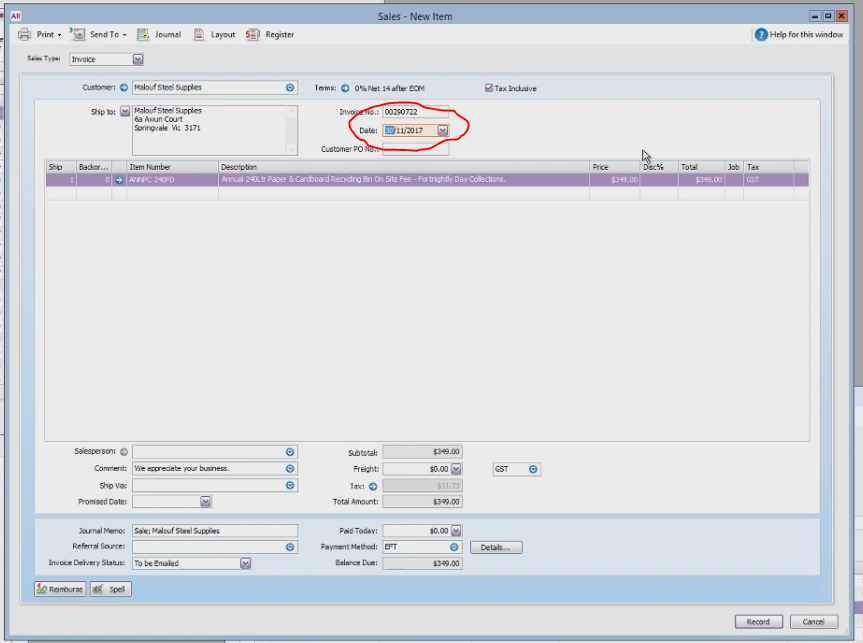
- Double check the all information on the account are correct
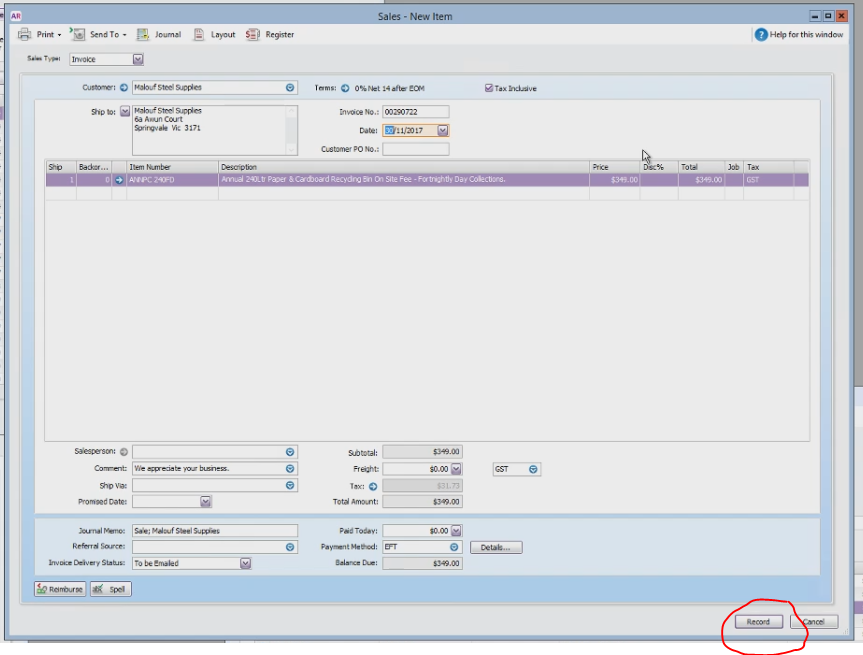
- Click Record
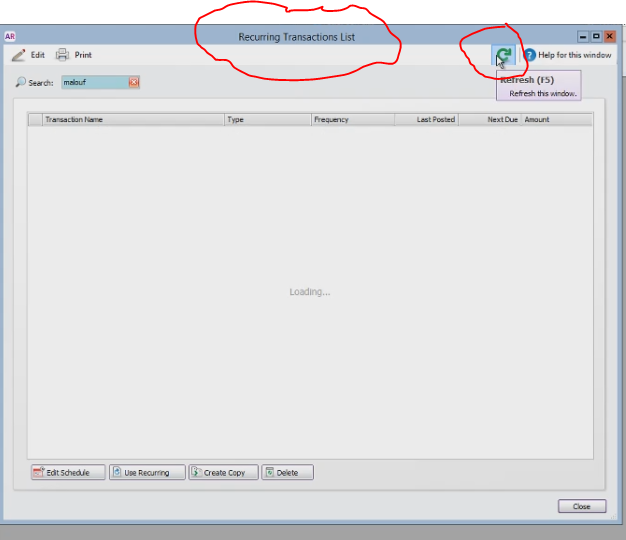
- Go to Recurring Transaction List and click refresh to show the new recurring annual fee for the customer
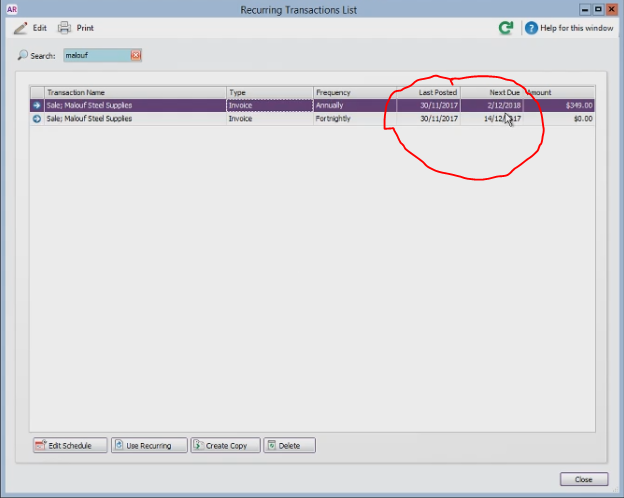
- You will see that the last posted date is the same last day of the current month and the next due is for next year
- Click Refresh on the To Do List and you will see that the account that you worked on will be removed from the list.
- Proceed to the next account until you finish all the annual fees for the specific month.
Comments