Checking and Following Up Outstanding Customer Order
Karen Lacsamana
Posted at January 29, 2018 07:01 am. Last updated at October 23, 2019 05:10 pm
Checking and Following Up Outstanding Customer Order
**Orders should only remain in this back order for no more than a month**
- Open MYOB
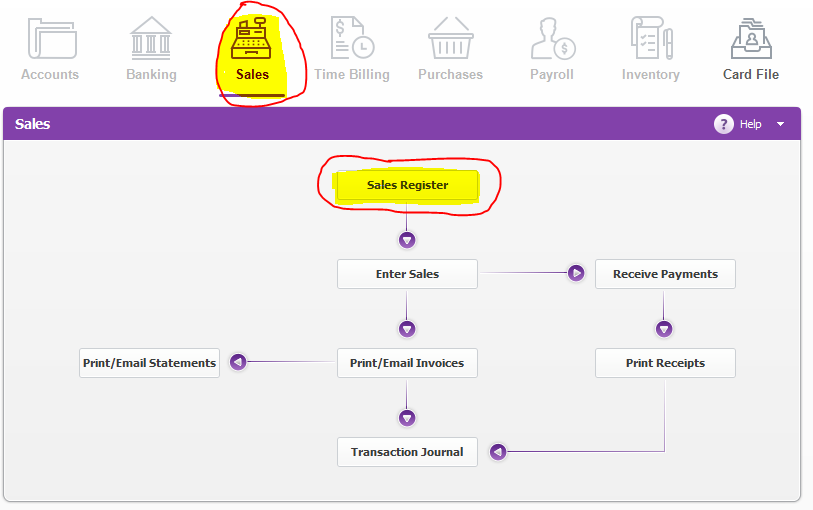
- Go to Sales Tab, Sales Register
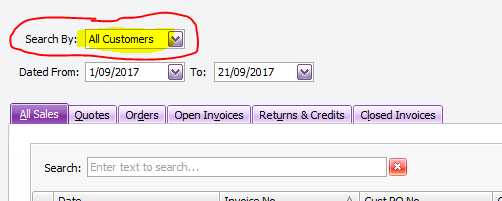
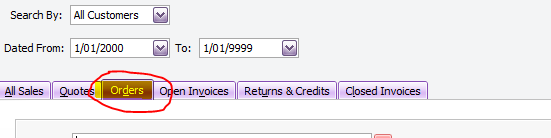
- Search by All Customer
- Date From and Date To should not be far from each other (for Date To use 9999 for the year instead of the current year)
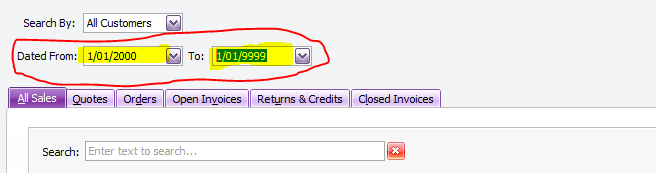
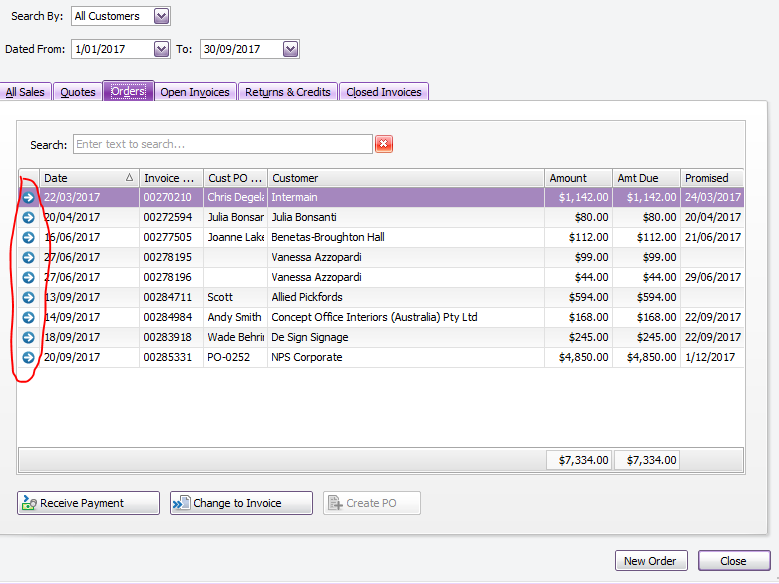
- Click Orders
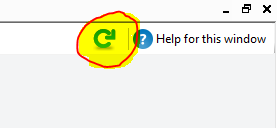
- If MYOB was not able to pull up the information, you can click Refresh or Go to different Tabs

- Click Refresh
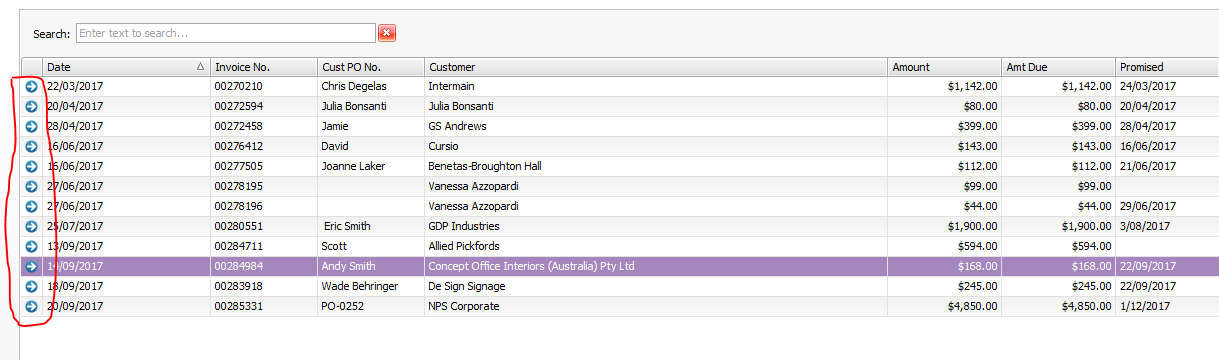
- Check the reason why they are still on Order Status or Back Order by clicking the small blue arrow
- If the order has not been paid yet make a follow up with the customer or chase payments (explain we need to process payment prior to delivery, check whatever reason the customer might have if they prefer to cancel the order)
- If customer want to continue with the order. Convert the Order to Invoice and Process Payment in AWM Manage Page
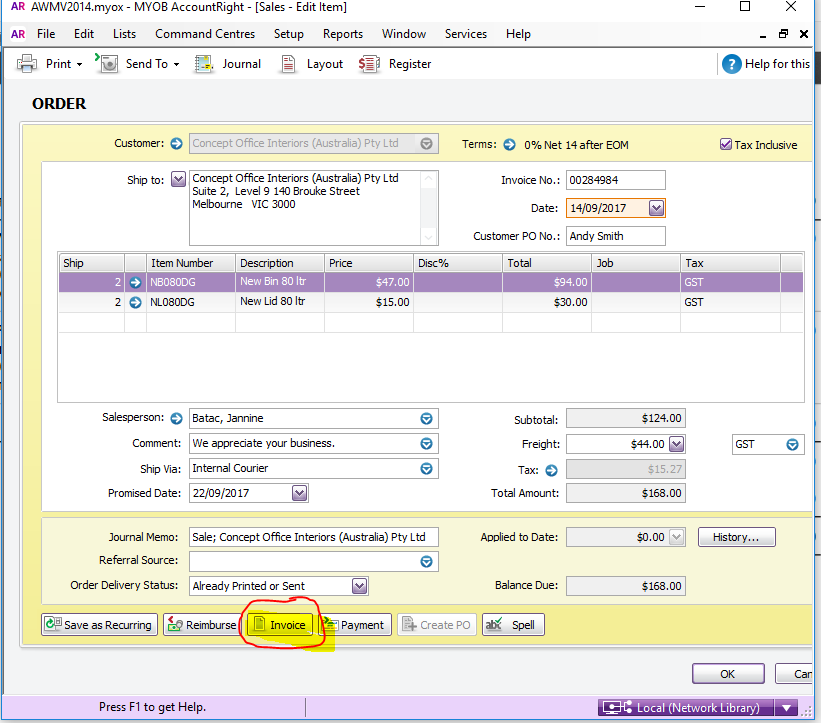
- Cancel the order if customer no longer wants to go with the order.
To cancel order
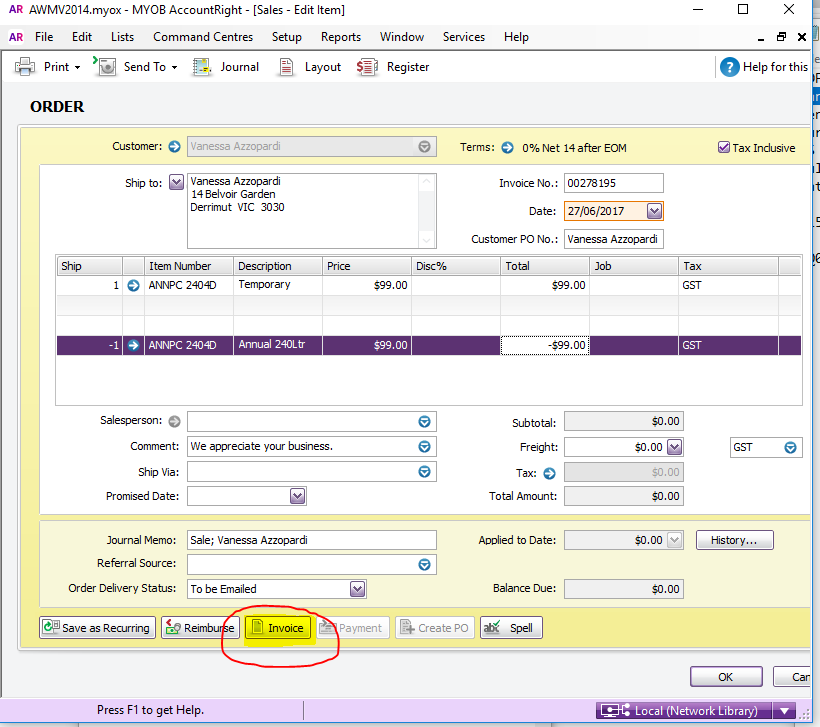
- Click the blue arrow to open the order that
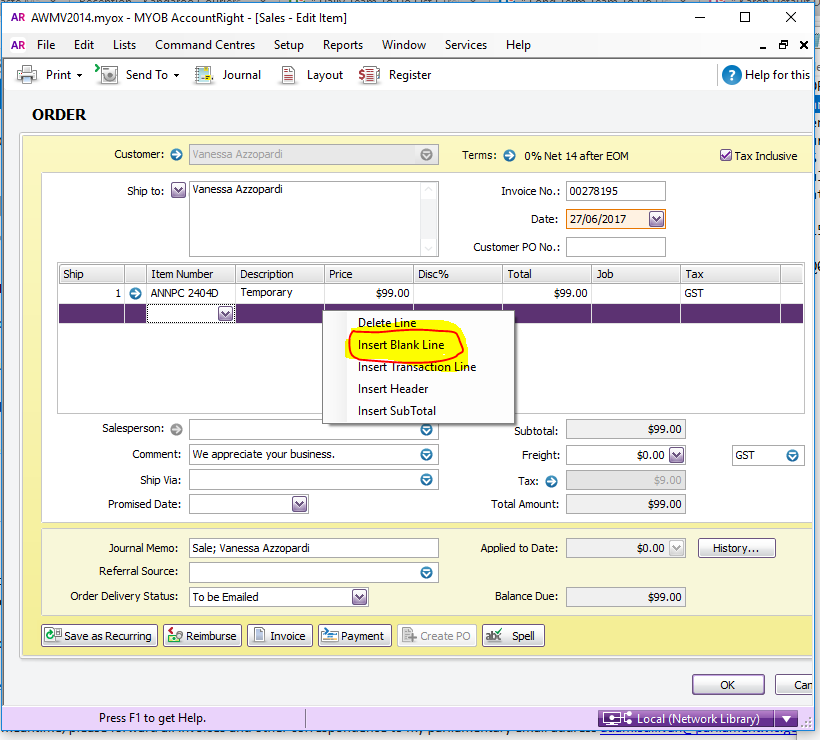
- Right click insert blank line (2 lines)
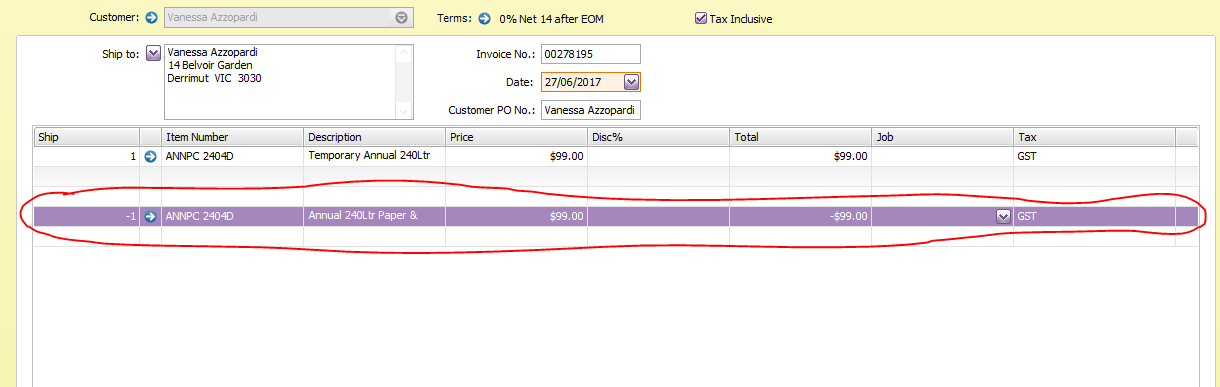
- Put negative (-) on the number of items to be cancelled
- Add a note with the reason why the invoice was cancelled
- Make sure to follow the standard note procedure:
- WHO: Name of the person you talked to
- HOW: How you contacted them( or how they contacted us)
- WHAT: What they wanted
- WHY: The reason why they wanted it
- WHEN: Date of Contact
- WHO: Your Initials
- Zero out the freight fee (This will zero out the whole invoice but still we will have a reference to what the invoice was for)
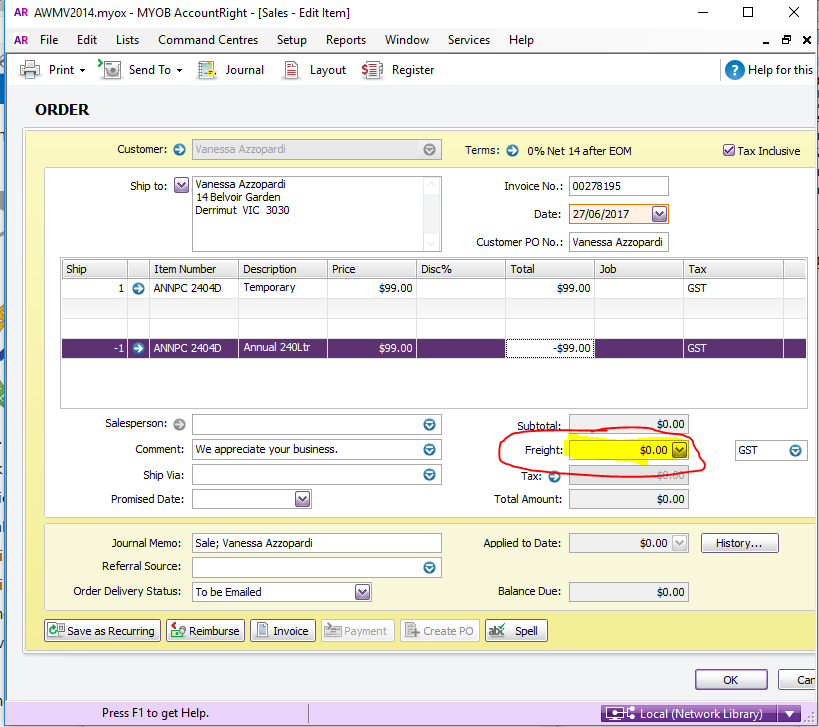
- Click Invoice Tab to create an invoice for the order
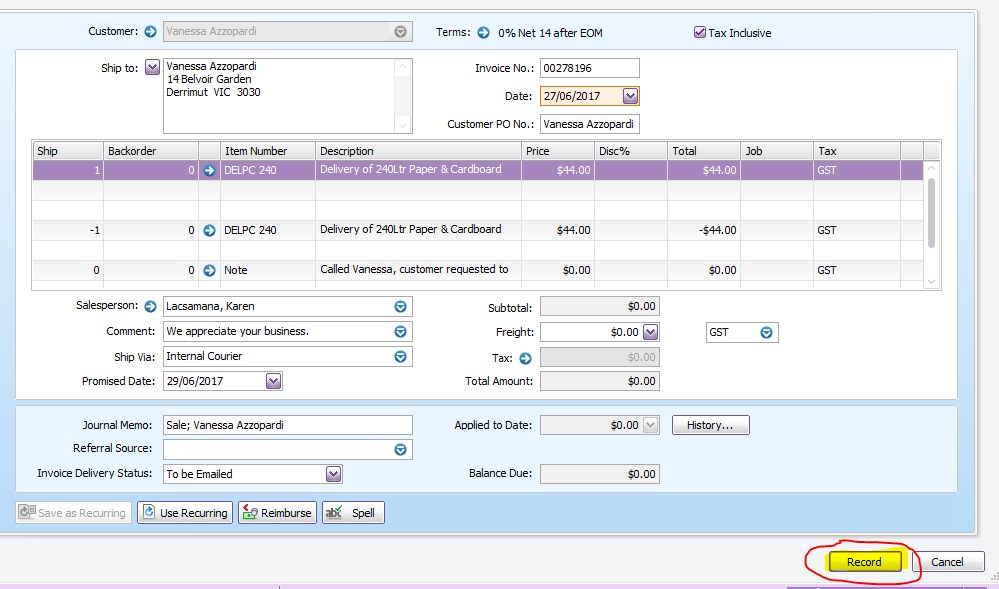
- Click Record (this process will clear out the order and will make the invoice null) (From yellow background to blue background)
For Orders that has been paid already but the item is out of stock
- Verify that a purchase order has not been placed
- If a purchase order was not place
- Once the stocks arrived, the dockets will be scanned and emailed to the Accountant
- The Accountant should them enter it in MYOB under Supplier
- Once the dockets were entered the Accountant will then advise Sales to convert order to invoice and complete the order.
Comments