Checking Audio Recordings of Customer Calls
Posted at December 23, 2024 05:12 pm. Last updated at February 10, 2025 11:02 am
When checking for audio recordings of customer calls for reference, info gathering or etc.
1. Navigate and access NAS (\\192.168.1.253\Backup) (X:)
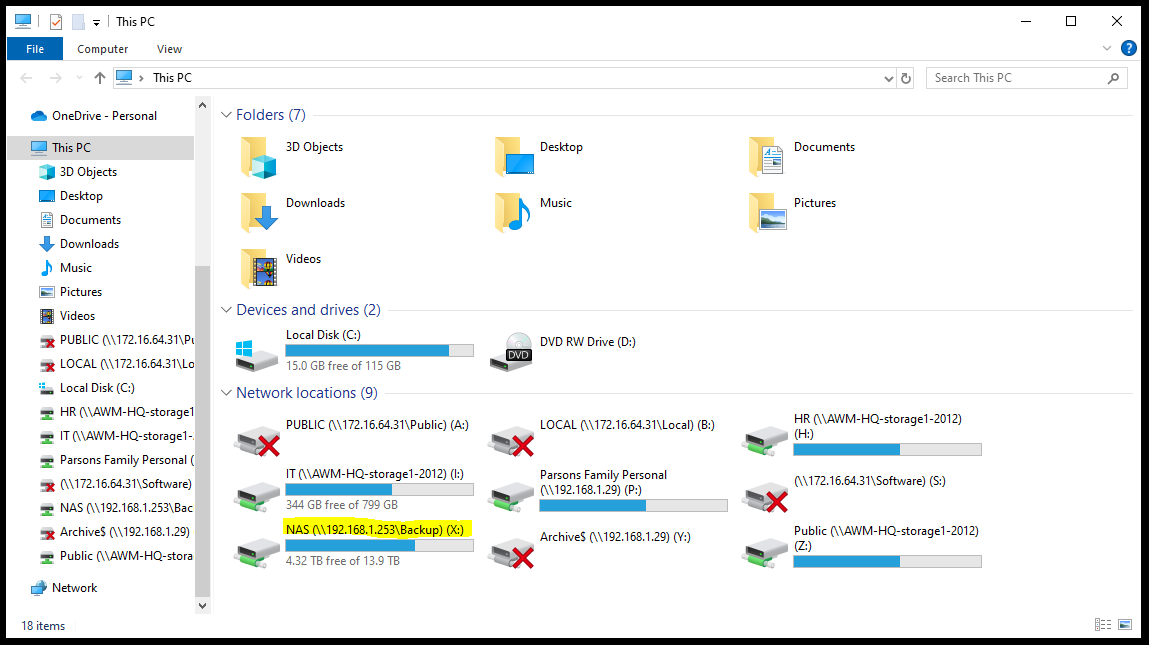
2. Access "SYNCED BACKUP" folder.
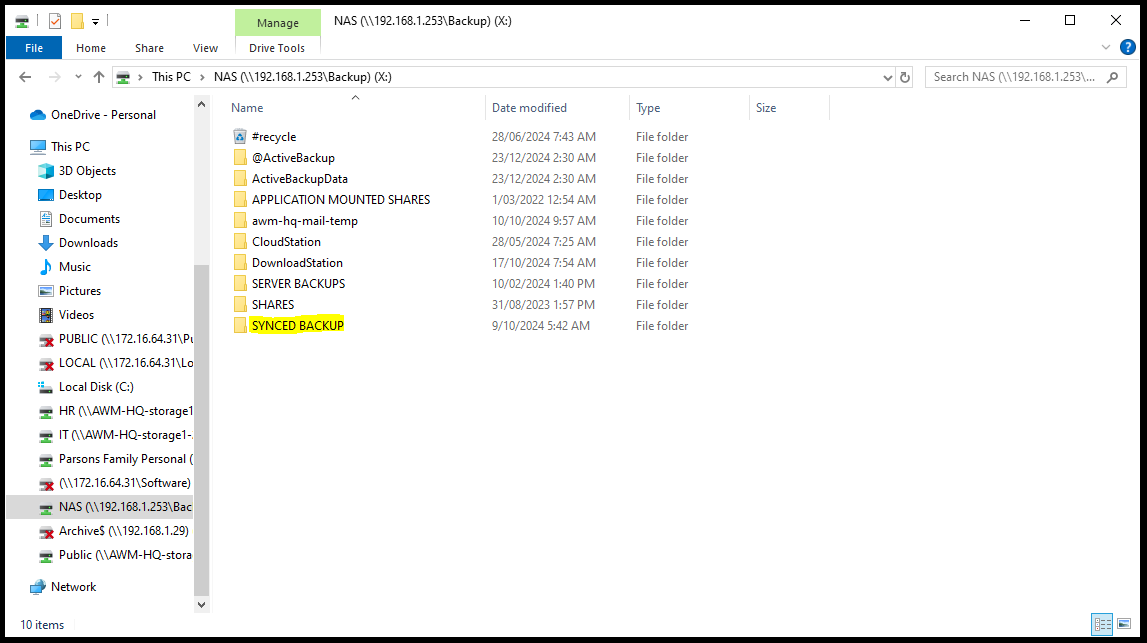
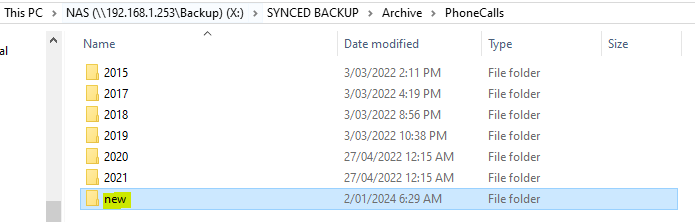
3. Access "Archive" subfolder then the "PhoneCalls" subfolder.
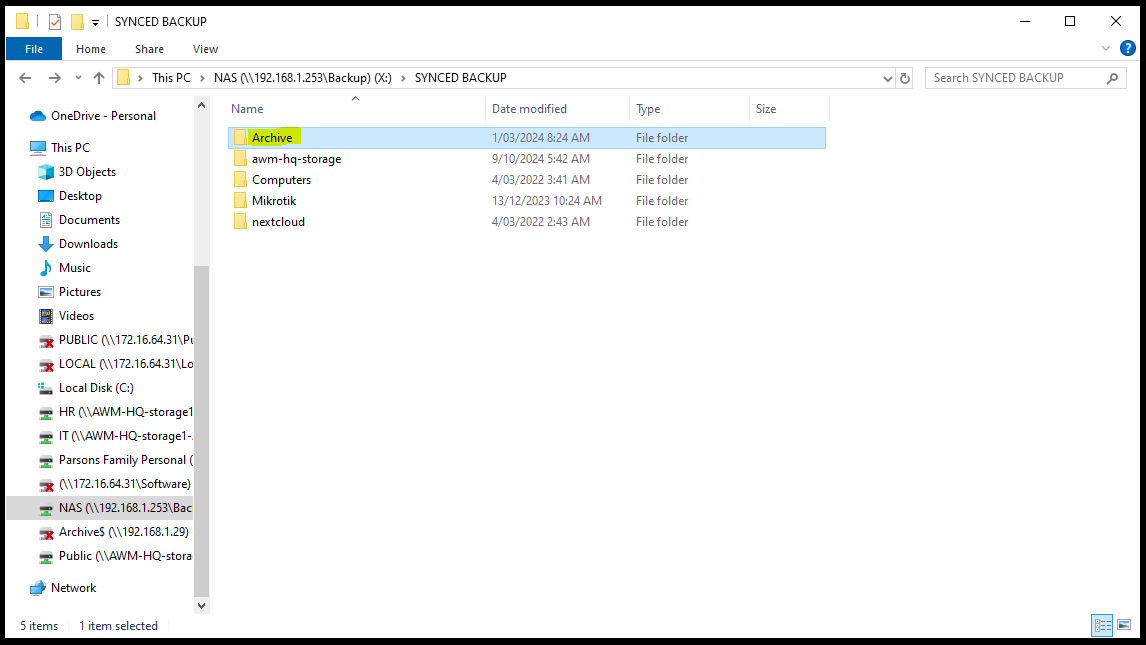
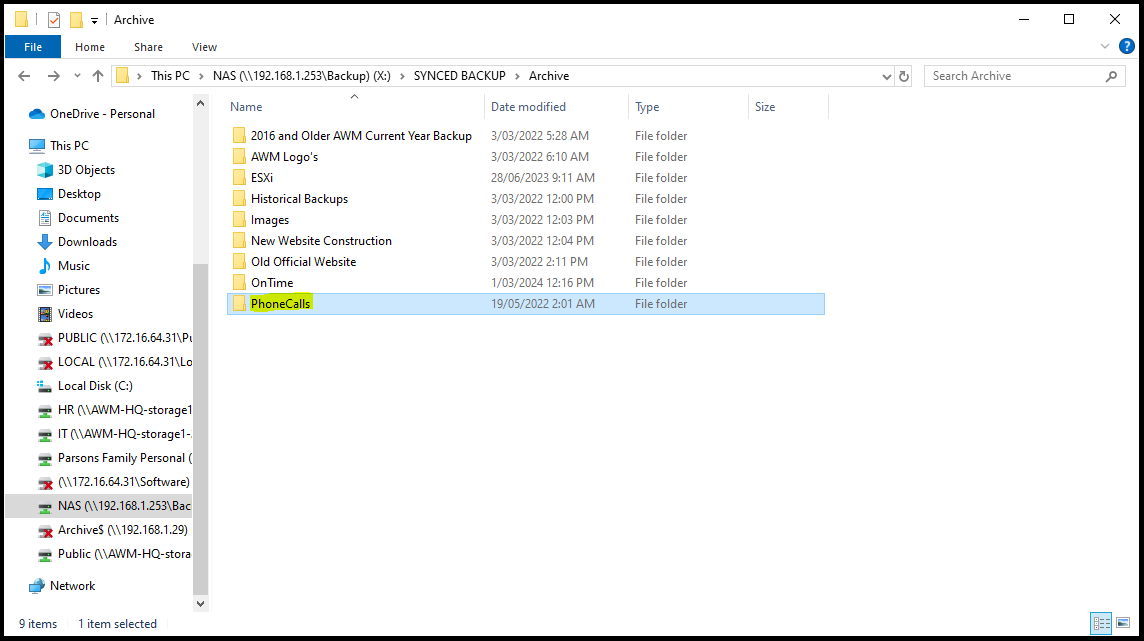
4. Locate the year of the audio recording you are looking for. Anything from 2022 to current time would be in the "new" folder.
5. An example would be locating a call recording from 0394734300. Let's say we received a call from them during May of 2024.
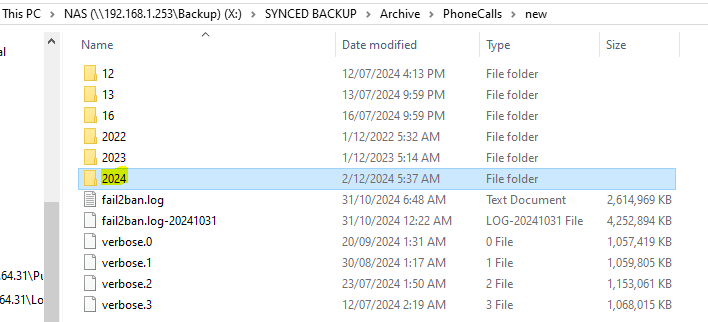
6. Access the "new" folder and "2024" folder.
7. There will be folders that range from 01 to 12. These represent the month. The month of the call was in May, so we access 05 folder.
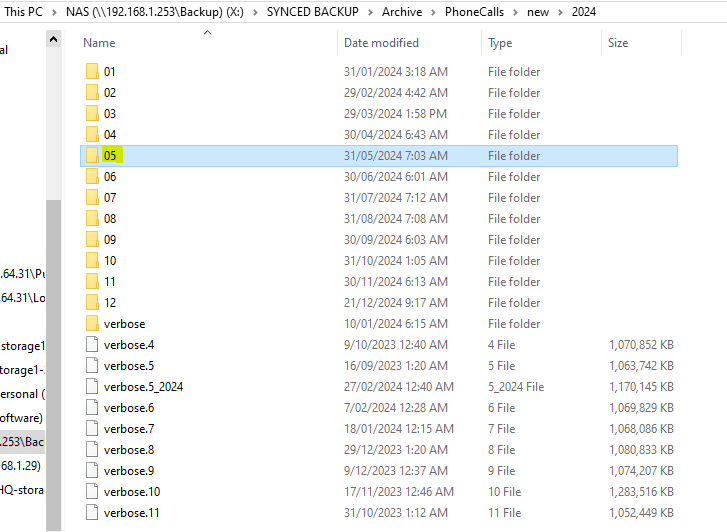
8. There would be folders that represent the days within the selected month. As we only know the month and year. We would go through each folder for the contact number (0394734300).
9. Searching for the number via the search bar usually doesn't give results but could still be tried.
10. The number is usually found on the filename of the audio recording.
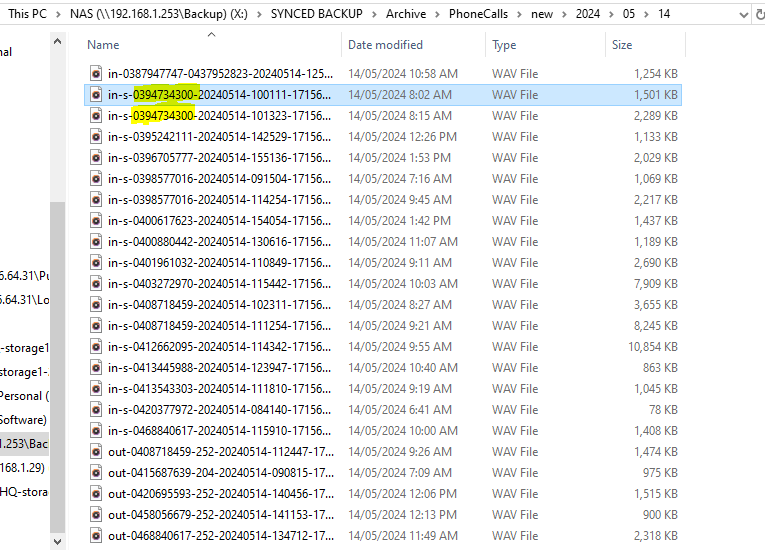
11. Now we found a call recording from the contact number 0394734300. Listen to the recording if it is the call recording you are looking for. If not, then continue searching.
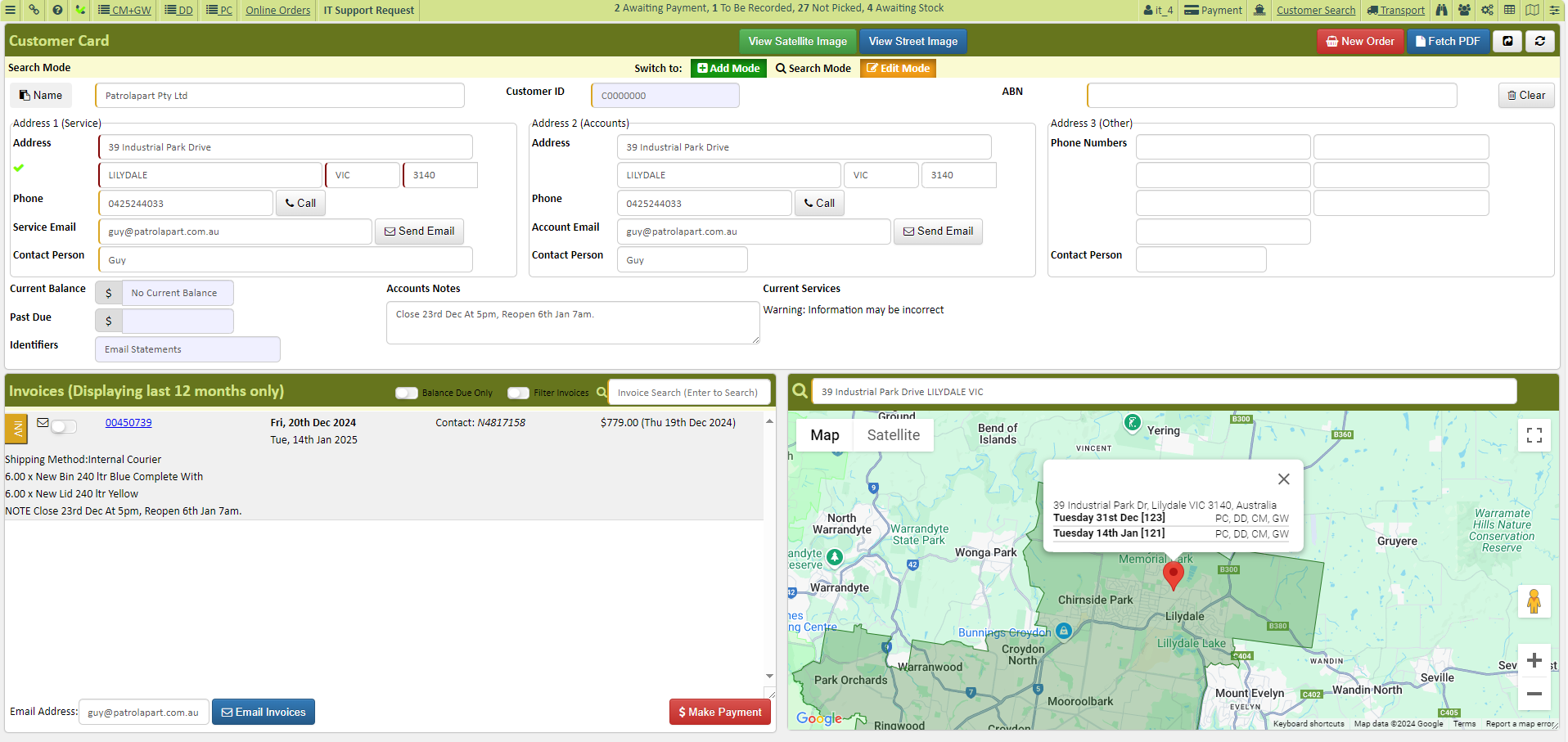
Note: You can go to AWM-Manage. Go to the customer search and search for the customer's name or ID. Check the Invoices for dates as these could be the days of the audio recording you are looking for.
Comments