Check/Fix Mailboxes Not Updating
Joshua Angeles
Posted at February 20, 2025 02:02 pm. Last updated at February 20, 2025 02:02 pm
When there is a report of a mailbox not updating with new emails, not receiving emails, and not sending emails, confirm the following:
- Check with others if there is an activity, such as a server migration, that would impact the mailbox.
- Frequency of access to the mailbox.
- To check how often it is accessed by end-users
- Did the issue only occur the current day?
- To check if the issue happened before
- To check if the mailbox receives and sends mail on a daily basis
- Has the end-user compared with other users with access to the mailbox if they also have the same issue?
- To check if the issue is only on the end-user device
- Send test emails with your account to the reported mailbox and asked the end-user if they receive it after 3-5 mins. Confirm with other users with access to the mailbox.
- Go to your outlook app and send a test email to the reported mailbox account. Let's say support@awaste.com is the reported mailbox.
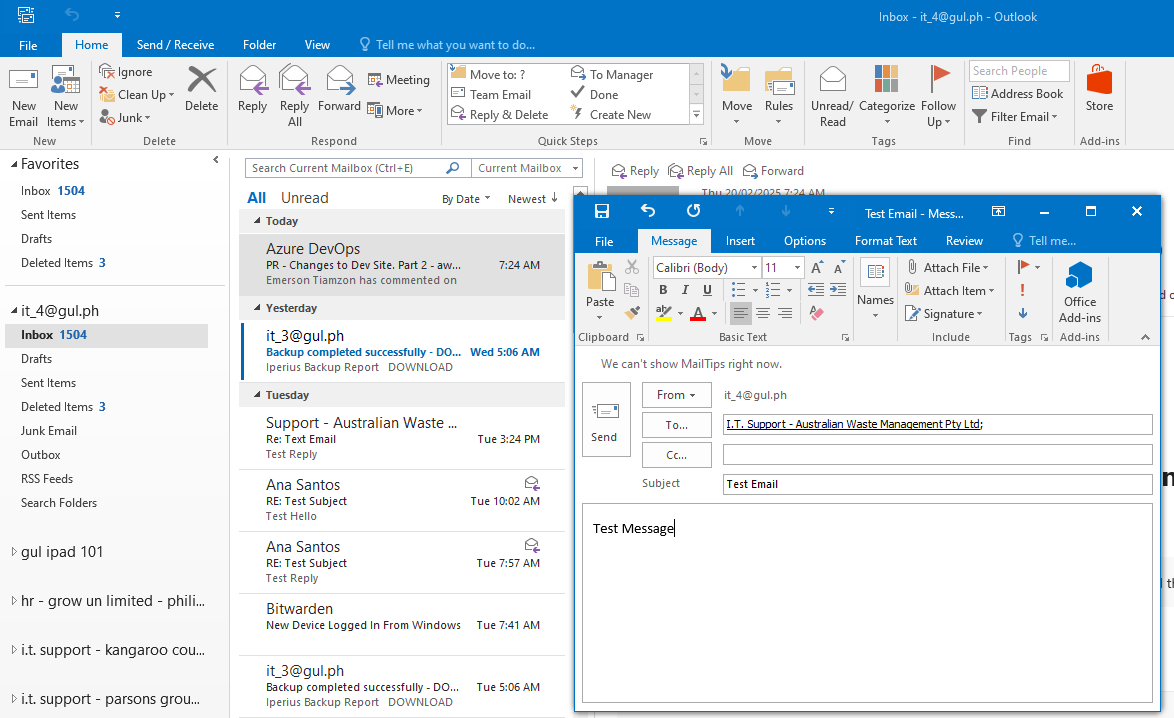
- To check if the mailbox has not only received anything since the previous day
- Go to your outlook app and send a test email to the reported mailbox account. Let's say support@awaste.com is the reported mailbox.
- Access the reported mailbox.
- Before granting your account permissions needed to access the mailbox, request permission from the senior techs first. This is to notify them that you wish to grant yourself temporary access to mailboxes that are outside your access pool.
- If it is a simple request, then ask the senior techs (Emerson/Vince) about granting yourself permissions.
- If you think the request is critical, then explain to the senior techs. They will identify if the request is critical and if it should be brought to their direct superior.
- Remove permissions after troubleshooting!
- Check /index.php/site/document/226.
- Personally check the mailboxes
- Have direct access in sending and receiving emails
- Before granting your account permissions needed to access the mailbox, request permission from the senior techs first. This is to notify them that you wish to grant yourself temporary access to mailboxes that are outside your access pool.
- Once access is allowed, check the mailbox if it received the test emails.

- If it did receive test emails, the issue likely lies with the end-user's device.
- If it didn't receive emails, it is likely an internal issue.
- Check Mailguard to check if the email is in quarantine.
- Send replies back to your account with the reported mailbox.
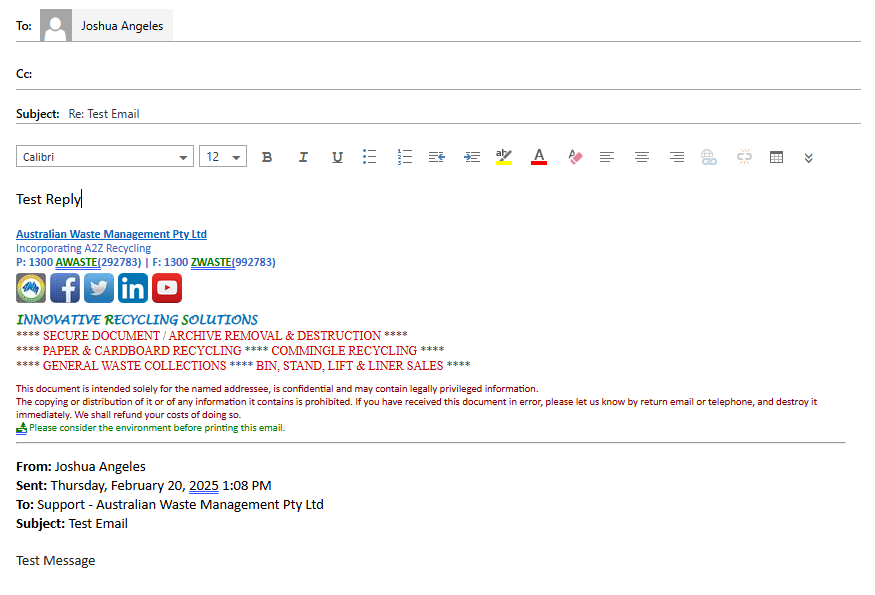
- To check if it can also send emails
- Check your account mailbox for the replies of the mailbox.
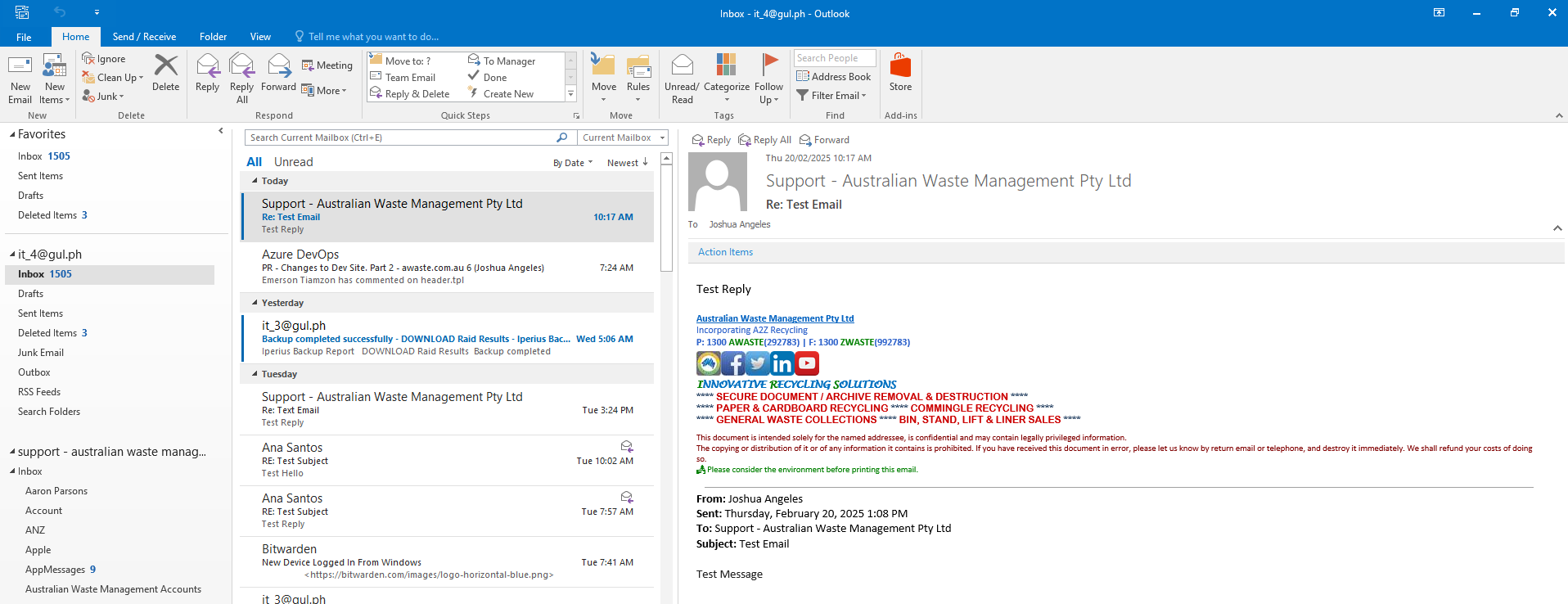
- If you received the replies from the reported mailbox then it is an end-user issue.
- If you don't receive the reply after 3-5 mins, possibility of an internal issue.
- Check Mailguard to check if the email is in quarantine.
- Request permission from the end-user to remotely access their computer.
- Once access is given, relaunch their Outlook app.
- Provide the correct credentials to the accounts that Outlook is connecting to.
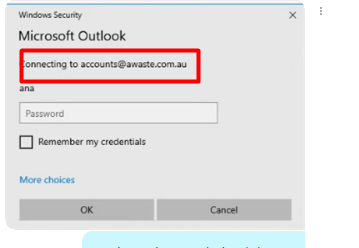
- Go to your Bitwarden to check for the correct credentials. The account inside the red box is the account asking for the password not the user that is under it.
- Once Outlook opens, try testing sending/receiving emails again with the reported mailbox.
- If the sending/receiving email test is successful then the likely cause lies with the account credentials and user above.
- If the mailbox is not sending/receiving emails but other users report that they are able to send/receive from the mailbox.
- Report the issue that the device of the end-user is having issues with the reported mailbox.
- Start troubleshooting the server of the end-user.
- Check Mailguard to check if the email is in quarantine.
- Keep testing sending/receiving emails from the mailbox until the end-user device is successfully sending/receiving from the mailbox.
- If the end-user device is now accessing the mailbox normally, report to the end-user that the mailbox is working.
- Ask the end-user to test their device if the issue will occur again. Once they have given their approval, only then can the issue be considered resolved.
- End the remote access to their device and remove the permission granted to your account.
Comments