Migrating from Skype to MS Teams (Desktop)
Posted at March 12, 2025 05:03 pm. Last updated at April 15, 2025 05:04 pm
Skype will be retired in May 2025. Microsoft has offered a way for chat and chat history from Skype to be transferred to MS Teams.
https://support.microsoft.com/en-us/skype/skype-is-retiring-in-may-2025-what-you-need-to-know-2a7d2501-427f-485e-8be0-2068a9f90472
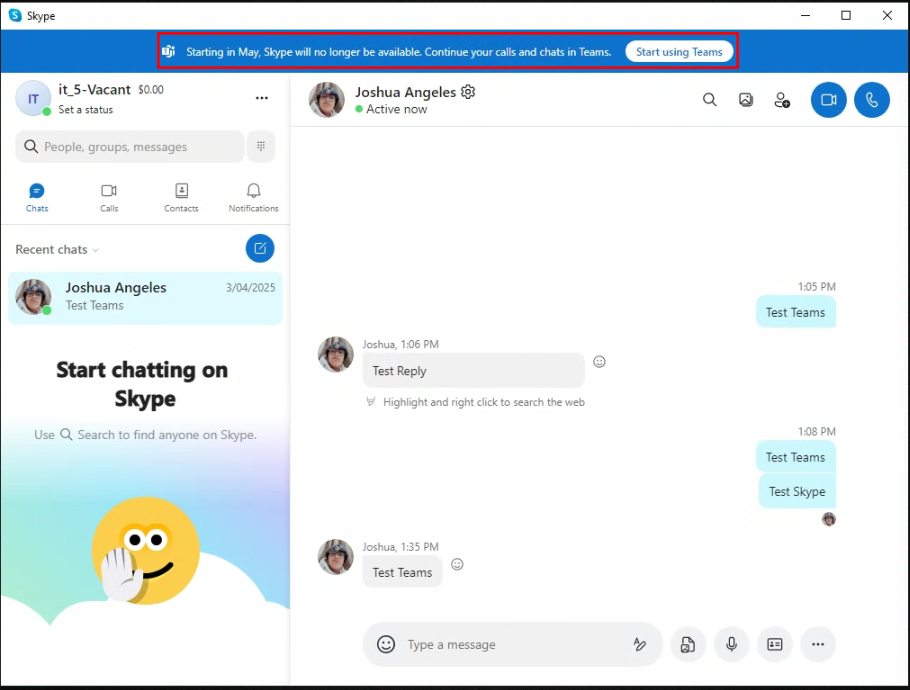
1. Open the Skype app on your desktop. Make sure it is up-to-date; Skype generally notifies if there is an update. If it is up to date, there would be a notice bar on the top.
It indicates that Skype will be decommissioned in May, urging you to transfer to Microsoft Teams or Teams for short.
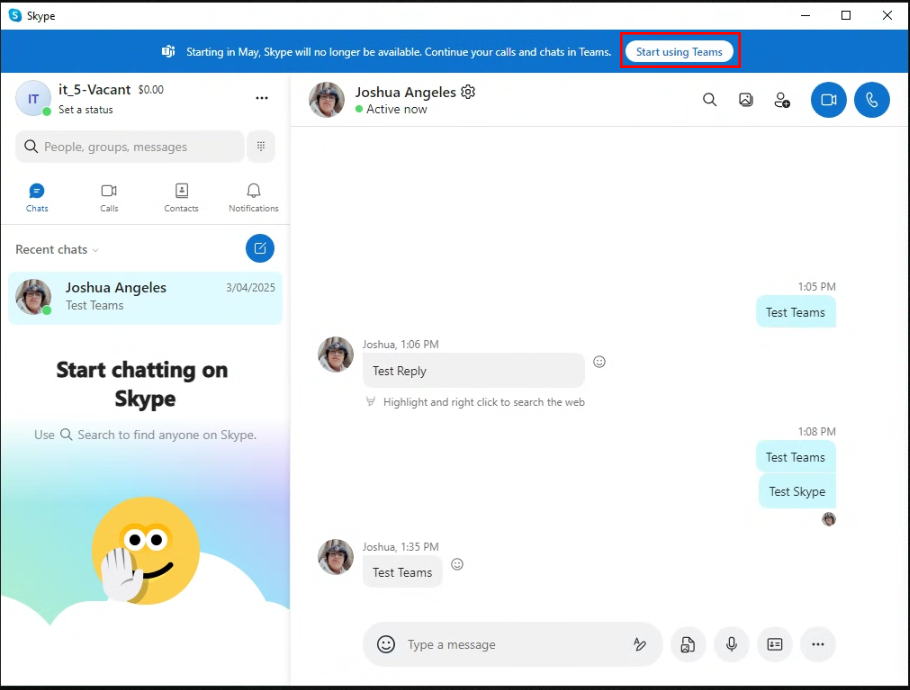
2. To begin the migration, click the "Start using Teams" button on the notice bar. Once clicked, Teams would begin installing if not already installed in your machine. Wait a good minute.
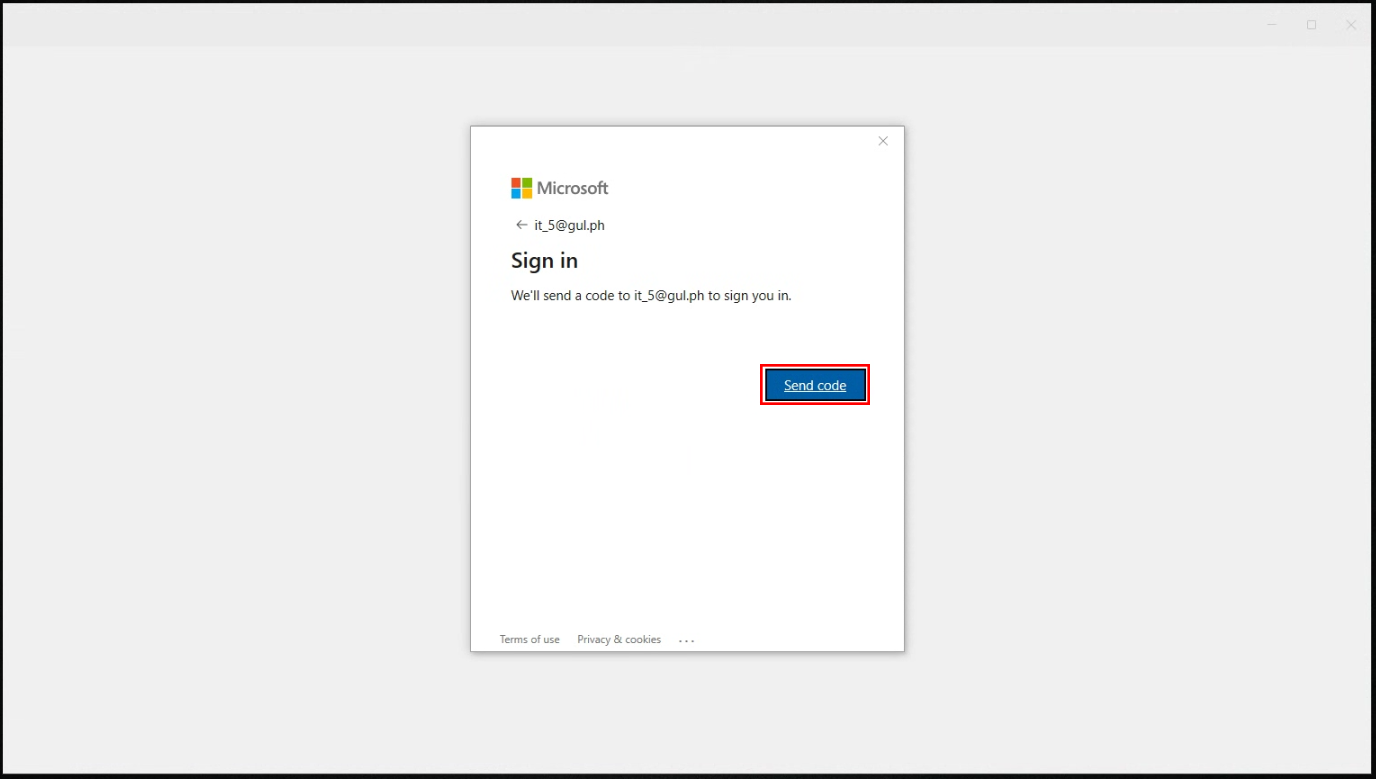
3. After waiting, there would be a new window by Microsoft. Microsoft would send a code to the Outlook account you used for Skype. In this case, it is "it_5@gul.ph".
Click the "Send code" button and go to your Outlook mailbox to check for the email with the code.
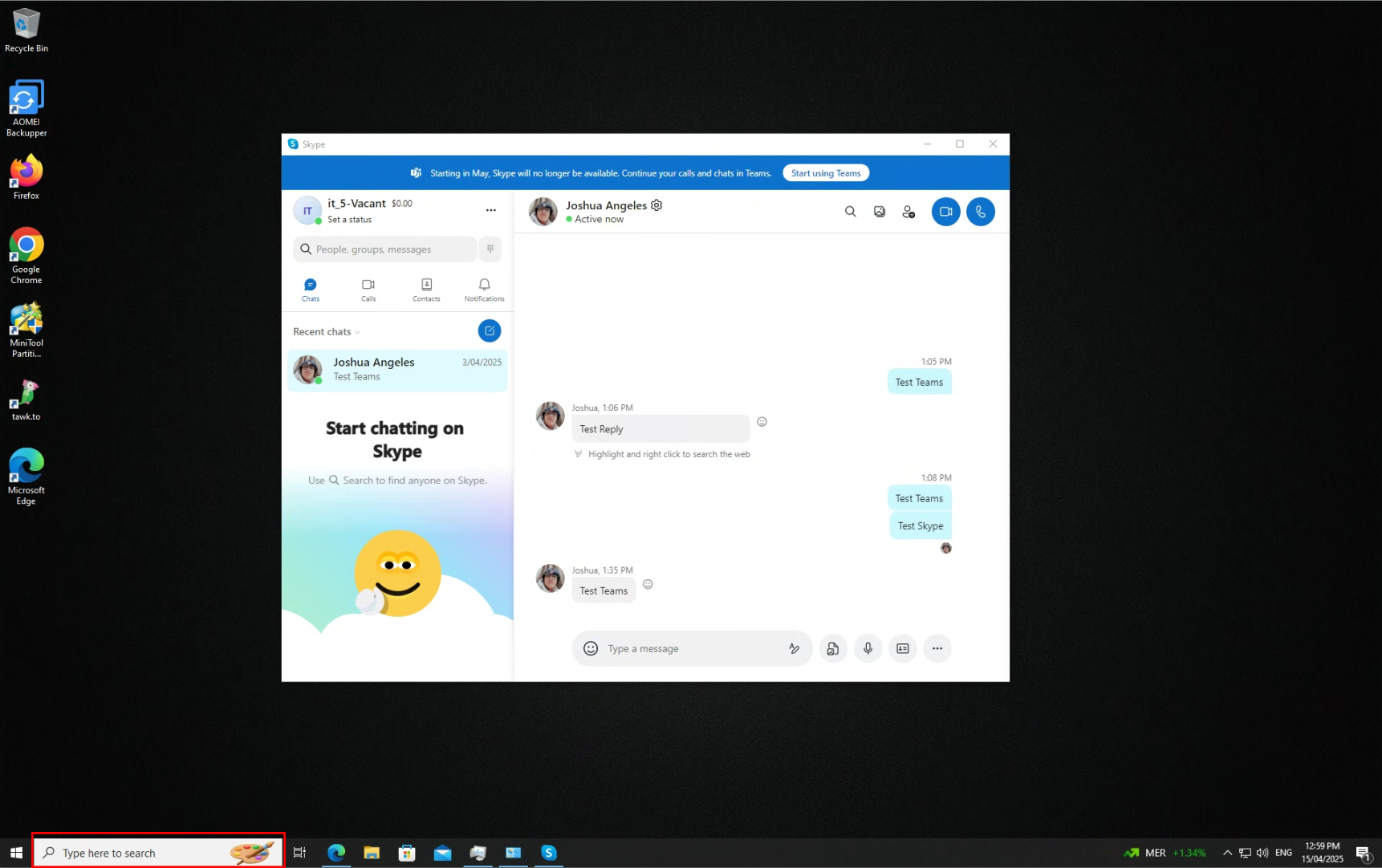
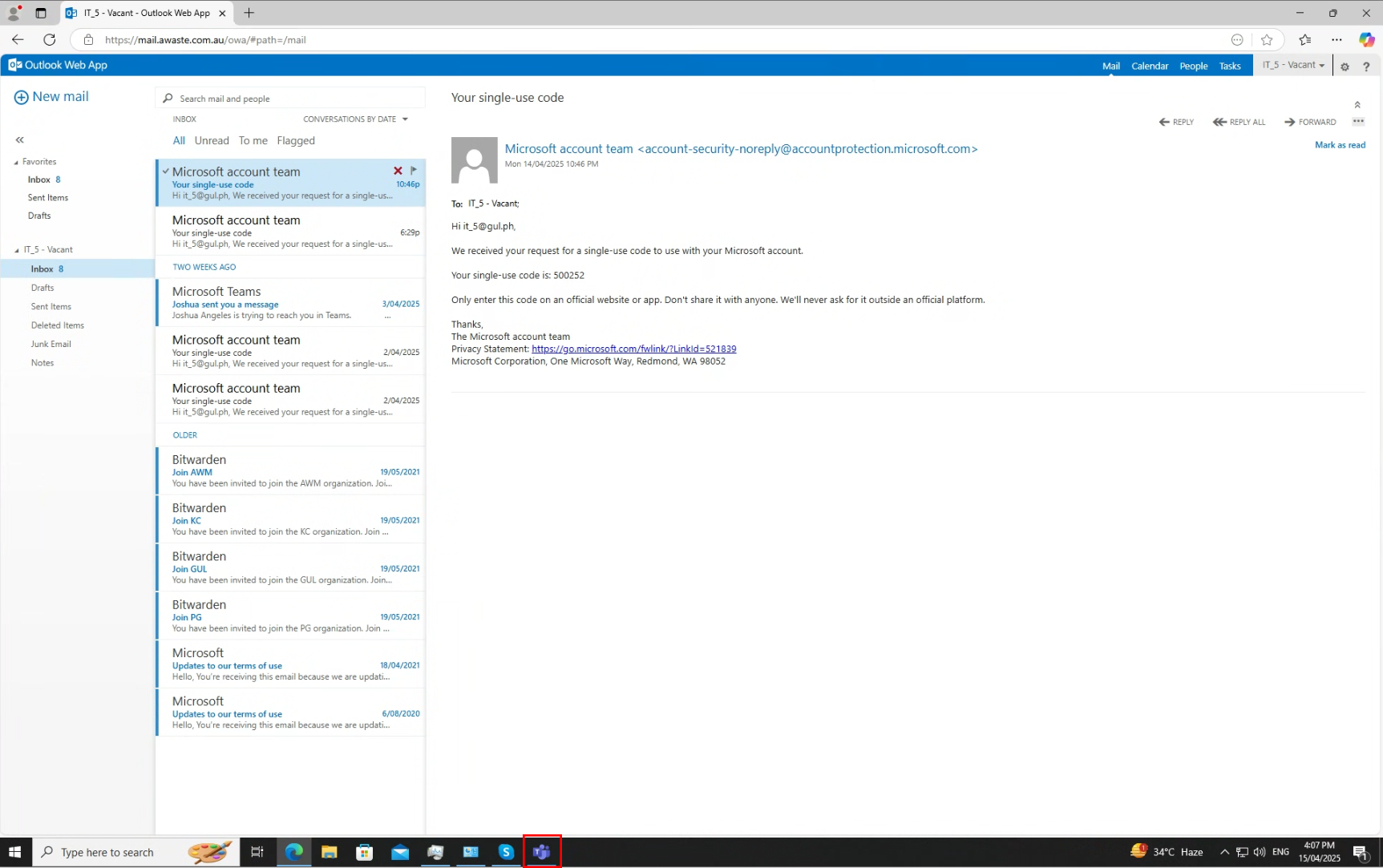
If the window above did not appear or was closed accidentally. Go to the Windows Search Bar and search for "Microsoft Teams".
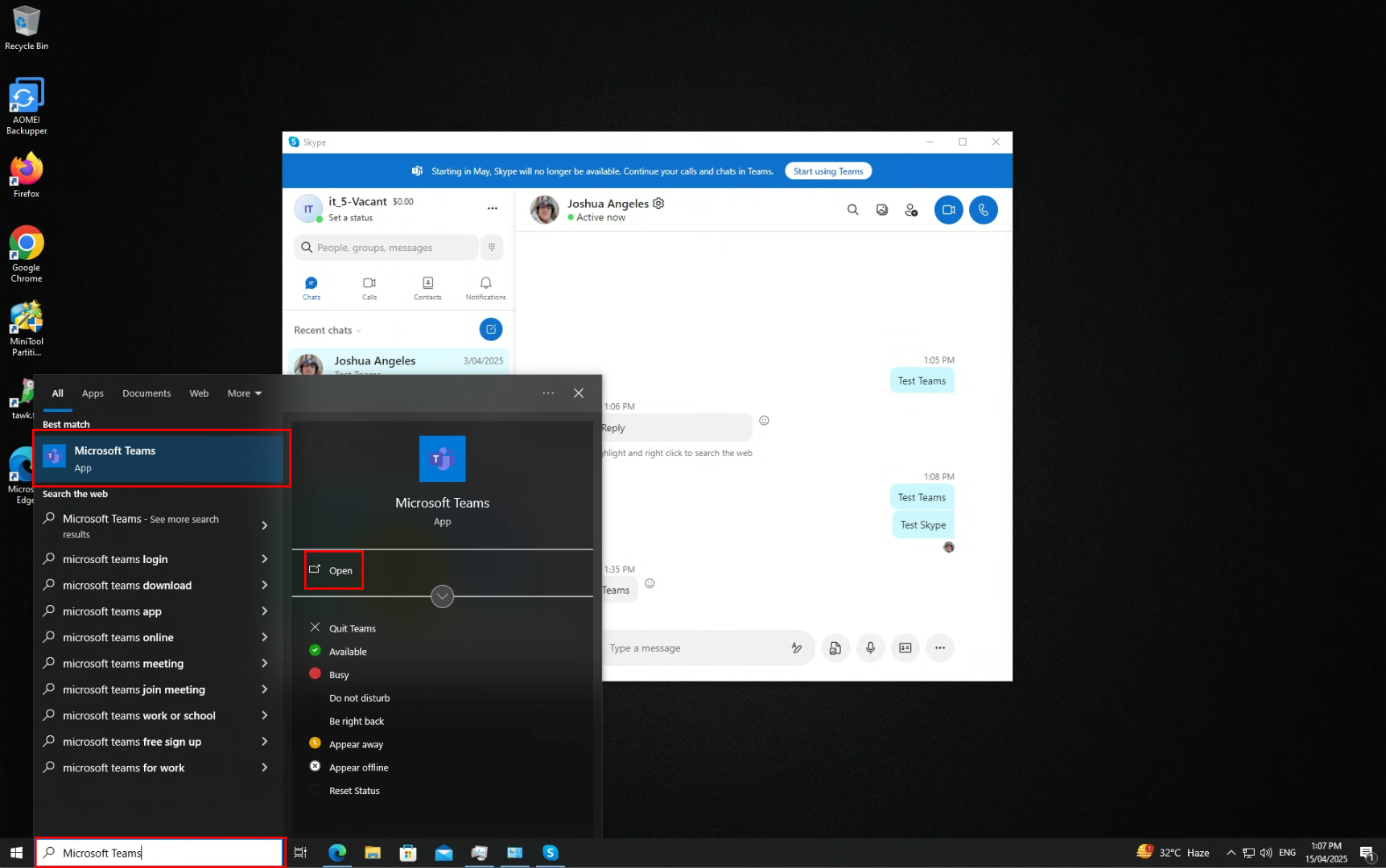
Open Microsoft Teams and a window will open. The window is to Sign In to Teams. Click "Sign in'.
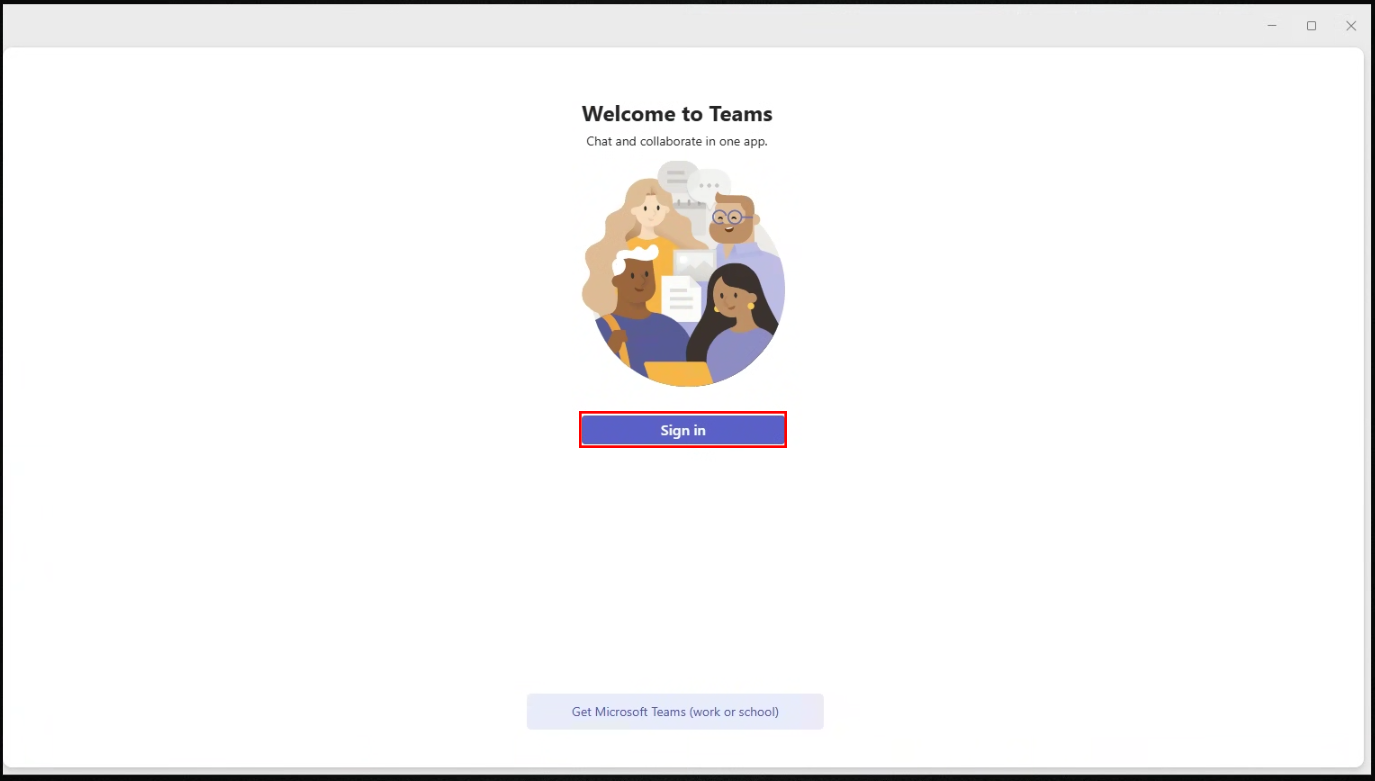
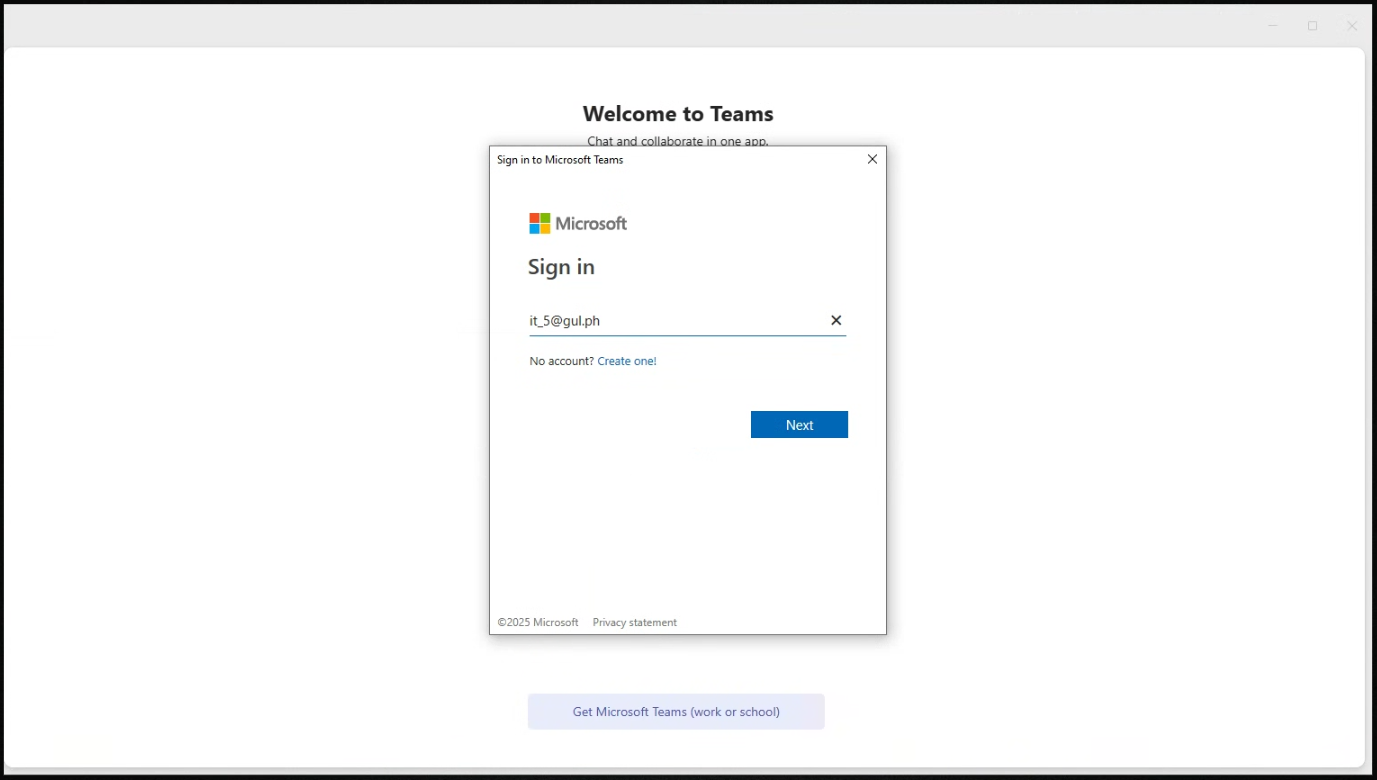
Type in your Outlook Account and click "Next". A pop-up window will appear indicating that Microsoft will send a code to your Outlook account. Click "Send code".
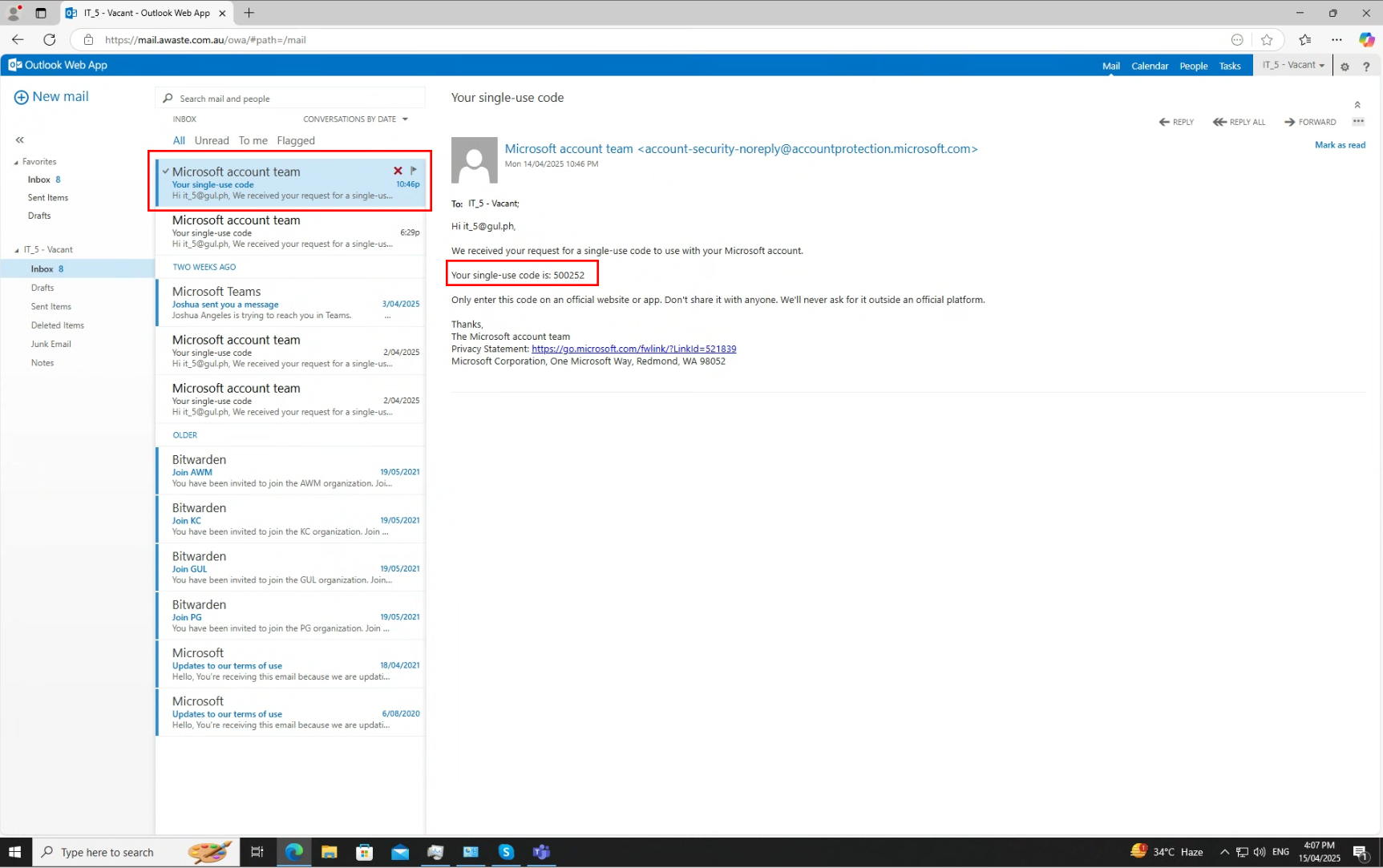
4. Check your Outlook Mailbox for the email from Microsoft. Here is the web version of the mailbox: https://mail.awaste.com.au/owa
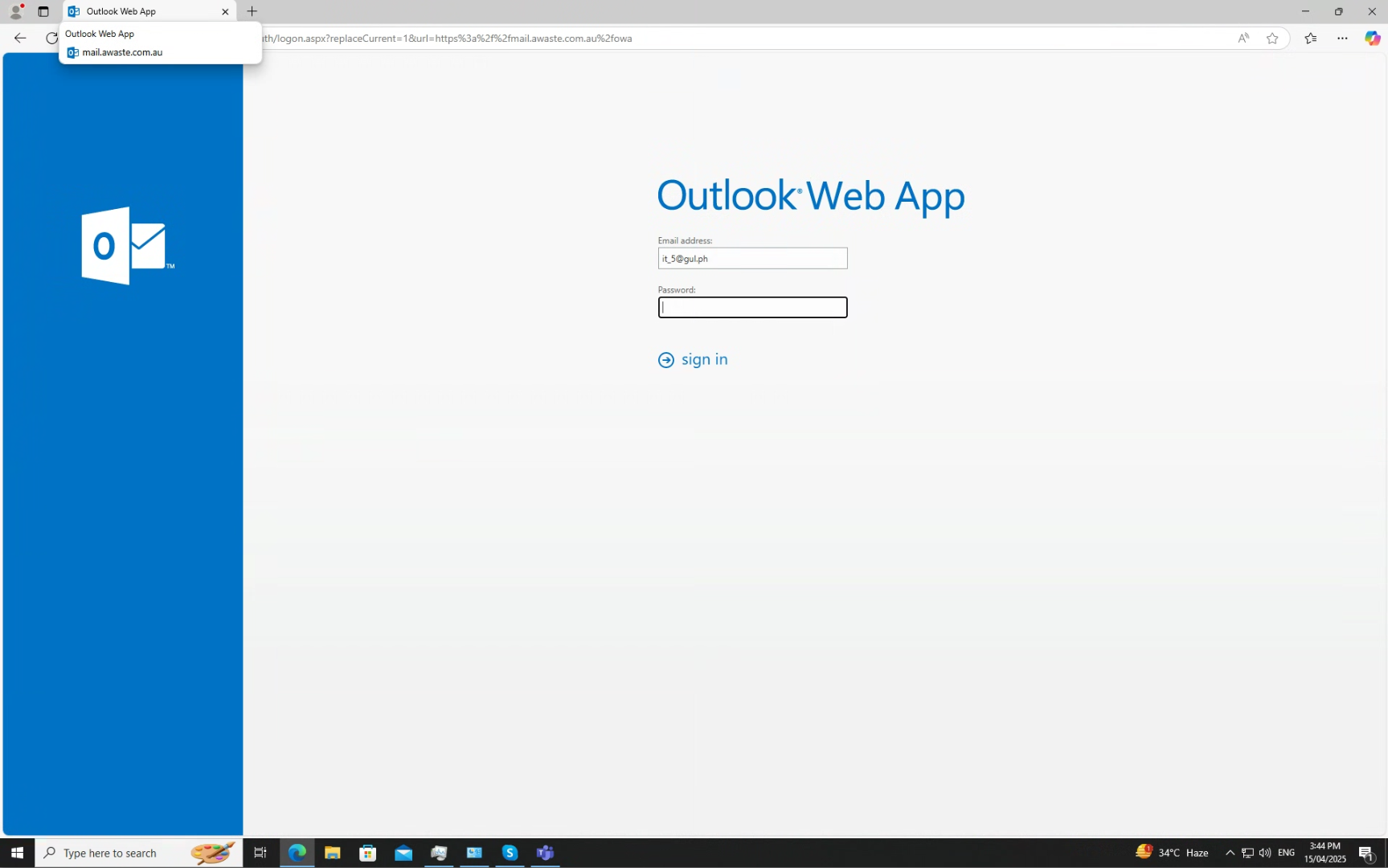
5. Once you accessed the mailbox, look for an email from Microsoft account team. Copy the code from the email.
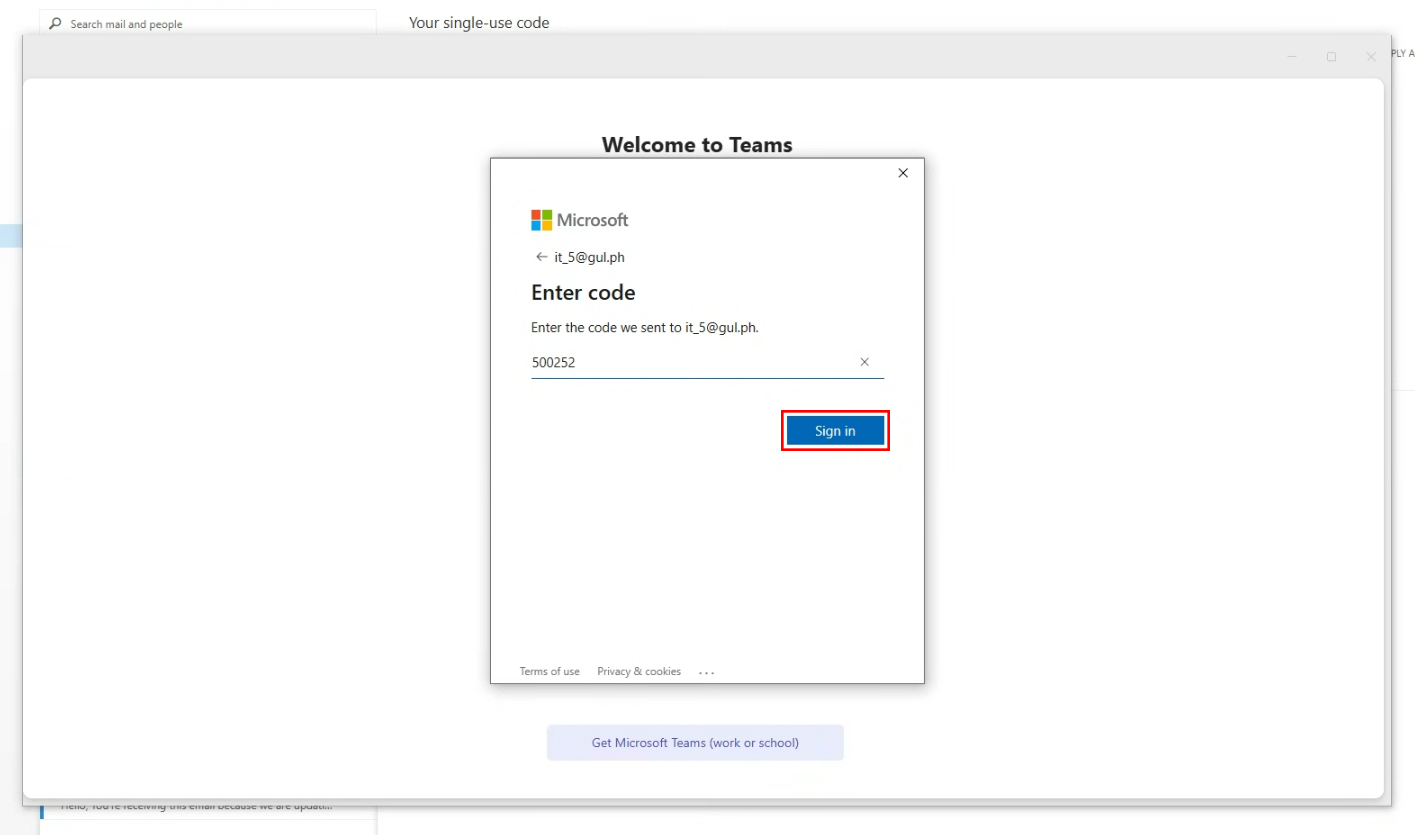
6. Open the Teams window again and input the code you copied from your mailbox. Click "Sign in" to continue.
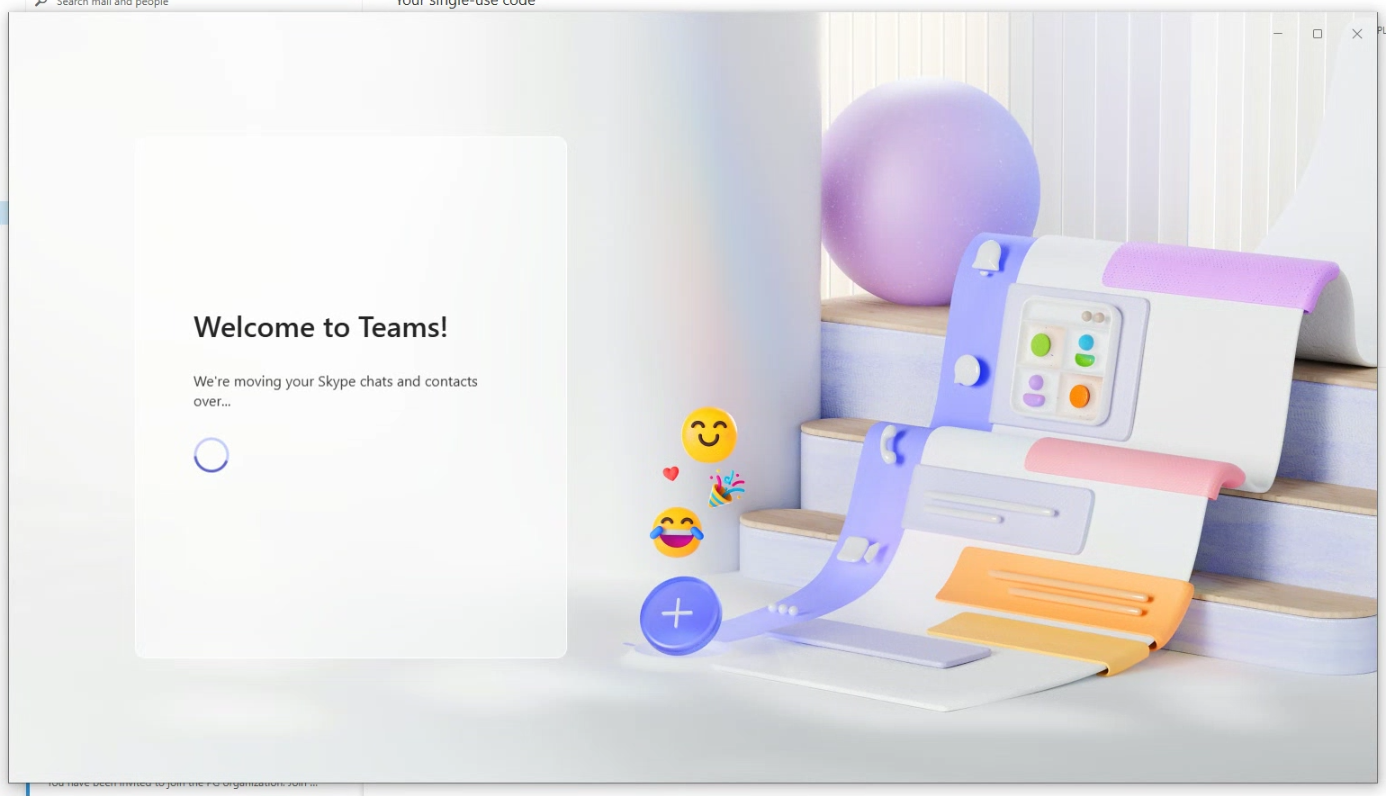
7. After clicking the button. Wait for a minute and a window will pop up and load. Click "Continue" after the window is done loading.
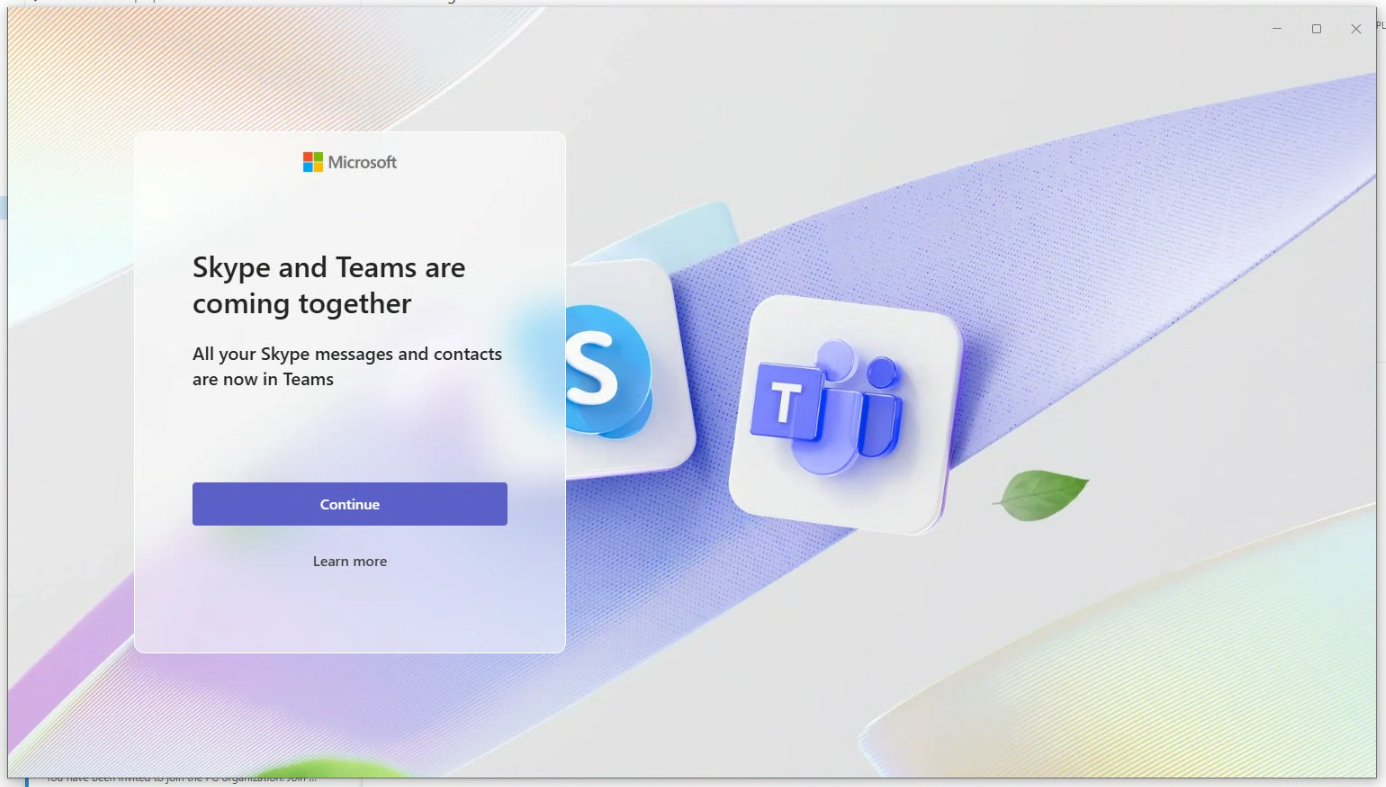
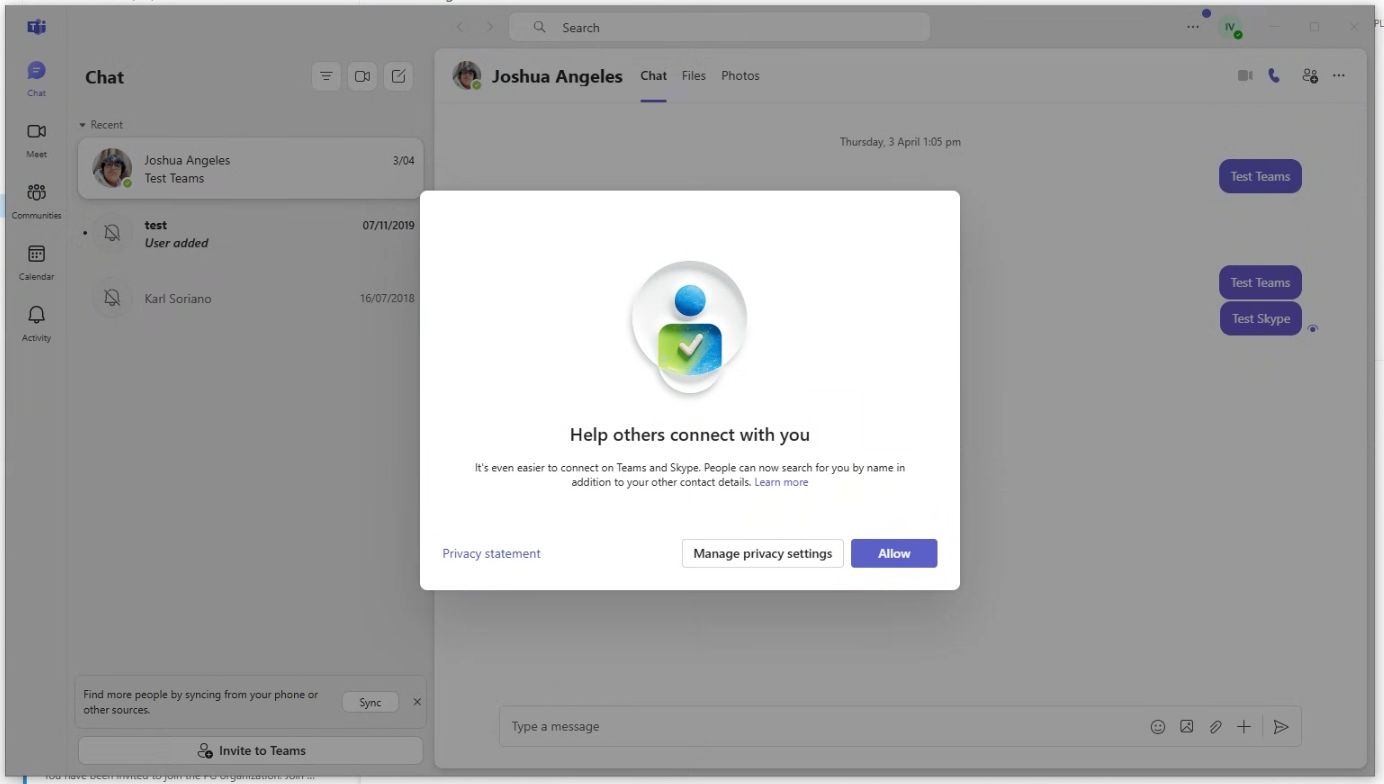
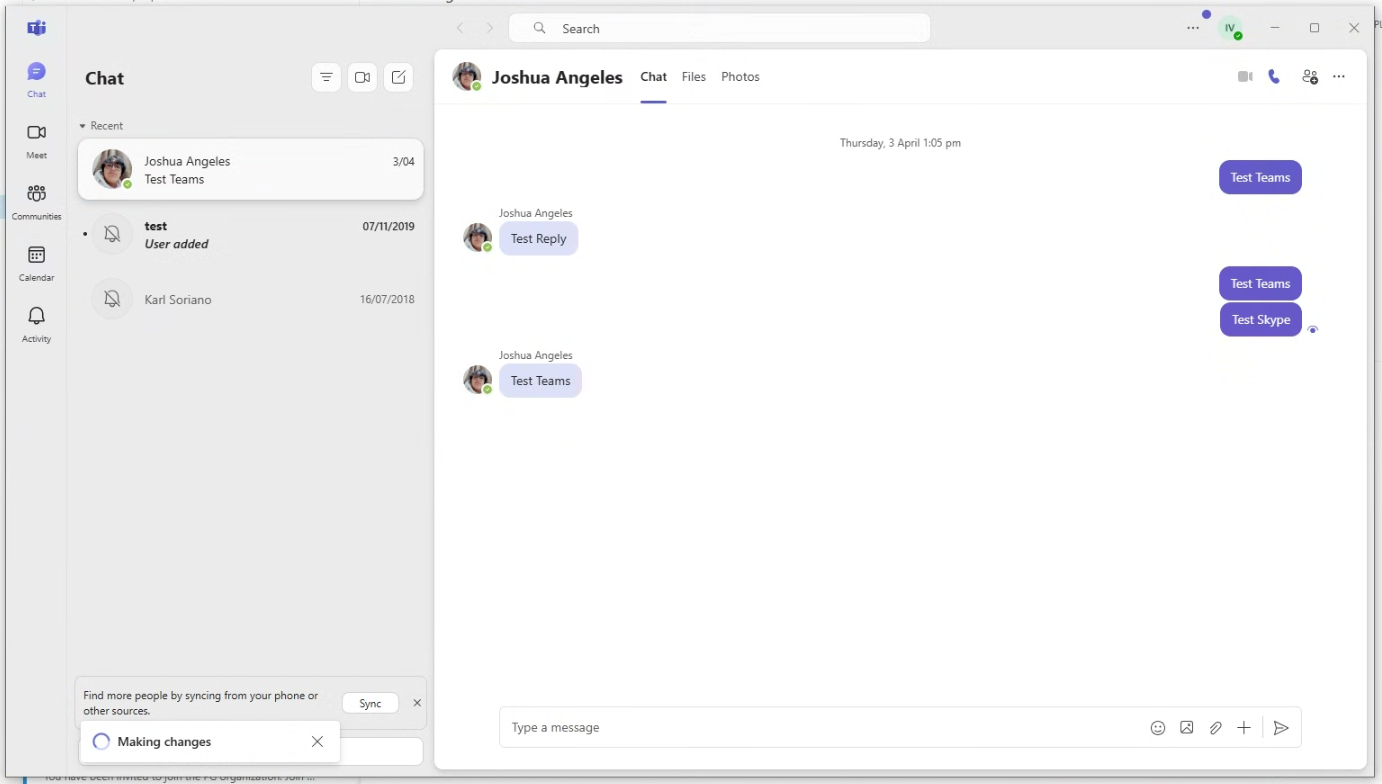
8. After clicking continue let the app load. Click "Allow" or manage privacy settings if you want to; generally fine to click "Allow". After that, you're done! Congratulations you now have been migrated your Skype account to Teams.
Comments