Migrating from Skype to MS Teams (Mobile)
Posted at April 16, 2025 08:04 am. Last updated at April 16, 2025 12:04 pm
Skype will be retired in May 2025. Microsoft has offered a way for chat and chat history from Skype to be transferred to MS Teams.
https://support.microsoft.com/en-us/skype/skype-is-retiring-in-may-2025-what-you-need-to-know-2a7d2501-427f-485e-8be0-2068a9f90472
1. Open the Skype app on your phone. Make sure it is up-to-date; Play Store / App Store generally notifies if there is an update. If it is up to date, there would be a notice bar on the top.
It indicates that Skype will be decommissioned in May and a transfer to Microsoft Teams or Teams is requested.
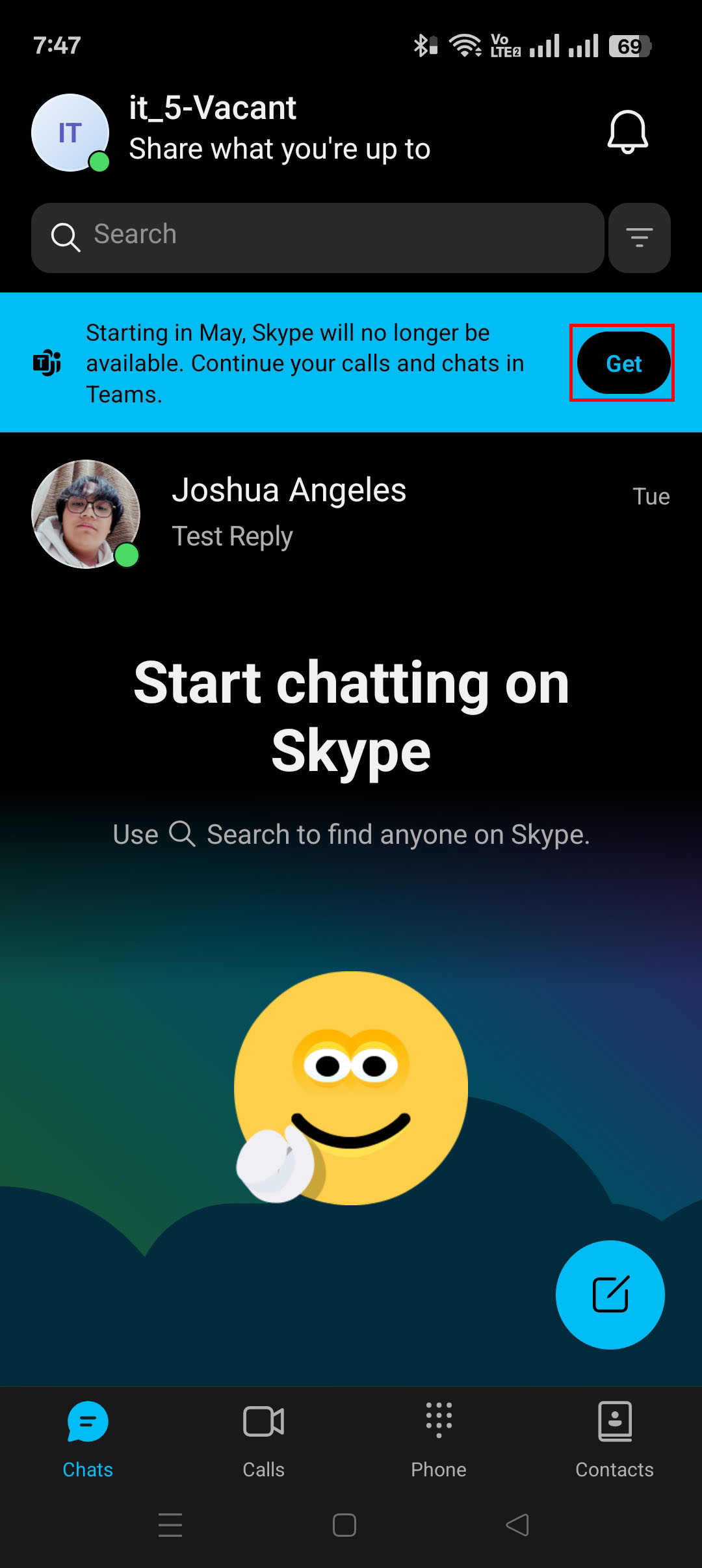
2. To begin the migration, tap the "Get" button on the notice bar. Once tapped, Play Store / App Store will open and directs you to the Microsoft Teams store page. Tap "Install". Wait until the download and install are finished.
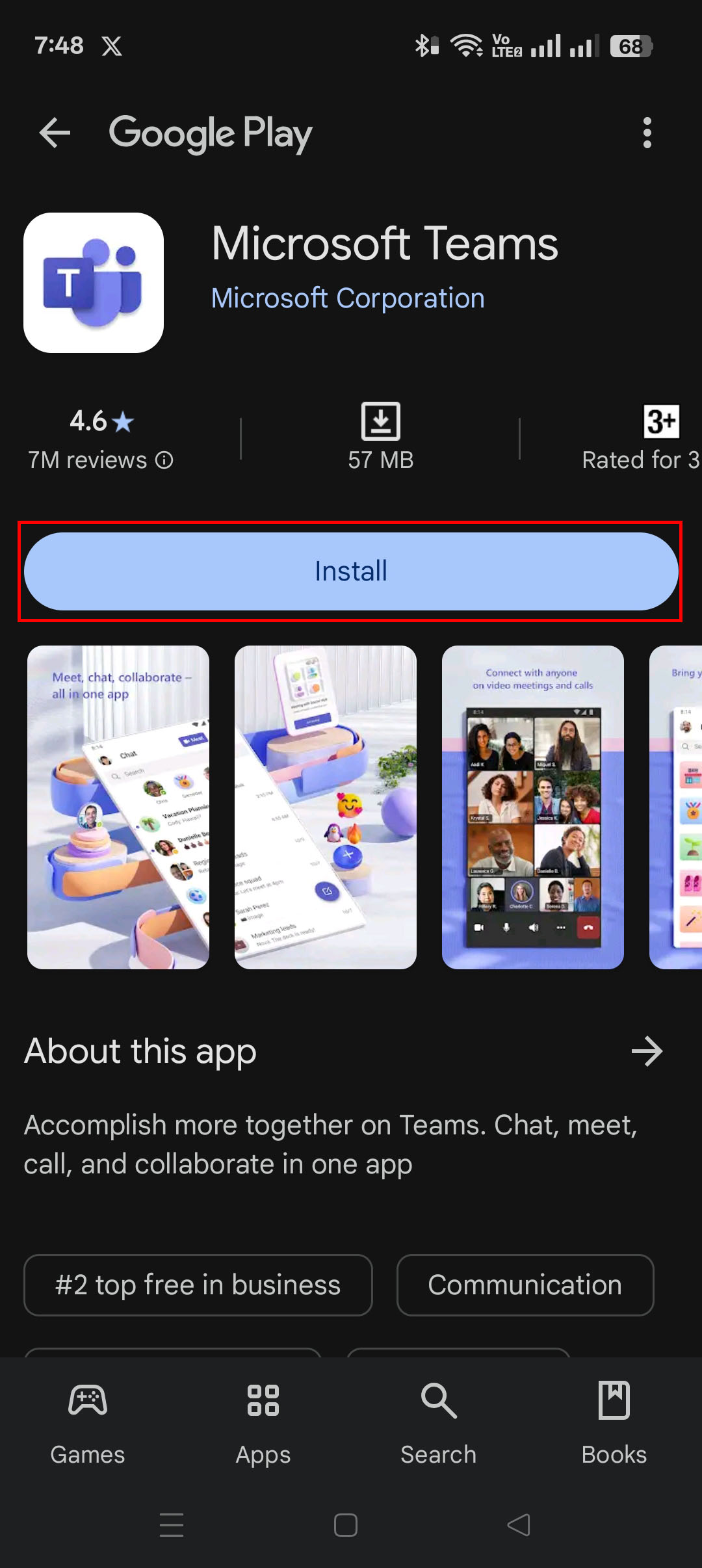

3. After installation, open Microsoft Teams in the Play Store or App store (can also be opened in the home screen of your phone).
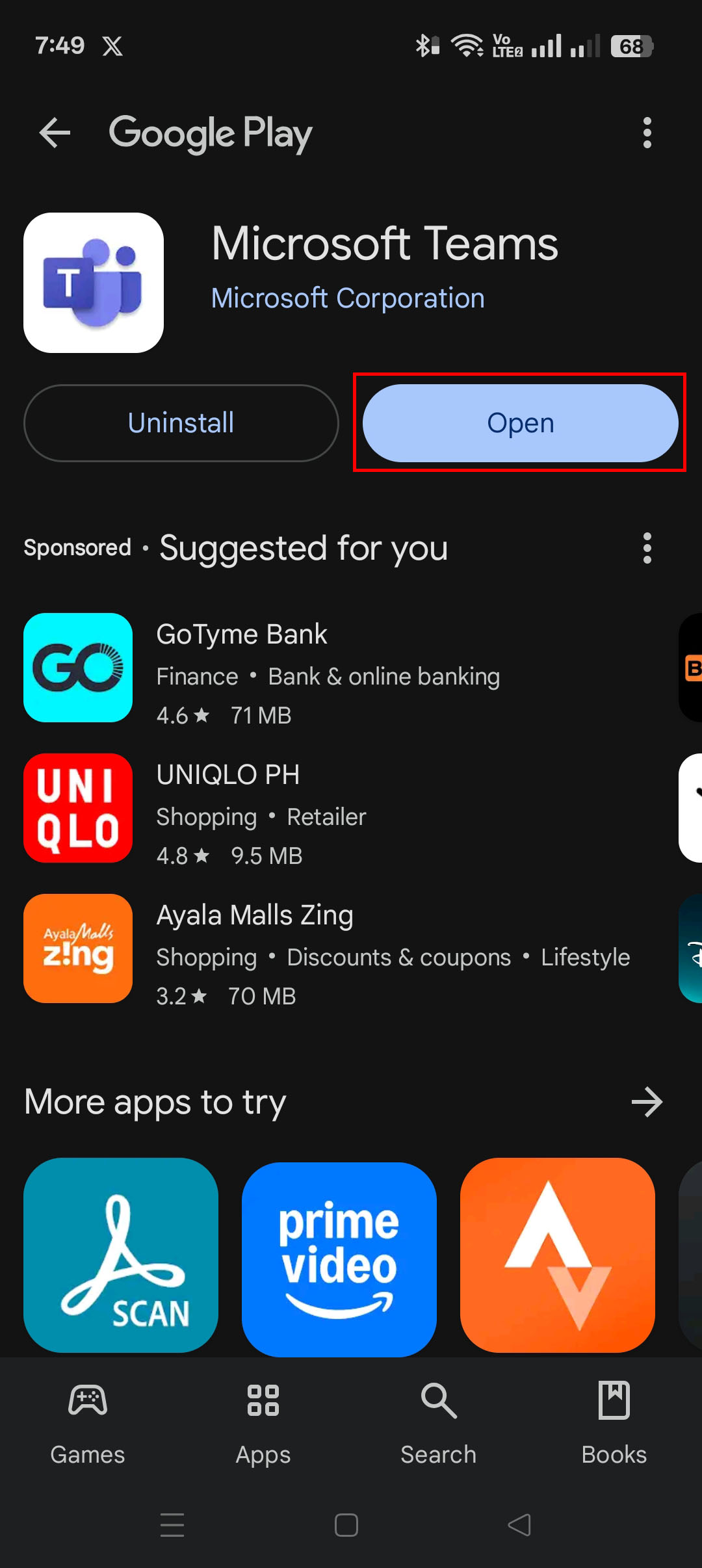

4. When the app opens, there would be a notice for you to sign in. Tap the "Sign In" prompt. You will be then prompted to enter your email or phone. Enter the email you are using for Skype and press "Next". In this tutorial, it is "it_5@gul.ph".




5. After waiting there will be a prompt by Microsoft. Microsoft would send a code to the Outlook account you used for Skype. Press the "Send code" button and go to your Outlook mailbox to check for the email with the code.
There would be an entry for the code.
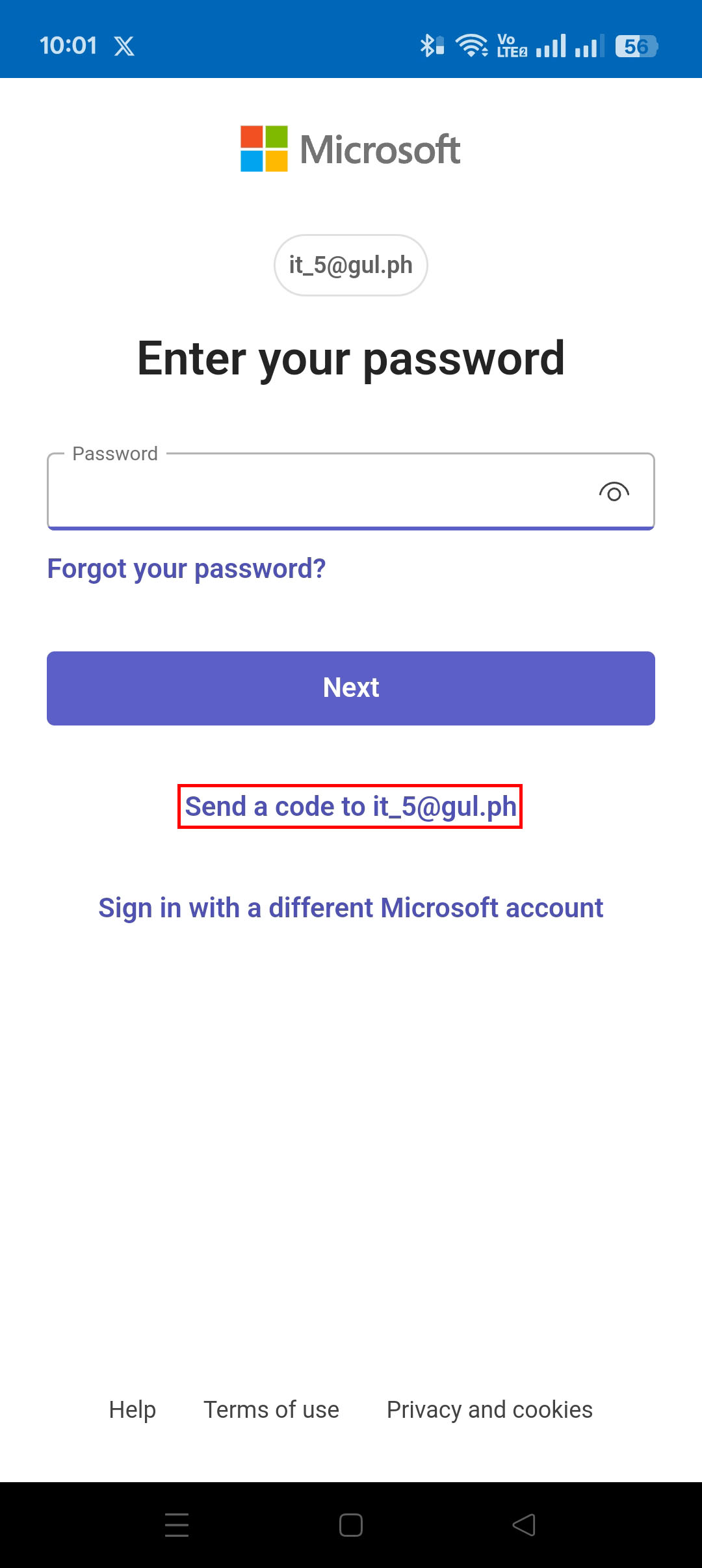

6. Check your Outlook Mailbox for the email from Microsoft. Here is the web version of the mailbox: https://mail.awaste.com.au/owa
Once you accessed the mailbox, look for an email from Microsoft account team. Copy the code from the email.
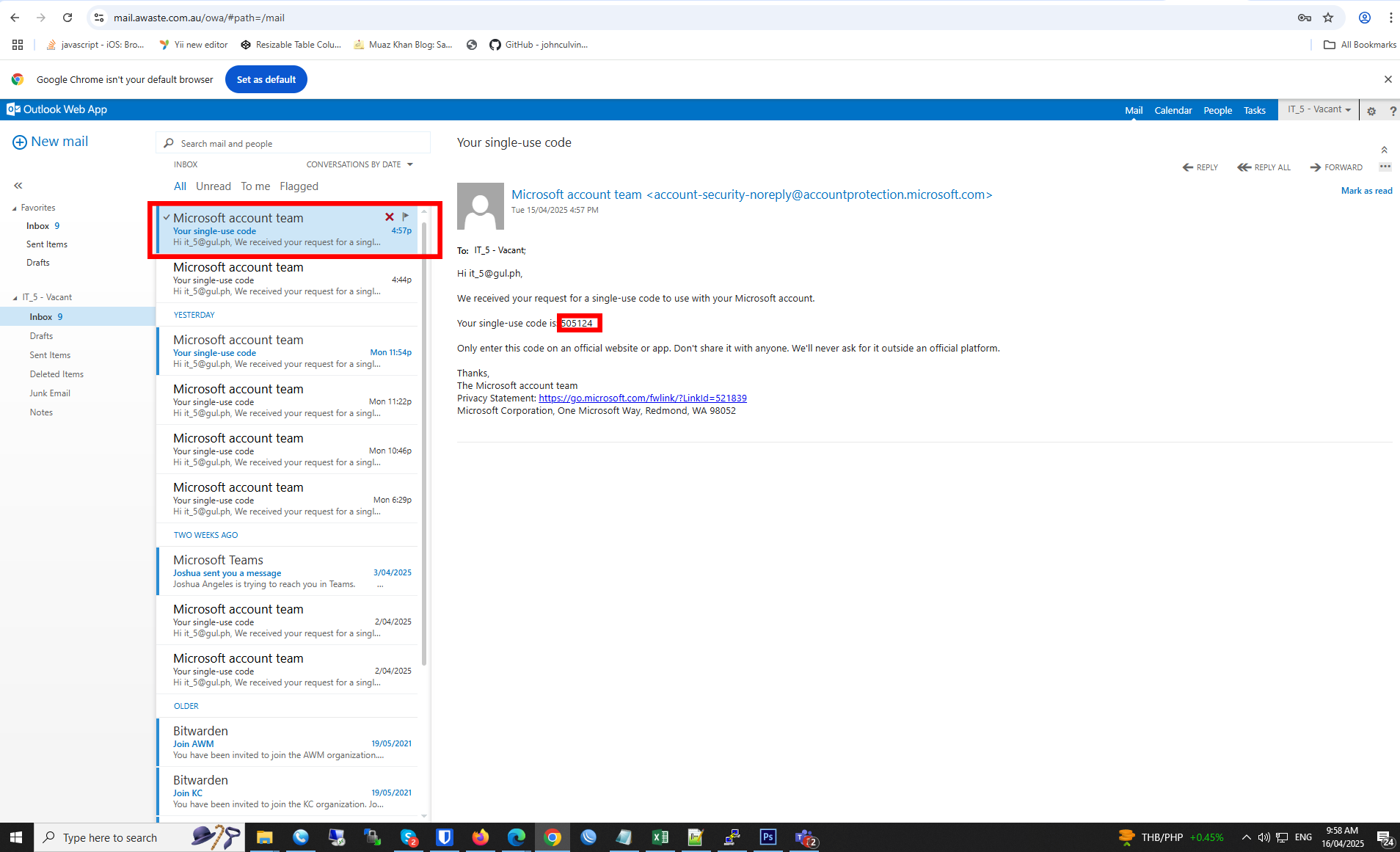
7. Input the code from the email to the entry prompt on your phone. Wait for a good minute.


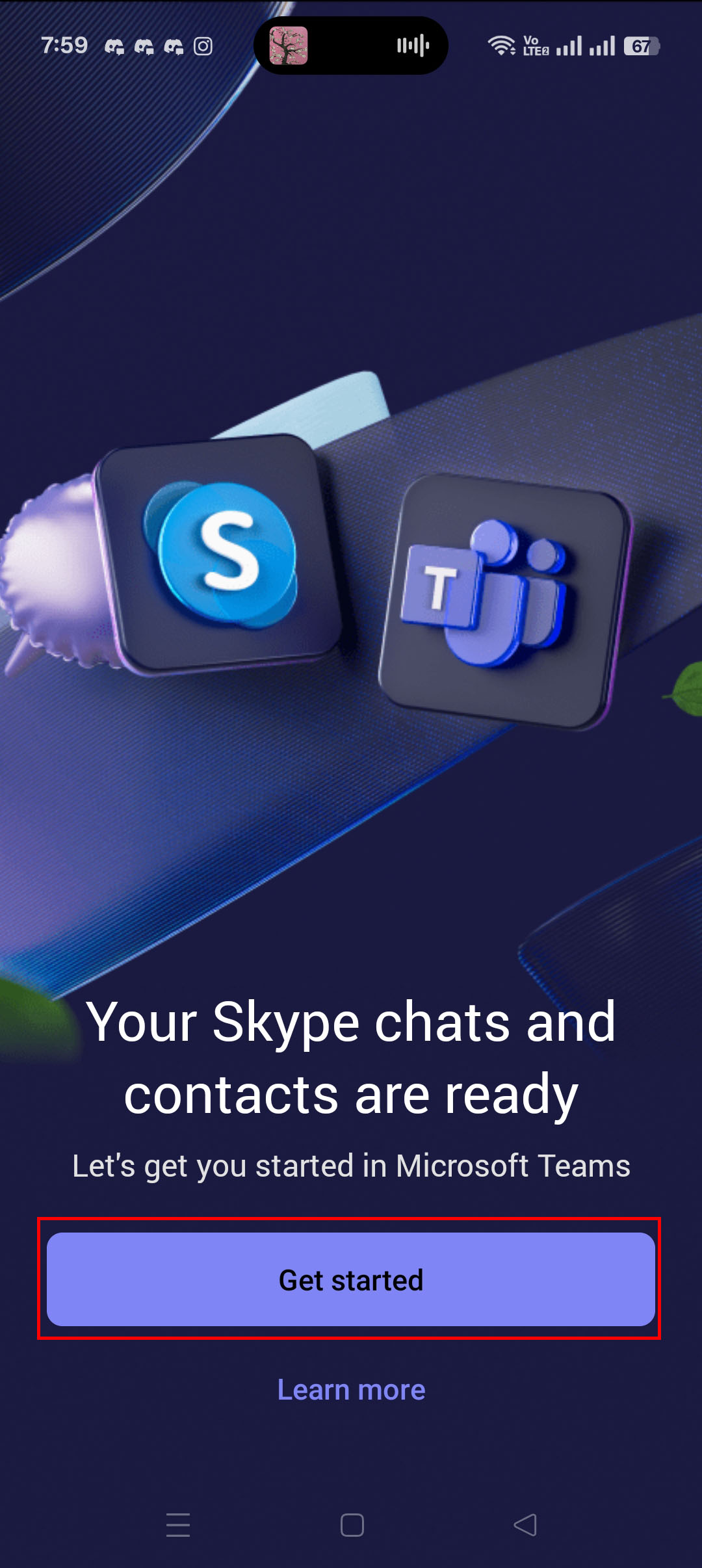
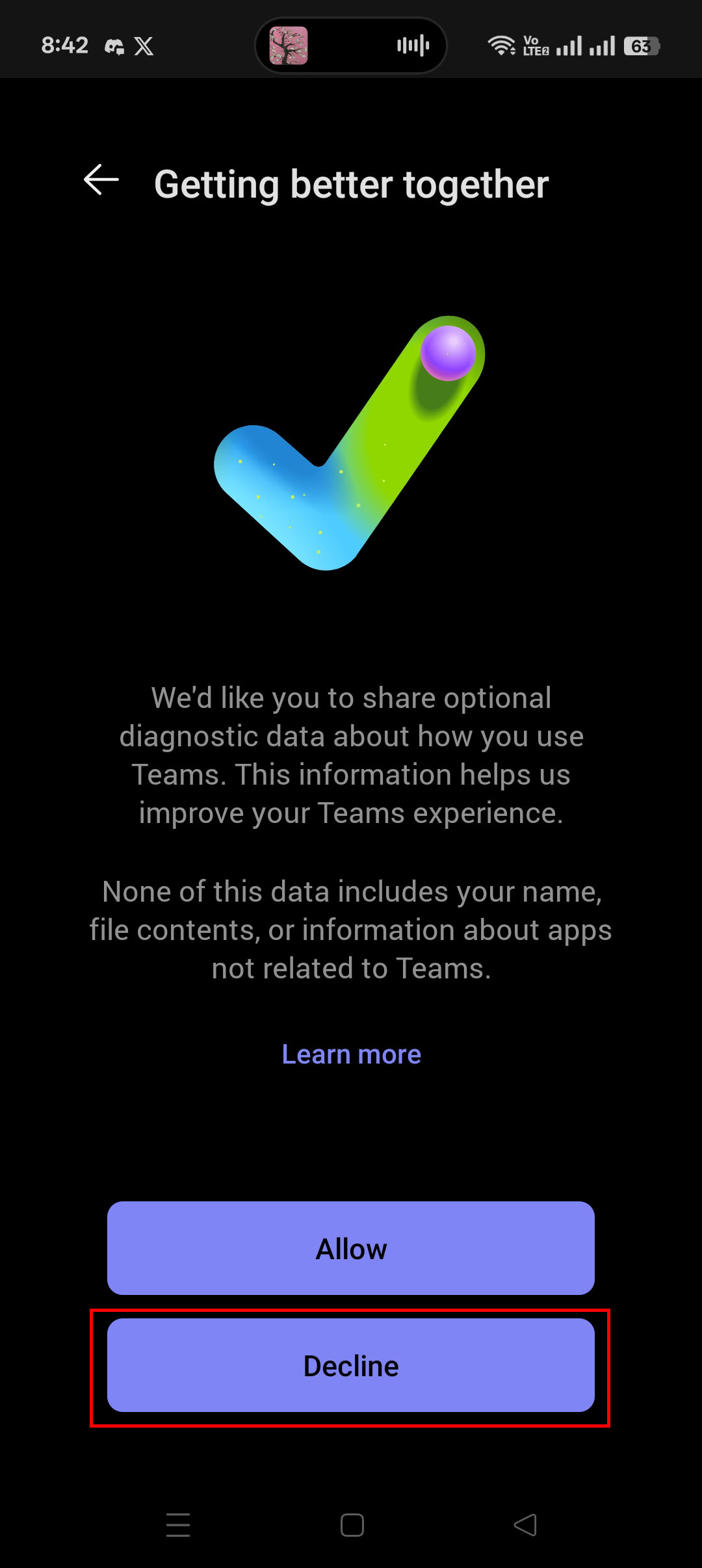
8. After waiting, press the "Get Started" or "Continue" button. Decline the prompt of Getting better together.
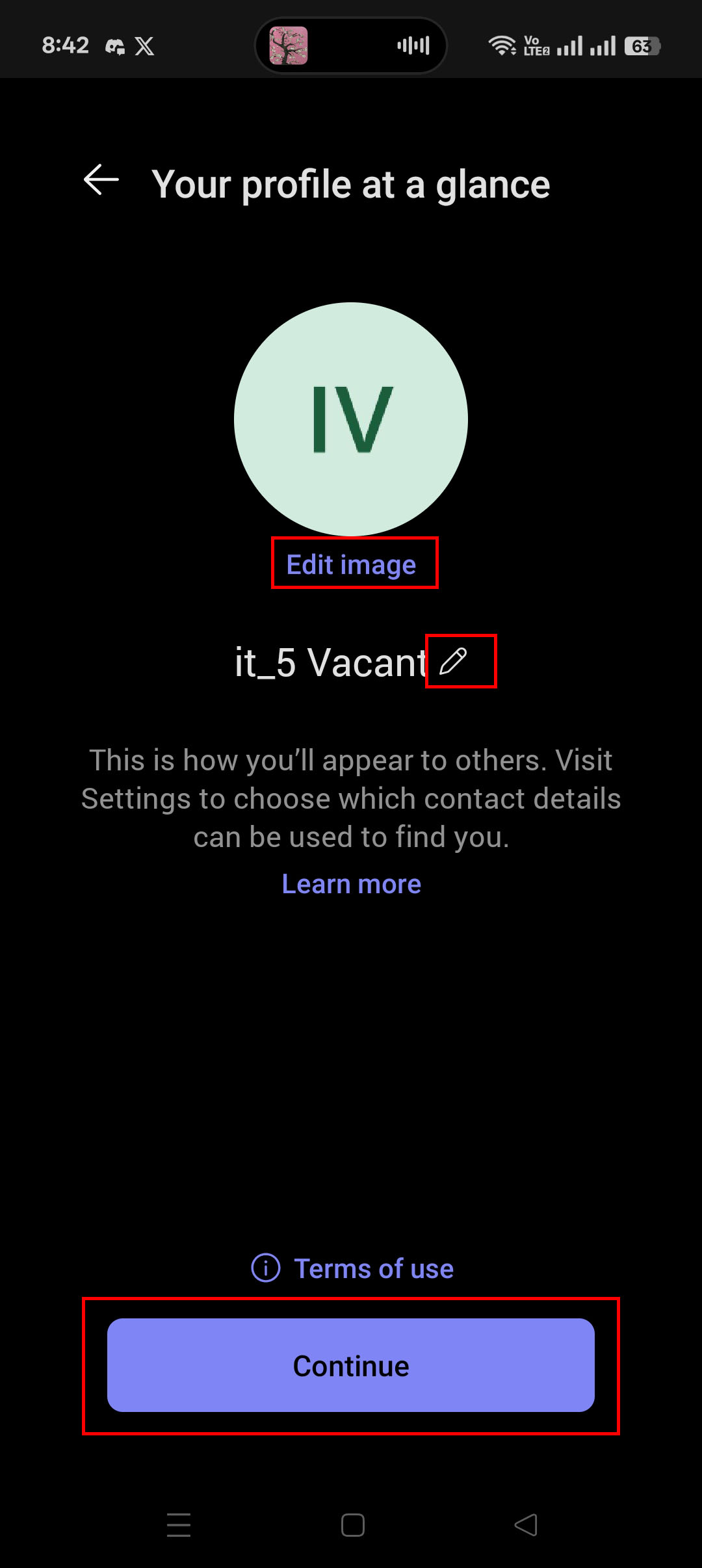
9. Edit your profile picture and name to match your Skype account.
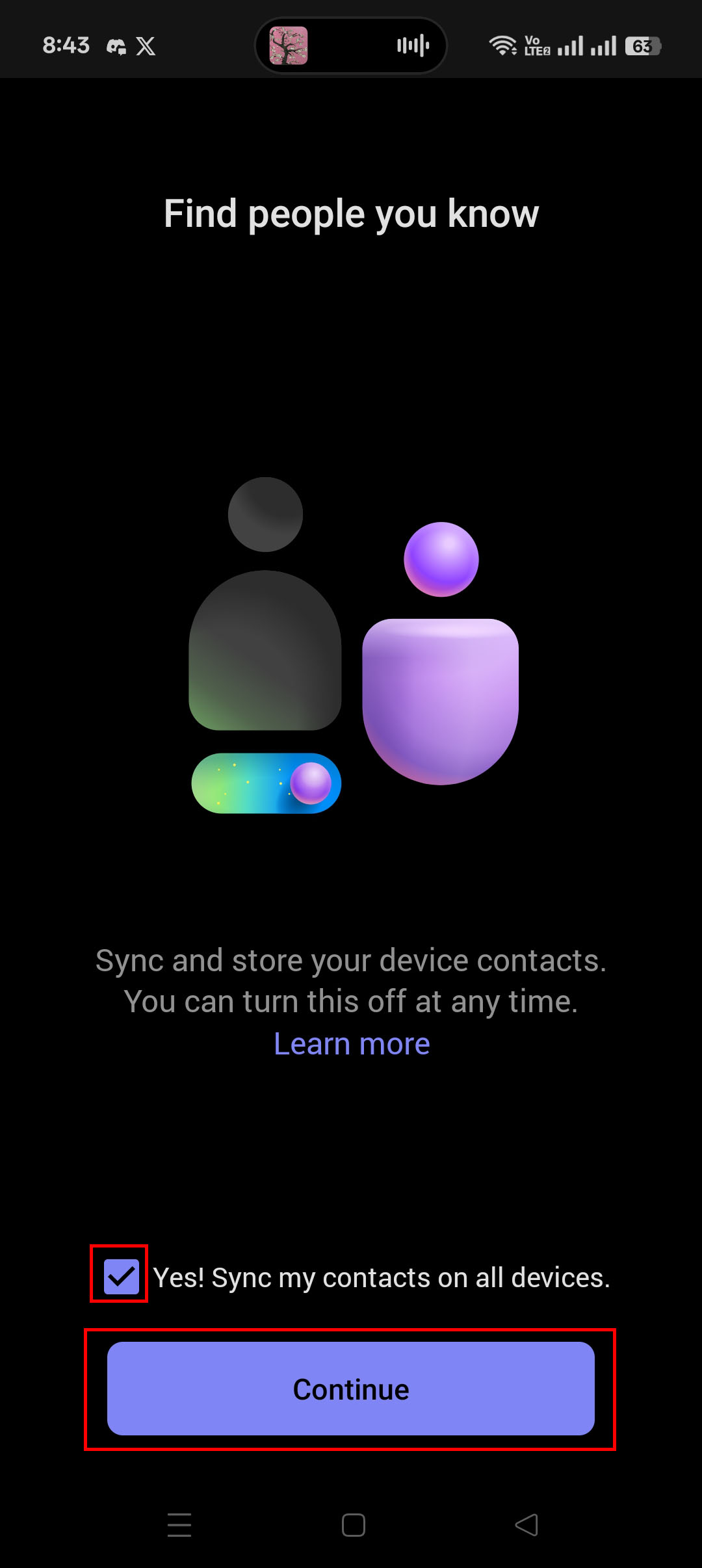
10. You can sync your contacts to Teams if you like to. If not, then uncheck the checkbox.
11. You're all set. Congratulations. Welcome to Teams!


Comments