Installing and Login in Microsoft Teams (Mobile)
Posted at April 23, 2025 10:04 am. Last updated at April 23, 2025 03:04 pm
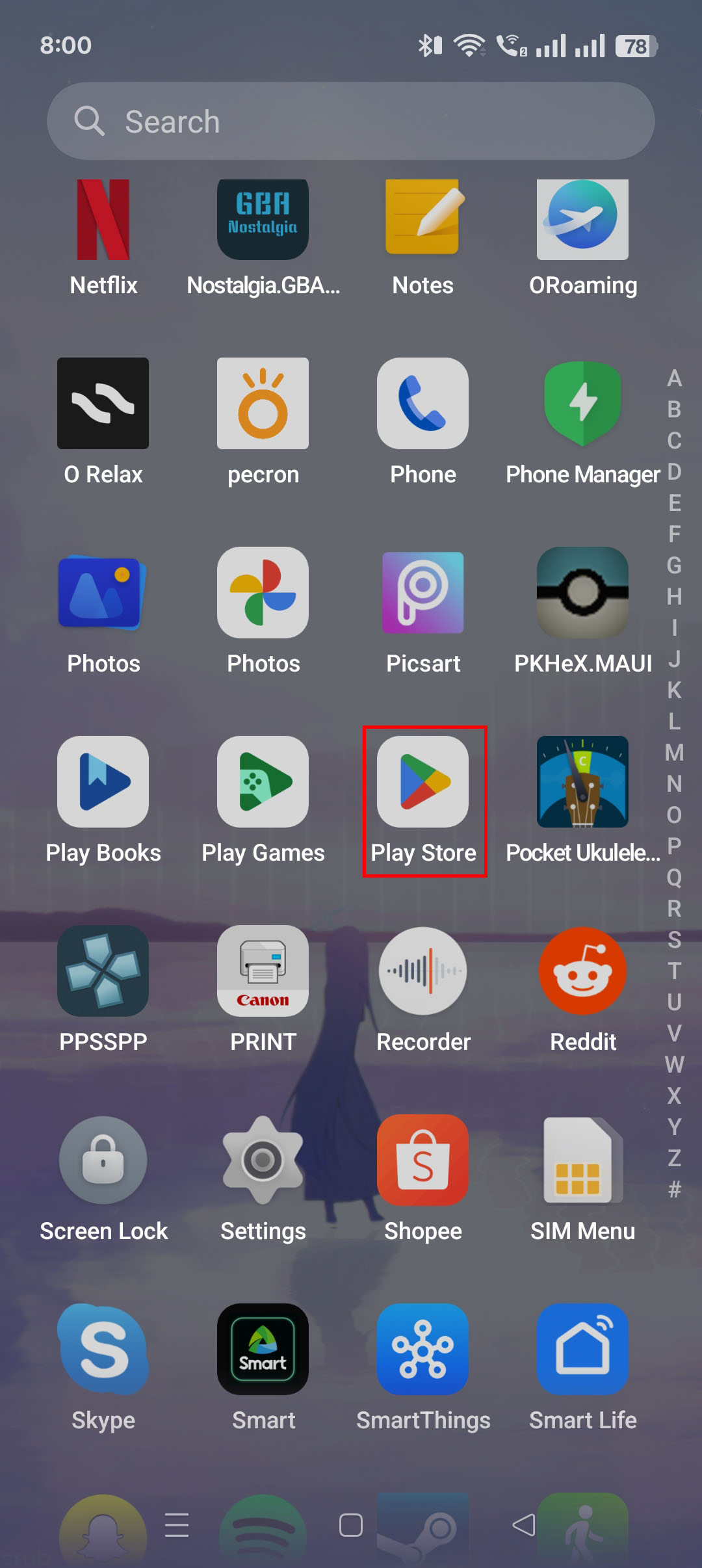
1. Find the Play Store / App Store on your mobile device. Press icon to open your Play Store / App Store.
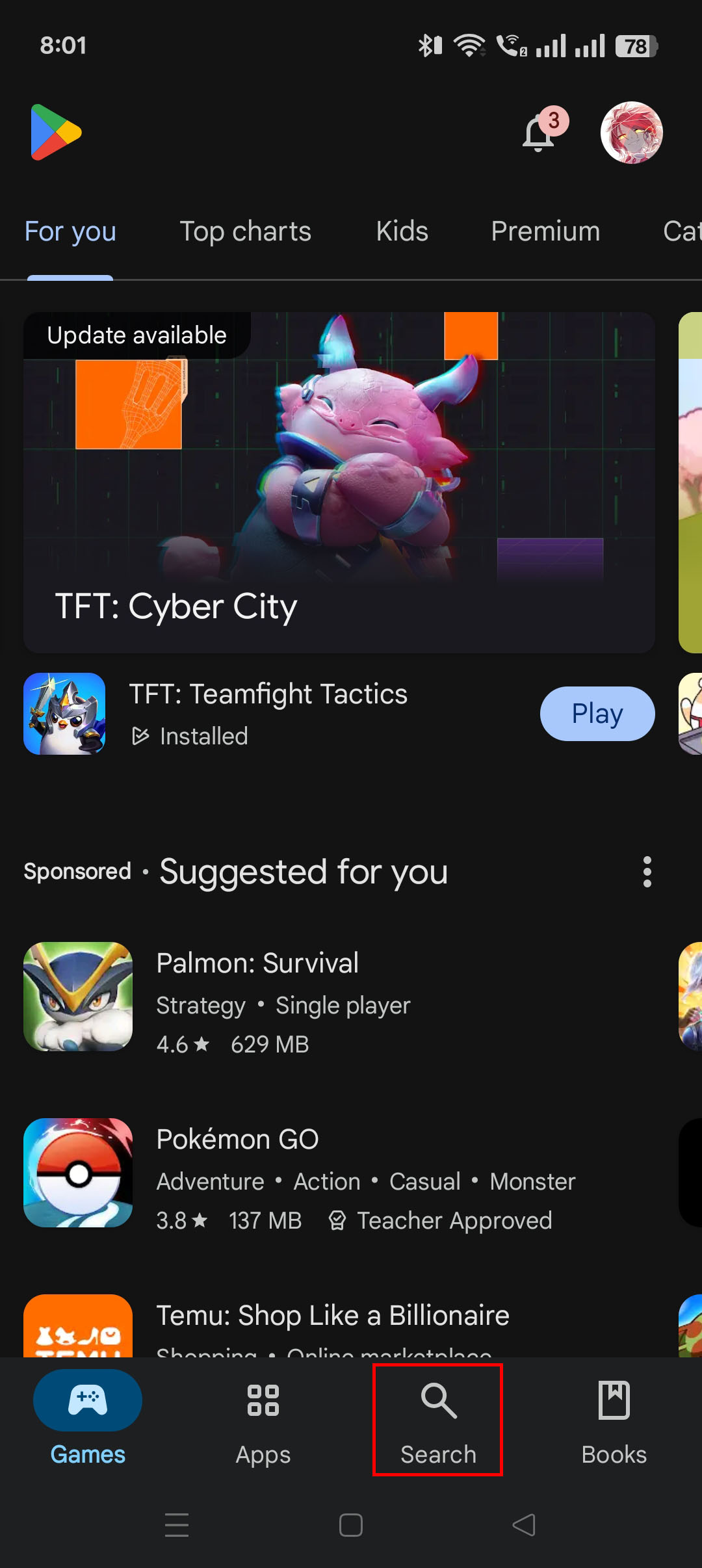
2. Locate the Search function of Play Store / App Store.
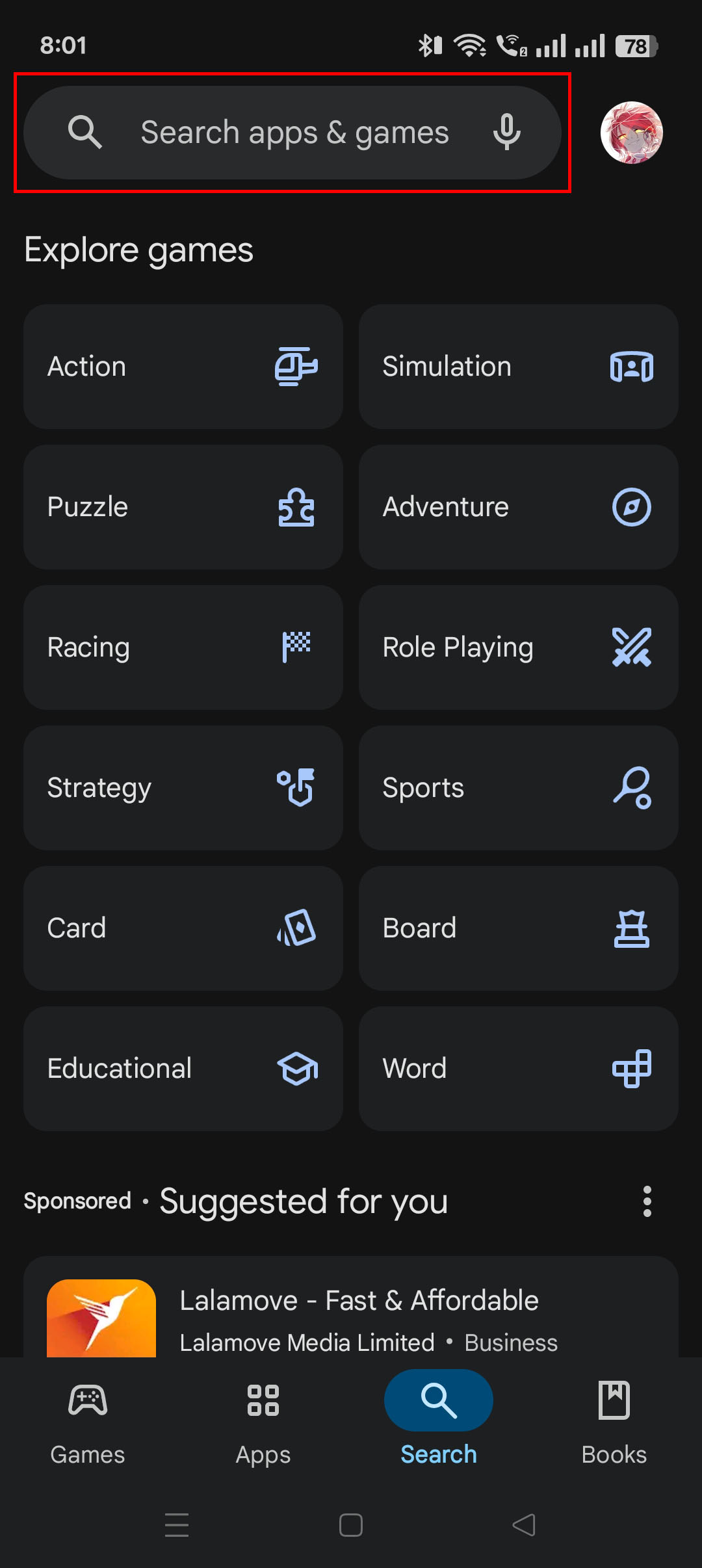
3. Type in the search bar "Microsoft Teams". A listing of the search results will appear.
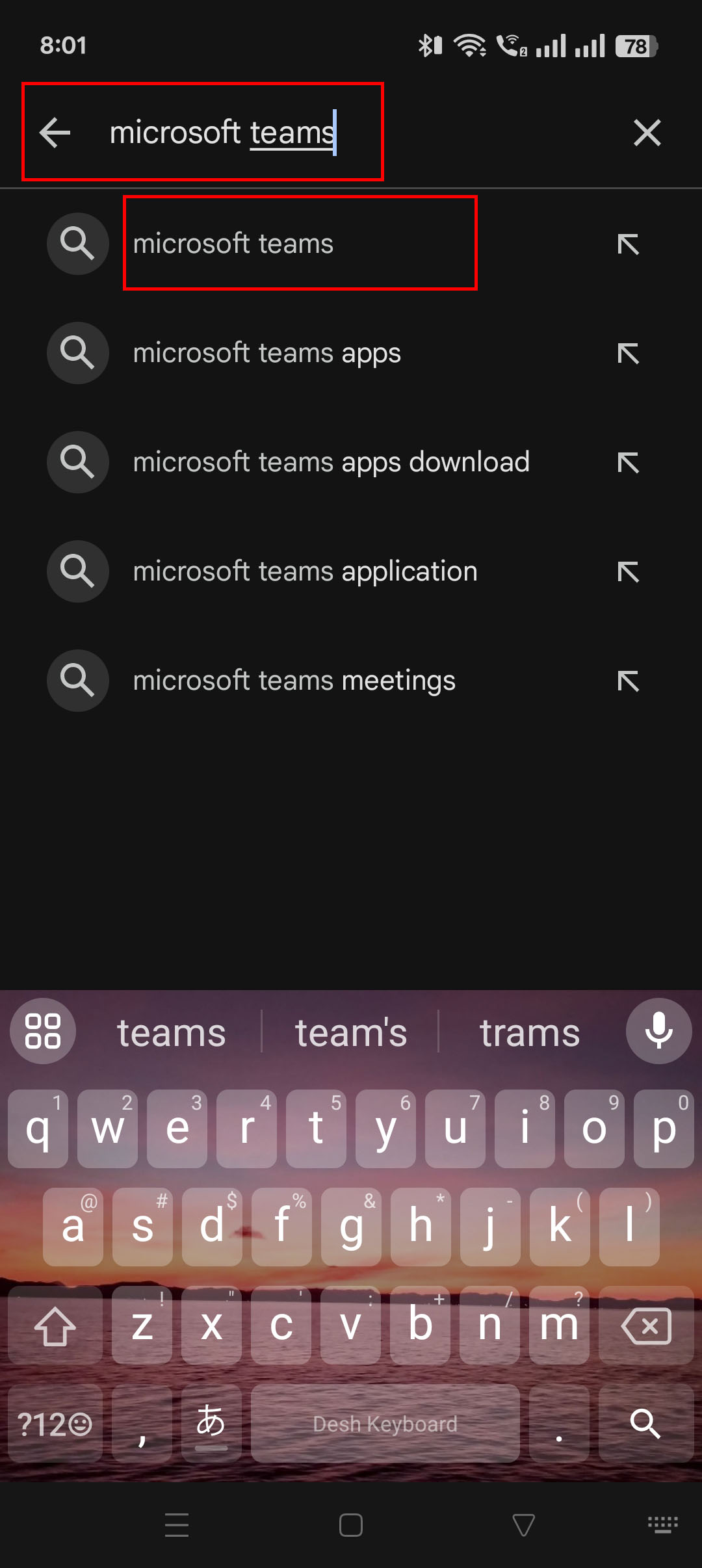
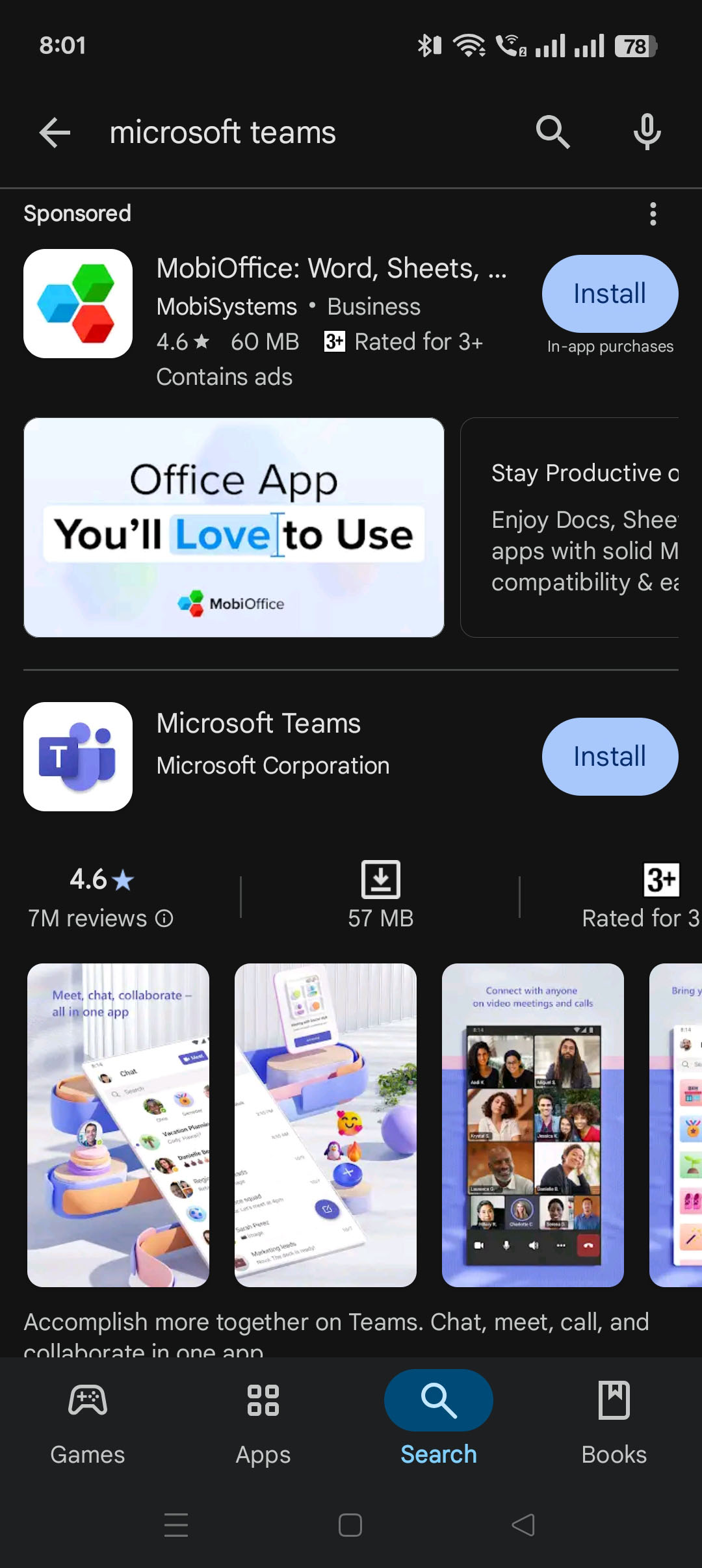
4. Search the list for Microsoft Teams. It is usually found at the top of the search results.
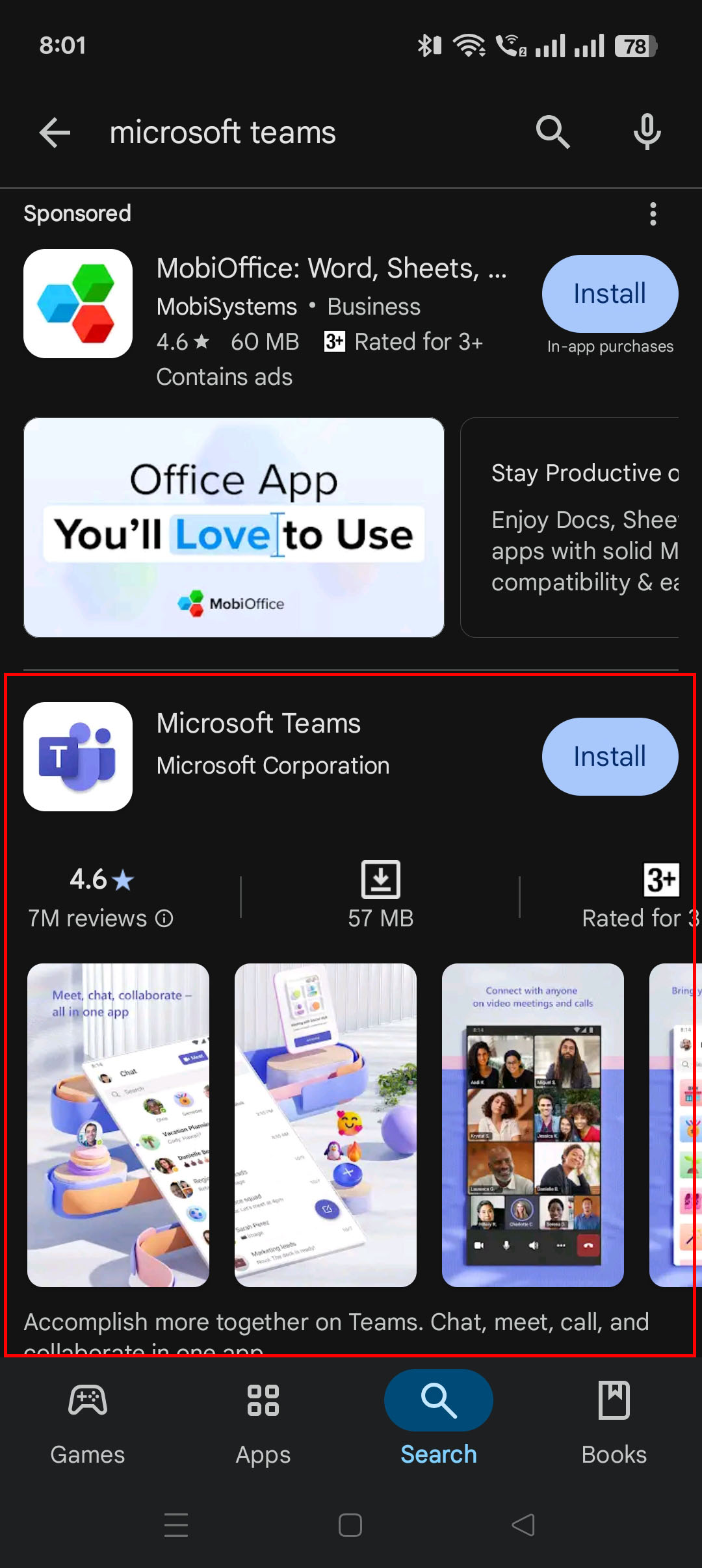
5. After finding Microsoft Teams, tap Microsoft Teams to open the store page.
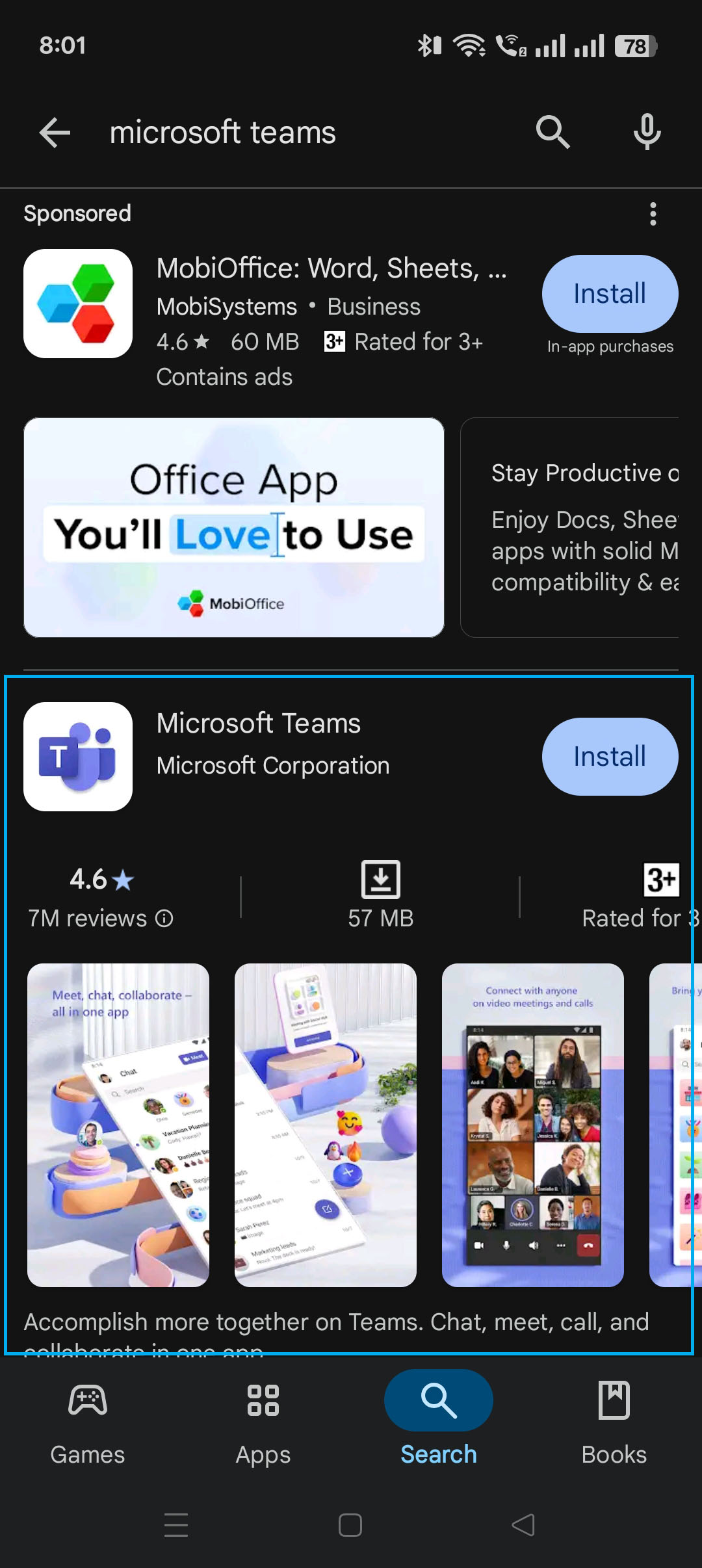
6. In the store page there will be descriptions, ratings, and reviews of the app. Press the "Install" button to begin installation. Wait until the download and installation is finished.
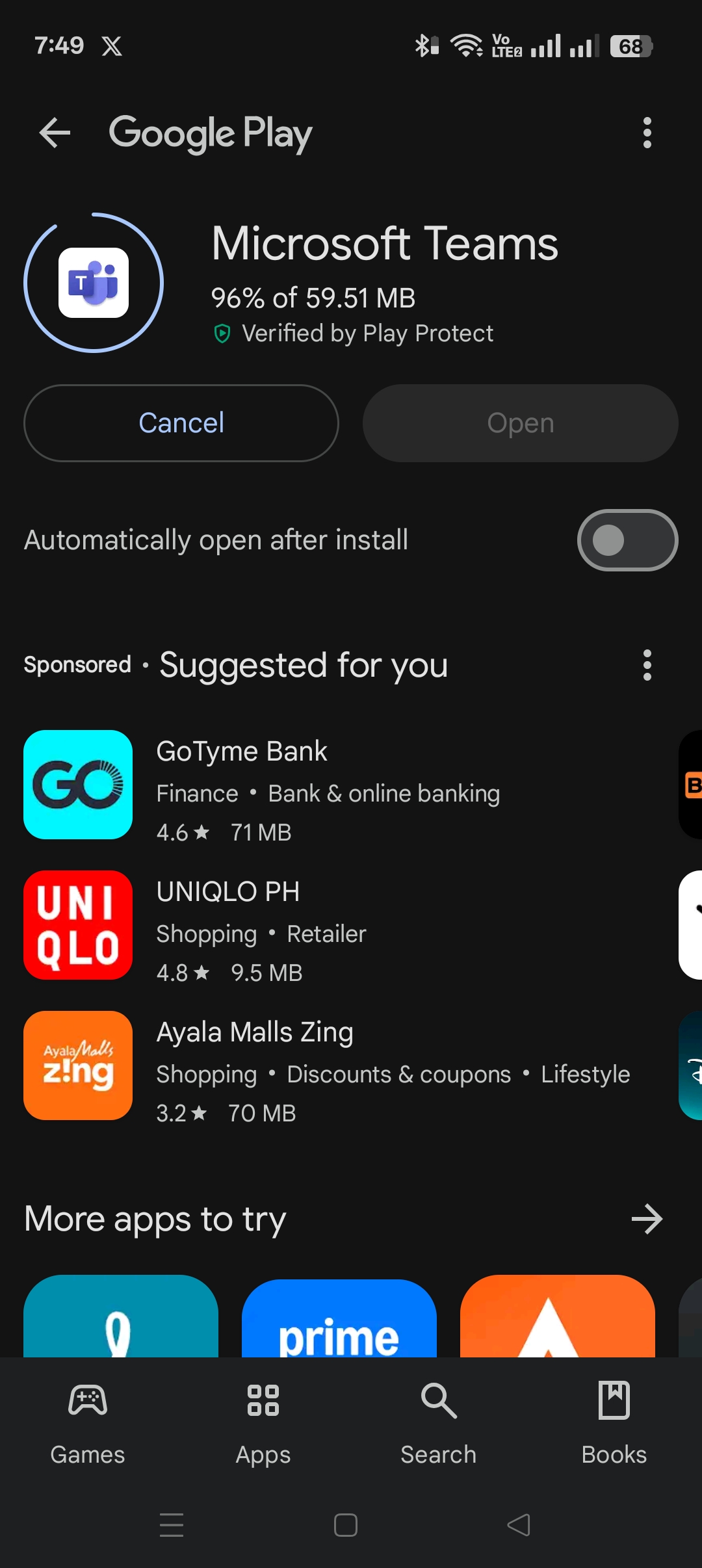
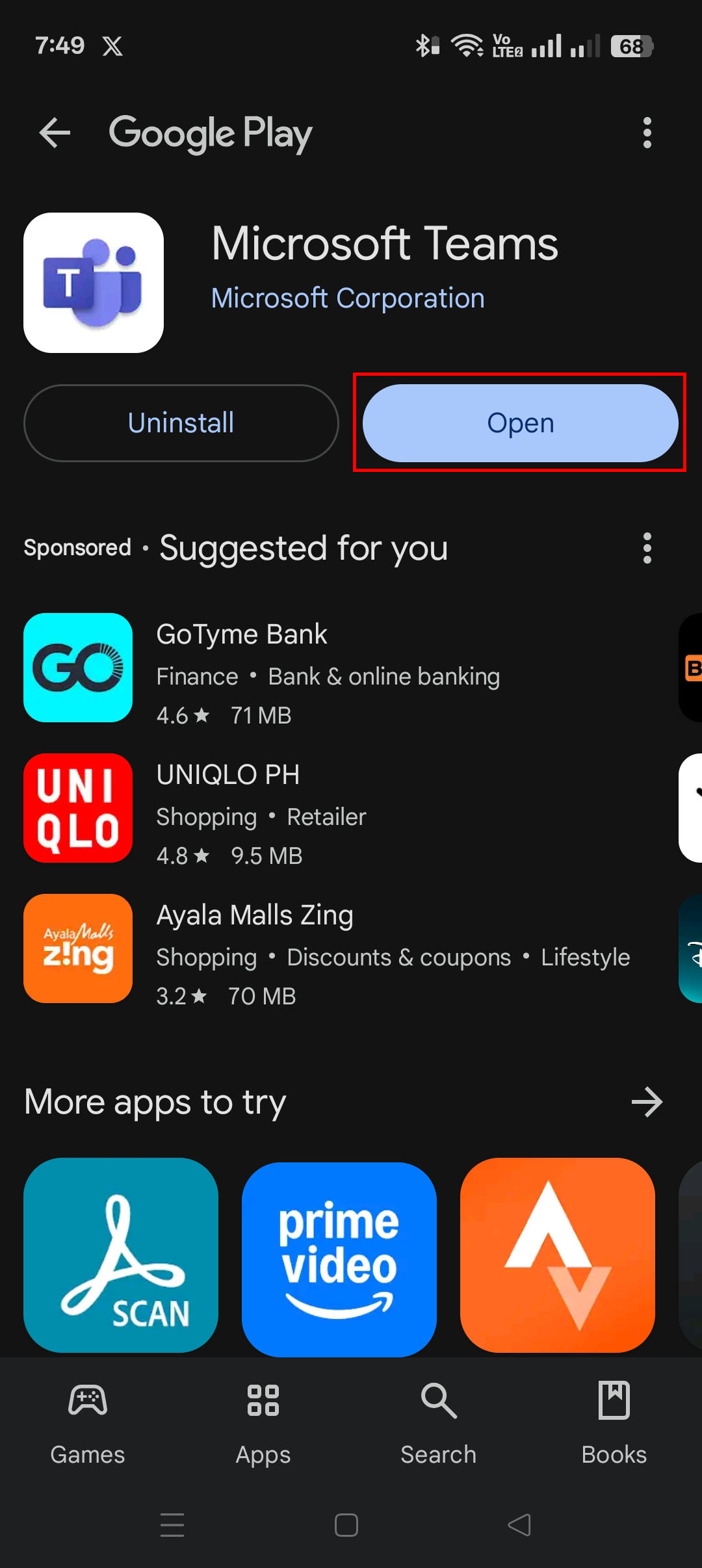
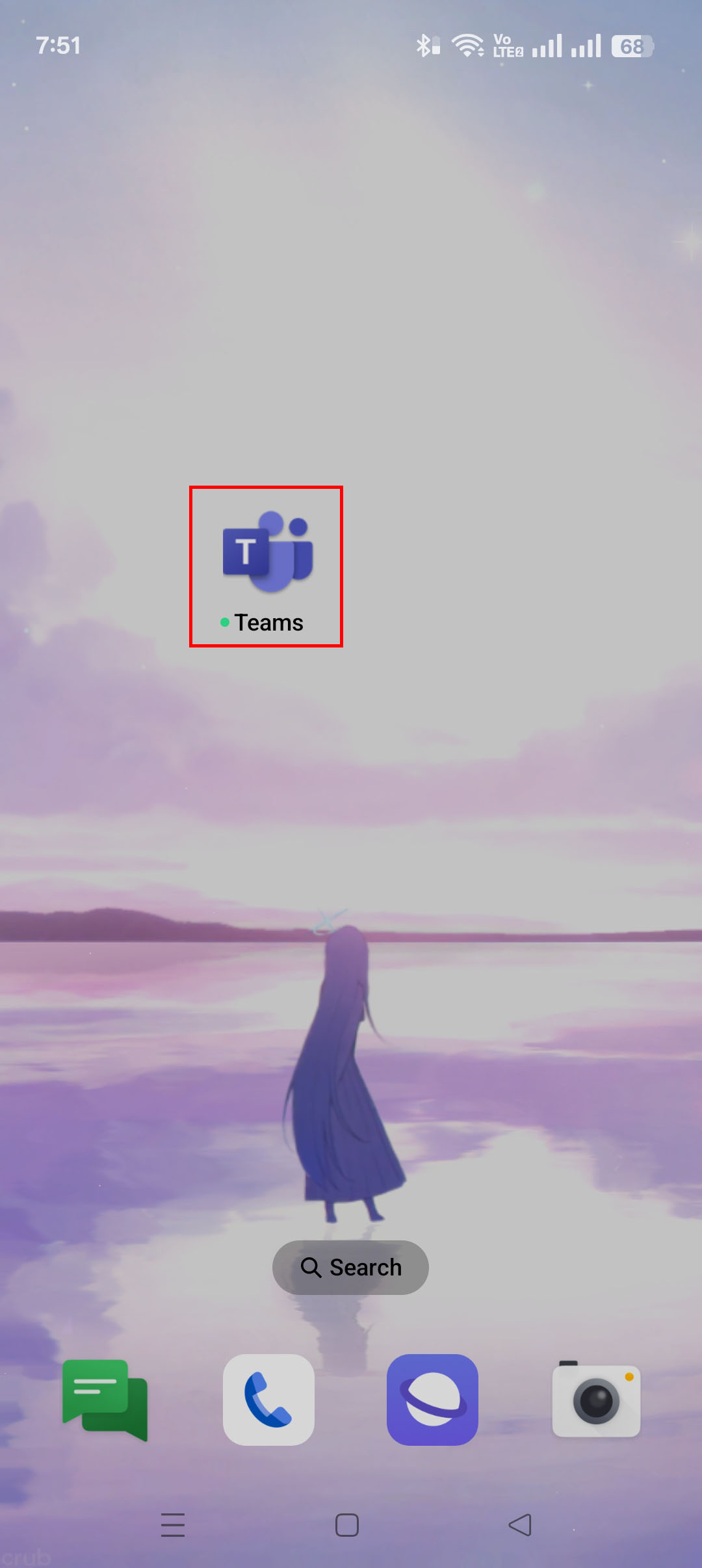
7. After installation, open Microsoft Teams in the Play Store or App store (can also be opened in the home screen of your phone).
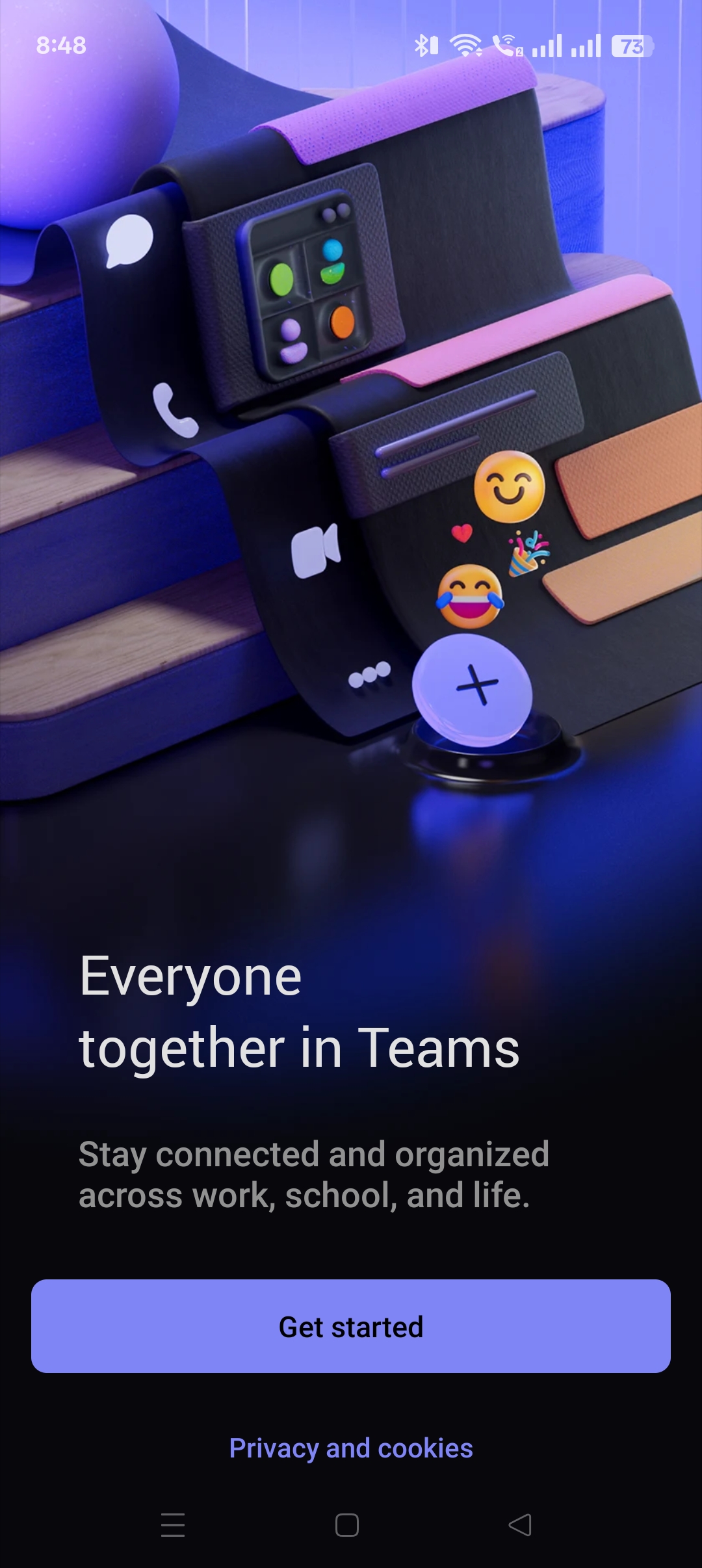
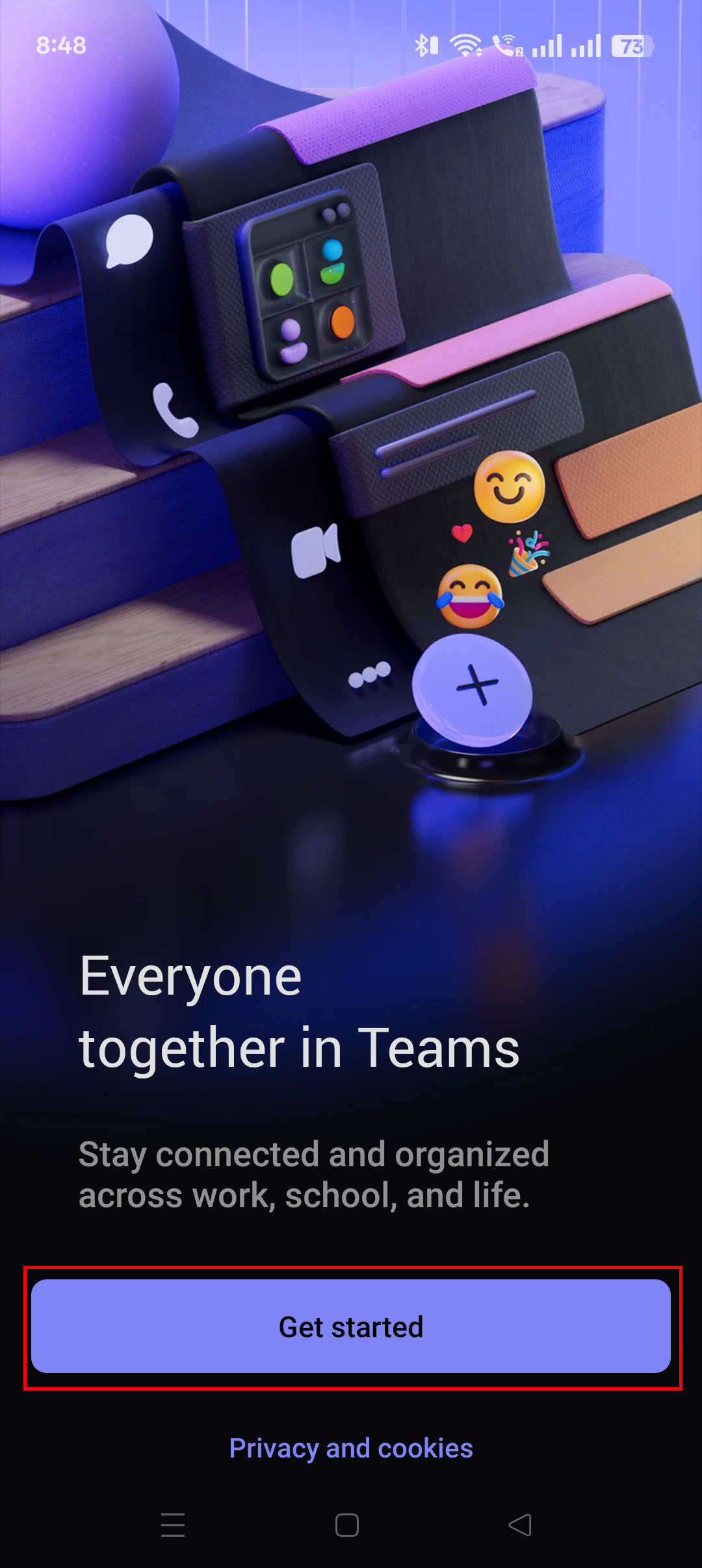
8. Once the app opens, there will be a Get started button. Press it to continue.
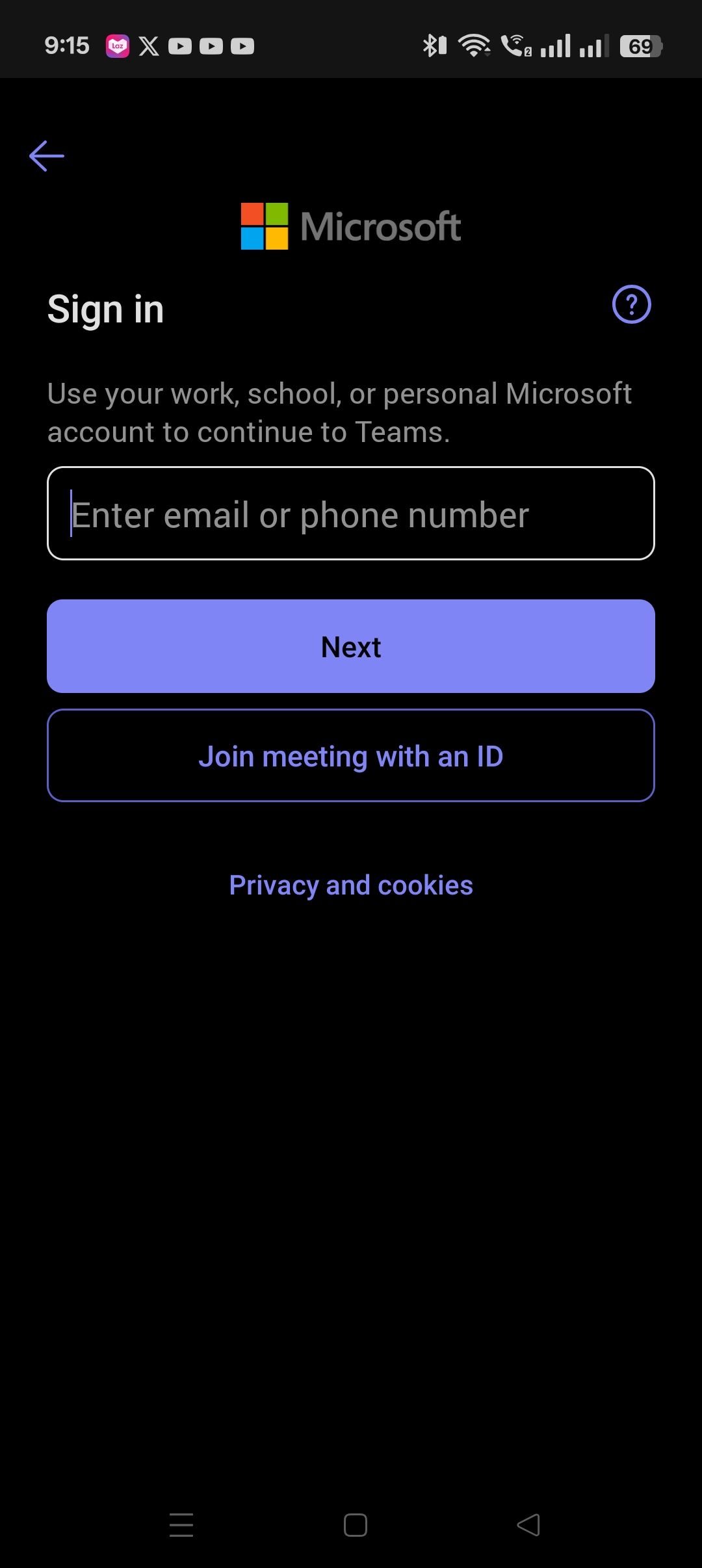
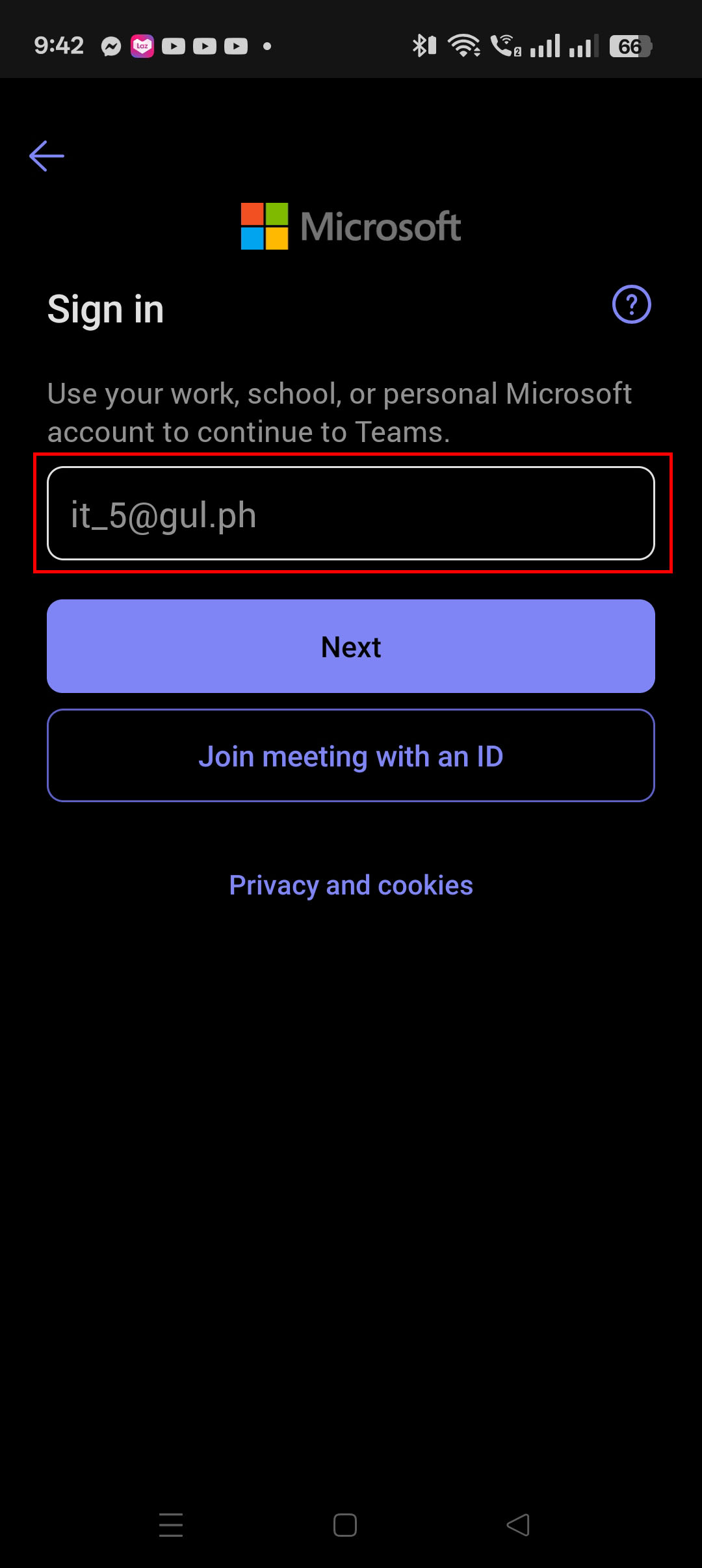
9. You will be then prompted to enter your email or phone. Type in the email you will be using for Microsoft Teams. The account "it_5@gul.ph" was used for this tutorial.
Additional Options:
1. If you opened Microsoft Teams and there is already an account registered on your device, check the email if it is the email you are using.
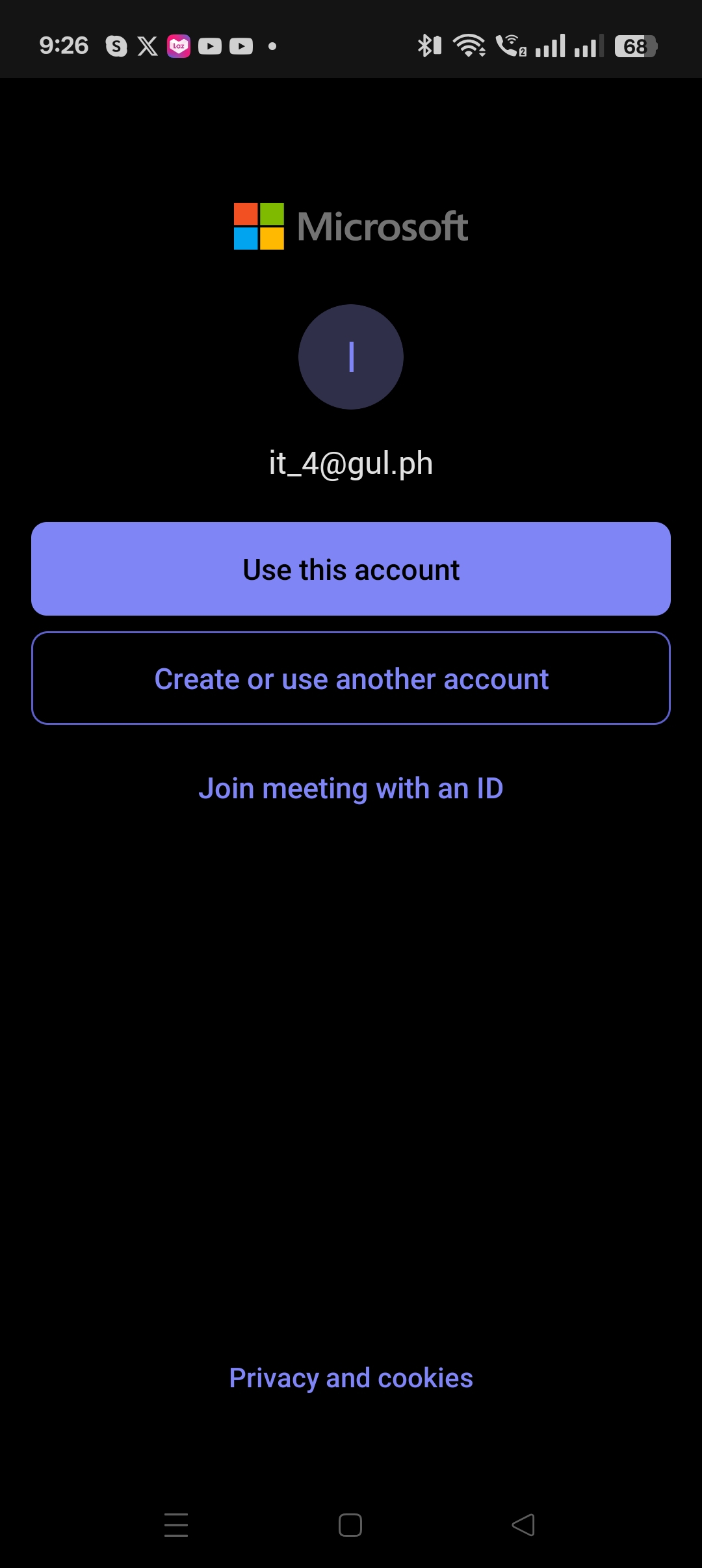
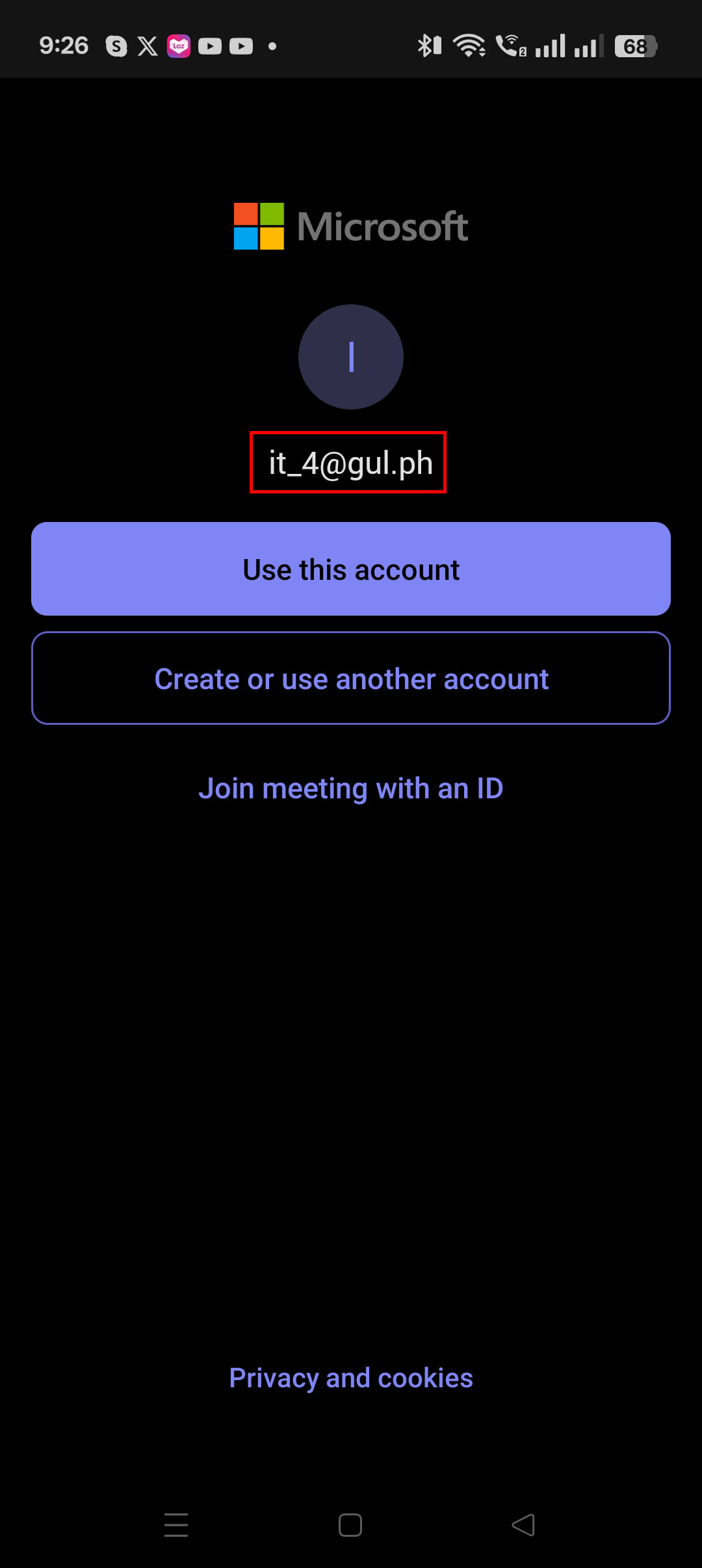
2. If it is not the account you will use for work or use, press the "Create or use another account".
- Go back to step 9 to input the email you will use.
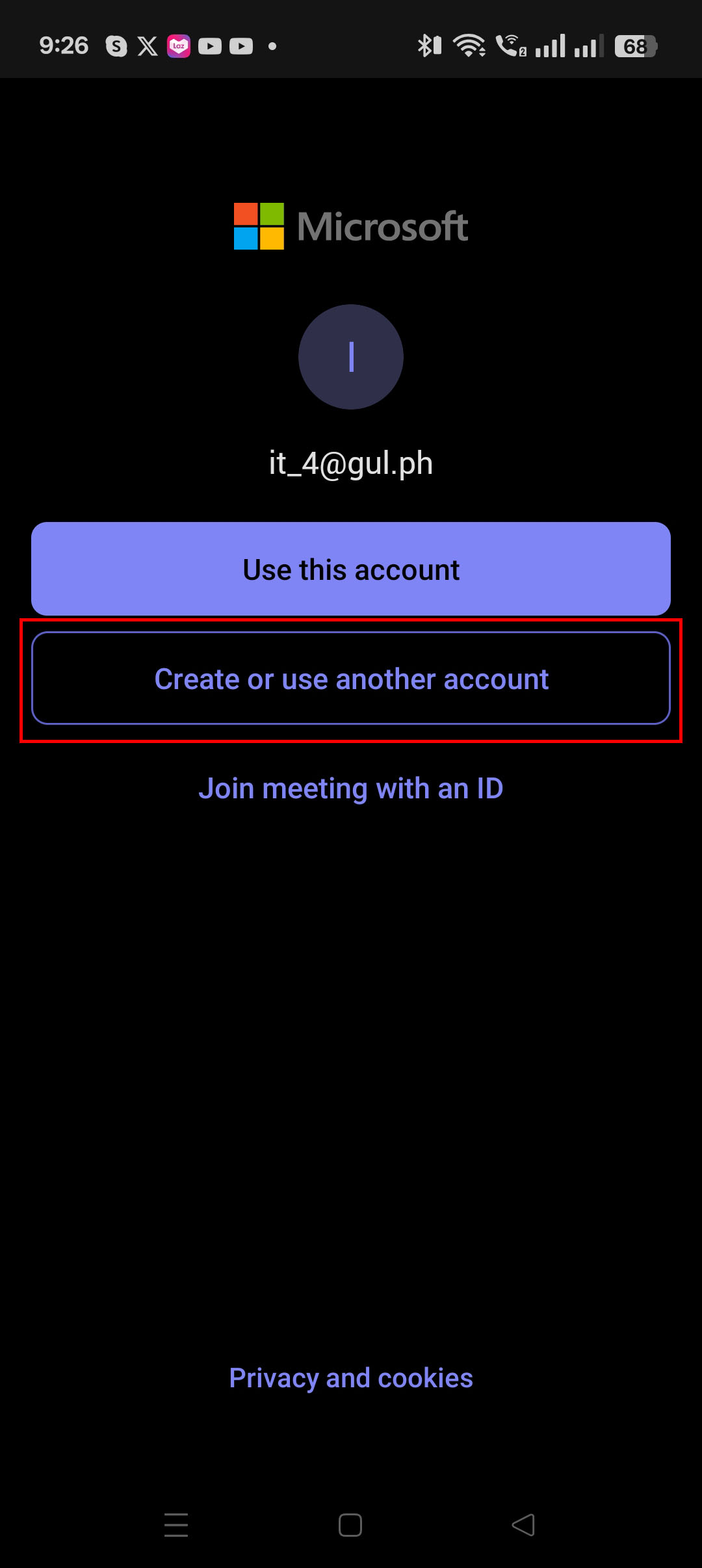
3. If it is the account, you will be using then, press the "Use this account".
- Proceed to step 11.
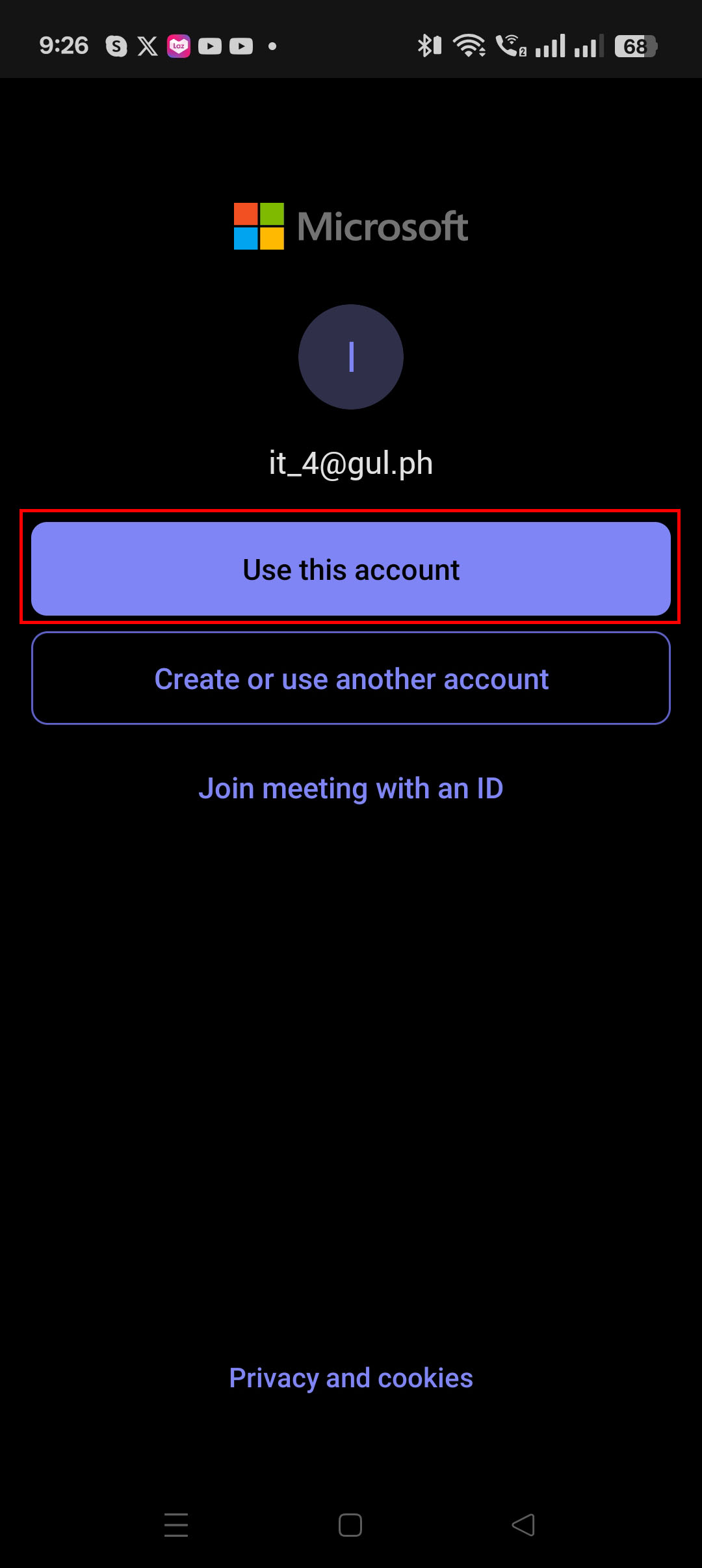
10. After typing in the email you are using, press "Next". Wait for a moment until the processing is done.
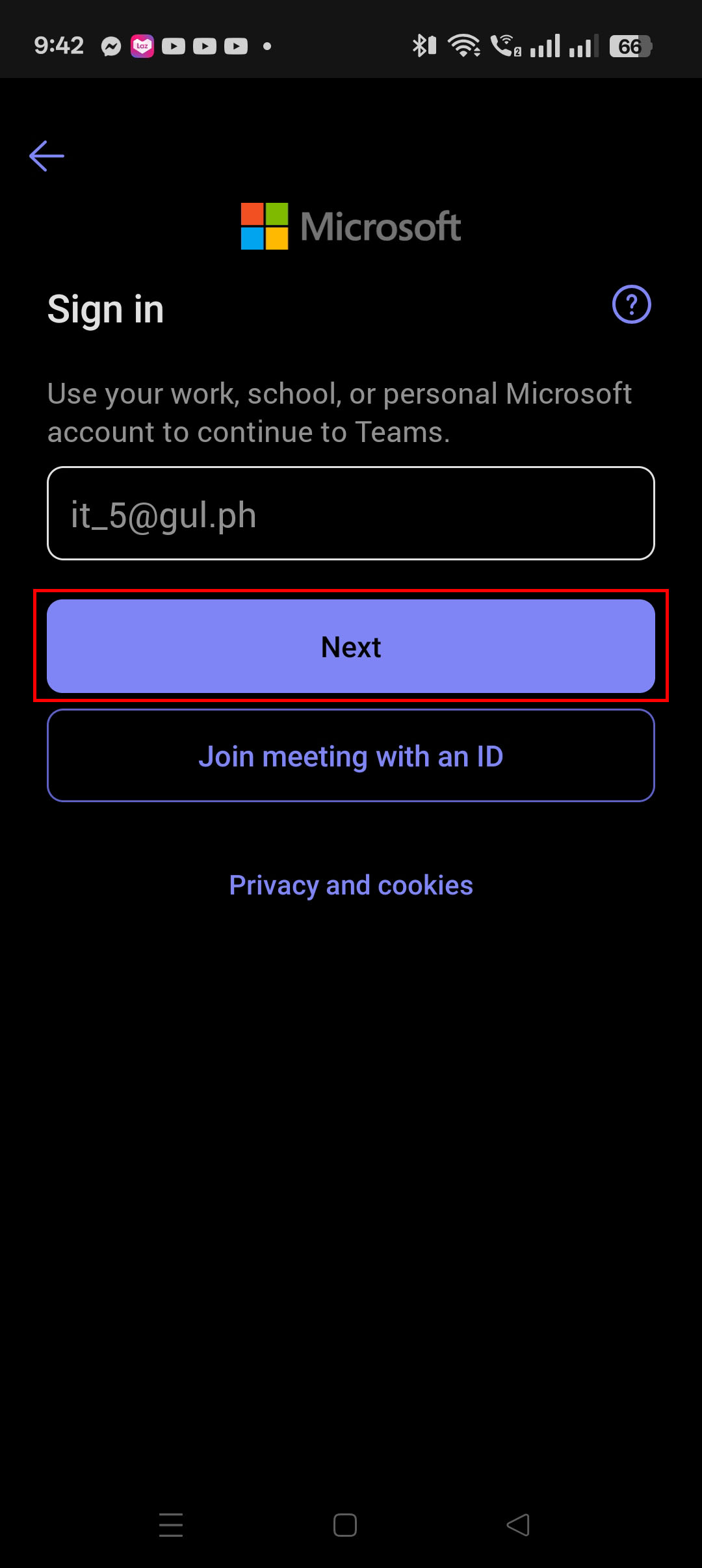
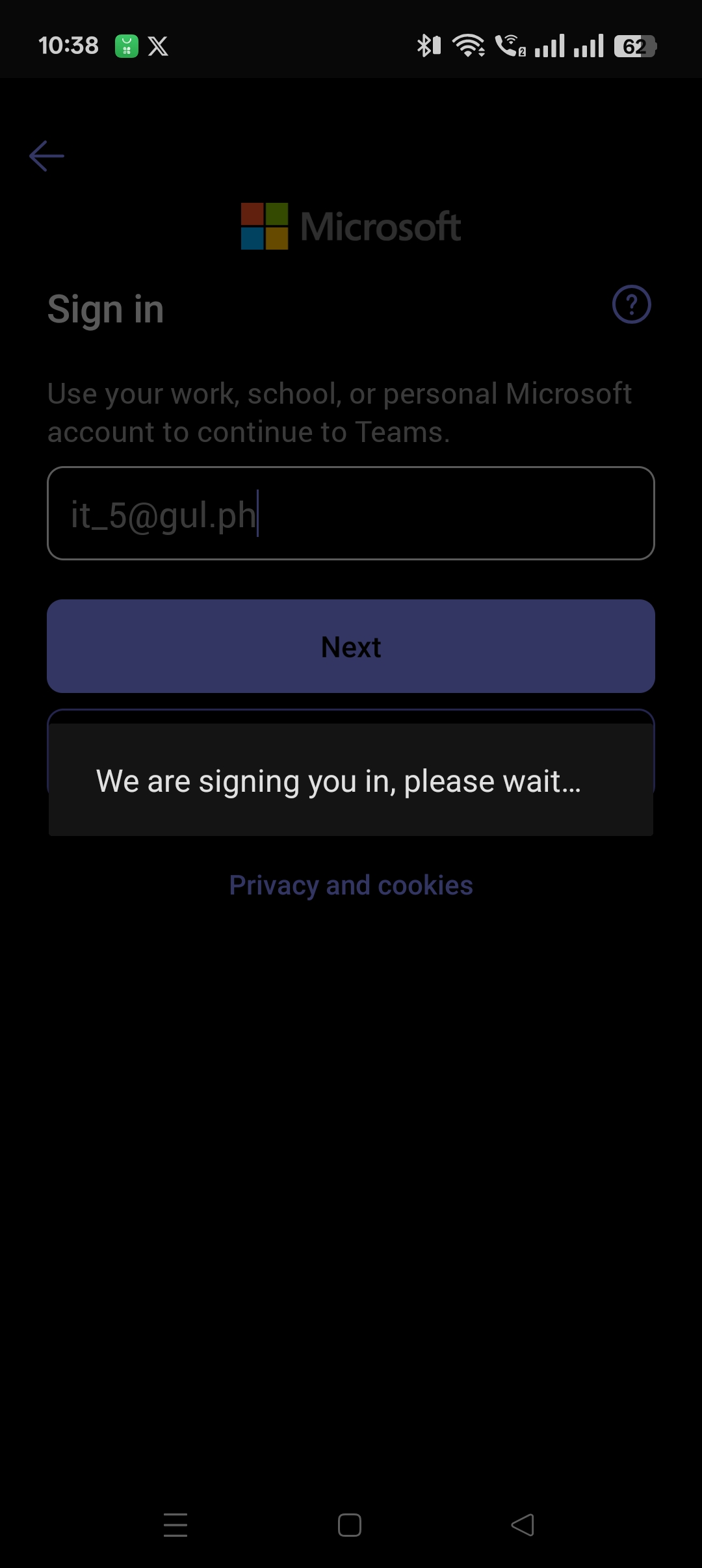
11. Once processing is done, there will be two (2) options to sign in: 1) Send code, 2) Use your password.
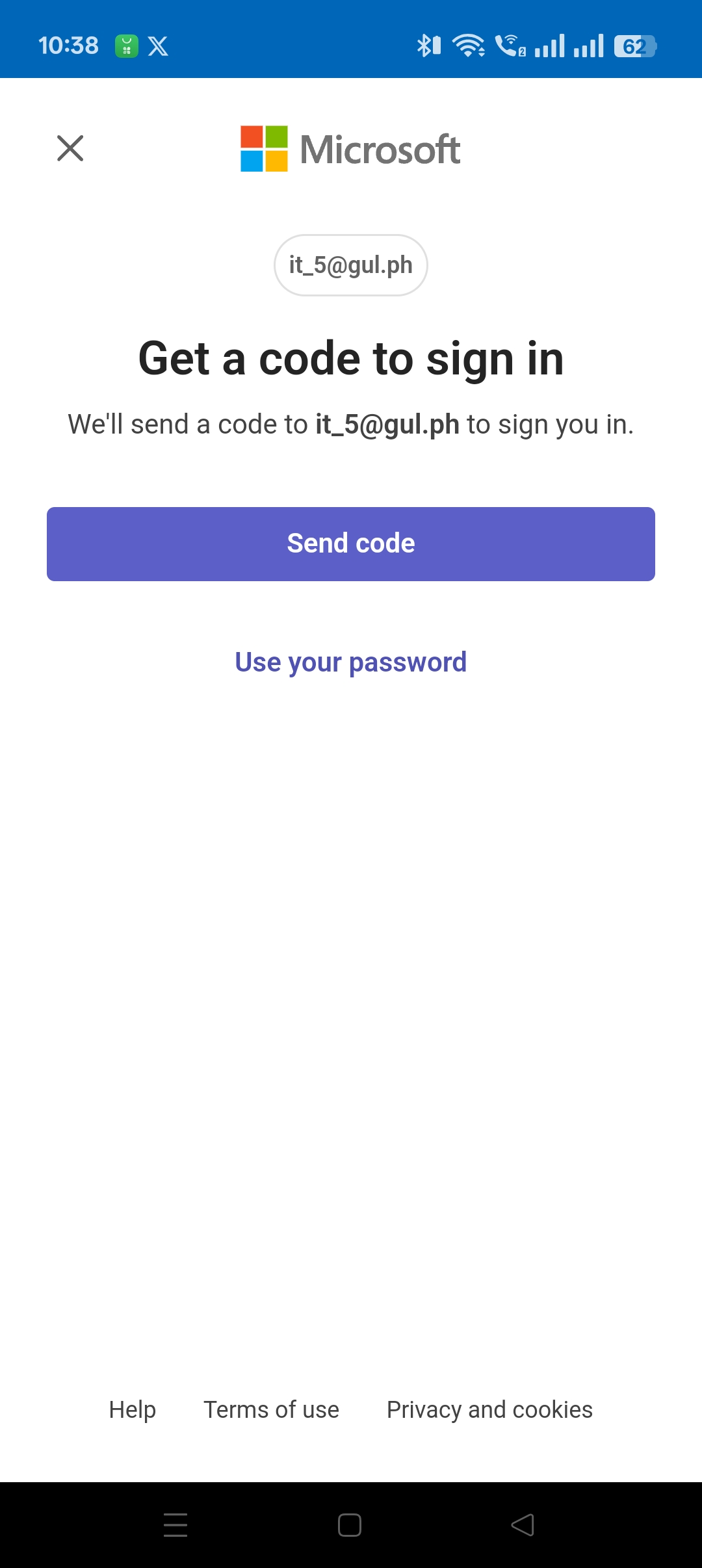
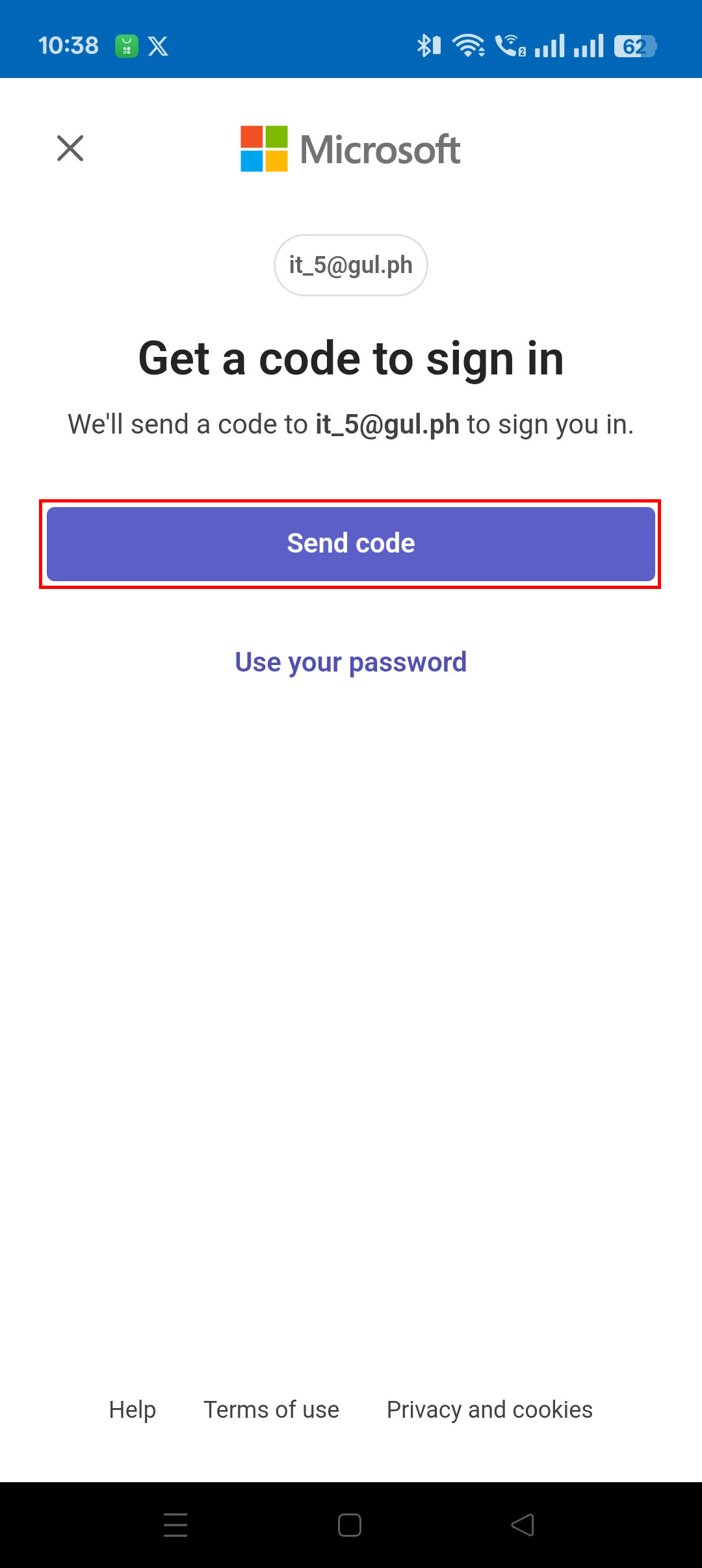
- First option (Send code)
1. Press the "Send code" button to receive the code.
2. You will be then redirected to a page asking for the code sent to the email you used earlier.
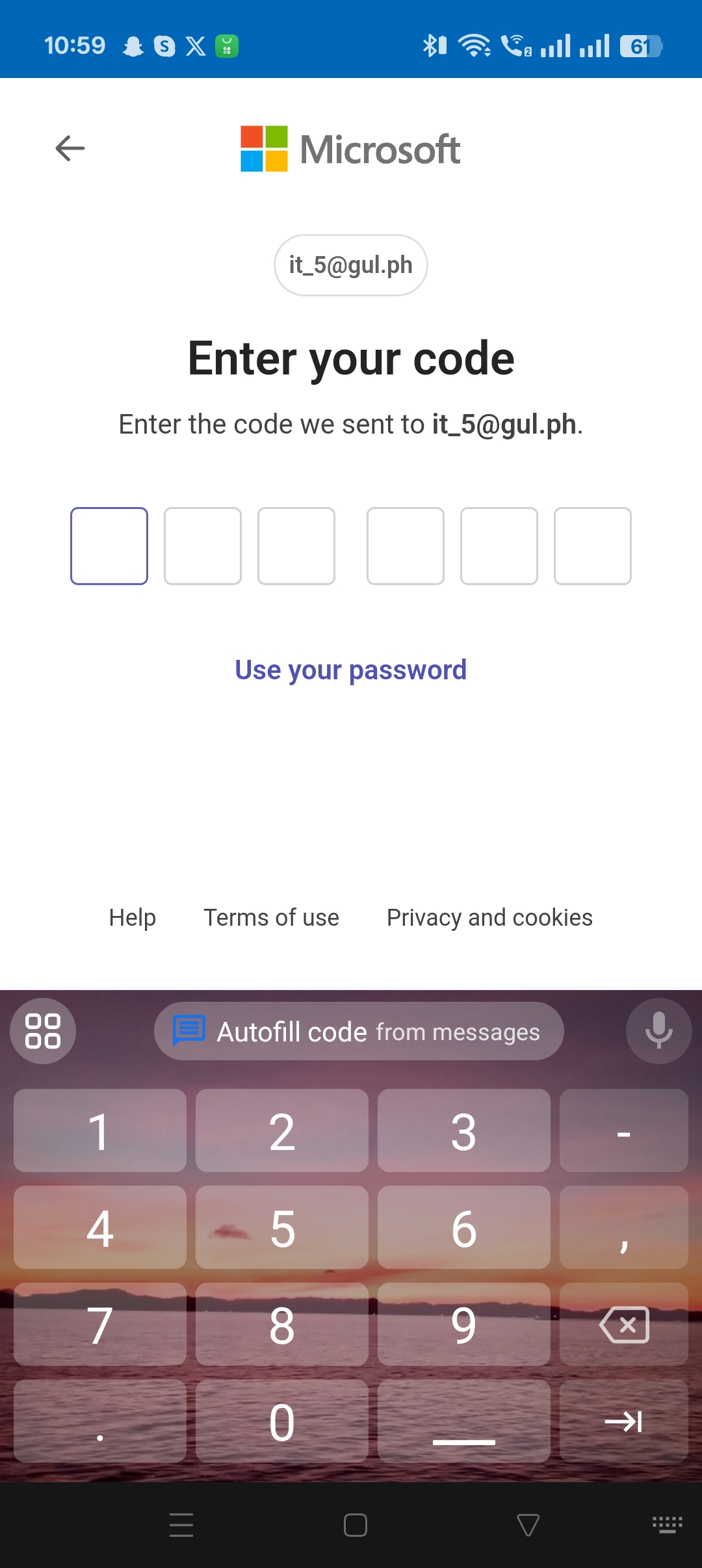
3. Ask/Notify your superior for the code you requested from Microsoft. If you have access to the mailbox of the email, then you can check it yourself.
4. After receiving and copying the code from your superior or mailbox. Input the code in the entry boxes.
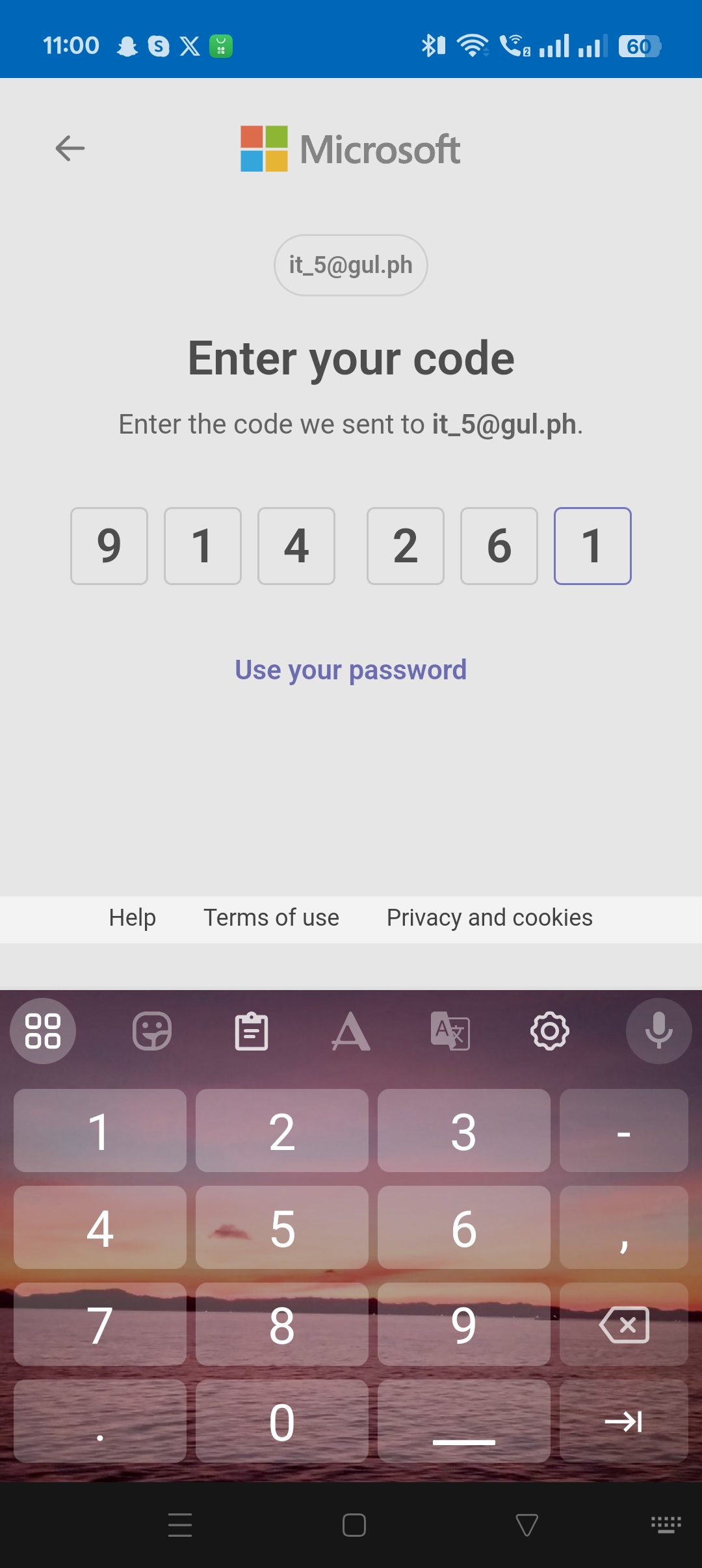
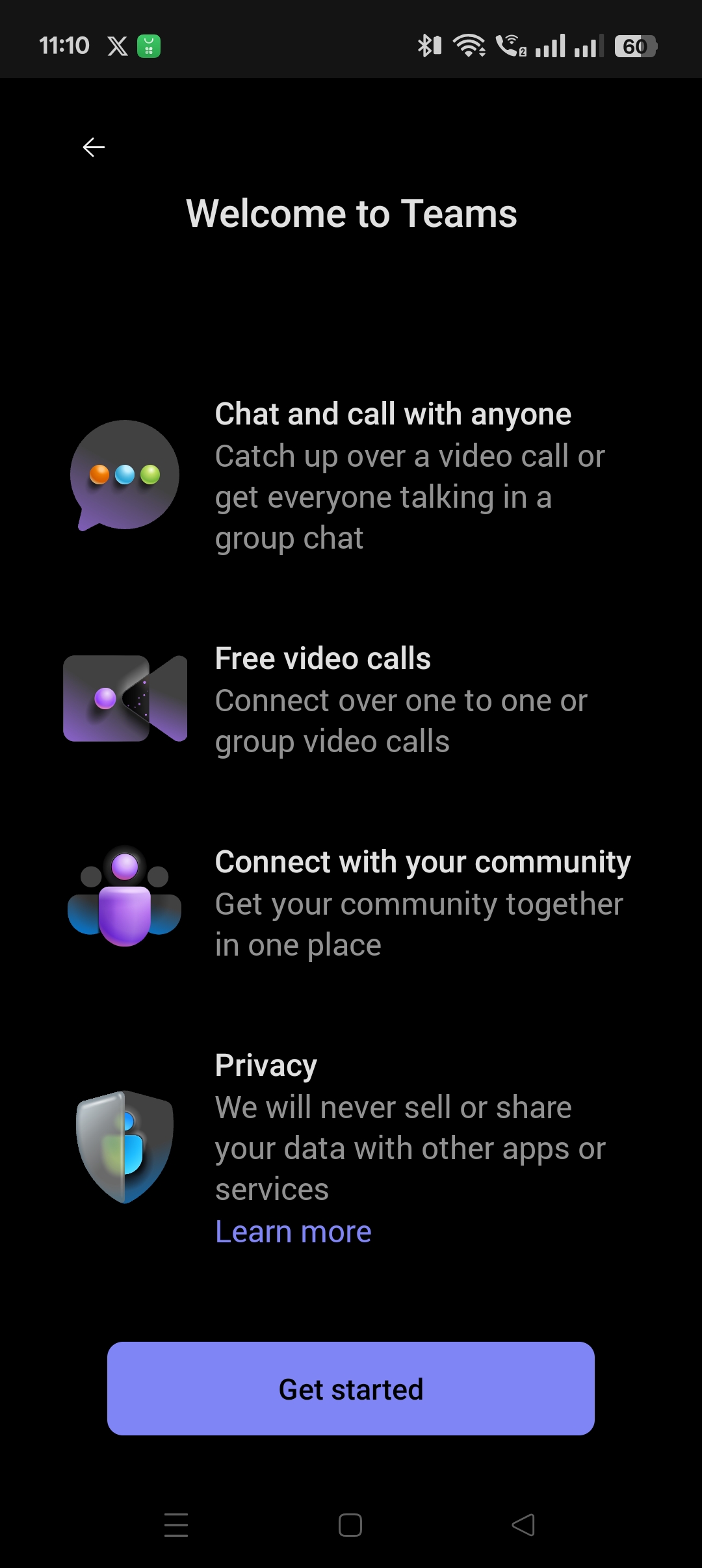
5. After inputting the code, you will be redirected back to Teams.
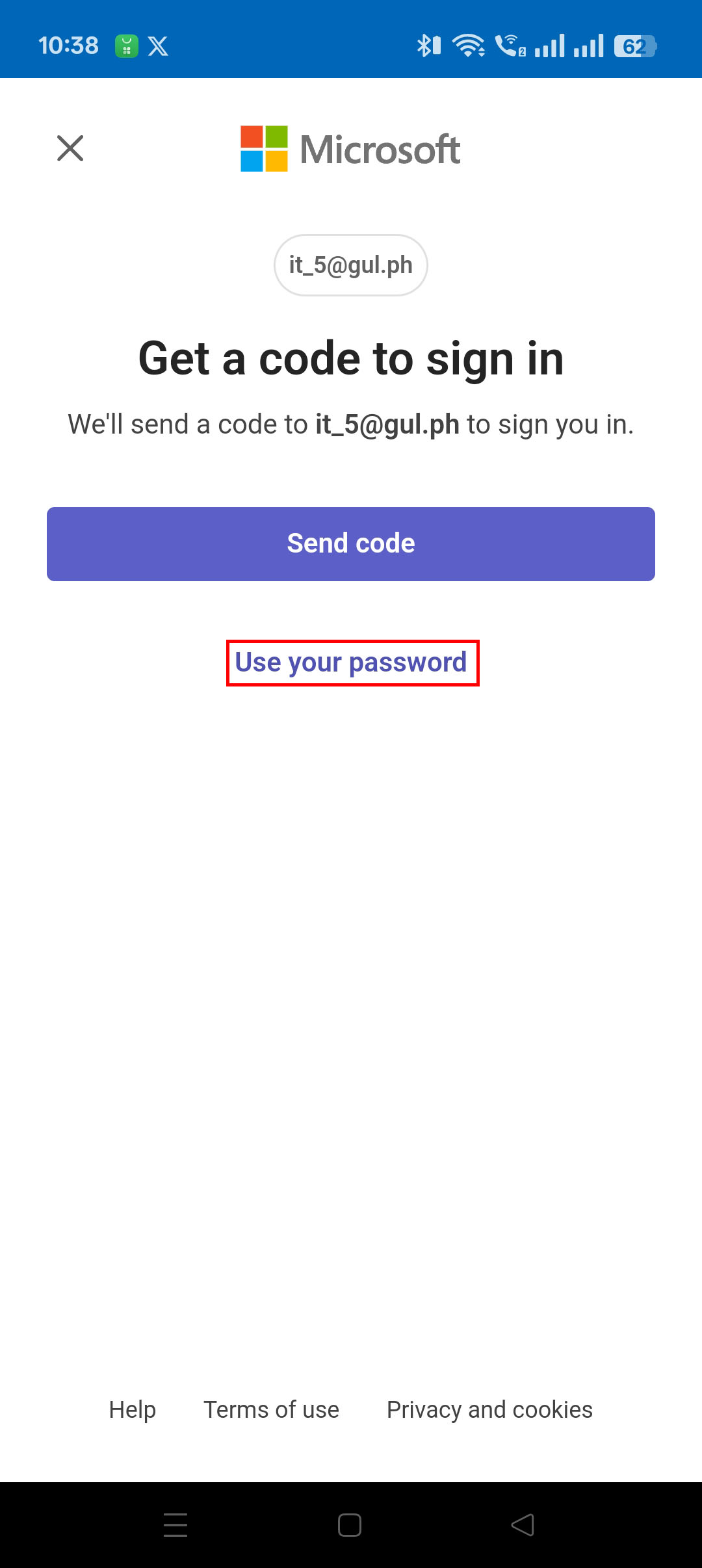
- Second option (Use your password)
- Note: This option is not always successful and returns an error message "Too Many Requests" when logging in.
1. Press the "Use your password" button to receive the code.
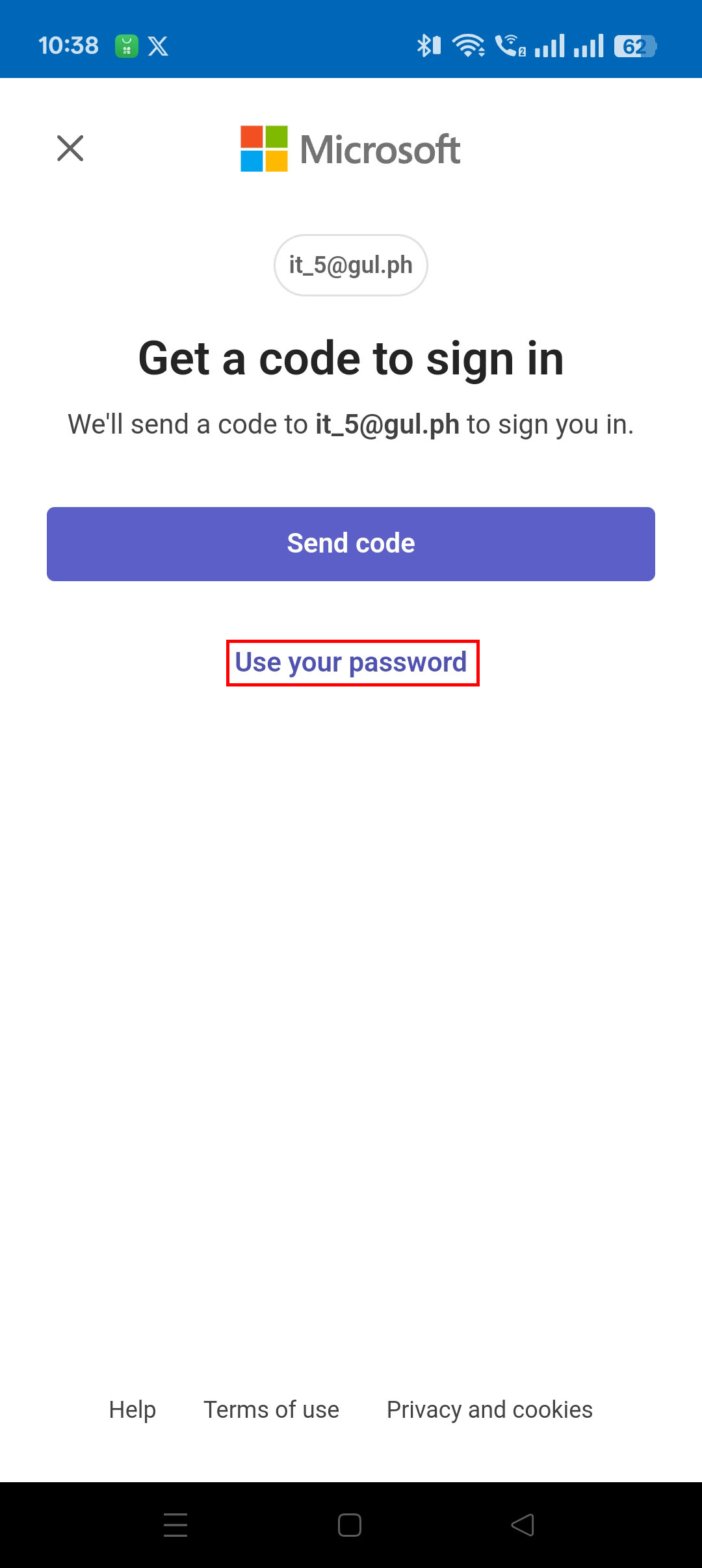
2. You will be then redirected to a page asking for the password for your email. Please check if the email you are using the correct email.
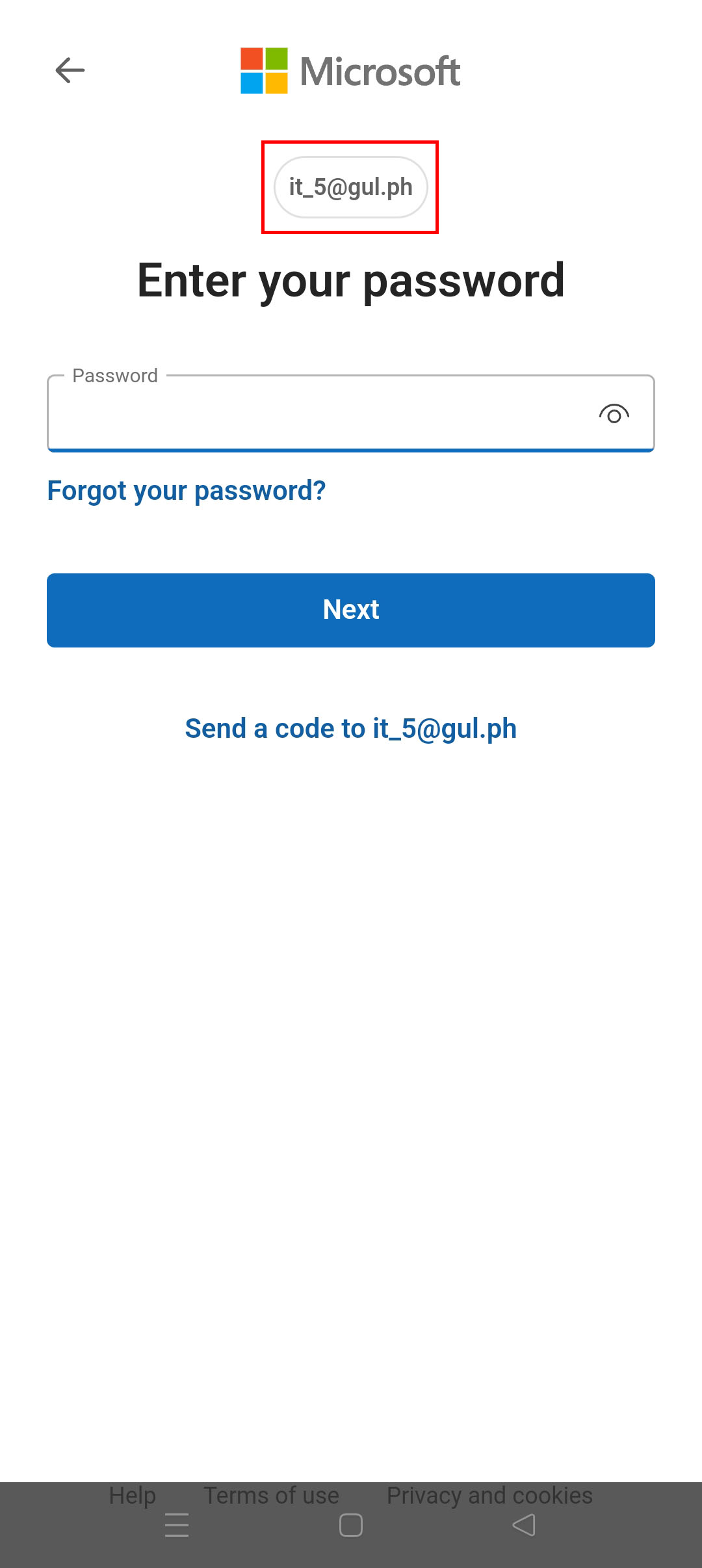
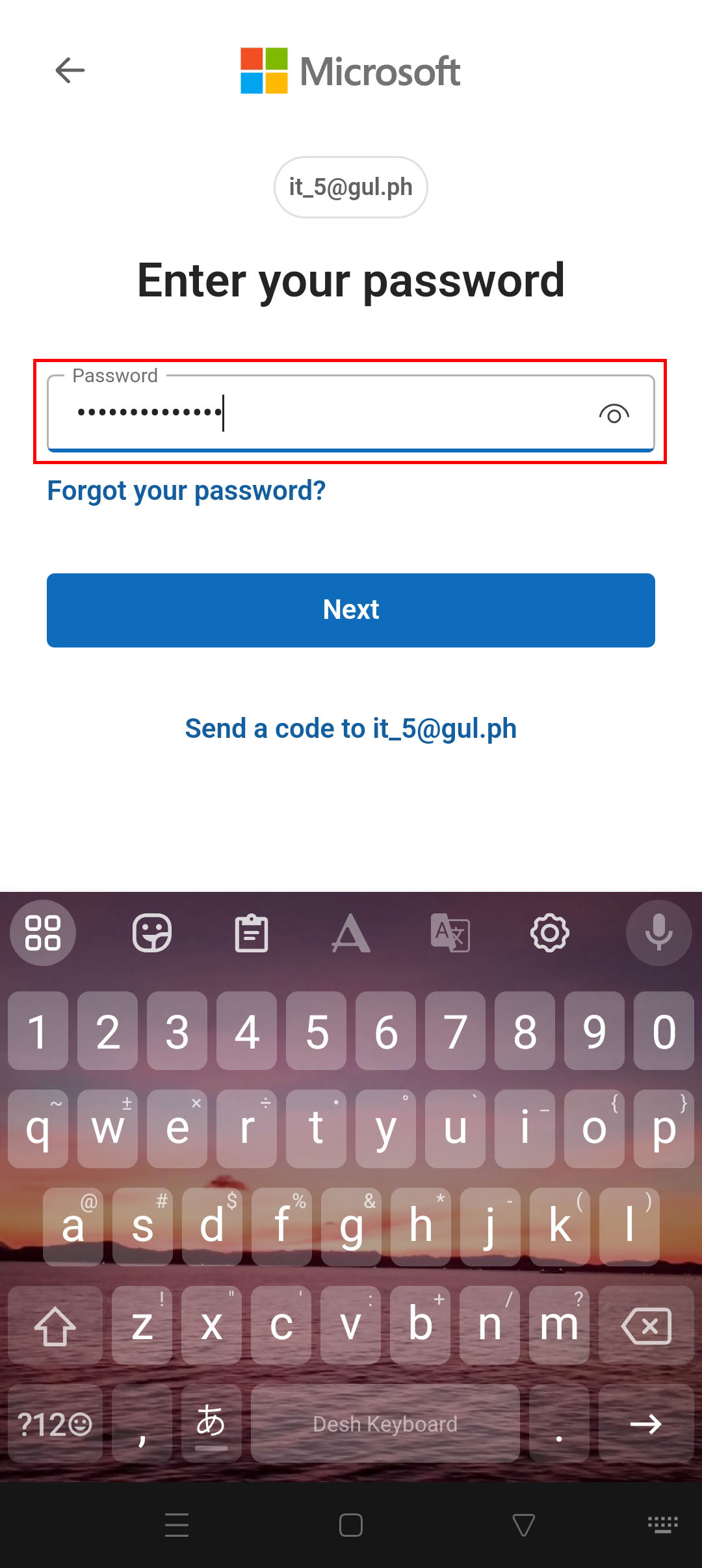
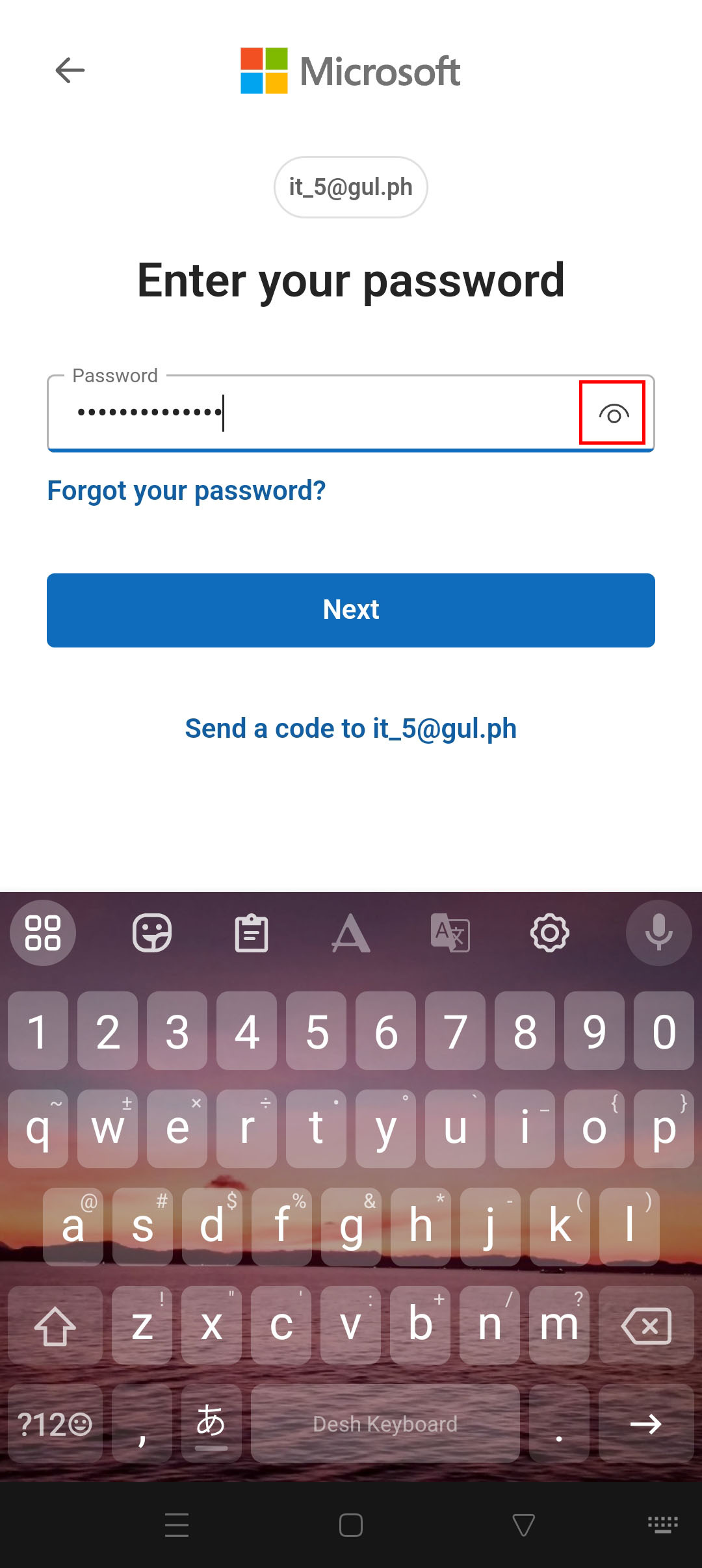
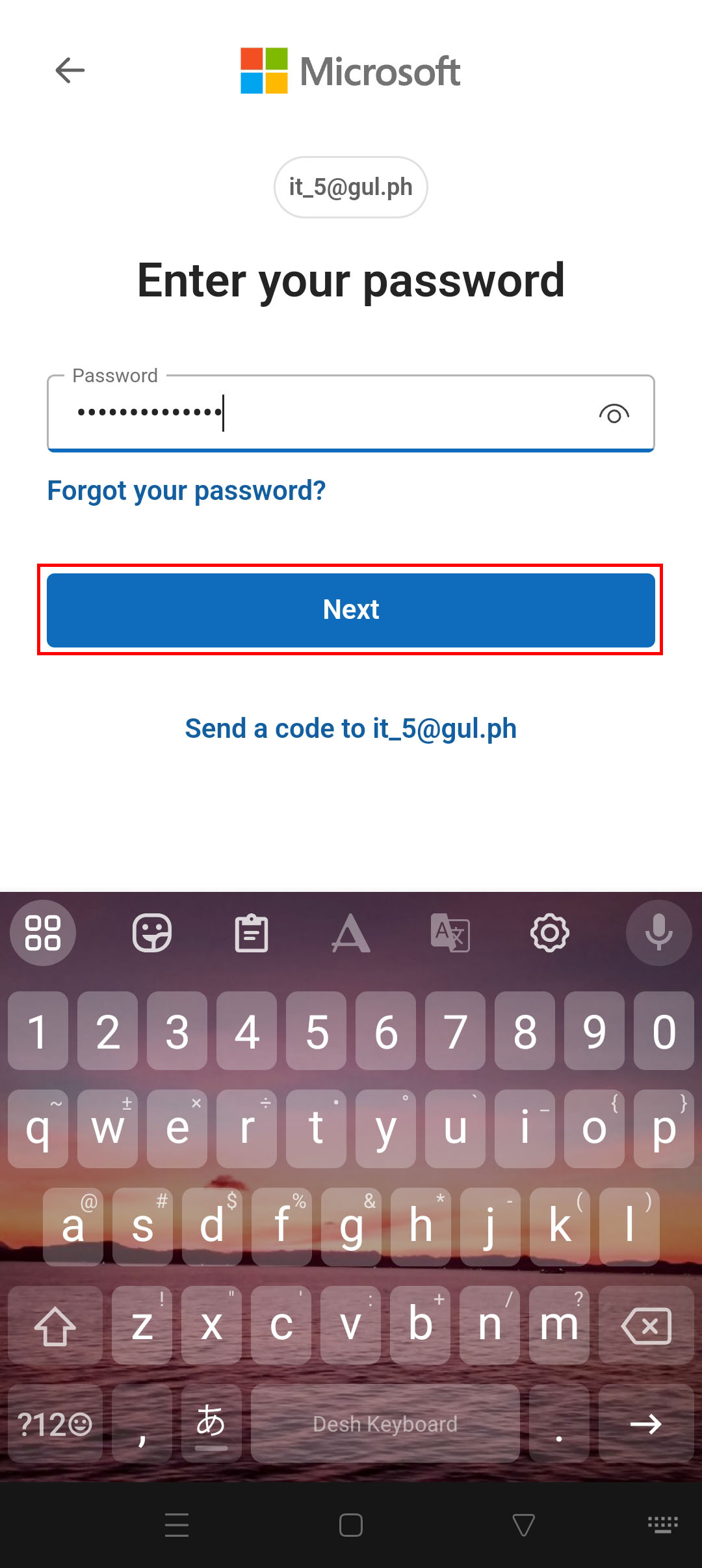
3. Input your password on the space provided. Press the eye icon on the side of the space provided to see your password clearly. After typing in your password, press "Next" to log in.
4. After inputting the code, you will be redirected back to Teams.
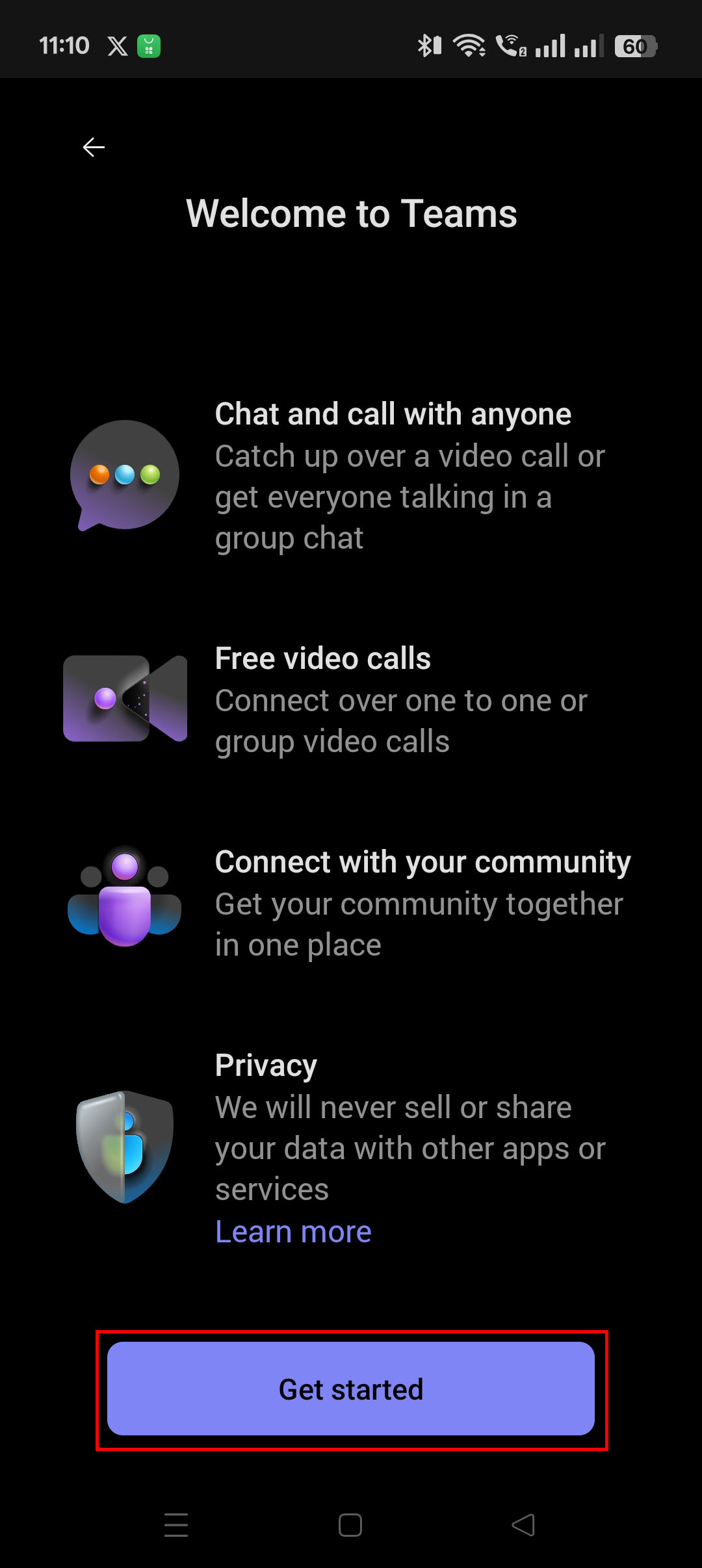
13. Once you are redirected back to Teams, press the "Get Started" or "Continue" button.
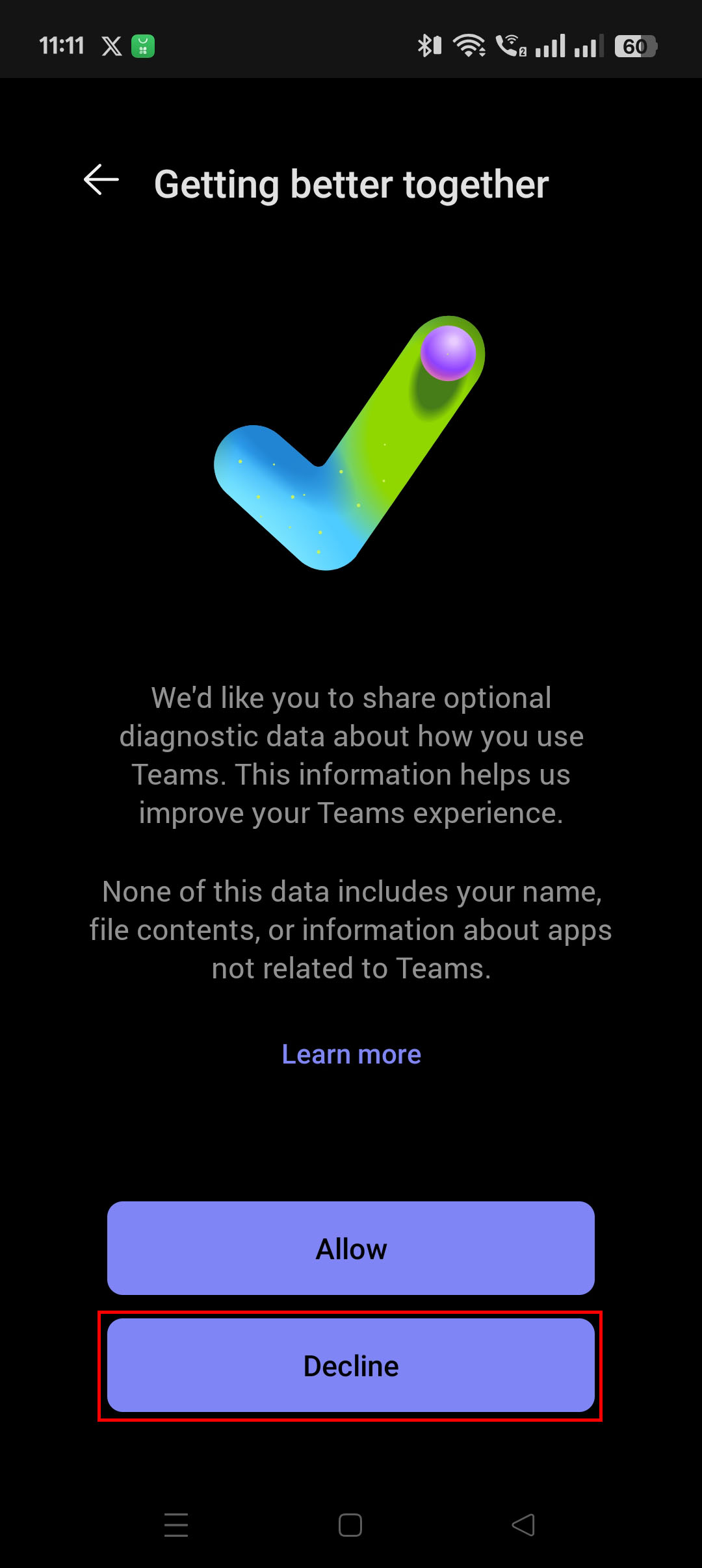
14. Decline the Getting better together prompt. Press the "Decline" button.
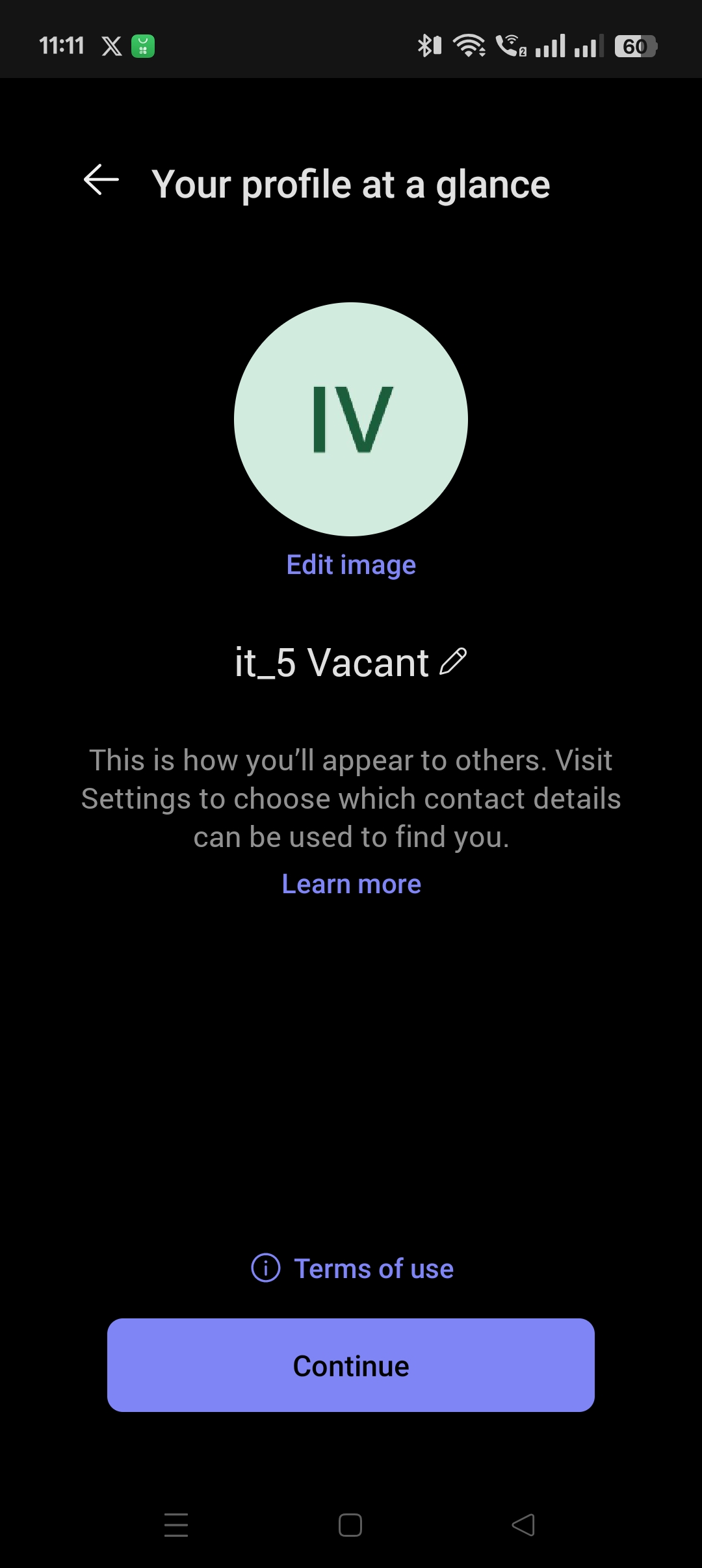
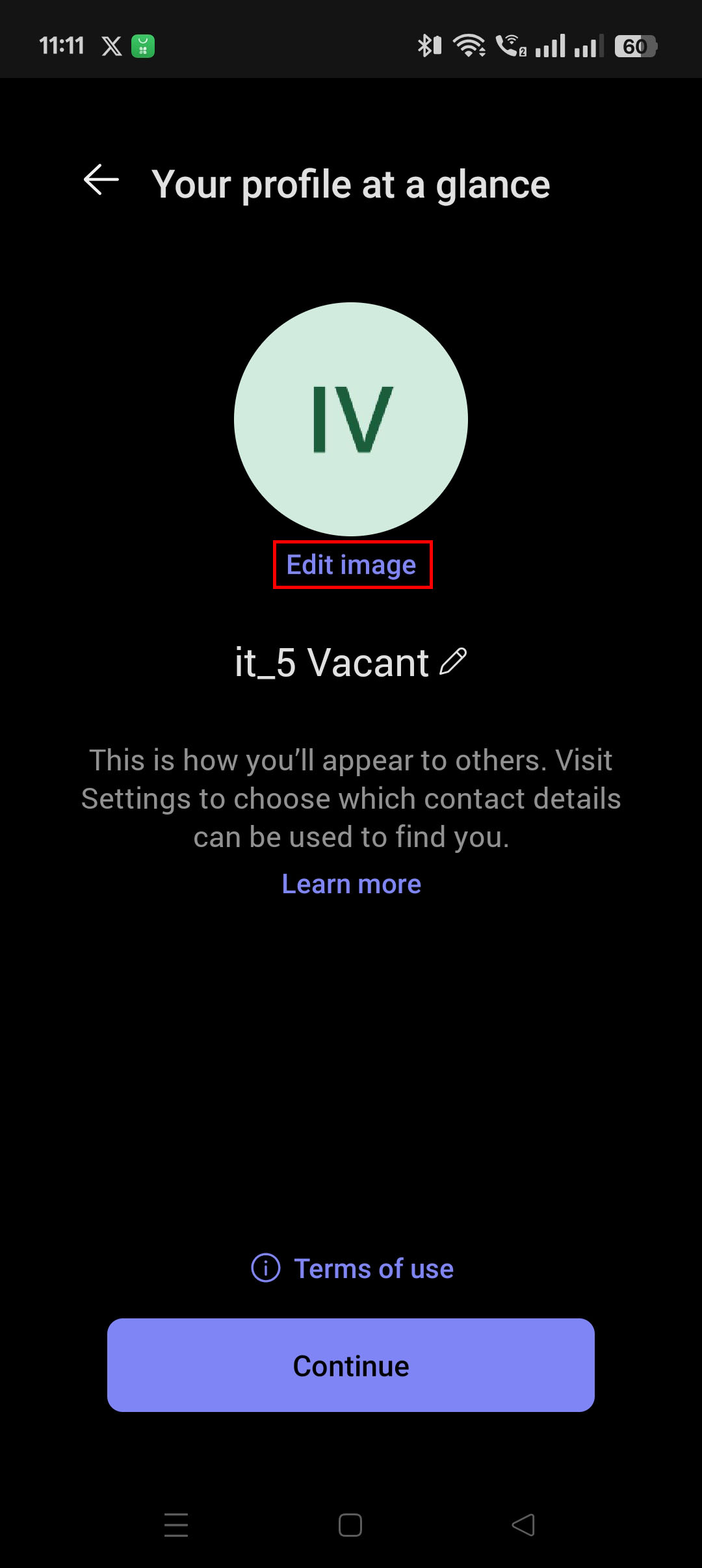
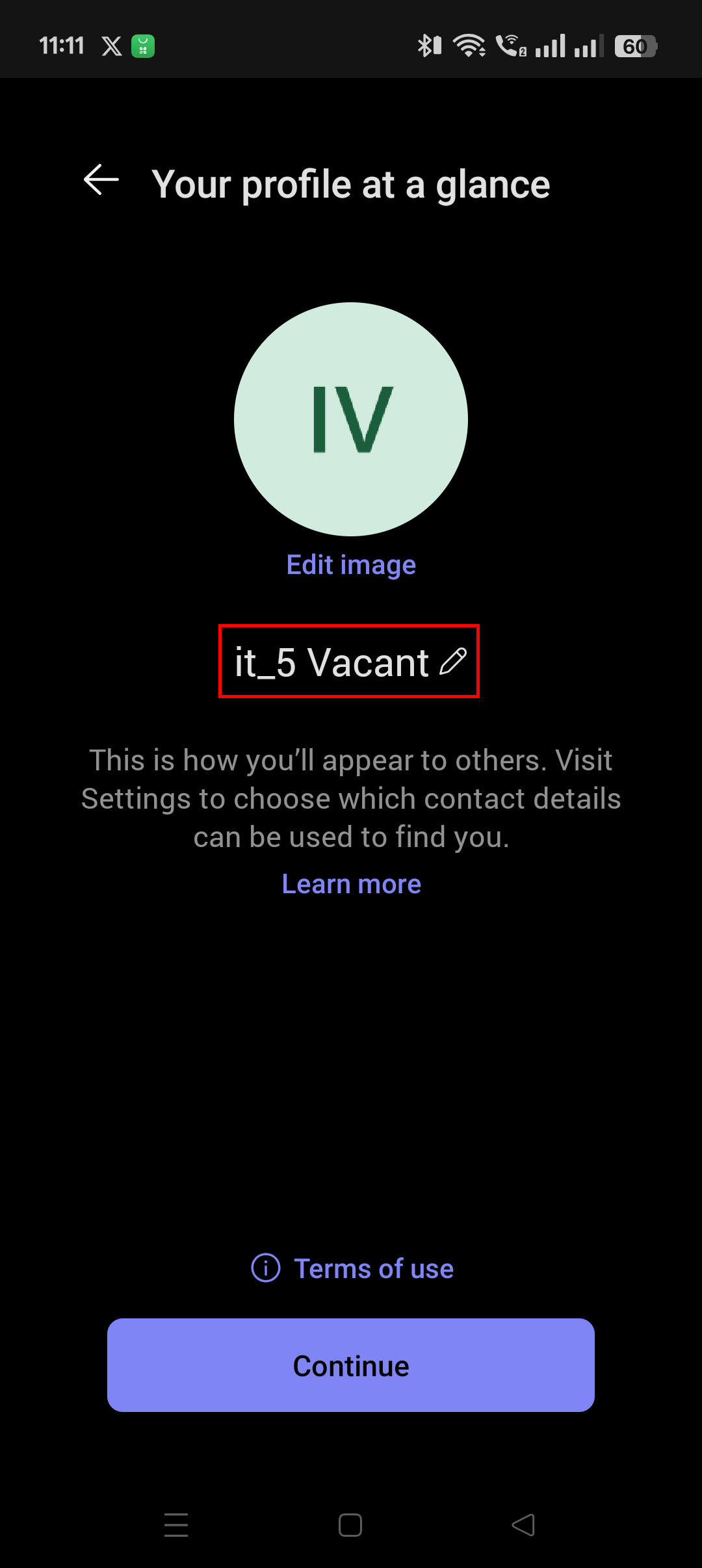
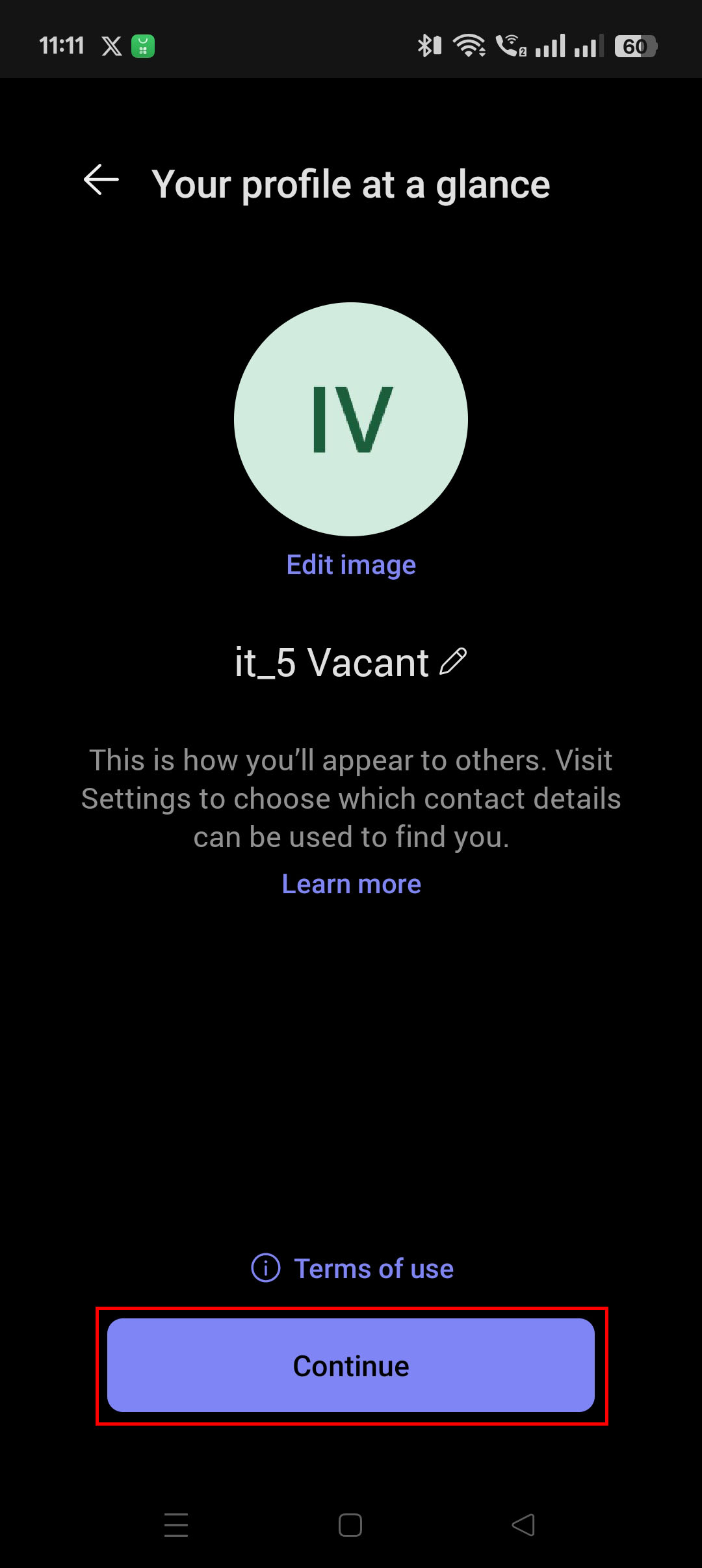
15. Edit your profile picture and name to match your Skype account.
- Press "Edit image" to choose in your picture folder the image you want as your profile.
- Press the display name to change it.
- Press "Continue" once you are satisfied with your changes.
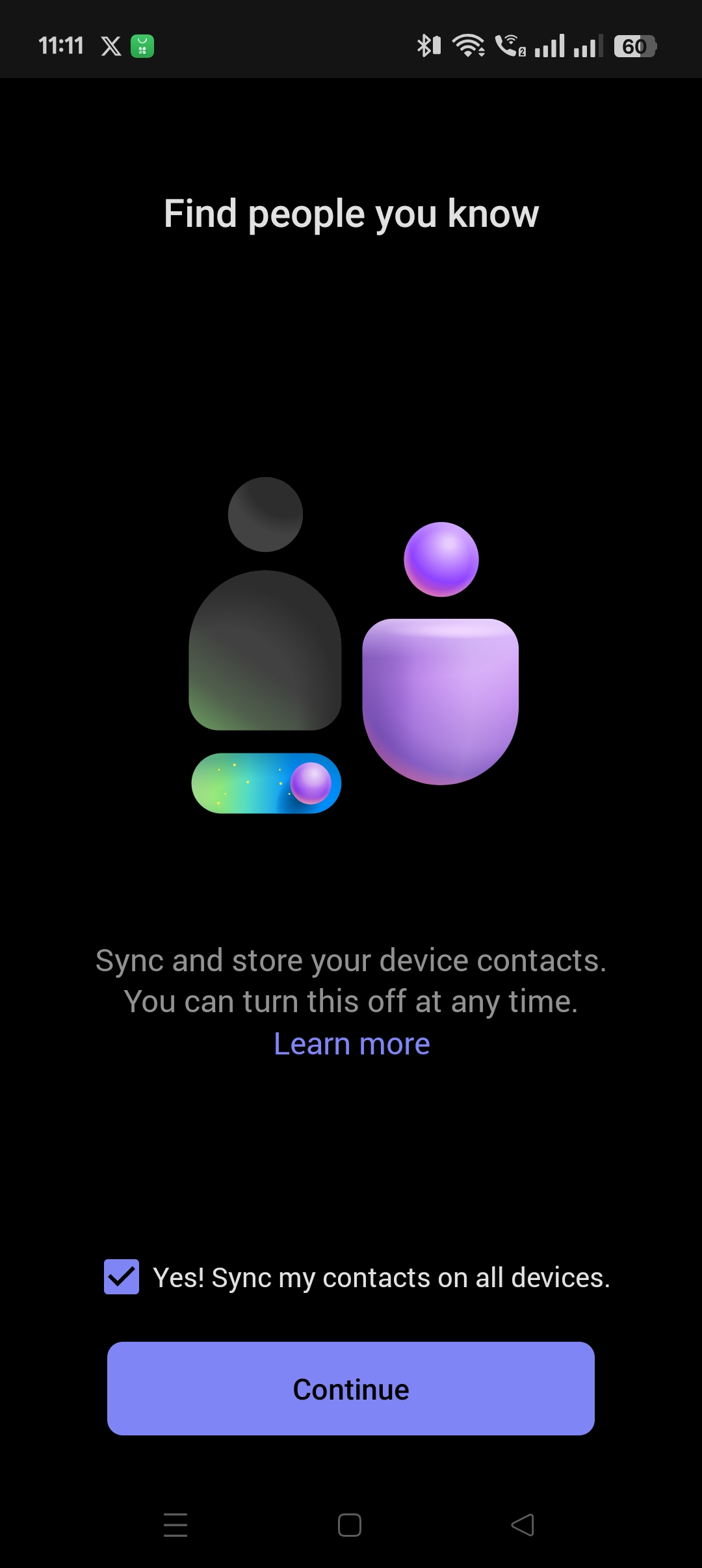
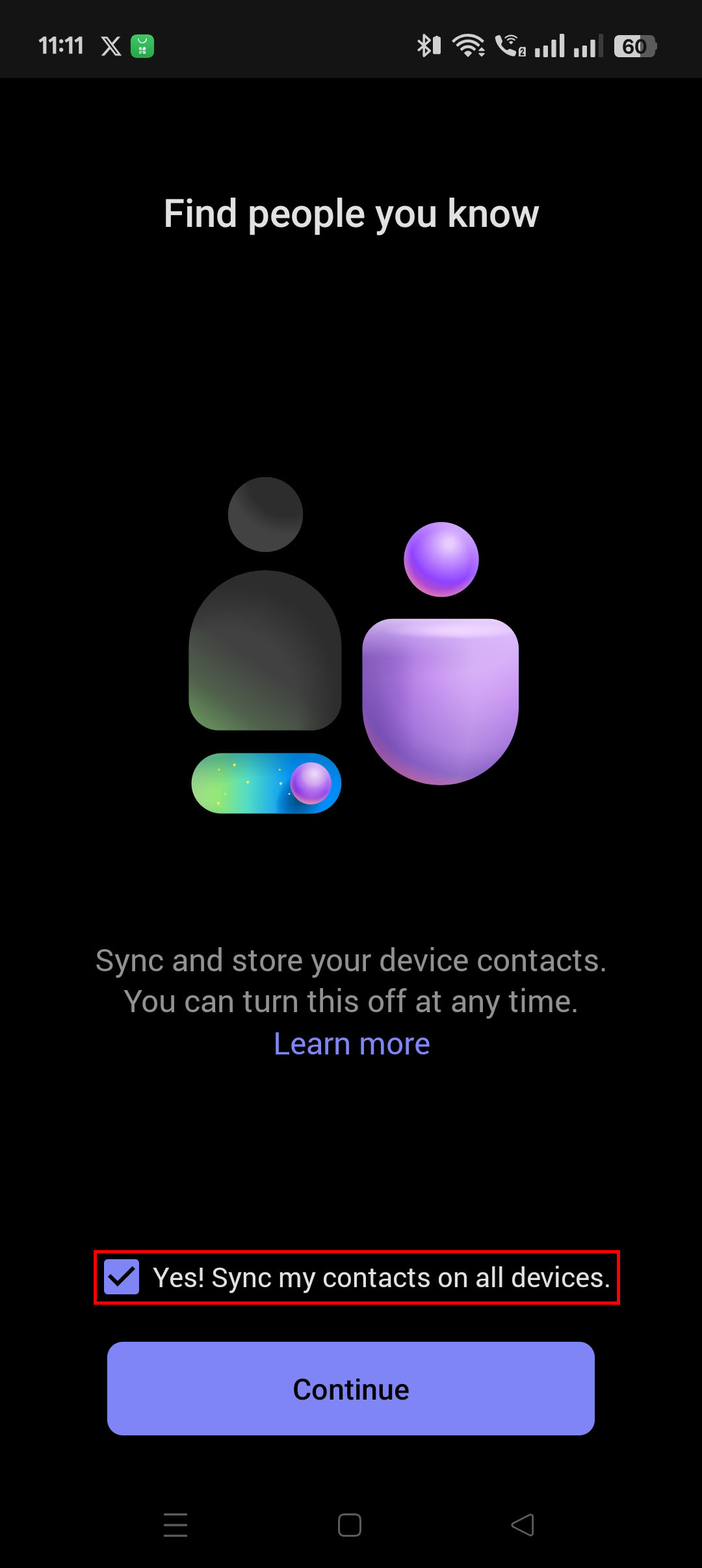
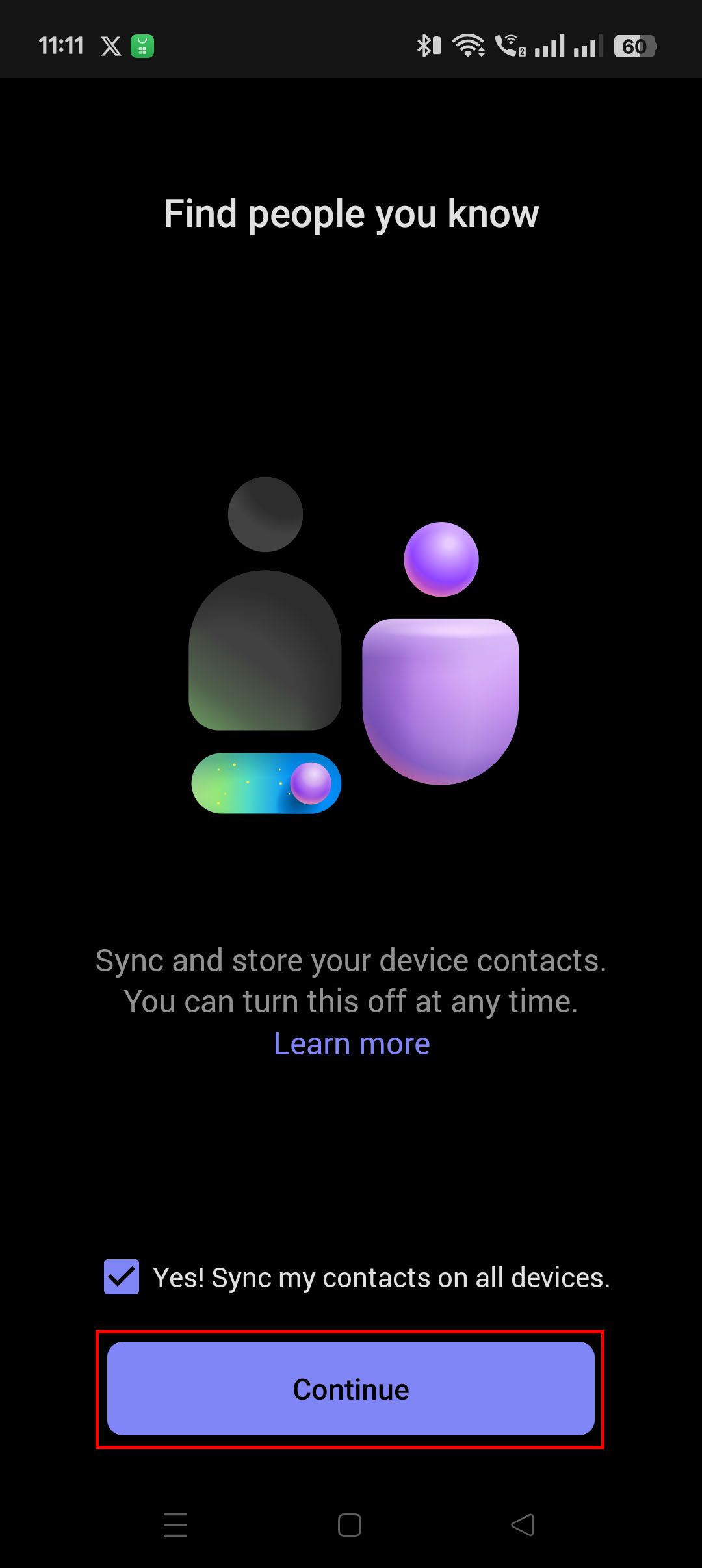
16. You can sync your contacts to Teams if you like to. Syncing your contacts means all your phone contacts will be available on Teams. If you do not want this feature, then uncheck the checkbox.
Press "Continue" once you are satisfied with your decision.
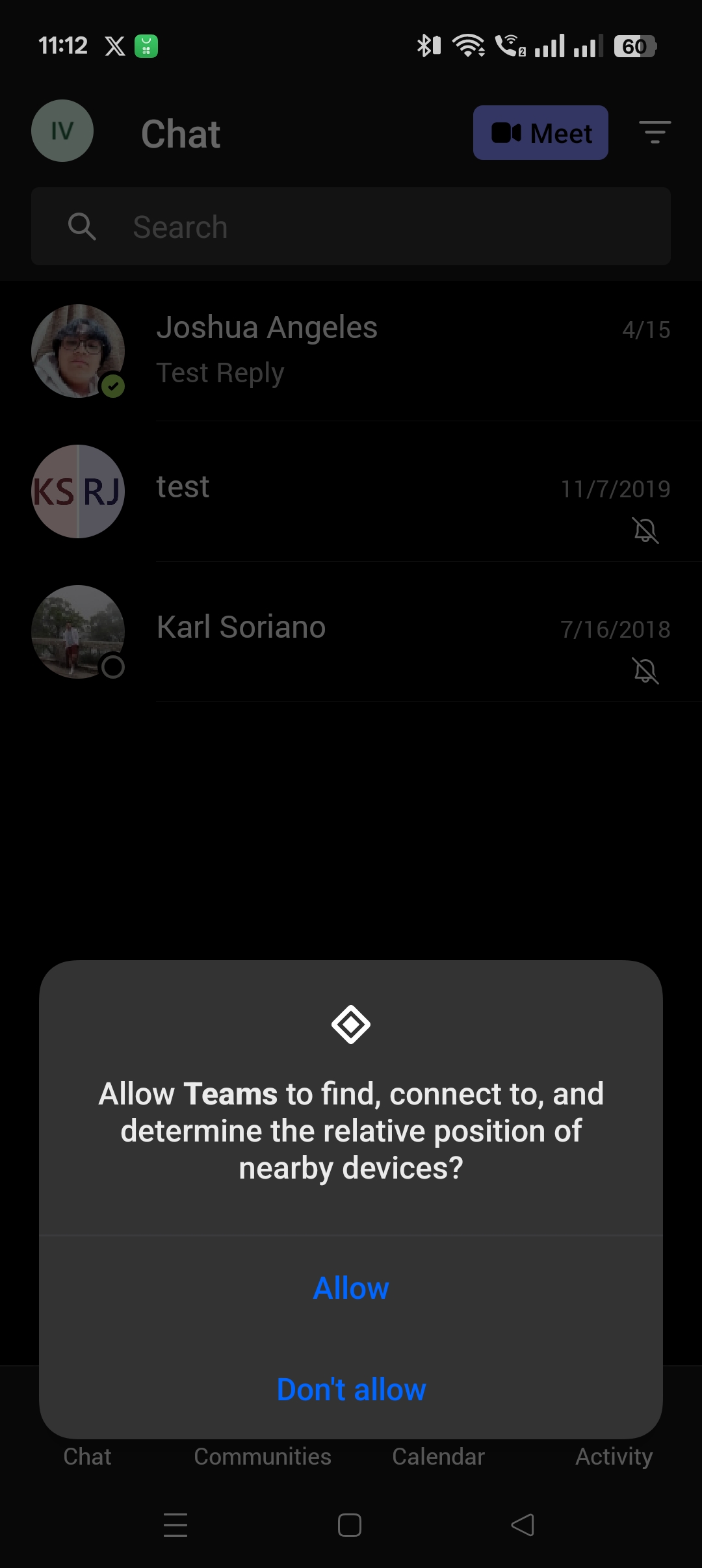
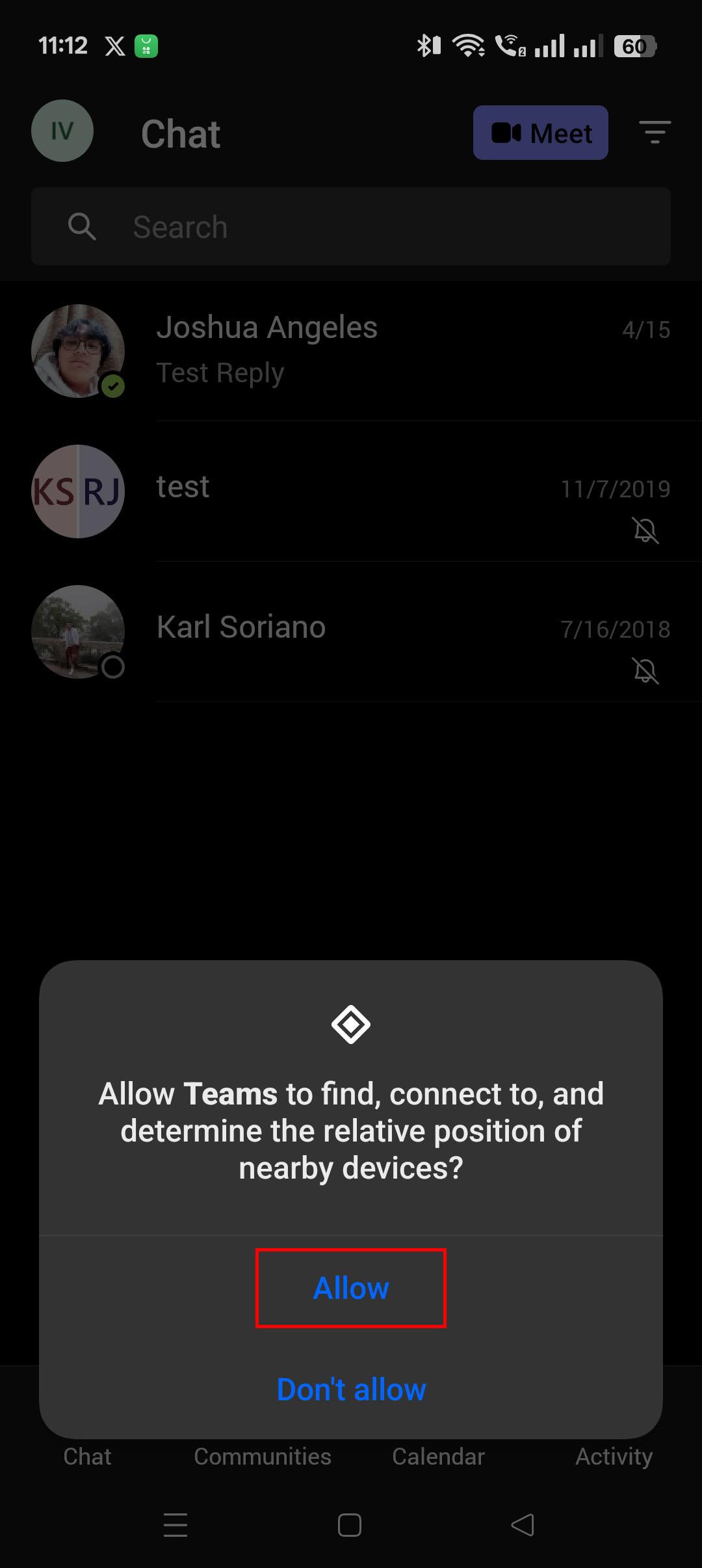
17. Microsoft Teams might ask you for permissions regarding location, storage, mic, images, speaker, etc. It's fine to allow these permissions. Press "Allow" to the requests.
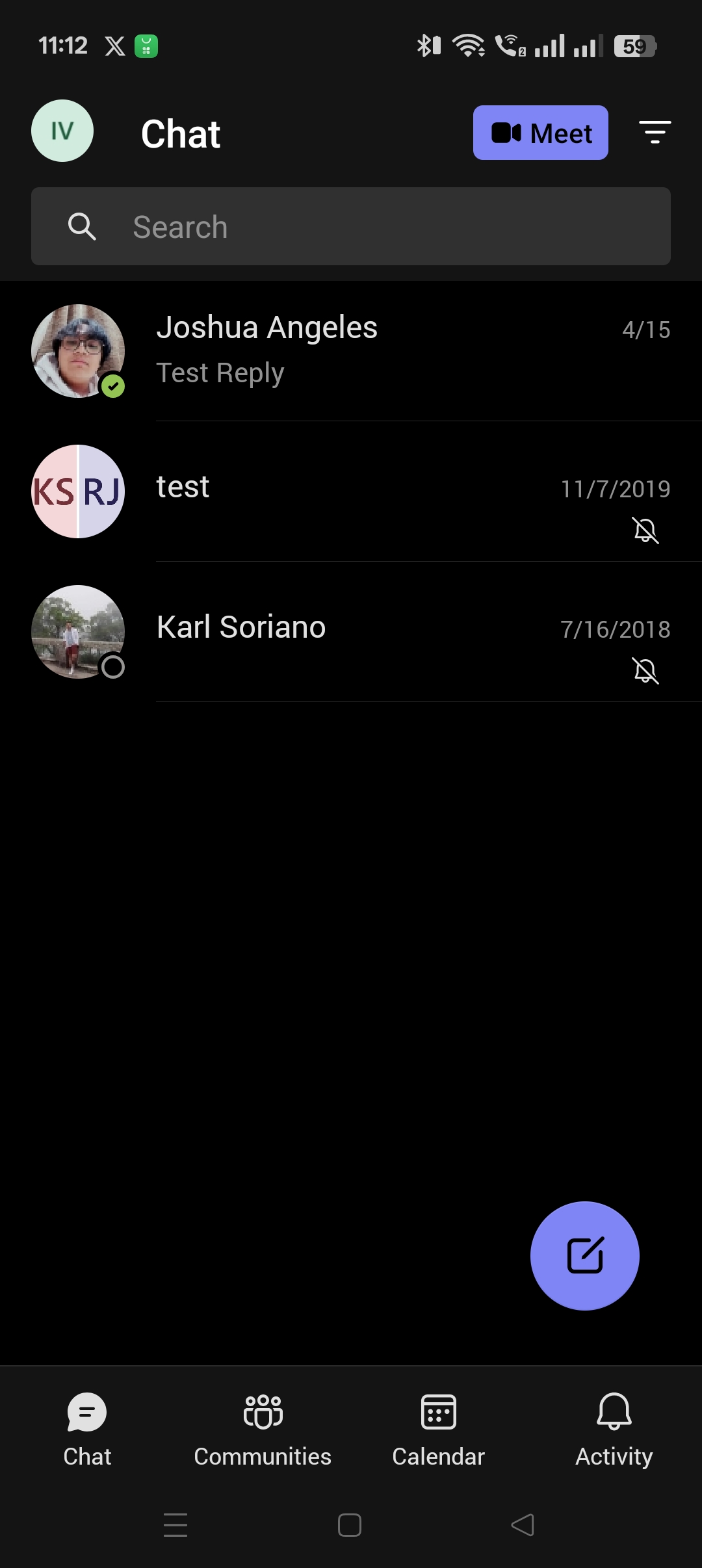
17. You're all set. Congratulations. Welcome to Teams!
Comments