Changing Product, Service, and Delivery Prices
Joshua Angeles
Posted at July 28, 2025 11:07 am. Last updated at August 04, 2025 01:08 pm
Here's what to update and how to update for a successful price change.
I. Creating Spreadsheets for Products, Services and Deliveries.
- There are two spreadsheets I made: 250630 Product Pricing.xlsx and 250630 Service Pricing.xlsx
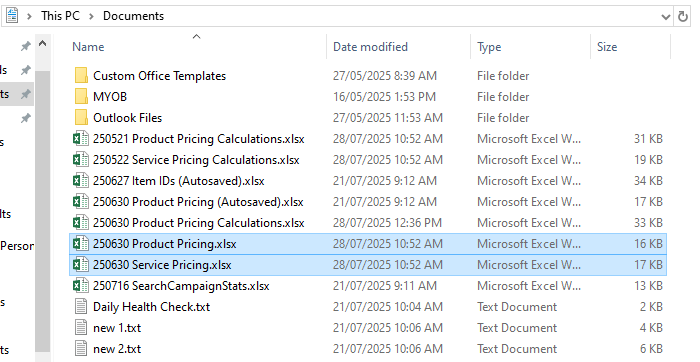
- Check "This PC/Documents" or "Z:\Australian Waste Management\Reference Material\AWM" for the .xlsx files.
- Copy the files and rename with current date (YYMMDD). Open the files to check the content. I'll walk you through each file. Starting with Product Pricing.
- Product Pricing
- The Product Pricing.xlsx is a listing of all the products and their IDs that we are actively selling and keeping in stock.
- There are three (3) columns used. Item Number, Item Name, and Current Price.
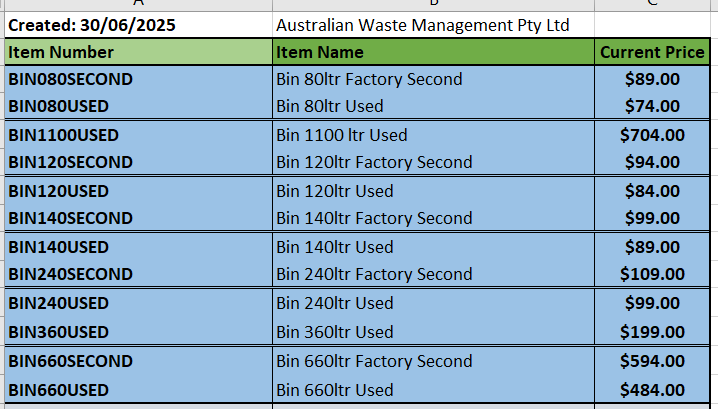
- Item Number is the ID of the product that is used in MYOB, AWM-Manage, and AWM site.
- Item Name is the listed name of the product in MYOB, AWM-Manage, and AWM site.
- Current Price is the listed price of the product in MYOB, AWM-Manage, and AWM site.
- To update the current price. Find and access the Product Pricing Calculations.xlsx, the file can be found in the same directory of the other files.
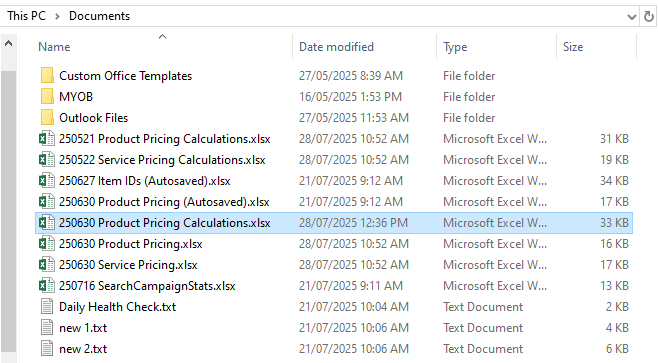
- Once located, copy the file and paste it in the same directory. Change the filename via editing the date - YY/MM/DD. Do not edit the file as is, for sake of time keeping.
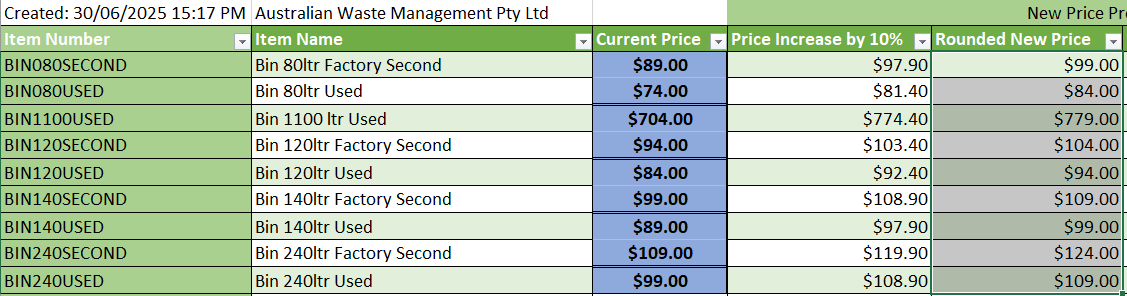
- After making a copy, time to edit your file. The file has eight (8) columns. Item Number, Item Name, Current Price, Price Increase by 10%, Rounded New Price, Difference, Percent Increase, and More than 10%?.

- Item Number, Item Name, and Current Price function same as their roles in Product Pricing. Note: Current Price in the image are the previous prices (2024 prices) before the update.
- Input the data of the Current Price column of Product Pricing inside the Current Price column of Product Pricing Calculations.

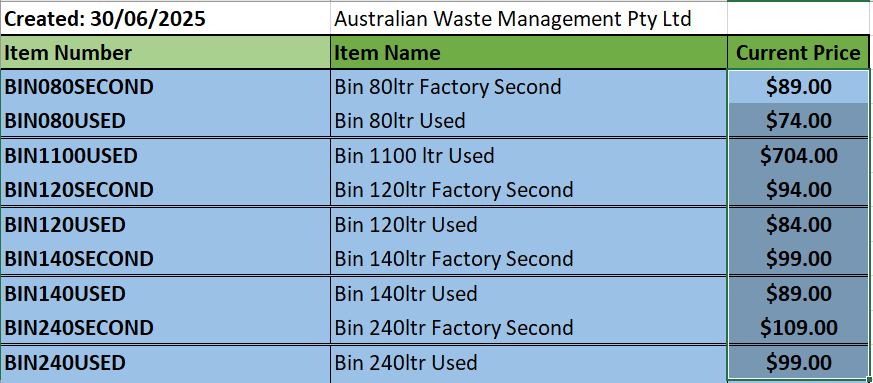

- We usually aim for a 10% price increase then rounding to nearest 4 or 9 while respecting the 10% increase.
- Price Increase by 10% automatically increases the data of Current Price by 10%.
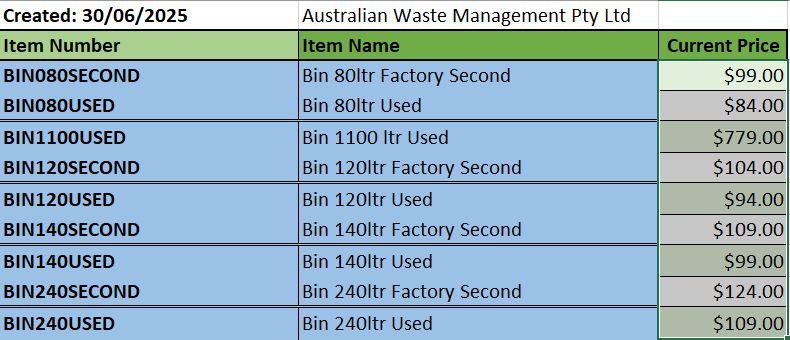
- Rounded New Price rounds the data of Price Increase by 10% to the nearest 4 or 9 while respecting the 10% increase. EX: $77.00 -> $84.70 -> $89.00. Rounded New Price is now the price you will use.
- Difference shows the numerical increase from Current Price to Rounded New Price.
- Percent Increase is the increase in percentage from Current Price to Rounded New Price.
- More than 10%? is to check if the data on Percent Increase is more than 10%. This is to manually check for any errors or such.
- After the calculations, use the prices of Rounded New Price and input it to the Current Price column of Product Pricing.
- You're now done with creating a spreadsheet of the new prices for the products. Let's move to Service Pricing.
Note: I recommend following the color coding of the files as is but if you have a better system then you are welcome to change it.
- Service Pricing
- The Service Pricing.xlsx is a listing of all the services and delivery fees, along with their IDs that we are actively providing.
- There are three (3) columns used. Service Type, Size, Code, Annual Fees for Morning and Day Collections, Approximate Number of Collections, and Effective Cost Per Collection.
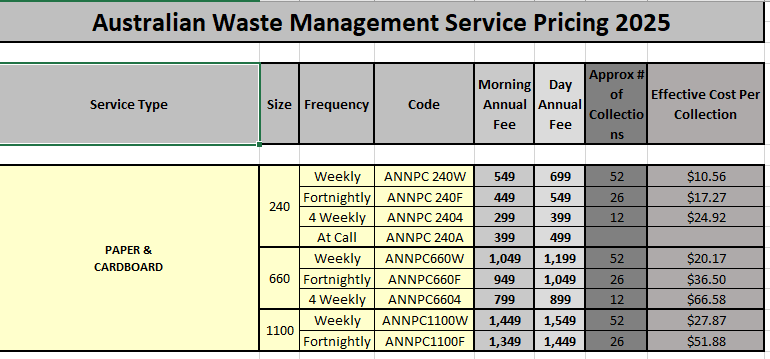
- Service Type is the service we offer and provide.
- Size is the range of containers for the collection.
- Frequency is how often the collection would be done; weekly, fortnightly, 4 weekly, and at call.
- Code is the ID of the service/product in MYOB, AWM-Manage, and AWM site.
- Annual Fees for Morning and Day is how much the service would cost depending on which option was chosen: Morning or Day.
Note: Not all services have these only a select few (Paper & Cardboard, Commingle Recycling, General Waste, and Document Destruction). Hence, the bold lettering.
The other services/delivery prices uses "Effective Cost Per Collection" for their prices. - Approx # of Collections is a variable from either the transport/sales/director - best not to edit this unless instructed or during an audit.
- Effective Cost Per Collection is as its namesake does, cost per collection. Primarily used by services and delivery with no annual fees as their de facto prices.
- To update the current price. Find and access the Service Pricing Calculations.xlsx, the file can be found in the same directory of the other files.
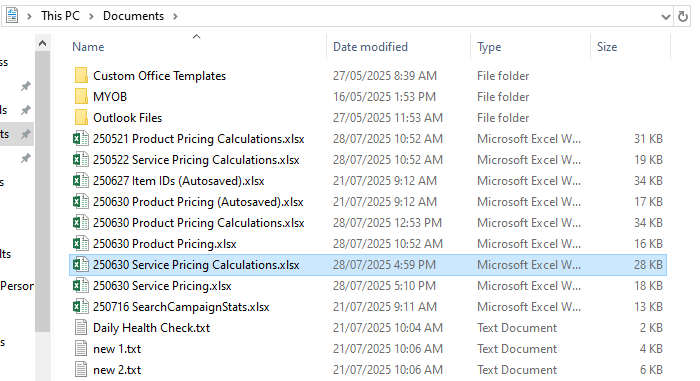
- Once located, copy the file and paste it in the same directory. Change the filename via editing the date - YY/MM/DD. Do not edit the file as is, for sake of time keeping.
- After making a copy, time to edit your file. There are additional columns but do not be alarmed. They are all automated.
You only need to know is there are 2 tables of calculations: one is for the services that use annual fees, the other is for the services and delivery fees that only use cost per collection.
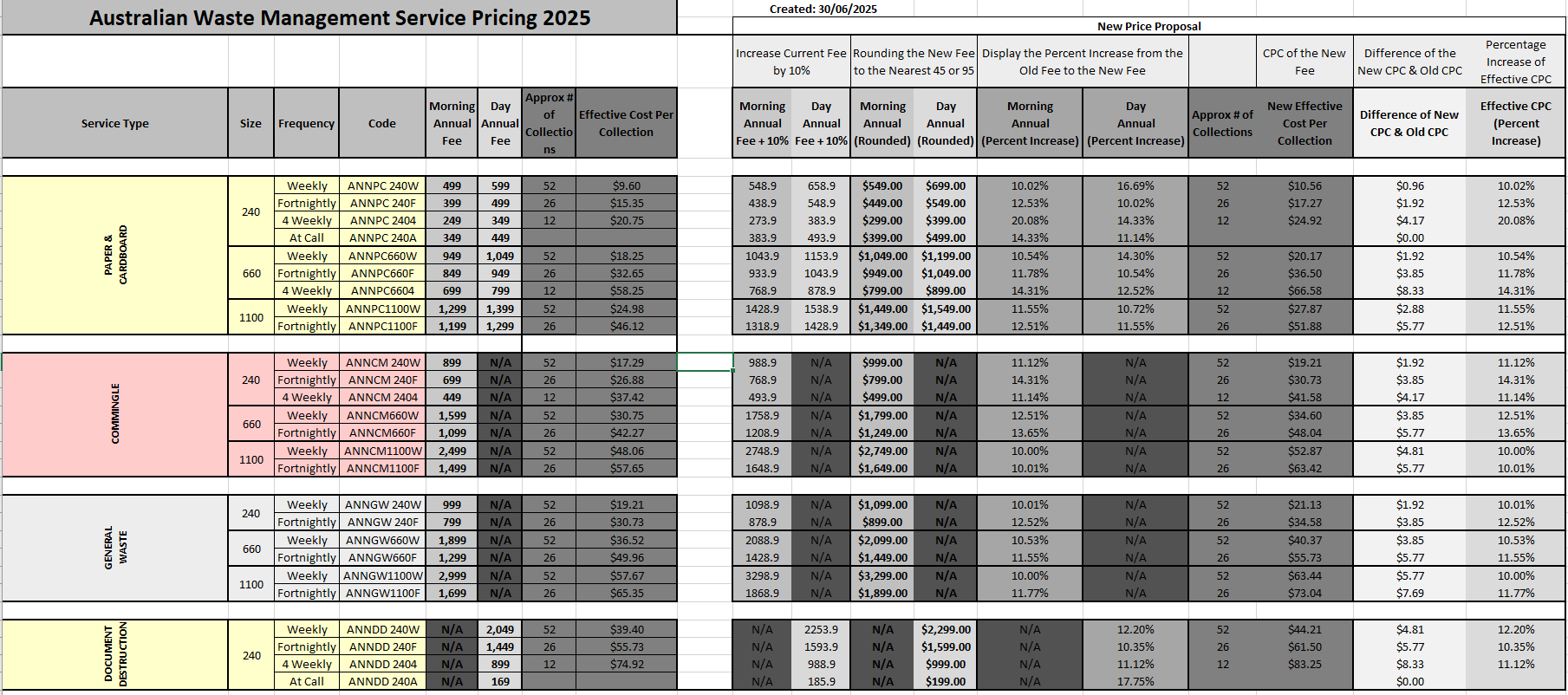
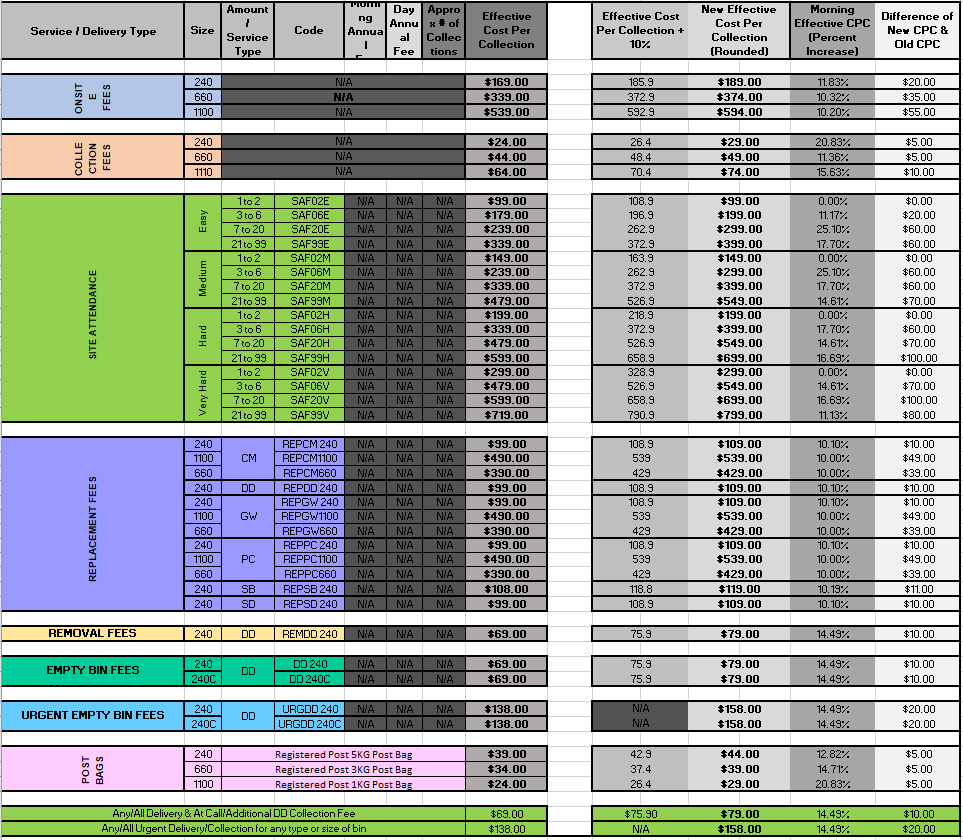
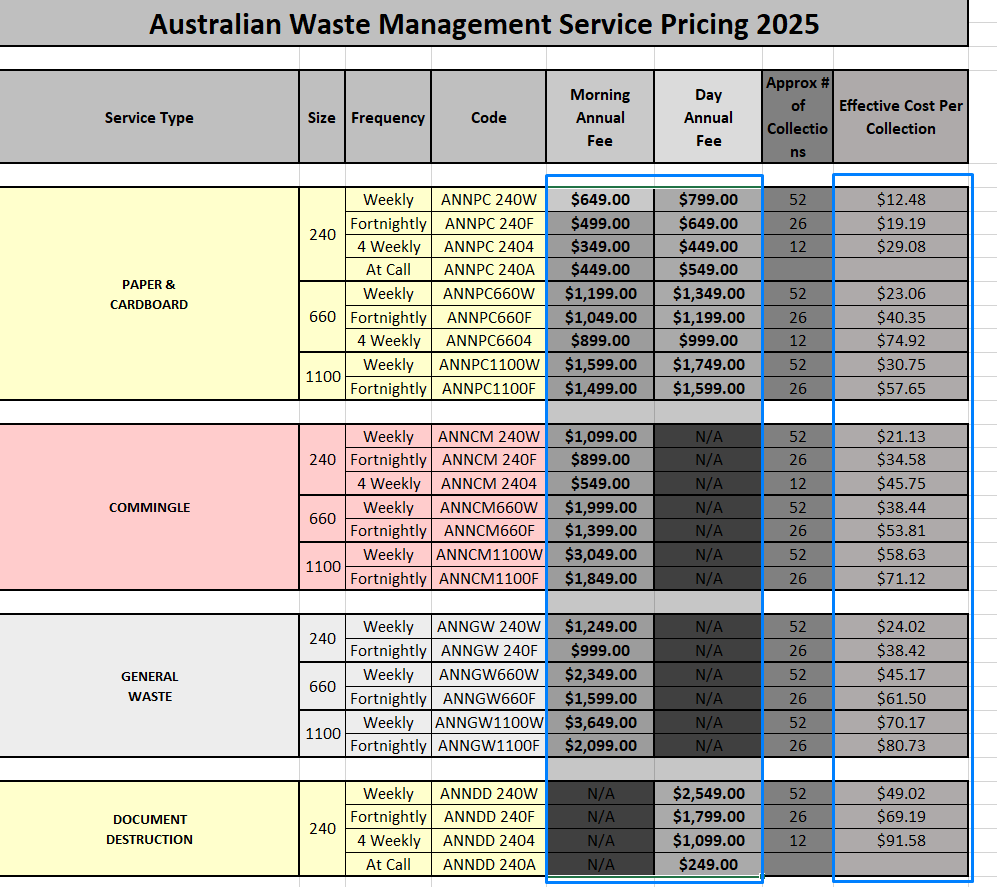
- Morning Annual Fee, Day Annual Fee, and Effective Cost Per Collection in the images are the previous prices (2024 prices) before the update.
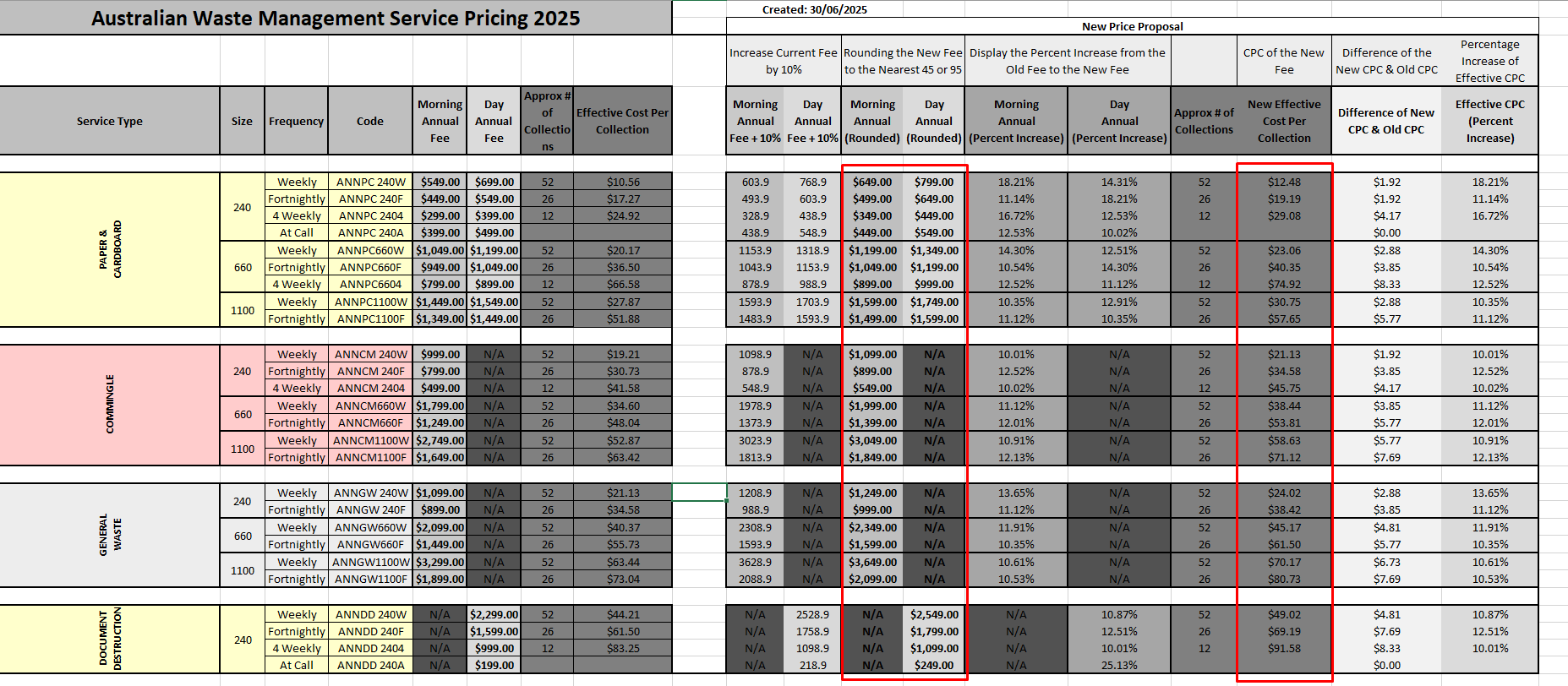
- Let's start first with the left image, the table that uses the Annual Fees. Input the data of the Morning Annual Fee, Day Annual Fee, and Effective Cost Per Collection columns of Service Pricing inside the Morning Annual Fee, Day Annual Fee, and Effective Cost Per Collection columns of Service Pricing Calculations. You only need the data from those columns.
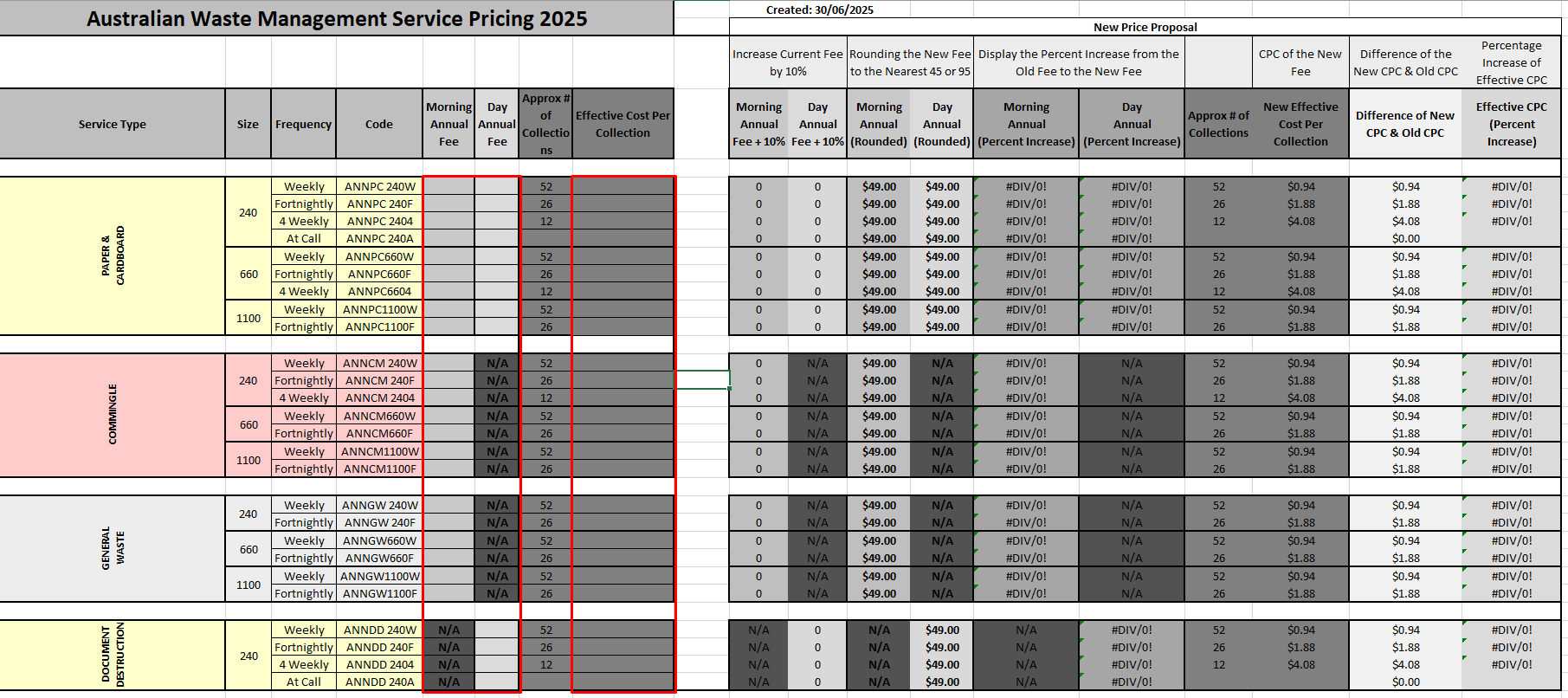
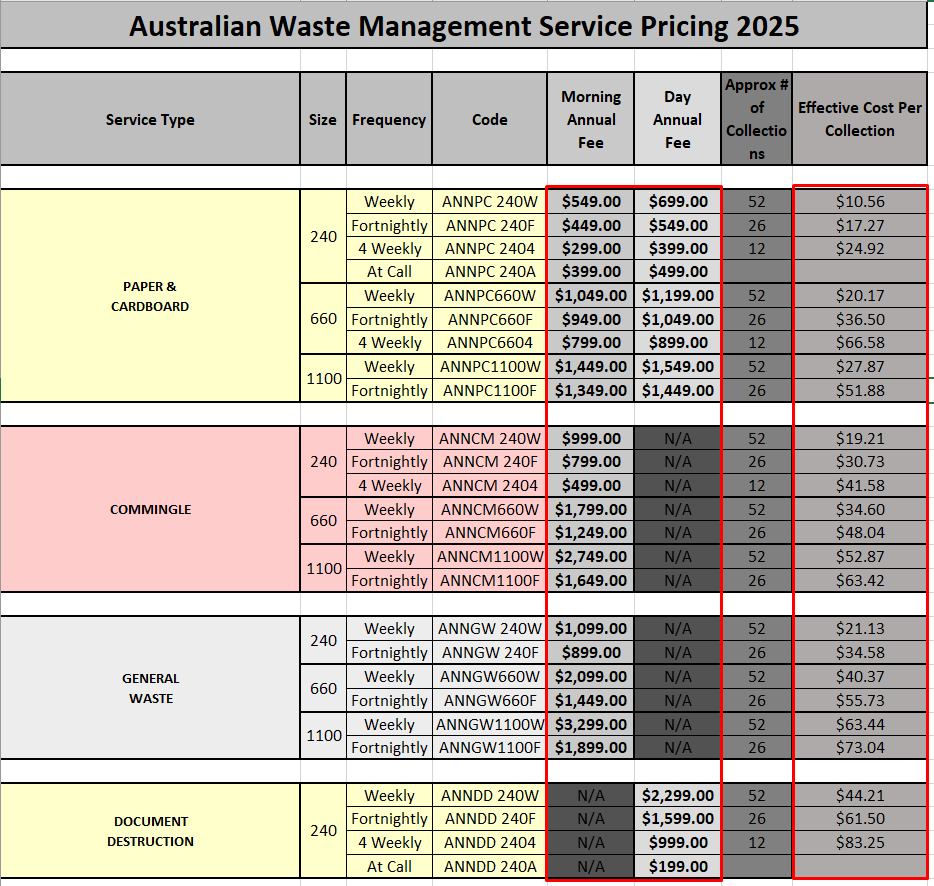
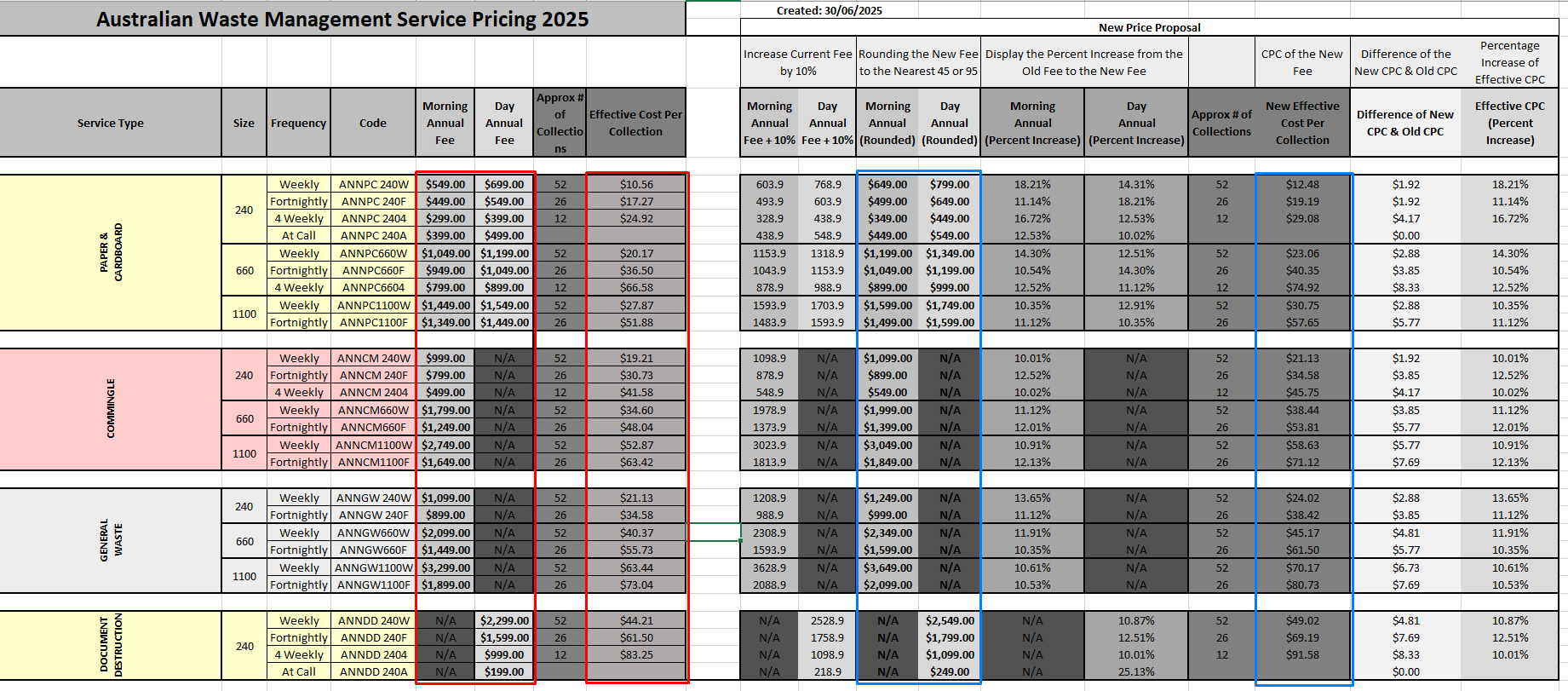
- We usually aim for a 10% price increase then rounding to nearest (49 or 99 or (4 or 9), while respecting the 10% increase.
Note: Paper & Cardboard, Commingle Recycling, General Waste, Document Destruction, and Site Attendance round to nearest 49 or 99. The other fees round to nearest 4 or 9.
Unless instructed otherwise. - Annual Fee + 10% automatically increases the data of the two Annual Fees (Morning and Day) by 10%.
- Annual Rounded rounds the data of Annual Fee + 10% (both Morning and Day) to the nearest 49 or 99 while respecting the 10% increase.
EX: $549.00 -> 603.00 -> $649.00. Morning Annual (Rounded), Day Annual (Rounded), and New Effective Cost Per Collection are now the prices you will use. - Difference shows the numerical increase from Current Price to Rounded New Price.
- Percent Increase is the increase in percentage from Current Price to Rounded New Price.
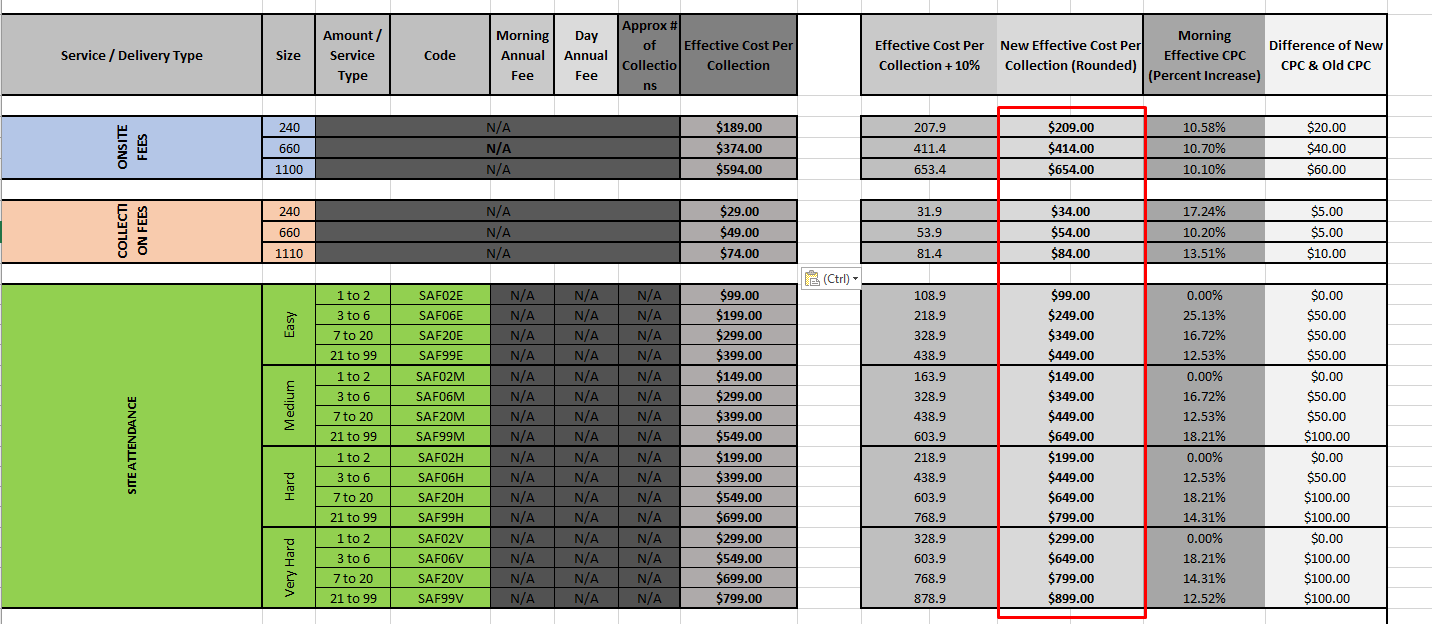
- Moving on to the next table, the one that uses Effective Cost Per Collection. Input the data of the Effective Cost Per Collection column of Service Pricing inside the Effective Cost Per Collection column of Service Pricing Calculations.
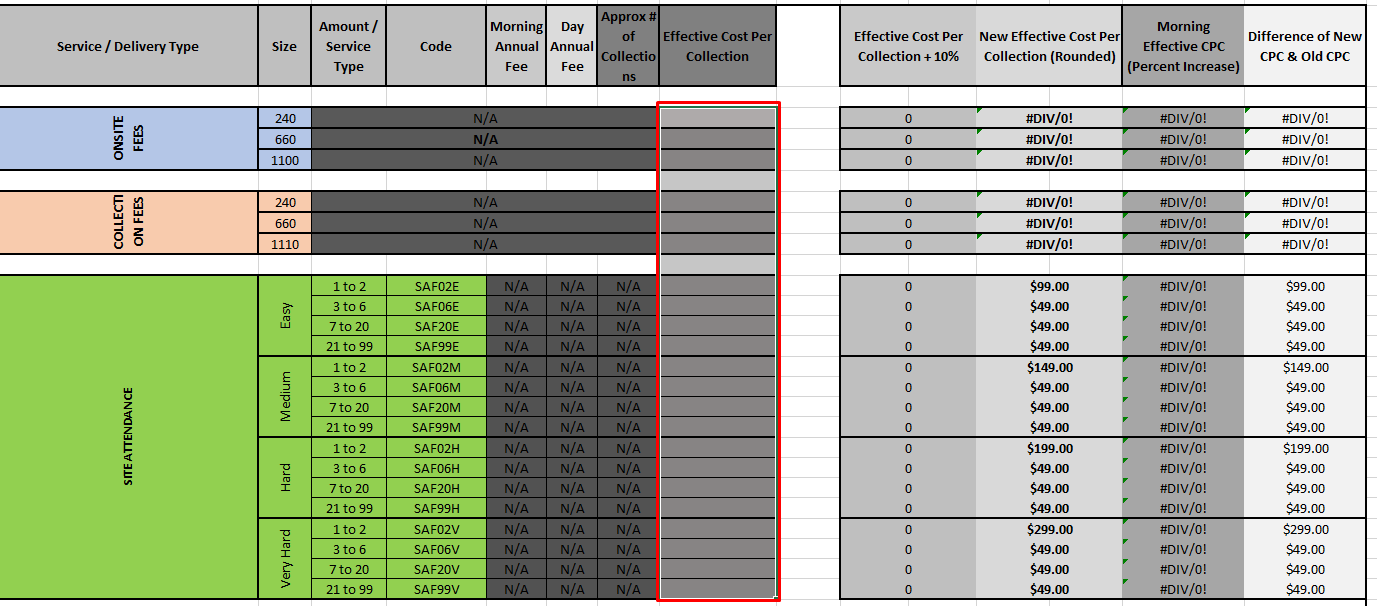
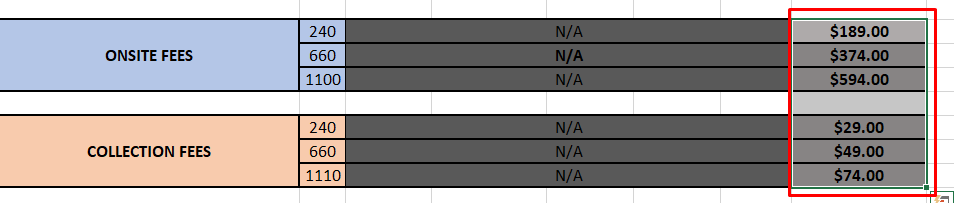
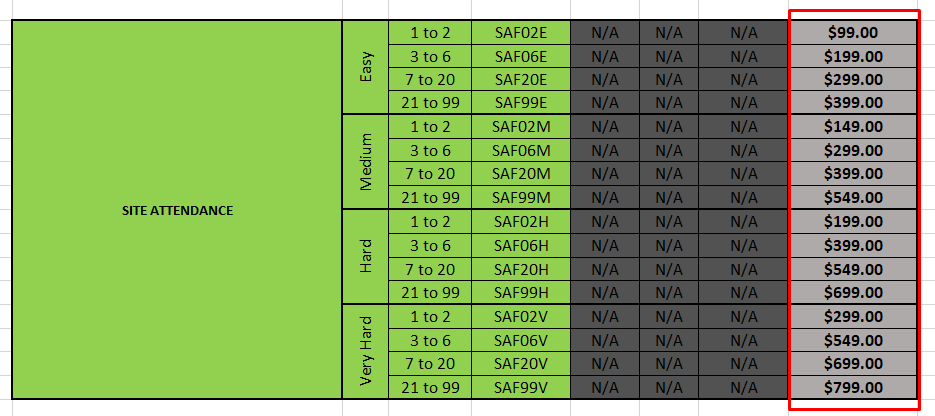
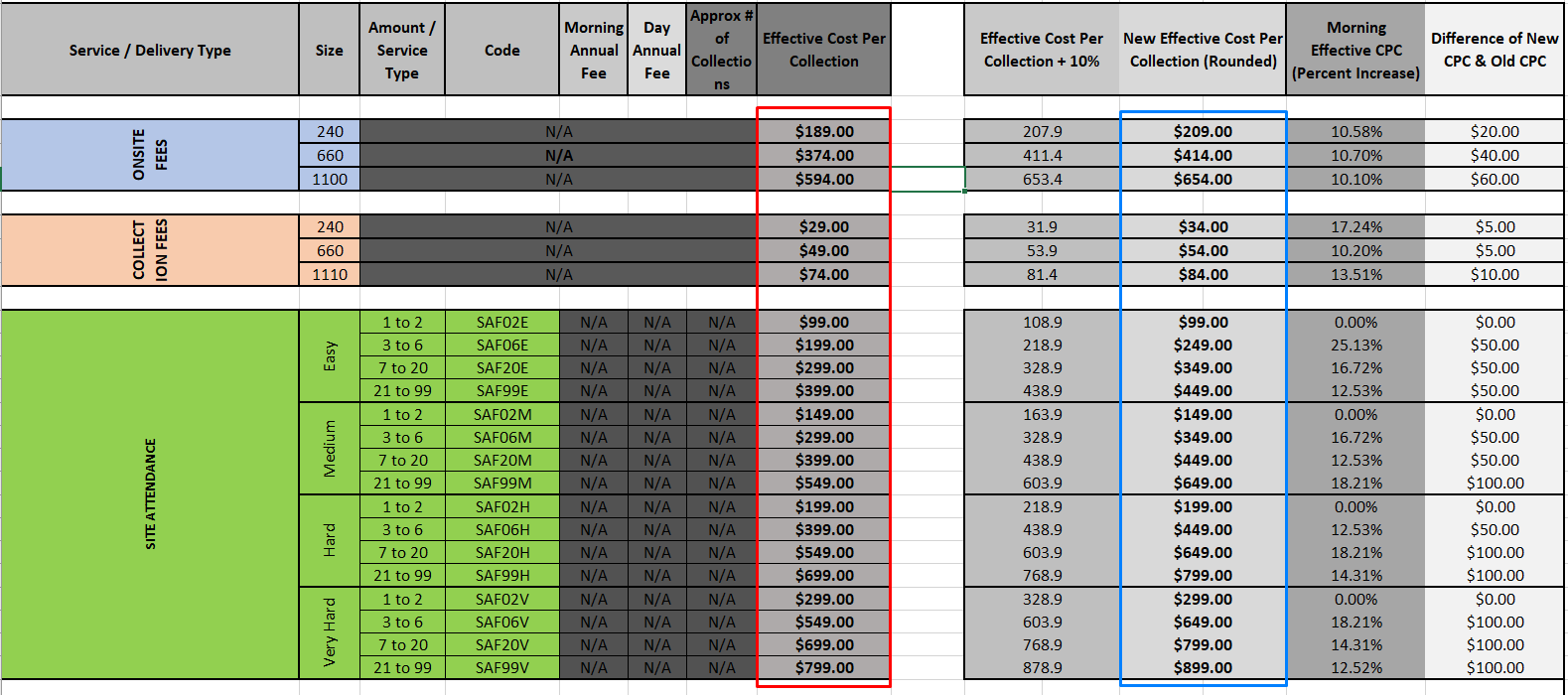
- We usually aim for a 10% price increase then rounding to nearest (49 or 99 or (4 or 9), while respecting the 10% increase.
Note: Paper & Cardboard, Commingle Recycling, General Waste, Document Destruction, and Site Attendance round to nearest 49 or 99. The other fees round to nearest 4 or 9.
Unless instructed otherwise. - Effective Cost Per Collection + 10% automatically increases the data of Effective Cost Per Collection by 10%.
- New Effective Cost Per Collection (Rounded) rounds the data of Effective Cost Per Collection + 10% to the nearest 4 or 9 while respecting the 10% increase.
EX: $189.00 -> 207.90 -> $209.00. New Effective Cost Per Collection (Rounded) is now the prices you will use. - Difference shows the numerical increase from Current Price to Rounded New Price.
- Percent Increase is the increase in percentage from Current Price to Rounded New Price.
- After the calculations, use the new prices of Morning Annual (Rounded), Day Annual (Rounded), and New Effective Cost Per Collection. Input these to their corresponding column in Service Pricing.

- You're now done with creating a spreadsheet of the new prices for the products.
Note: I recommend following the color coding of the files as is but if you have a better system then you are welcome to change it.
- Product Pricing
II. Updating MYOB, AWM-Manage, & AWM Site Lists.
- MYOB is accessed via the MYOB AccountRight application on your computer. AWM-Manage (http://awm-manage.austwaste.org/admin/) is accessed via browser. AWM Site Lists can only be accessed by the ITs as the pricings are manually changed in the code. We'll start first with AWM Site Lists.
- AWM Site Lists
- Here is the list of files that you will need to access (or an IT to access):
- products.xml
- delivery.xml
- services.xml
- site_attendance.xml
- service_info.php
- siteattentance.js
- commingle-recycling-terms-details.tpl
- document-destruction-collections-terms-details.tpl
- general-waste-collection-terms-details.tpl
- paper-cardboard-recycling-terms-details.tpl
- commingle-recycling.v2.tpl
- document-destruction-collections.v2.tpl
- general-waste-collection.v2.tpl
- paper-cardboard-recycling.v2.tpl
- document-destruction.tpl
- cart.tpl
- Before anything else, make sure to create a copy of the repository of the main repository on dev.azure and access your copy via your preferred IDE. This case, I am using VS Code.
- To access the files above, here are their directories.
- XML files are in awaste.com.au/book/data/
- PHP files are in awaste.com.au/inc/
- JS files are in awaste.com.au/scripts/
- TPL files are in awaste.com.au/template/services/split/ or awaste.com.au/template/services/ or awaste.com.au/template/order/services/
- For the XML files, you need to just find the item in their corresponding .xml file. Example is New Bin 80 Lltr Blue Complete W, which is a product.
- Grab its item number (NB080BL) and go to .products.xml. Note: New Wheelie Bins bought from our supplier are separate from their lids. Hence, two IDs - one for the bin, one for the lid. On the live site, however, we sell the complete bin (NBC***), but also the lids by themselves.
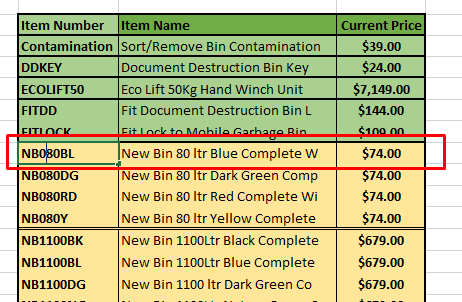
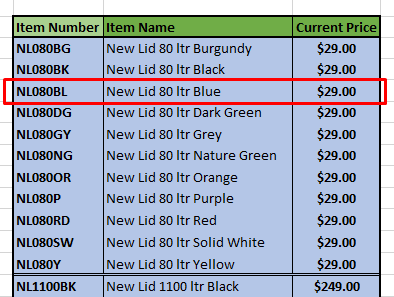
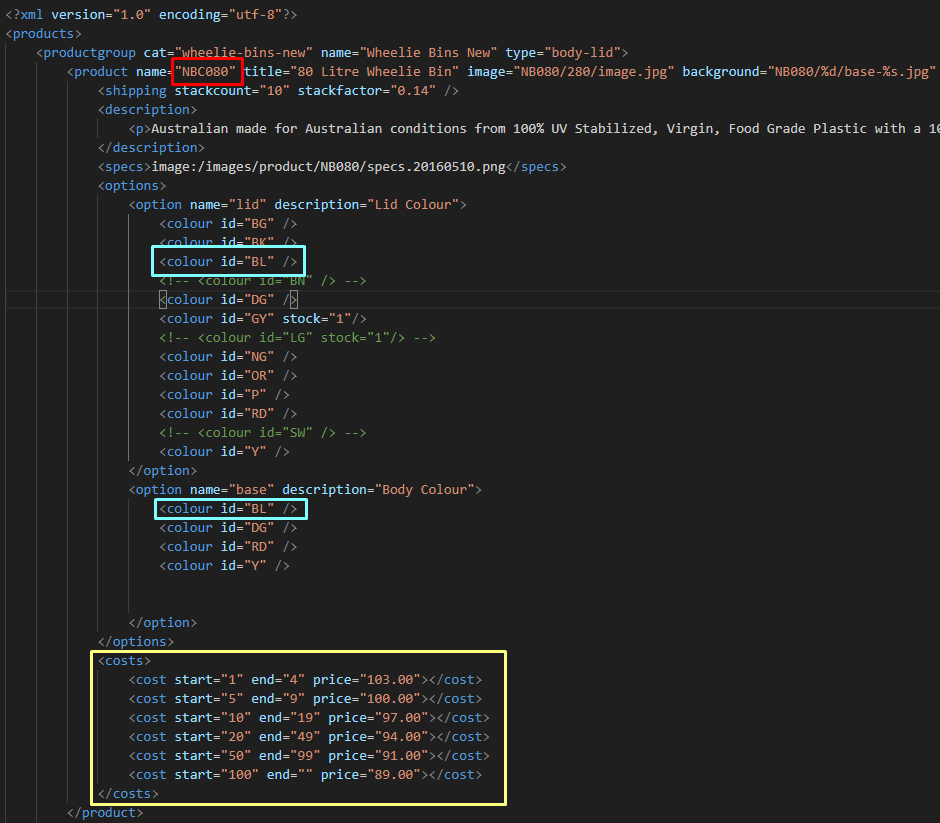
- On the products.xml there will be listings of items in their corresponding productgroups. Use Ctrl+F, to find the ID. In this case, we are looking for NBC080 - New Wheelie Bin Complete with Lid. The listing for NBC080 will display the color options for the lid and body. Deleting or Adding a color option is done here.
As we are doing price changes only, edit the costs section. As NBC080 adds NB080** and NL080**, add the two prices. Ex: $74 + $29 = $103.00.
Note: If there a discount depending on the amount, best to follow the discount rate or ask the director.
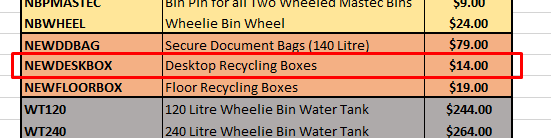
- Another example, Desktop Recycling Boxes. Its Item number is NEWDESKBOX.
Search the products.xml for the item number. Then change the price with your updated price.

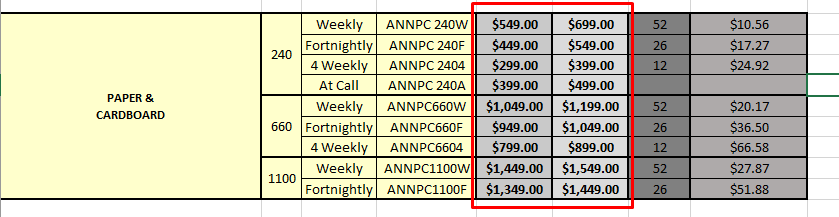
- Almost the same when changing the prices for services and delivery fees. In this example, it's updating the prices for Paper & Cardboard service. This service uses two Annual Fees so we will use these two. Go to services.xml.
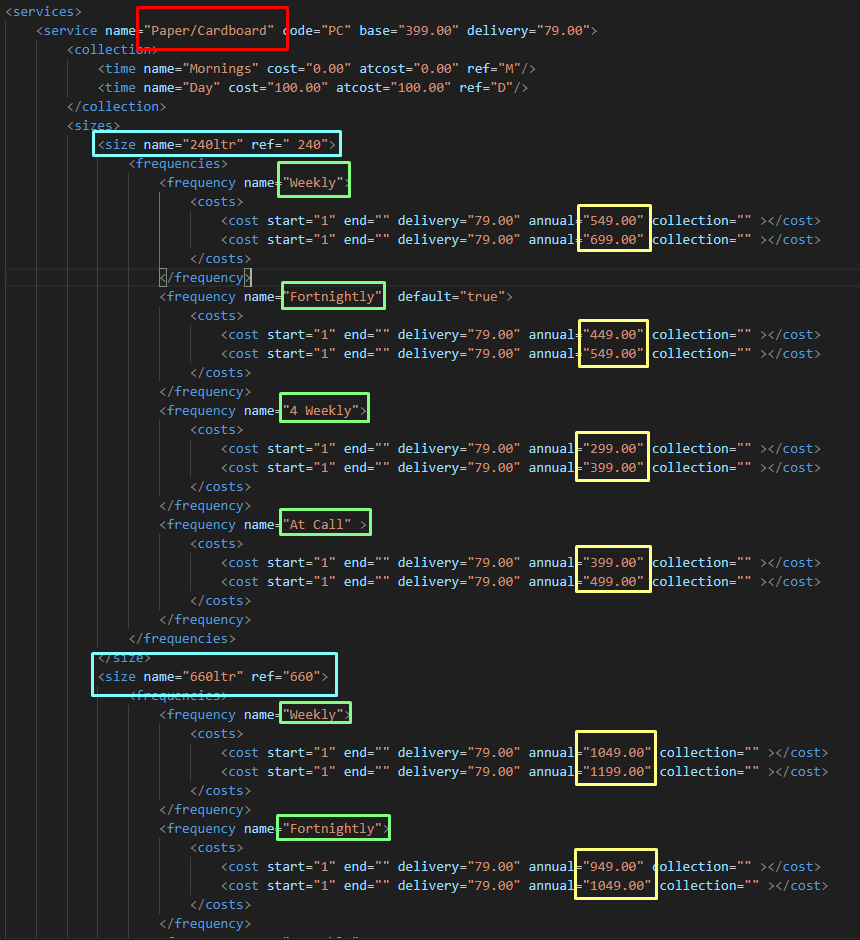
- On the services.xml there will be listings of items in their corresponding services. Use Ctrl+F, to find the name of the service. In this case, we are looking for Paper & Cardboard. The listing for Paper & Cardboard will display the sizing options, frequency of delivery, and there will be two costs (first one is for the Morning Annual Fee, second one is for the Day Annual Fee).
Edit the costs for the Morning Annual Fee and Day Annual Fee.
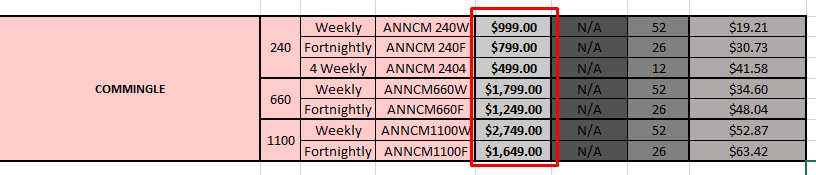
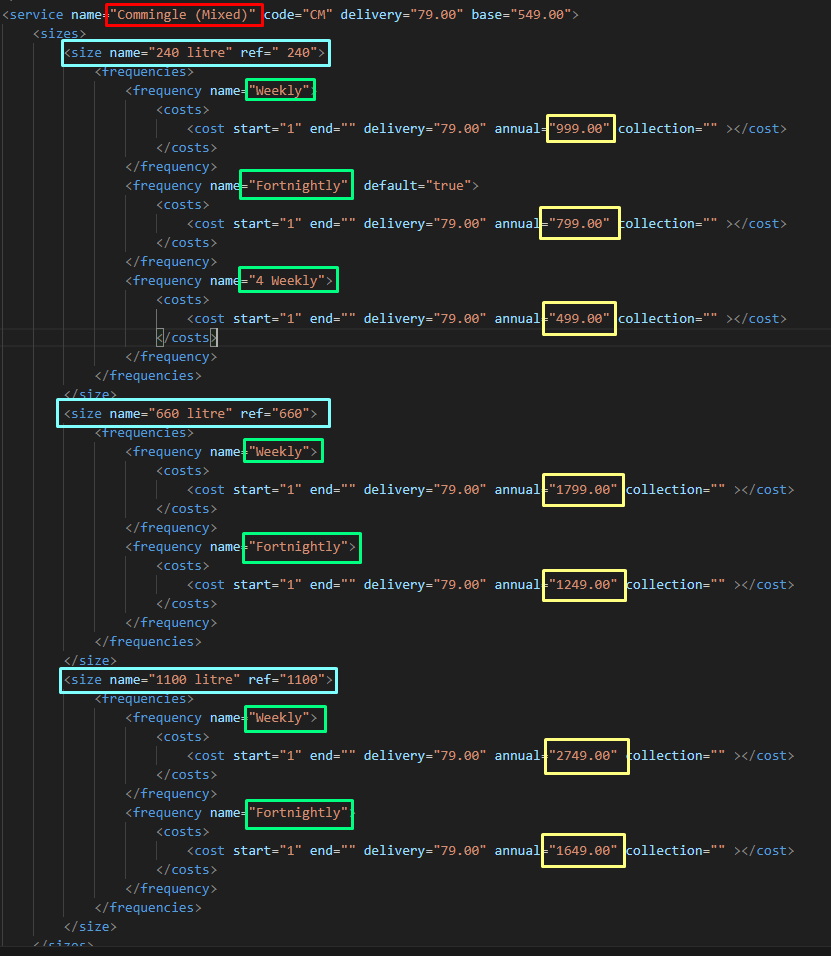
- Another example, Commingle Recycling. This service uses Annual Fees but only Morning.
It would display size options, frequency options, and a single cost as it only uses Morning Annual Fees.
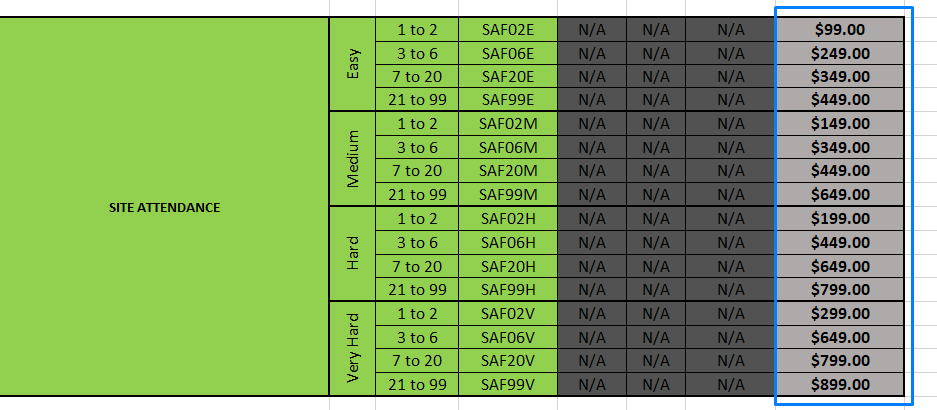
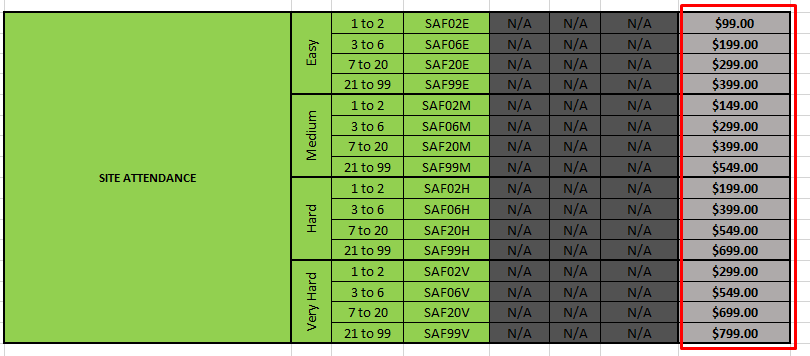
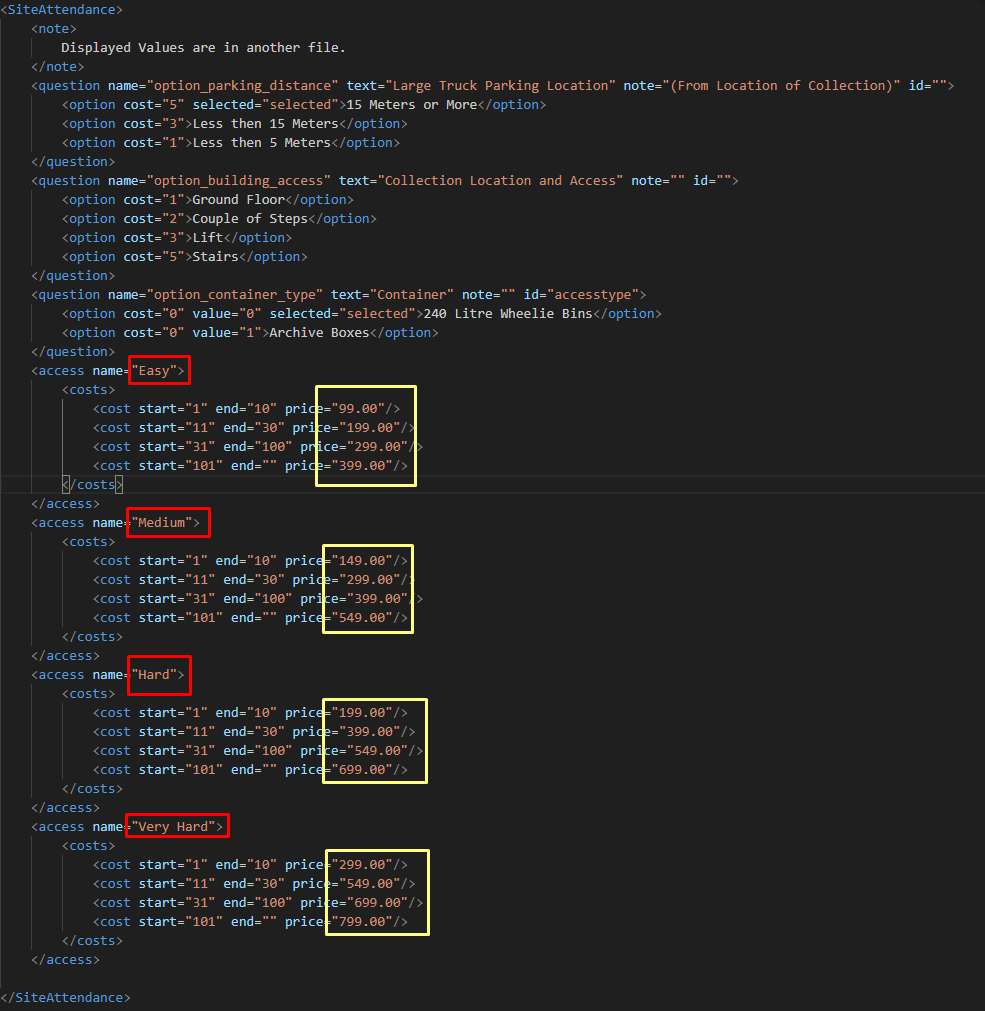
- Another example, Site Attendance Fees. This service uses Effective Cost Per Collection for its pricing. It uses the site_attendance.xml instead of services.xml.
The xml file will display size options and the costs. Edit the costs with your updated Effective Cost Per Collection.
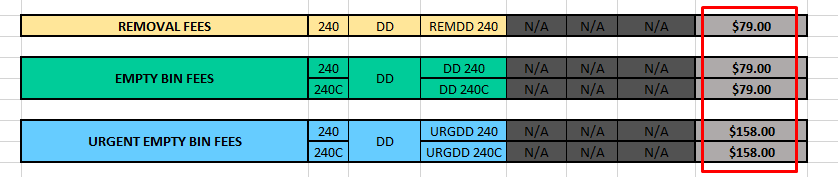
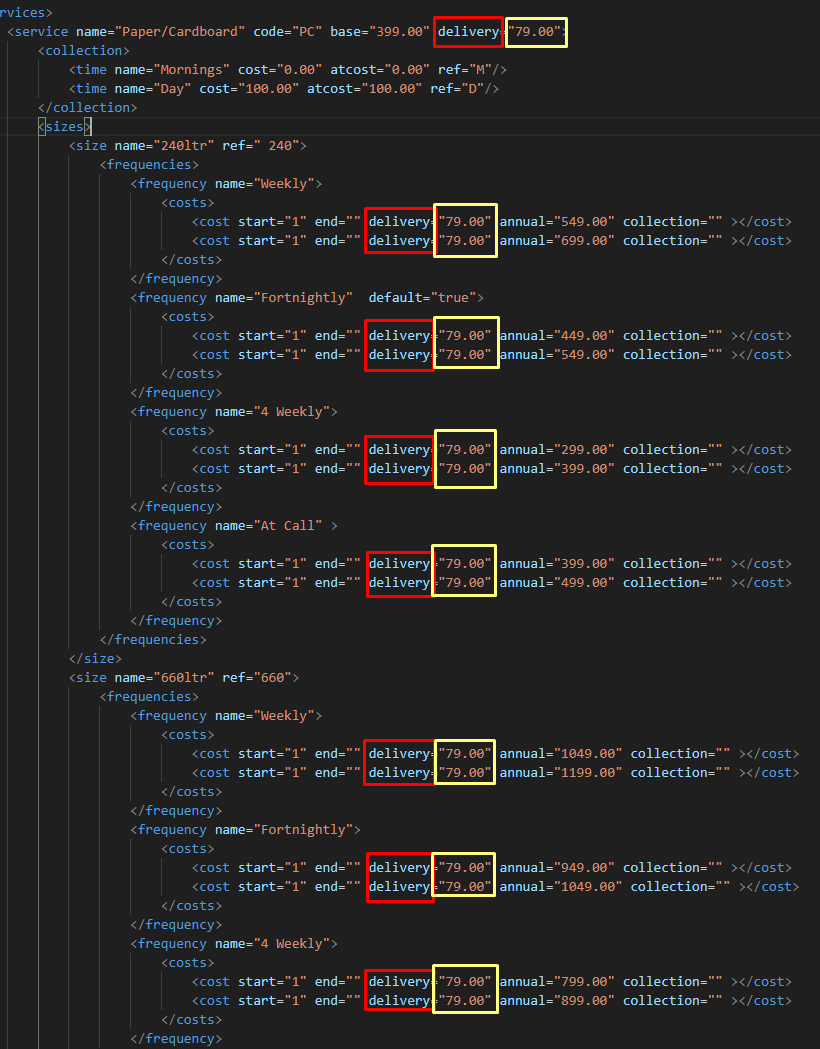
- Delivery. Removal, Empty Bin Fees are edited in delivery.xml and services.xml. They all share same prices and fall under Any/All Delivery & At Call/Additional DD Collection Fee.
Make sure to locate and edit the delivery tags with your new delivery pricing in the services.xml.
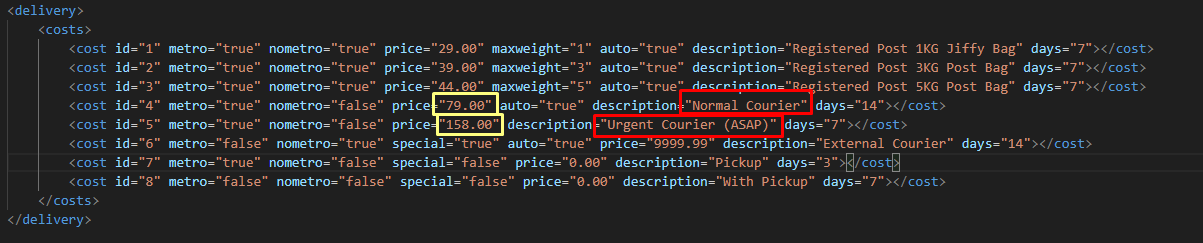
Normal Courier is for Any/All Delivery & At Call/Additional DD Collection Fee. Urgent Courier is for Any/All Urgent Delivery & At Call/Additional DD Collection Fee. Edit the price of both couriers with the updated pricing.

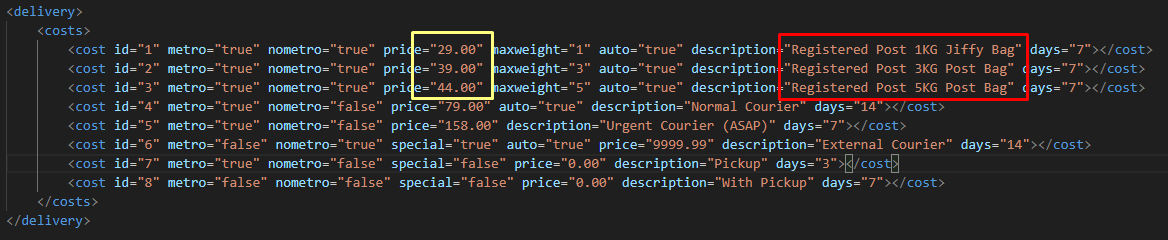
Post Bags are edited in delivery.xml Take your updated pricing and located the items in the xml file. Double check if item matches your pricing.

Replacement Fees are only applied in MYOB.
Onsite and Collection Fees are not changed in MYOB, AWM-Manage, and AWM Site Lists. - That's it for the xml files. Move on to php files.
- Grab its item number (NB080BL) and go to .products.xml. Note: New Wheelie Bins bought from our supplier are separate from their lids. Hence, two IDs - one for the bin, one for the lid. On the live site, however, we sell the complete bin (NBC***), but also the lids by themselves.
- For the PHP files, there is only service_info.php file to edit. Three lines of code to edit.
- Find and locate service_info.php. awaste.com.au/inc/service_info.php
- Locate:
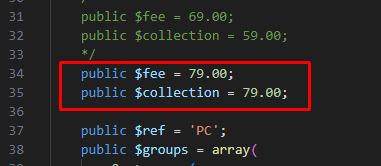
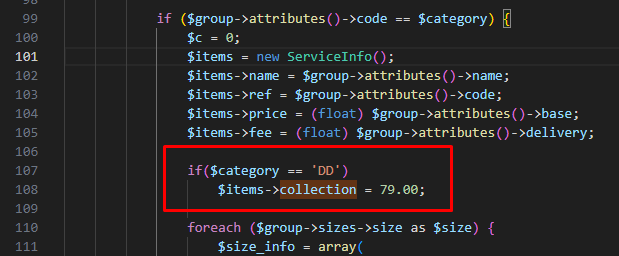
Change their values with the value of your updated price for Any/All Delivery & At Call/Additional DD Collection Fee. - That's it for the php files.
- For the JS files, there is only siteattentance.js file to edit. Three lines of code to edit.
- Find and locate siteattentance.js. awaste.com.au/scripts/siteattentance.js
- Locate:
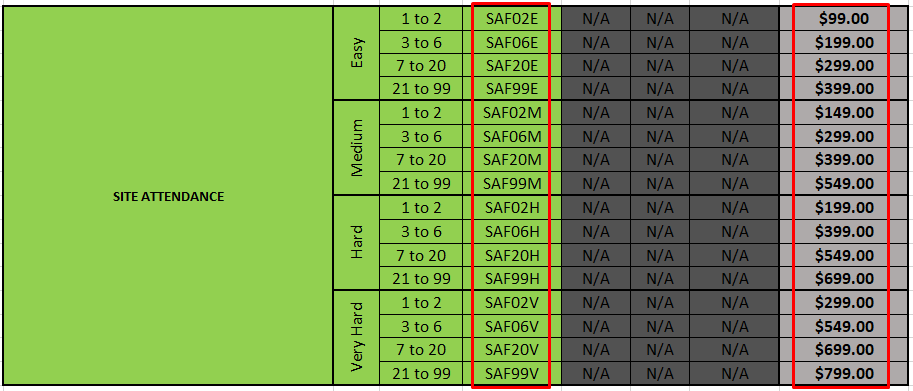
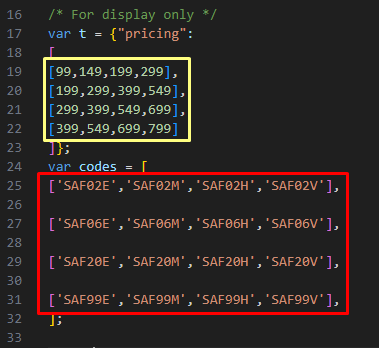
The green values in the yellow box are the prices. The orange texts are the item IDs of the prices.
Use the orange texts as a guide while editing the green values with your updated prices (Effective Cost Per Collection). - That's it for the js files.
- For the TPL files, there are nine (9) files to edit but only few lines to change per file.
- Find and locate:
- awaste.com.au/template/services/split/
commingle-recycling.v2.tpl
document-destruction-collections.v2.tpl
general-waste-collection.v2.tpl
paper-cardboard-recycling.v2.tpl - awaste.com.au/template/services/shared/
commingle-recycling-terms-details.tpl
document-destruction-collections-terms-details.tpl
general-waste-collection-terms-details.tpl
paper-cardboard-recycling-terms-details.tpl
- awaste.com.au/template/services/
document-destruction.tpl
- awaste.com.au/template/order/services/
cart.tpl
- awaste.com.au/template/services/split/
- Start editing.
- awaste.com.au/template/services/split/
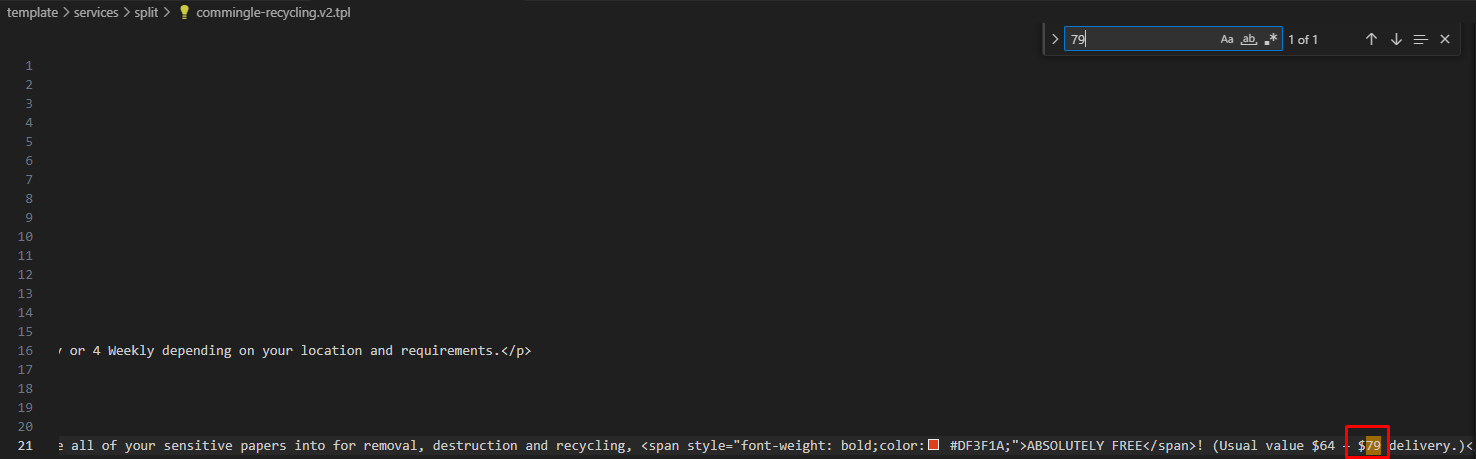
commingle-recycling.v2.tpl - edit the version (v=) with your current date. Use the Ctrl+F function to find the delivery price.
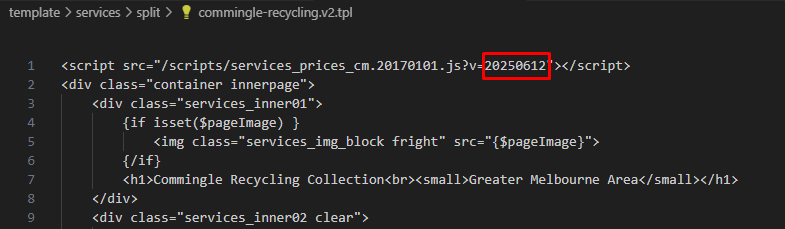
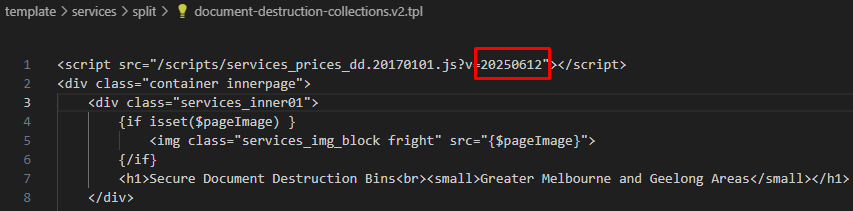
document-destruction-collections.v2.tpl - edit the version (v=) with your current date.
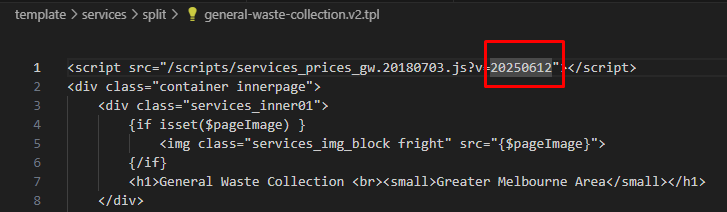
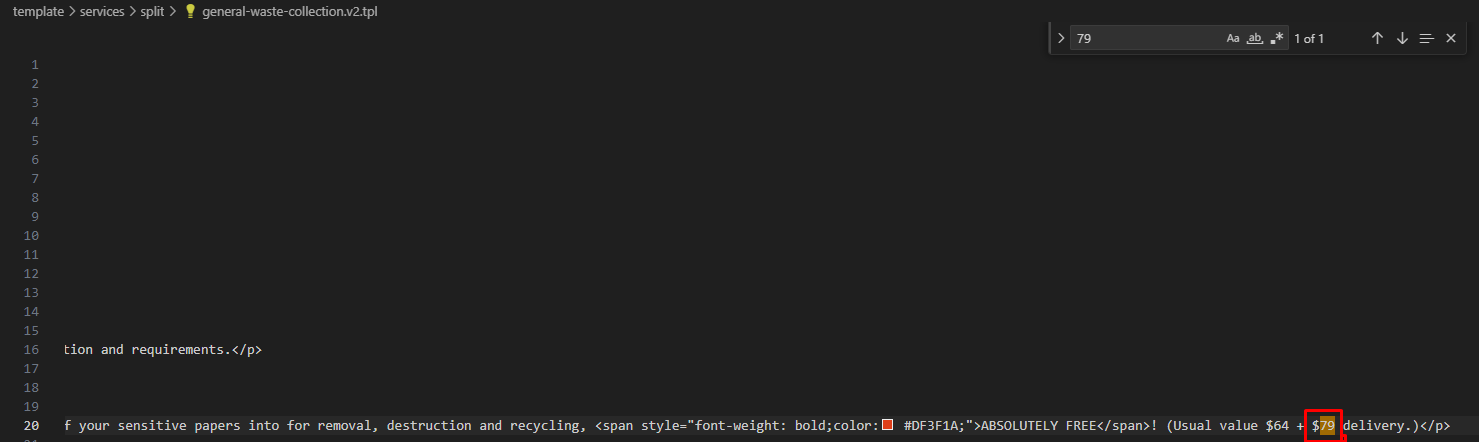
general-waste-collection.v2.tpl - edit the version (v=) with your current date. Use the Ctrl+F function to find the delivery price.
paper-cardboard-recycling.v2.tpl - edit the version (v=) with your current date. Use the Ctrl+F function to find the delivery price.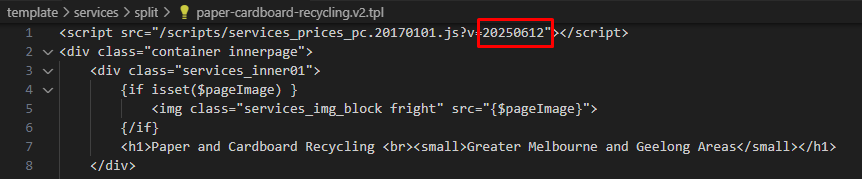
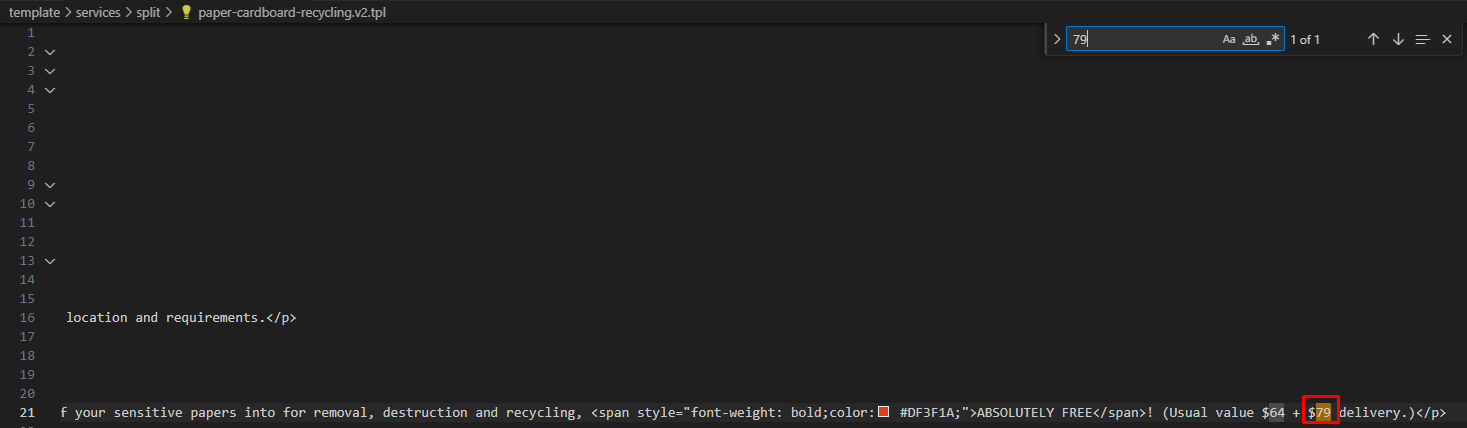
- awaste.com.au/template/services/shared/
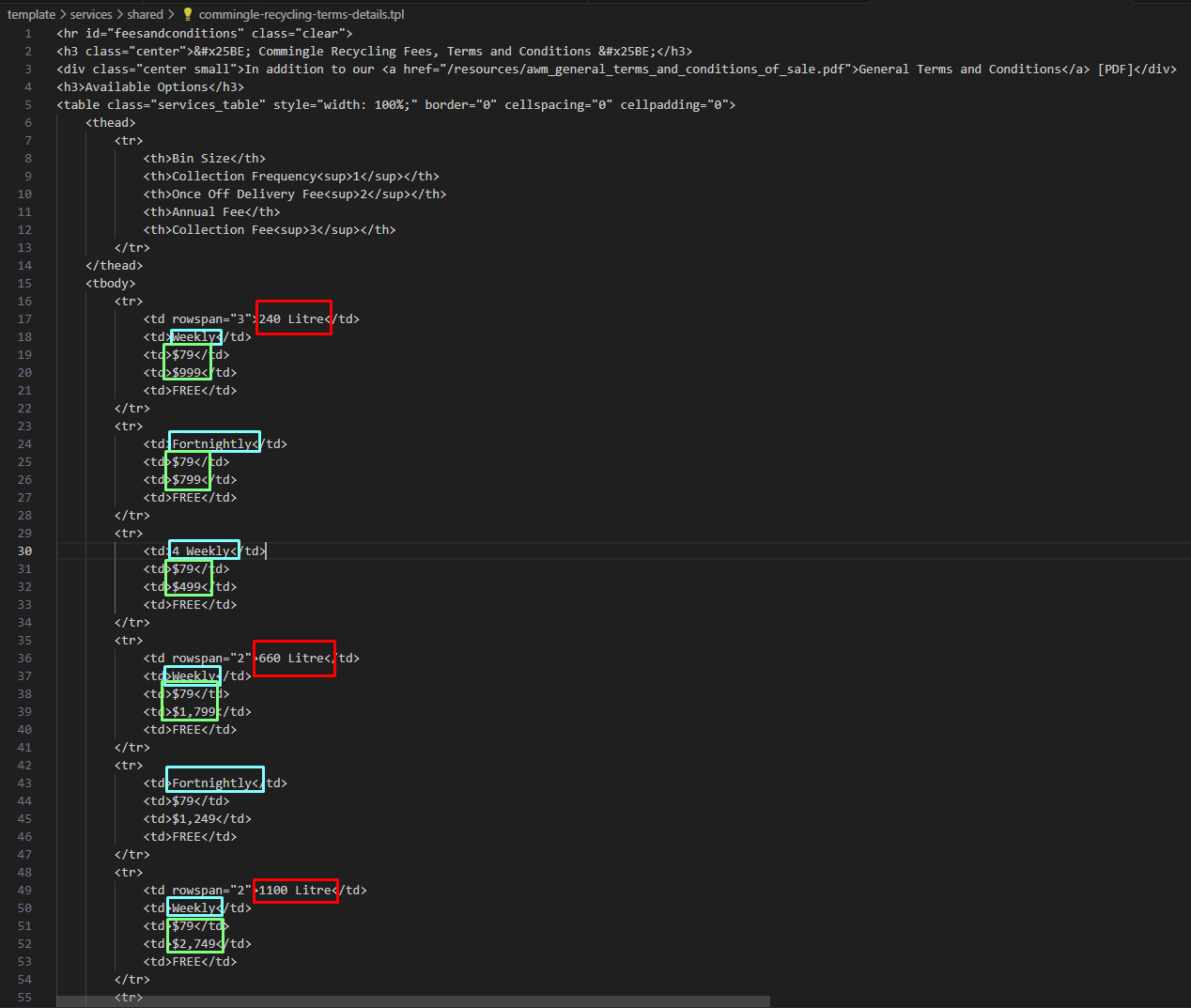
commingle-recycling-terms-details.tpl - this displays the table and its contents. Update the delivery price and service price with your new pricing.
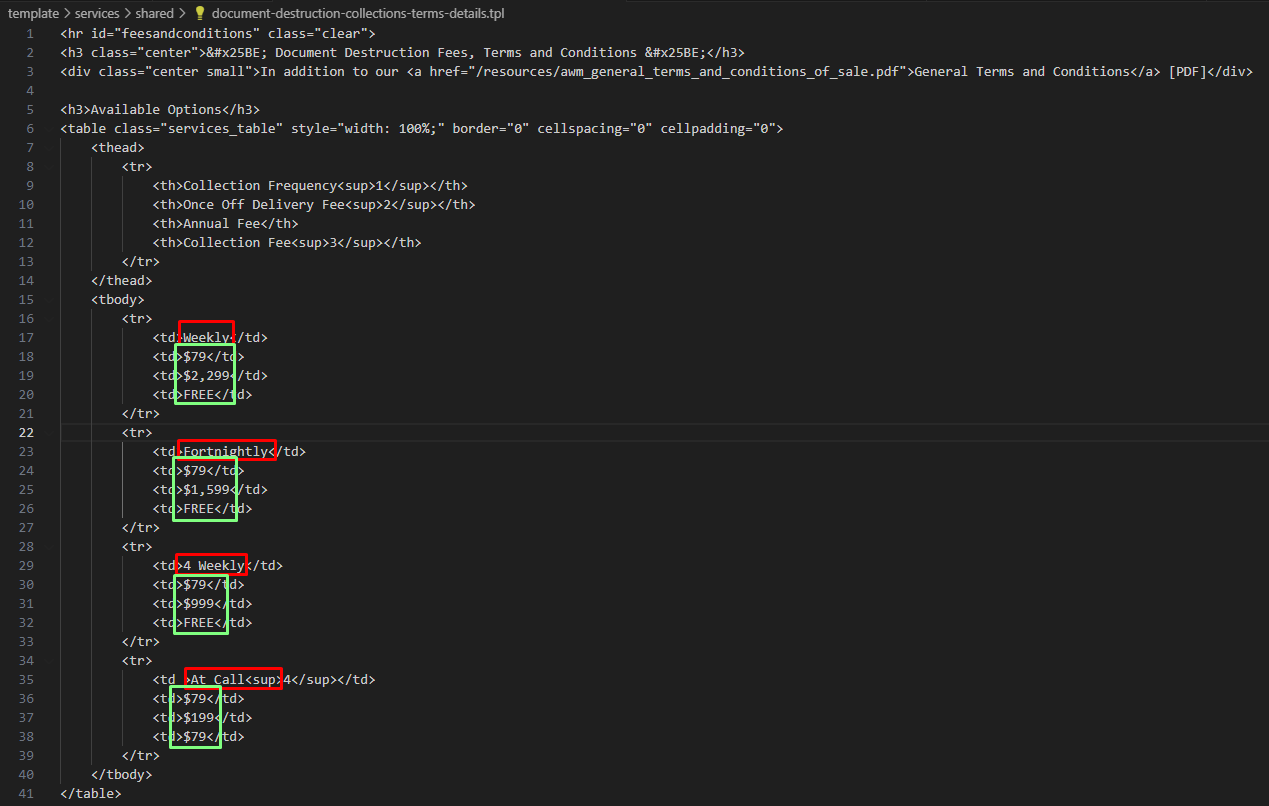
document-destruction-collections-terms-details.tpl - this displays the table and its contents. Update the delivery price and service price with your new pricing.
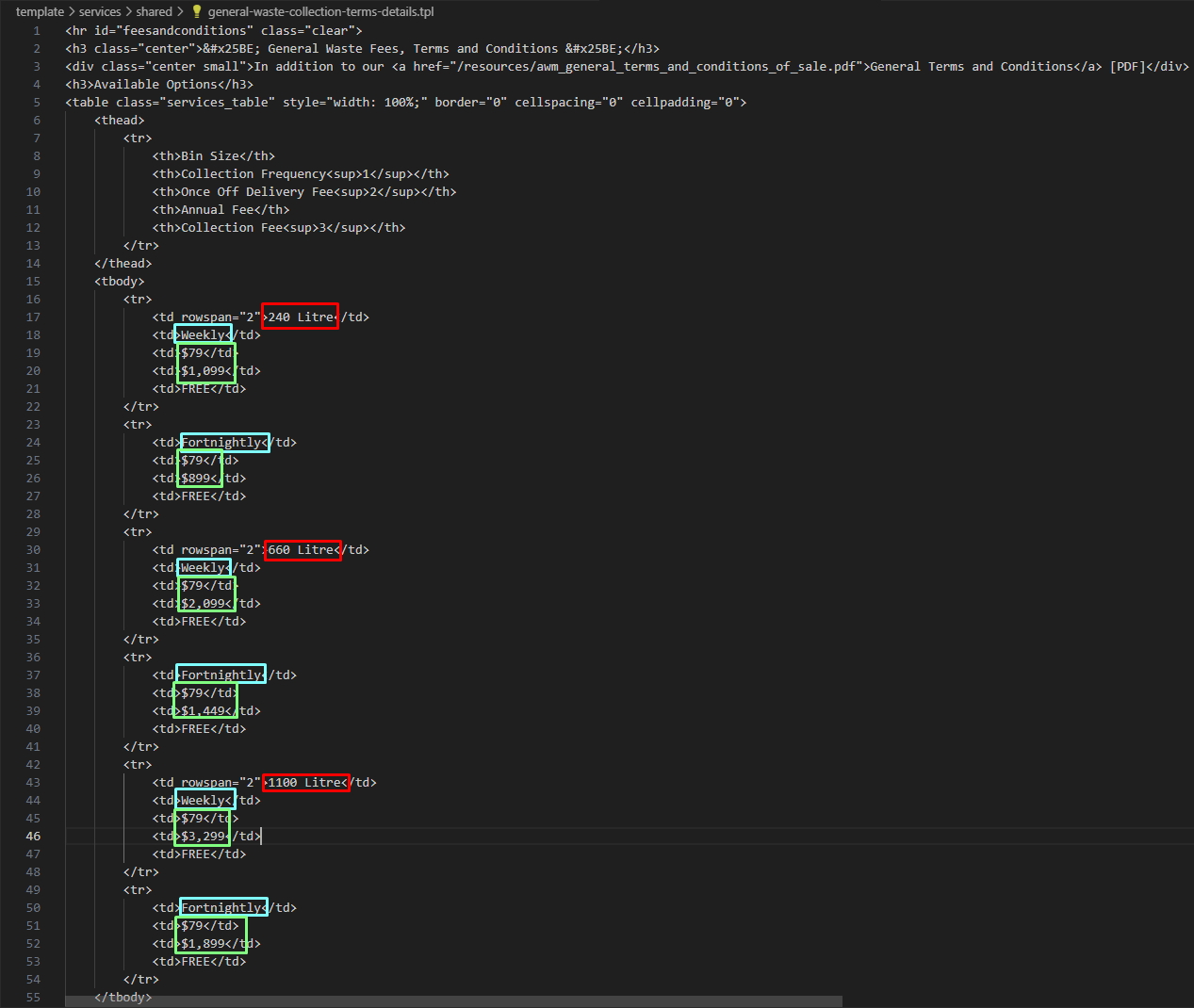
general-waste-collection-terms-details.tpl - this displays the table and its contents. Update the delivery price and service price with your new pricing.
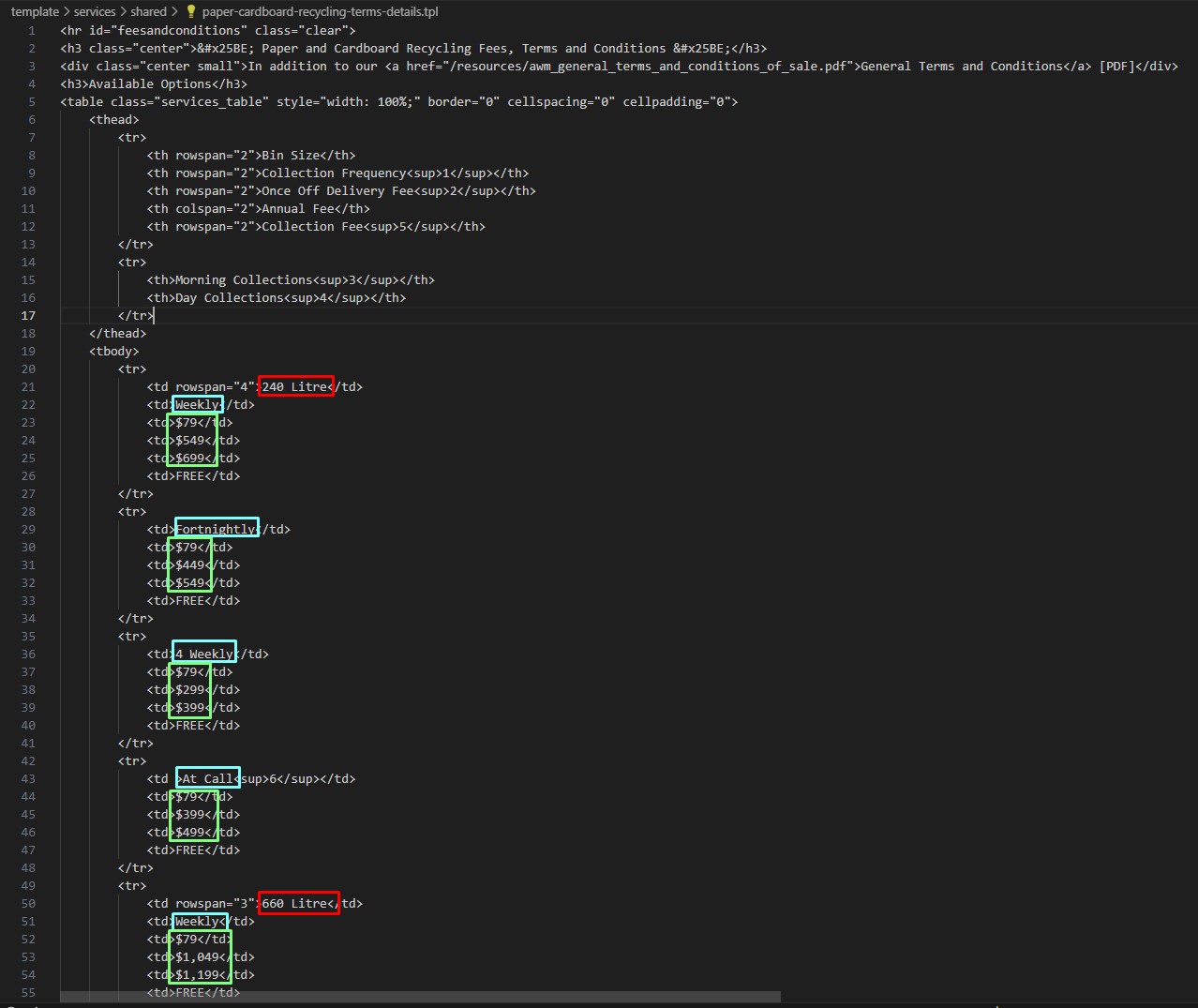
paper-cardboard-recycling-terms-details.tpl - this displays the table and its contents. Update the delivery price and service price with your new pricing.
- awaste.com.au/template/services/
document-destruction.tpl - Use the Ctrl+F function to find the delivery price and edit.

- awaste.com.au/template/order/services/
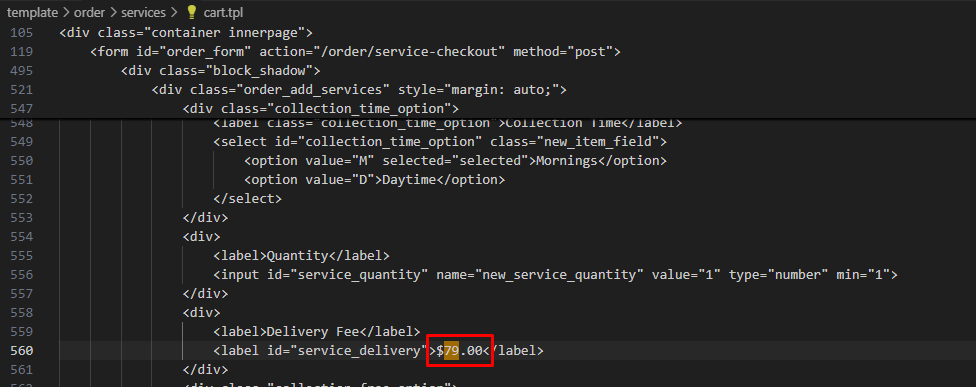
cart.tpl - Use the Ctrl+F function to find the delivery price and edit.
- awaste.com.au/template/services/split/
- That's it for the tpl files.
- Find and locate:
- Save your changes on your repository. Commit and Push. Write a Pull Request. Wait for Deployment.
- Here is the list of files that you will need to access (or an IT to access):
- AWM-Manage
- Go to http://awm-manage.austwaste.org/admin/ and access Edit deliverycost, and Edit product. Service pricings are not edited in AWM-Manage.
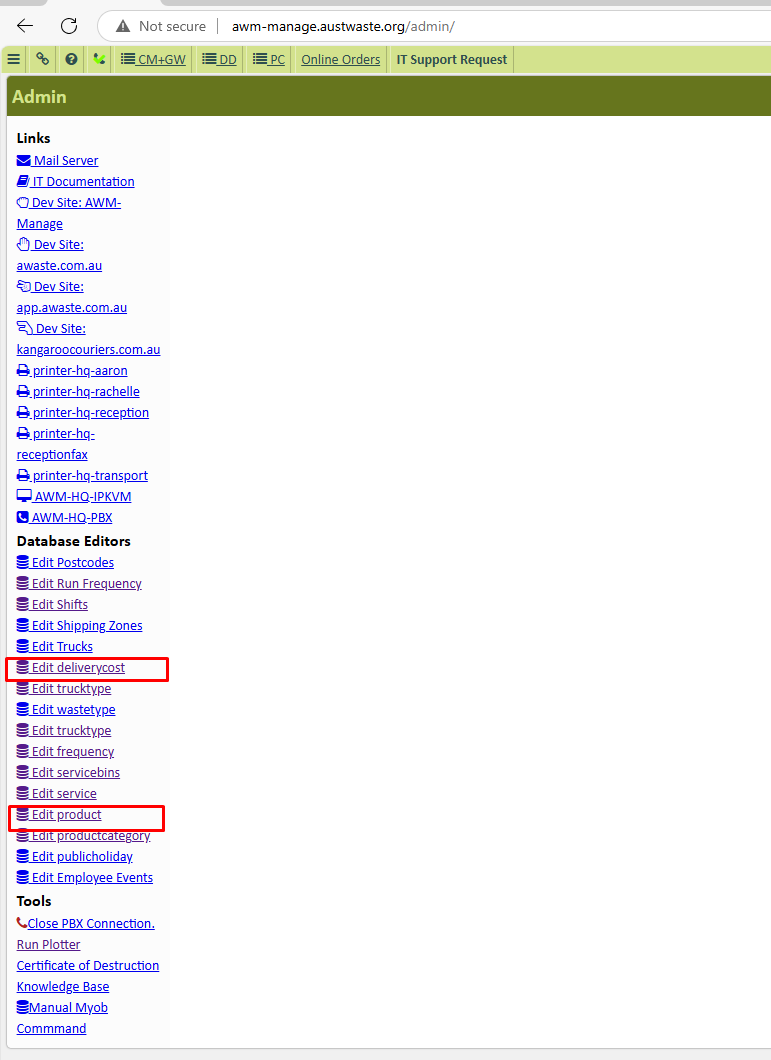
- Edit first Edit deliverycost.
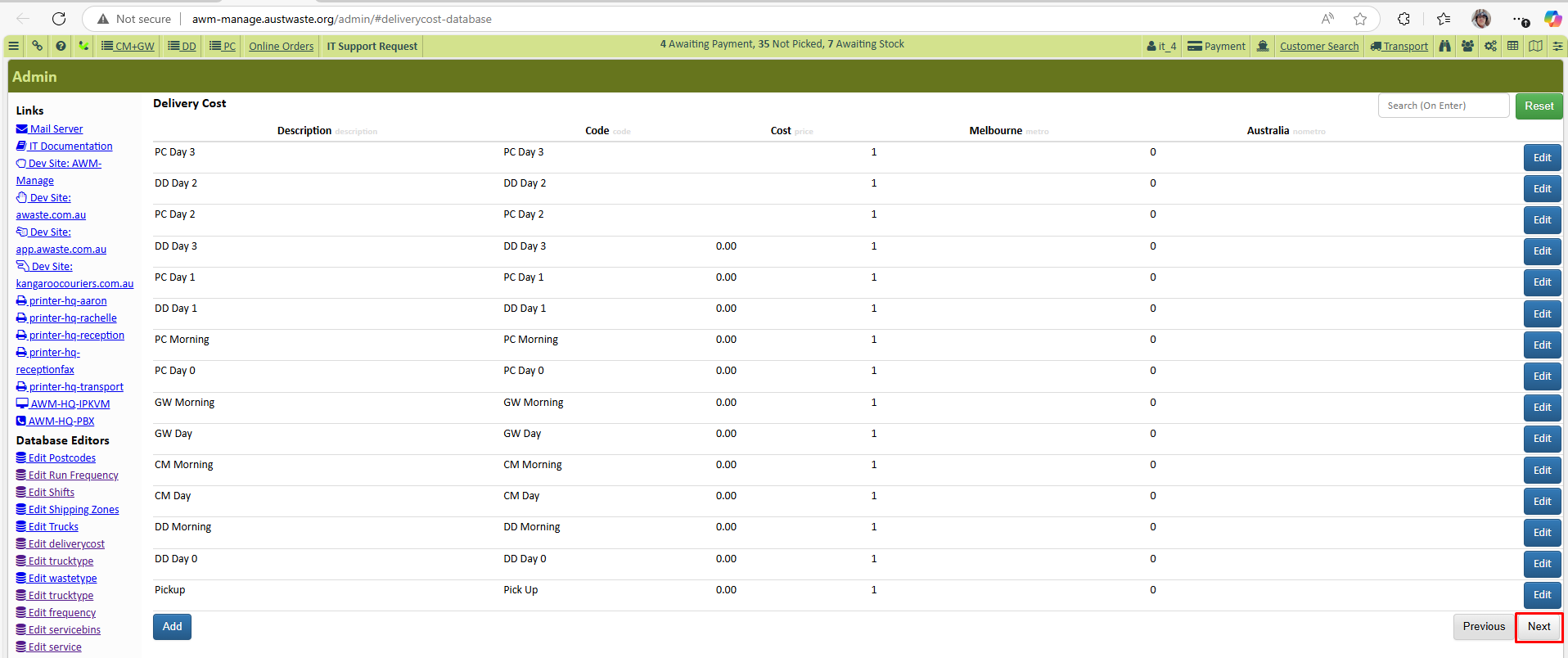
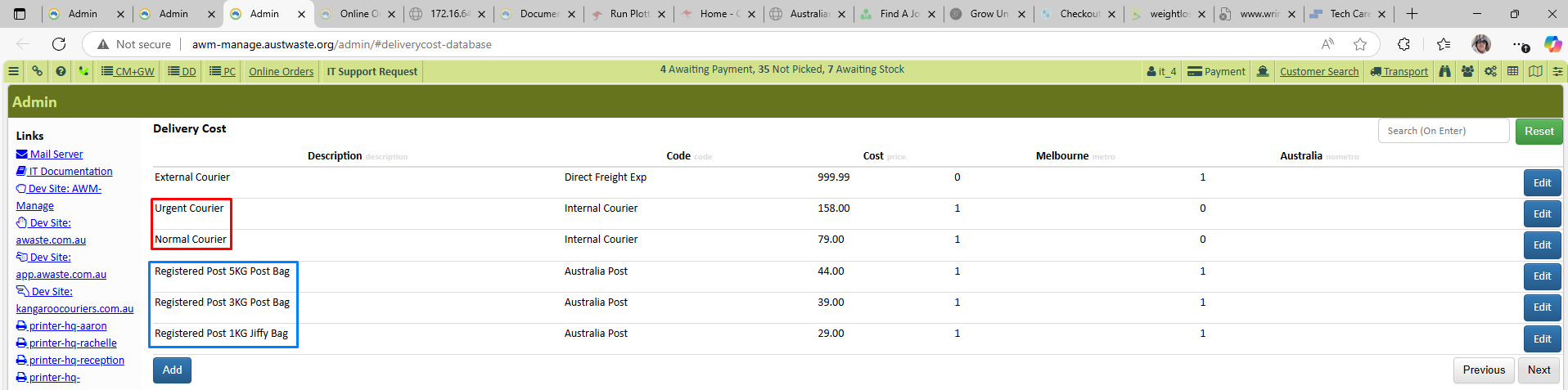
- Click Edit and input the updated price in the input box for the price. Press save after.
Do these for Urgent Courier, Normal Courier, Registered Post 5KG Post Bag, Registered Post 3KG Post Bag, and Registered Post 1KG Post Bag.
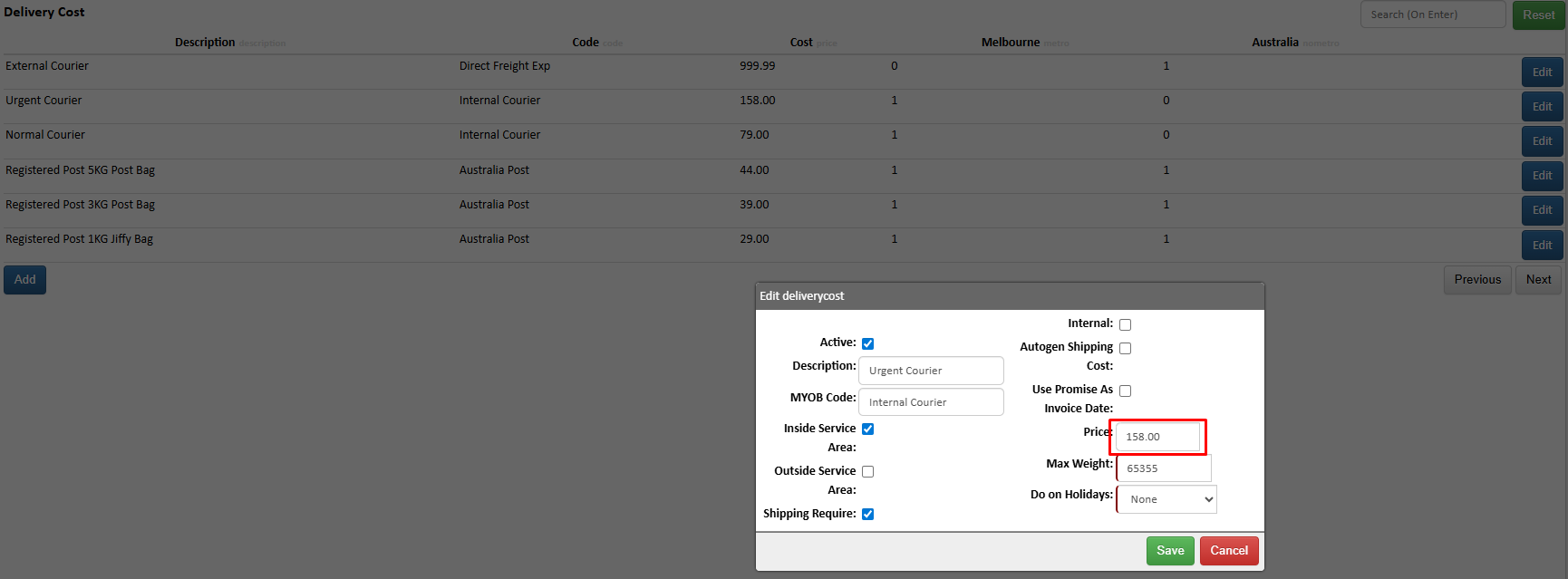
- After second checks, you can proceed.
- Edit then Edit product. Use your Product Pricing spreadsheet and the product xml file as a guide for this database.
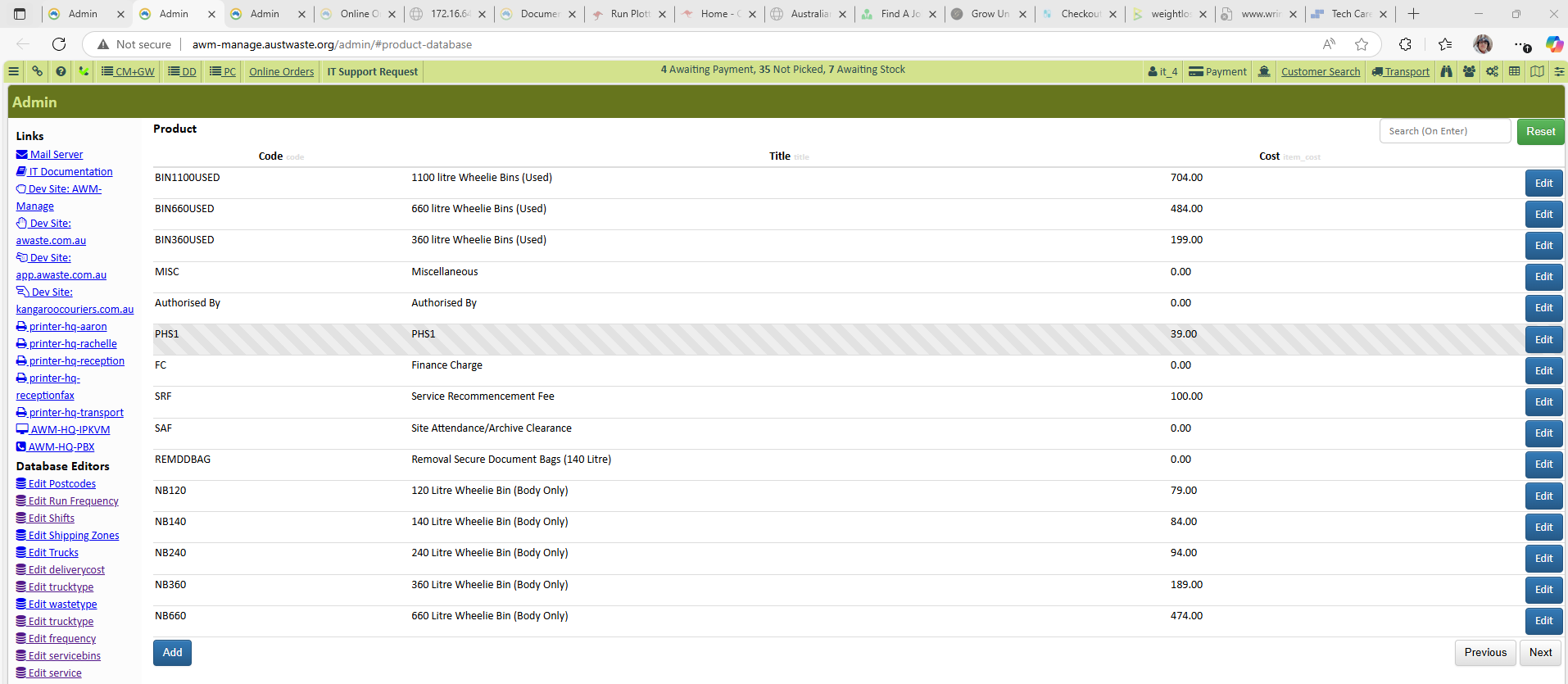
- Click Edit and input the updated price in the input box for the price (item cost) and the costs in the xml file (costs: xml). Press save after.
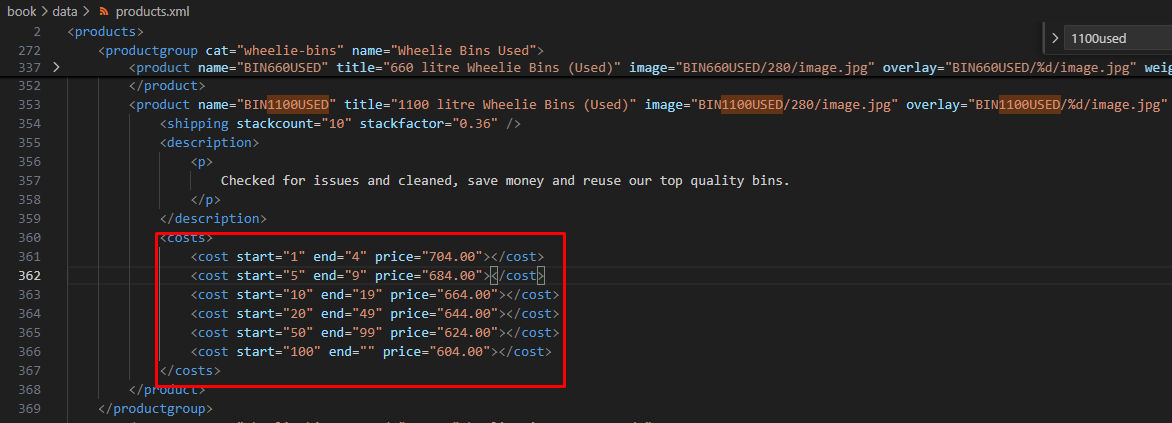
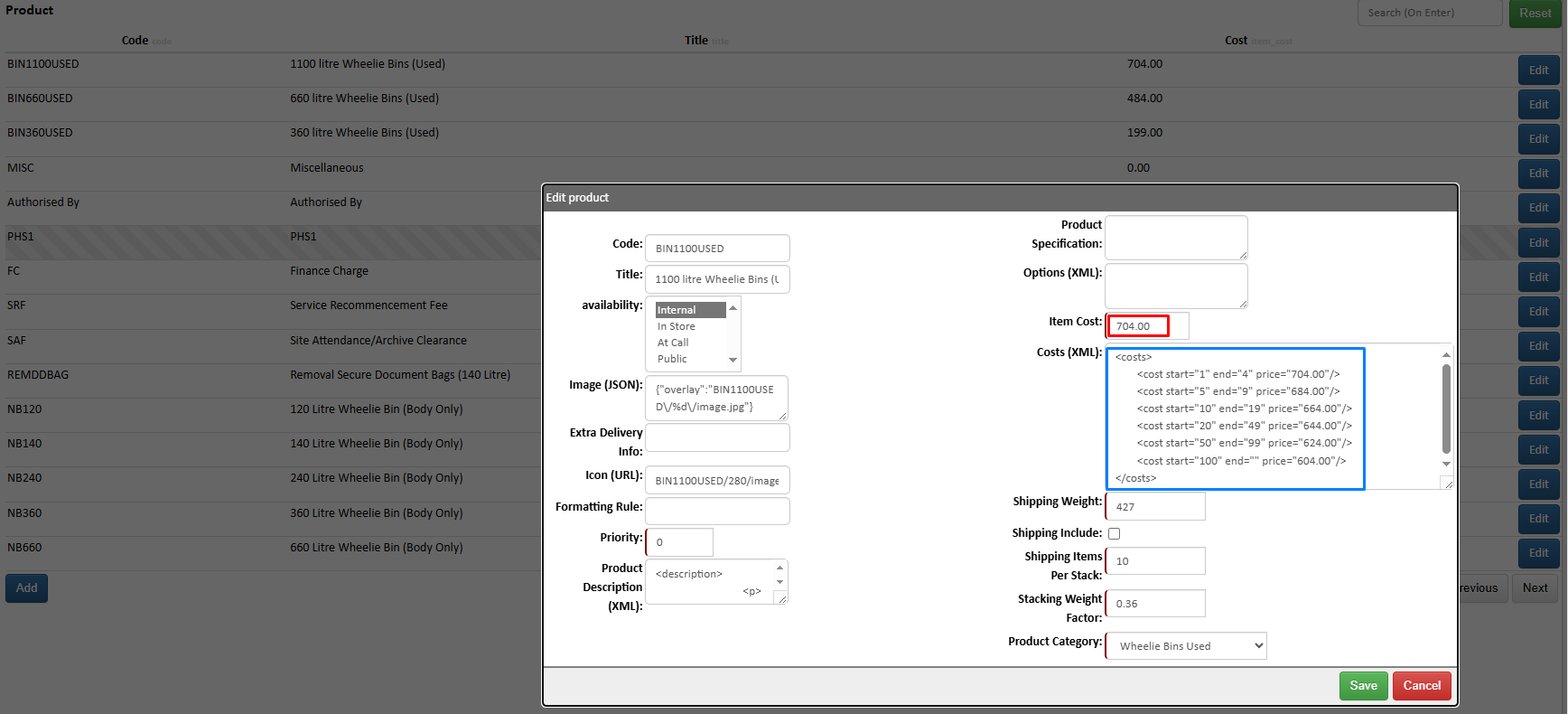
- Make sure to edit every product price on awm-manage that has a new price on the Product Pricing spreadsheet.
Note: Don't mind if there are some items that are missing on the spreadsheet or the awm-manage product database.
- Go to http://awm-manage.austwaste.org/admin/ and access Edit deliverycost, and Edit product. Service pricings are not edited in AWM-Manage.
- MYOB
- Login to MYOB, then access the Inventory Tab.
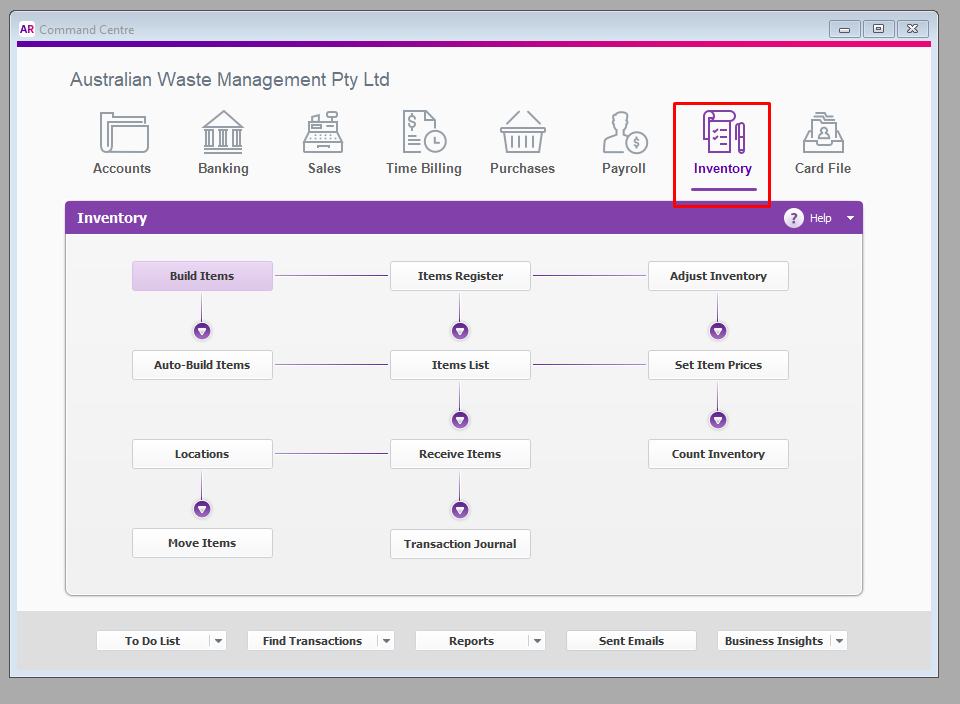
- Access Inventory List.
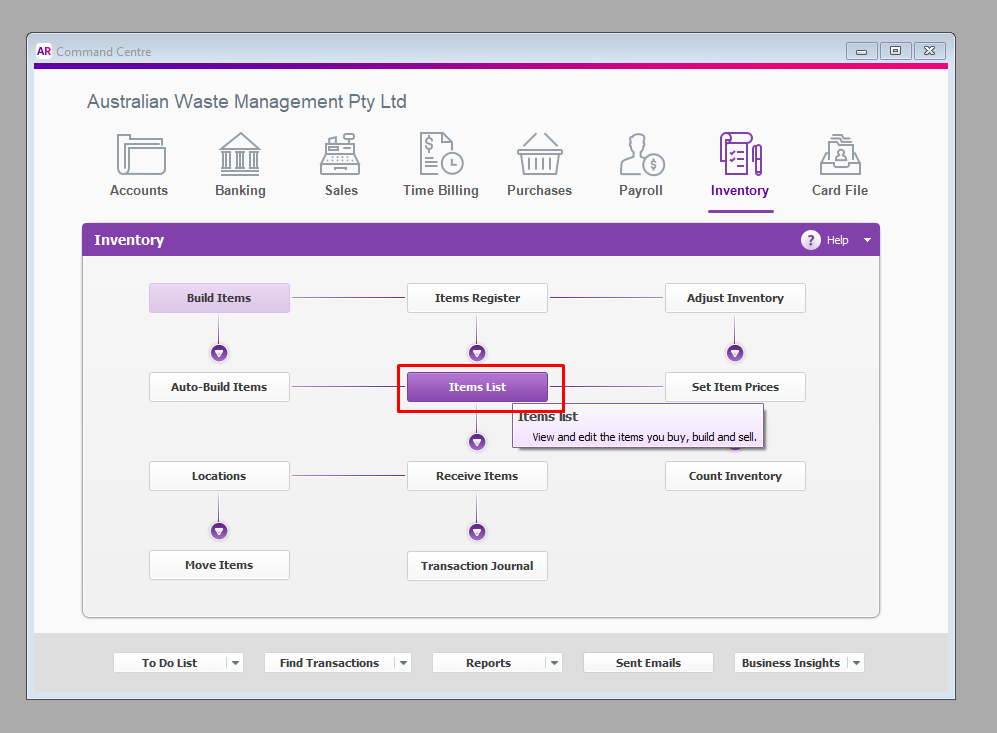
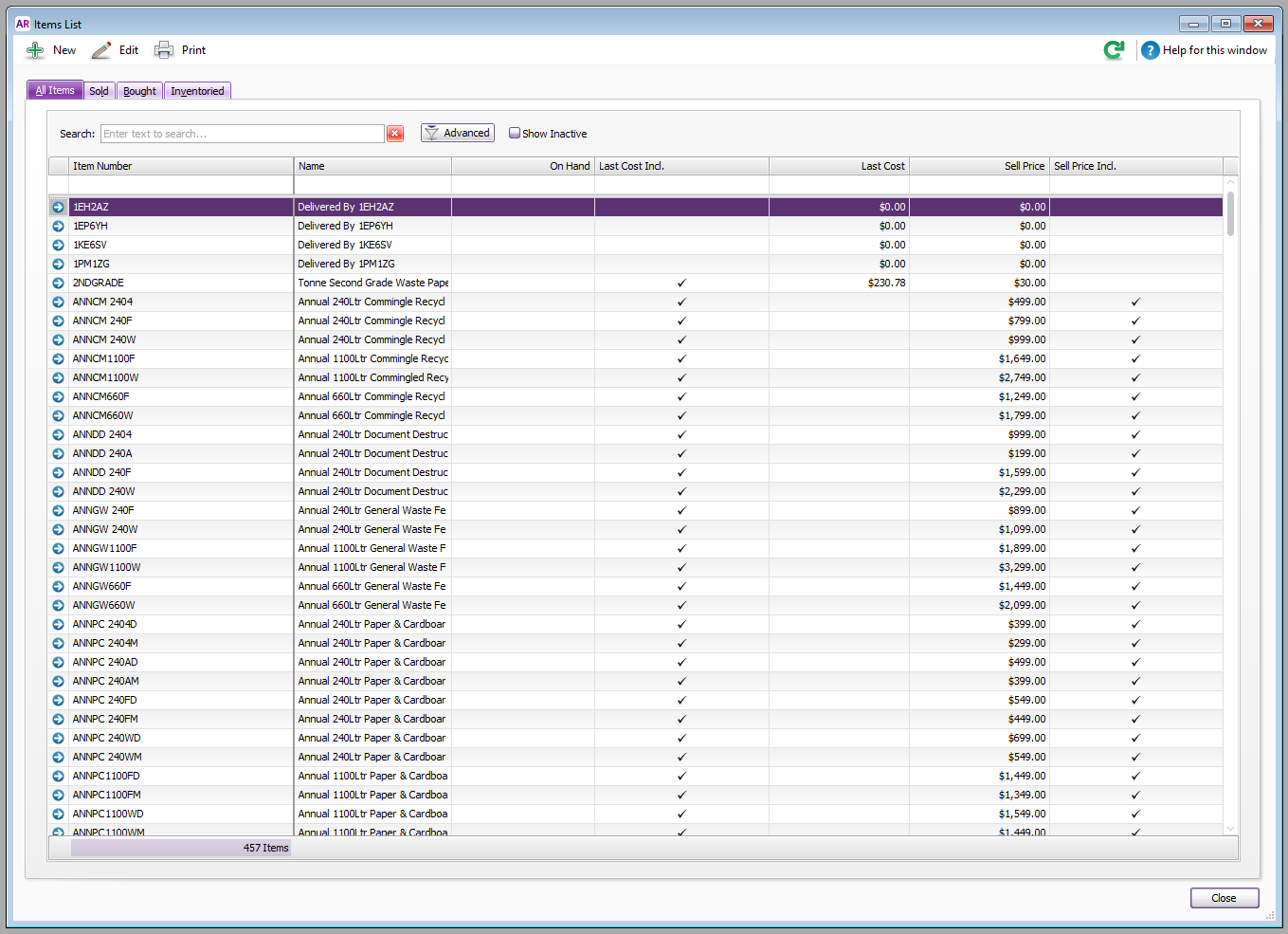
- Use the search bar to find the Item Code or Item Name of the product, service, or delivery. Example is NL120BG - New Lid 120 ltr Burgundy.
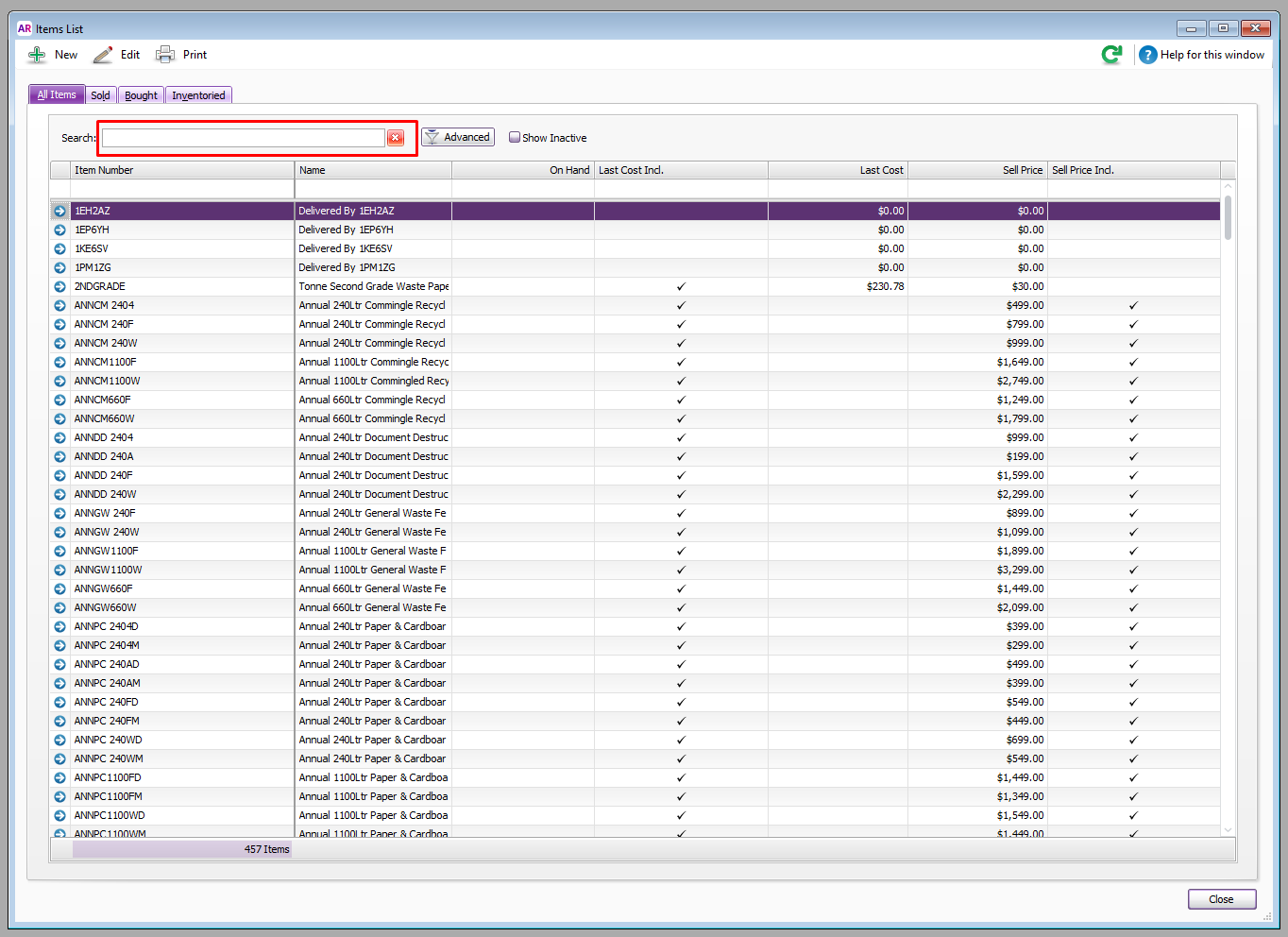
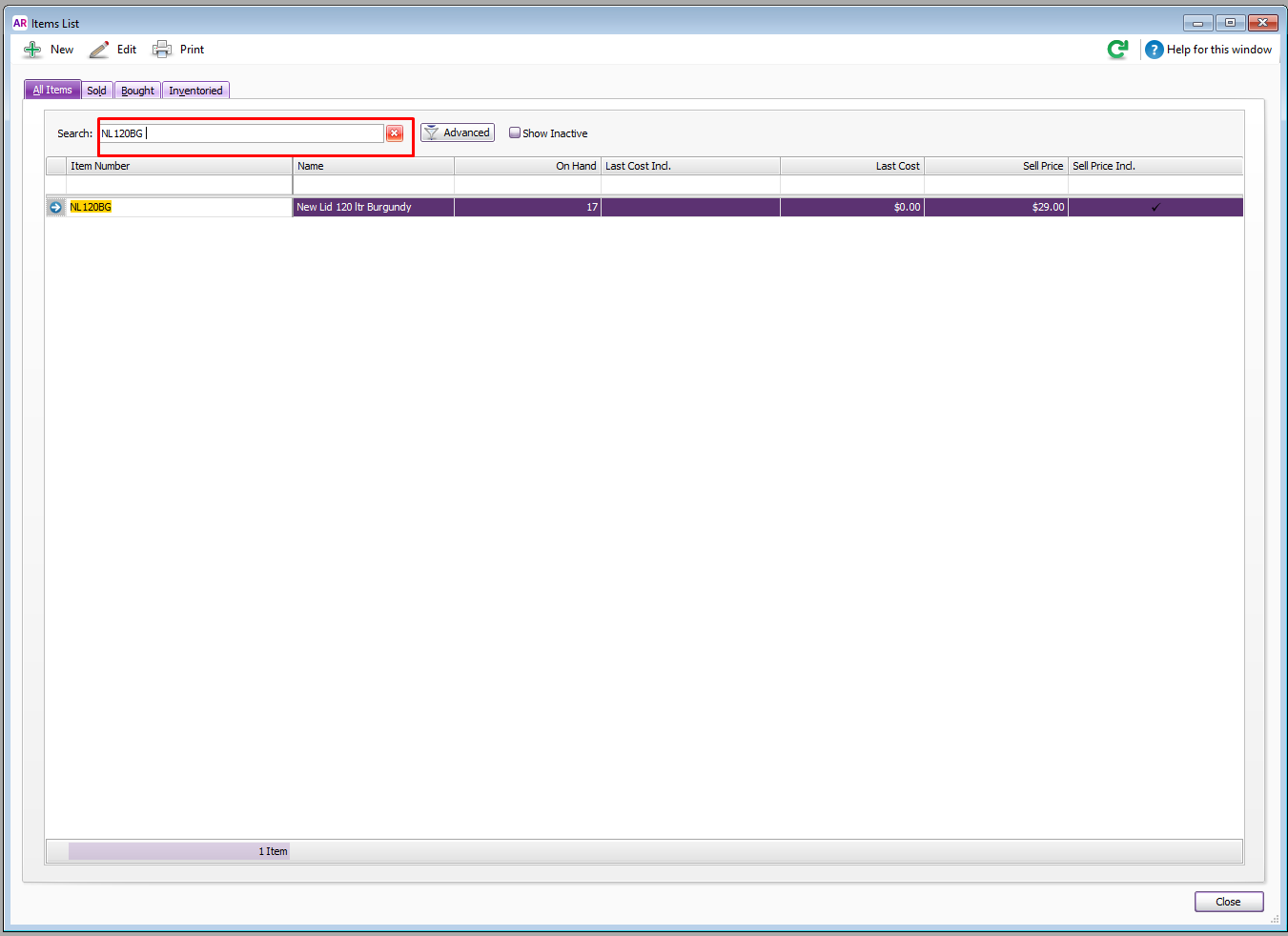
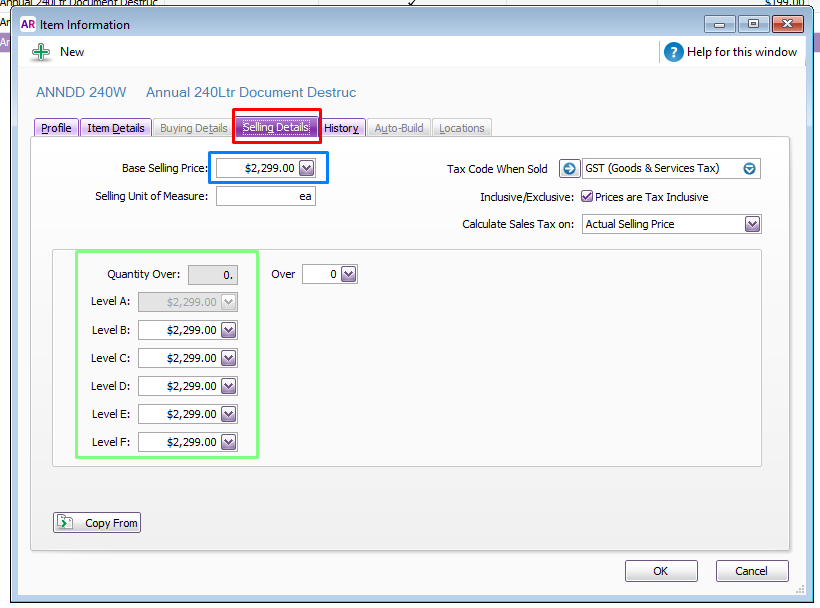
- Double-click the item. Click the Selling Details tab. You will see the Base Selling Price and the price depending on the quantity bought in a single transaction. Use the xml files as a guide for the quantity. In this case, I'm using products.xml. Make sure to press Enter to properly register the price.
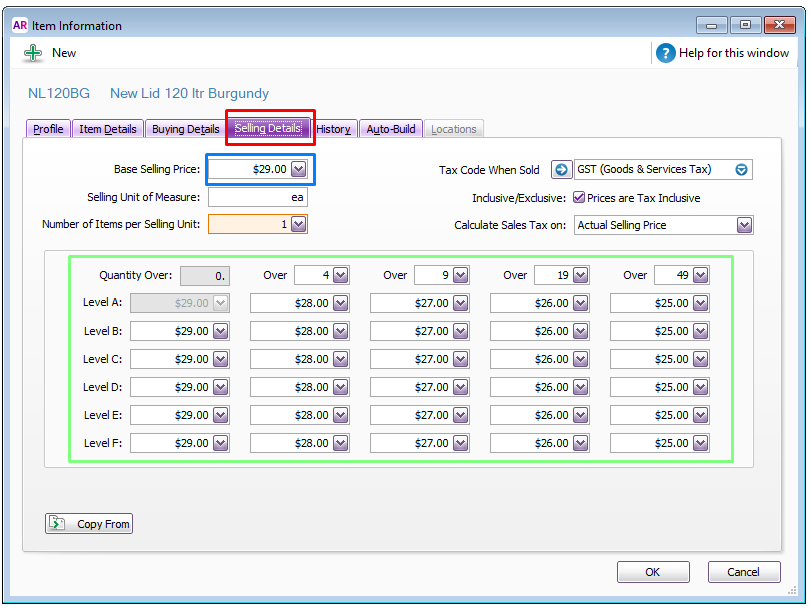
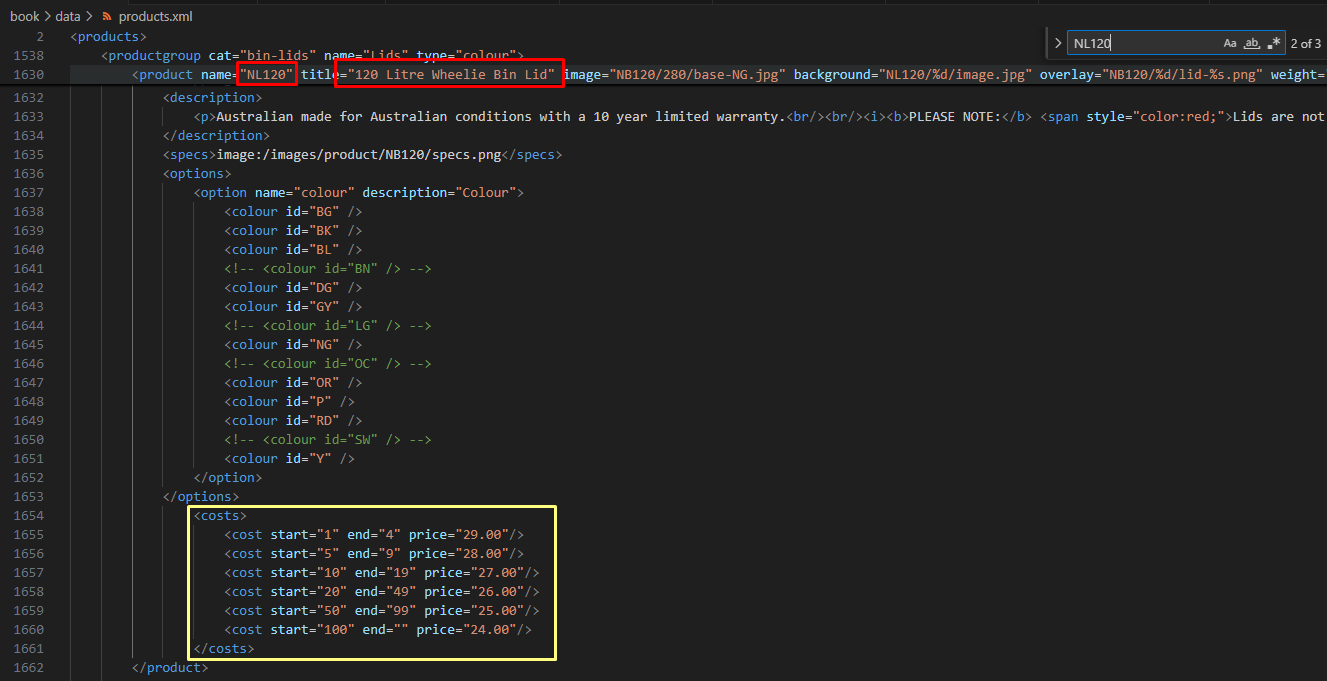
- What about services and delivery fees? It is also the same. Example is ANNDD 240W - Annual Document Destruction Weekly.
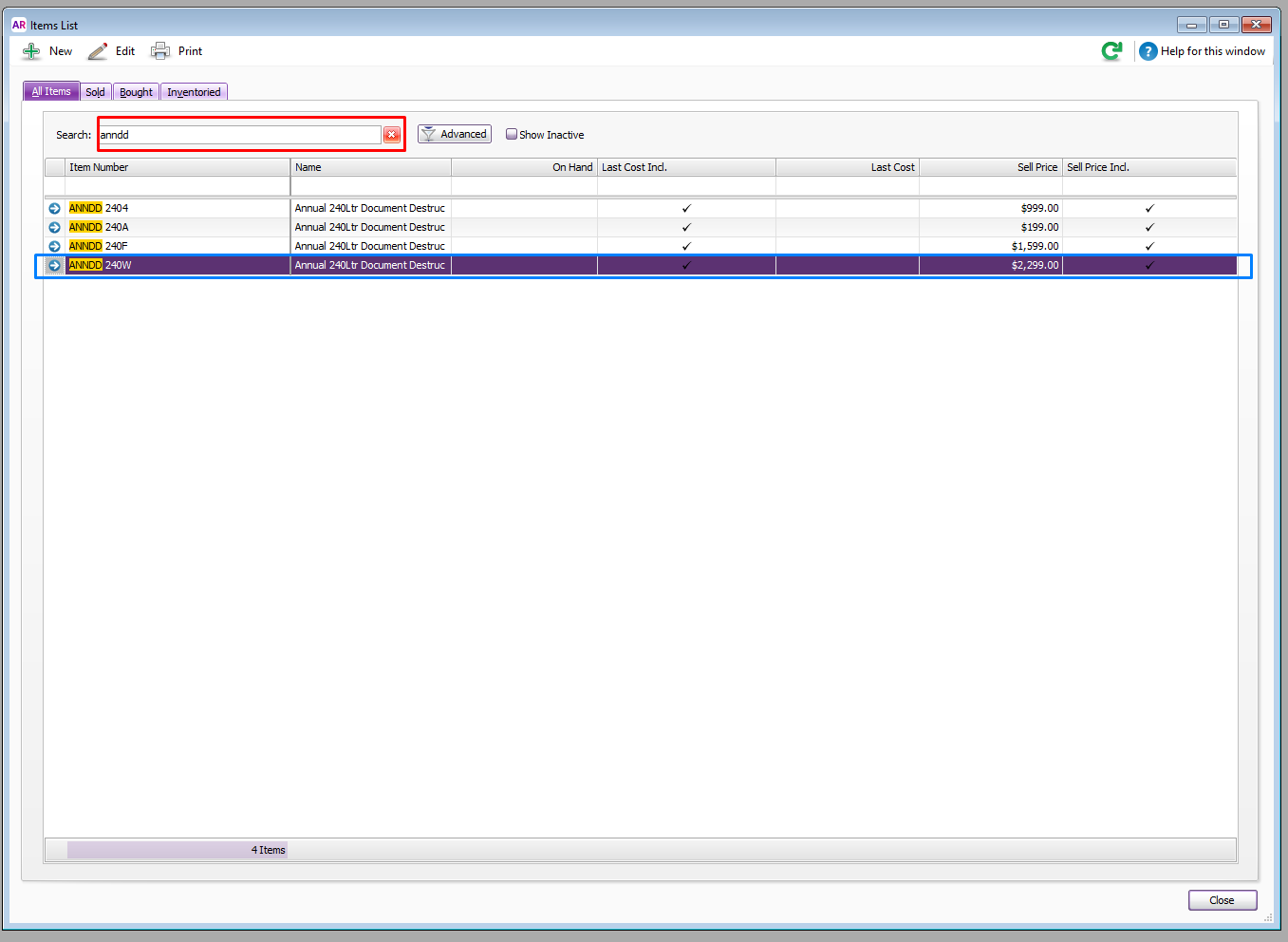
- Double-click the item. Click the Selling Details tab. You will see the Base Selling Price and the price depending on the quantity bought in a single transaction. This case there is only one for quantity as this is a service.
Use your spreadsheet as a guide for the quantity. Check the service/delivery you are editing as it could either be using the Annual Fee for pricing or its Cost per Collection.
Make sure to press Enter to properly register the price.

- Update all Services and Delivery Fees. Double check each one to make sure they are properly updated.
- Login to MYOB, then access the Inventory Tab.
- AWM Site Lists
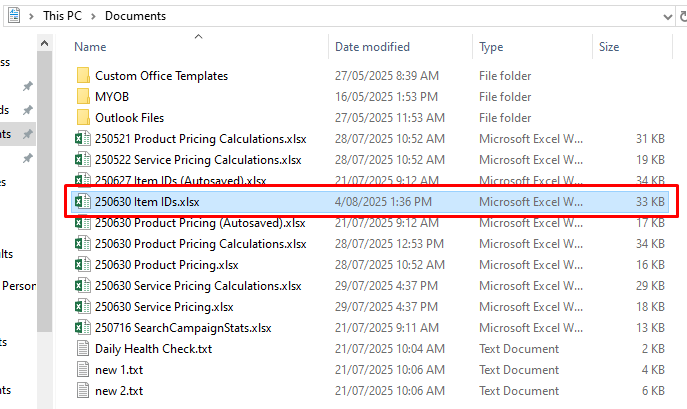
NOTE: If you need a list of all Item IDs across MYOB, AWM-Manage, and AWM Site Lists. Go to directories: "This PC/Documents" or "Z:\Australian Waste Management\Reference Material\AWM". Locate "Item IDs.xlsx"
It is a listing of the Item IDs I personally found across the 3 main databases. It is subject to editing and can be used as a checklist of what to edit and what not to edit (ignore until instructed otherwise).
- In MYOB, there are items that have "ZZ" and "zz". I believe those are for inactive IDs set by the previous IT. Better to leave them as is until instructed to do activate.
- In AWM-Manage, there are items that are greyed out. Those are for inactive IDs set by the previous IT. Better to leave them as is until instructed to do activate.
- In AWM Site Lists, there are items that are commented out. Those are for inactive IDs set by the previous IT. Better to leave them as is until instructed to do activate.
Comments