Processing Orders Matching Existing Customers 2
Karen Lacsamana
Posted at March 12, 2018 01:03 am. Last updated at March 12, 2018 01:03 am
This procedure will help us avoid creating a multiple account for one specific customer when processing online orders.
- Click MYOB Customer
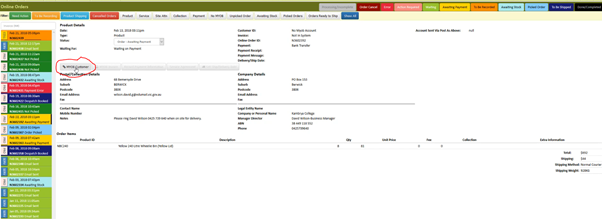
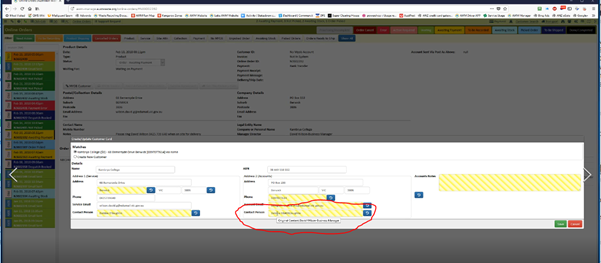
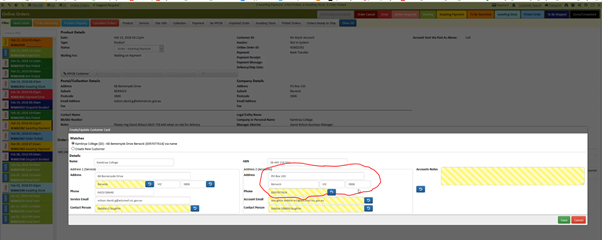
- This pop up box will appear. This matches the details from the new online order to the details we have on file.
- Check if the account name and the address matches.
- If it does click the old account do not create a new one. (these are the existing information in MYOB)
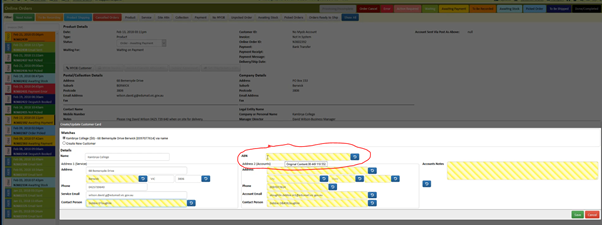
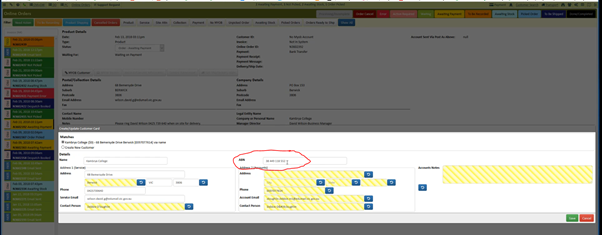
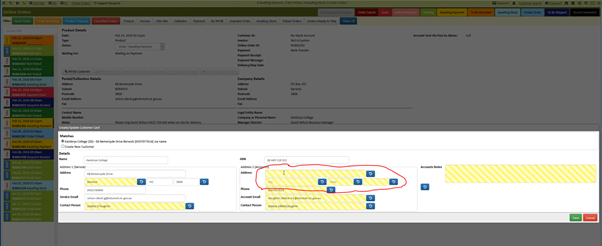
- The yellow highlights are the field that could be updated and this information (MYOB Information) are different from what the customer entered on the online order
- The system will highlight it in yellow if it shows differently from what we currently have ( this includes capital letters and special characters
- Check the example below customer has the same suburbs but since it was written differently than what we currently have the system highlighted it
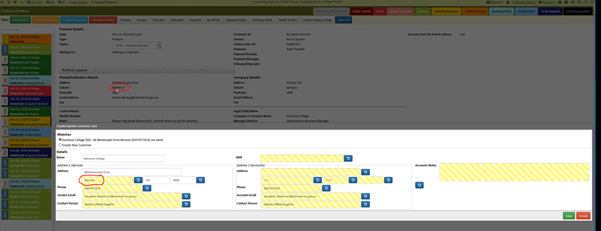
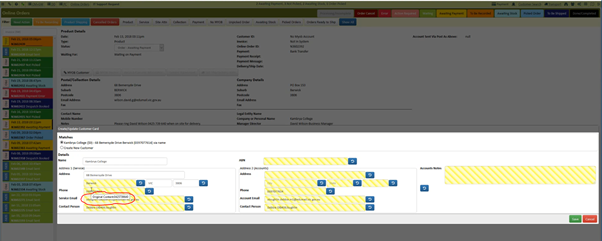
- If you hover over the yellow field a little pop up box will appear and will have the original online information
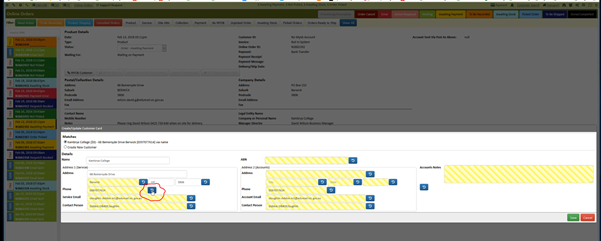
- For phone number we would prefer a mobile number, if a customer provided a mobile number or a different number on their online order update our records by clicking the blue button beside the information you need to update. This will then reverts to the online information
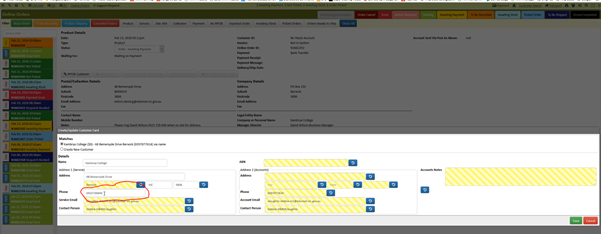
- Check all yellow highlighted box to make sure we have the updated information.
- Email address
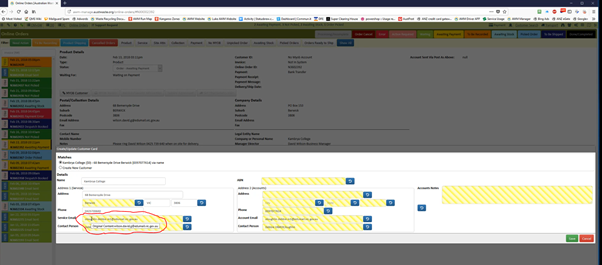
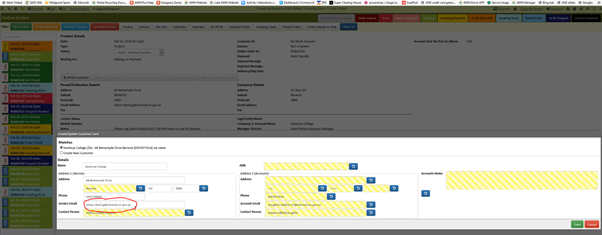
- Contact Name
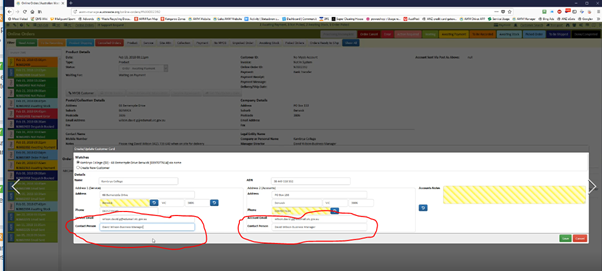
ABN
Company Details
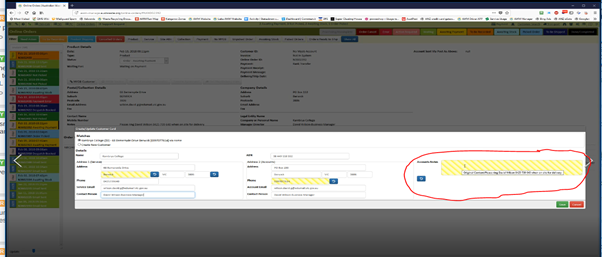
Account Notes
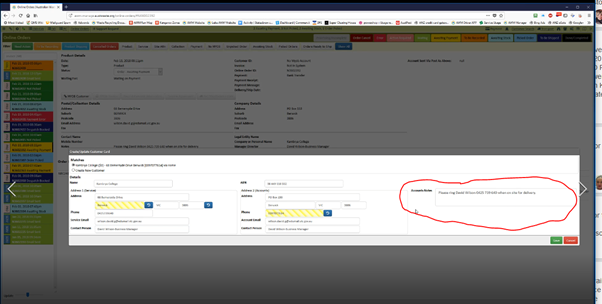
Verify all information were updated
Click Save to save the changes you’ve made
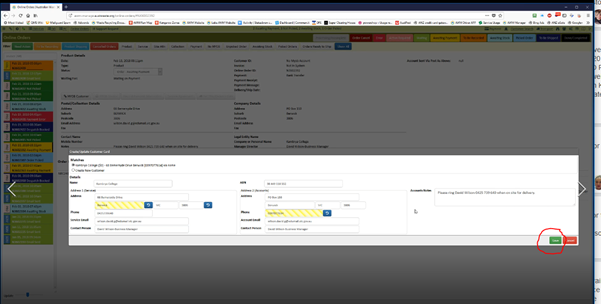
Continue to process the order.
Comments