Updating “Kangaroo Default” View in Ontime
Kate Meneses
Posted at May 31, 2019 04:05 pm. Last updated at February 11, 2020 10:02 am
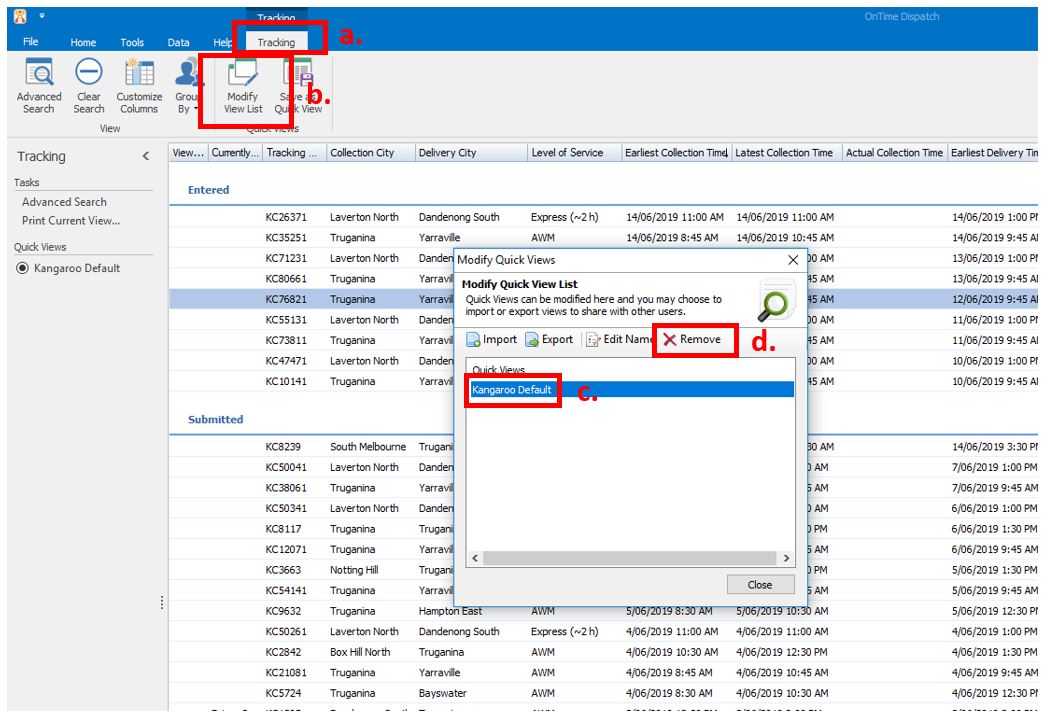
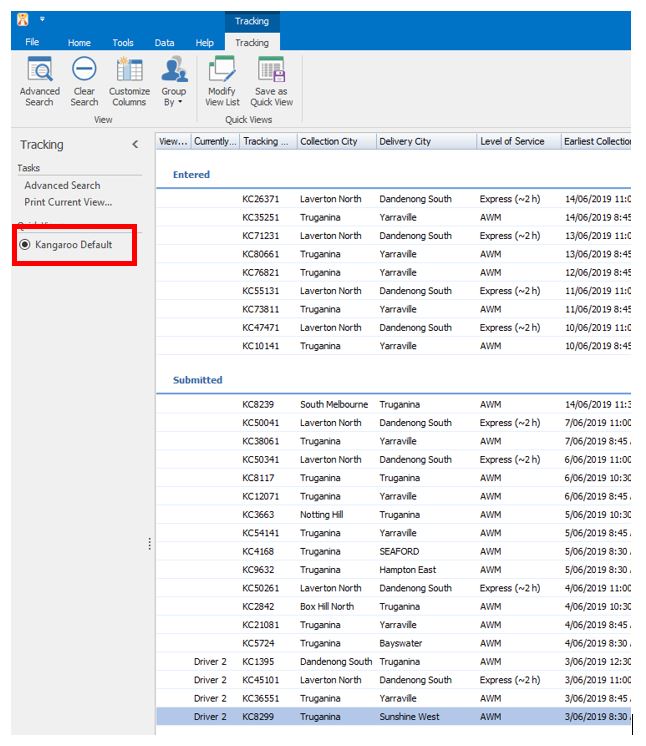
1. Delete the "Kangaroo Default" view from the "Quick Views" list by going to:
a. “Tracking".
b. Click "Modify View List".
c. Select "Kangaroo Default" in the pop up.
d. Click "Remove"
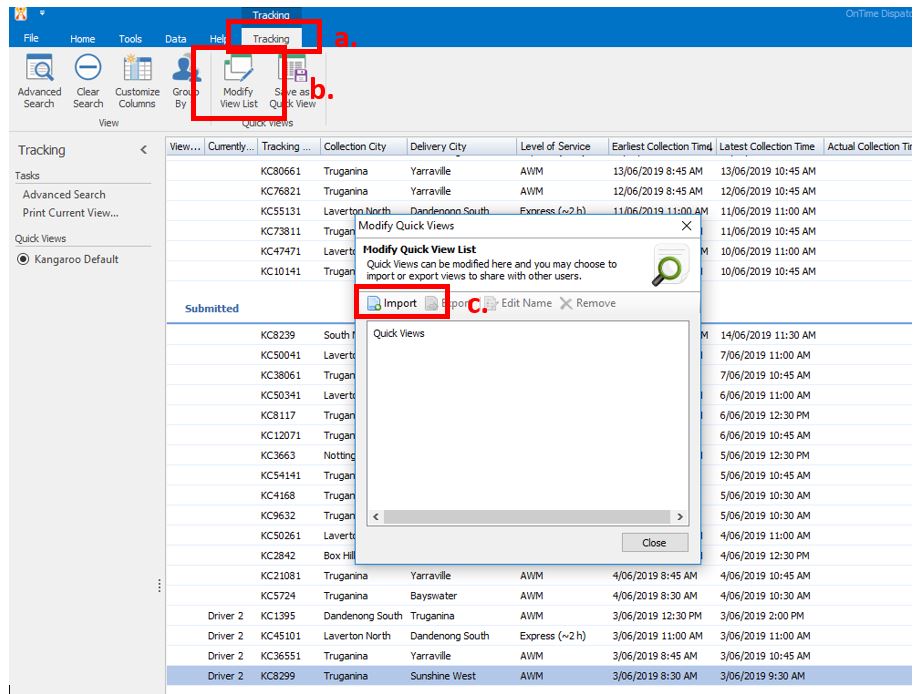
2. Then you will have to import the new "Kangaroo Default" view by going to:
a. “Tracking".
b. Click "Modify View List".
c. Click "Import".
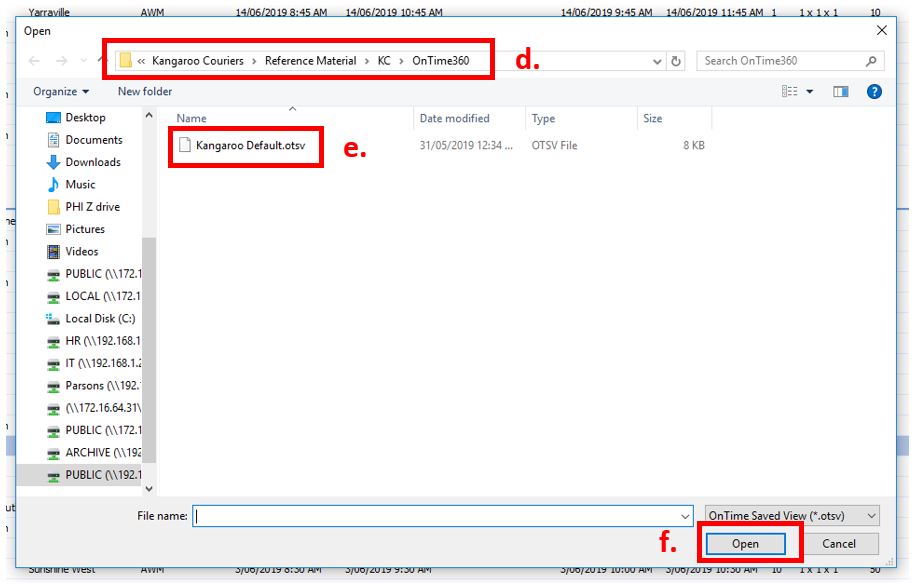
d. Navigate to this directory: Z:\Kangaroo Couriers\Reference Material\KC\OnTime360.
e. Select: "Kangaroo Default.otsv".
f. Click "Open".
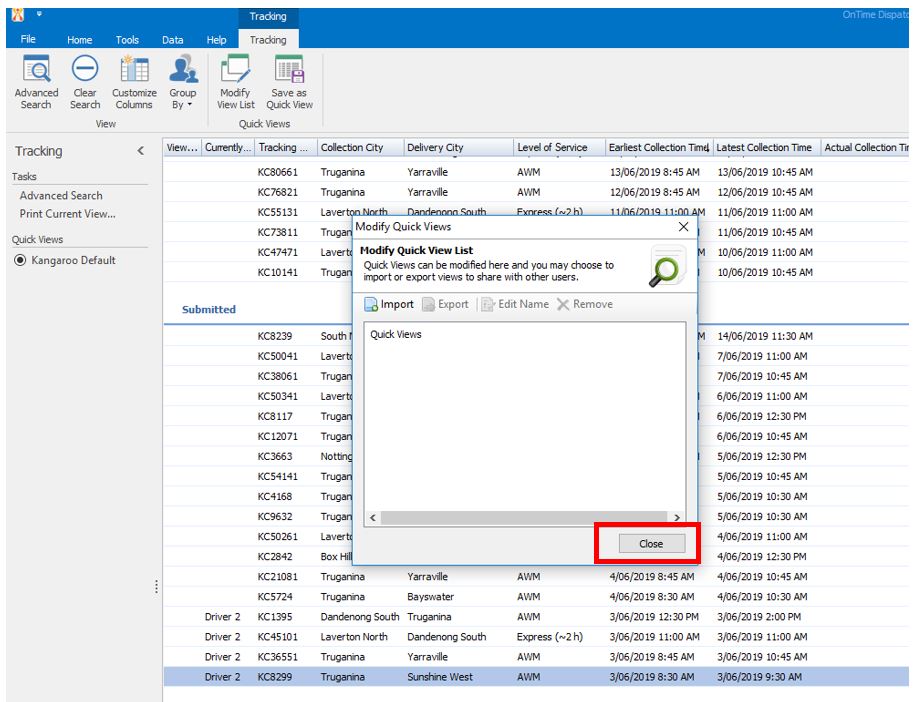
3. Then, "Close" the popup.
4. Then, select "Kangaroo Default" under the "Quick Views" on the bar down the left like normal.
Comments