How To Create A Customer Account
Posted at January 08, 2018 12:01 pm. Last updated at September 20, 2019 05:09 pm

How to Create a Customer Account
** For Cash sales for pickups can be placed under the Cash Sale card in MYOB however we still require the customers company or full name and phone number to be placed in the **address field** of MYOB.
- Open AWM Manage Page

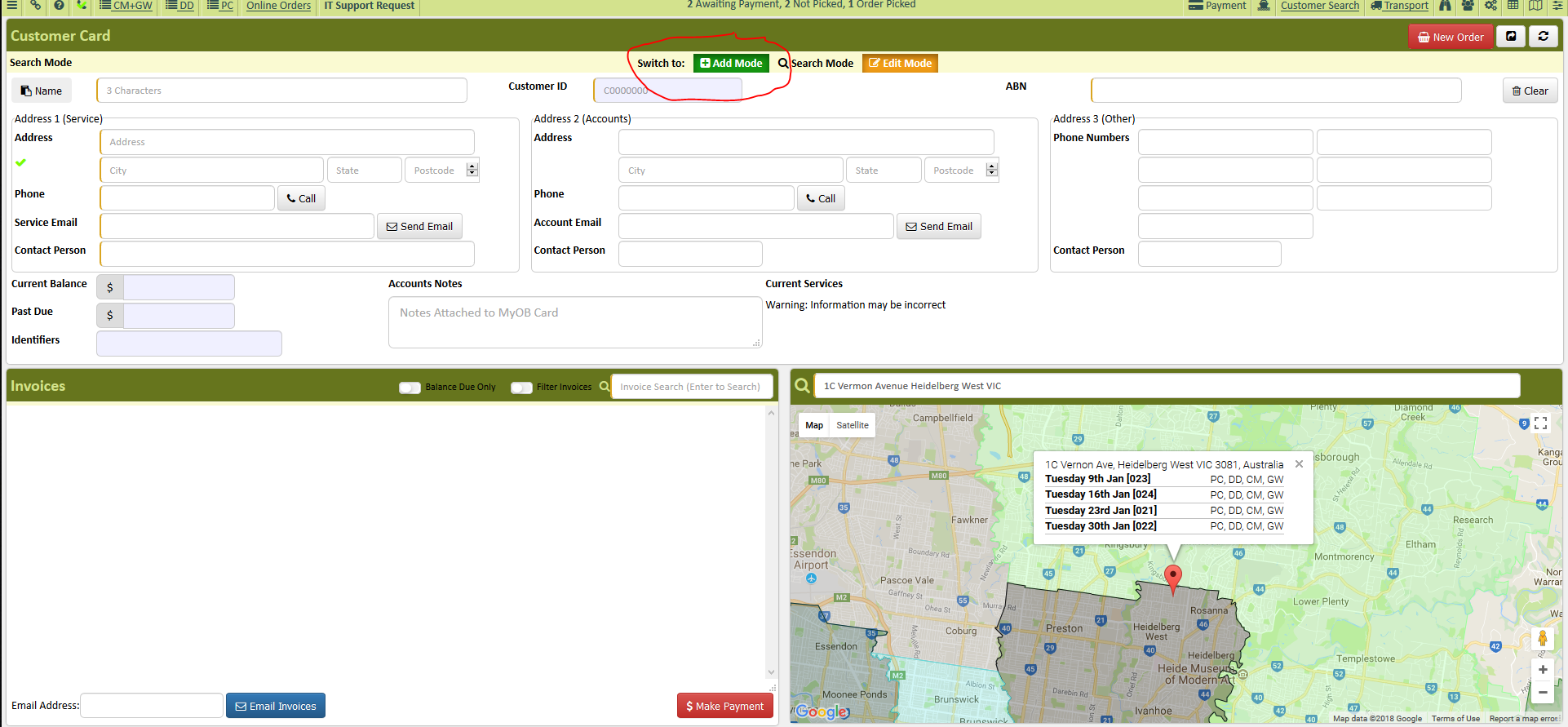
- Click Add Mode
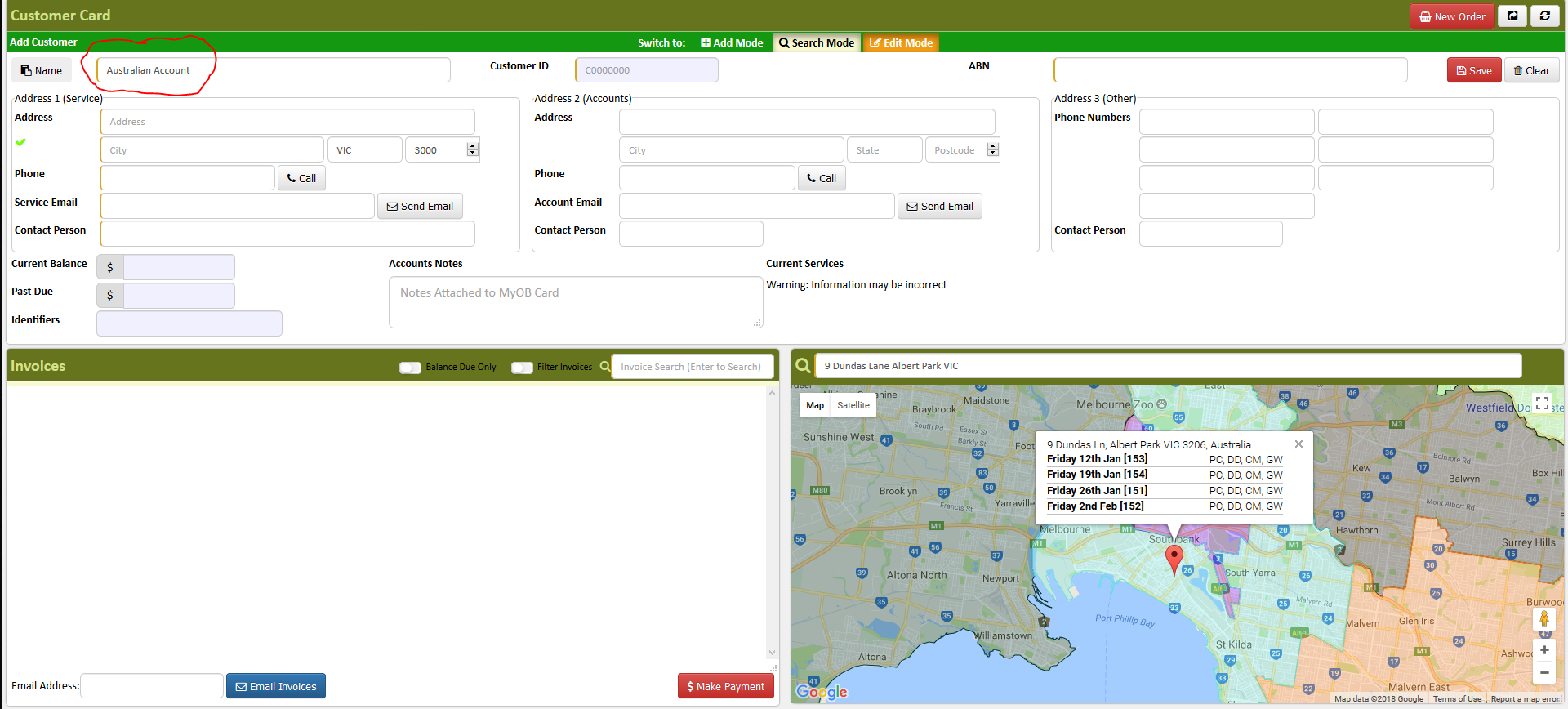
- Enter customer account name (follow rule of capitalization). If it is a company, enter the name of the company in the company field. If the customer is a private person, enter the full name of the customer in the "company" field. No abbreviations.
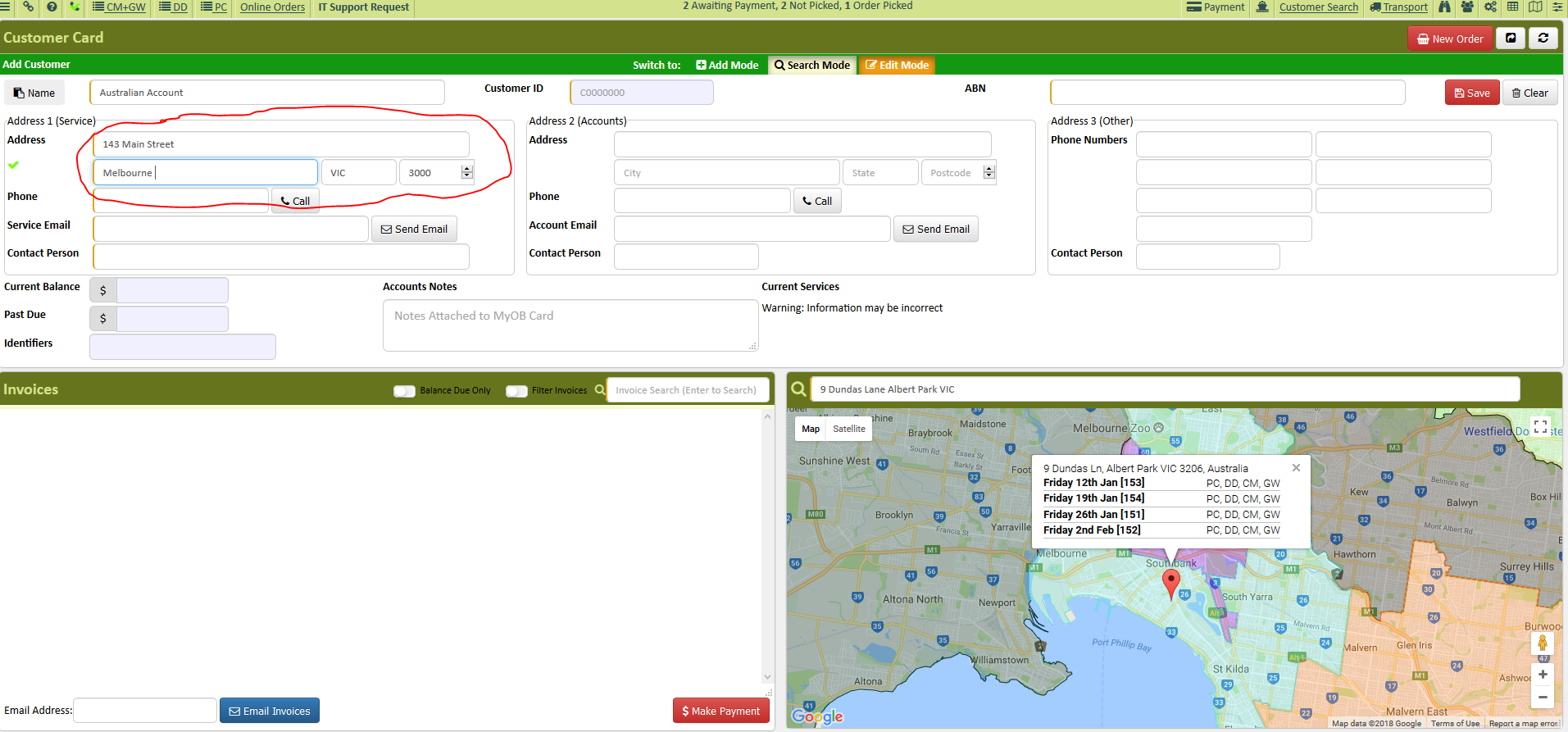
- Enter delivery or collection address (if the collection address has a building number, unit number, suite number etc. Enter the unit or building number followed by a comma and a space followed by the house number, e.g. Building 3, 143 Main Street Melbourne VIC 3000).
- If there is no street number provided like in the case of some schools or large buildings/establishments, we must locate a street number for the navigation to work correctly. In this instance, it is usually best to locate the building in Google Satellite and Street view and ascertain the street number provided by Google. Alternatively, we can inform the customer that we MUST have a street number to enable the collection vehicles automated navigation system to locate their site.
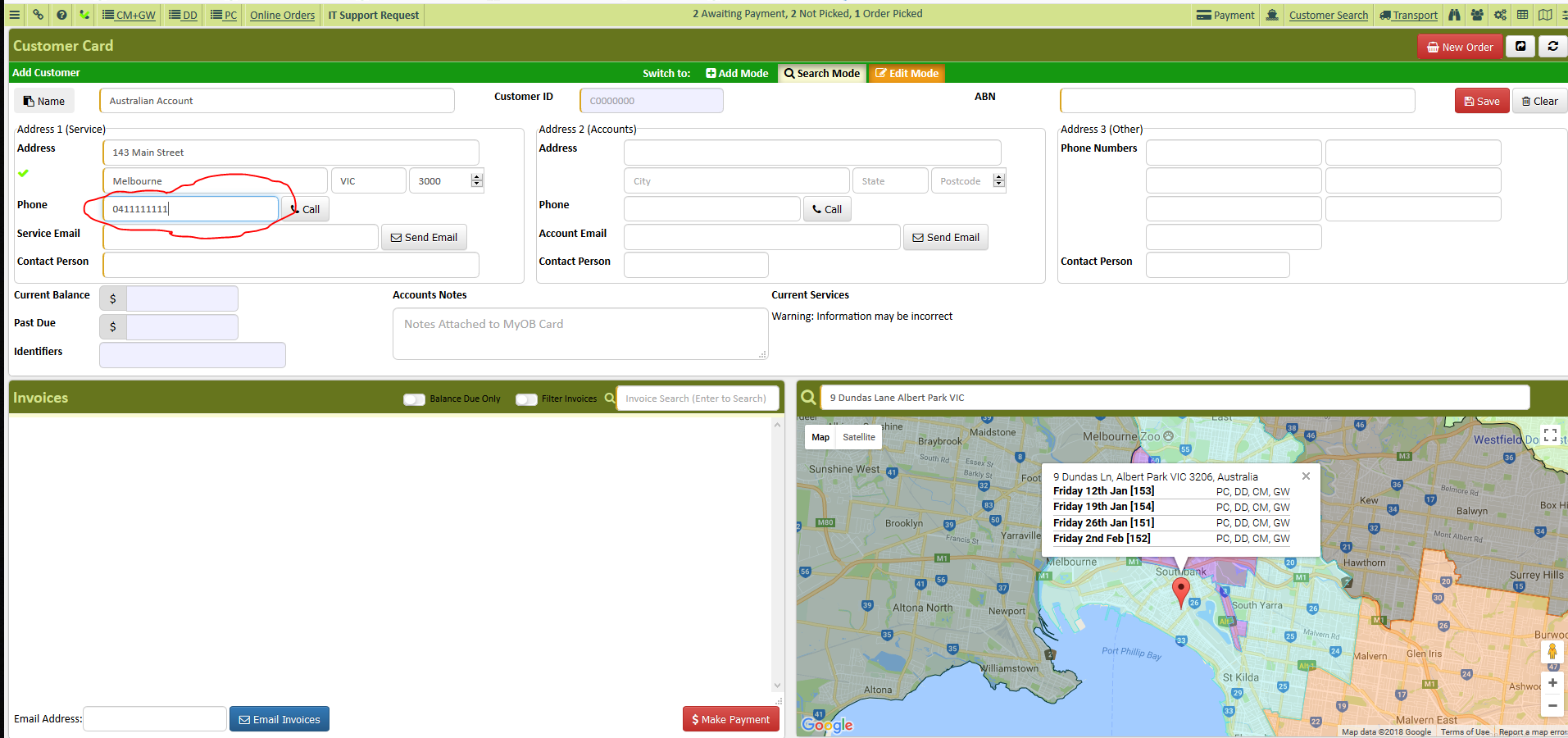
- Enter phone number. We MUST have at least ONE phone number, but preferably two (an office number and a mobile number). We must have at least 2 methods of contact on every account. The more contact methods we can obtain the better.
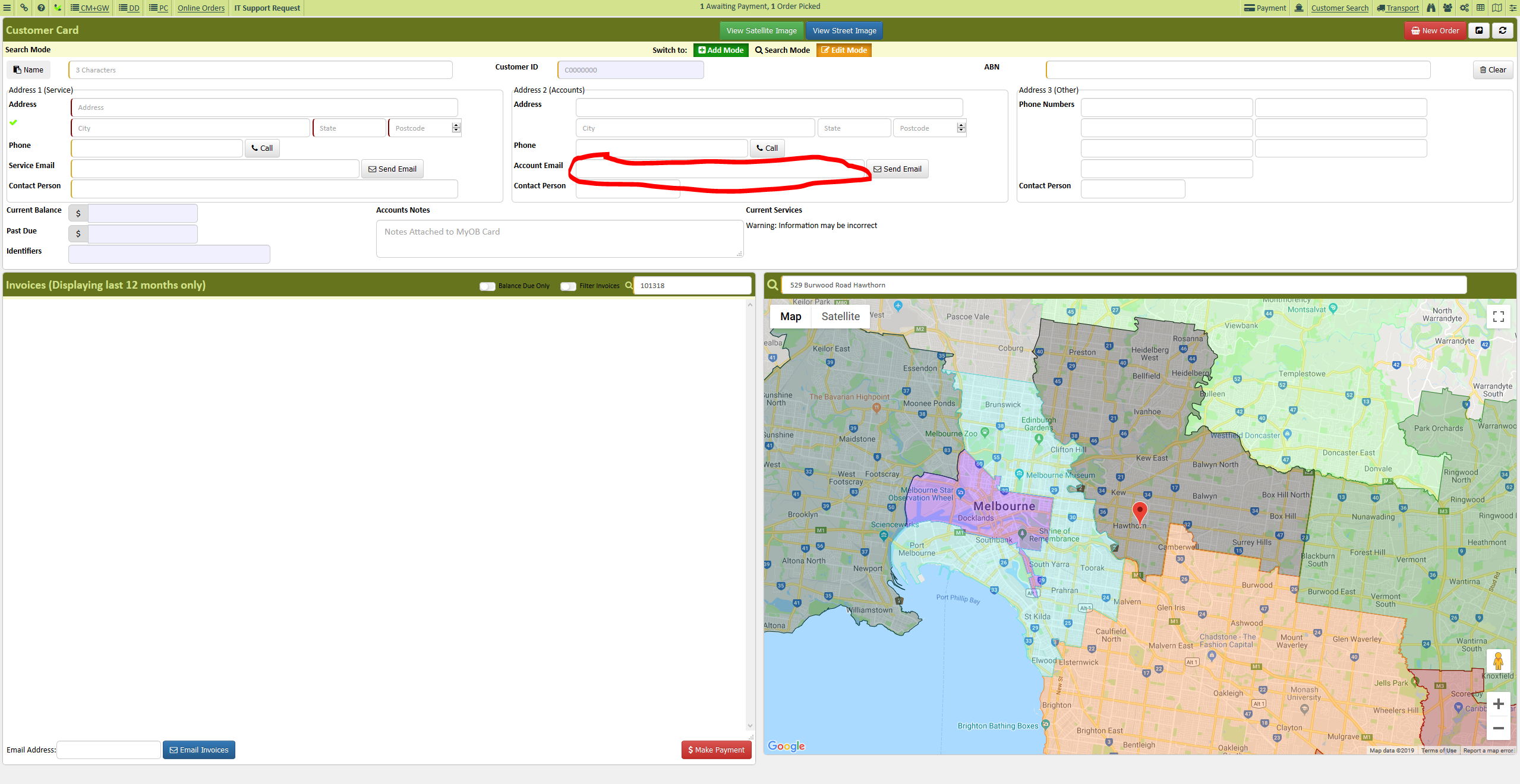
- Enter customer email address. We MUST have at least ONE email address, but preferably two, and it MUST be added in the "Address 2 (Accounts)" field if there is only one email address.
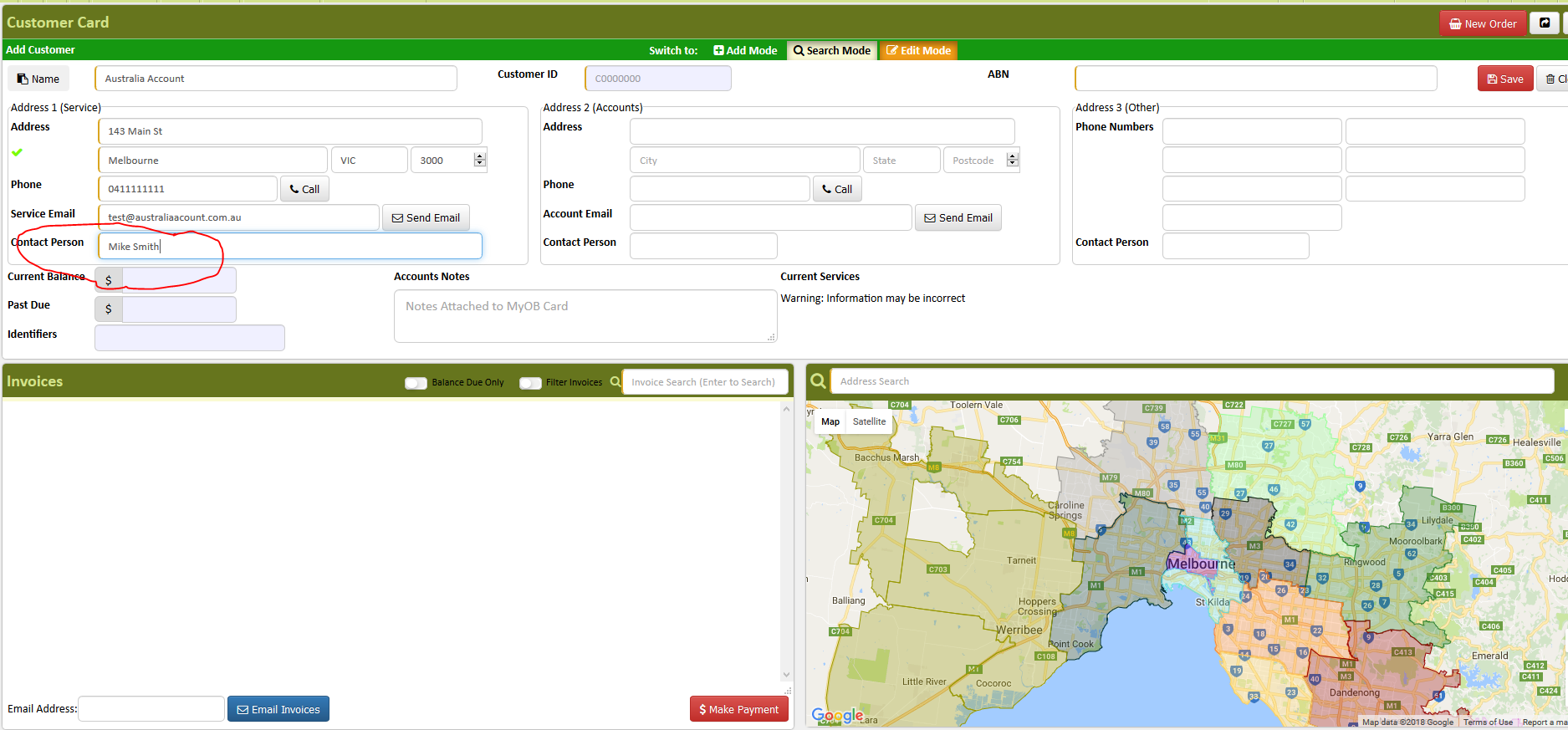
- Enter Contact Person
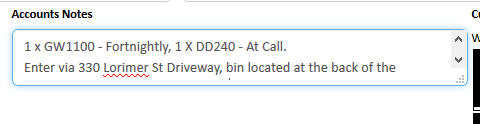
If the actual street address entered isn't where the bins will be located, any additional directions should be placed in the account notes. Something like "Bins located in rear car park" or similar.
On the account notes enter any account or collection details of the customer, following this format. Note that these notes DO NOT appear on invoices, they only appear in AWM-Manage and the drivers Run App. If notes are needed for the Transport/Despatch team or the delivery driver, they must be added as a "NOTE" item on the individual invoice.
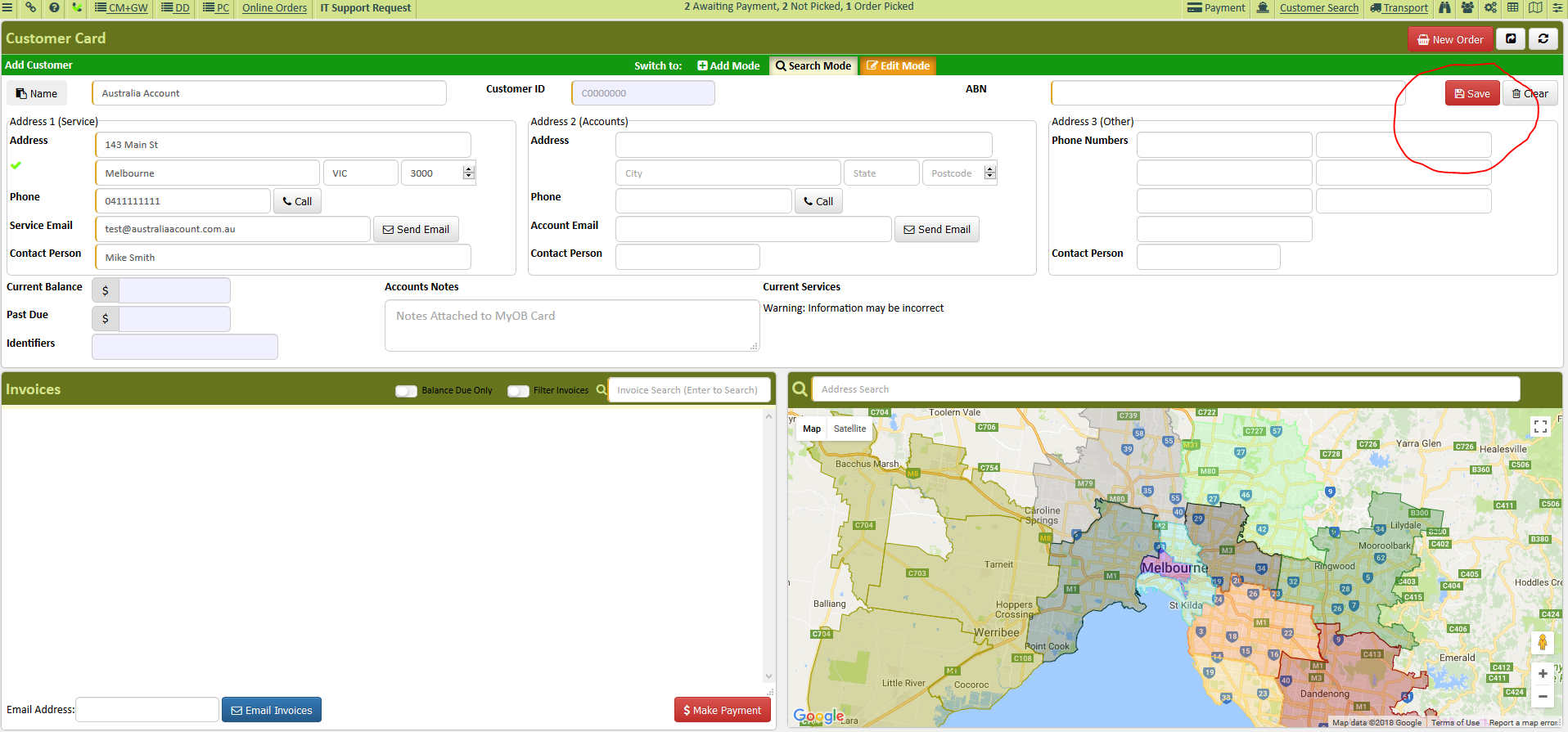
- Click Save
Comments