How To Process Service Agreement
Karen Lacsamana
Posted at January 08, 2018 12:01 pm. Last updated at May 24, 2018 06:05 am
Service Agreement Procedure for Weekly, Fortnigthly and 4 Weekly Service (For At Call Service skip Step 3)
Step 1 Create Annual fee
- Open the signed copy of the Service Agreement form from the customer on your email
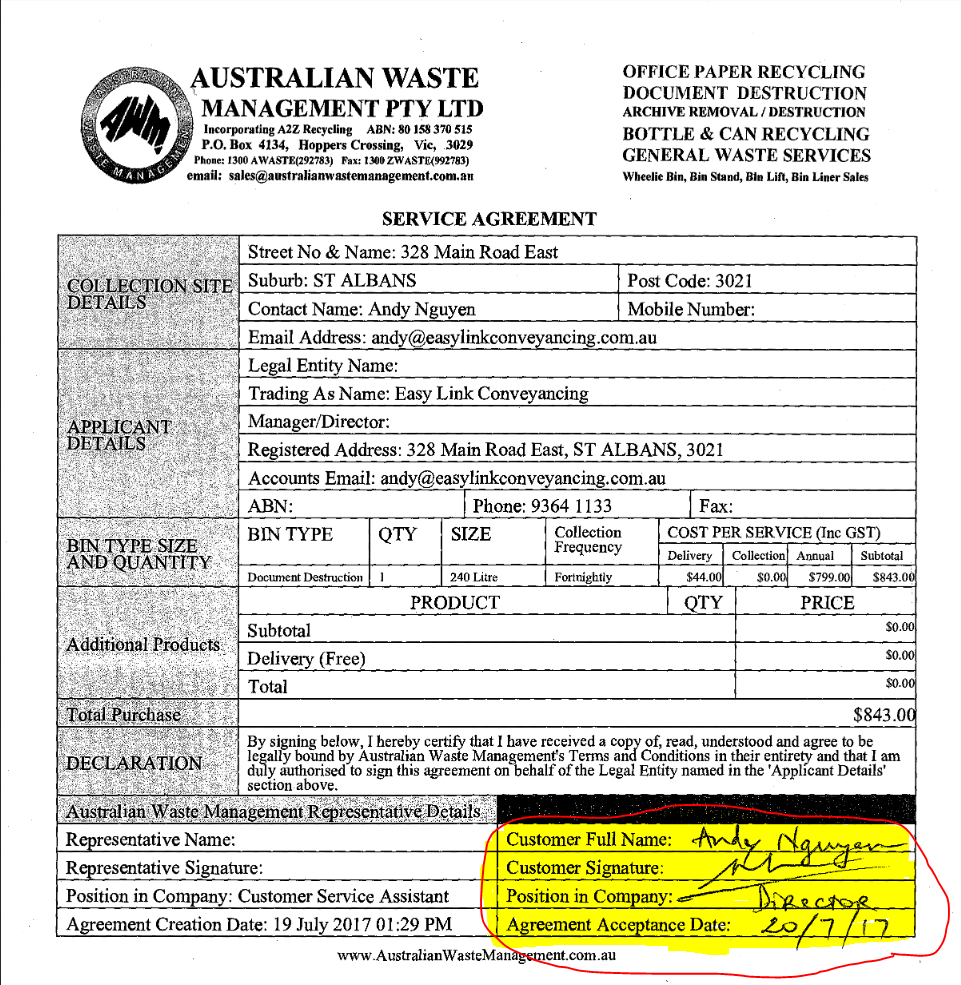
- For new customers, Create an account in AWM Manage Page Create New Customer
- For existing customers open their account in AWM Manage Page
- Log in to MYOB
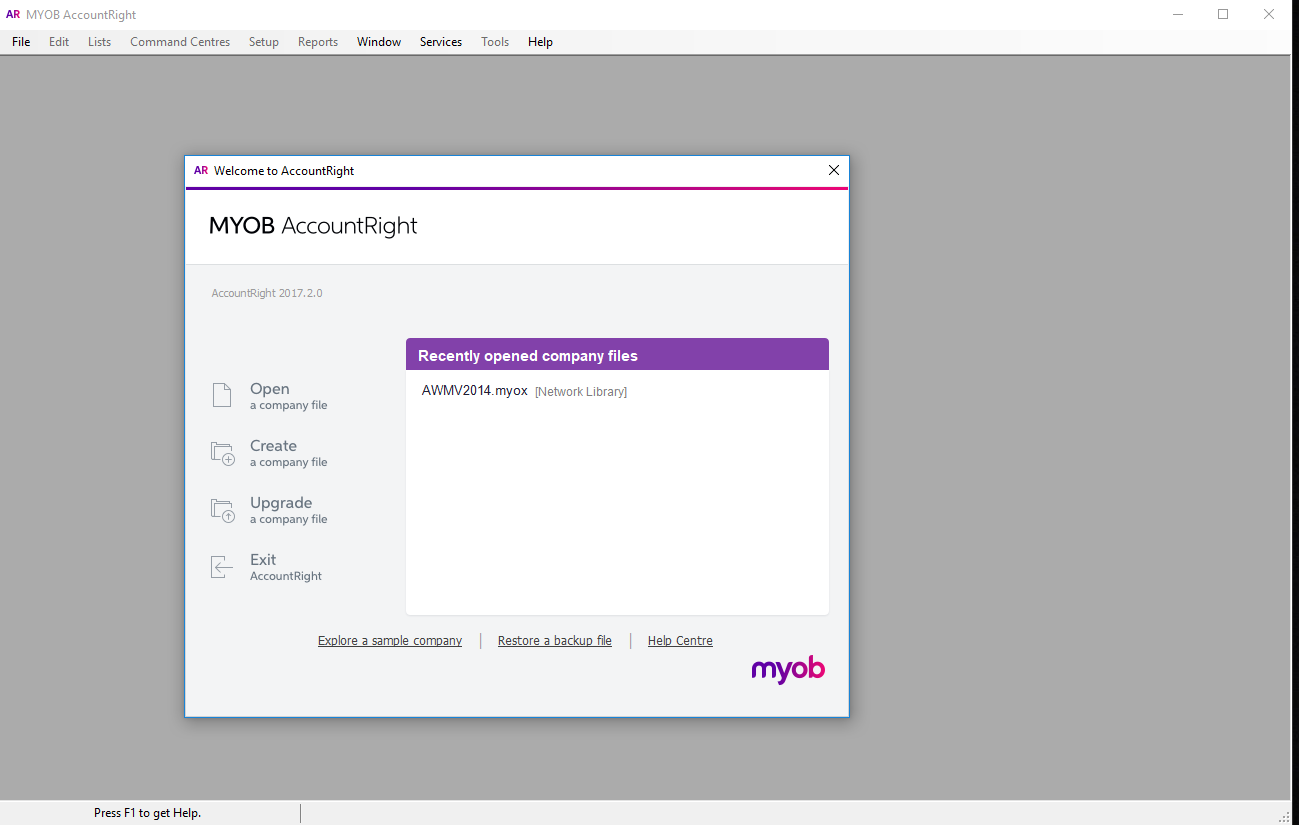
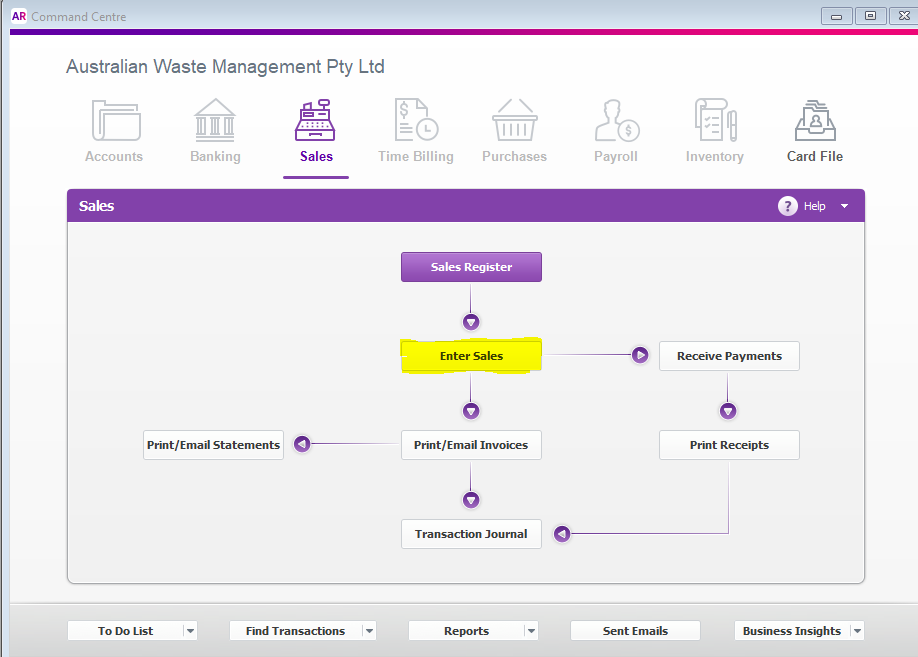
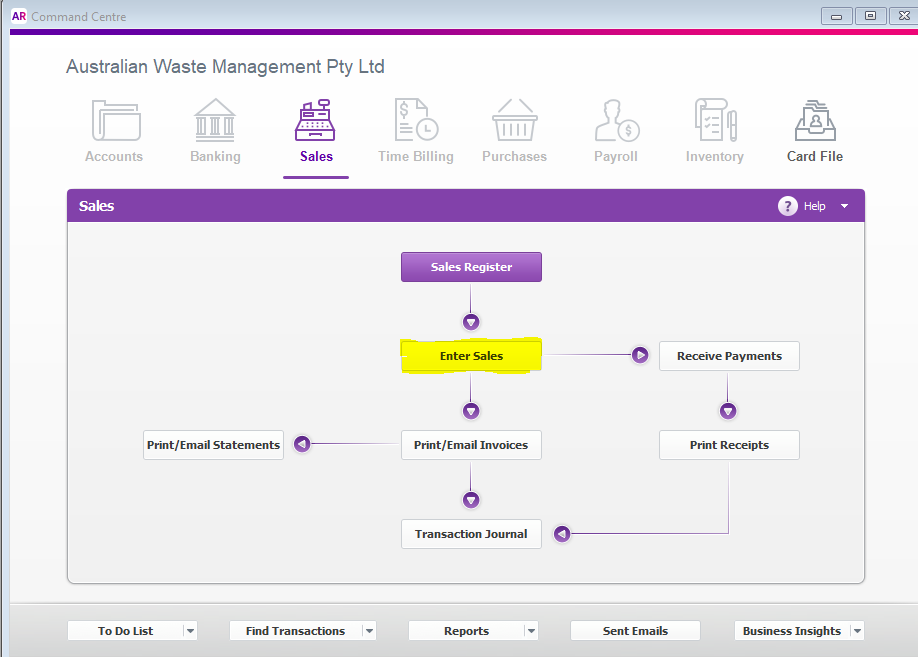
- From the Sales tab go to Enter Sales
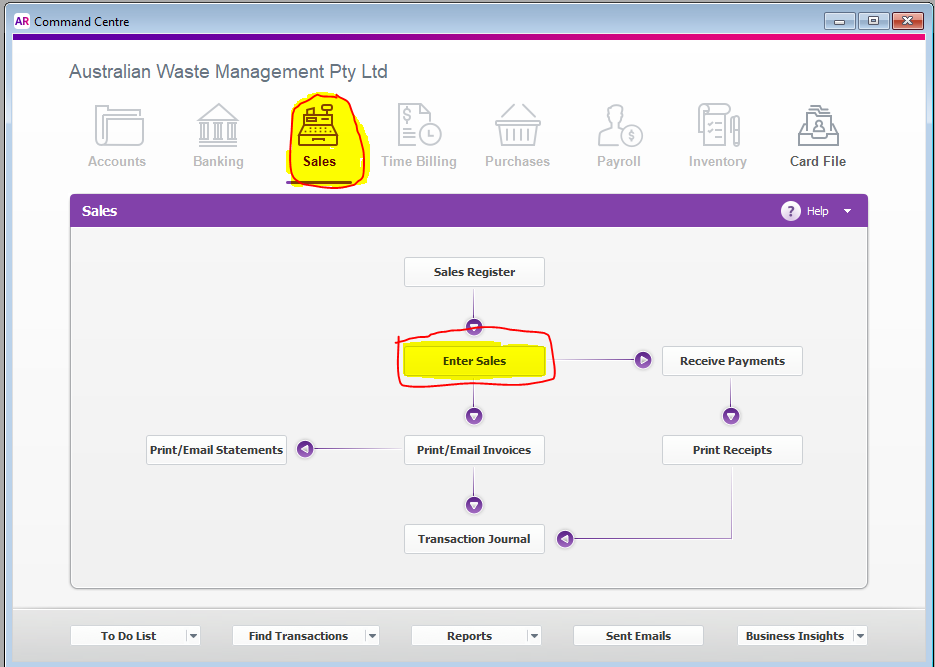
- Enter Customer’s name
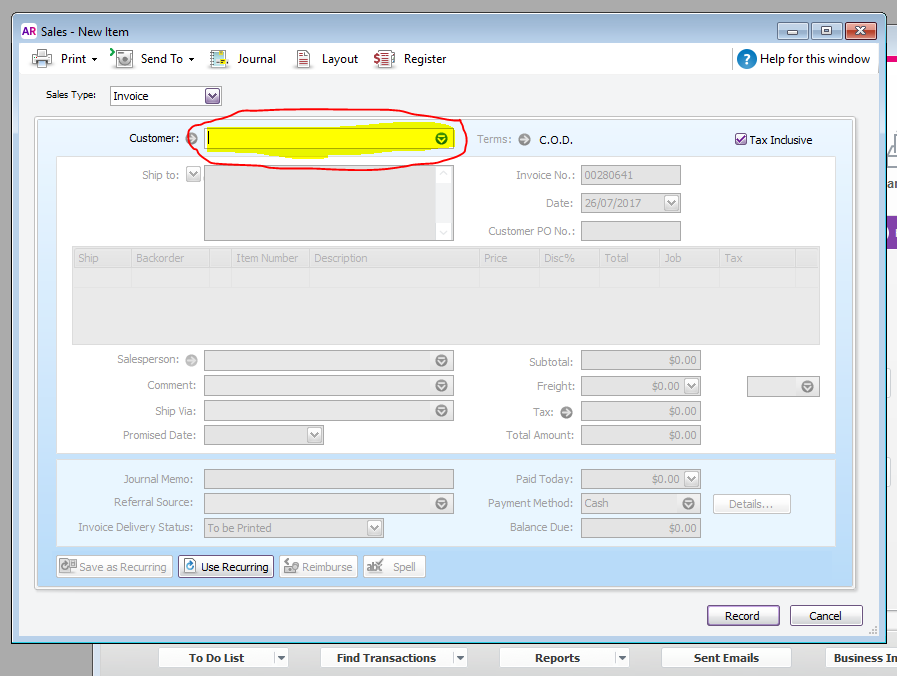
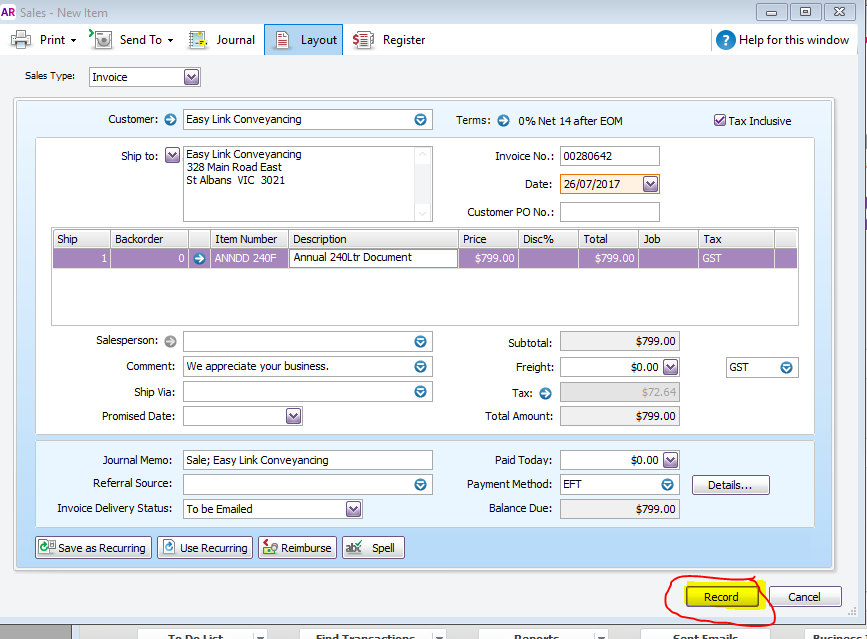
- Enter 1 under ship and enter ANN______ under item number. e.g. ANNDD240A
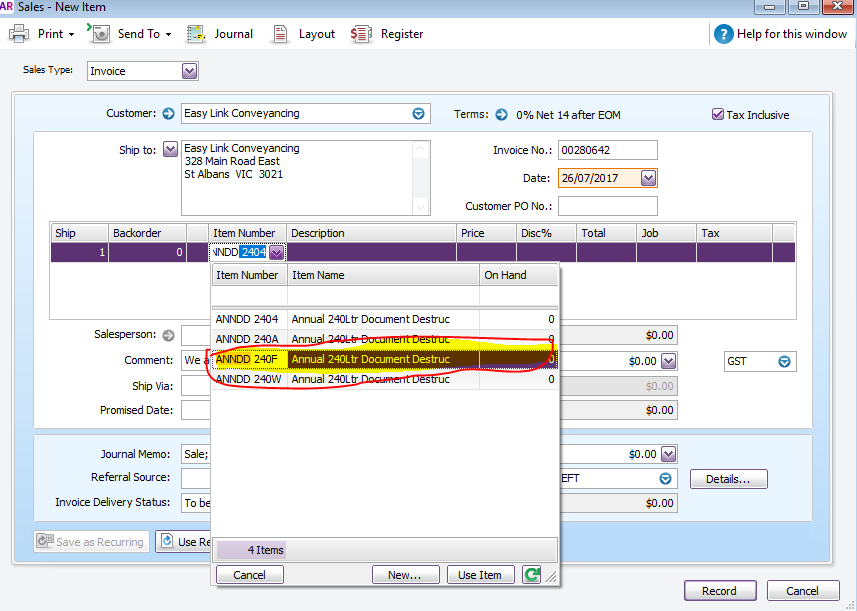
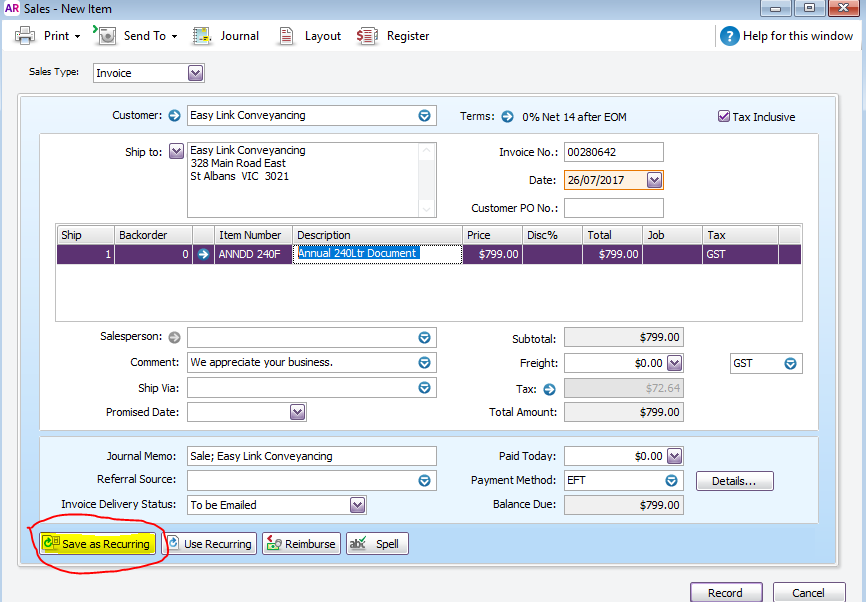
- Click Save Recurring
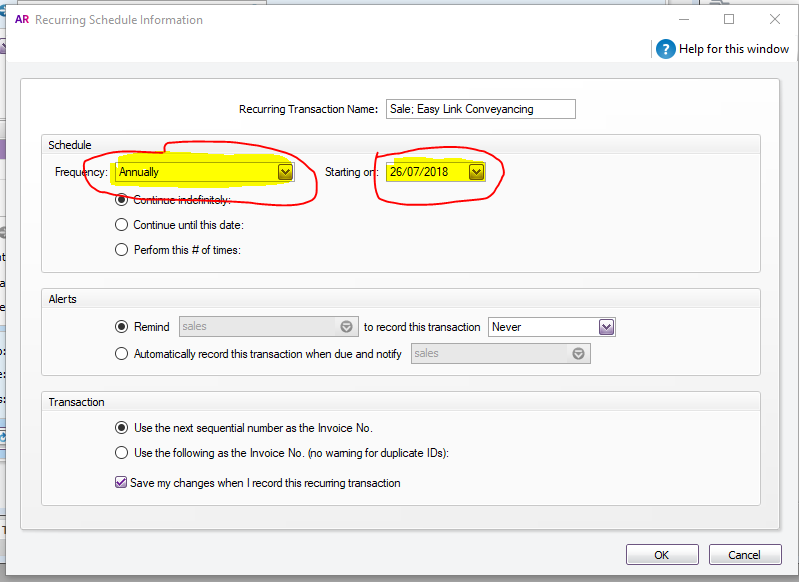
- Change frequency to annually, change the year to the next year
- Click save my changes and click OK
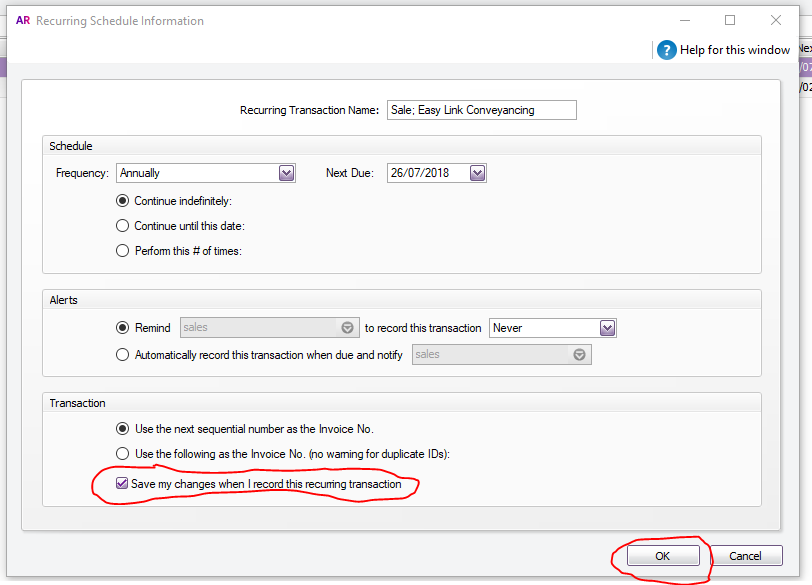
Click record
Step 2 Create Delivery in Myob
- From the Sales tab go to Enter Sales
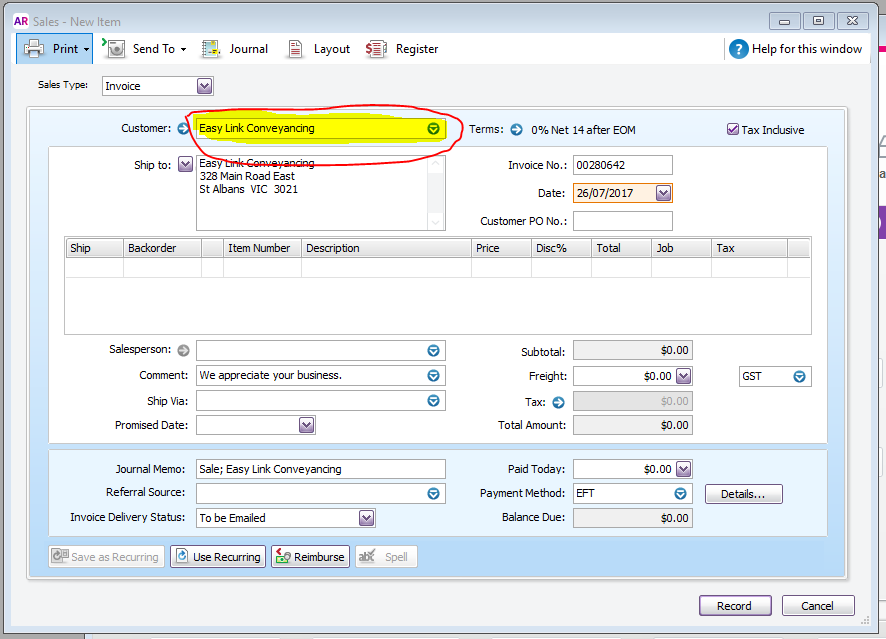
- Enter Customer name
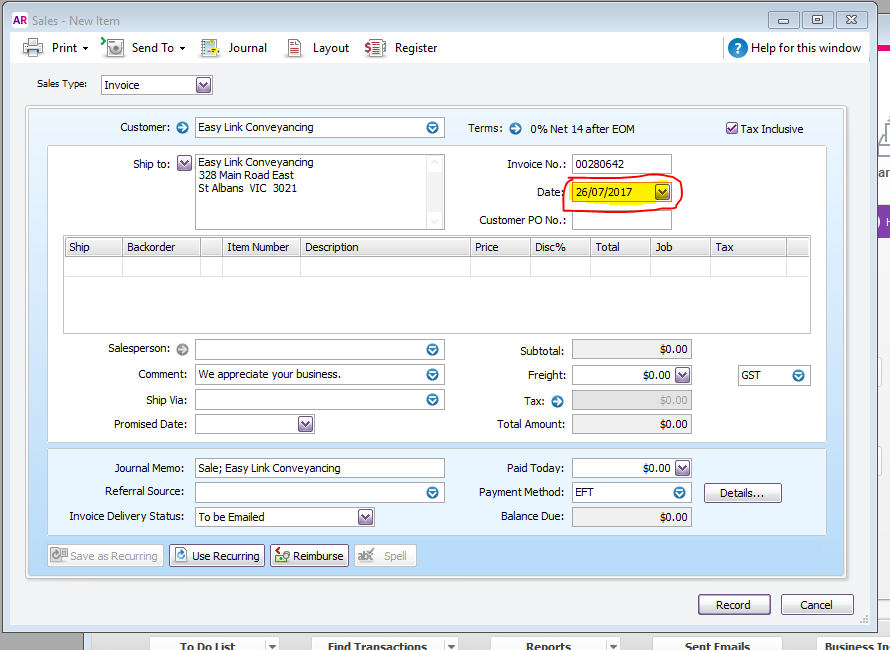
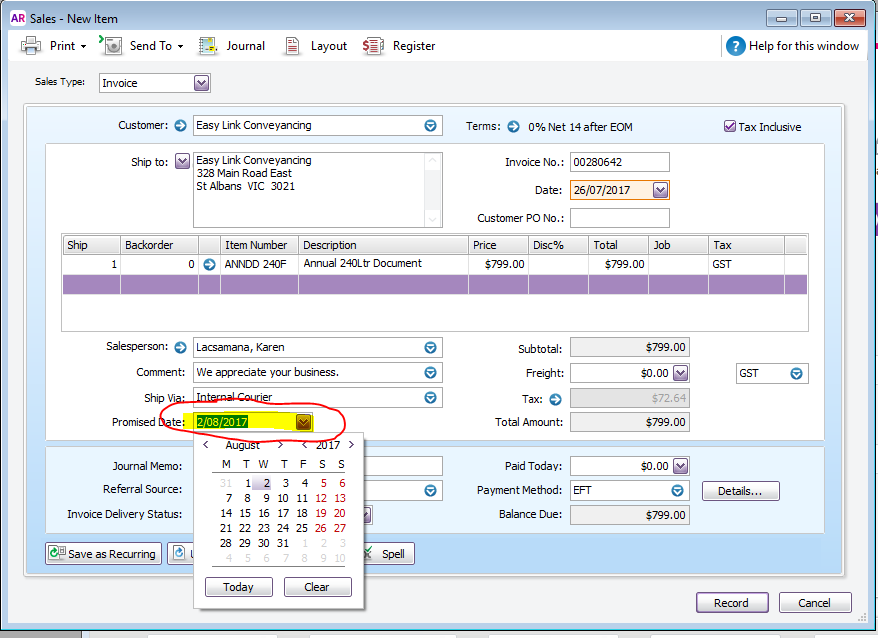
- Date should be the same date as today.
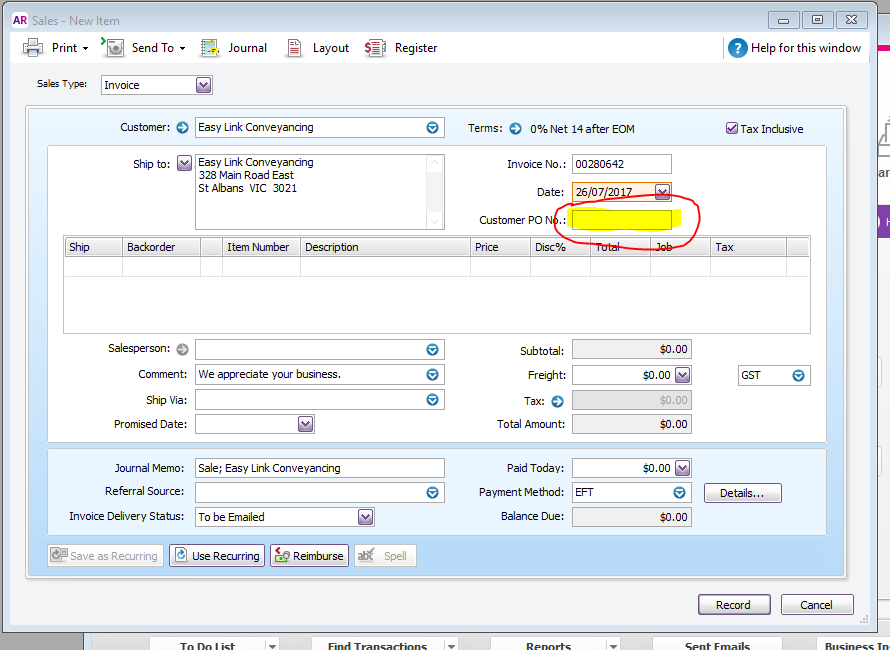
- On PO Number enter the customer’s PO Number if there is. If there is no PO Number add the Customer’s name.
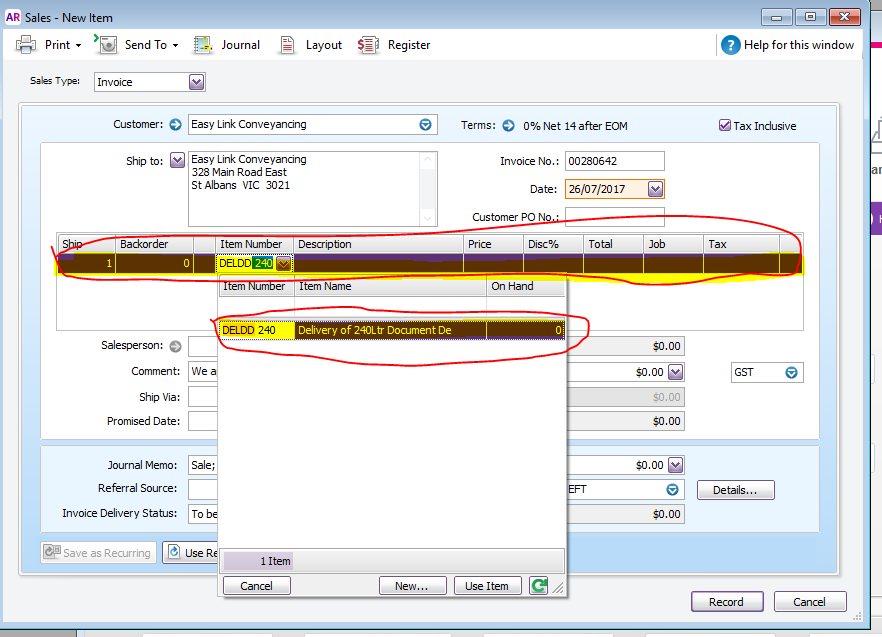
- Enter how many bins needed and enter DEL__ (e.g. DELDD240)
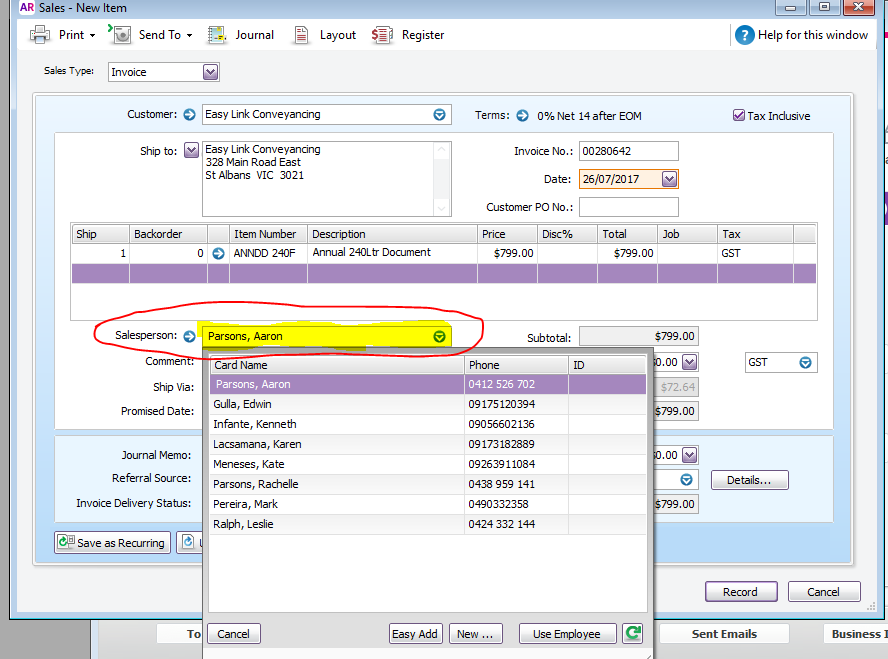
- On Salesperson add your name
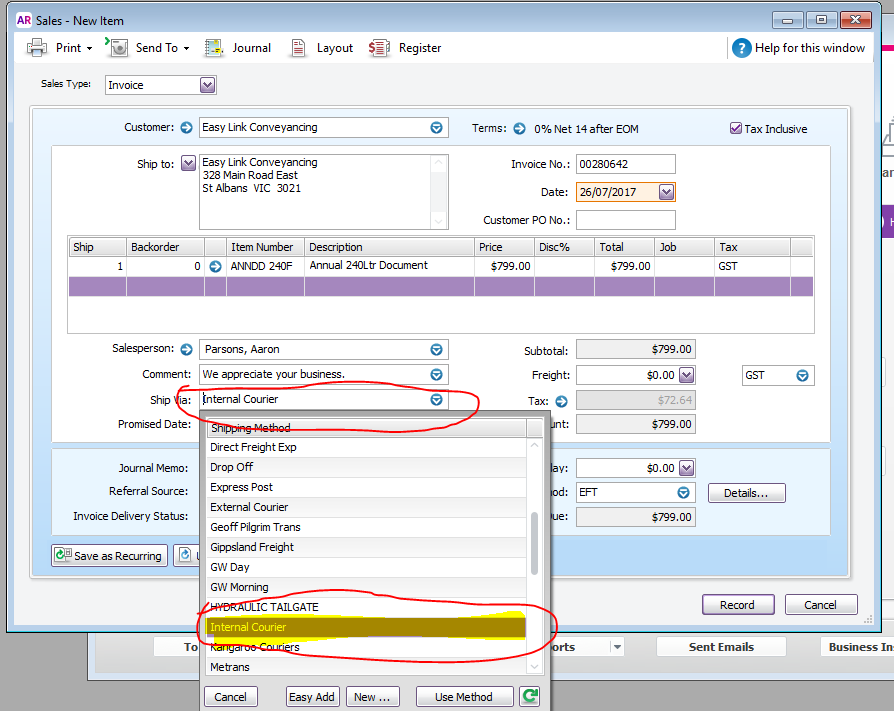
- Ship Via Internal Courier
-
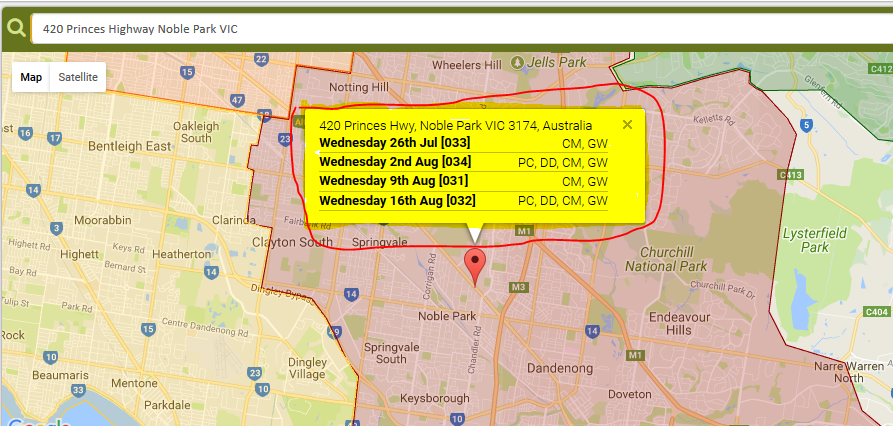
For Promised date, check when is the next day we will be on the area. (AWM Manage Page check if the bin is for PC or DD as there are some areas we only visit fortnightly some 4-weekly)
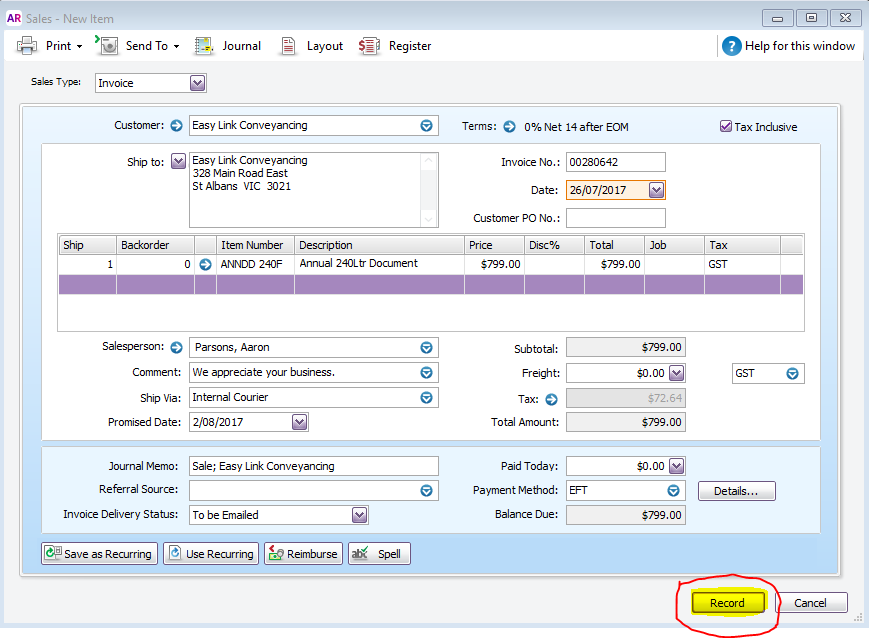
- Click Record
Step 3 Create Frequency in Myob (Skip this for At Call Service)
- From the Sales tab go to Enter Sales
- Enter Customer name
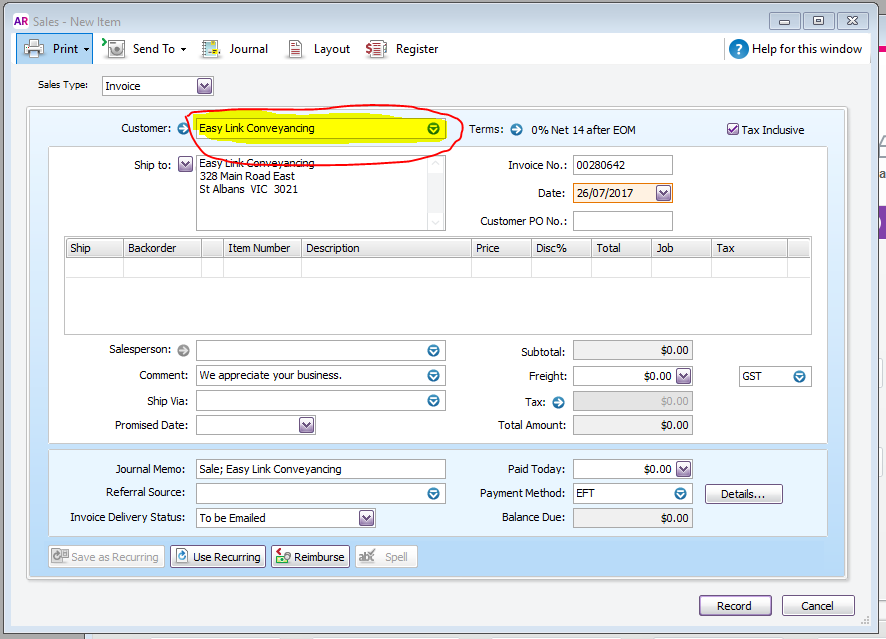
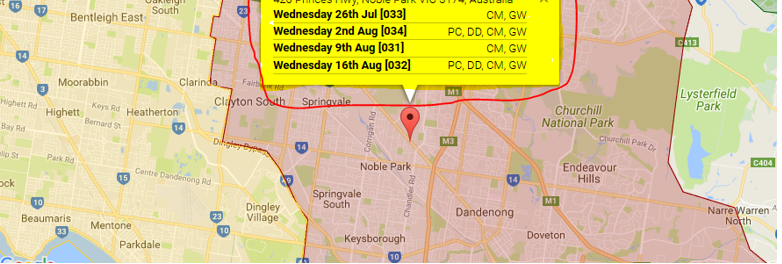
- Enter Next collection date (depending on the frequency, Go to AWM Manage Page to check the next collection date)
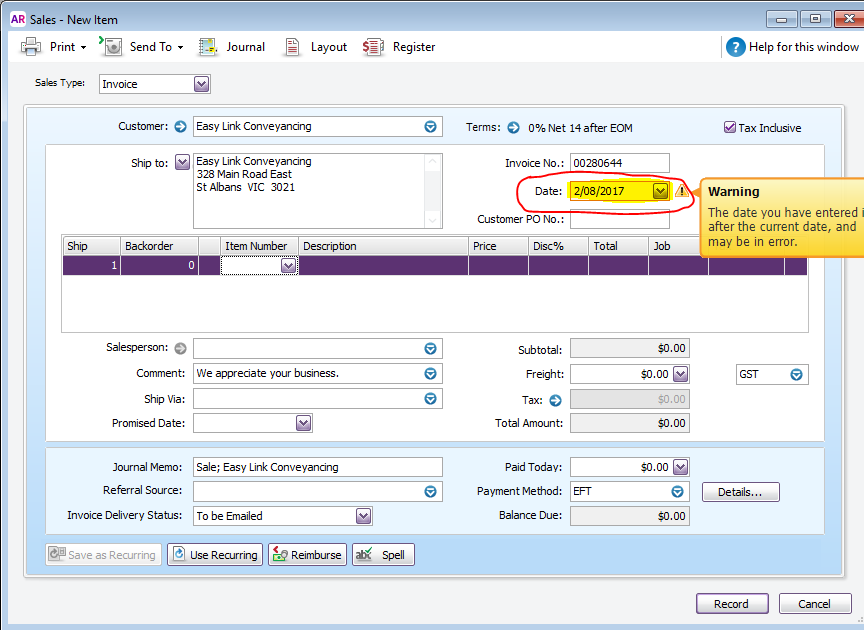
- Enter the Order e.g. DD240
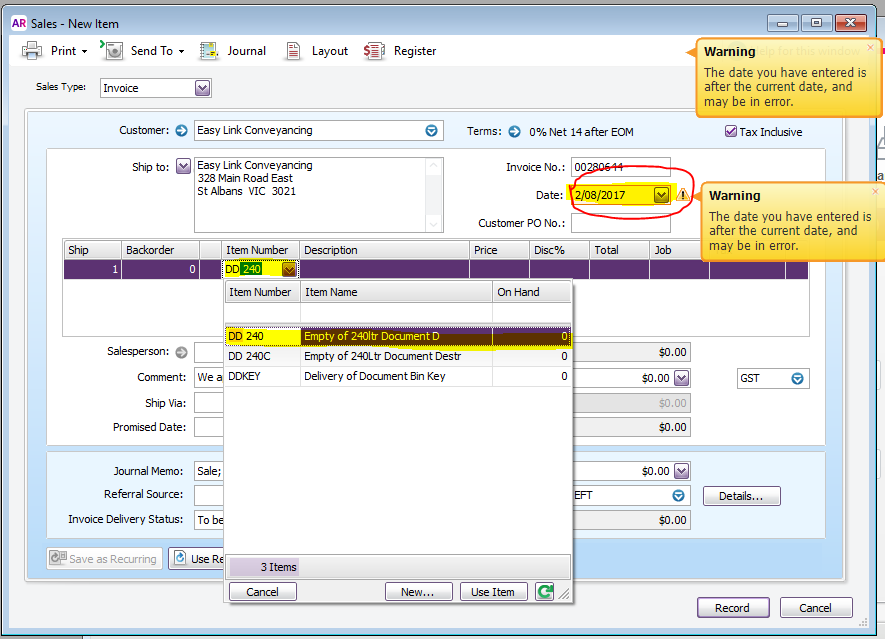
- Leave the promise date and the the Sales Person tab blank
- On the Ship Via choose the truck for the specific service
- Click save recurring
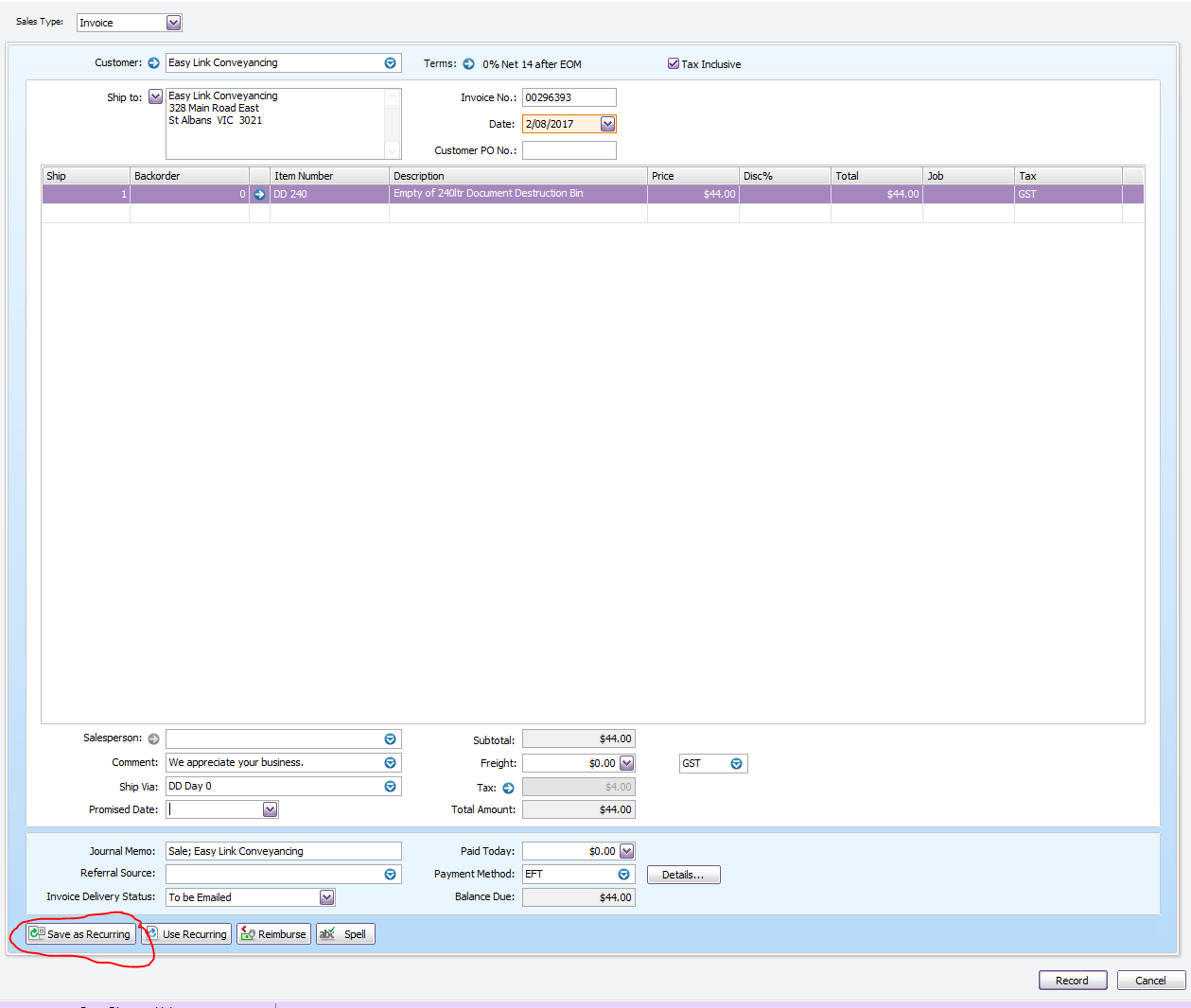
- Change frequency (depending on the collection frequency of the customer)
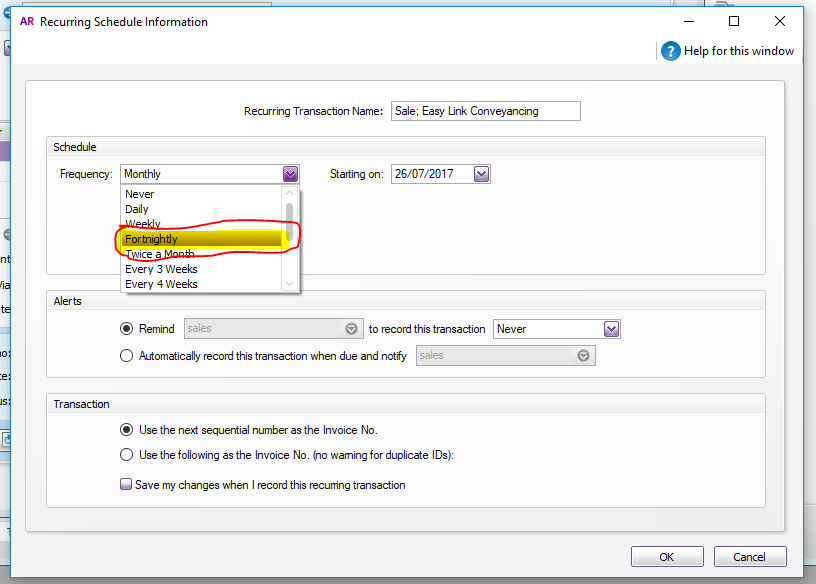
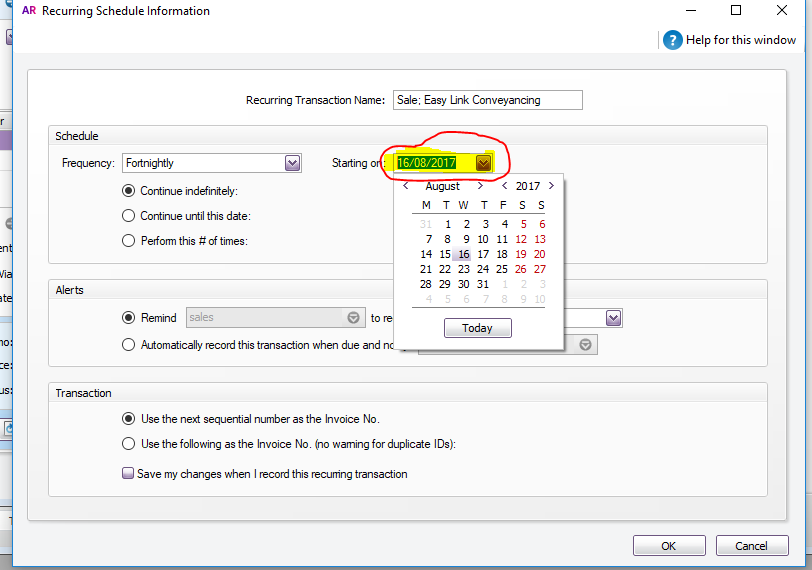
- Change to the next collection date to the next date after. ( e.g. 02/08/2017 next collection is 16/08/2017 because customer is on a fortnightly collection)
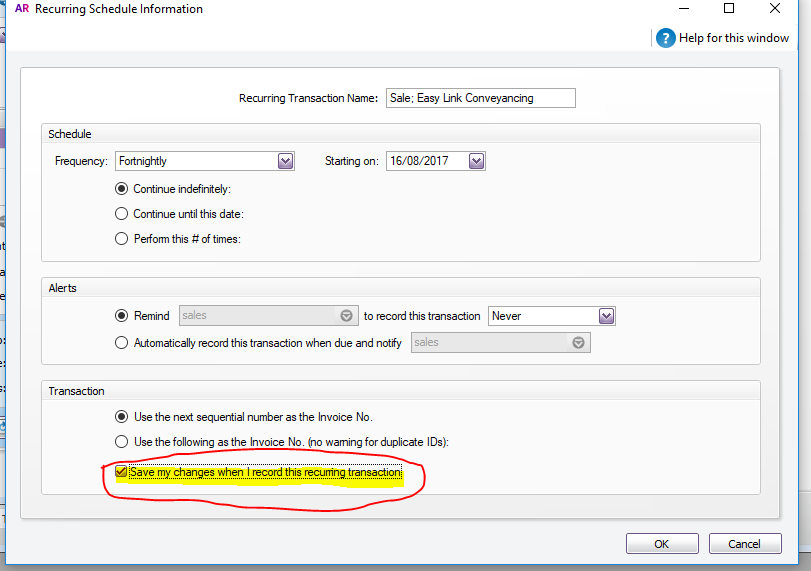
- Click save my changes
- Click ok
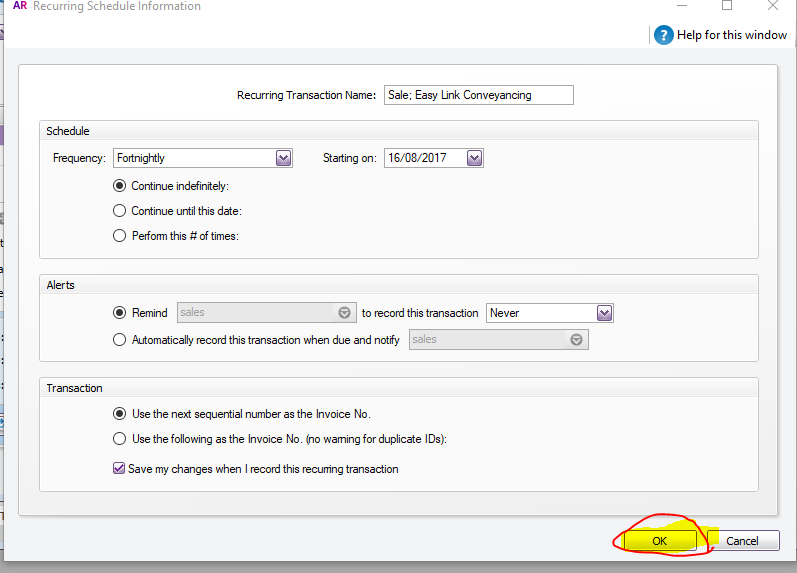
- Click Record
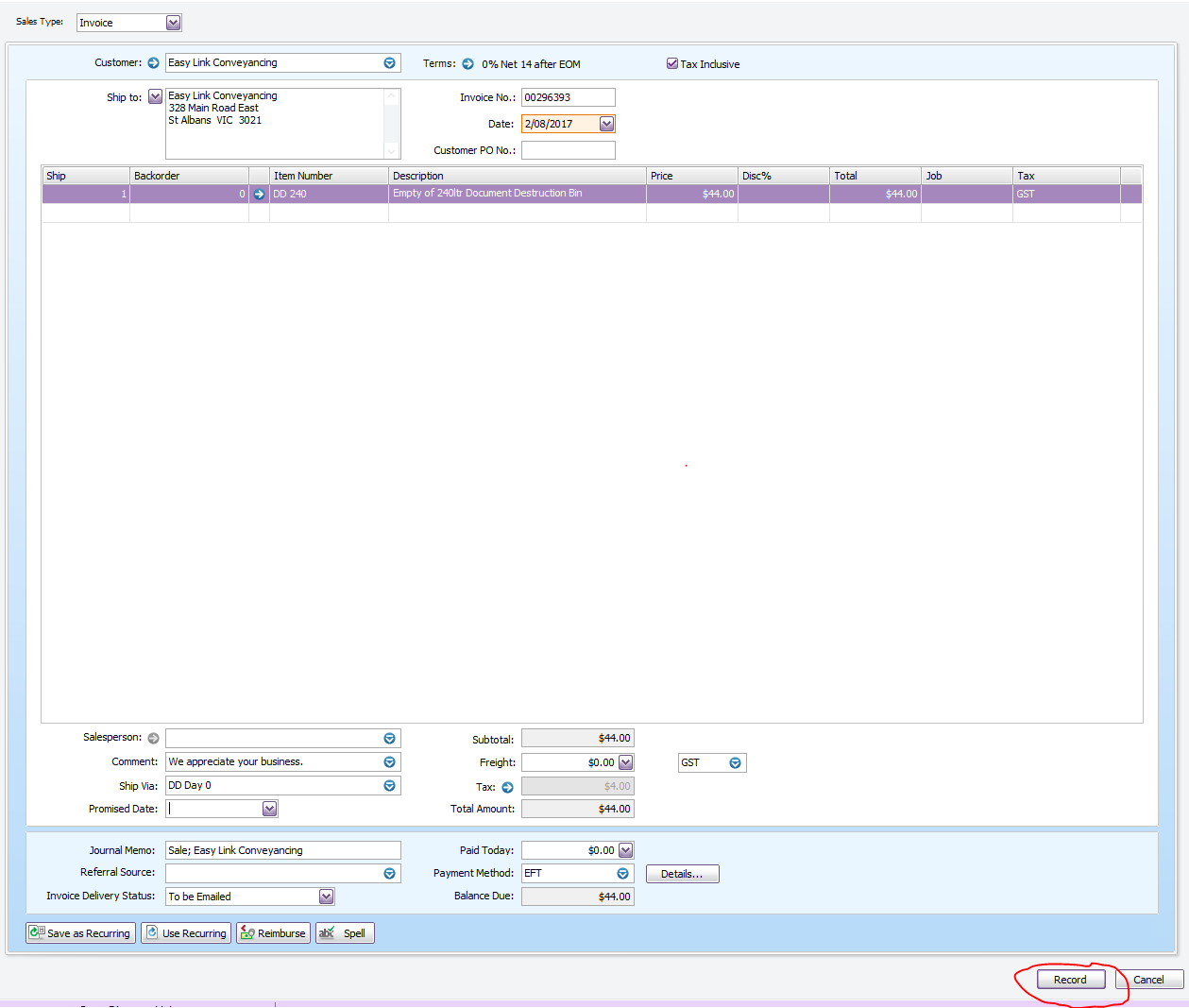
- Send a chat to Kate to check the account prior printing and sending welcome letter
- Advise the logistic team to add the account the core run for scheduled collection
Step 3 Welcome Letter
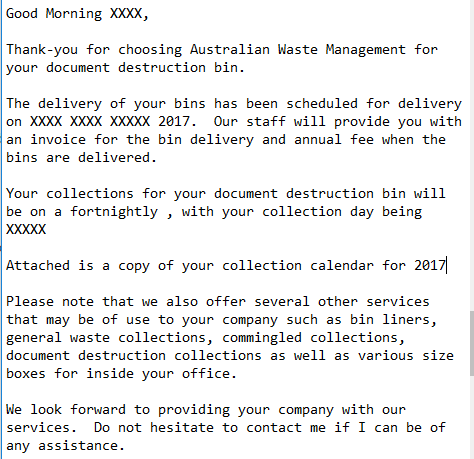
- Email he welcome letter to the customer with the delivery date and the schedule of collection. Attached the collection calendar to the email as well
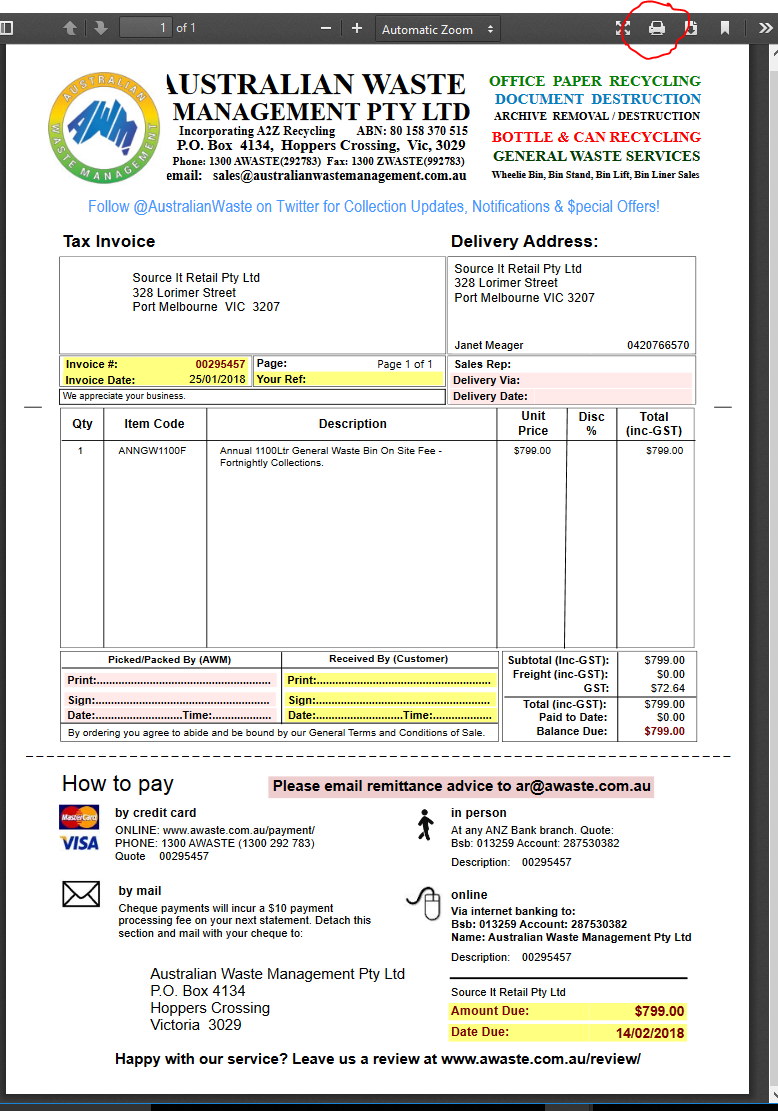
- Print the Delivery Invoice (2 copies) and the Annual fee Invoice ( 1 copy)
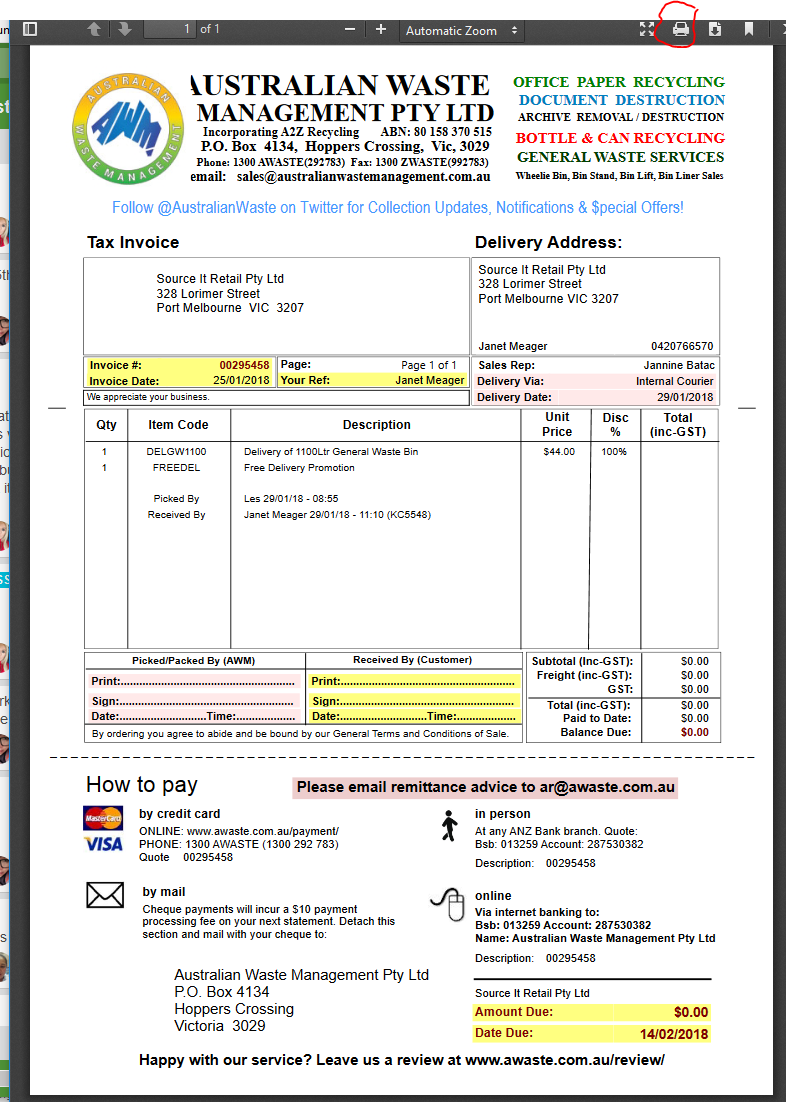
- Send a chat at Despatch chat room with the company name and invoice number

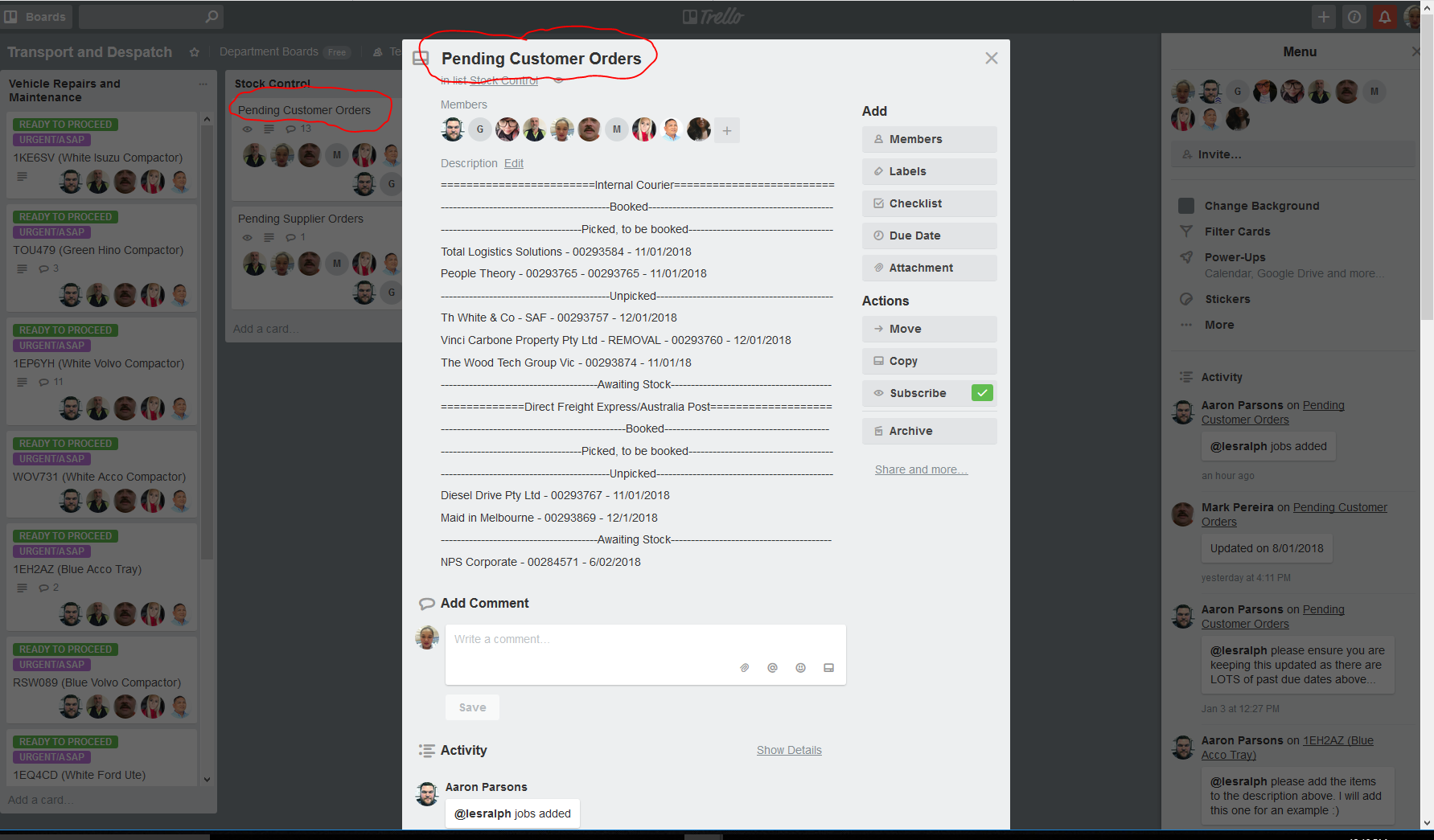
- Add the Delivery on Trello https://trello.com/b/YMnfBBY8/transport-and-despatch
- Follow the format Company Name - Order Number - Date of Delivery
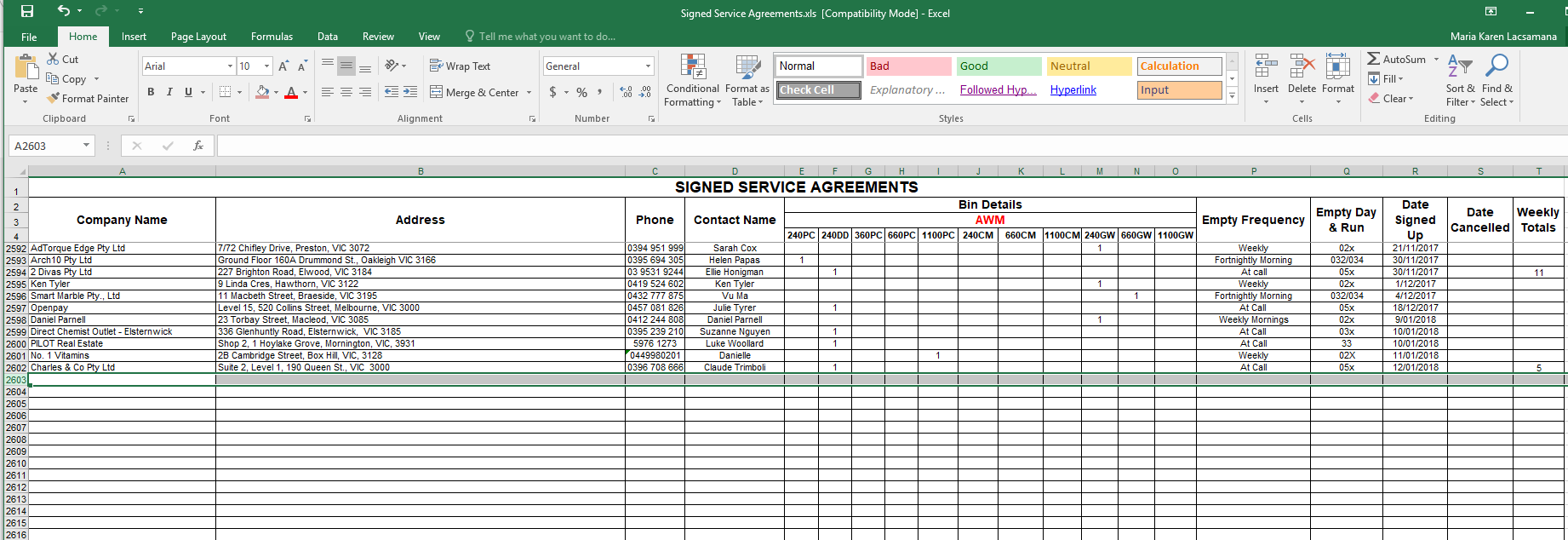
- Add the Service Agreement Form in excel file on Z:\Australian Waste Management\Current Year\Saved Service Agreements
Comments