Fixing KC Jobs When a Wrong Job is Incorrectly Marked as Completed and the Driver Has Already Left
Posted at July 26, 2019 03:07 pm. Last updated at August 12, 2019 04:08 pm
When a job is incorrectly marked as completed, to correct the error, you can:
1. Double click the incorrect job that has marked as completed.
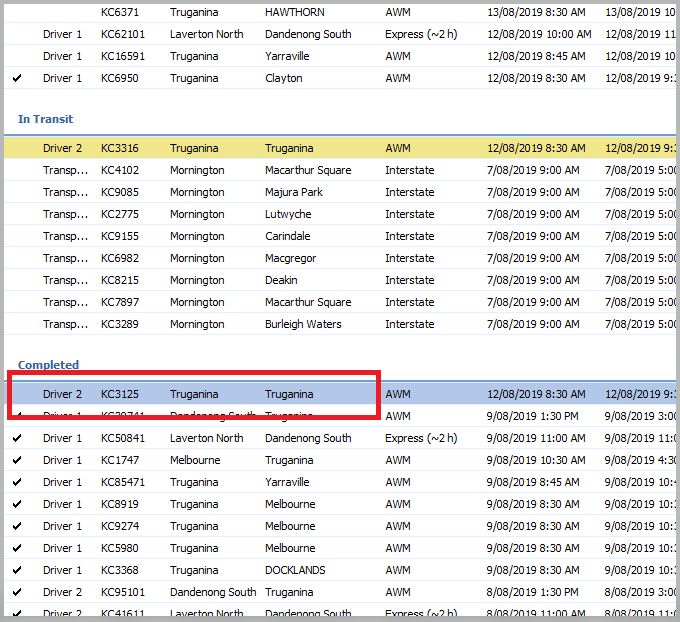
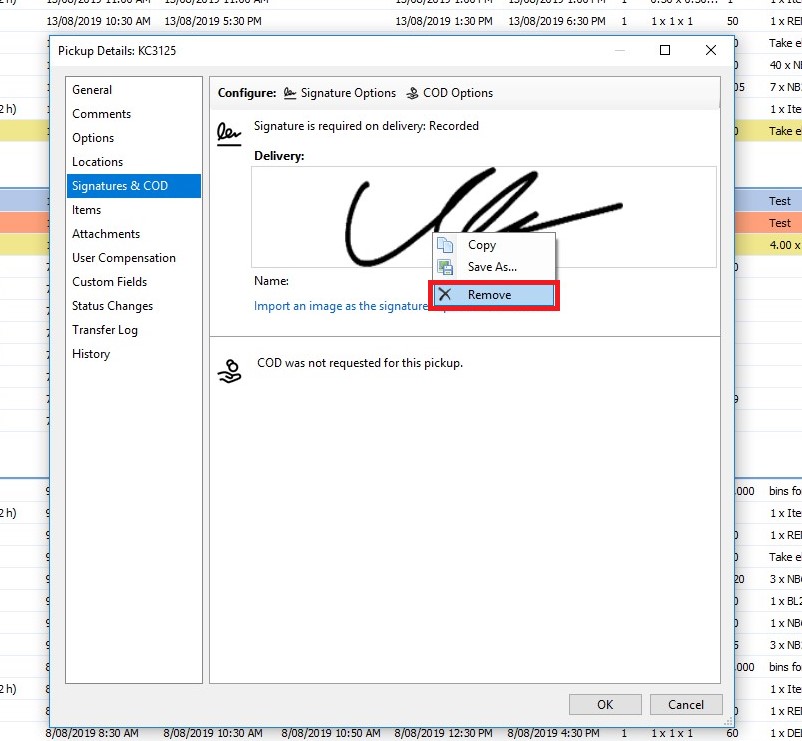
2. Click "Signatures & COD" tab of the incorrect job
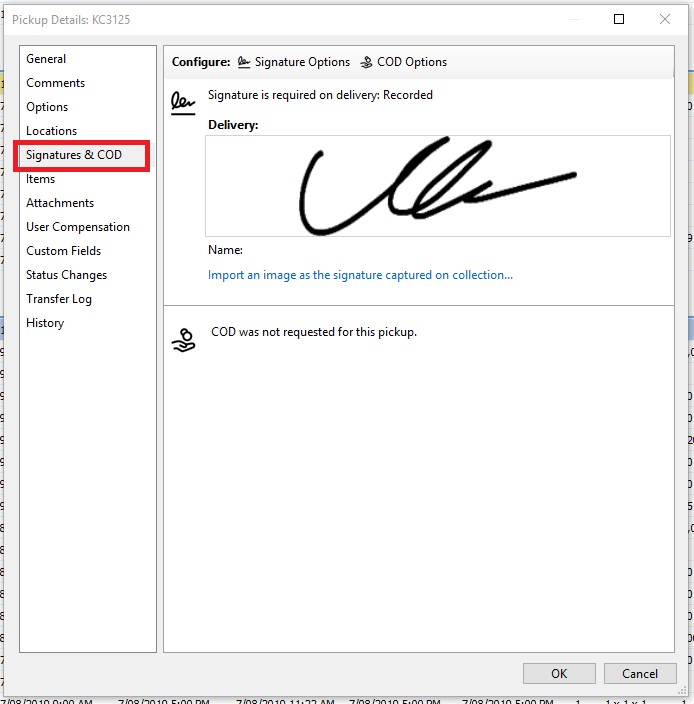
3. Right click the incorrectly uploaded signature, and click "Save As..." to save.
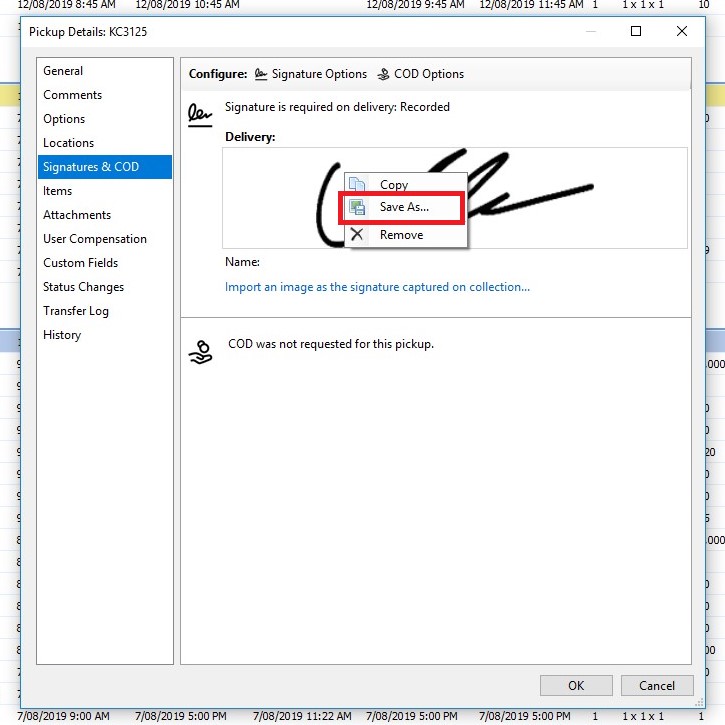
4. Temporarily save it to “Downloads” (just delete it after you save it to the correct job).
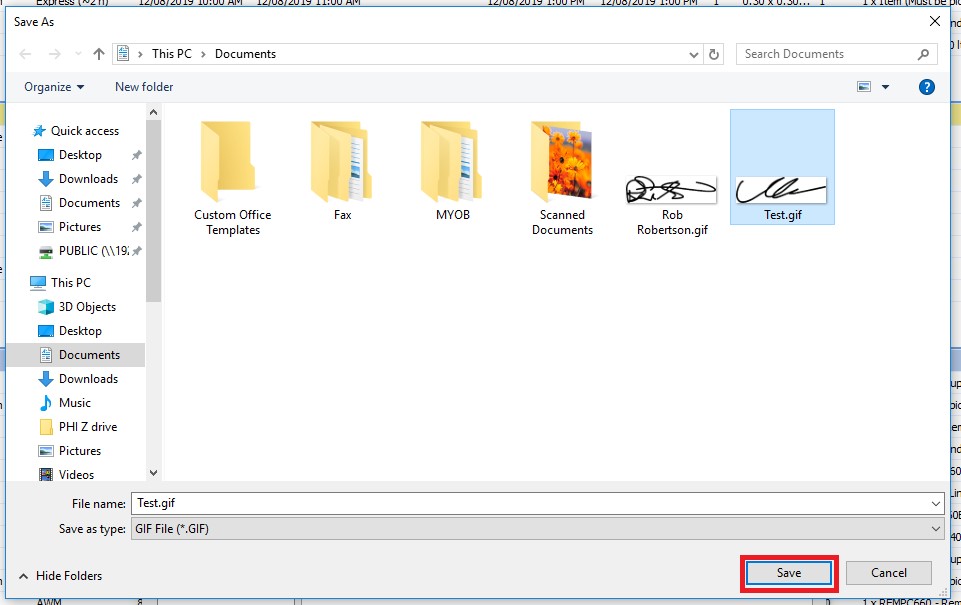
5. Remove the signature from the incorrect job.
6. From the "Locations" tab, grab the persons name, time it was signed for, and any other details that need to be copied across to the correct job at that stage while in that job.
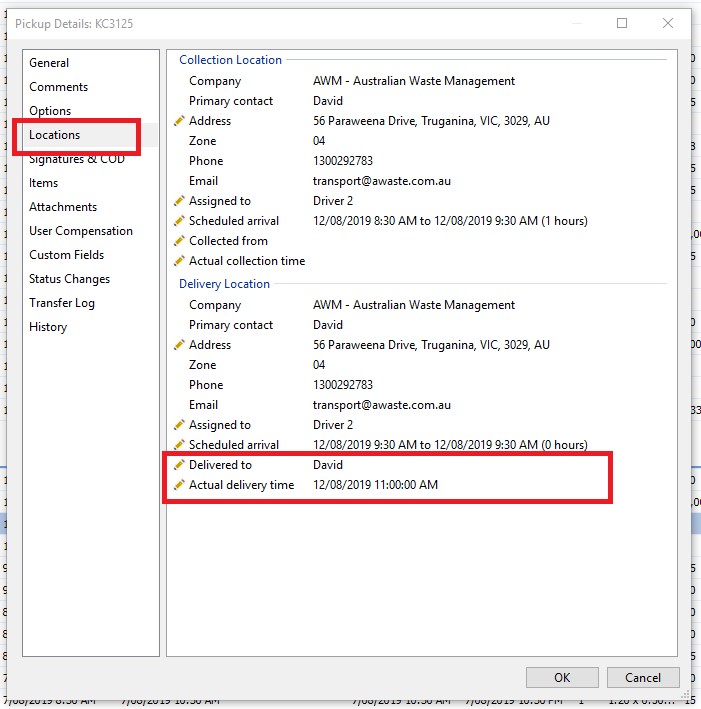
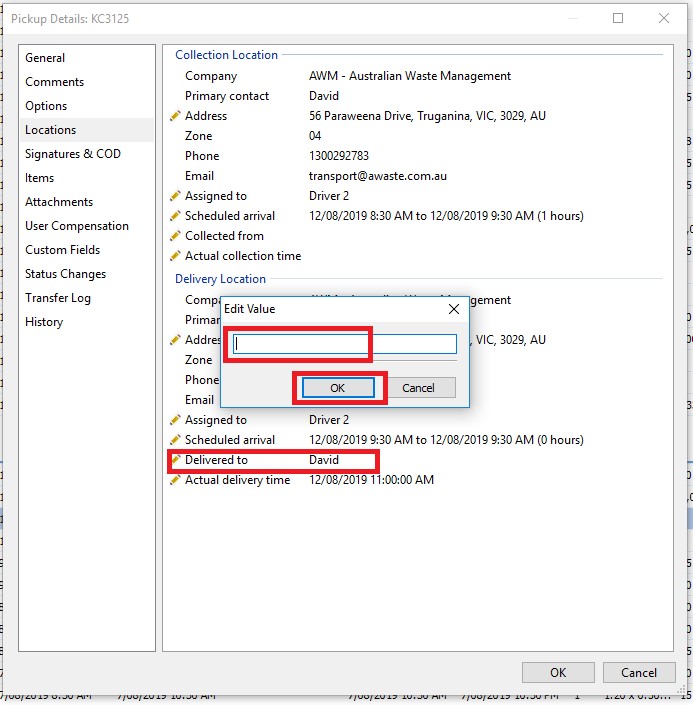
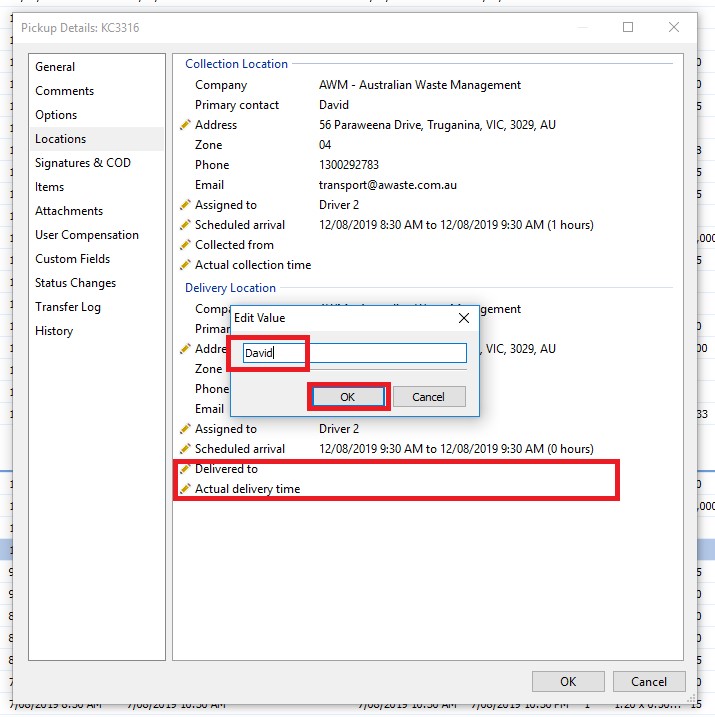
7. Remove those information from the incorrect job by double clicking "Delivered to" and "Actual delivery time", erasing the value in the "Edit Value" text box, and clicking "OK".
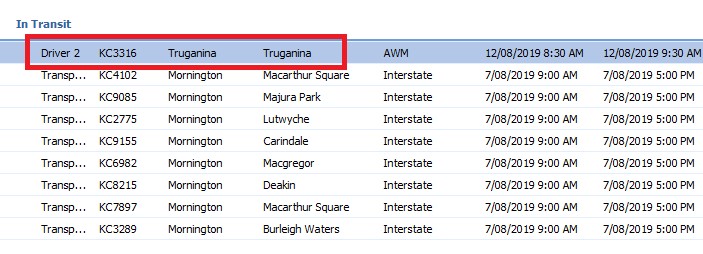
8. Close the incorrect job by clicking "OK", and open the correct job.
9. Click "Signatures & COD" tab of the correct job
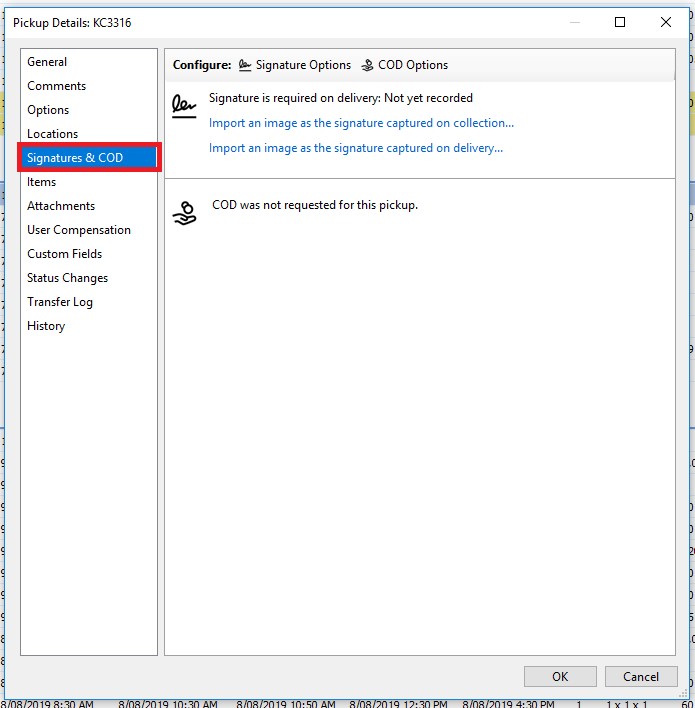
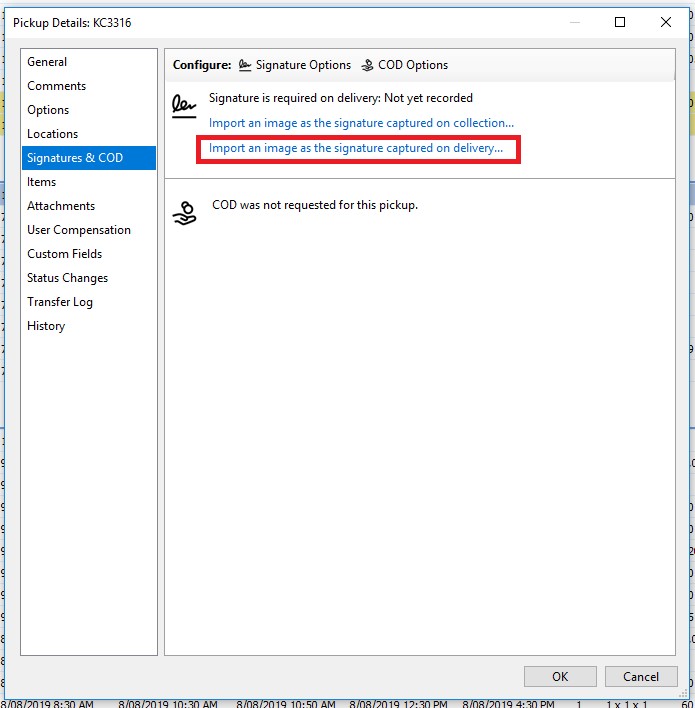
10. Click on "Import an image as the signature captured on delivery"
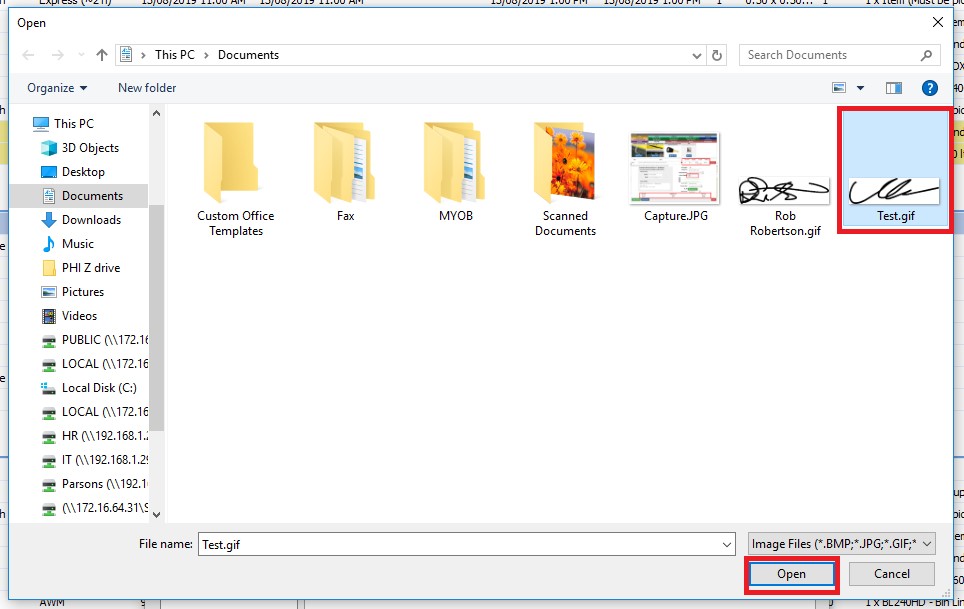
11. Locate the previously saved signature. Click it, and click "Open".
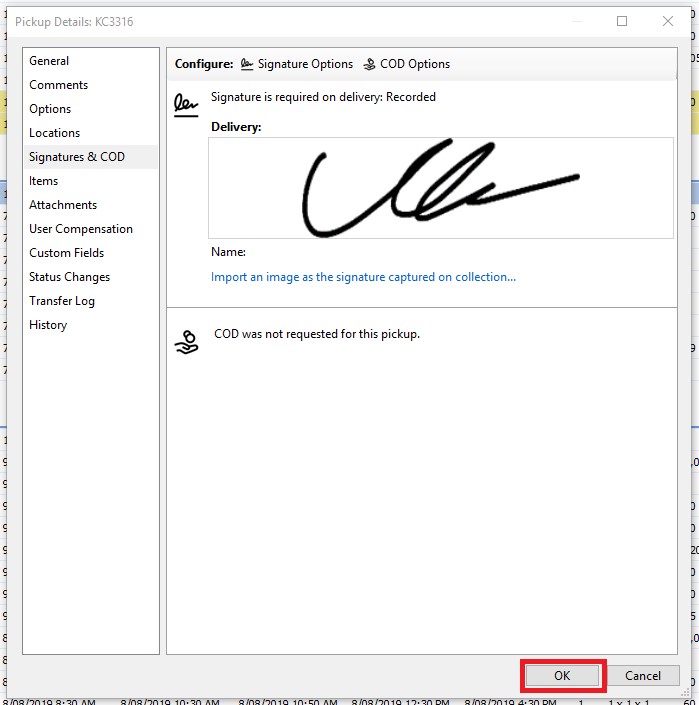
12. Click "OK".
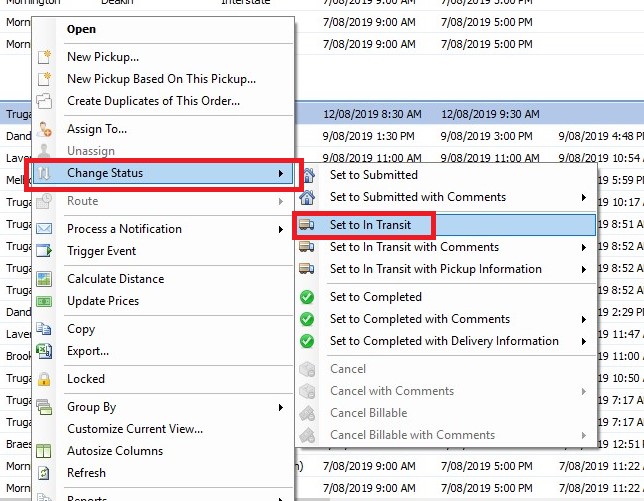
13. Right click on the incorrect job and select "Change status" to "Set To In Transit".
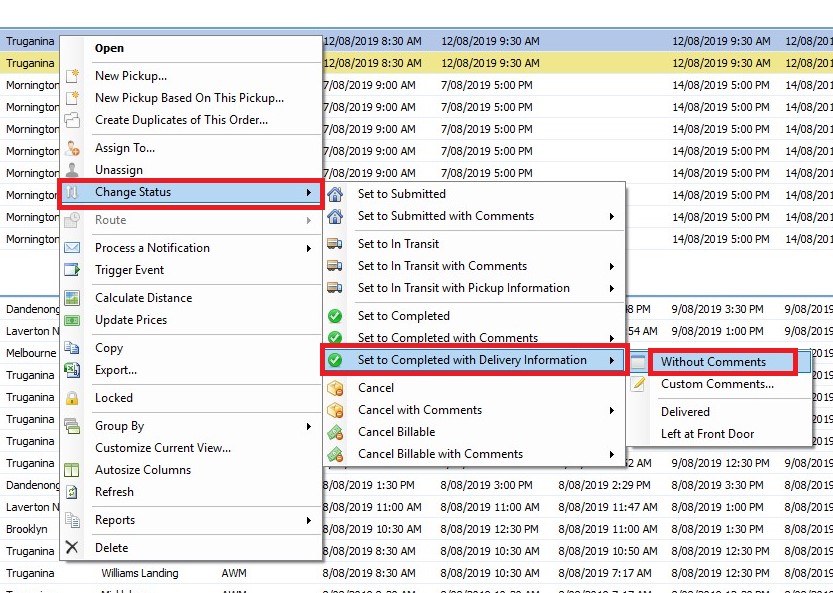
14. Right Click on the correct job and select "Change Status" to "Set To Completed with Delivery Information without Comments"
15. Check the "Locations" tab to ensure the "Delivered To" field is correct based on the information entered into the incorrect job. If it is not, click on it and change it.
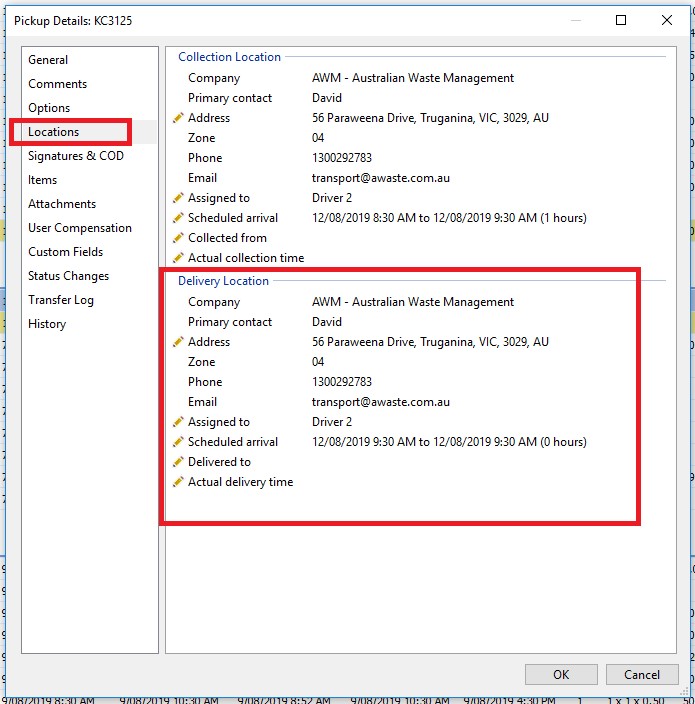
16. Add all the details from the incorrect job (Item 6) to the correct job.
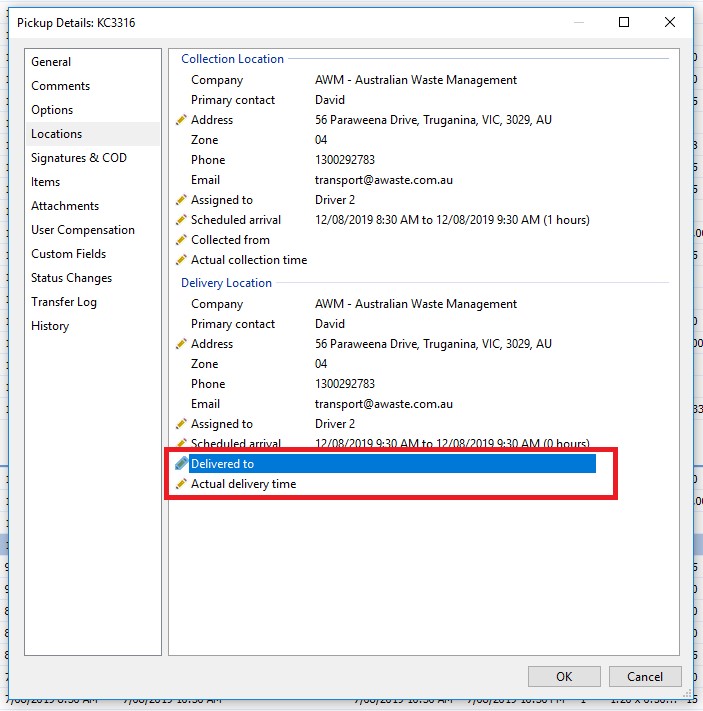
17. Double click "Delivered to" and "Actual delivery time", type the value in the "Edit Value" text box, and click "OK".
Comments