Online Order Processing
Karen Lacsamana
Posted at January 08, 2018 03:01 pm. Last updated at October 29, 2019 05:10 pm

Online Order Processing
- Go to AWM Manage Page
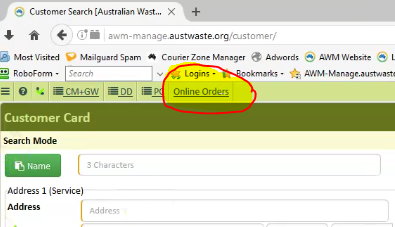
- Click Online Order
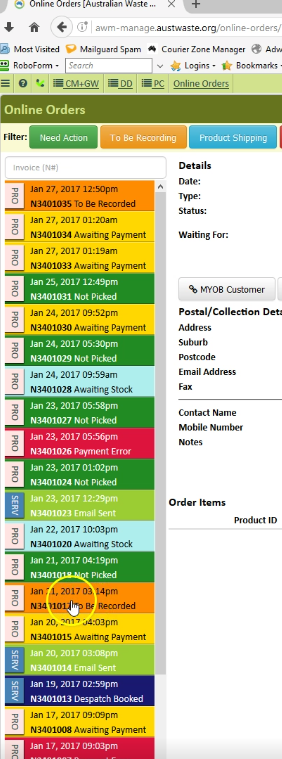
- Work on the “To Be Recorded Orders” (Orange)
- Check the Payment, Payment Receipt, and Payment Message
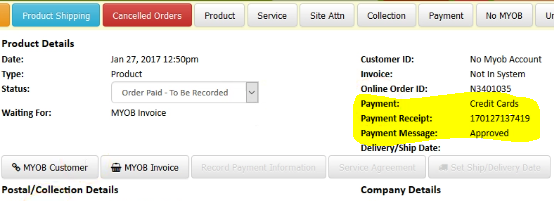
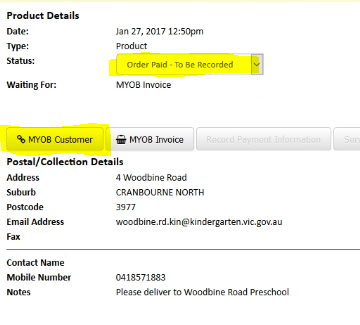
- Verify the Status is in “Order Paid-To Be Recorded” and Click MYOB Customer
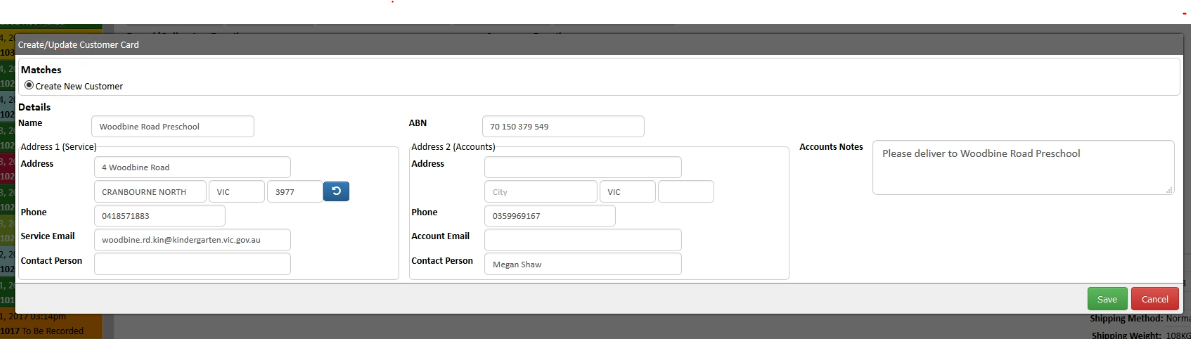
- Once you click MYOB Customer this screen will show, if the customer has no existing account with u
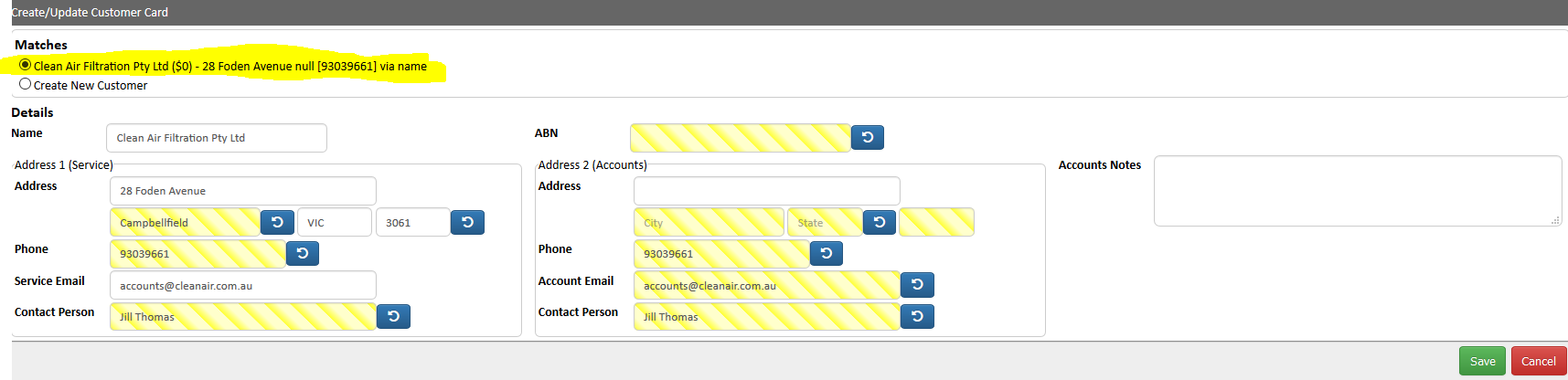
- If the customer is an existing customer, Choose the customer account on file (Verify all information are the same) Do not create another account for the customer
- Fill up the necessary field and click Save
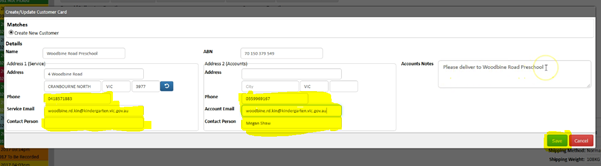
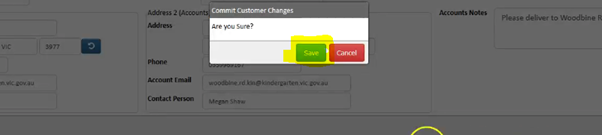
- You will now see that the customer has an account in MYOB
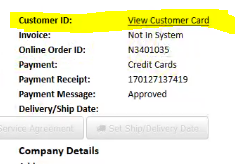
- Click “MYOB INVOICE
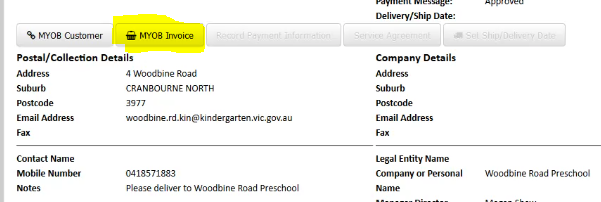
- The screen will show details for the order. Verify all information are the same. (prices and number of items item description)
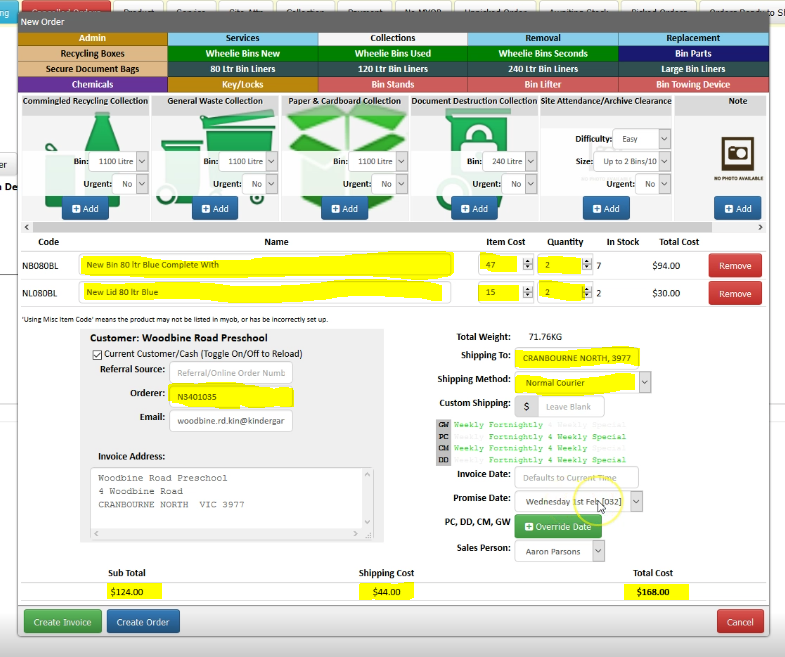
- Verify stocks are available

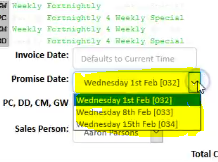
- Change the Promise date to the next day that we are on the area
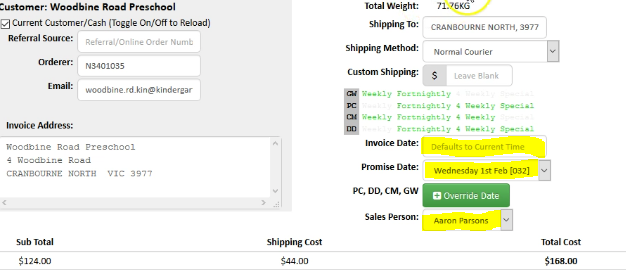
- Click the Invoice date to today’s date (if you did not fill this up, it will default to today’s date)
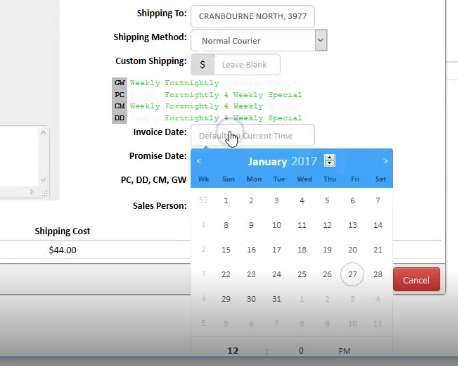
- If you want to change the delivery date you can change it and select for the Next Date we cover the area
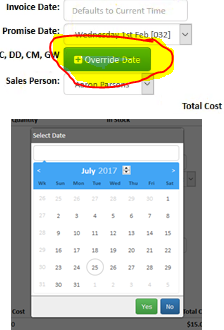
- Click Override Date for any days we do not cover the area or for Urgent Delivery and choose the applicable date and click Yes
- Change the Sales Person name to your name
- Add notes if there are special delivery instructions.
- Make sure to follow the standard note procedure:
WHO: Name of the person you talked to
HOW: How you contacted them( or how they contacted us)
WHAT: What they wanted
WHY: The reason why they wanted it
WHEN: Date of Contact
WHO: Your Initials
- Make sure to follow the standard note procedure:
- Click Create Invoice for new customer if the stock is available and the order was paid. For existing customers we can invoice them.
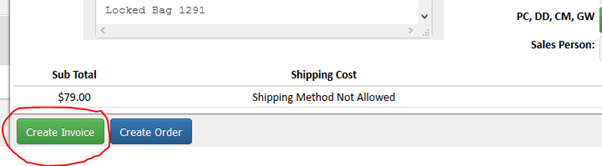
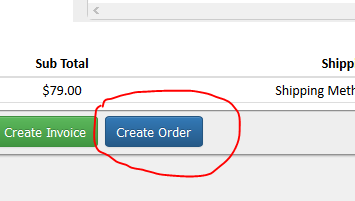
- Click Create Order if stocks are not available or still waiting for payment
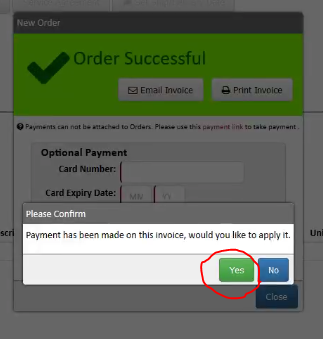
- To apply the payment on the invoice click 'YES"
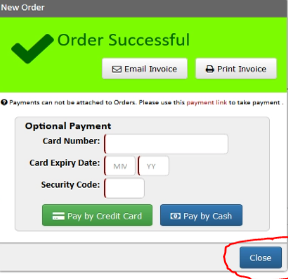
- Click close to close the pop up box
- Click the Invoice Number Created (this will open the AWM Manage Customer Search page
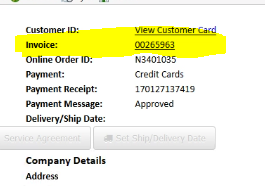
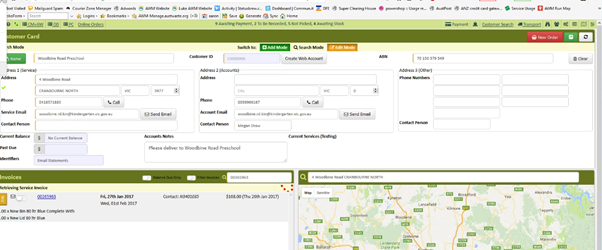
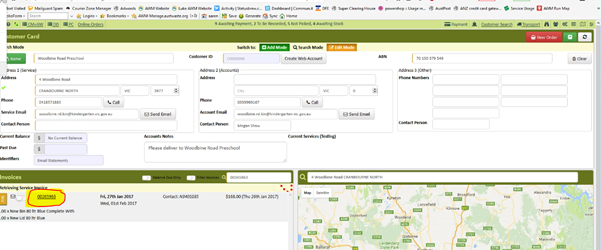
- Click on the invoice number to print the invoice
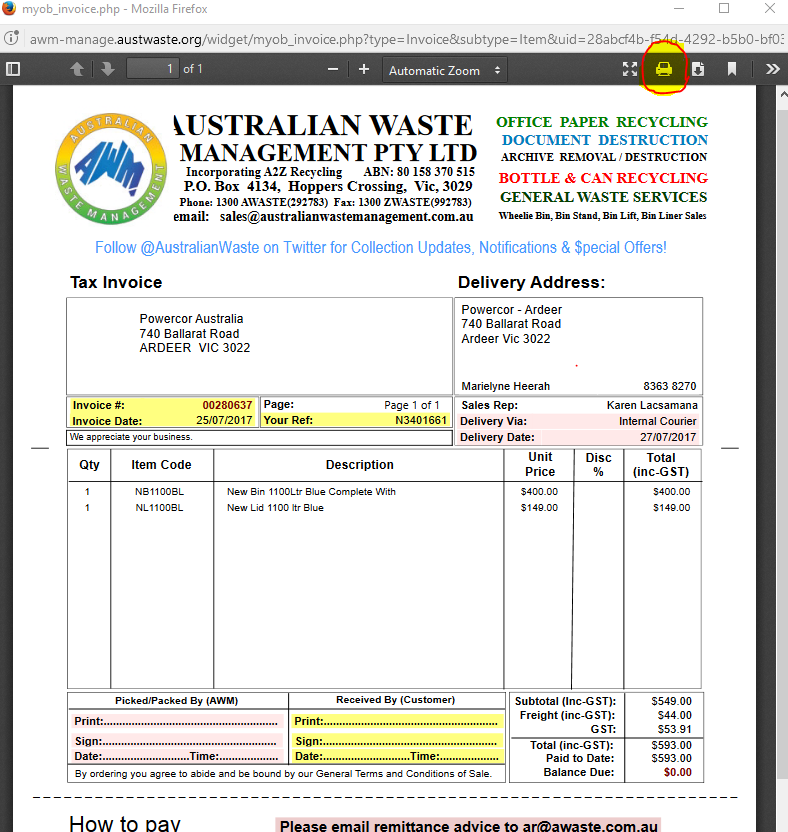
- Click the print icon on the invoice page
- Choose Transport Printer (print 2 copies)
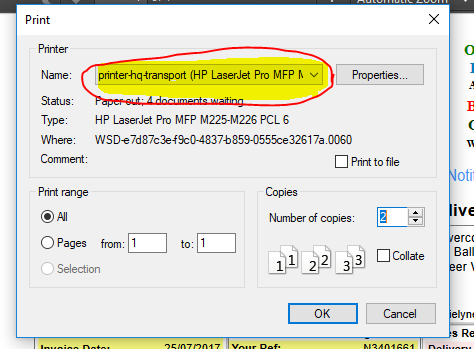
- Send an Email to the Customer informing them that order has been processed and provide the delivery date.
- Send a chat on Despatch Chat room with the Name of the customer and order number also inform them that the invoice was printed and an email was sent

- Change the status on online order page to “Product Paid not Picked"
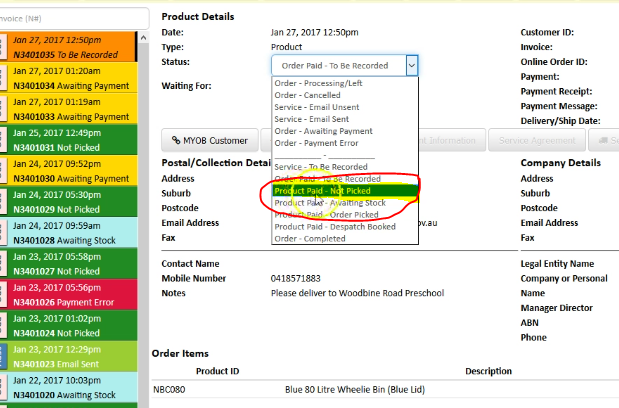
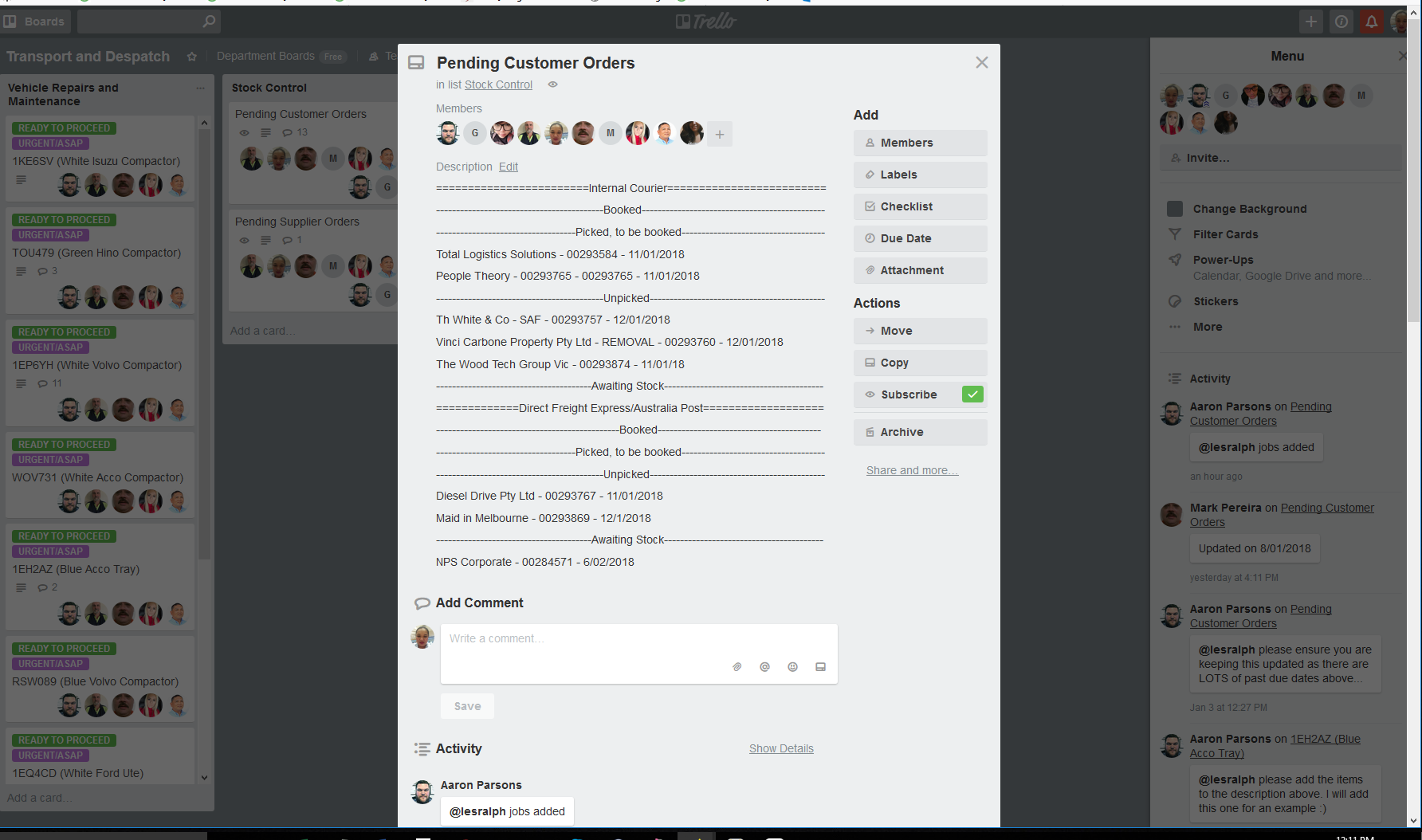
- Go to Trello and Add the order of the customer. https://trello.com/b/YMnfBBY8/transport-and-despatch
Comments